Contents
Introduction
When accessing an NVR through Cloud Access on an Omada Fusion Pro Gateway, Live View or Playback may remain stuck in a loading state or display Device Not Responding (-34).
In many cases, this issue occurs because Internet Access is disabled for the VLAN where the NVR is located. Although local video access may continue to function normally, the NVR cannot establish the Internet connection required for cloud-based video streaming.
This article explains how to identify the NVR VLAN, verify its configuration, and enable Internet Access to restore cloud Live View and Playback functionality
Requirements
- Omada Fusion Pro Gateways
- NVR
- Cameras
Troubleshooting Steps
When accessing a Fusion Pro Gateway through Cloud Access and opening Live View or Playback, the video window may continue loading indefinitely or eventually display Device Not Responding (-34).
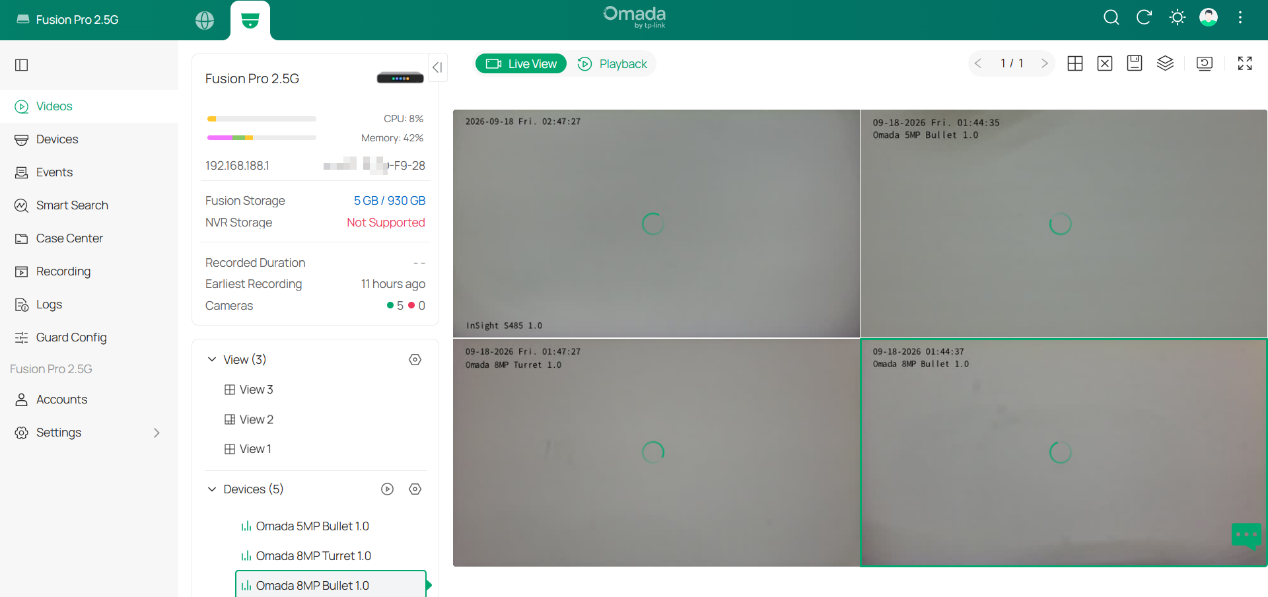
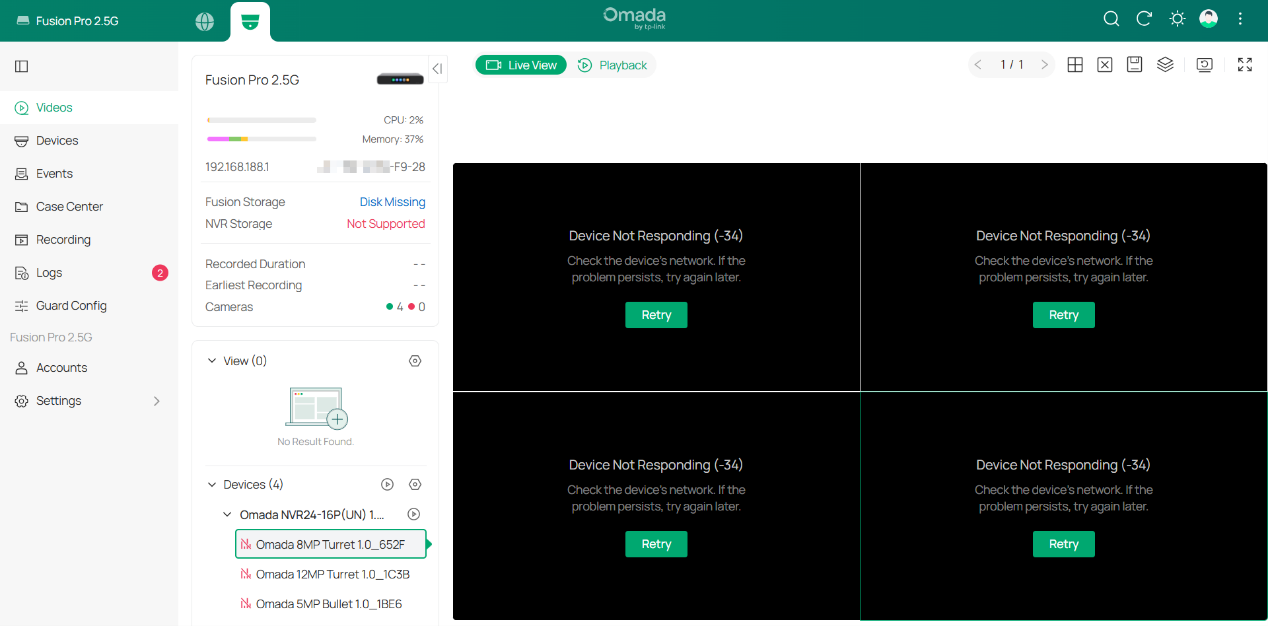
One possible cause of this issue is that Internet access is disabled for the VLAN where the NVR is located, preventing the NVR from streaming video through Cloud Access. Follow the steps below to check the NVR VLAN and enable Internet access if necessary.
Step 1. (Optional) Identify the NVR IP address.
If the NVR subnet is already known, this step can be skipped.
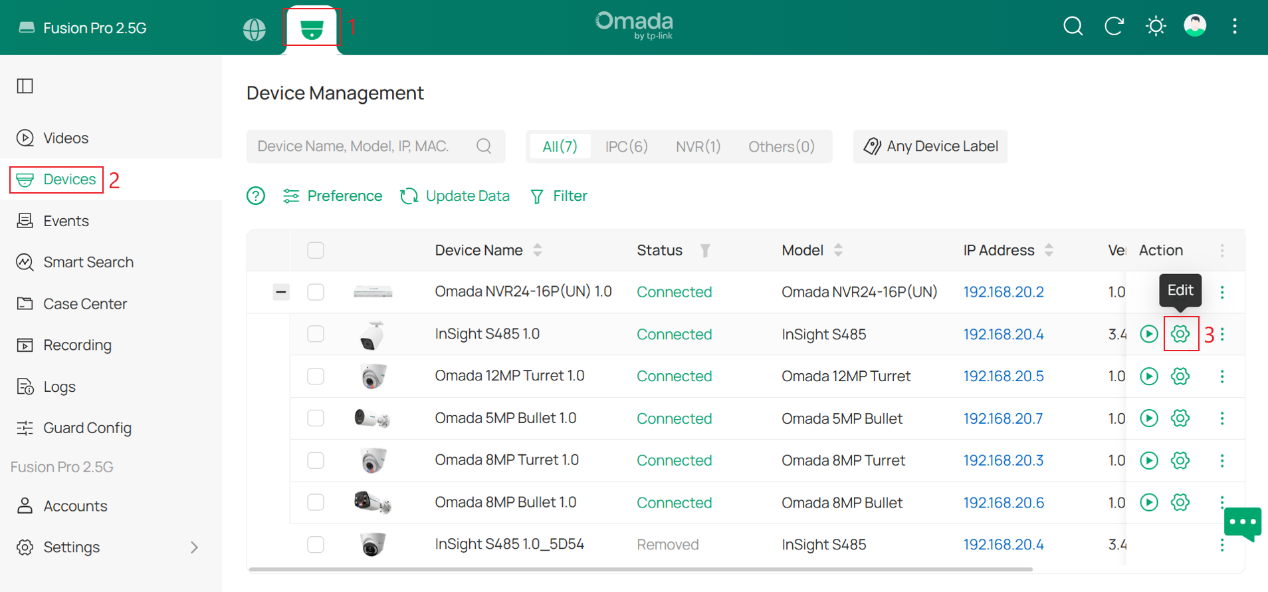
The IP address of the affected NVR can be found on the Devices page in either Omada Network or Omada Guard. In this example, the NVR IP address is 192.168.20.2.
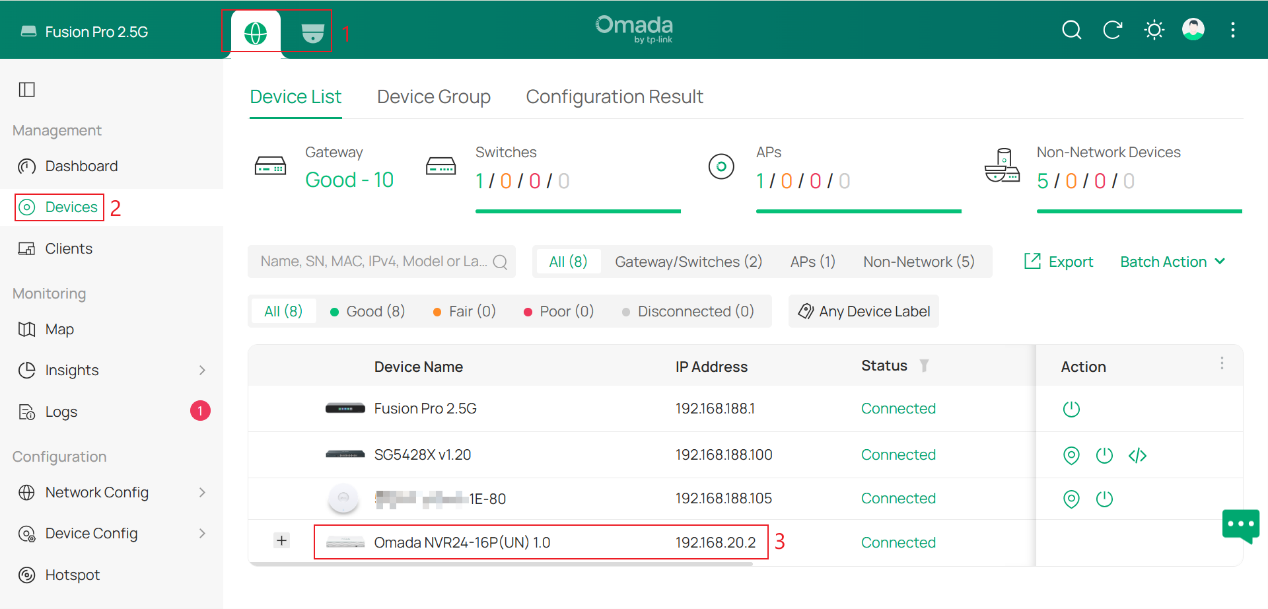
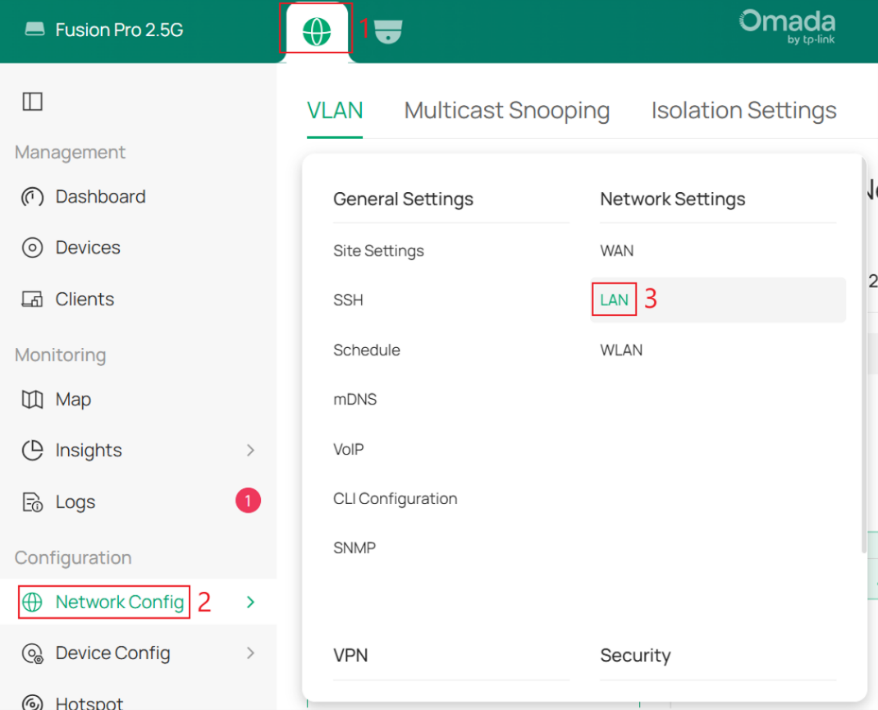
Step 2. Open the LAN settings
Switch to Omada Network, go to Network Config > LAN.
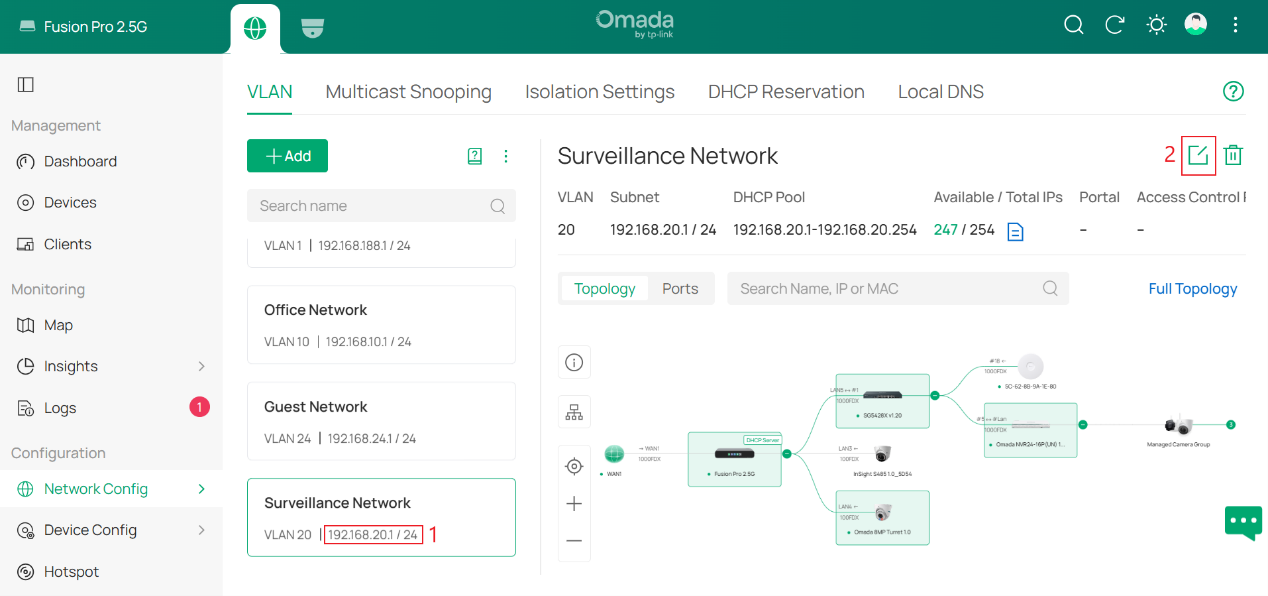
Step 3. Identify and Edit the NVR VLAN
Locate the VLAN whose subnet contains the NVR IP address identified in Step 1.
Click the Edit icon for that VLAN.
Step 4. Enable Internet Access
Expand Advanced Settings, select Enable next to Enable Internet Access, and click Save.
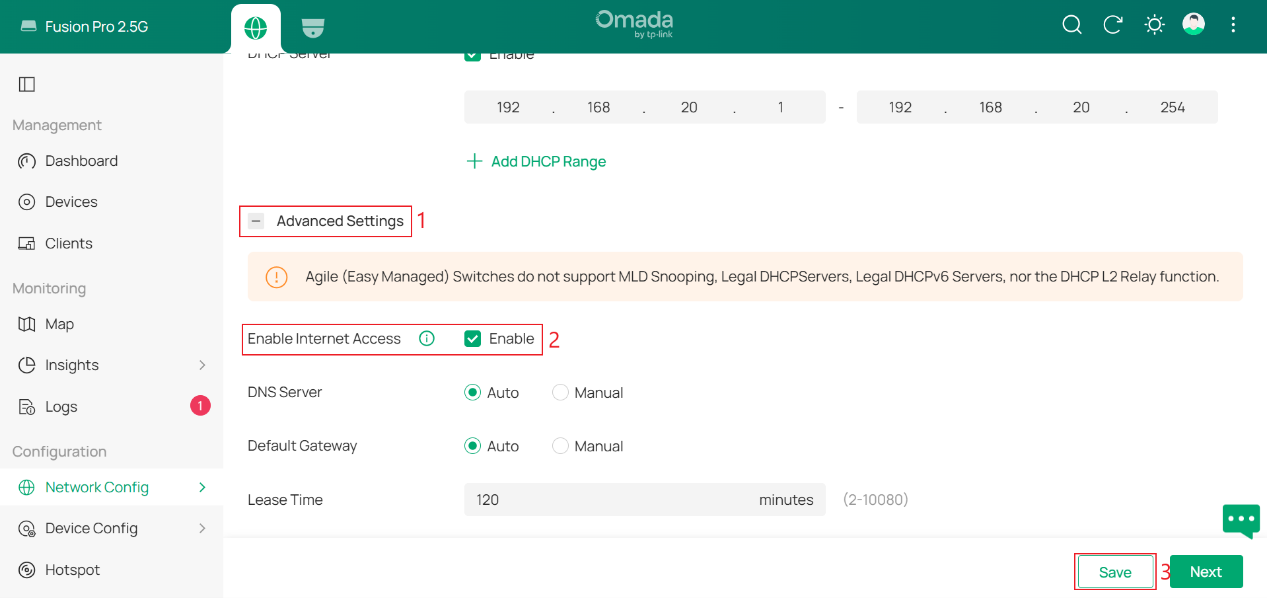
If Internet Access is disabled, the NVR cannot establish the Internet connection required for cloud-based Live View and Playback services.
Verification
(Optional) After enabling Internet access for the NVR VLAN, check whether Live View and Playback work normally through Cloud Access.
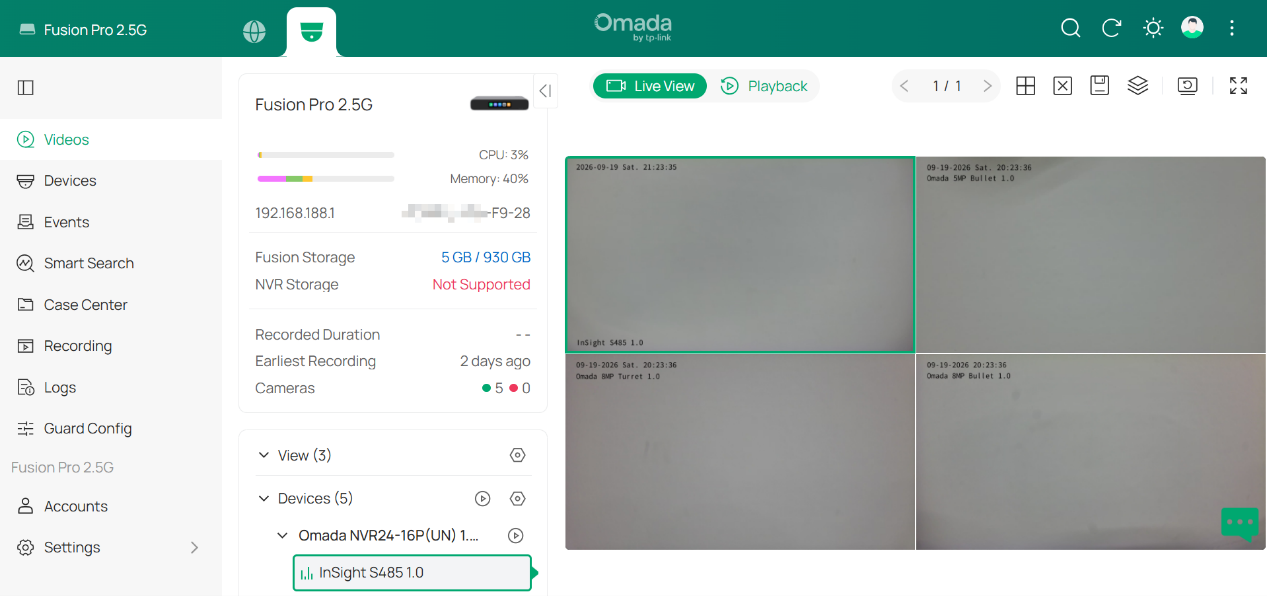
If cloud viewing still fails after confirming that Enable Internet Access is enabled, check the message displayed in the video window and follow the suggested steps.
Conclusion
A persistent loading screen or Device Not Responding (-34) error during cloud-based Live View or Playback is commonly caused by Internet Access being disabled for the VLAN hosting the NVR.
Verifying the NVR subnet, locating the corresponding VLAN, and enabling Internet Access allows the NVR to establish the cloud connection required for video streaming. Once enabled, cloud Live View and Playback for NVR-managed cameras should operate normally.
To learn more about each function and configuration, please visit Support Home to download or check the manual for your product.
QA
Q1: Does this issue affect cameras added directly to the Fusion Pro Gateway?
A1: No. Cameras that are directly managed by the Fusion Pro Gateway are not affected because their video streams are forwarded by the Fusion Pro Gateway itself. Since Internet access for the Fusion Pro Gateway is always enabled and cannot be disabled, this issue does not impact these cameras.
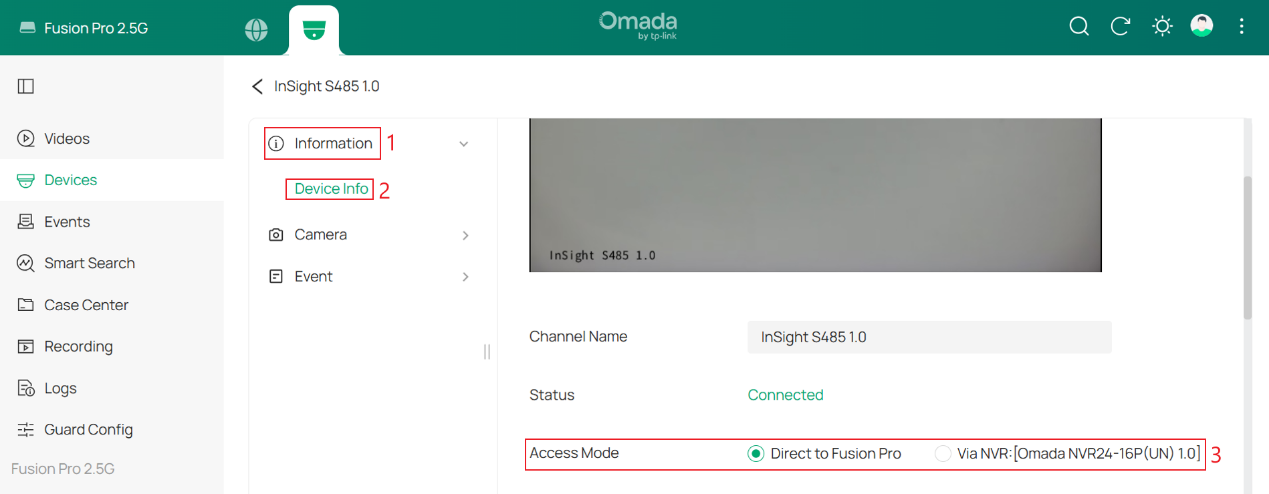
To check whether a camera is directly managed by the Fusion Pro Gateway, go to Omada Guard > Devices, select the camera, and click Edit.
Open Information > Device Info, and check Access Mode.