


Contents
Configuration in Controller mode
Configuration in Standalone mode
Introduction
In some scenarios, you may want to configure an SSID to broadcast only on a specific Wi-Fi band (2.4 GHz, 5 GHz, or 6 GHz). Refer to the settings below.
Requirements
-
Omada AP
Configuration
Configuration in Controller mode
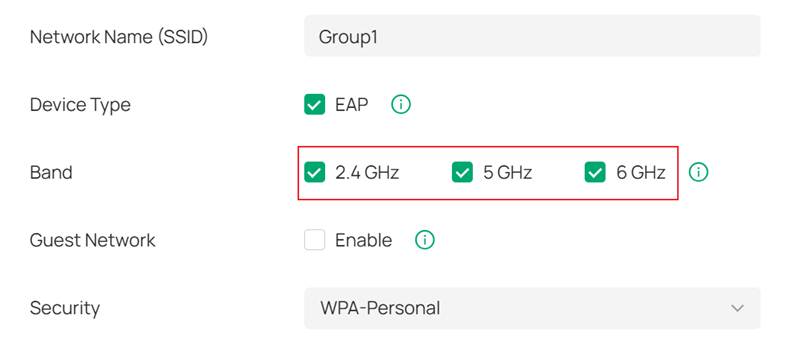
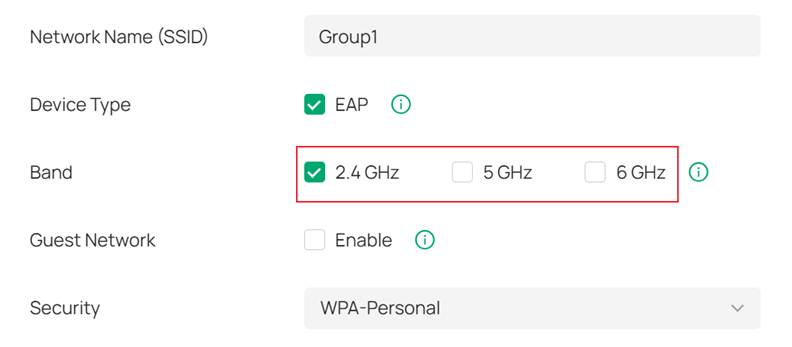
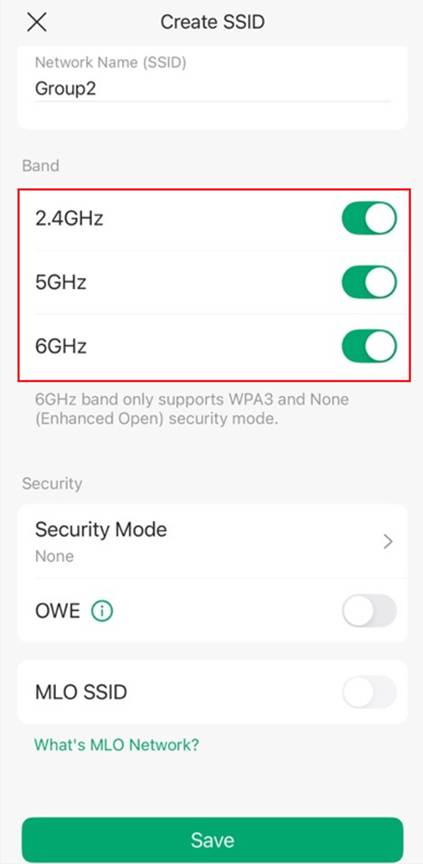
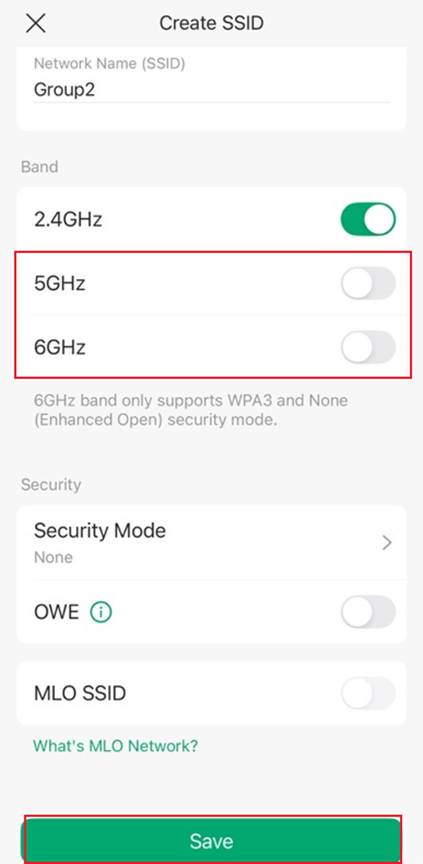
Method 1: For the first image below, you can see that 2.4GHz, 5GHz and 6GHz are enabled, in this case, this SSID will broadcast Wi-Fi for all Bands; if you don't need this SSID to broadcast Wi-Fi for 5GHz and 6GHz, you just need to uncheck 5GHz and 6GHz as shown in the second image below, in this case, this SSID will only broadcast 2.4GHz, and vice versa.
Method 2: Method 1 is the settings for a specific SSID, but here is another case where the specific EAP is set to broadcast a specific Band. Please go to Devices---Click the desired EAP---Click Manage Device in the right-side panel. Then go to Config > Wireless > Radios on the device management page. If you don't need this EAP to broadcast Wi-Fi for 5GHz and 6GHz, you just need to uncheck 5GHz and 6GHz, as shown in the image below and click Apply. In this case, this EAP will only broadcast 2.4GHz, and vice versa.
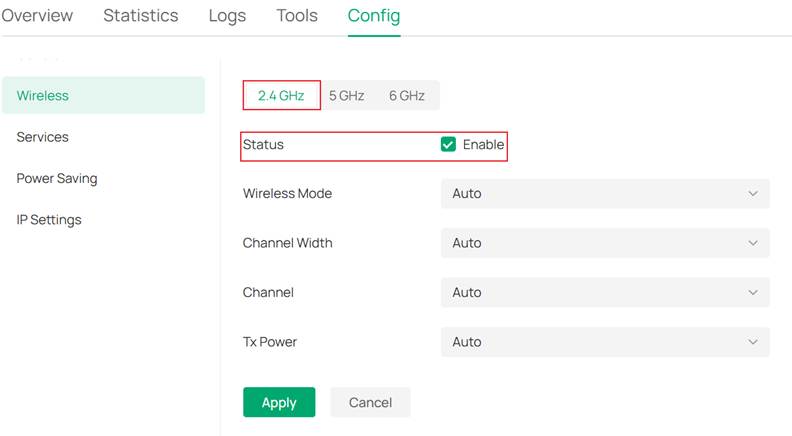
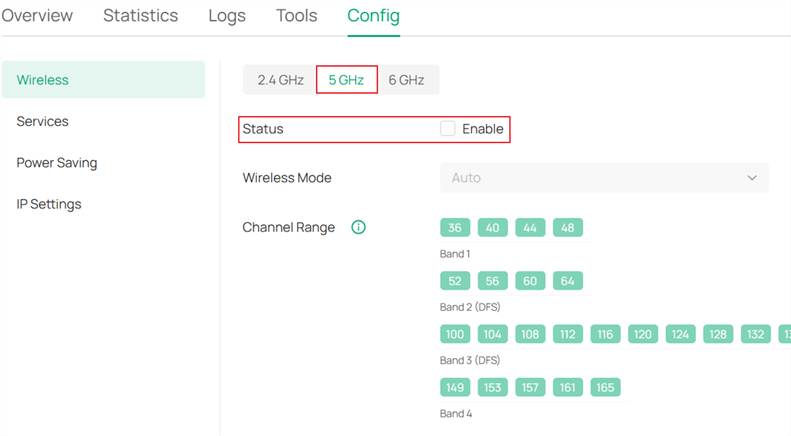
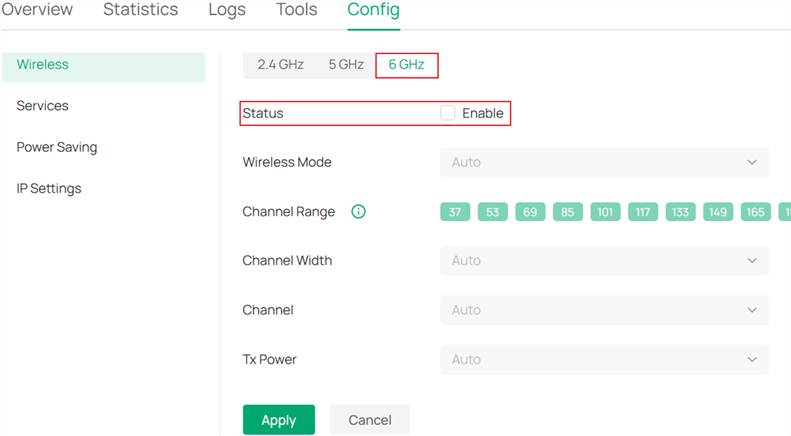
Note: Only the band that is enabled both on SSID configuration and EAP configuration will take effect.
Configuration in Standalone mode
Configuration via the Web Interface
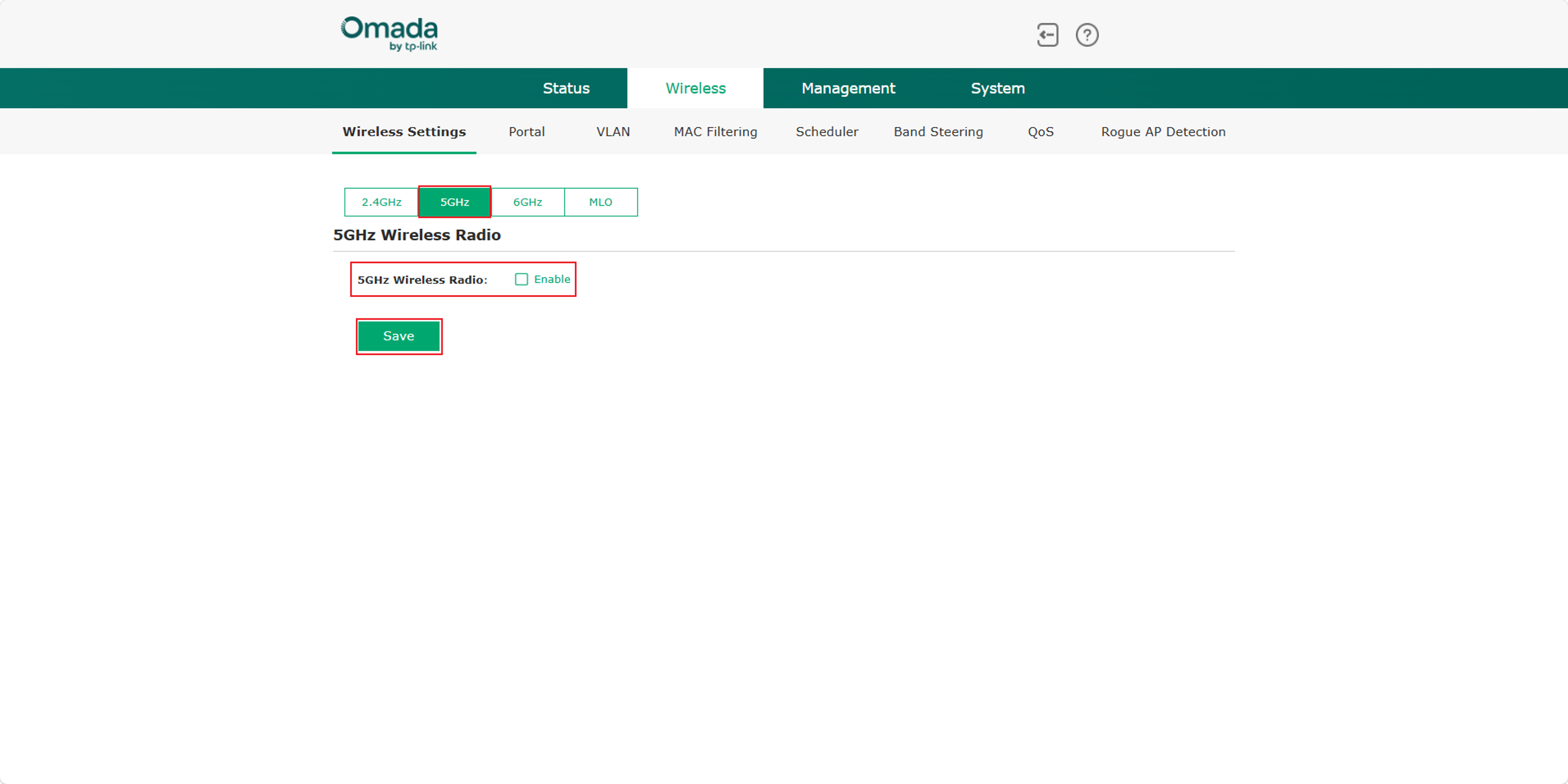
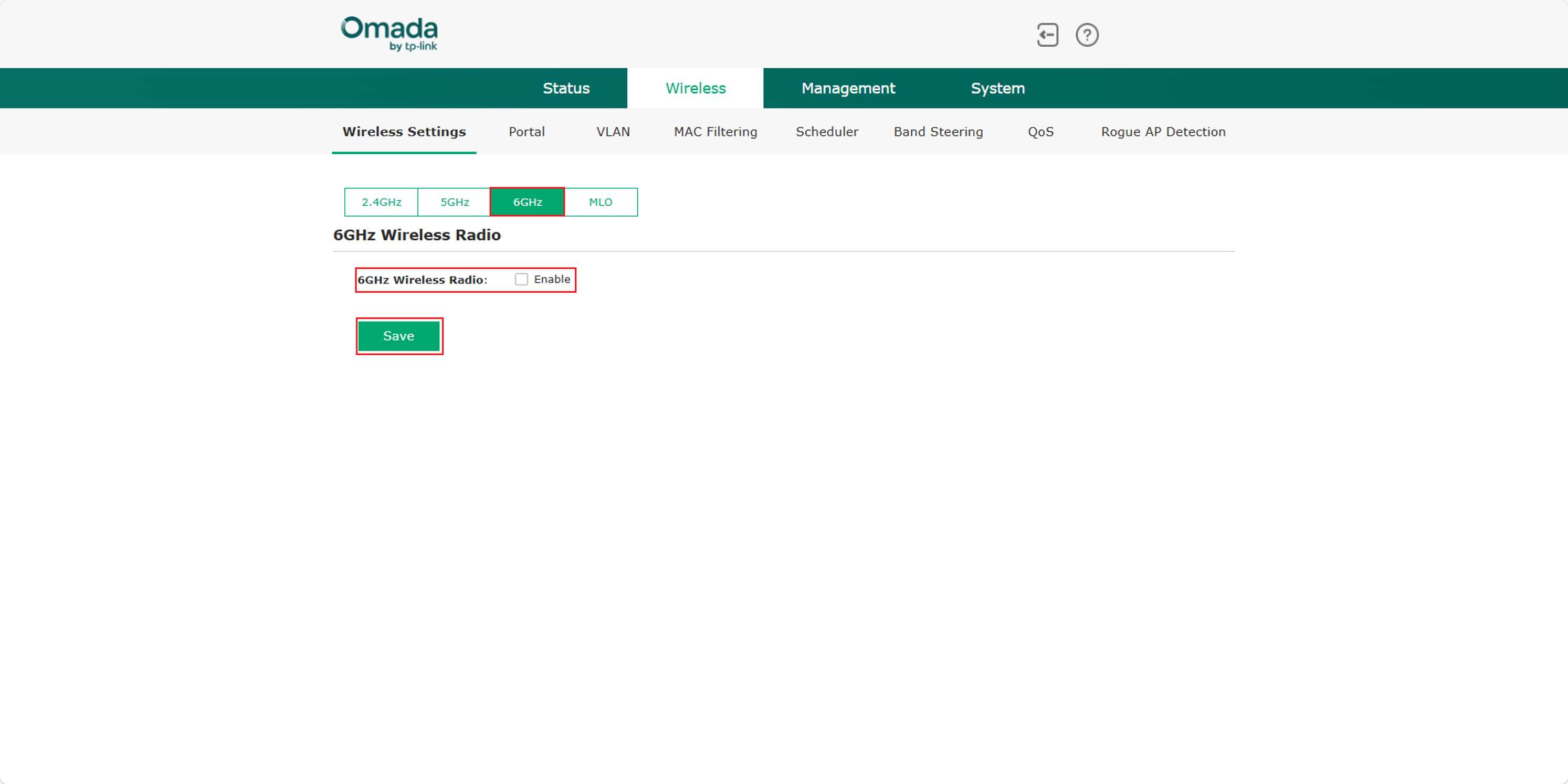
Method 1: Firstly, go to Wireless > Wireless Settings page, if you don't need the EAP to broadcast Wi-Fi for 5GHz and 6GHz, you just need to disable 5GHz Wireless Radio and 6GHz Wireless Radio as shown in the image below and click Save. Then choose 2.4GHz. 2.4 GHz is enabled by default. If it is disabled, enable 2.4GHz Wireless Radio and click Save. In this case, this EAP will only broadcast 2.4GHz, and vice versa.
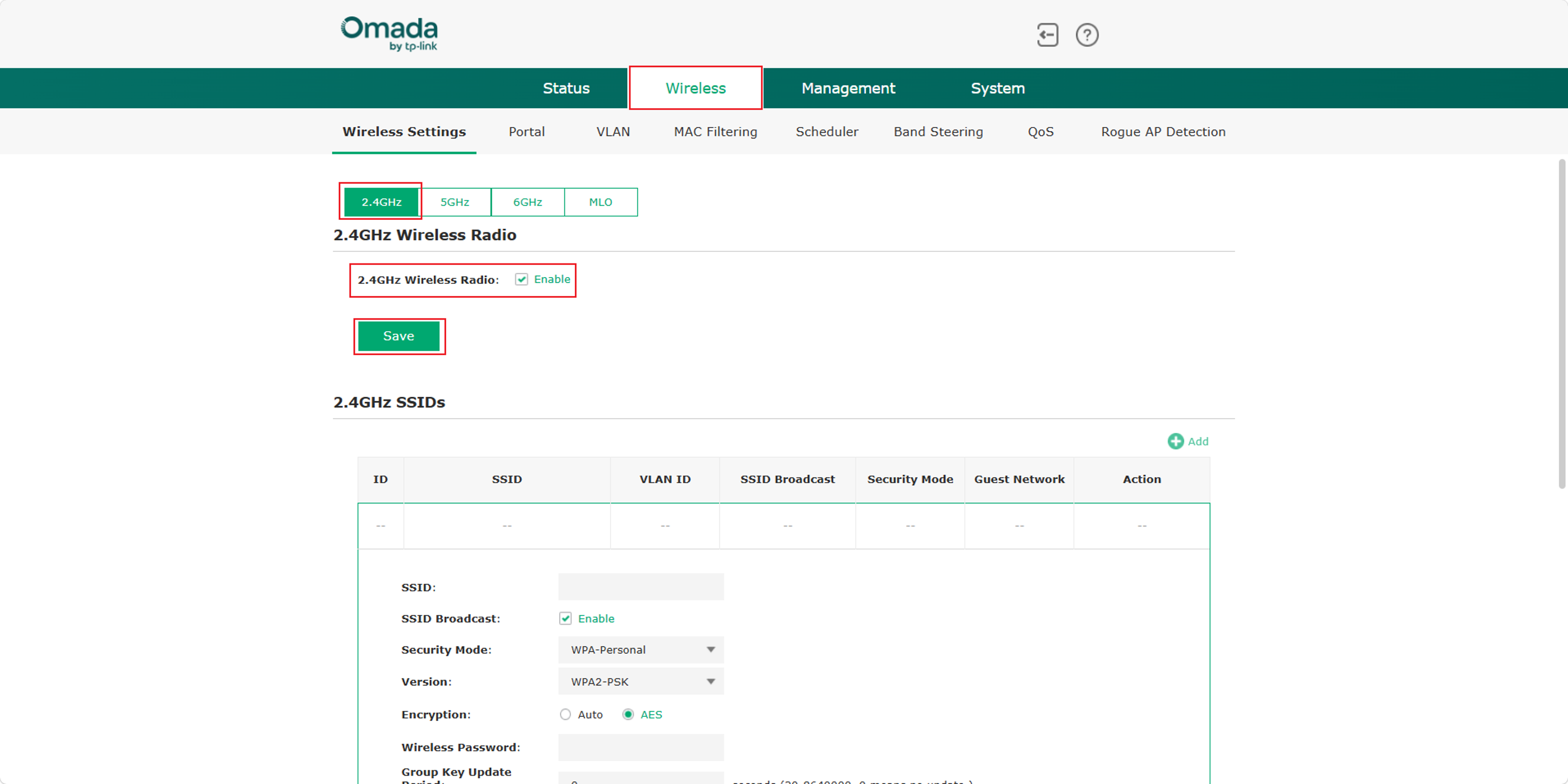
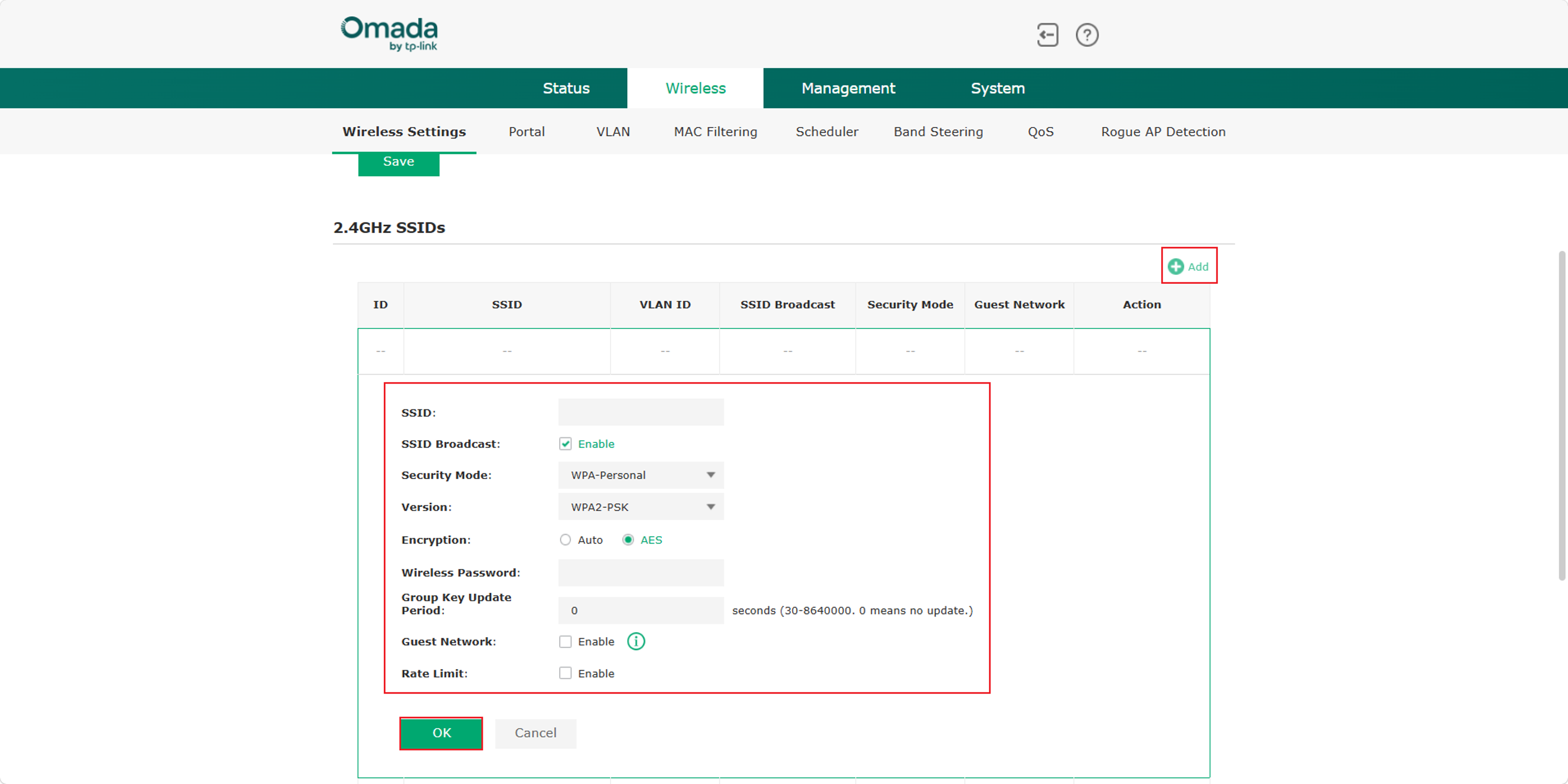
Method 2: In addition to the above method of setting up this EAP to broadcast specific Bands, you can also set a certain SSID to broadcast Wi-Fi for only a specific Band. If you don't need the specific SSID to broadcast Wi-Fi for 5GHz and 6GHz, you just need to choose only 2.4GHz in this box. And click Add to specify the SSID and click OK. Currently, there is no need to do any settings in 5GHz and 6GHz. And vice versa.

Configuration via the Omada App
Method 1: Log in to the Omada App and click on your EAP. Click the gear icon in the upper-right corner to go to the Settings page. Click Radio and go to 5GHz and 6GHz in this box to disable 5GHz Radio and 6GHz Radio as shown in the image below and click Save. Then choose 2.4GHz. 2.4 GHz is enabled by default. If it is disabled, enable 2.4GHz Radio and click Save. In this case, this EAP will only broadcast 2.4GHz, and vice versa.
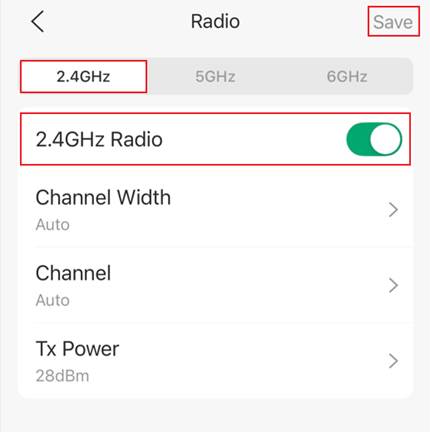
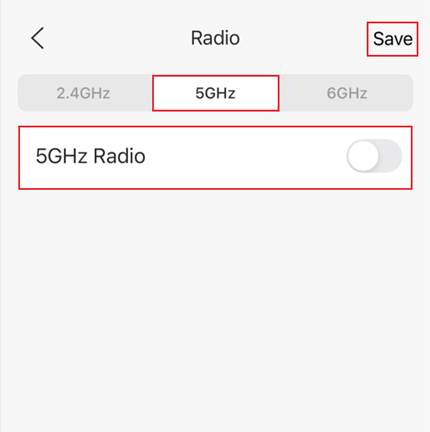
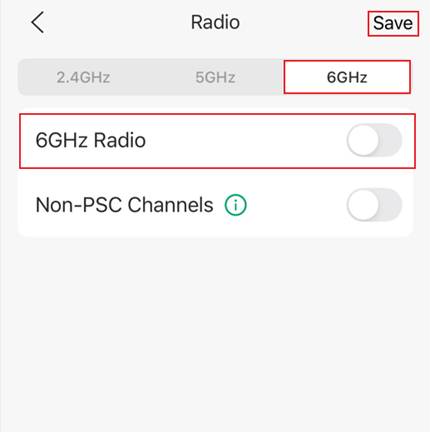
Method 2: In addition to the above method of setting up this EAP to broadcast specific Bands, you can also set a certain SSID to broadcast Wi-Fi for only a specific Band. Click the gear icon in the upper-right corner to go to the Settings page. Click SSID and go to click the plus "+" icon to create a new SSID. If you don't need the specific SSID to broadcast Wi-Fi for 5GHz and 6GHz, you just need to disable 5GHz and 6GHz in this box. And specify the SSID and click Save. And vice versa.
Conclusion
By following the steps above, you can configure an SSID to broadcast only on the desired wireless band in both Controller mode and Standalone mode.
QA
Q1: Why can't I find the 6GHz settings on my device?
A1: Only supported wireless bands appear in the management interface. If you cannot find the 6 GHz settings, check out the official TP-Link website to confirm whether your model supports 6 GHz.
To learn more about each function and configuration, please visit Support Home to download or check the manual for your product.
