


Contents
Objective
In this article, we will share how to set up DHCP reservations, i.e., assign static IP addresses to printers, file servers, IP cameras, and other clients in Standalone mode.
Requirements
- Omada Gateway
Introduction
DHCP reservation is a permanent IP address assignment. A specific IP address within a DHCP scope is permanently reserved for leased use to a specific DHCP client.
Users can configure a DHCP reservation in their DHCP server when they need to reserve a permanent IP address assignment. Reservations are used for DHCP-enabled devices like printers and file servers or other application servers that always have a fixed IP address on the network.
Configuration
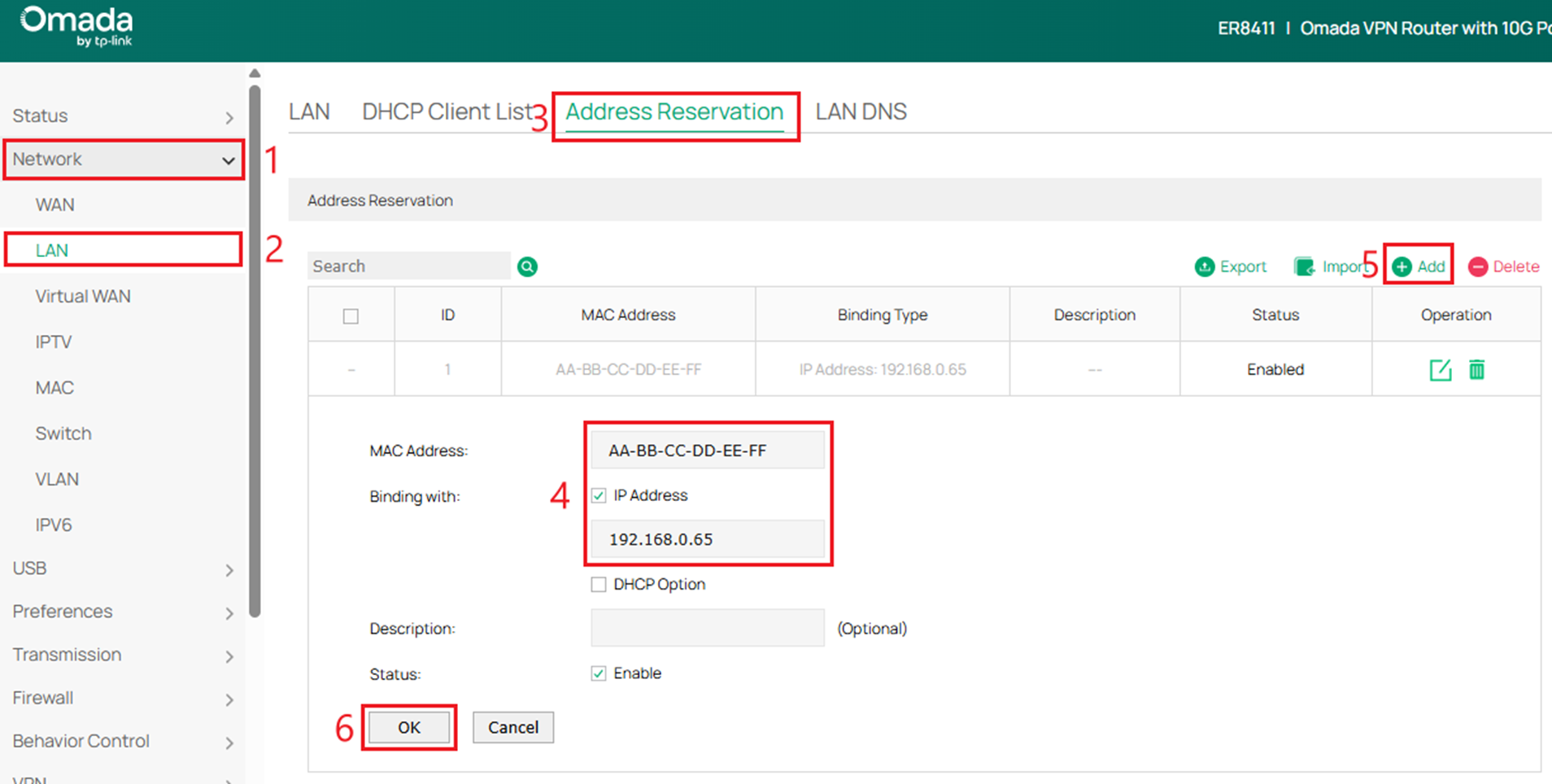
Step 1. Log in to Controller, go to Network>LAN>Address Reservation. Click on the Add button. Fill in the correct MAC address of the client and the IP address you want to use. Then click OK to save the settings.
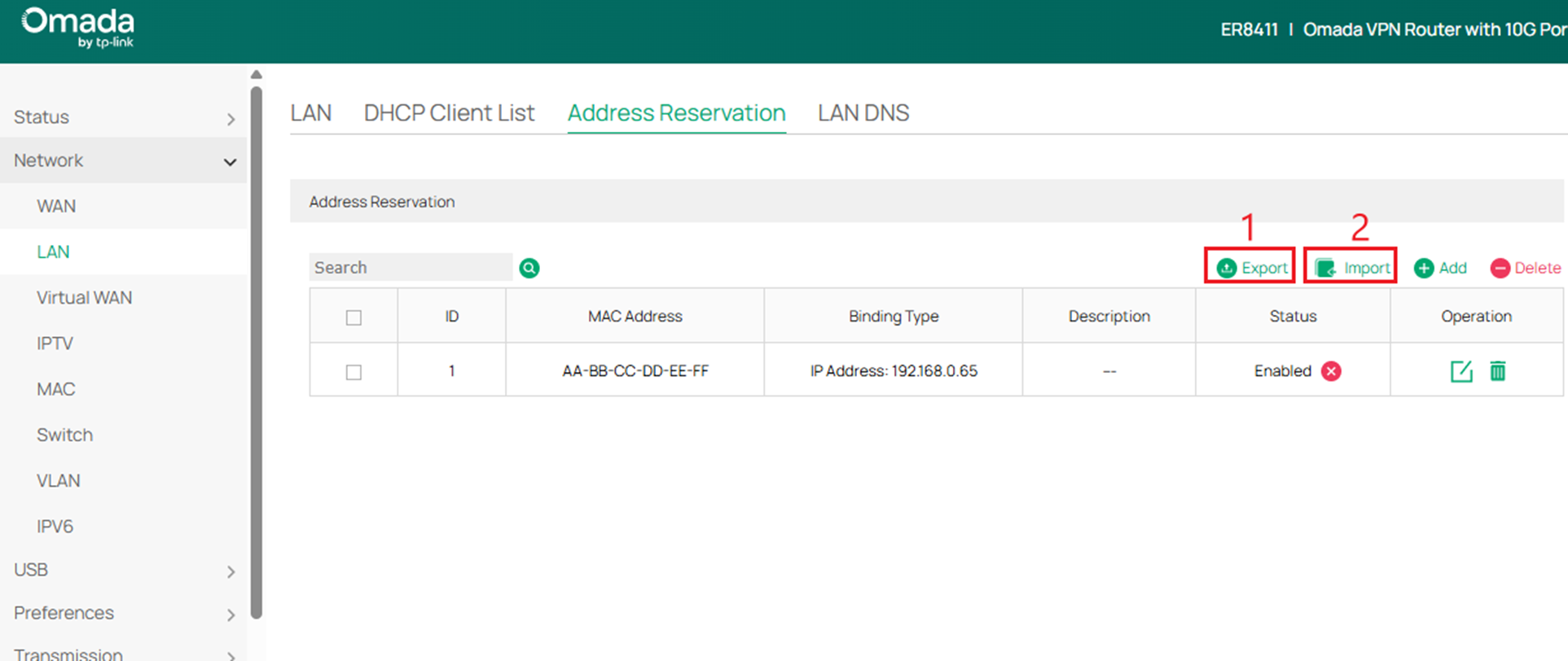
Step 2. You can also add address reservation entries in bulk by importing Excel tables in the specified format. Click Export to get the template, fill in your address reservation information to the template, and click Import to import the Excel file to complete the addition of the address reservation.
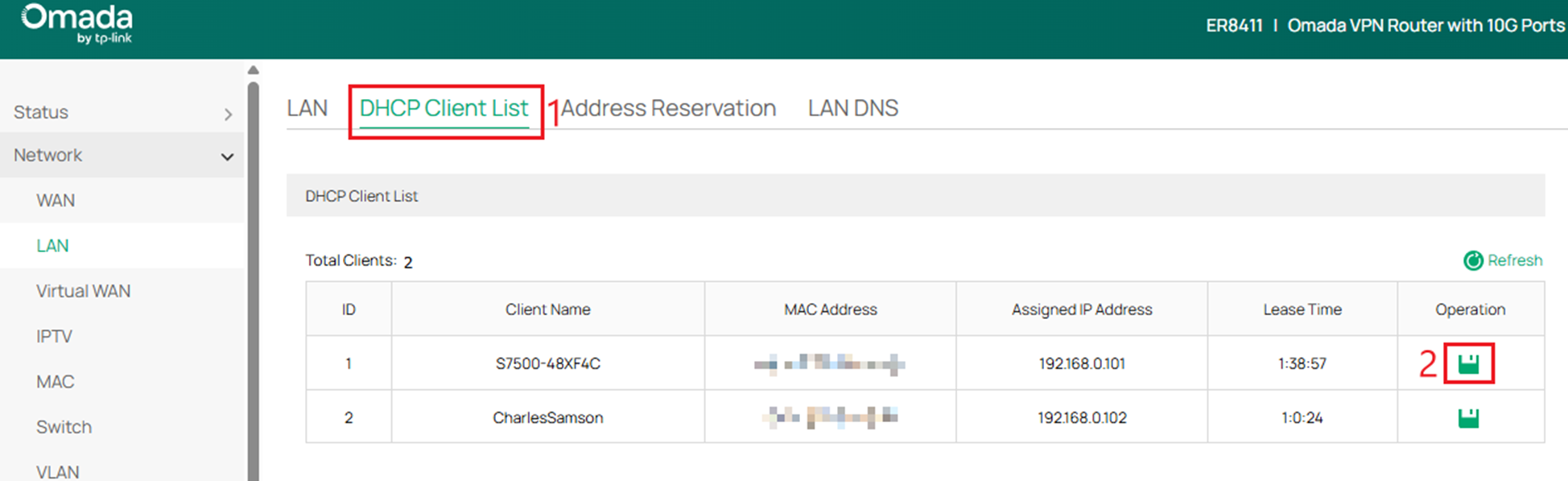
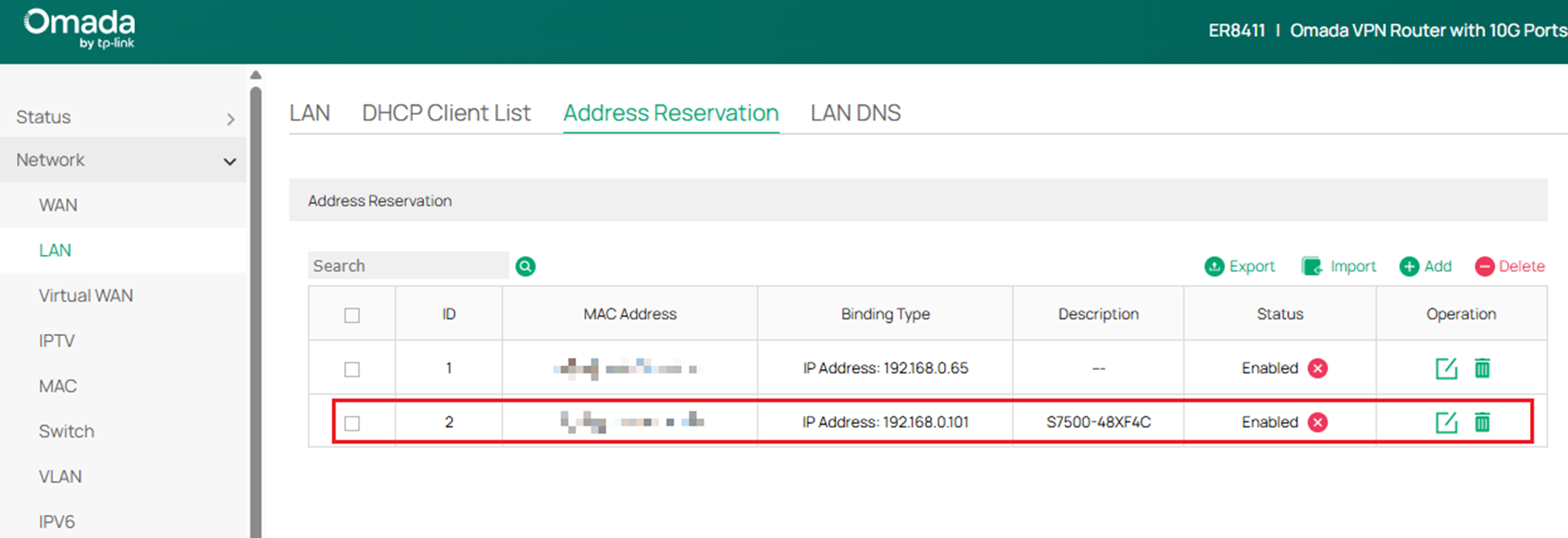
Step 3. You can also view clients that have obtained IP addresses in the DHCP Client List and reserve them directly. Go to DHCP Client List, locate the client, and click Reserve. The selected client will immediately be added to the Address Reservation List.
After adding an entry, you can modify or delete the entry's MAC, IP, and description in Address Reservation.
Note:
1. Omada Gateway should act as the DHCP server.
2. The reserved IP addresses can be set out of the DHCP range but should be in the same subnet with the interface.
3. If assigning a different IP address from the current one, please re-plug the Ethernet cable for wired clients, re-enable Wi-Fi for wireless clients, or reboot the IoT clients to update.
4. To prevent ARP spoofing attacks, it is recommended that you check the Export to IP-MAC Binding box.
Conclusion
You have now successfully configured the address reservation on the Omada Gateway.
Get to know more details of each function and configuration please go to Download Center to download the manual of your product.
QA
Q1: What is the difference between DHCP reservation and Static IP?
A1: A DHCP reservation assigns a fixed IP address from the gateway’s DHCP server based on the client’s MAC address. A Static IP is manually configured directly on the client device and is not managed by the DHCP server.
Q2: Should I use DHCP reservation or configure a Static IP on the device?
A2: It is recommended to use DHCP reservation. This allows centralized IP management on the Omada Gateway and avoids IP conflicts that may occur with manually configured static IP addresses.
Q3: Does the Omada Gateway need to act as the DHCP server for address reservation to work?
A3: Yes. Address reservation only works when the Omada Gateway is enabled as the DHCP server for that LAN network.
Q4: Why is the client still using the old IP after I created a reservation?
A4: The client must renew its DHCP lease.
For wired clients, unplug and reconnect the Ethernet cable.
For wireless clients, reconnect Wi-Fi.
For IoT devices, reboot the device if necessary.
Q5: What happens if I reserve an IP that is already in use?
A5: This may cause an IP conflict. Ensure the reserved IP is not currently assigned to another device before saving the configuration.
Q6: What is IP-MAC Binding and should I enable it?
A6: IP-MAC Binding links a specific MAC address to a fixed IP address to prevent ARP spoofing or IP impersonation.
It is recommended in environments where security is important.
