


How to Configure Load Balancing on Omada Gateways


Contents
Introduction
This FAQ is designed to help you understand and configure load balancing on Omada gateways, whether you are running the gateway in Standalone mode or managing it through an Omada Controller.
Load balancing allows you to utilize multiple WAN connections to improve bandwidth usage, increase network reliability, and provide failover in case one internet connection goes down. While the core concept is the same, the configuration steps and available options can vary depending on whether the gateway is operating independently or under controller management.
In the sections below, we will walk through key requirements, supported scenarios, and step-by-step configuration guidance for both modes, along with frequent questions and best-practice tips to help you avoid misconfiguration and ensure stable performance.
Requirements
- Omada Gateway
- Omada Controller (For use in Controller Mode)
Configuration
Standalone Mode
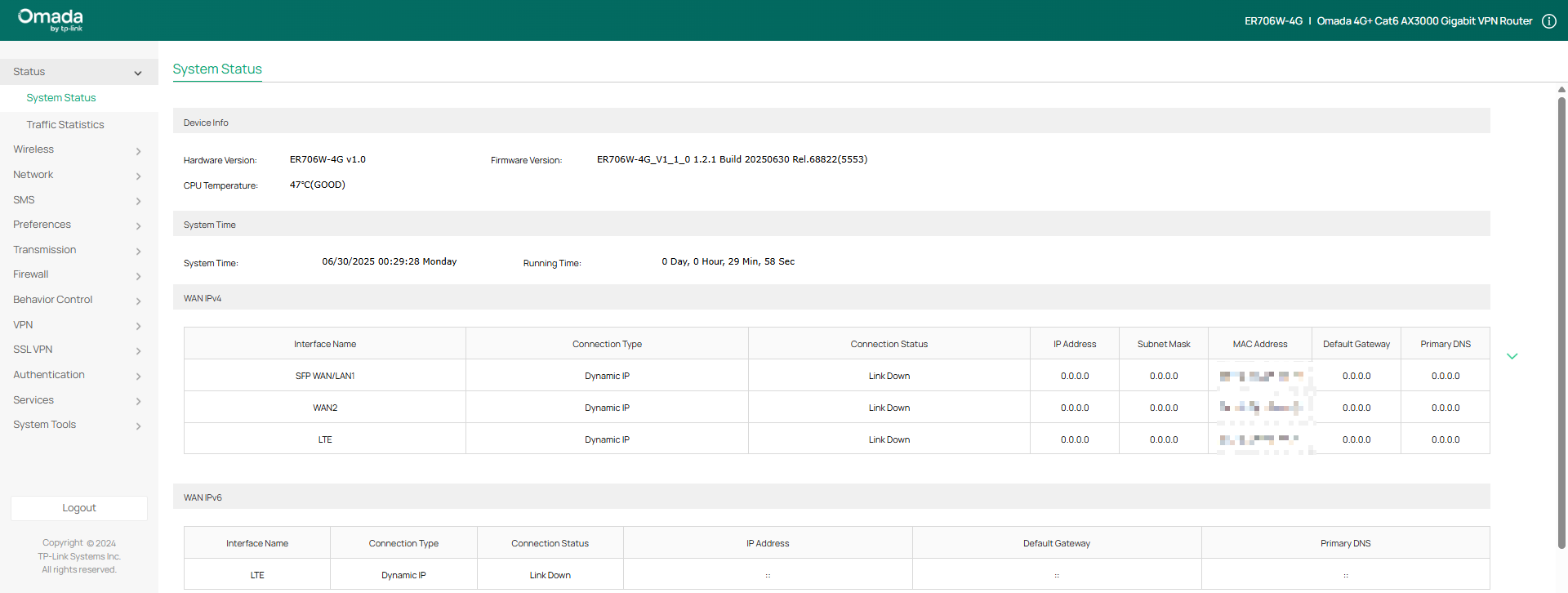
Step 1. Log into the gateway’s web interface (Omada Gateway Default IP is 192.168.0.1):
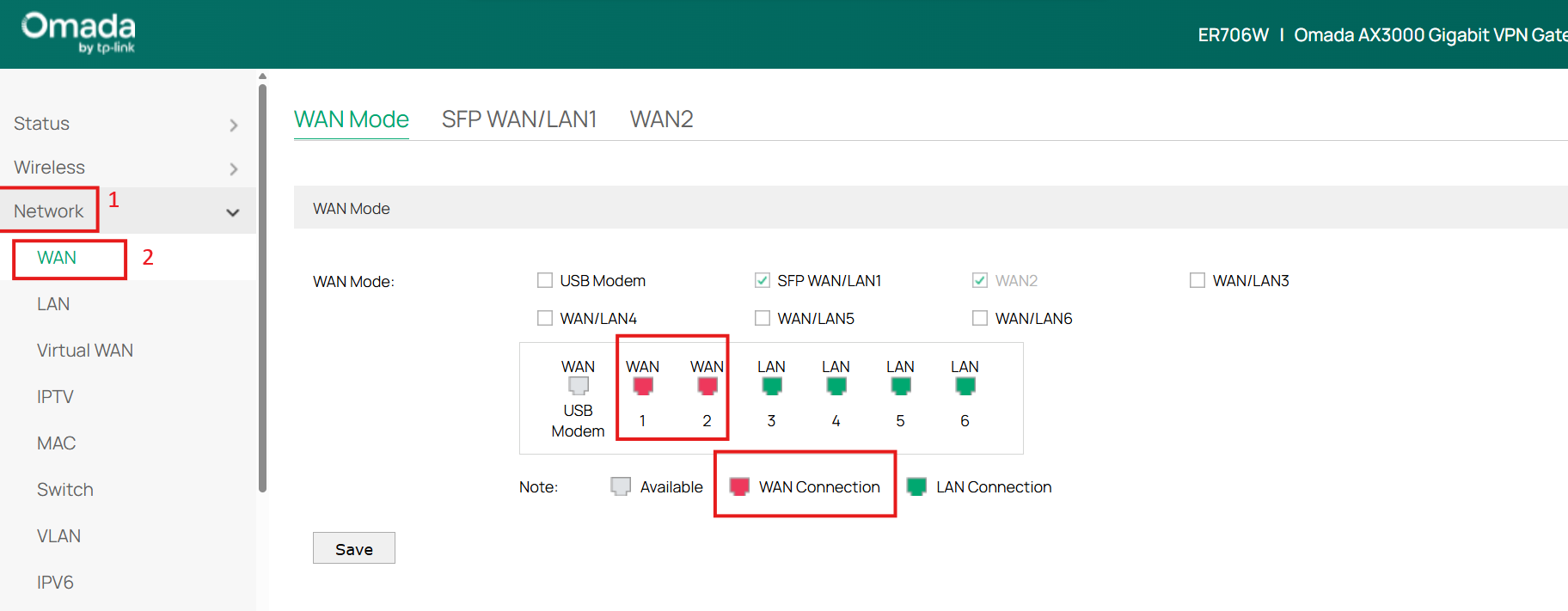
Step 2. Define multiple WAN ports. Under Network > WAN, select the active ports with a WAN Connection, as shown below:
Step 3. Navigate to Transmission > Load Balancing (As shown below). Enable Load Balancing and click “Save” to apply changes.
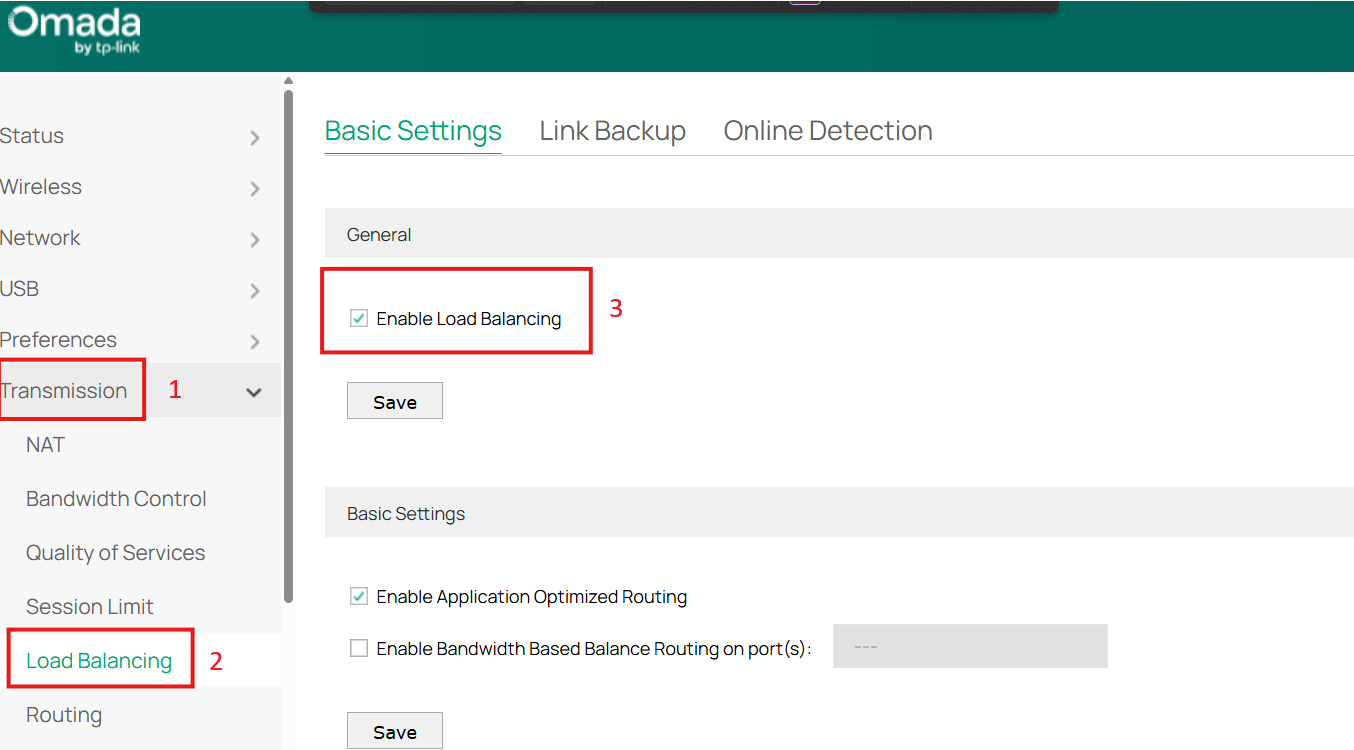
Application Optimized Routing: With Application Optimized Routing enabled, the router will consider the source IP address and destination IP address (or destination port) of the packets as a whole and record the WAN port they pass through. Then packets with the same source IP address and destination IP address (or destination port) will be forwarded to the recorded WAN port. This feature ensures that multi-connected applications work properly.
Bandwidth-Based Balance Routing: Bandwidth Based Balance Routing on TP-Link gateways distributes traffic across multiple WAN ports based on the bandwidth values you configure.
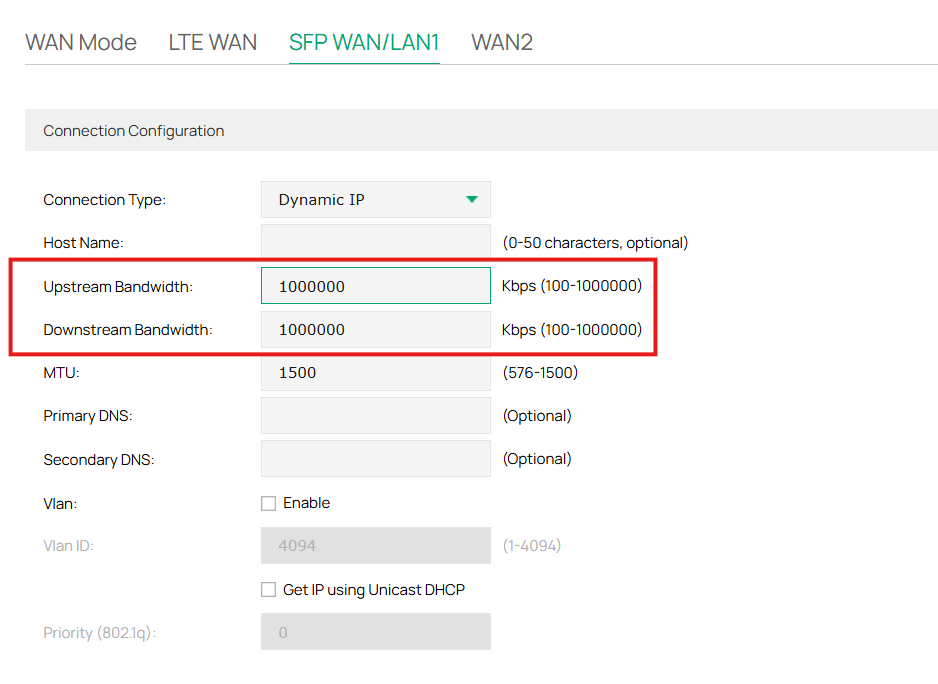
Step 4 (Optional). How to set Upstream/Downstream WAN bandwidth:
The ratio is calculated based on the added sum of the downstream/upstream bandwidth configured on this port.
Controller Mode
Step 1. Log in to the Omada Controller.
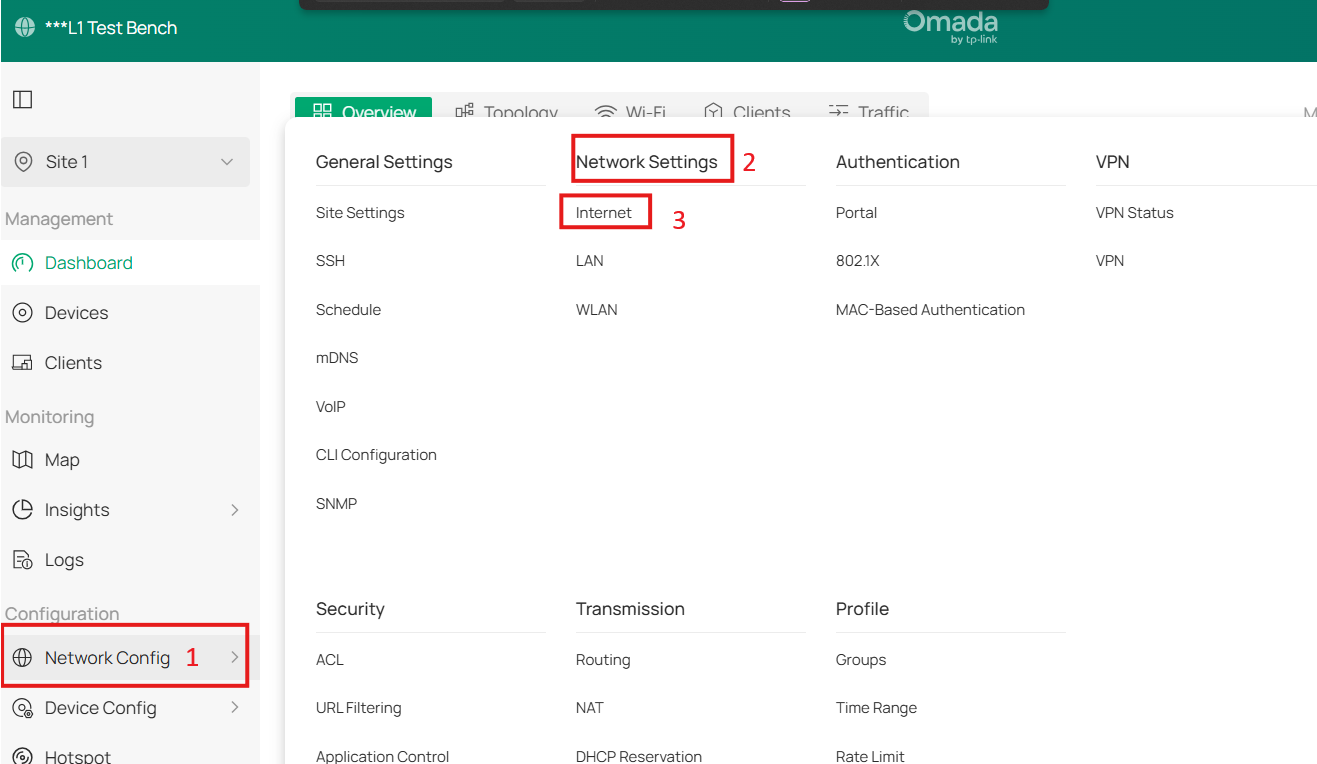
Step 2. Once in the Omada Controller, navigate to the Network Config Menu > Network Settings > and click Internet, as shown below:
Step 3. Configure Load Balancing
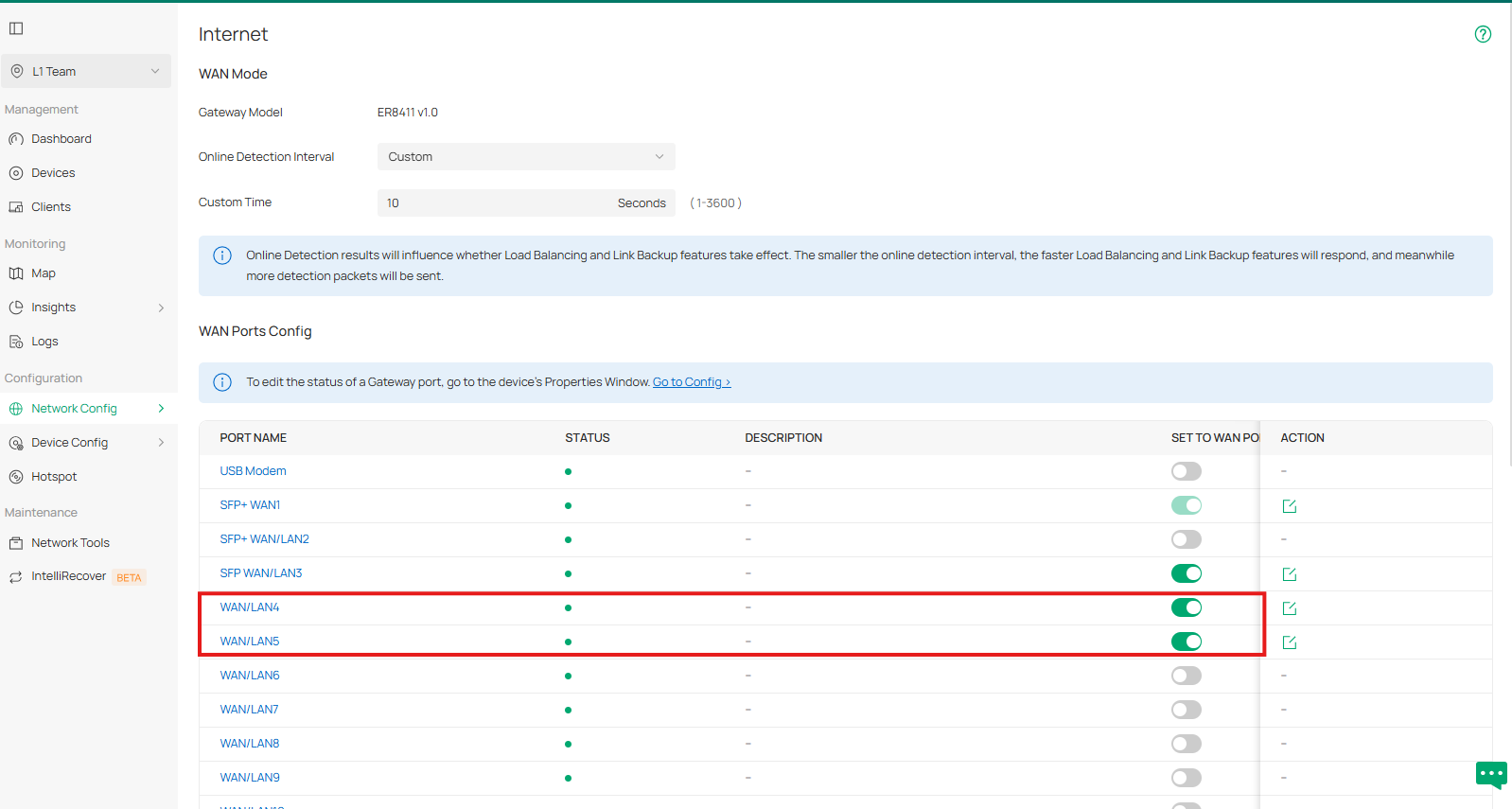
- Ensure that there are 2 active WAN interfaces on the controller. (This can be found here: Network Config Menu > Network Settings > and click Internet)
- Scroll down to the “Load Balancing” section, and configure the weight as shown below:
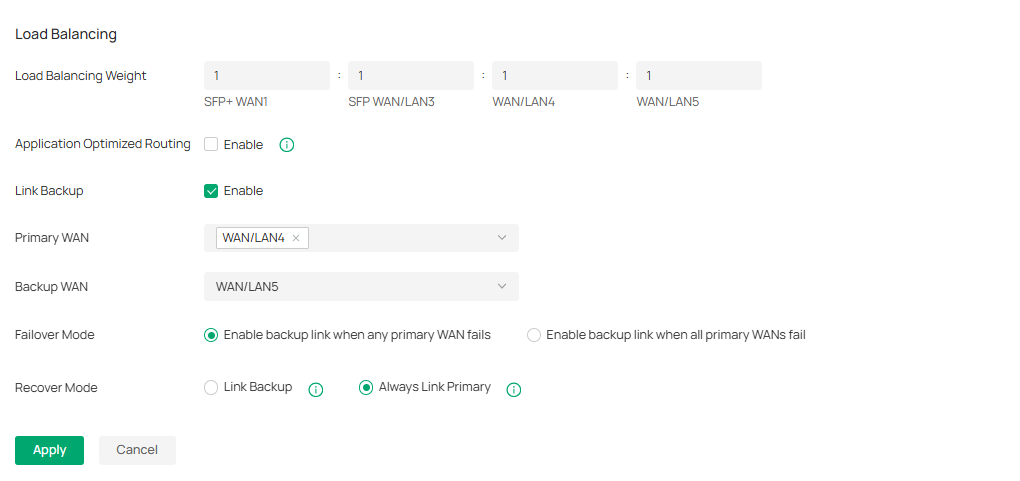
Load Balancing Weight: Specify the ratio of network traffic that each WAN port carries.
Application Optimized Routing: With Application Optimized Routing enabled, the router will consider the source IP address and destination IP address (or destination port) of the packets as a whole and record the WAN port they pass through. Then the packets with the same source IP address and destination IP address (or destination port) will be forwarded to the recorded WAN port. This feature ensures that multi-connected applications work properly.
Note: When Link backup is enabled, load balancing will not take effect.
Conclusion
This guide outlines how to configure load balancing on Omada gateways in both Standalone and Controller modes. It explains how to enable and manage multiple WAN connections to optimize bandwidth distribution, improve network stability, and provide automatic failover. By following the step-by-step instructions provided, administrators can properly configure WAN interfaces, adjust load balancing weights, and implement link backup rules to ensure reliable and efficient network performance across various deployment scenarios.
To learn more details of each function and configuration, please go to Download Center download the manual of your product.
QA
Q1: What is the difference between Load Balancing and Link Backup?
A1: Load Balancing distributes outbound traffic across multiple active WAN connections simultaneously to optimize bandwidth usage. Link Backup, on the other hand, keeps a secondary WAN on standby and only activates it when the primary WAN connection fails.
Q2: Do I need at least two WAN ports to enable Load Balancing?
A2: Yes. Load Balancing requires a minimum of two active WAN interfaces with valid internet connectivity to function properly.
Q3: Can I prioritize one WAN connection over another?
A3: Yes. In both Controller Mode and Standalone Mode, you can assign different weights to each WAN interface. The weight determines how traffic is distributed across the available WAN links. A higher weight value means a larger portion of traffic will be directed through that specific WAN interface compared to the others.
Q4: Does Load Balancing combine the total speeds of both ISPs for a single download?
A4: No. Load Balancing distributes sessions across multiple WAN connections, but a single session or download will typically use only one WAN connection at a time.
Q5: What happens if one WAN connection goes down?
A5: If Link Backup is configured, traffic will automatically fail over to the designated backup WAN interface to maintain internet connectivity.
Q6: Is configuration different between Standalone and Controller modes?
A6: Yes. In Standalone Mode, settings are configured directly on the gateway’s local web interface. In Controller Mode, configuration is done through the Omada Controller under Network Settings.
Q7: Can I use Load Balancing with different ISP types, such as fiber and cable?
A7: Yes. If each WAN interface has a valid internet connection, different ISP types can be used together for Load Balancing or Link Backup.
Q8: Why is the Load Balancing option not available on my gateway?
A8: Ensure that your gateway model supports multiple WAN interfaces, and that at least two WAN ports are configured and active. Firmware updates may also be required depending on the model.
