


How to Configure Load Balancing for Wireless Client in Omada Controller


Contents
Introduction
Uneven wireless client distribution can lead to poor user experience and inefficient use of network resources. In some cases, certain APs (Access Points) may become overloaded while others remain idle.
To address this issue, the Omada Controller v6.2 provides load balancing, along with dynamic optimization and service-aware mechanisms. These features help distribute clients more evenly across APs, improve user experience consistency, maximize network capacity, and reduce operation and maintenance costs.
This article also explains Band Steering, a related feature that guides dual-band clients to the appropriate wireless band to improve overall network efficiency.
Requirements
- Omada Controller version 6.2 or greater
- Omada Access Points (Supported firmware required)
Notes:
- Load Balancing requires two or more Omada Access Points broadcasting the same SSID to distribute clients between APs.
- Band Steering can function with a single Omada Access Point, but is most effective in multi-AP environments.
Configuration
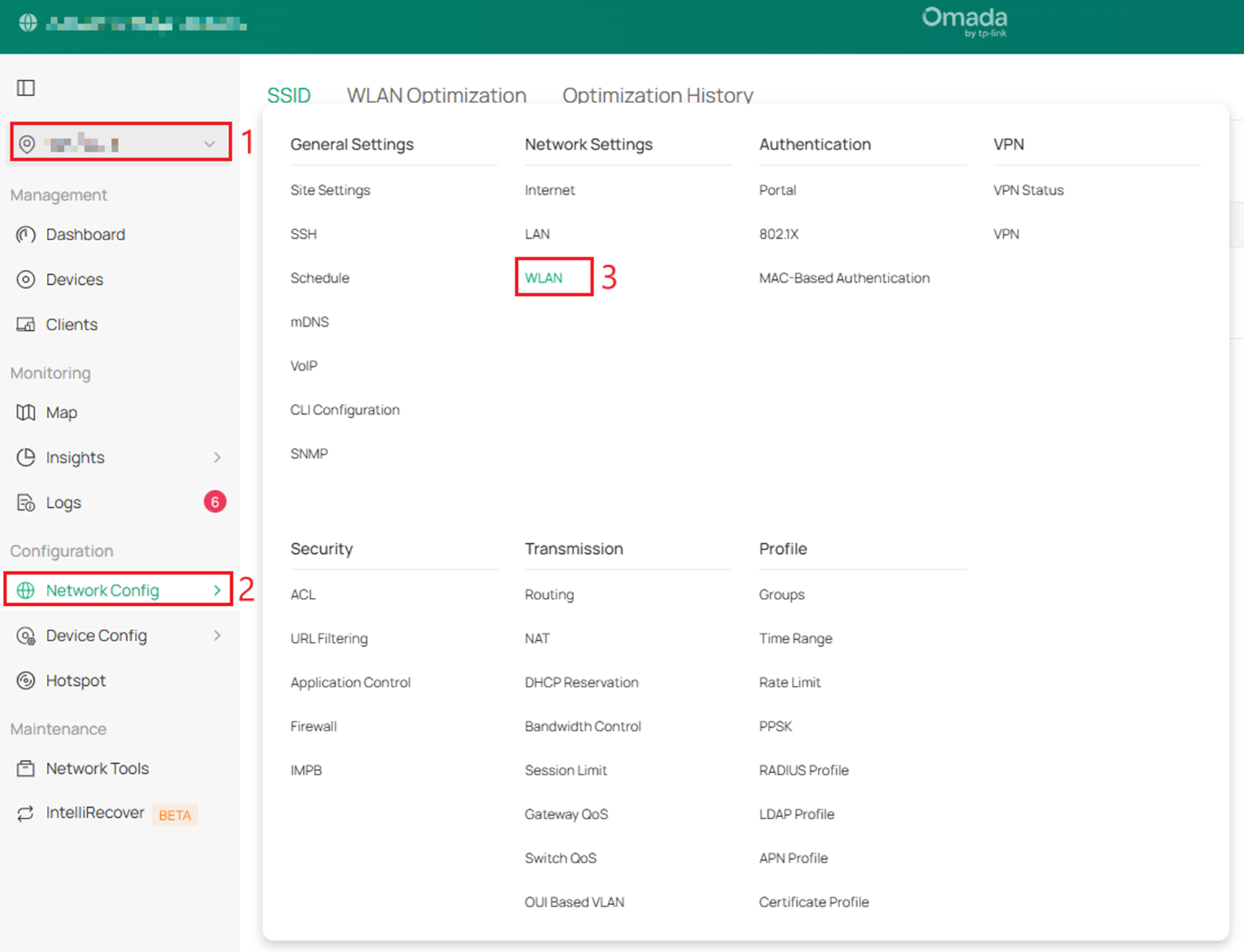
Step 1. In Site View, go to Network Config and then WLAN.
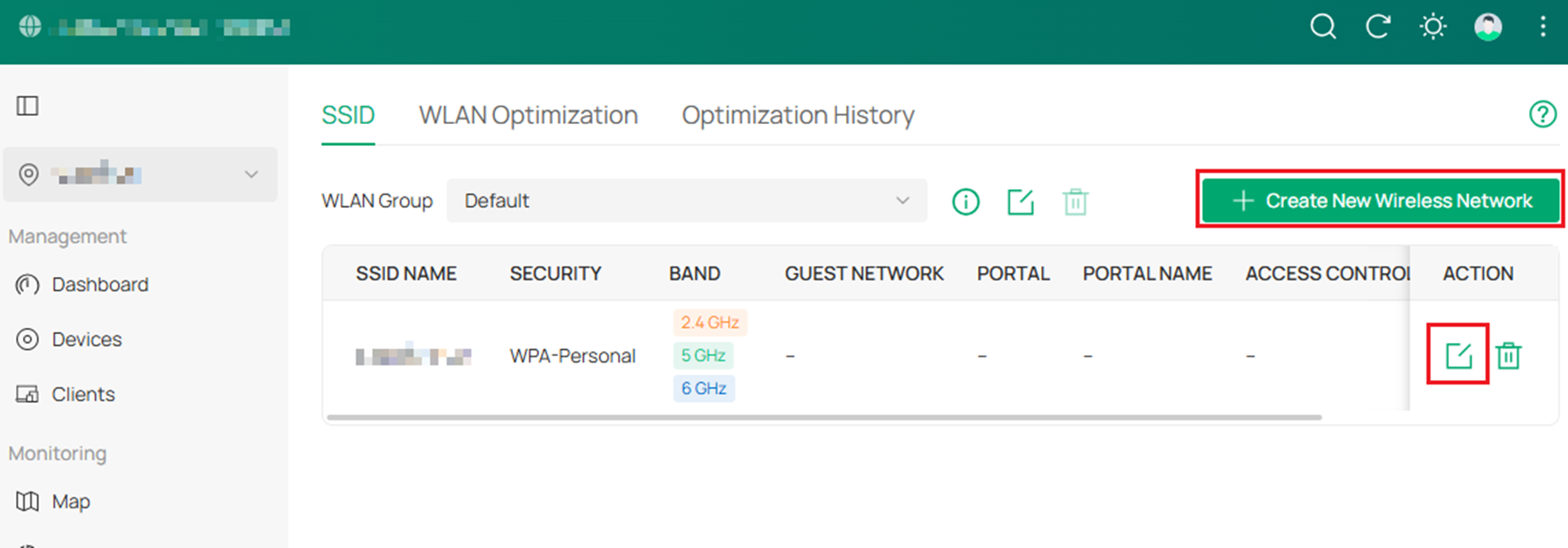
Step 2. Under SSID, select either Create New Wireless Network, or edit a preexisting network by selecting the Edit Action.
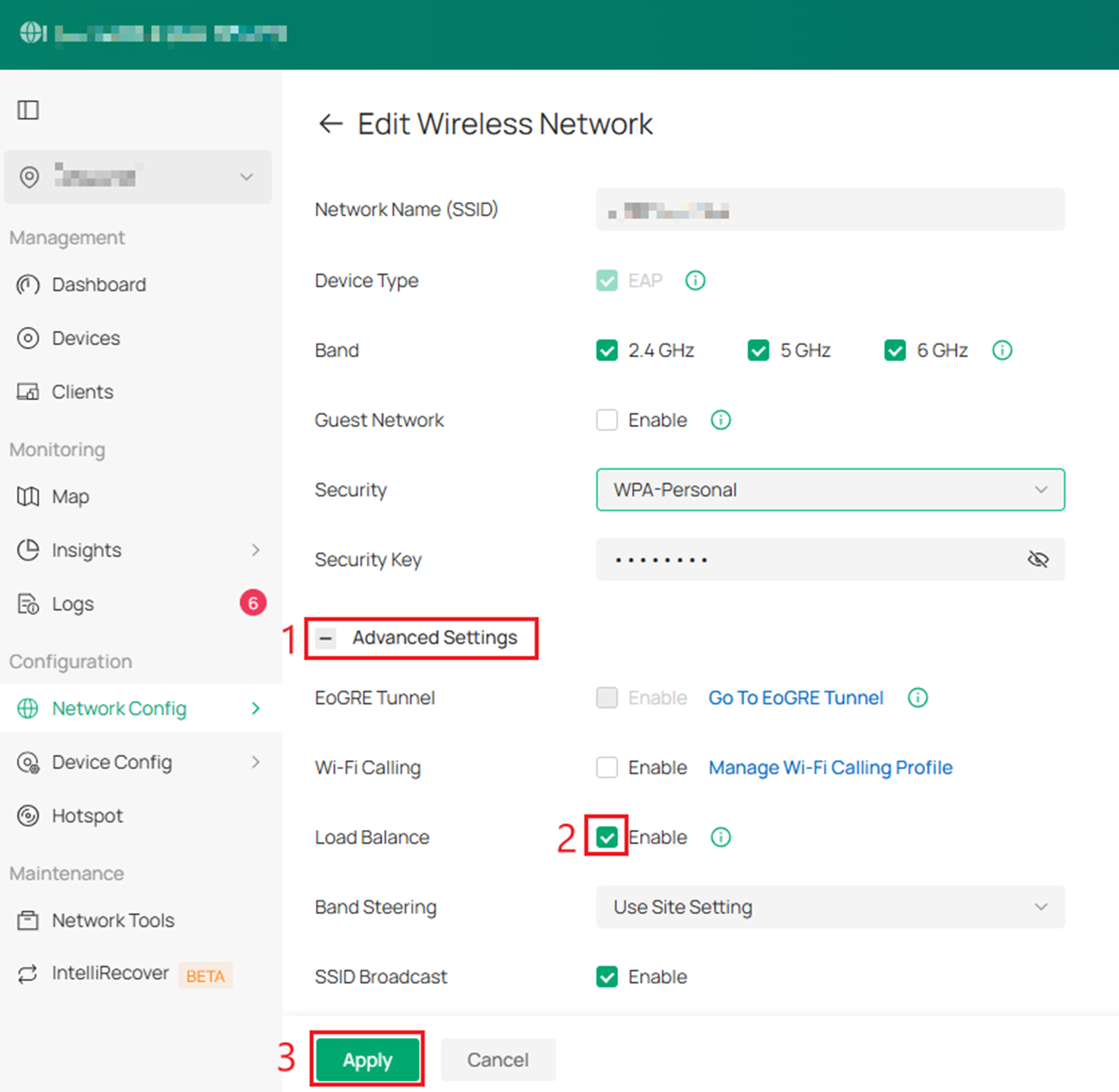
Step 3. Within Edit Wireless Network, expand the Advanced Settings configuration option, and select Enable Load Balance. Select Apply to confirm these settings.
Band Steering
Band Steering improves network performance by directing multi-band clients to the less congested 5 GHz or 6 GHz bands. When enabled, two modes are available: Prefer 5/6G, which prioritizes connecting clients to higher-frequency bands, and Balance, which distributes clients across bands for optimal load.
By default, it uses site settings. If a specific mode is selected for the SSID, the SSID setting takes precedence over the site setting.
Band steering can be found in the same location as Load Balance.
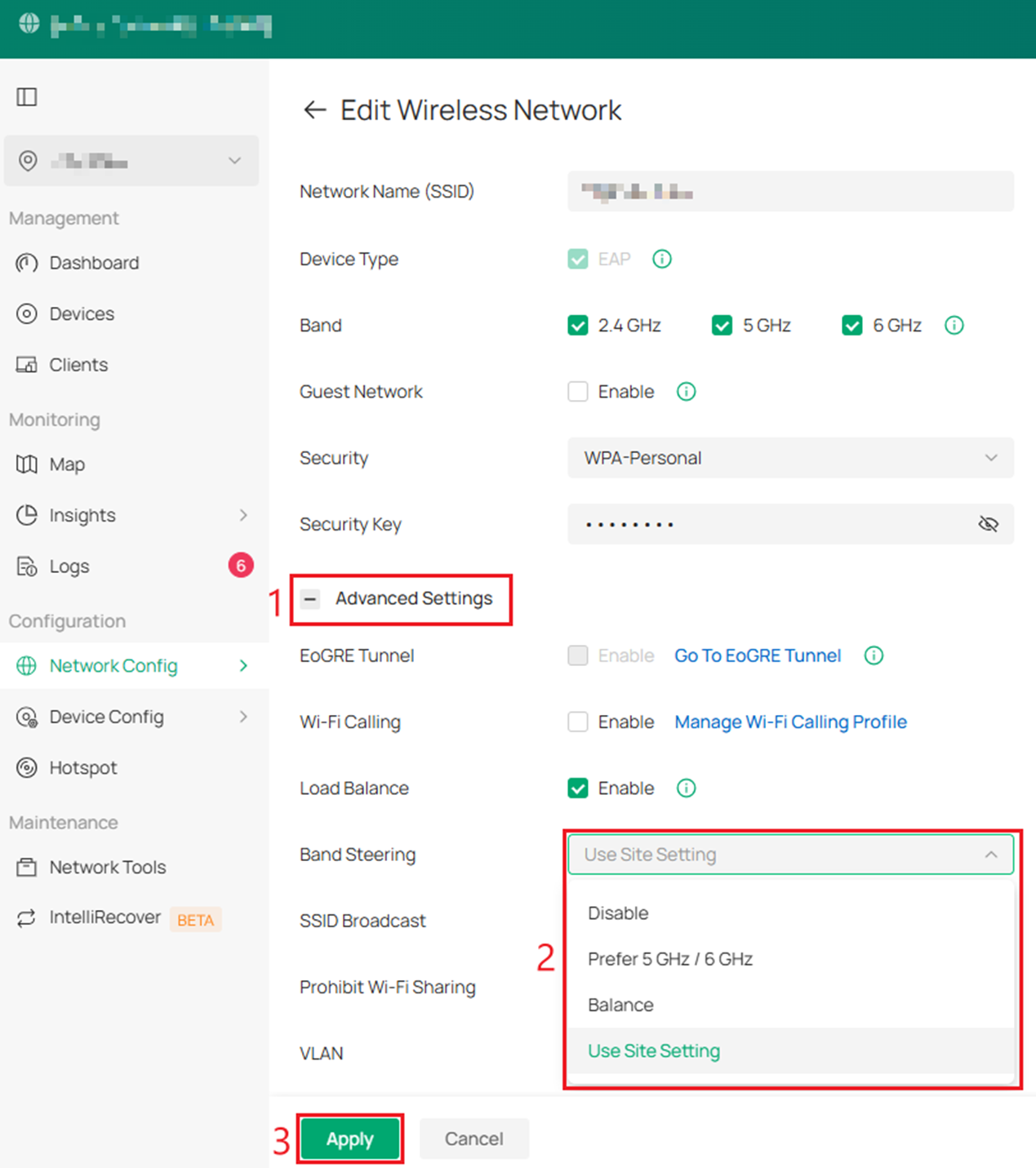
Band Steering options
Disable: Band Steering is turned off. Clients choose the band (2.4 GHz, 5 Ghz, or 6Ghz) on their own.
Prefer 5 Ghz / 6 Ghz: Dual-band or tri-band clients are encouraged to connect to the higher-frequency bands (5 GHz or 6 GHz) instead of 2.4 GHz. This helps improve performance and reduces congestion on the 2.4 GHz band.
Balance: Clients are distributed more evenly across available bands (2.4 GHz, 5 GHz, and 6 GHz) to prevent one band from becoming overloaded.
Use Site Setting: The SSID follows the Band Steering configuration defined in the site-level wireless settings instead of using a separate SSID-specific setting. These settings can be found under Site view > Network Config > Site Settings > Wireless Features > Band Steering.
Conclusion
The configuration is now complete. You should now have a basic understanding of how to configure Load Balancing and Band Steering in the Omada Controller to help improve client distribution and wireless network efficiency.
For more details on each function and configuration, please visit the Download Center to download the manual.
QA
Q1: Why is Load Balancing not working in my network?
A1: Load Balancing requires at least two Omada Access Points broadcasting the same SSID. If only one AP is present, clients cannot be redistributed.
Q2: Does Load Balancing force devices to switch access points?
A2: No. Load Balancing helps rebalance clients by recommending associated devices to roam and guiding new connections to less congested APs. Already connected clients are also subject to load balancing. However, it does not force clients to switch, and devices ultimately decide which AP to connect to.
Q3: Can Load Balancing work with a single SSID across multiple APs?
A3: Yes. Load Balancing works when multiple APs broadcast the same SSID within the same site and are managed by the Omada Controller.
Q4: What is the difference between Load Balancing and Band Steering?
A4: Band Steering encourages dual-band or tri-band clients to connect to the 5 GHz or 6 GHz bands instead of 2.4 GHz during the association phase, improving performance and reducing congestion. In Balance mode, the system steers clients to the band with the lowest channel utilization, helping distribute clients more evenly across all bands. Load Balancing operates during both the association and associated phases, distributing clients across nearby access points to prevent any single AP from becoming overloaded.
Q5: Should I enable both Load Balancing and Band Steering?
A5: Load Balancing and Band Steering are relatively independent features. Load Balancing distributes clients between APs, while Band Steering directs clients across wireless bands. Although they can complement each other to improve overall network performance, they do not need to be enabled simultaneously to take effect.
Q6: Will Band Steering work with devices that only support 2.4 GHz?
A6: No. Band Steering only affects dual-band or tri-band devices. Devices that support only 2.4 GHz will connect to the 2.4 GHz band normally.
