


How to Manage Devices on Fusion Pro Using the Devices Page


Contents
Device discovery & compatibility
Mixed-brand management scenarios
Network and traffic continuity
Locating & updating device passwords
Introduction
The Devices page on the Omada Fusion Pro Gateway provides centralized visibility and management for supported network and surveillance devices. From a single interface, administrators can discover, adopt, monitor, update, and remove devices while maintaining consistent management credentials and configuration policies across the deployment.
This guide explains how the Omada Fusion Pro Gateway handles device discovery, device adoption, third-party device compatibility, credential management, and device removal. Understanding these behaviors helps ensure smooth onboarding, simplified administration, and predictable device management throughout the device lifecycle.
Device discovery & compatibility
The Omada Fusion Pro Gateway passively listens for Layer 2 discovery broadcasts and receives directed Layer 3 inform packets, enabling automated detection and one-tap batch adoption of connecting devices.
Omada devices
Proprietary Omada network devices are automatically discovered via native Layer 2 discovery broadcasts or DHCP Option 138/controller discovery protocols.
After Omada devices are onboarded, centralized configuration and management can be performed through the Omada Fusion Pro gateway, including VLAN settings, port profile configuration, Wi-Fi SSID configuration, firmware upgrades, and other management tasks.
Mixed-brand management scenarios
In mixed-vendor network environments, third-party networking hardware may appear in the client lists via standard protocols such as LLDP. However, third-party networking devices cannot be adopted into full controller management. The Omada Fusion Pro Gateway cannot push configurations, update firmware, or override local credentials on non-native switches, routers, or other networking devices.
Third-party IPCs (IP cameras)
Video surveillance is often deployed in multi-vendor scenarios. The Omada Fusion Pro Gateway handles third-party cameras using industry standards such as an ONVIF and supports manual addition via RTSP video streams.
For instruction on how to add security devices, please refer to this guide: How to Add Omada Security Devices to Omada Fusion Pro Gateway
|
Device category |
Discovery method |
Adoption support |
Management capabilities |
|
Omada/VIGI devices |
Native Layer 2 discovery, DHCP Option 138 |
Fully supported |
Full centralized management |
|
Third-party IP cameras (IPCs) |
ONVIF auto-discovery, manual RTSP stream addition |
Supported (video management) |
Video streaming and basic camera control |
|
Third-party networking devices |
LLDP, standard client discovery |
Not supported |
Device visibility only |
Device adoption
Adoption process
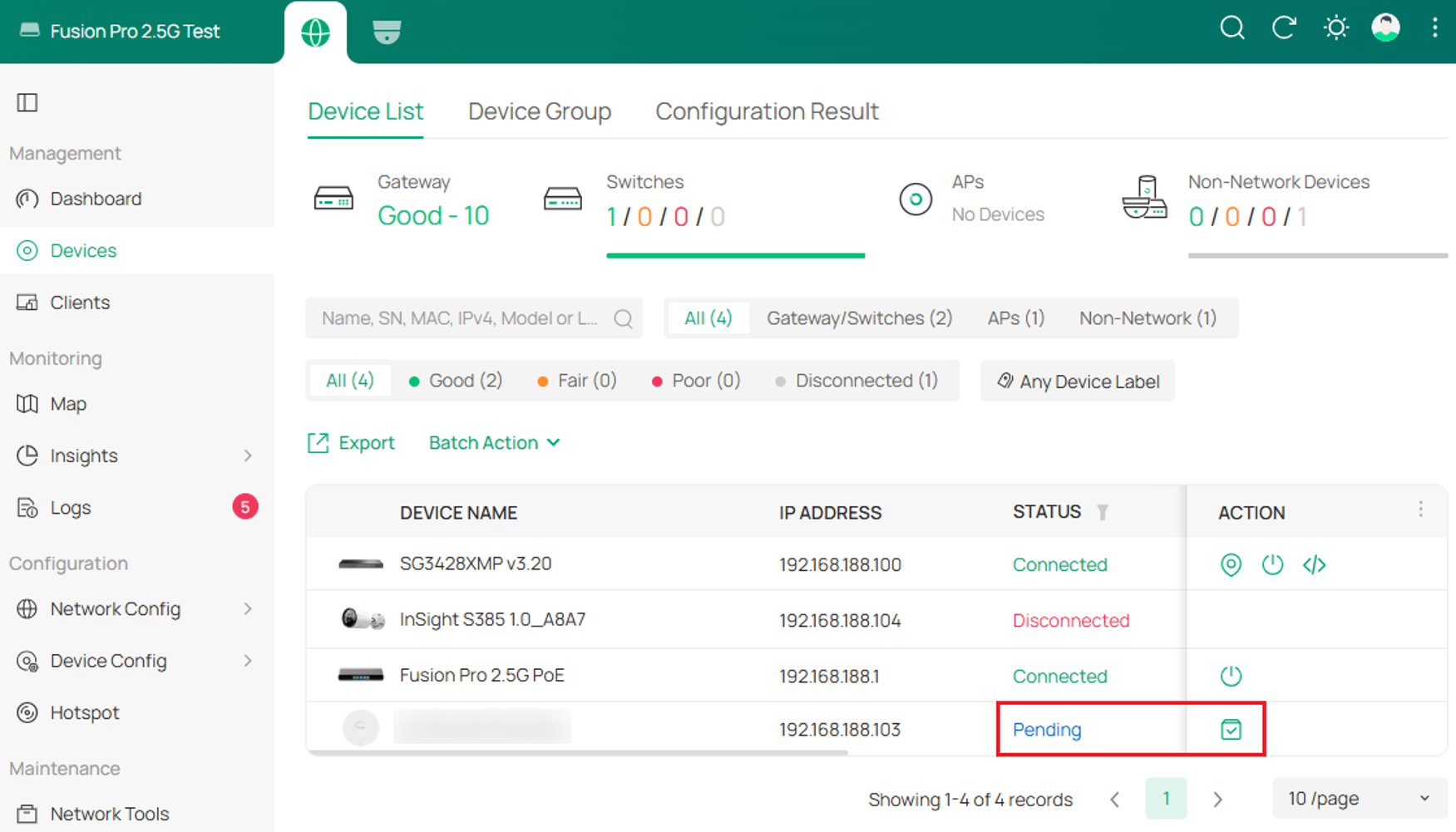
Once a device is discovered by and can communicate with the Omada Fusion Pro Gateway, it will appear in the Devices page and will show a state of Pending:
Note: Network devices will show "Pending" for adoption under Omada Network tab, and security devices will show "Pending" for adoption under Omada Guard tab.
Click on the Adopt button under the Action column and the state will change from Adopting to Connected:
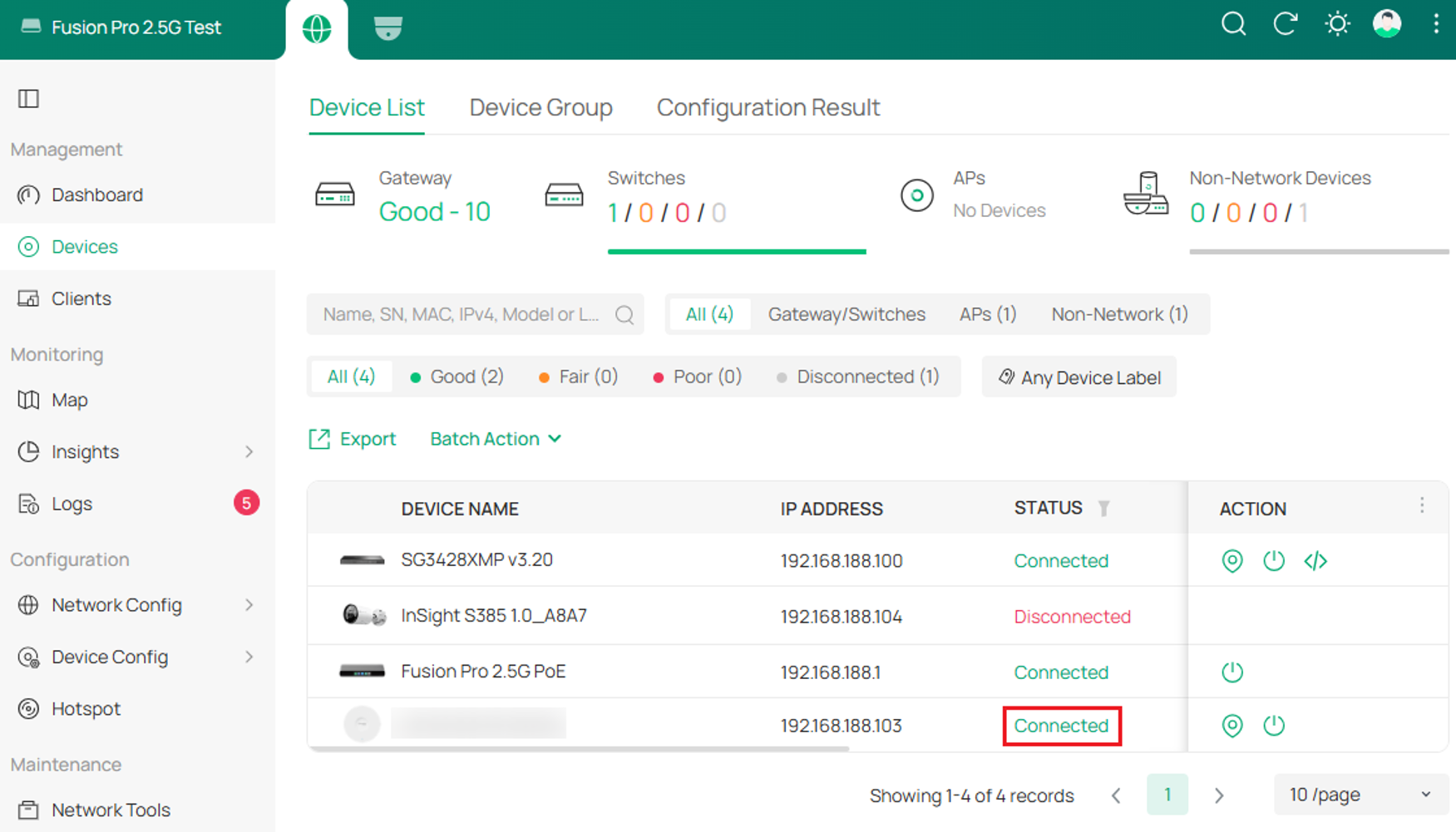
Note: If an NVR has already been adopted, subsequently adopting IPCs will be automatically assigned to the NVR under the same site. The IPCs can then be managed via the NVR's channel/sub-channel settings, rather than being managed individually as standalone devices.
Automatic password overwrite
During adoption, the Omada Fusion Pro Gateway pushes the configured Device Account credentials to the device and replaces the device's existing local management credentials.
The device’s initial/factory login credentials (such as admin/admin or the standalone setup password) will no longer work when attempting to access the device’s local web UI, NVR GUI, or SSH terminal directly.
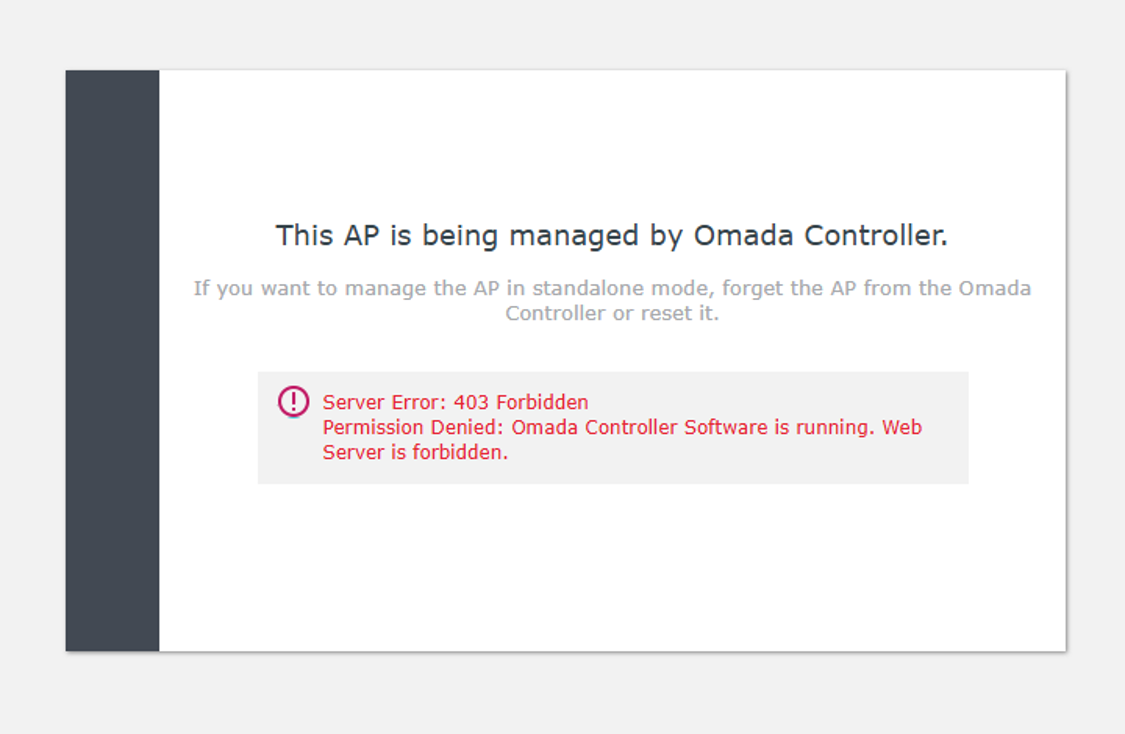
Network and traffic continuity
When devices are being adopted, the Omada Fusion Pro Gateway will provision the devices with the site’s global policies such as IP settings, security rules, etc. Applying initial configurations may cause momentary link negotiations or port reboots so it is recommended to adopt critical infrastructure during low-traffic maintenance windows.
Locating & updating device passwords
Because the Omada Fusion Pro Gateway overrides local device credentials when it’s adopted, it’s important to know where to find the active device password and how to modify it.
Finding the password
To locate the active device password in the Omada Fusion Pro Gateway web UI, go to Settings > System Settings > Access Config and it will be under Device Account.
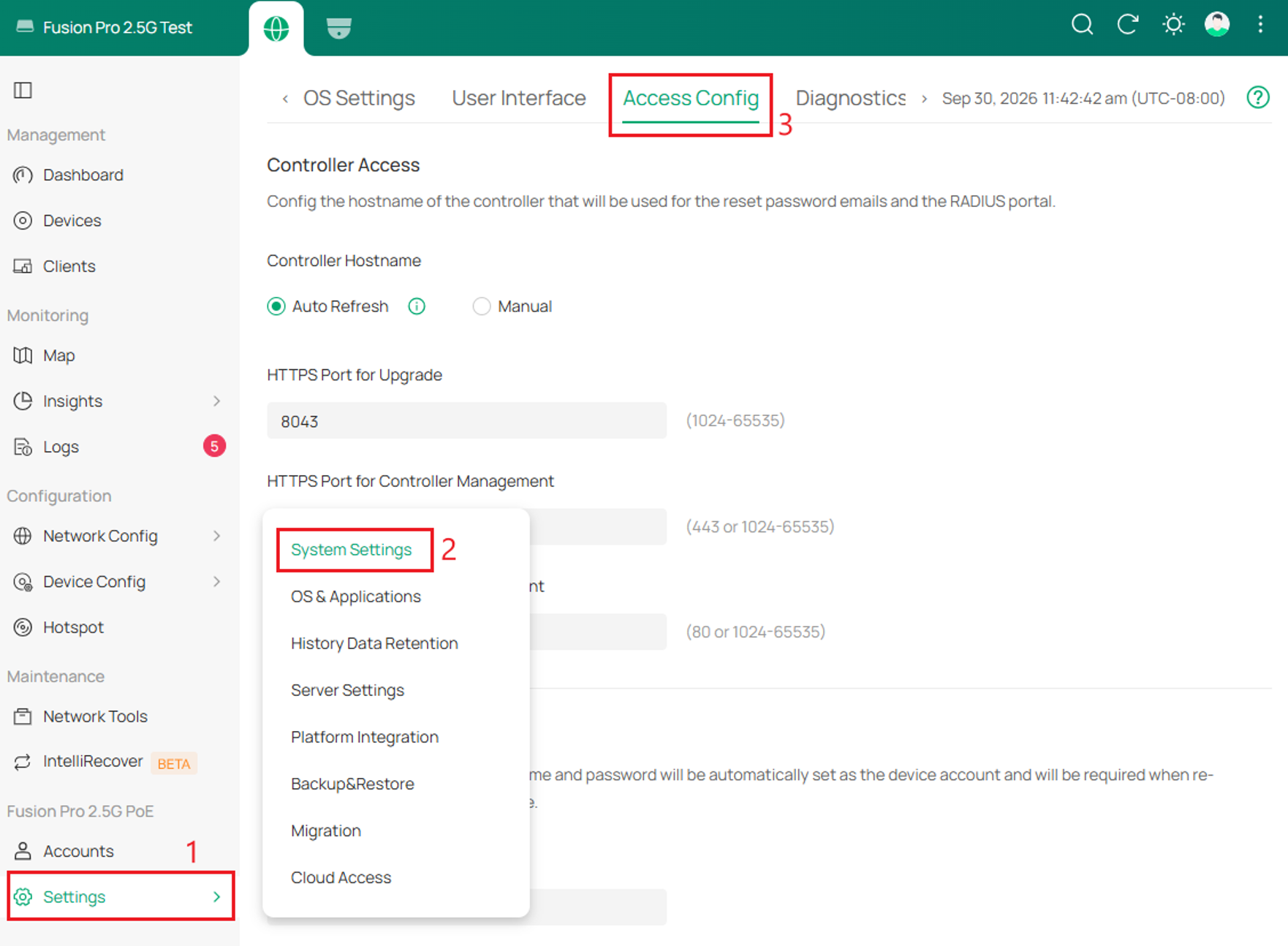
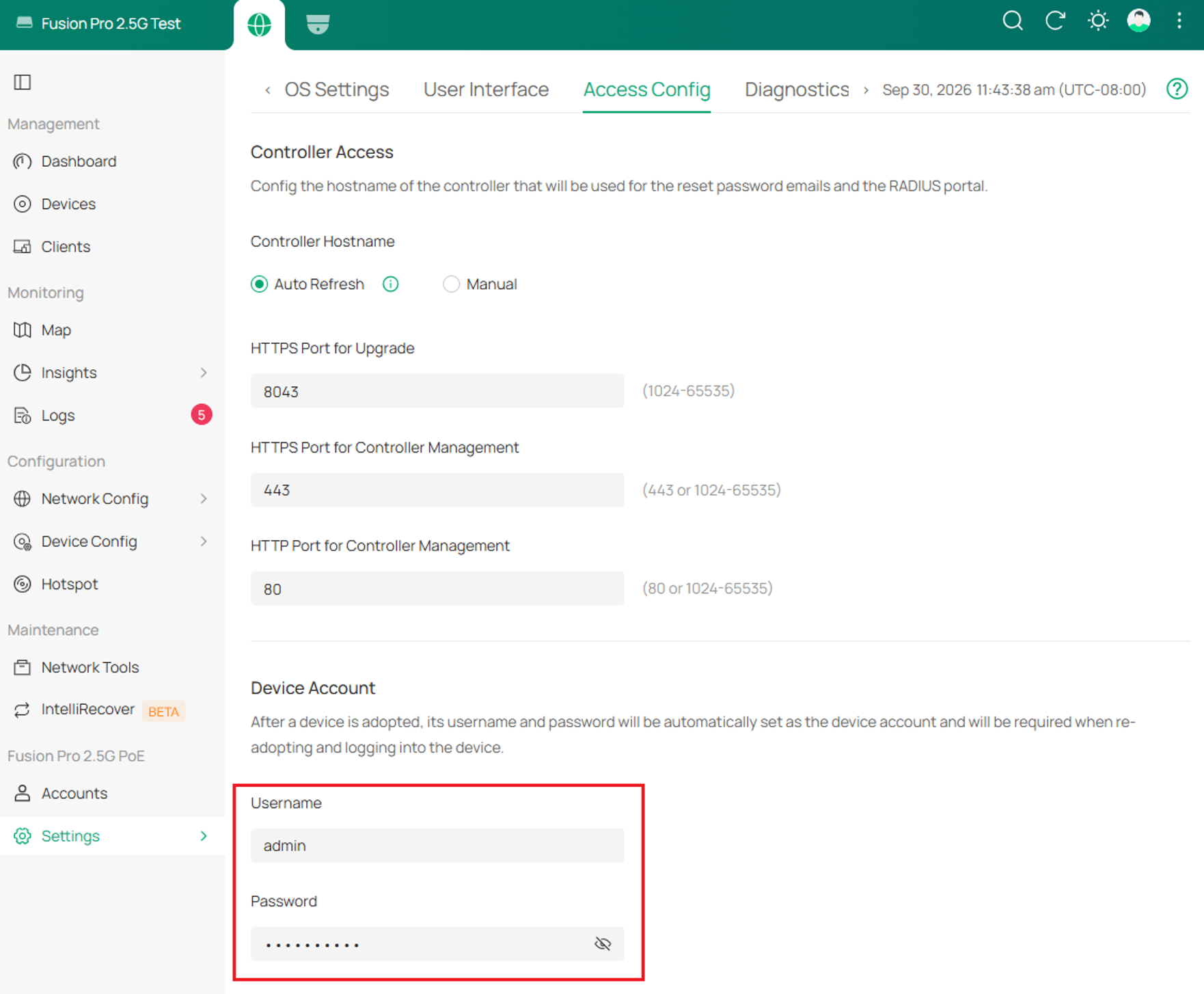
After a device is adopted, the username and password set here will be automatically set as the device account and will be required when re-adopting and logging into the device.
Modifying password
To modify the password and username credentials, edit the field with the new credentials and click Apply. These new credentials will apply to newly adopted devices and will be pushed to currently adopted devices.
Device removal
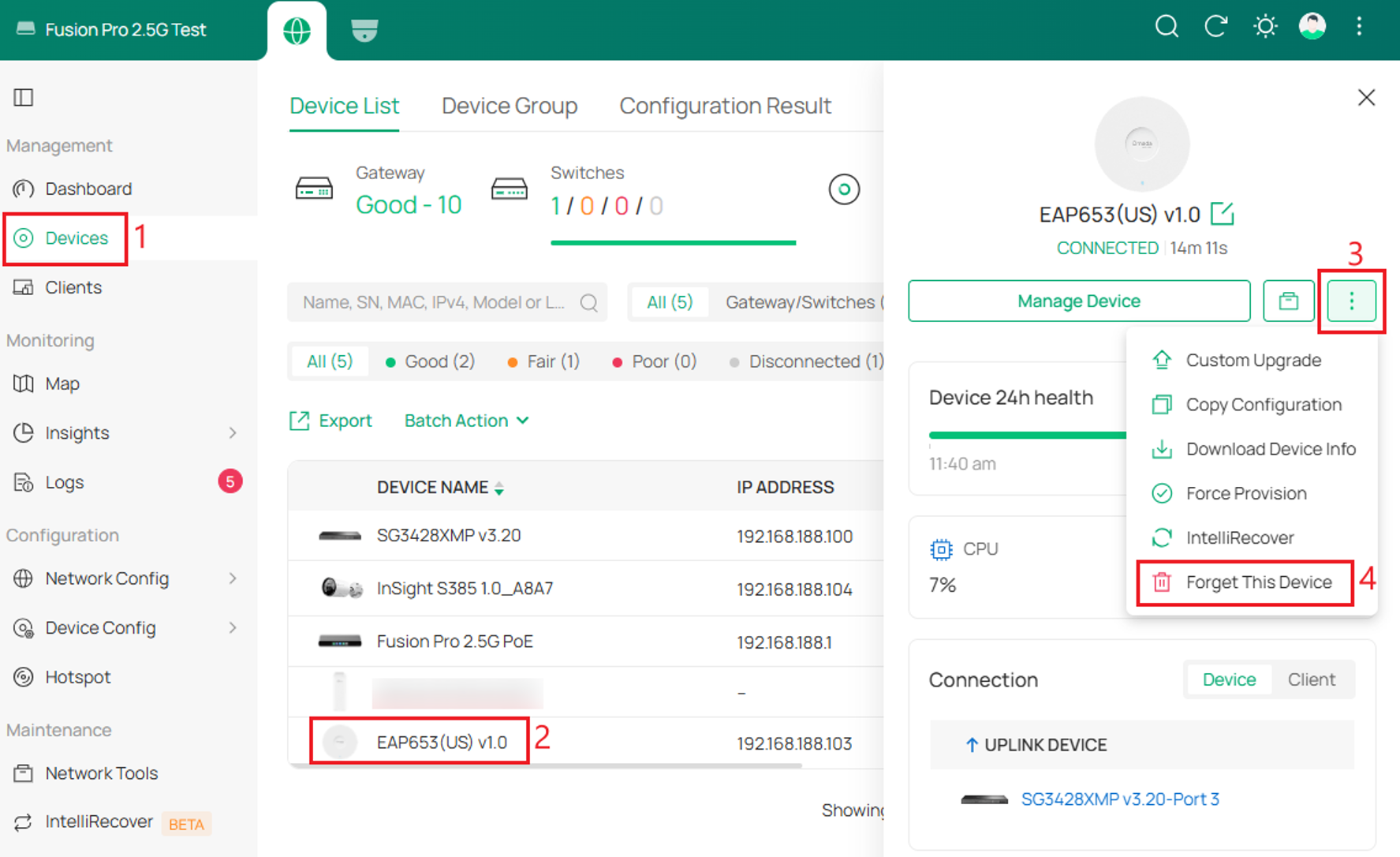
Removing a device from an existing Omada Fusion Pro Gateway returns it back to its Standalone Mode to allow it to be re-adopted by another controller.
To remove a device, go to the Devices page, click on a device to open its sidebar panel, click on the three dots, and click Forget this device. This action will remove the device from the controller and reset it to factory default settings.
Note: For camera/NVR/SightCast, the reset action is selectable.
Conclusion
The Devices page serves as the central location for managing the lifecycle of supported devices on the Omada Fusion Pro Gateway. By understanding device compatibility, adoption behavior, credential synchronization, and device removal procedures, administrators can more effectively manage network and surveillance deployments while avoiding unexpected access issues.
Proper use of these device management functions helps streamline operations, maintain centralized control, and ensure secure and scalable deployment as additional devices are added to the environment.
To learn more about each function and configuration, please visit Support Home to download or check the manual for your product.
QA
Q1: Can I manage third-party switches and routers using the Omada Fusion Pro Gateway?
A1: No. While the Omada Fusion Pro detects third-party networking devices and displays them in client or topology lists, they cannot be adopted into centralized management.
Q2: Will forgetting an online device restore it to factory default settings?
A2: Yes. If the device is online and actively communicating with the Omada Fusion Pro, clicking “Forget this device” issues a remote factory reset command. The device will reboot, clear its provisioned configurations, revert to its default IP, and restore factory default credentials.
Q3: What happens if I forget a device while it is offline?
A3: If a device is offline when it is forgotten, it cannot receive the factory reset command from the Omada Fusion Pro Gateway. To restore it to factory defaults, use a pin to press and hold the physical hardware reset button on the device.
