


Contents
Introduction
When using an Omada Standard Gateway, clients may encounter internet access issues, which are typically caused by incorrect use of the Gateway. This article will introduce general troubleshooting steps to help resolve these issues.
Requirements
- Omada Standard Gateway
Troubleshooting
Step 1. Check the device's operating status using the LED indicators. Typically, the PWR light should remain on, and the SYS light should flash at a steady rate.
If all device LEDs are off, make sure the power supply connections are stable, and try unplugging and reconnecting the power adapter if necessary.

Step 2. Check the connection status of the physical links using the port LED indicators. Typically, when the port LED flashes green or yellow, it indicates that the port is operating and there is active traffic. When the port LED remains green or yellow, it indicates that the port is linked up, but there is no active traffic.

If the port LED is off, ensure that the Ethernet cable is securely connected and try replacing the Ethernet cable if necessary.
Step 3. Check whether the client has obtained or configured the correct IP address, gateway address, and DNS address. If the client automatically obtained the wrong IP address, gateway IP address, or DNS address, you may need to check the VLAN settings.
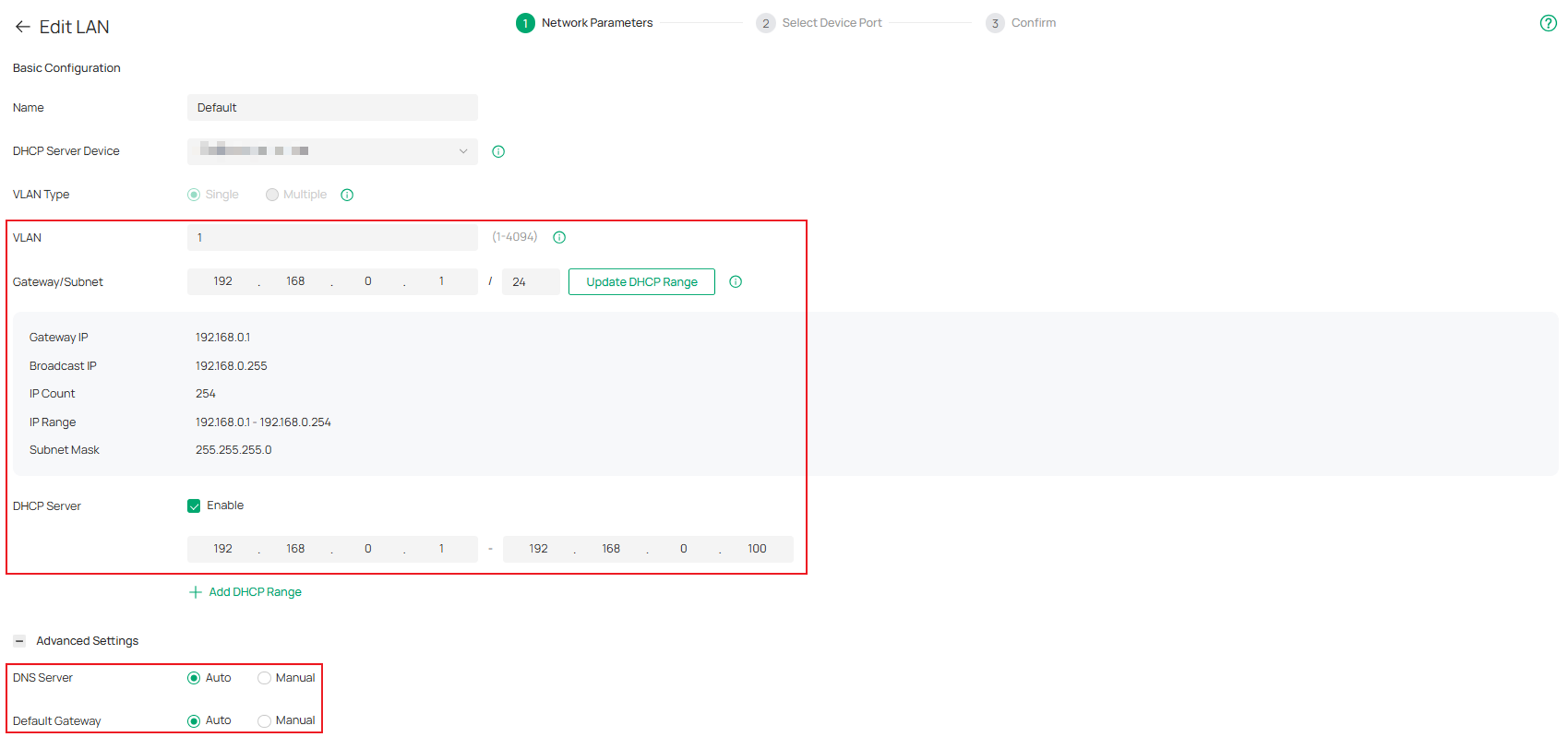
Note: The LAN subnet must not conflict with the WAN subnet.
Step 4. Check whether the WAN port configurations, including connection type, username, DNS servers, VLAN, etc., are correct and whether the online detection result shows “online.”
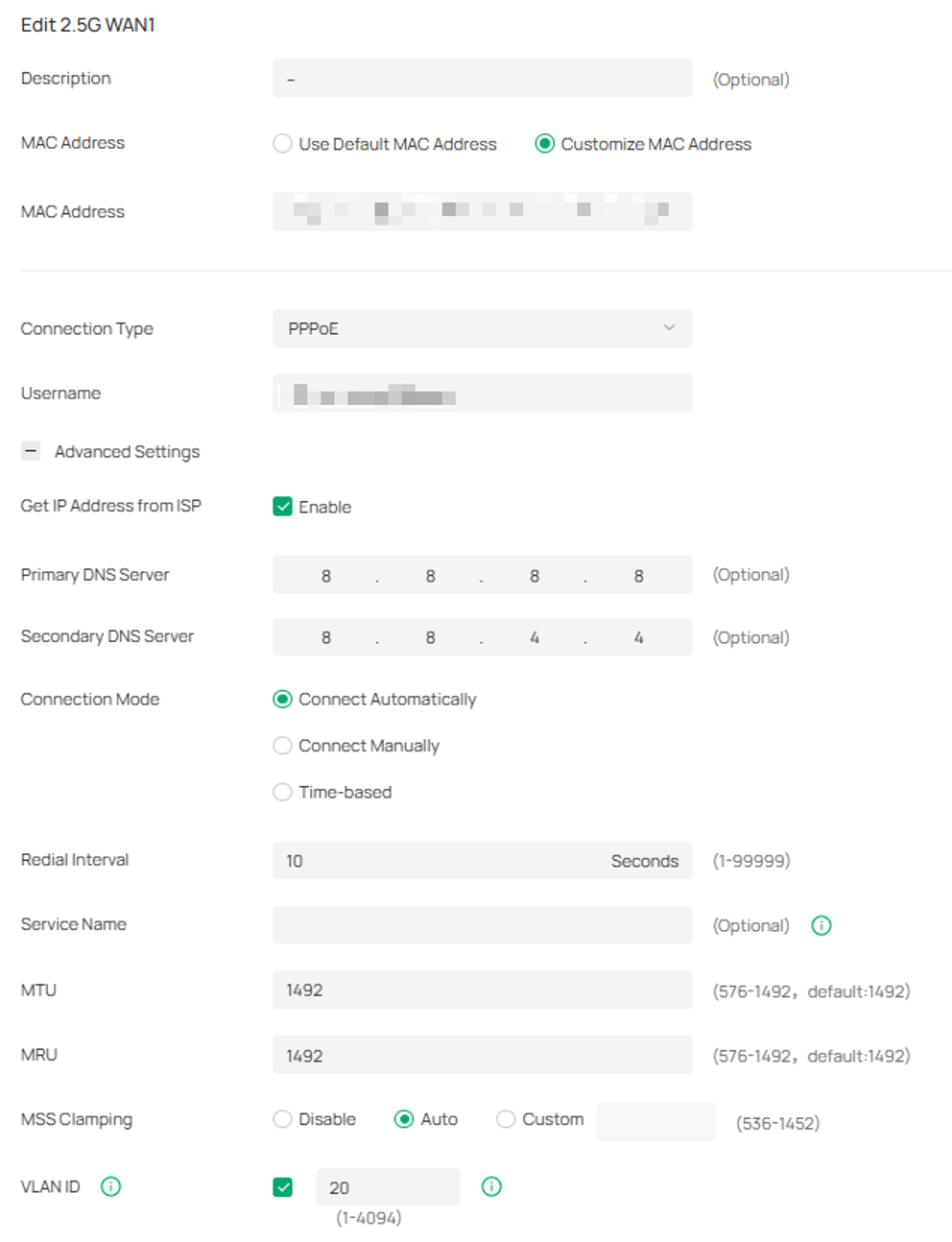
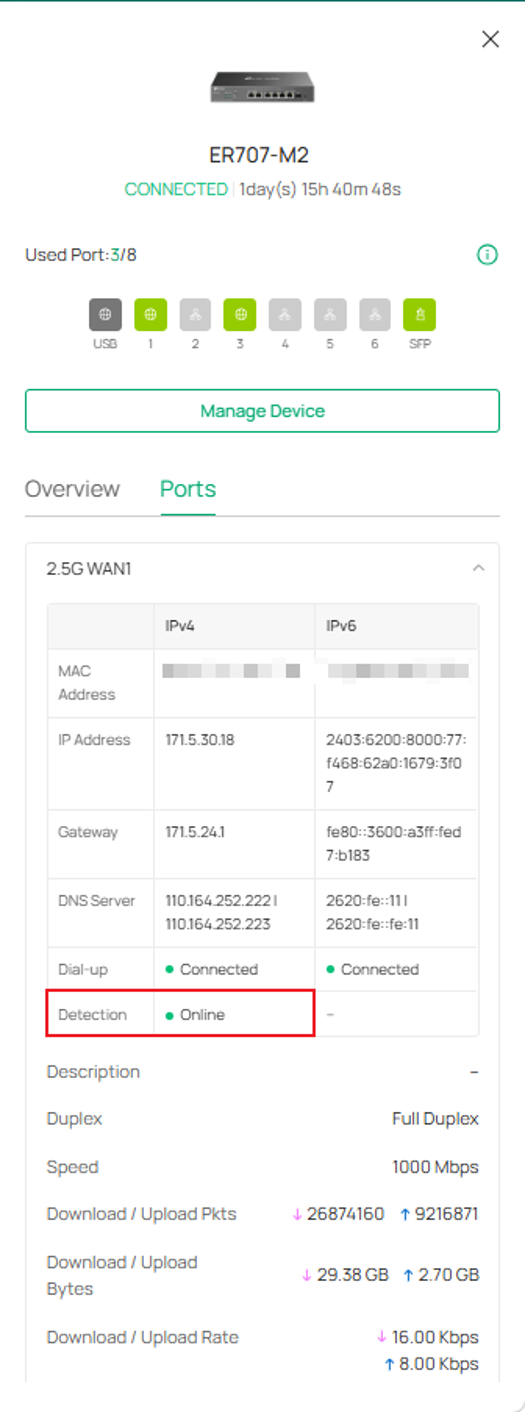
If all the configurations are right, but the online detection result remains offline, you may need to change the DNS server or try connecting a PC directly to the ISP modem to see if it can access the internet.
If you are unsure of the correct WAN configuration, please contact the ISP.
Step 5. Check whether any security features that may affect the client's Internet access are configured, such as ACL, URL filtering, MAC filtering, etc. It is recommended to disable or delete these configurations temporarily for comparison and verification.
Step 6. Check whether the CPU and memory utilization of the device are within normal ranges. If not, check for a network loop, excessive multicast/broadcast traffic, clients with unusually high traffic on the network, an excessive number of clients, high-frequency SNMP requests, or network attacks such as SYN floods, UDP floods, and ICMP floods.
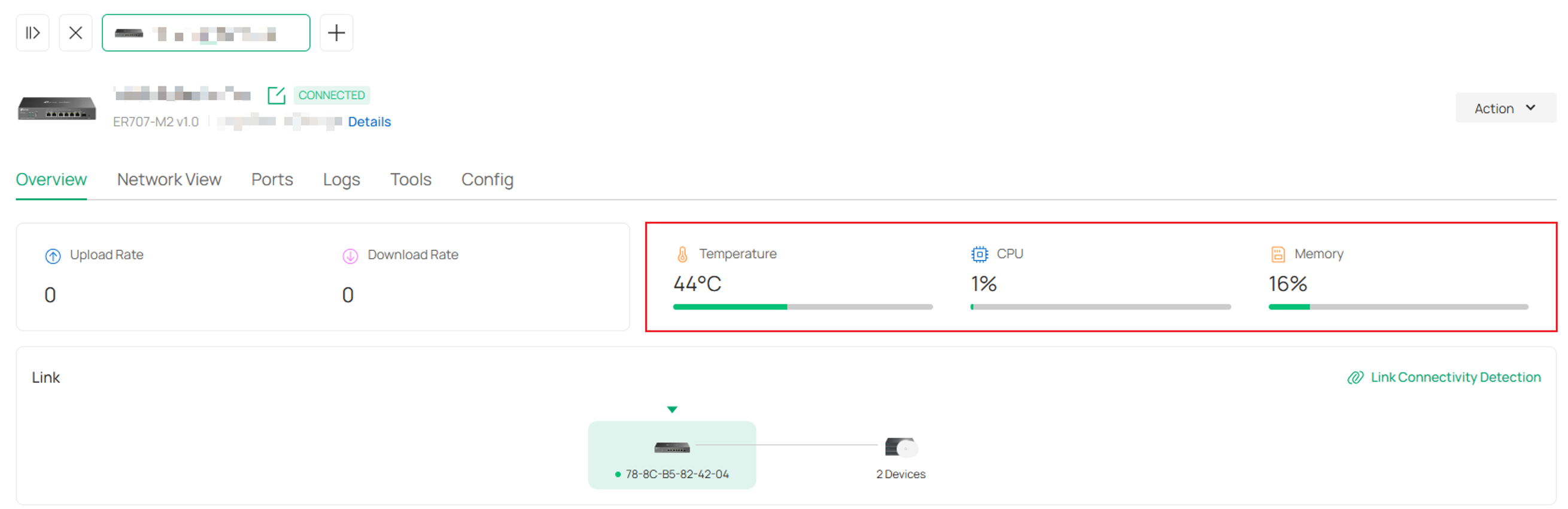
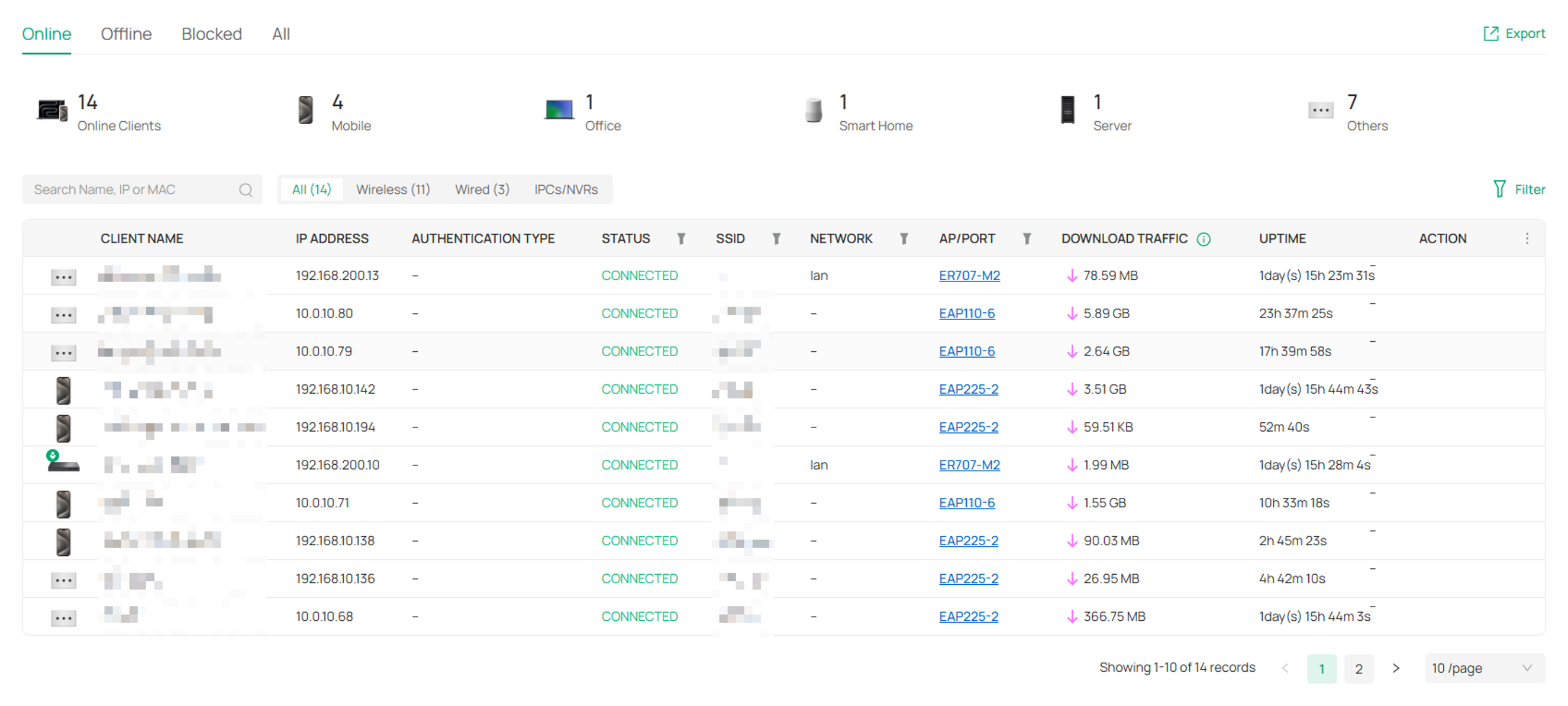
Step 7. Check if the number of active clients is excessive. You can verify whether this is causing the internet access issues by reducing the number of clients and seeing if the internet access recovers.
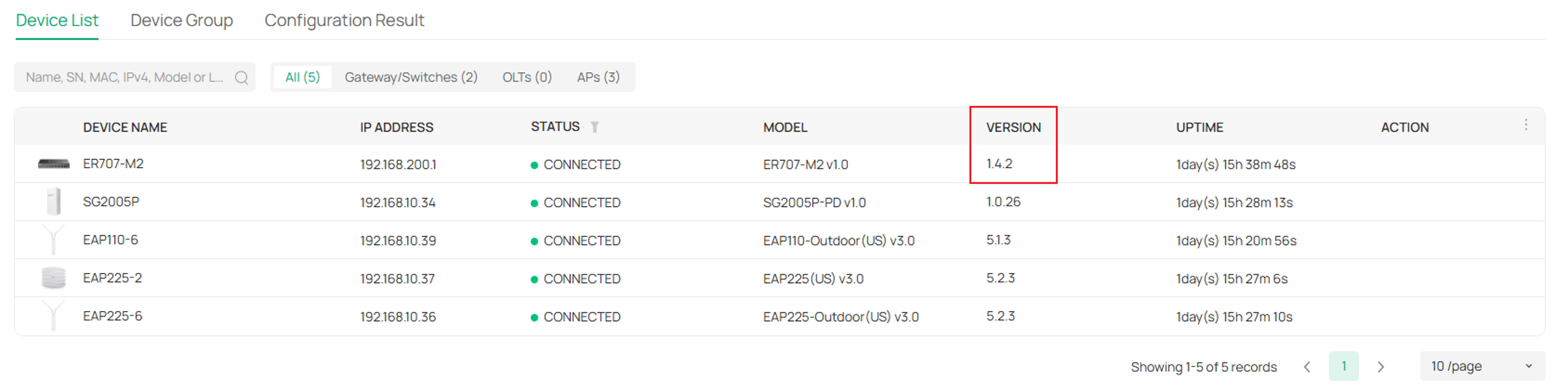
Step 8. Make sure the firmware is up to date. You can visit the official website at Download Center for the latest firmware.
Step 9. Reset or reboot the gateway if necessary.
Conclusion
Now we have covered the basic troubleshooting steps to follow when the clients have Internet Access Issues. If the steps above do not resolve the issue, you may need to contact Omada technical support.
To learn more about each function and configuration, please visit Support Home to download or check the manual for your product.
