


Contents
Via a standalone web interface
Introduction
For an Omada Wi-Fi Gateway (such as ER706W) supporting Standalone Mesh, you can configure the mesh function via the standalone web interface or the Omada app. The detailed steps for the two configuration methods are as follows. Please note that you need to ensure that the Gateway works in standalone mode and is connected to the Internet.
Requirements
- ER706W, ER703WP-4G-Outdoor, ER706W-4G
- Omada EAP
- Omada App or computer
Via a standalone web interface
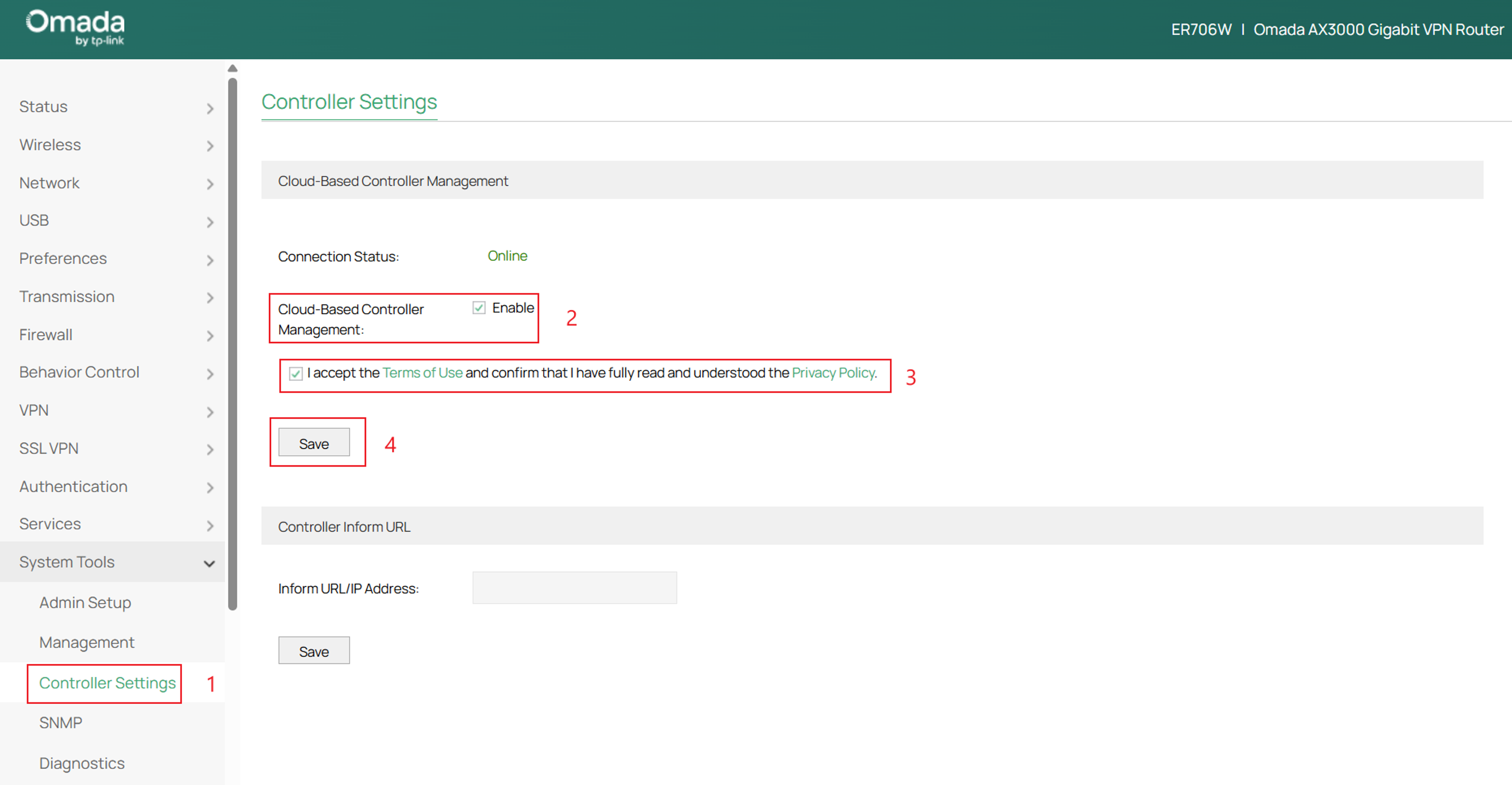
Step 1. Before configuring the mesh function on an Omada Wi-Fi Gateway, first enable Cloud-Based Controller Management as follows: log in standalone web, go to System Tools > Controller Settings, enable Cloud-Based Controller Management, and tick the Privacy Policy checkbox. Save the settings, then the Connection Status should be online.
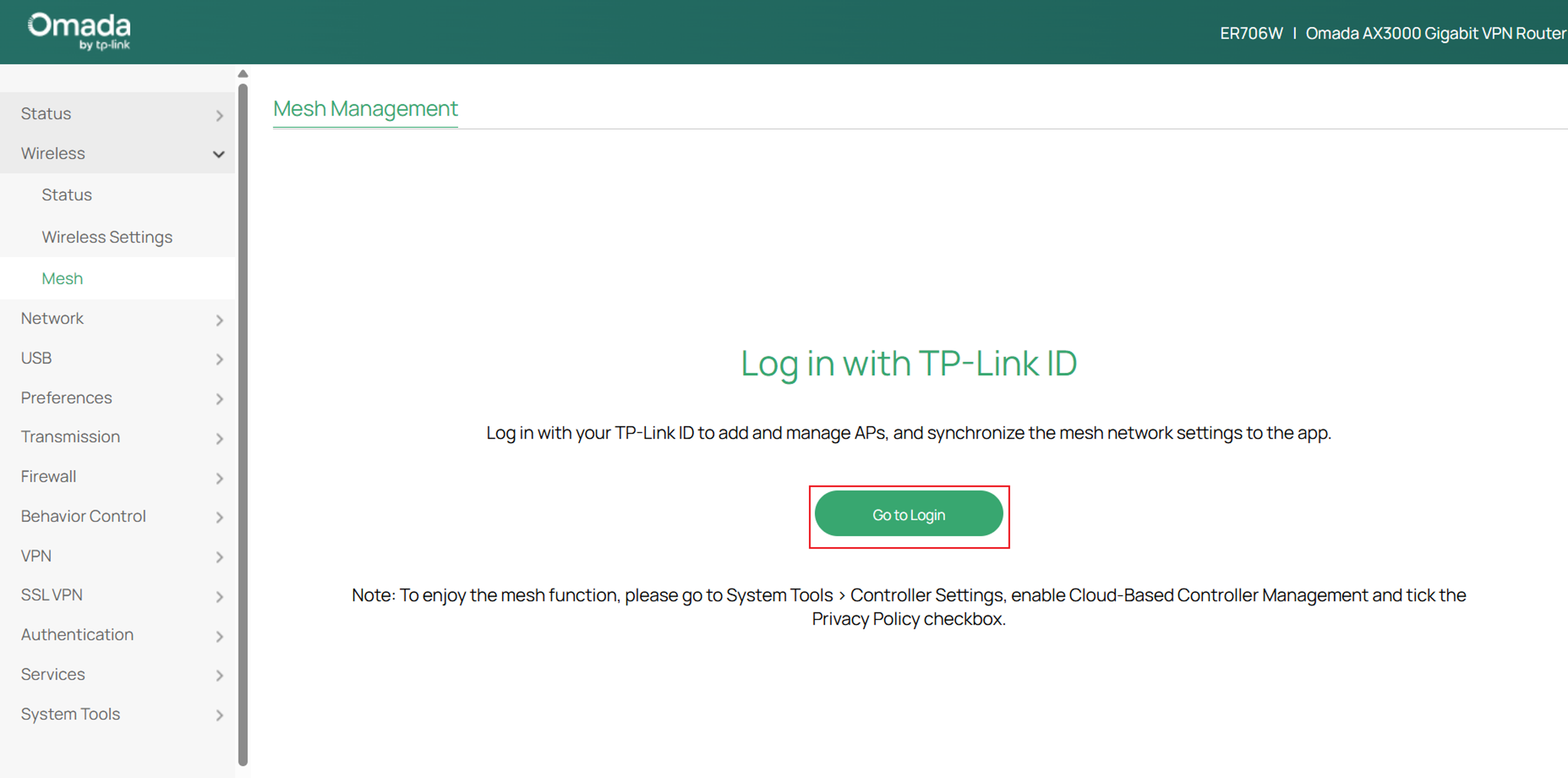
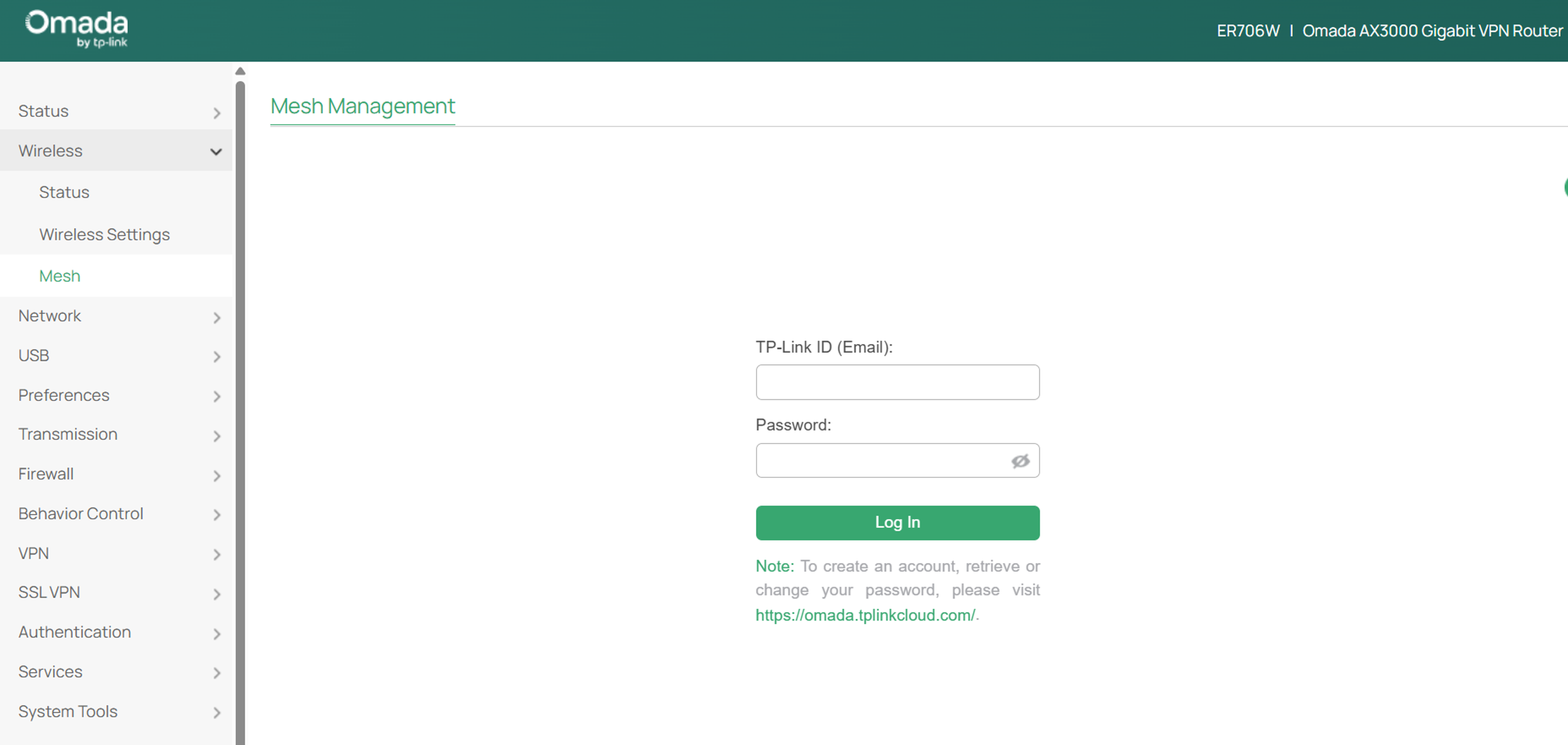
Step 2. Go to Wireless > Mesh. Click Go to Login and log in with your TP-Link ID.
If you don't have a TP-Link ID, sign up one first. After setting up the mesh network, you will be able to manage the network remotely via Omada App.
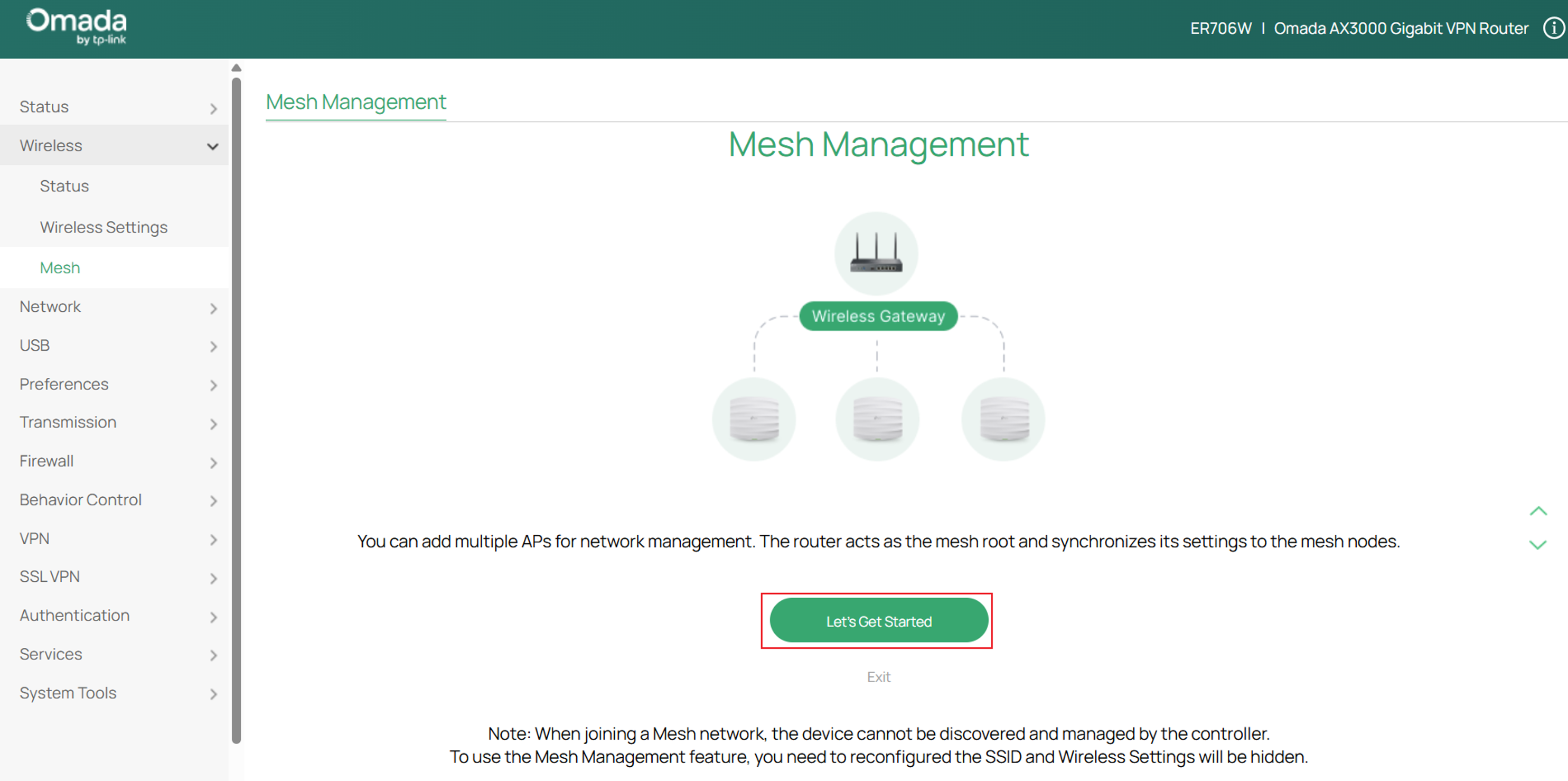
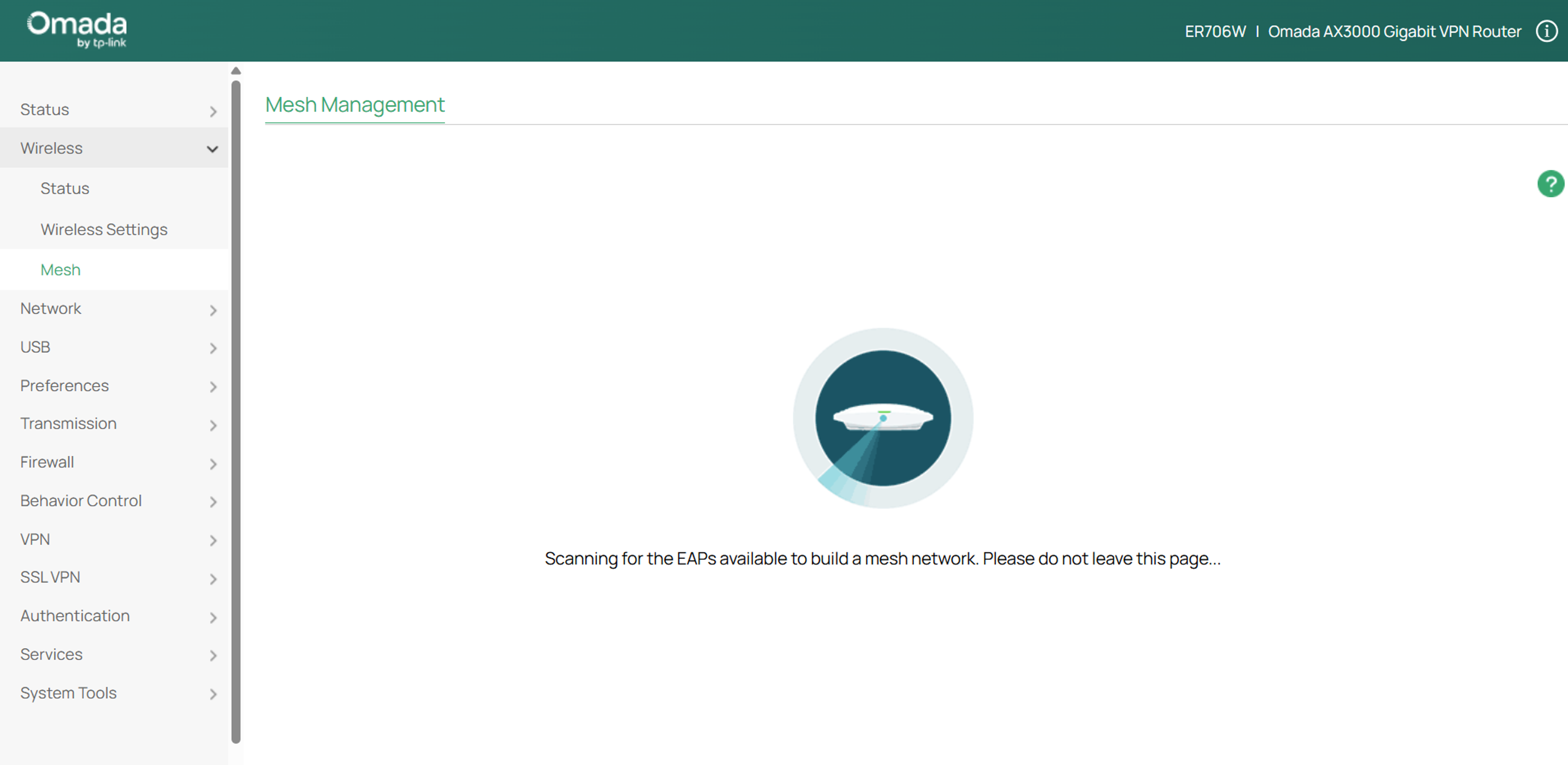
Step 3. Click Let’s Get Started. The Gateway will act as the mesh root to scan for available mesh APs around.
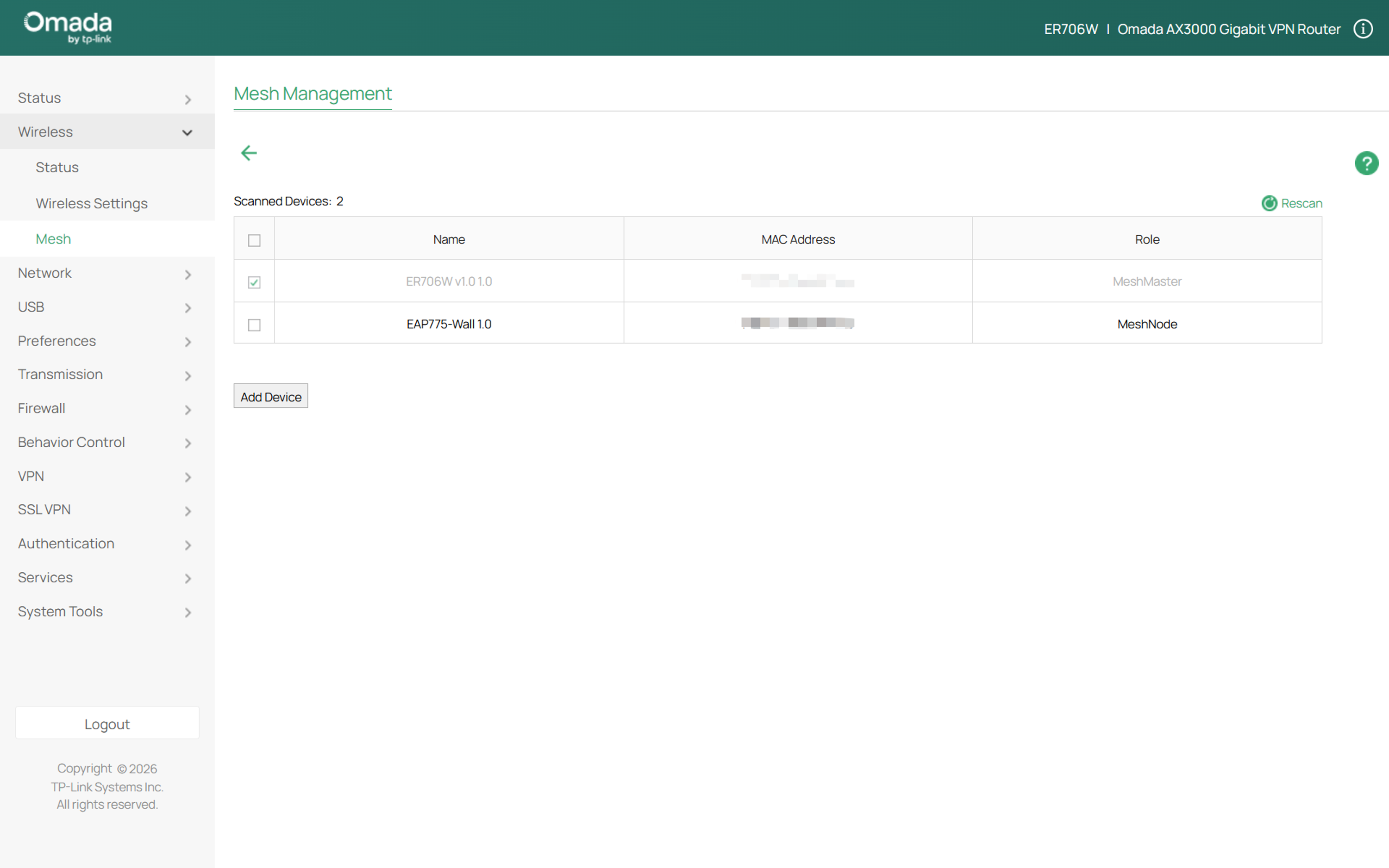
Step 4. Select the Gateway and mesh APs, then click Add Device. The Gateway will add the APs to form a mesh network.
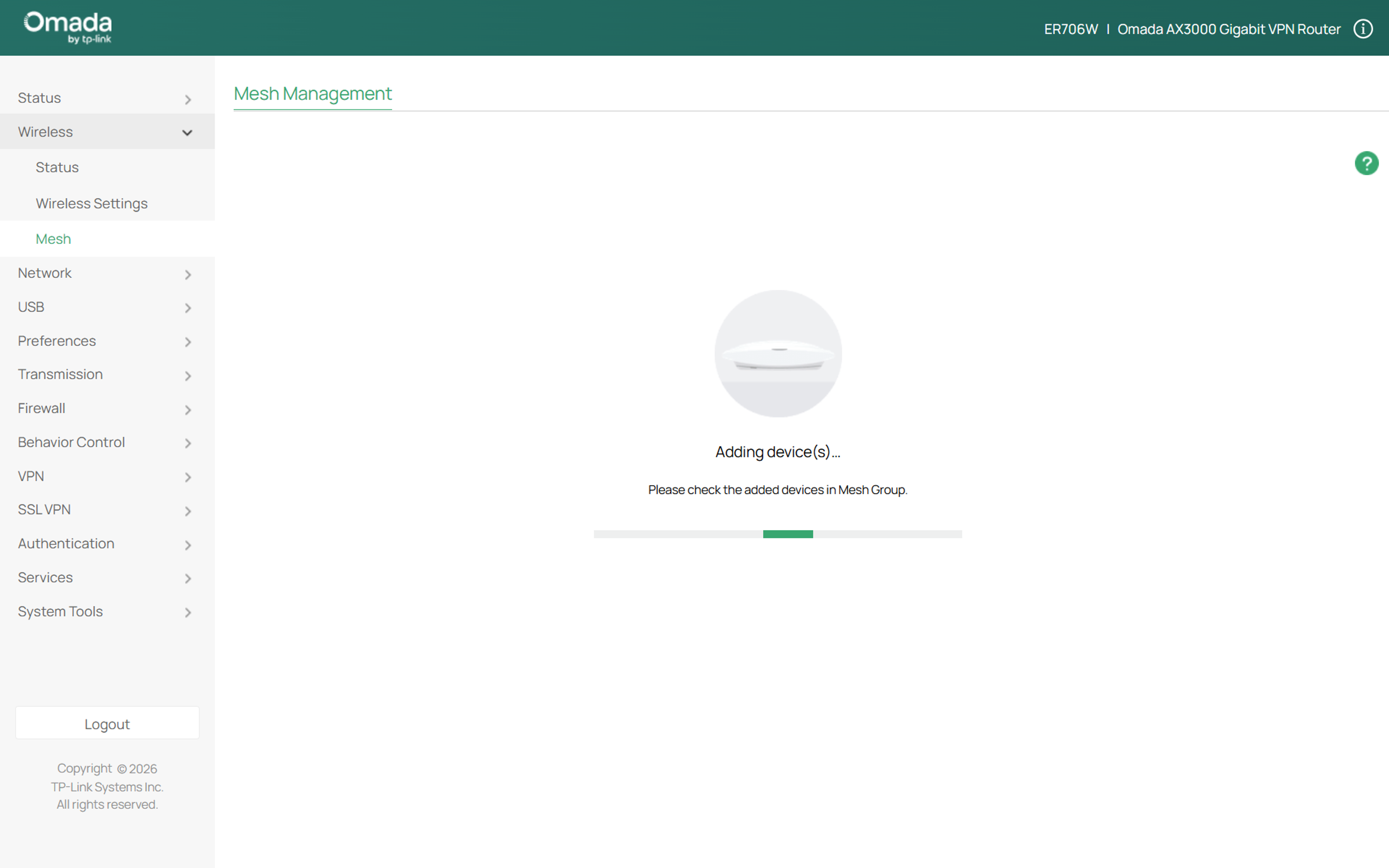
Step 5. Create the Username and Password for the device account. Click Next. This username and password will be applied to all the mesh devices including the Gateway and overwrite their original usernames and passwords.

Step 6. Set the SSID, Password and Band for the mesh network. You can clone the original SSID of the Gateway if you have created one. The default encryption method is WPA2-Personal.
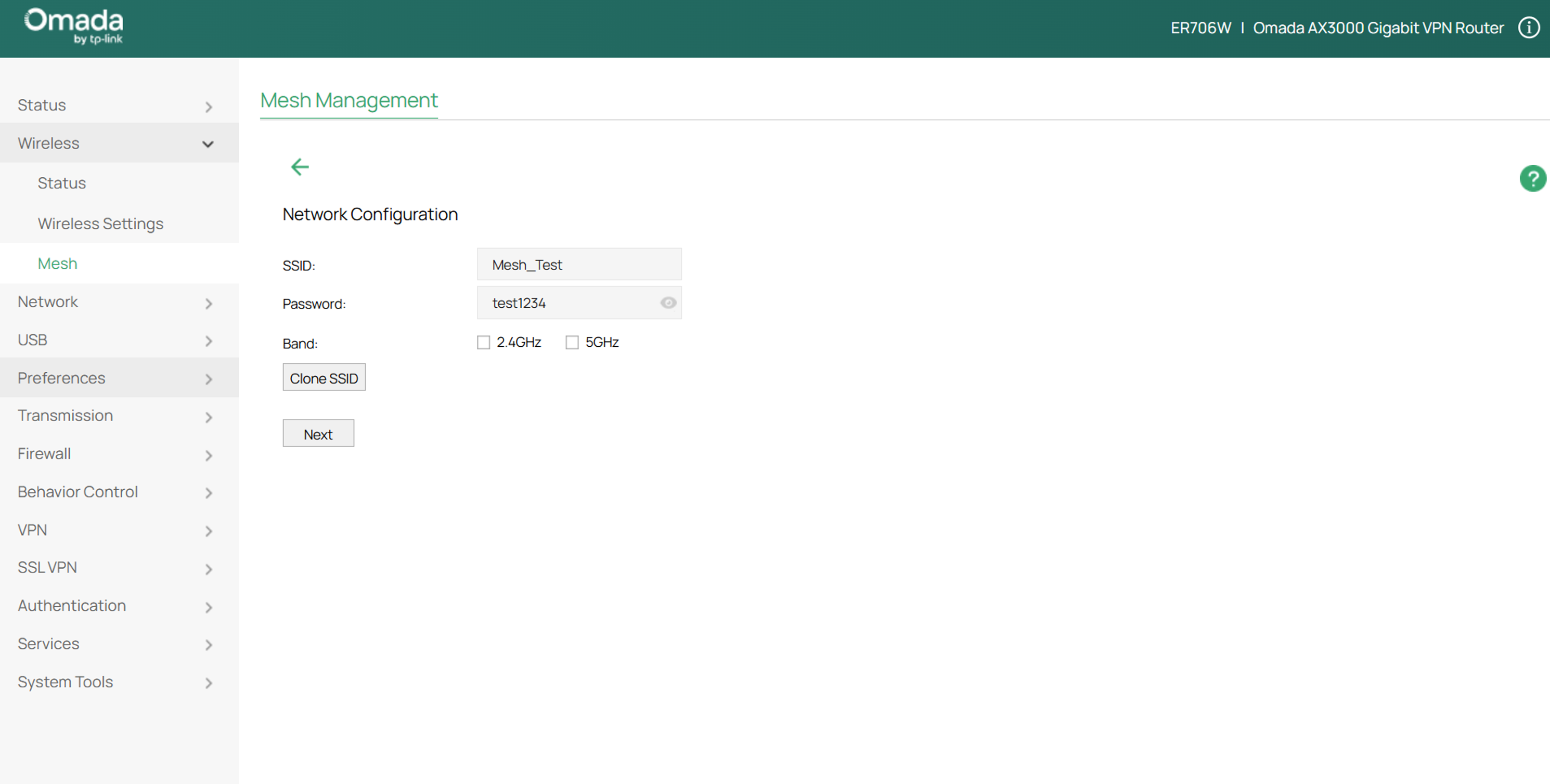
Step 7. Click Next to apply the settings. You will receive a Finish pop-up window.
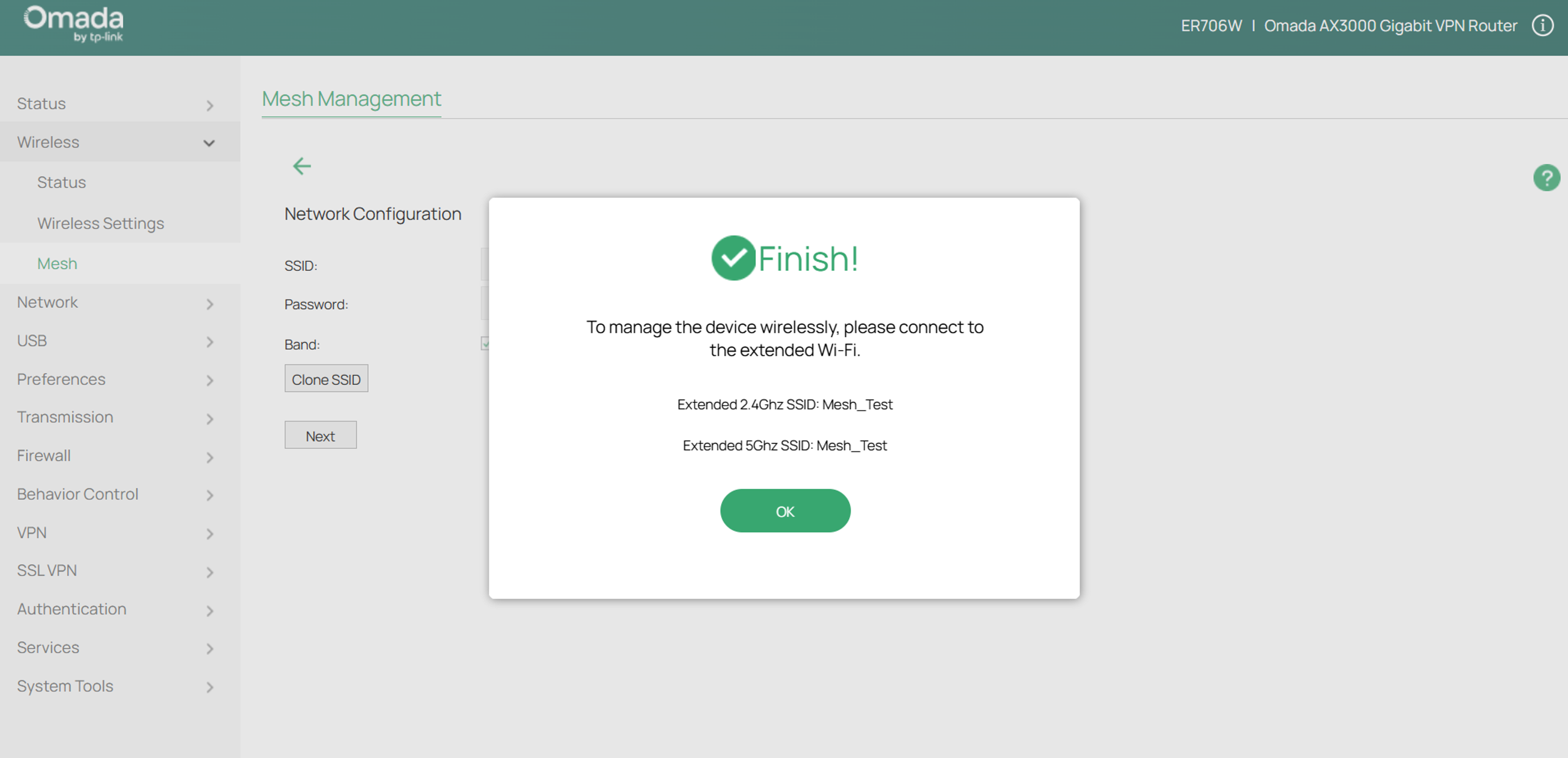
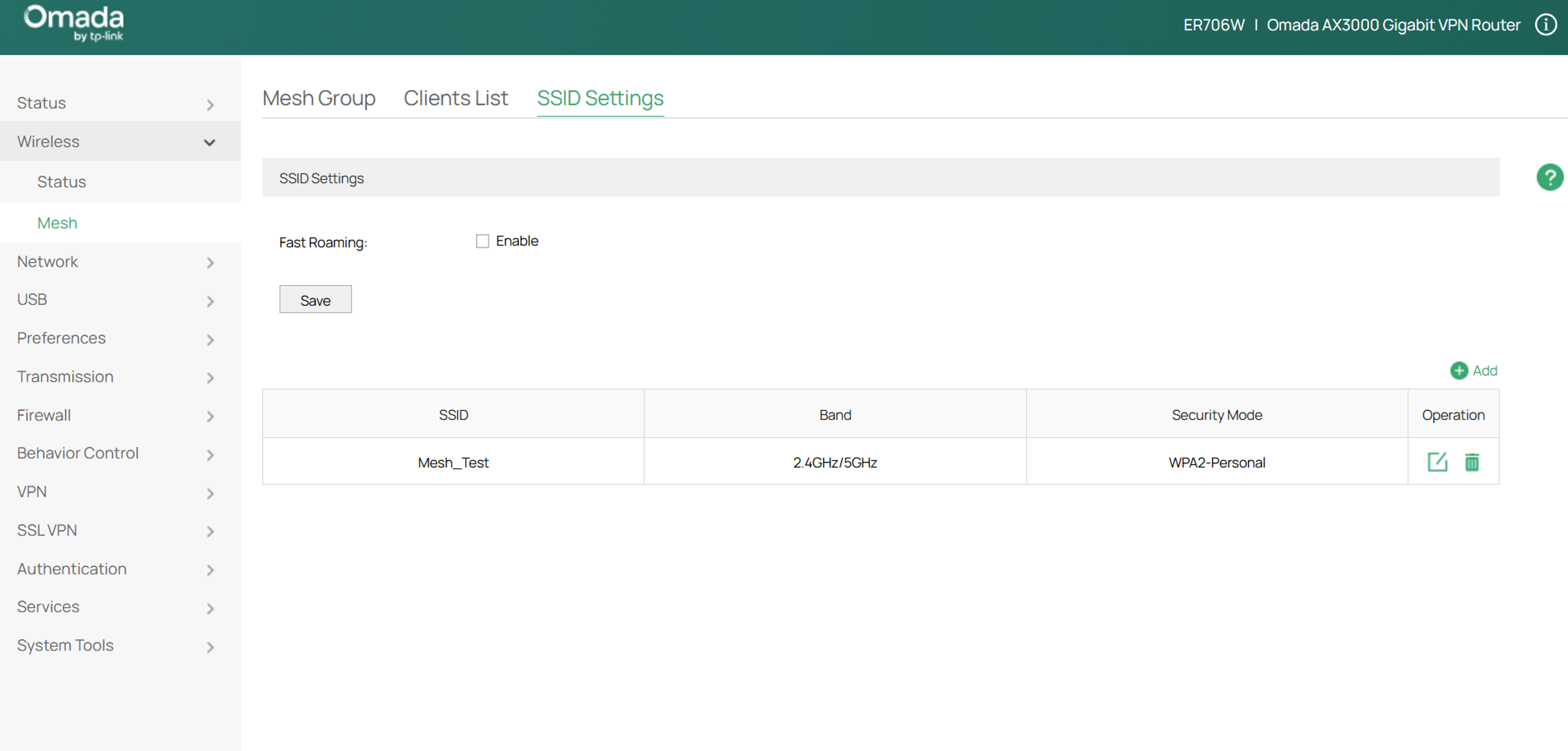
Note: All the wireless settings will be moved to the “Mesh” page after the mesh network is created. The original “Wireless Settings” page will disappear.
Via the Omada app
Step 1. Download and install the Omada App on your phone.
The Omada app is available on the App Store and Google Play. The following steps use the iOS Omada App as an example.
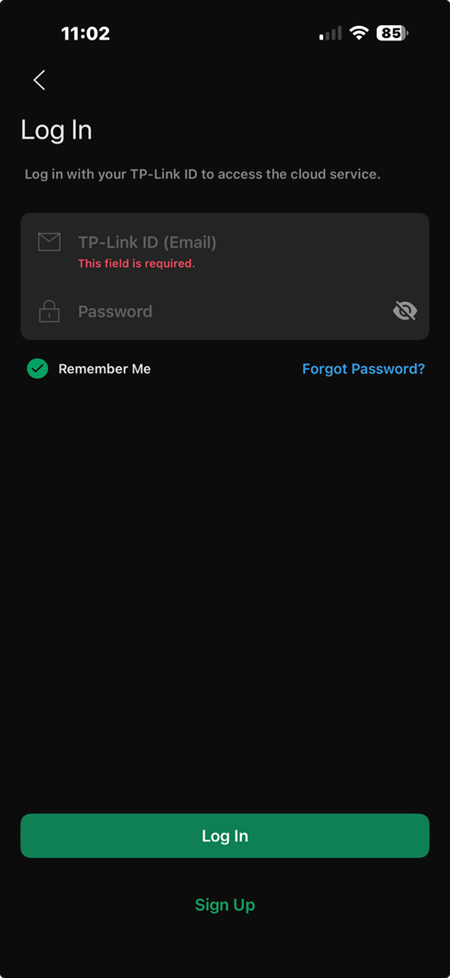
Step 2. Log in with your TP-Link ID. If you don't have a TP-Link ID, sign up for one first.
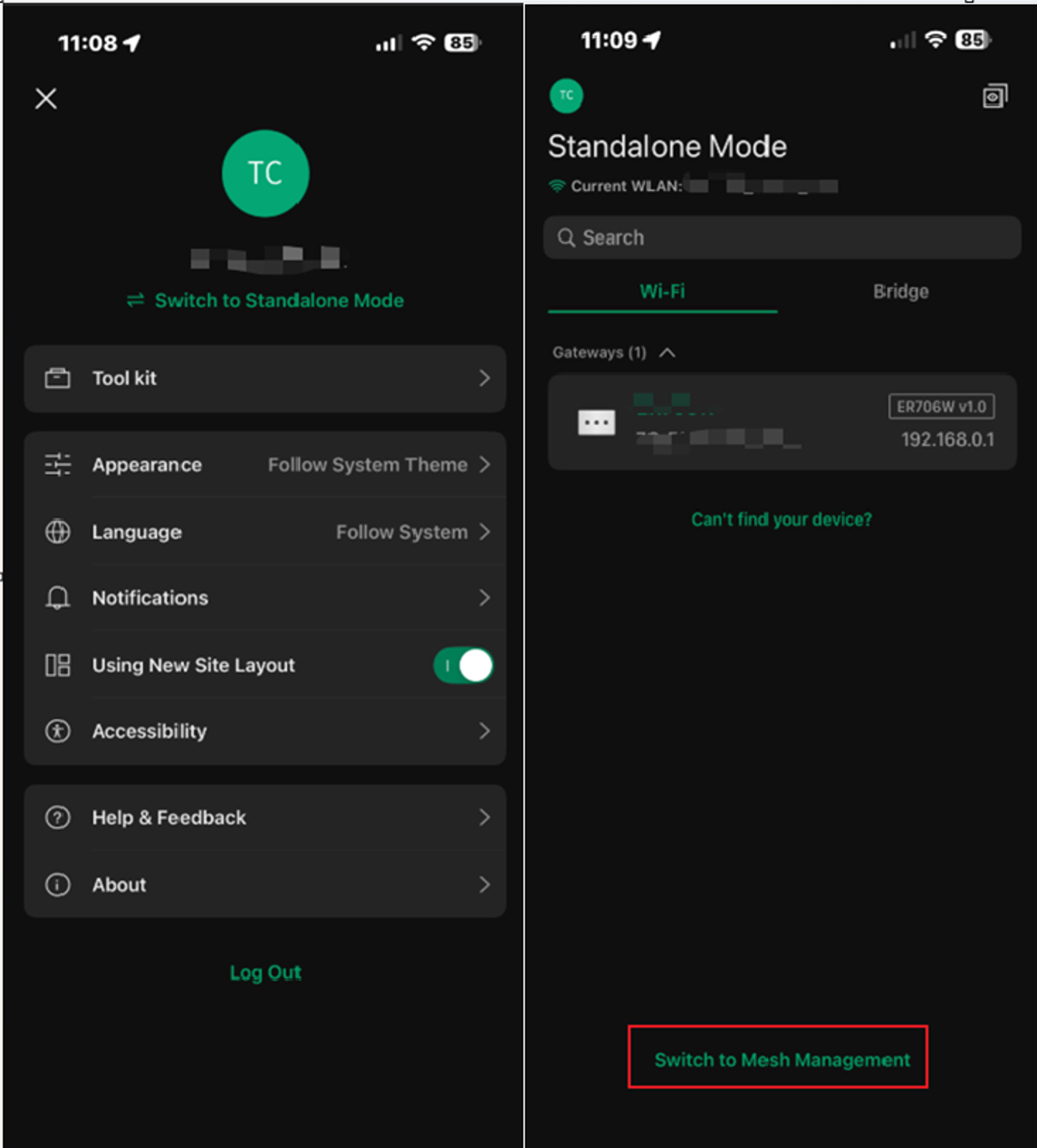
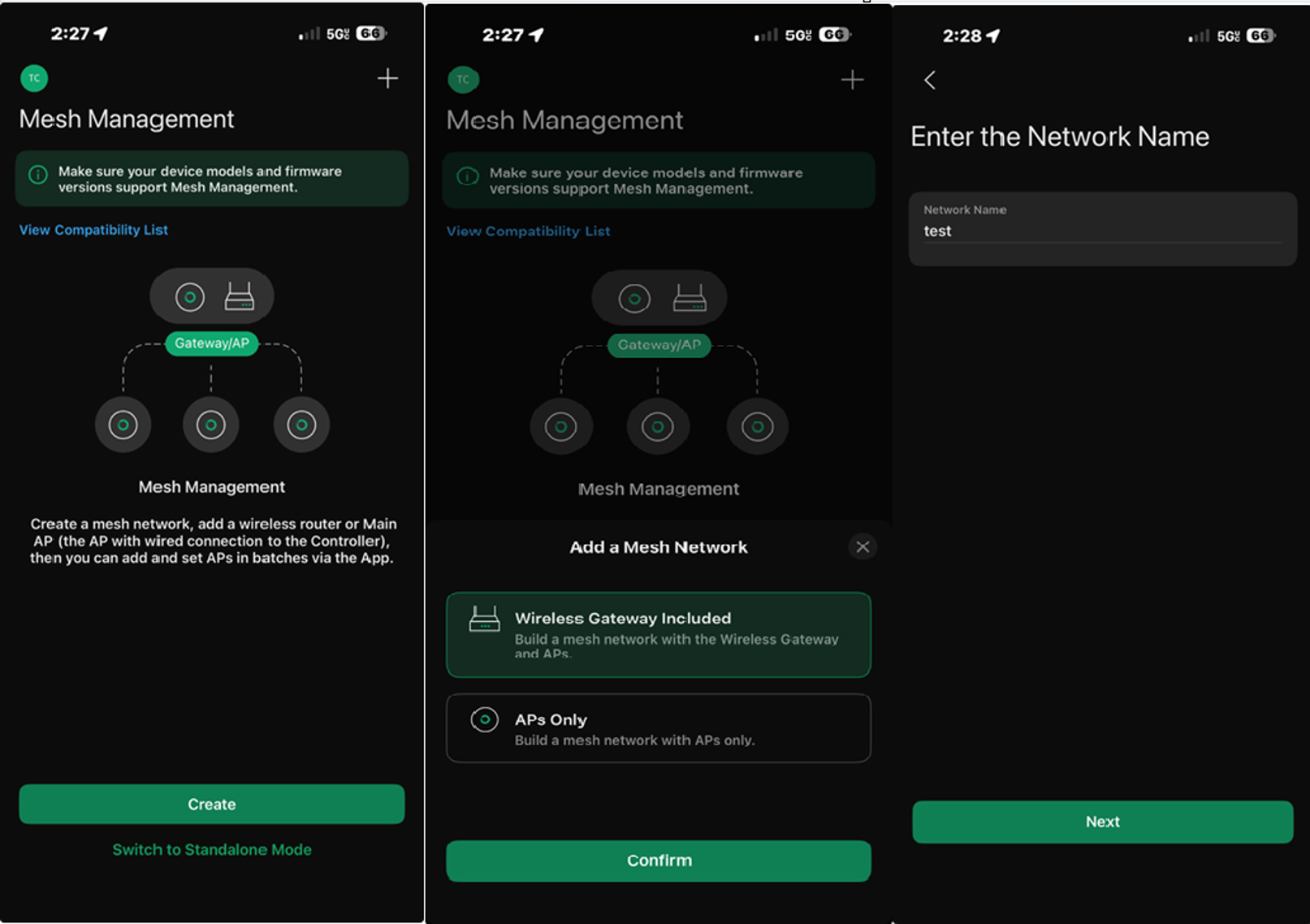
Step 3. Go to Standalone Mode by clicking the avatar at the top left of the screen and tap Switch to Mesh Management.
Step 4. Tap Create, then tap Wireless Gateway Included. Set the Network Name and tap Next.
Step 5. Power on the Gateway and connect it to the Internet. Connect the phone to the Gateway’s wireless network using its default SSID, then tap I have connected. The app will scan for available APs around.
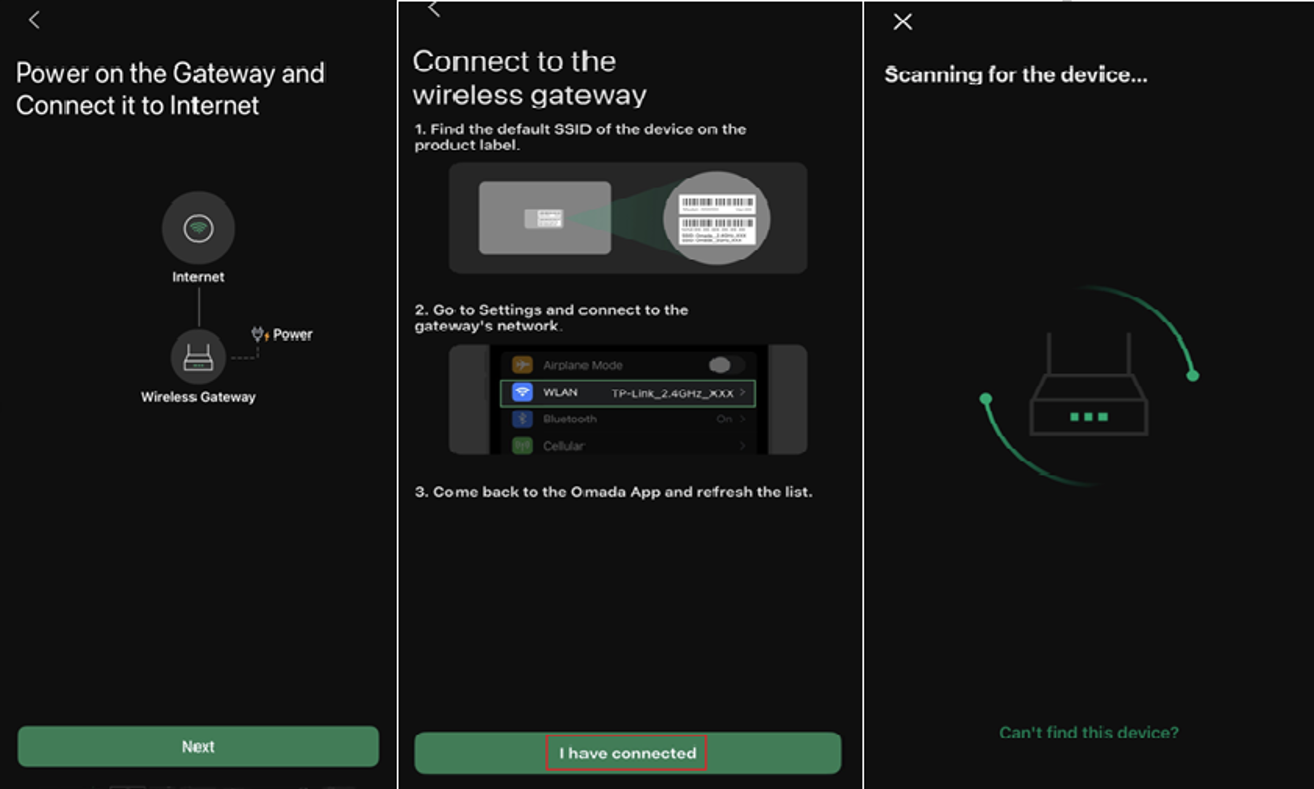
Note: Your Omada APs may require a firmware update to support Standalone Mesh feature and should be set to factory default settings.
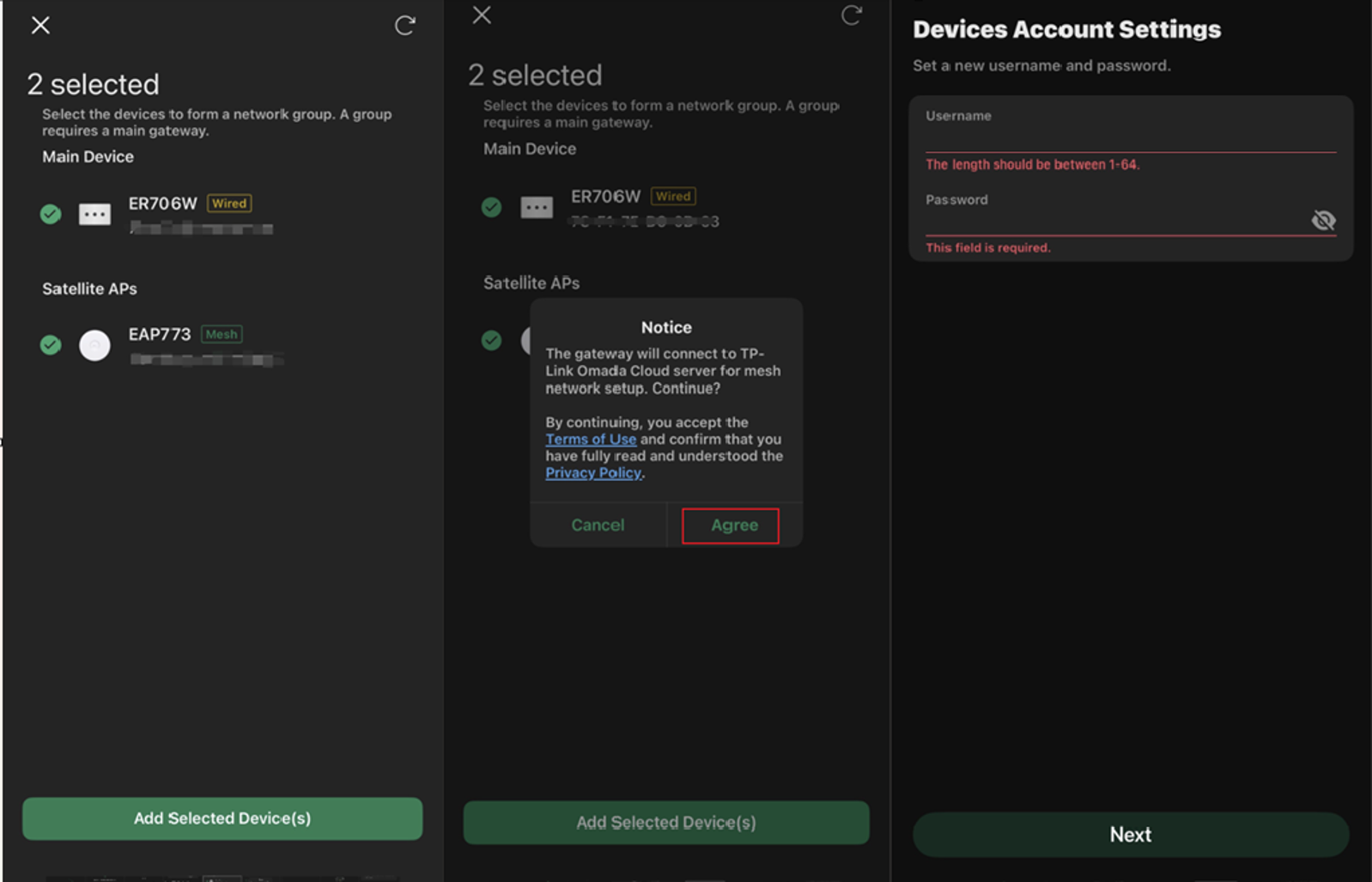
Step 6. Select the Gateway and mesh APs, then add them to the mesh network. Create the username and password for these devices.
Step 7. Set up the WAN ports.
Here, select the WAN port with an ethernet connection and configure the WAN settings.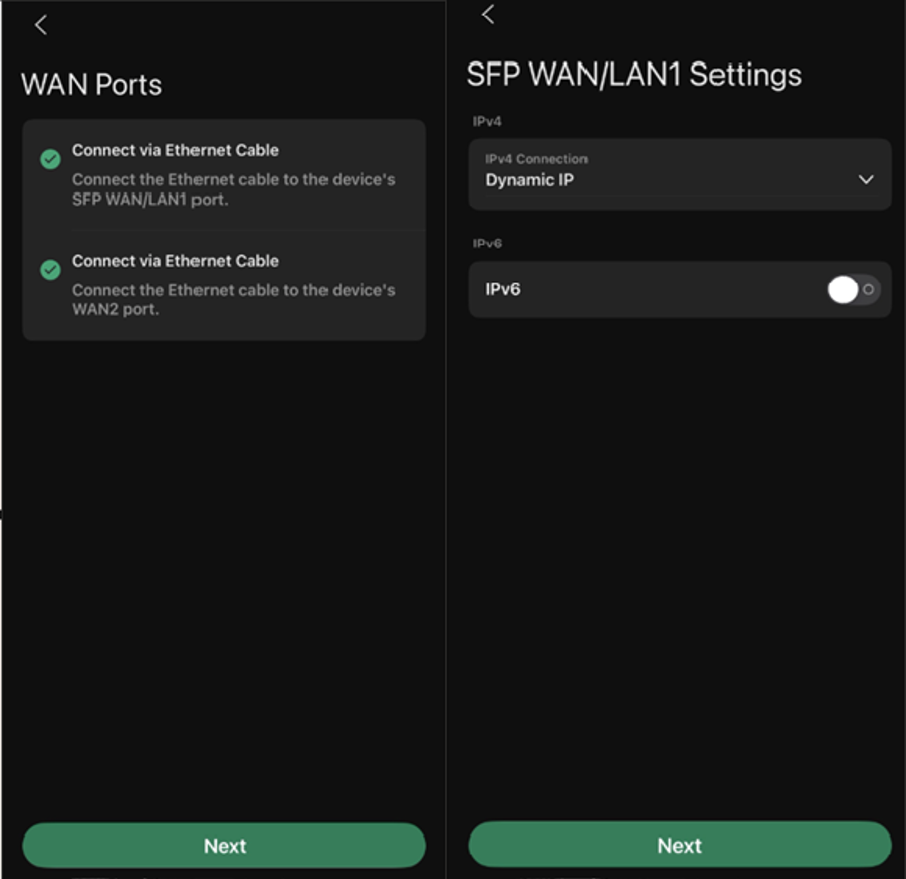
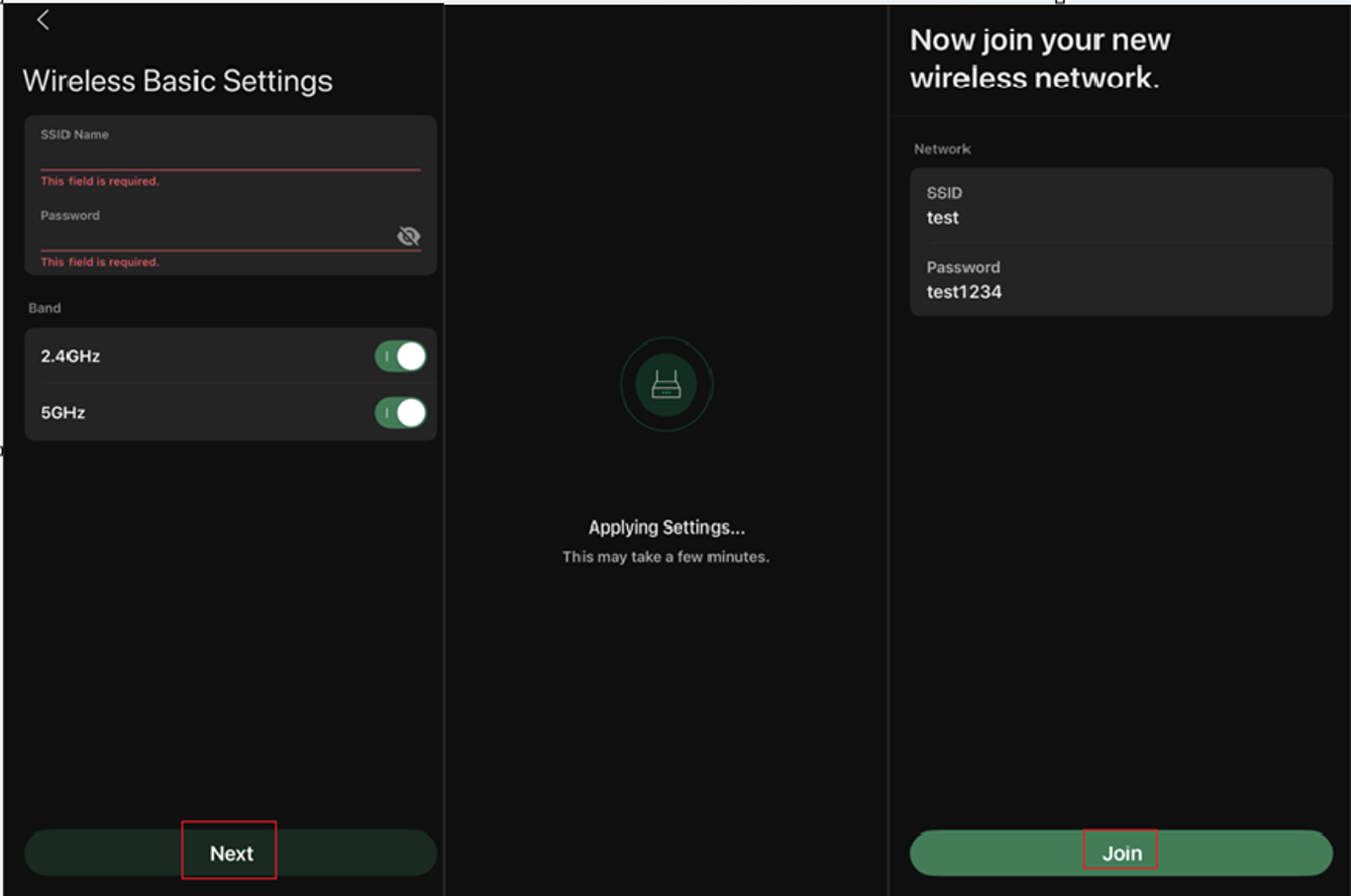
Step 8. Set the SSID and Password for the devices in this mesh network. Tap Next to apply settings and finish the setup.
Conclusion
Standalone Mesh on Omada Wi-Fi Gateways allows multiple Omada devices to operate as a unified wireless network, extending coverage and improving roaming performance. By following the steps above, you can create and manage a mesh network through either the Standalone Web Interface or the Omada App.
To learn more about each function and configuration, please visit Support Home to download or check the manual for your product.
QA
Q1: What should I do if the mesh APs are not discovered during setup?
A1: Verify that the AP is powered on, running the latest firmware, restored to factory settings, and within wireless range of the gateway.
