


Contents
Scenario 1: Fail to discover Mesh AP
Scenario 2: Unstable/disconnected Mesh AP
Scenario 3: Clients get slow speed with Mesh network
Introduction
Mesh enables wireless network extension using the 5 GHz or 6 GHz band as the wireless backhaul. You can use Omada AP products to deploy a unified mesh network for seamless Wi-Fi coverage.
Here is an instruction on how to set up mesh with different management clients: How to Build a Mesh Network via Omada EAP in Controller Mode
If you encounter issues during Mesh setup or experience performance degradation after configuration, this article provides troubleshooting guidance for common scenarios.
The following key terms are used throughout this document:
Root AP: An AP connected to the network via Ethernet, serving as the uplink for Mesh APs.
Mesh AP: An AP that connects to the network through a wireless uplink to a Root AP or another Mesh AP.
Requirements
- Omada Controller (Omada Network Application / Hardware Controller / Omada Cloud-Based Controller)
- Omada APs
Troubleshooting
This section describes the troubleshooting steps in different scenarios.
Scenario 1: Fail to discover Mesh AP
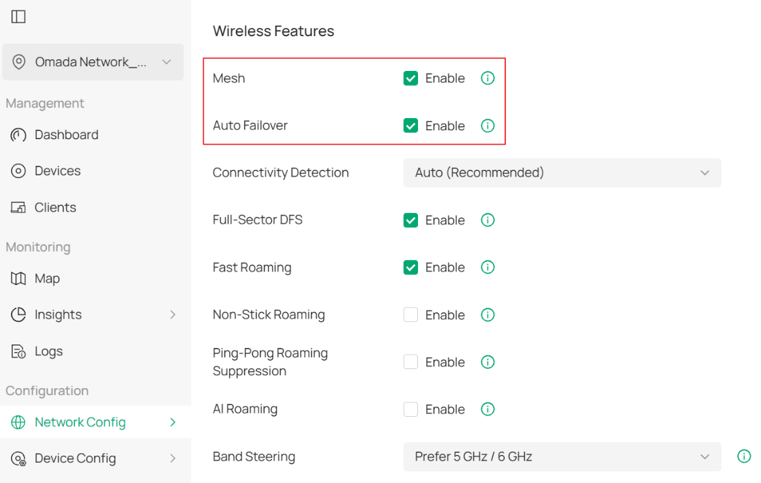
Step 1. Check Mesh and Auto Failover settings. Log in Controller, go to Network Settings > Site Settings > Wireless Features to confirm that Mesh and Auto Failover are both enabled.
Step 2. Confirm that the Mesh AP is not wired connected to the gateway or switch or the other APs, that is, it is just be powered and in the ISOLATED status, and then observe whether the LED of the AP is in a slow flashing state (on for 4.2s and off for 0.8s).

Step 3. Make sure the Mesh AP is within the coverage of Root AP and try to place them on the same room for the first installation.
Step 4. If the Root AP's 5G band is set to DFS (Dynamic Frequency Selection) channel, it is normal that the Mesh AP cannot be discovered in the 5GHz band during CAC (Channel Availability Check) time.
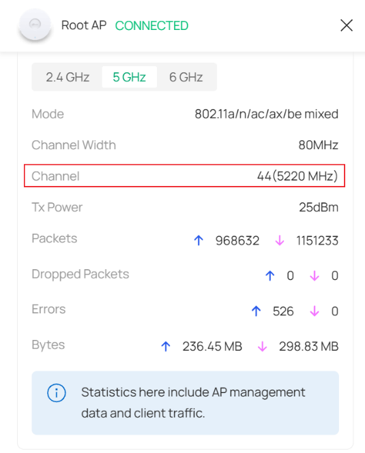
Step 5. Confirm that the Root AP is currently working on a channel that is also supported by the Mesh AP. It is recommended to deploy the Root AP to band 1 first.
Step 6. Try to change another AP to be Root AP and try to discover the Mesh AP again.
Step 7. Hard reset the APs and try again.
Scenario 2: Unstable/disconnected Mesh AP
Step 1. Perform a ping test on the computer where the Root AP is located. If the Mesh AP cannot be pinged continuously, it is recommended to troubleshoot according to the steps in Scenario 1.
Step 2. If the Mesh AP can be pinged successfully, but the ping packet dropped rate or the ping delay is very high, it is likely that the mesh connection is unstable.
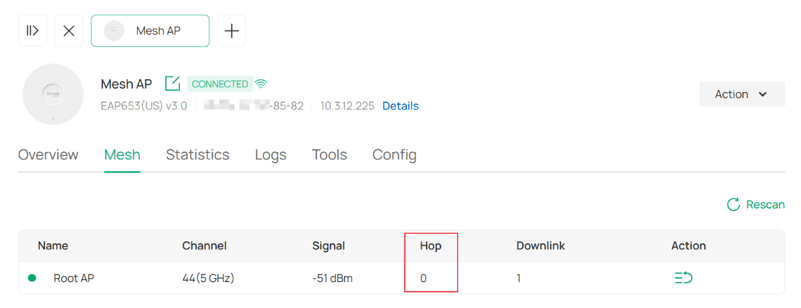
You may to confirm which hop the Mesh AP is in first. Currently, Omada APs support up to 3-hop mesh. The larger the number of the hop, the greater the interference or loss of the mesh connection. You can reduce its hop for better user experience.
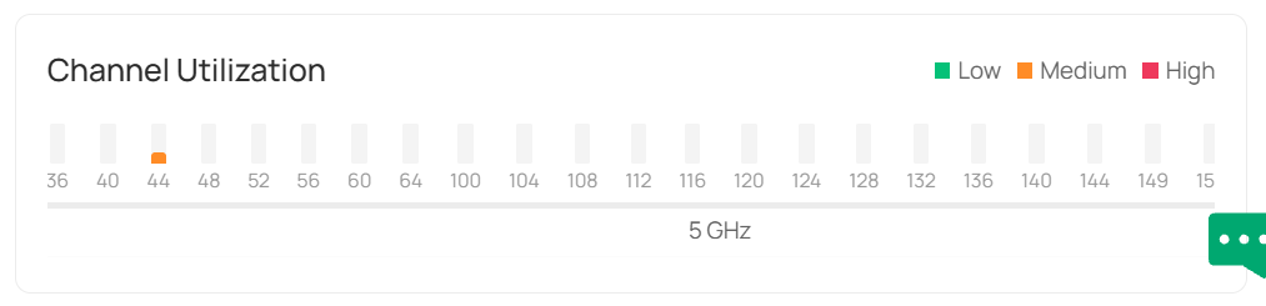
Step 3. Go to Dashboard > Overview > Channel Utilization to confirm whether the channel utilization of the band where the mesh is located is too high. If so, please adjust it to a bandwidth and channel with less interference.
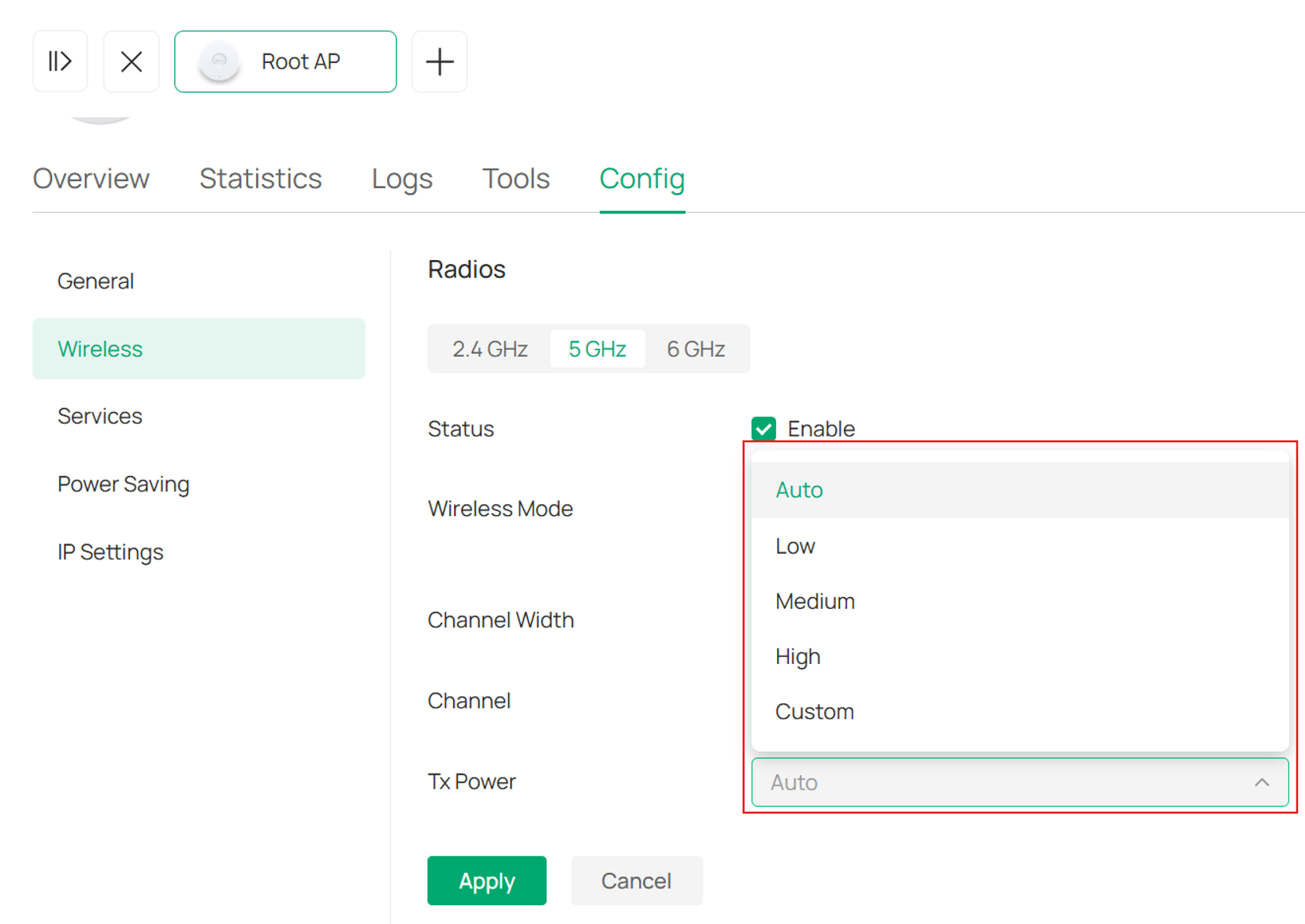
Step 4. Modify the transmit power of the Root AP.
Log in Controller, go to Devices > Manage Device > Config > Wireless > Radios to adjust Tx Power of 5GHz & 6GHz to a proper value. For example, a larger Tx power means more interference to the adjacent APs, so we can try to decrease the Tx power a little bit every time until the connection gets steadier.
Step 5. If the Mesh AP can automatically come back online, please check the signal strength on Omada Controller, tap that Mesh AP, and you can see the signal between it and its uplink AP.
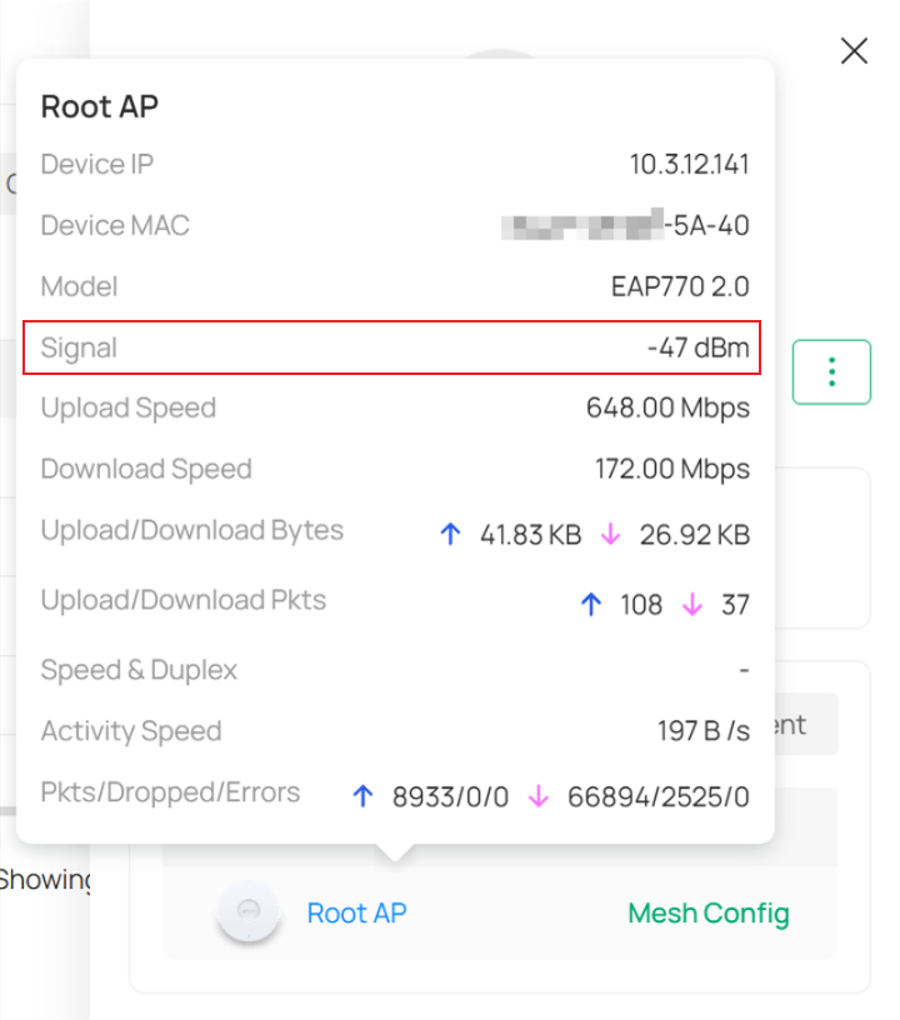
Basically, -30 dBm means a good signal, -60 dBm means normal, and -80 dBm is worse. If the signal is bad, please move the Mesh AP closer to the Root AP or change to another uplink AP.
Step 6. If the disconnected AP won't get back online after all these steps, please forget it on the Omada Controller, or hard reset it and try to add it again,
Scenario 3: Clients get slow speed with Mesh network
Step 1. If the client connects to the Root AP and gets slow speed, please refer to the following steps:
- PC directly connects the front router / switch and check whether the wired speed is normal.
- Confirm if there are settings such as bandwidth control set up on the router / switch.
- Confirm if there is rate limit setup on the SSID.
- Change Ethernet cable from AP to the front router / switch.
- Check the signal strength and the distance from the client to the AP during speed test.
- Check if there are any obstacles between AP and the client or is the speed normal when client is closer to the AP.
- Confirm if there are located multiple APs together.
- Check if the channel utilization is high: Change channel, channel width and TX power, then test the speed again.
- Confirm if the Multicast-to-Unicast Conversion function is enabled on the SSID.
- Make sure the AP’s firmware is the latest. Reset AP and create a new SSID (or keep the default SSID) for speed test
Step 2. If the client connects to the Mesh AP and gets slow speed, please refer to the following steps:
It should be noted that due to the competition between the mesh backhaul (the wireless link between the Root AP and Mesh AP) and wireless client, the performance of wireless clients linked to the Mesh AP may be worse than that of wireless clients linked to the root AP. On this basis, the speed might be tested low. You can check the reasons in the following:
- Confirm which hop the Mesh AP is located. The larger the number of hops, the greater the interference or loss of the mesh connection, which will also affect the speed test results. You can reduce the hops for better user experience.
- Check the signal strength of the associated clients. If the RSSI associated with the client is less than -75dBm, it may result in a low negotiation rate. Check whether the client and the AP are too far apart, and confirm whether there is any obstruction between them.
- Confirm if there are located multiple APs together.
- Check if the channel utilization is high, please change the channel/channel width/TX power, then test the speed again.
- Confirm if the Multicast-to-Unicast Conversion function is enabled.
- Make sure the AP’s firmware is the latest. Reset AP and create a new SSID (or keep the default SSID) for speed test.
Conclusion
If the problem still exists after trying the above operations, please contact Omada technical support for further help.
To learn more about each function and configuration, please visit Support Home to download or check the manual for your product.

