


Contents
Back up the Controller configuration
Upgrade Omada Software Controller
Introduction
Starting with version 6.4.0, Omada Software Controller for Linux System requires a minimum of 64-bit OpenJDK 21 and MongoDB v4.4. OpenJDK 8, 11, and 17, as well as MongoDB versions earlier than v4.4, do not meet the dependency requirements for this version. Before upgrading your Linux Controller to v6.4.0, check the installed OpenJDK and MongoDB versions and update them if necessary.
Using Ubuntu 22.04 as an example, this article explains how to upgrade to OpenJDK 21 and provides guidance on upgrading older MongoDB versions to v4.4-v8.
Requirements
- OpenJDK: 64-bit OpenJDK 21 and above.
- MongoDB: MongoDB v4.4 through v8.
- Operating system: Ubuntu 22.04 or 24.04, or Debian 11 or 12.
Configuration
Before installing Omada Software Controller v6.4.0, back up your Controller configuration, check the installed dependencies, and upgrade them if necessary.
Back up the Controller configuration
Step 1. Use the following commands to uninstall the Controller:
sudo dpkg –r omadac
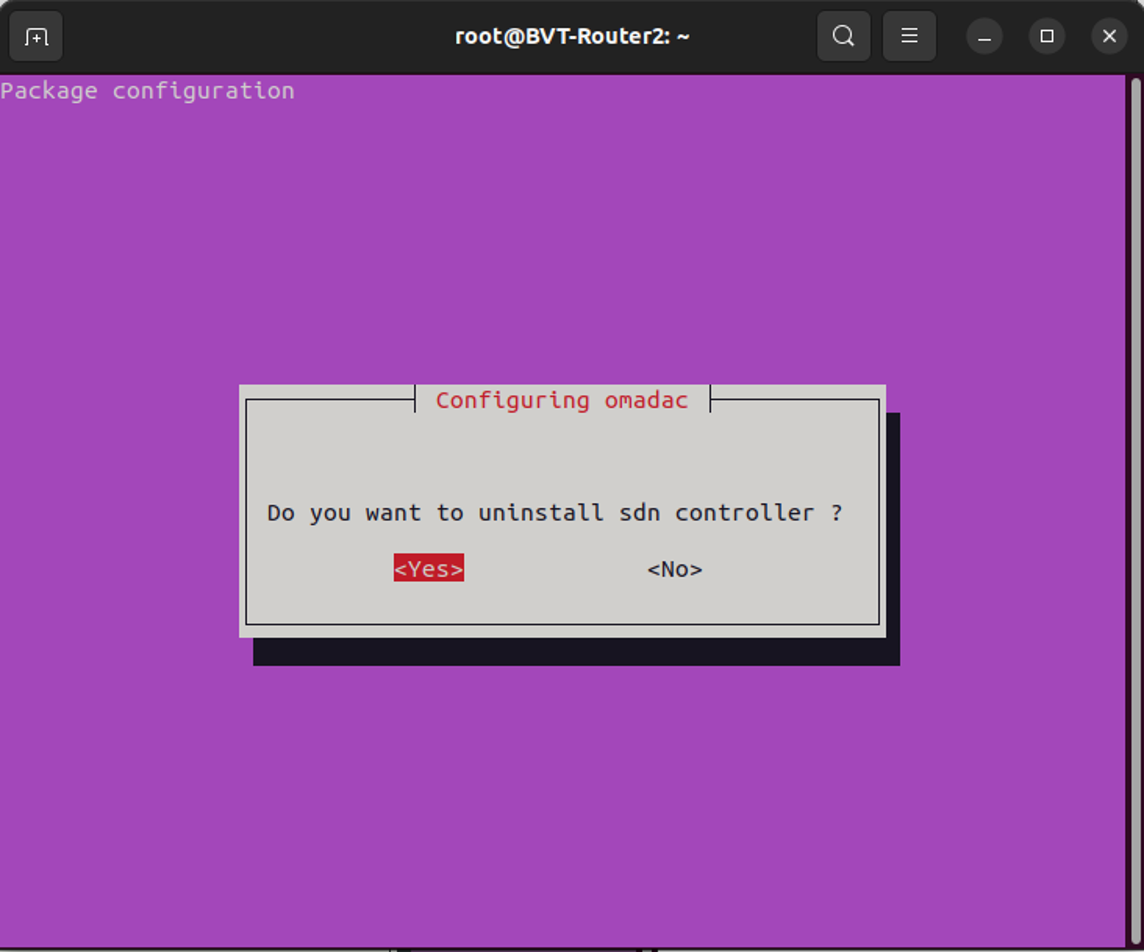
Step 2. A dialog box will appear. Choose Yes to uninstall the Controller.
Step 3. Another dialog box will appear, choose Yes to back up the Controller settings.
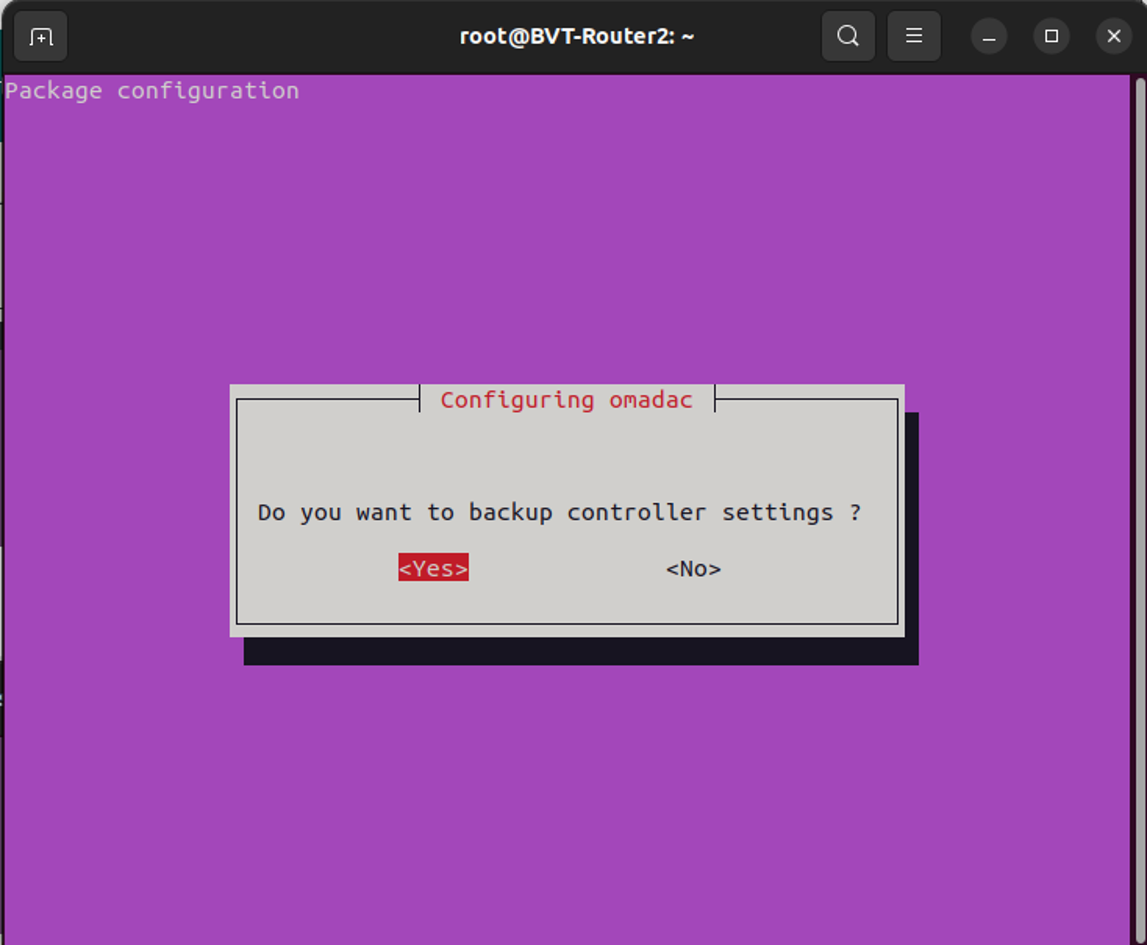
Note: The database backup file will be saved in /opt/tplink/omada_db_backup.

Copy the db.tar.gz file to another folder so that it can be restored if the upgrade fails. In this example, the file is copied to /Document/dbbackupv6.

Check and upgrade OpenJDK 21
Step 1. Check the default Java version:
java -version

Skip the following installation step if 64-bit OpenJDK 21 is already installed.
Step 2. Update the package index.
sudo apt update
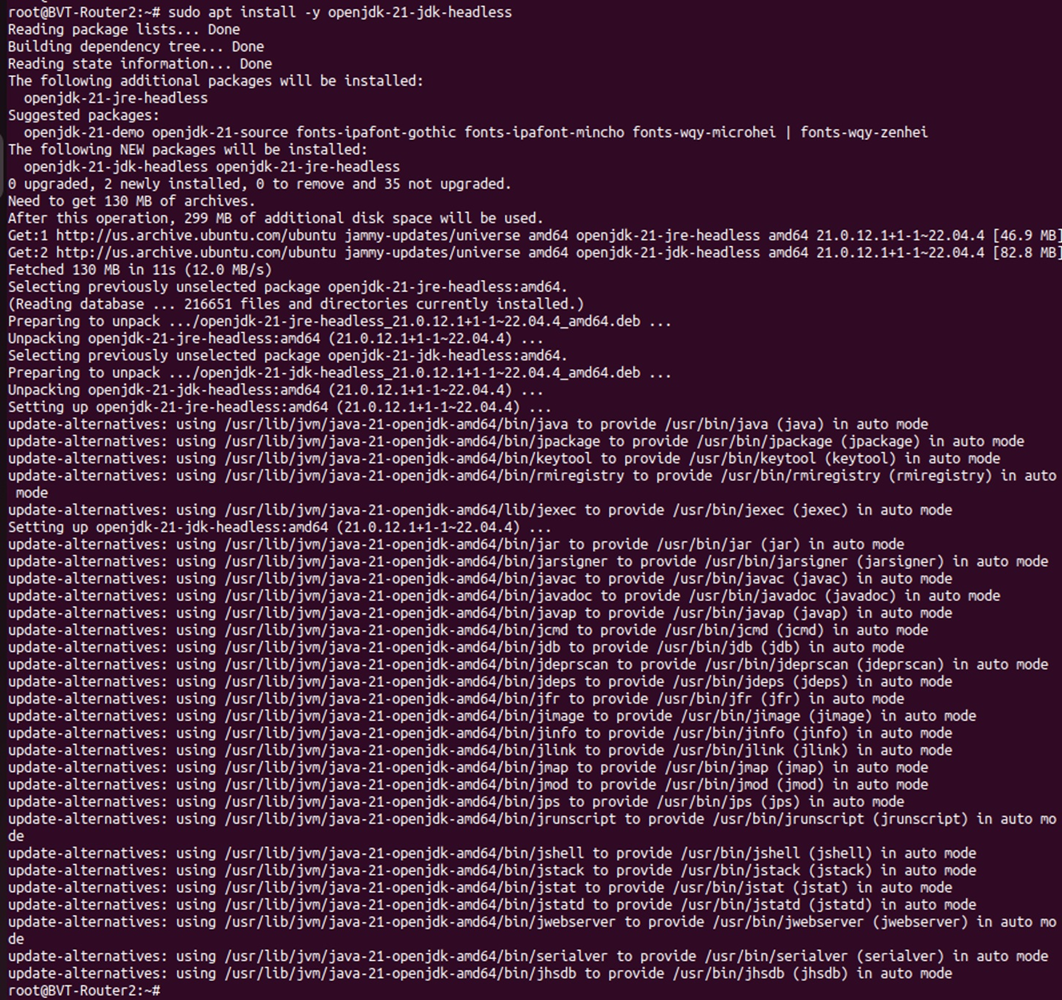
Step 3. Install OpenJDK 21.
sudo apt install -y openjdk-21-jdk-headless
Step 4. Select OpenJDK 21 as the default Java version.
sudo update-alternatives --config java

Find the entry whose path contains java-21-openjdk. Enter its corresponding selection number and press Enter.
Note: The selection number varies by system; it is not necessarily 0. If only one Java version is installed, no selection is required.
Step 5. Verify the Java version.
java -version

Confirm that the output identifies OpenJDK 21 and a 64-bit runtime.
Check and upgrade MongoDB
Step 1. Check the MongoDB server version:
mongod –version
Step 2. Determine whether a MongoDB upgrade is required.
- MongoDB earlier than v4.4: Upgrade MongoDB before installing Controller v6.4.0.
- MongoDB v4.4 through v8: No MongoDB version upgrade is required solely to meet the Controller v6.4.0 dependency requirement. Confirm that the installed version is also compatible with your operating system and hardware.
Step 3. For MongoDB earlier than v4.4, follow the appropriate staged upgrade procedure.
Refer to How to Upgrade MongoDB from v3.6 to v4.4.
For an existing MongoDB v3.6 deployment, the referenced procedure uses the following sequence:
v3.6 → v4.0 → v4.2 → v4.4
Note: Follow the backup, intermediate-version upgrade, and Feature Compatibility Version (FCV) instructions for each stage. Do not skip the required intermediate major versions.
If you prefer to use a newer supported MongoDB version, refer to the following guides:
From v4.4 to v7: How to Upgrade MongoDB from v4.4 to v7 on Linux System.
From v7 to v8: How to Upgrade MongoDB from v7 to v8 on Linux System.
Step 4. Verify the MongoDB server version after the upgrade.
mongod –version
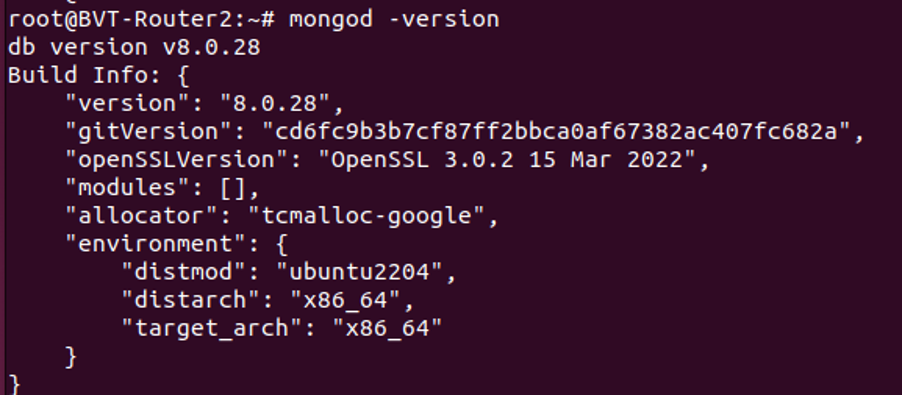
Confirm that the installed MongoDB server version is within v4.4 through v8.
Upgrade Omada Software Controller
Step 1. Confirm that the dependency requirements are met.
- The operating system is listed in Requirements: Ubuntu 22.04 or 24.04, or Debian 11 or 12.
- 64-bit OpenJDK 21 is installed and selected for the Controller.
- The MongoDB server version is within v4.4 through v8 and is compatible with the operating system and hardware.
- A current Controller backup is available.
Step 2. Install the Controller v6.4.0 package.
Download the appropriate v6.4.0.x Linux installation package from the official Omada support website and open a terminal in the directory containing the package.
For a .deb package as an example, run:
sudo dpkg -i Omada_Network_Application_v6.4.0.X_linux_x64_20260xxxxxxxxx.deb
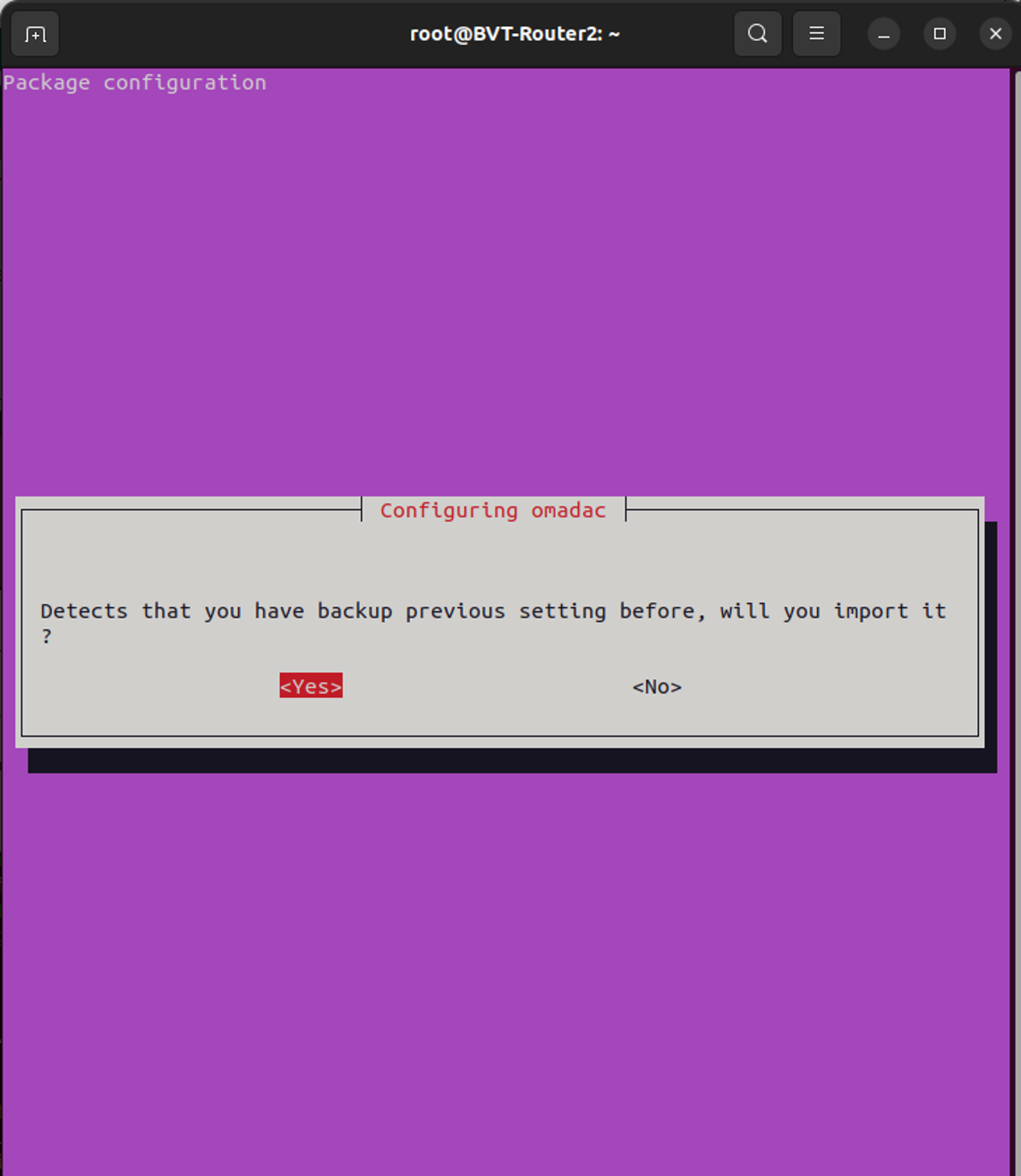
Select Yes. The Controller will import the backup database file from /opt/tplink/omada_db_backup.
After installation, the Controller will start automatically.
Conclusion
You have prepared the Linux dependency environment for Omada Software Controller v6.4.0 by selecting 64-bit OpenJDK 21 and verifying that MongoDB is within the supported v4.4–v8 range. After upgrading the Controller, verify that it starts successfully and that your configuration and managed devices are available.
QA
Q1: Can I continue using OpenJDK 17 after upgrading to Controller v6.4.0?
A1: No. Omada Software Controller v6.4.0 for Linux requires 64-bit OpenJDK 21. Upgrade the Java environment before installing the new Controller version.
Q2: Do I need to upgrade MongoDB if I am already using v4.4 or a later supported version?
A2: Not solely to meet the Controller v6.4.0 dependency requirement. If your MongoDB version is within v4.4 through v8 and is compatible with your operating system and hardware, no MongoDB version upgrade is required for this reason.
Q3: Can I upgrade MongoDB directly from v3.6 to v4.4?
A3: Do not skip the intermediate major versions in the referenced procedure. Follow the sequence v3.6 → v4.0 → v4.2 → v4.4, including the required FCV changes, and verify each stage before proceeding.
Q4: Why does java -version still show the old version after I install OpenJDK 21?
A4: Installing OpenJDK 21 does not always change an existing manual Java selection. Run sudo update-alternatives --config java, select the OpenJDK 21 entry, and check the version again.
Q5: What should I do if openjdk-21-jdk-headless cannot be found?
A5: Confirm your operating system version, run sudo apt update, and check the package sources available for that release. Package availability can vary. Do not use an unverified third-party repository or packages intended for a different release.
