


Contents
SDM Template for Omada S5500-, S4500-, SG5, SX3-, SG3-, SG2- Series Switches
SDM Template for Omada S7500-, S6500-, SX6-, SG6- Series Switches
Introduction
In modern managed switches, the hardware forwarding decisions rely on specialized high-speed memory known as Ternary Content Addressable Memory (TCAM). This is why switches can forward traffic rapidly with high throughput.
TCAM stores critical forwarding and policy tables—including MAC address tables, IP routing tables, Access Control Entries (ACEs) for ACLs and QoS policies, multicast entries, and other features—in a fixed-capacity resource that is shared among multiple functions.
Because the total TCAM capacity is limited and cannot be expanded, different network roles and deployment scenarios place varying demands on these tables. For example, ACLs for IPv4 and IPv6 consume different amounts of TCAM resources, and they share the same device's TCAM, which is limited. This is why we need the SDM template.
SDM Template is short for Switching Database Management Template. It is a kind of predefined configuration profile that re-partitions the available TCAM space to prioritize specific feature sets.
For example, when deploying an IPv4-only network, IPv6 ACLs are unnecessary, we can switch to an SDM template with no TCAM space allocated for IPv6 ACLs, so that this part of the TCAM space can be saved for ACLs related to IPv4, thus increasing the maximum number of ACLs supported related to IPv4, and do the opposite if the network leans more towards IPv6 traffic with precise access control needed.
Requirements
- Omada Network v6.2.10 or above
- Omada Switches (Omada Agile and Industrial Switches excluded)
SDM Template for Omada S5500-, S4500-, SG5, SX3-, SG3-, SG2- Series Switches
Starting with Omada Network 6.2, when managing Omada S5500-, S4500-, SG5-, SX3-, SG3-, SG2- series switches, the SDM template on the switch can be changed, and the status of TCAM space allocation is displayed on the Controller interface.
Omada Network offers four types of SDM templates for Omada S5500-, S4500-, SG5-, SX3-, SG3-, SG2- series switches: omada, omada-enterpriseV4, omada-enterpriseV6, and omada-enterpriseMix. The different templates can allocate TCAM resources to four feature types: ACL&QoS (IPv4), ACL&QoS (IPv6), IP Source Guard, and IPv6 Source Guard.
The ACL&QoS (IPv4) and ACL&QoS (IPv6) entries will be used after you create Switch ACL rules and Switch QoS rules. For the IP Source Guard and IPv6 Source Guard entries, it’s currently not available to configure through Omada Network’s GUI, but can be set up through the CLI Template on Omada Network.
By default, the template omada is used, and it contains resources for both ACL&QoS (IPv4) and ACL&QoS (IPv6). It is recommended to switch to template omada-enterpriseV4 if more IPv4 related ACL are needed, while no requirement for IPv6. And it is recommended to switch to template omada-enterpriseV6 if the opposite. If IP Source Guard and IPv6 Source Guard are needed, the template omada-enterpriseMix will be the only available template.
After changing the template, it is necessary to reboot the switch as the TCAM allocation is done during the booting process and cannot be changed afterwards.
The following part will take an SG2210P managed by the Omada Network as an example to demonstrate how to view and configure the SDM Template on these switches.
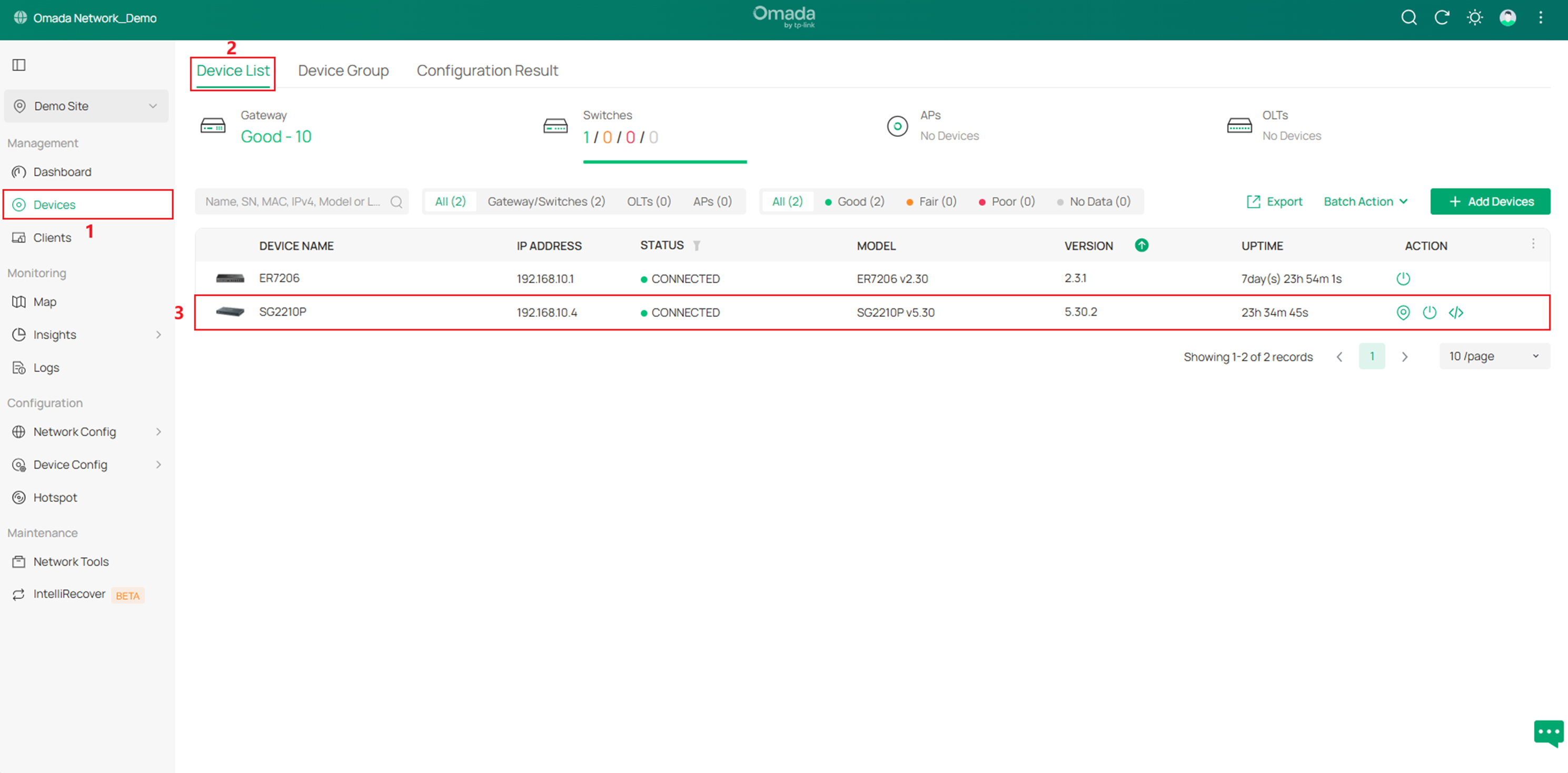
Step 1. Go to Devices > Device List, click on the target switch.
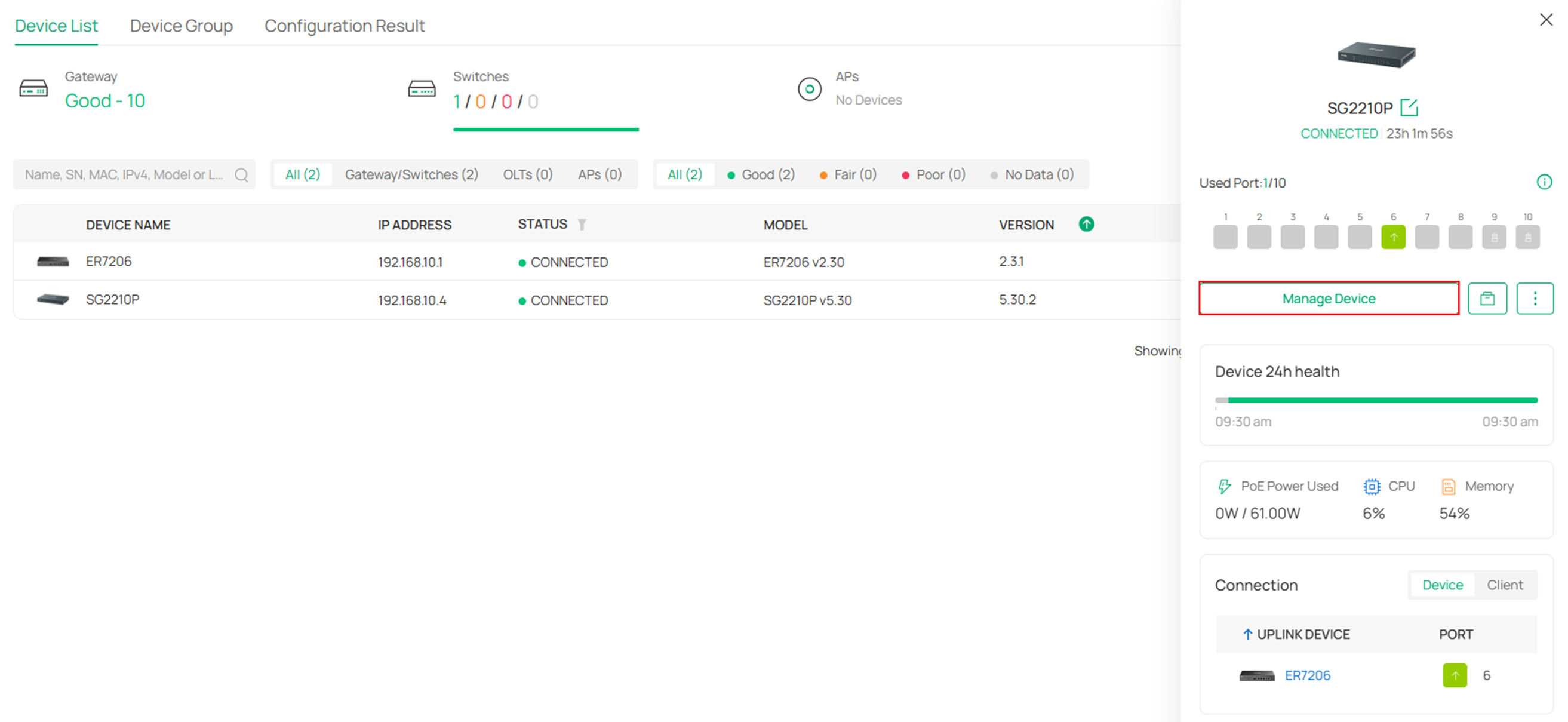
Step 2. Click “Manage Device” in the pop-up window.
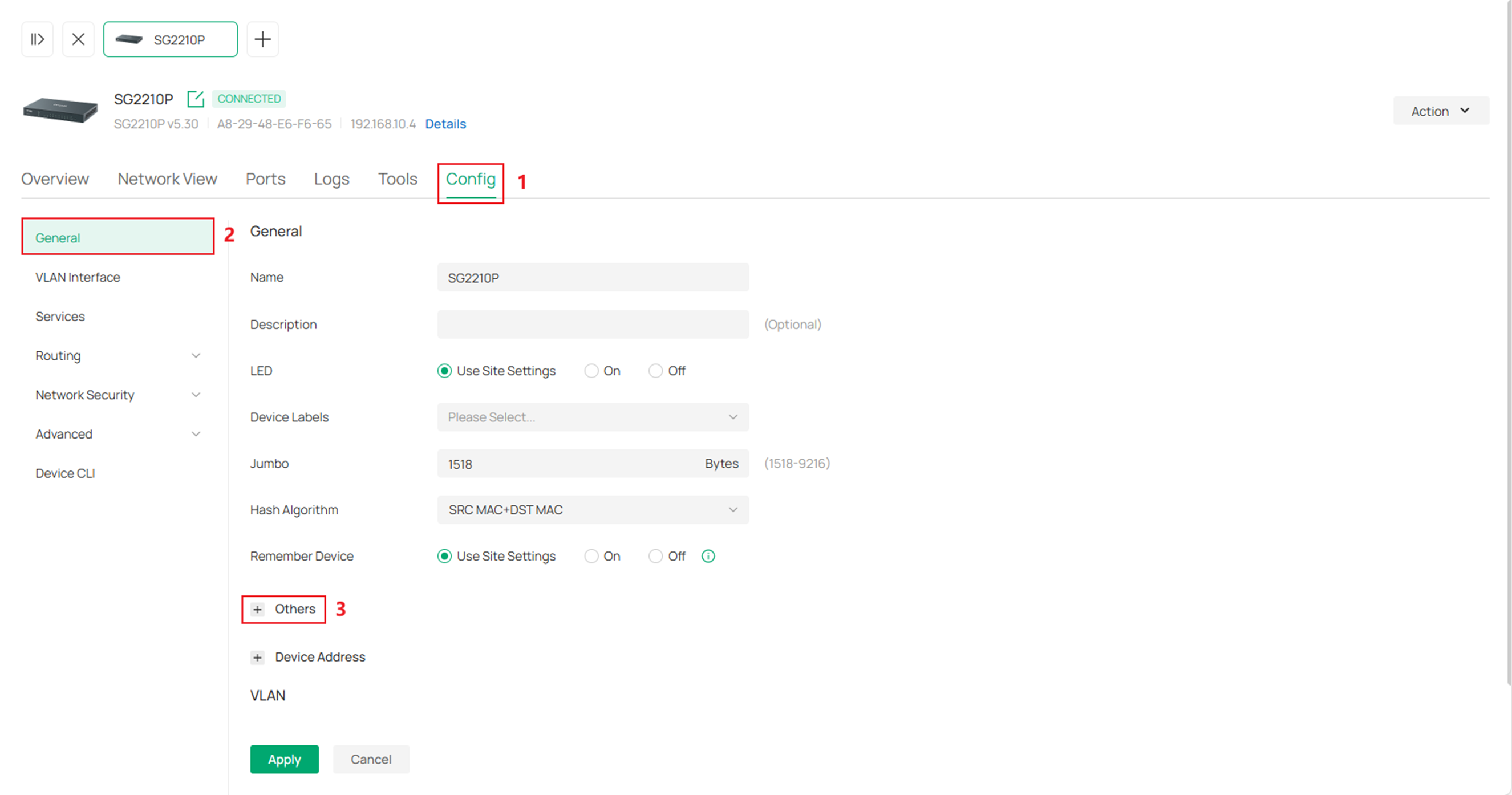
Step 3. Go to Config > General > Others.
In the Used Template view, you can see which template is currently applied and track how many entries you've used versus the limit for each feature. The Exist Template view displays all available templates alongside their maximum feature allowances.
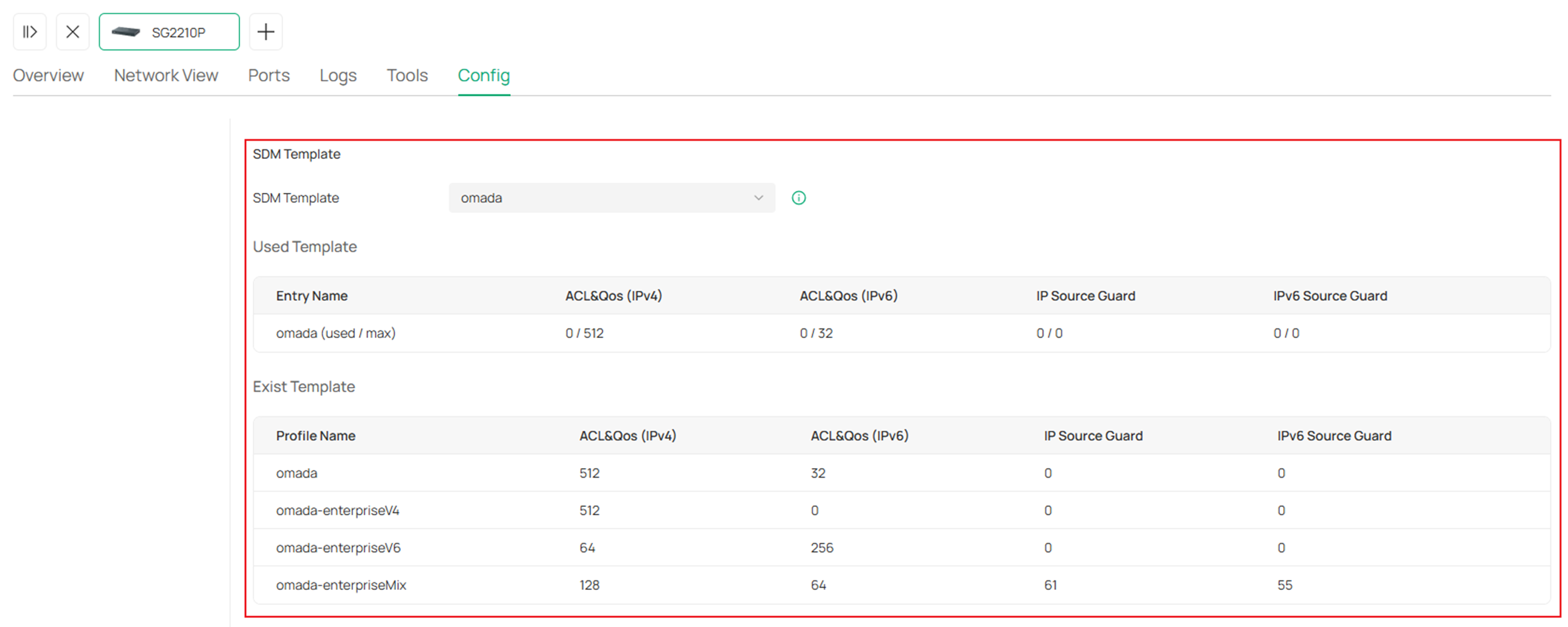
Step 3. Select the most appropriate SDM template here based on your needs.
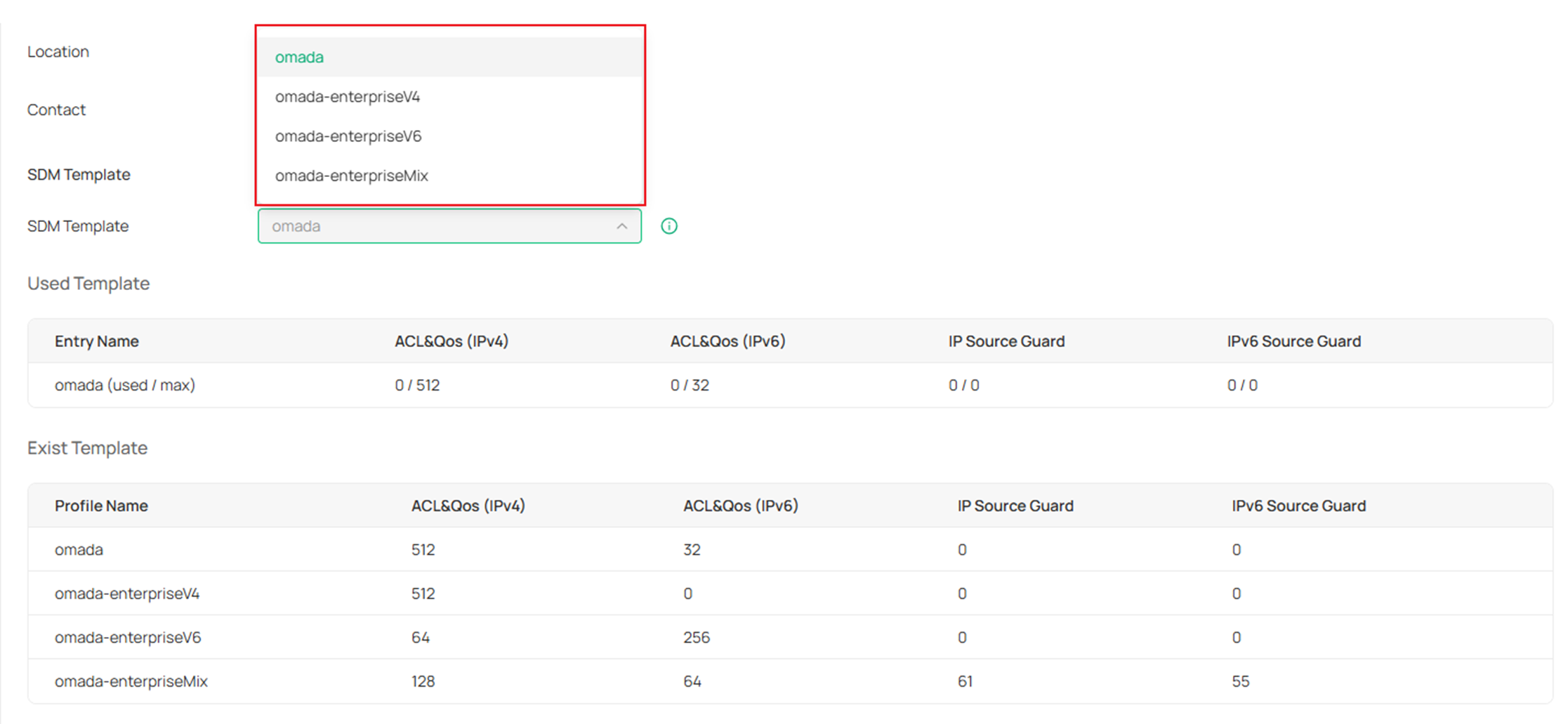
As introduced previously, a reboot is needed to let the changes from the SDM template take effect. The reboot will not be processed automatically. A manual reboot is required.
SDM Template for Omada S7500-, S6500-, SX6-, SG6- Series Switches
Starting with Omada Network v6.2.10, network administrators no longer need to consider resource allocation when managing Omada S7500-, S6500-, SX6-, SG6- series switches, unlike when managing Omada S5500-, S4500-, SG5-, SX3-, SG3-, SG2- series switches. Omada S7500-, S6500-, SX6-, SG6- series switches utilize dynamic SDM templates that support dynamic resource sharing, maximizing resource utilization.
The following part will take a switch stack consisting of one SG6654X and one SG6248XHP managed by the Omada Network as an example to demonstrate how to view and configure the SDM Template on these switches.
Step 1. Go to Devices > Device Group, click on the target switch stack.
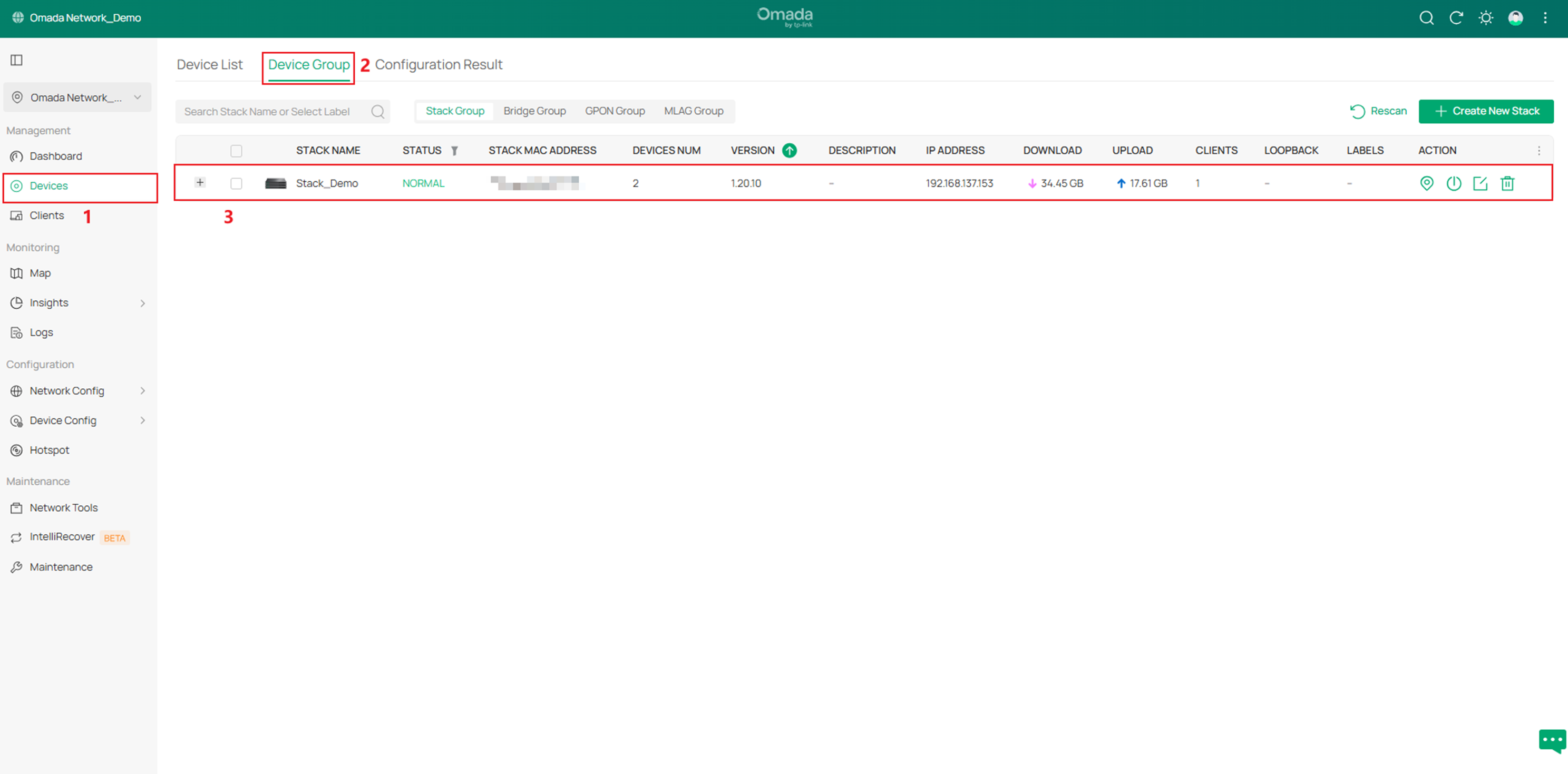
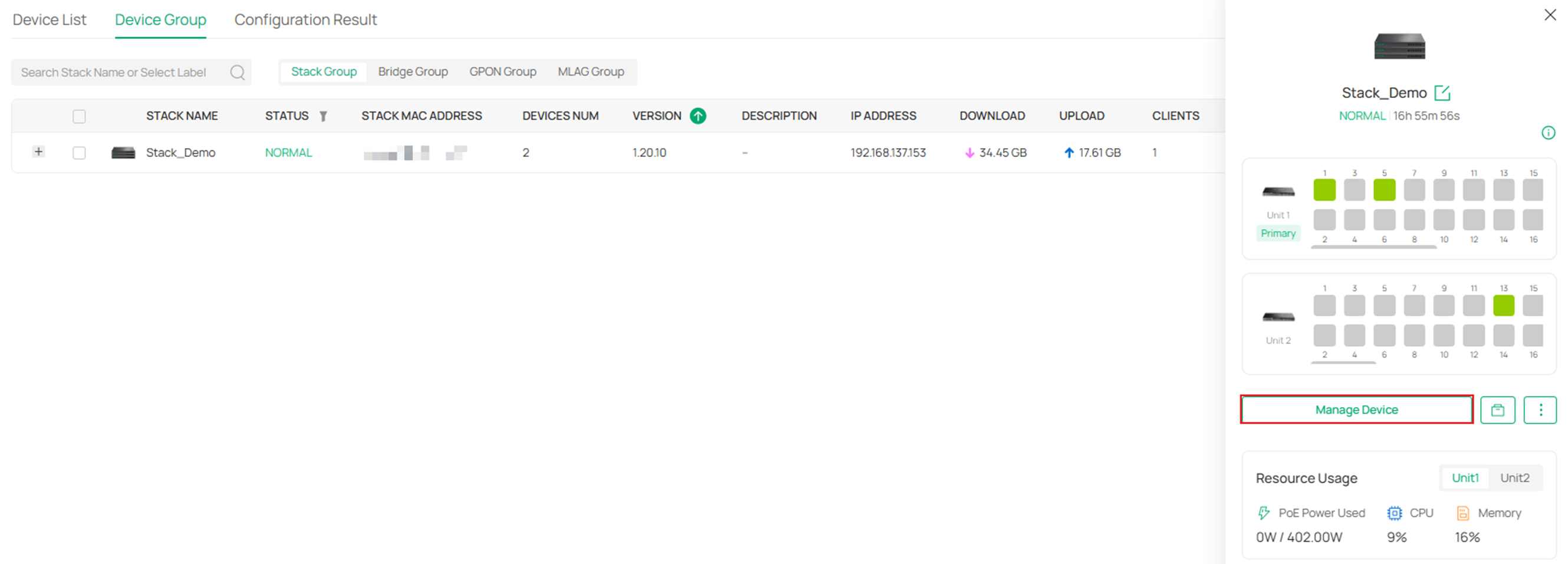
Step 2. Click “Manage Device” in the pop-up window.
Step 3. Go to Config > General > Others.
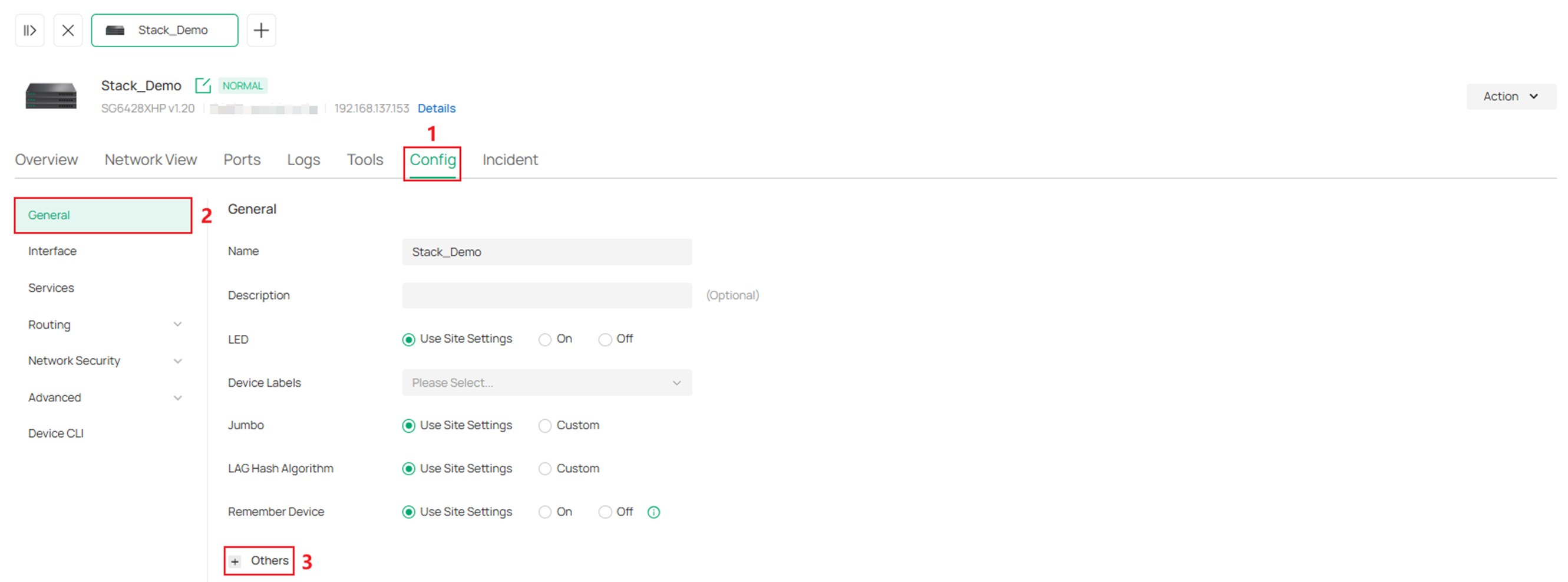
In the SDM Template view, you can see that the Dynamic Template is currently applied and track how many entries you've used versus the limit for each feature.
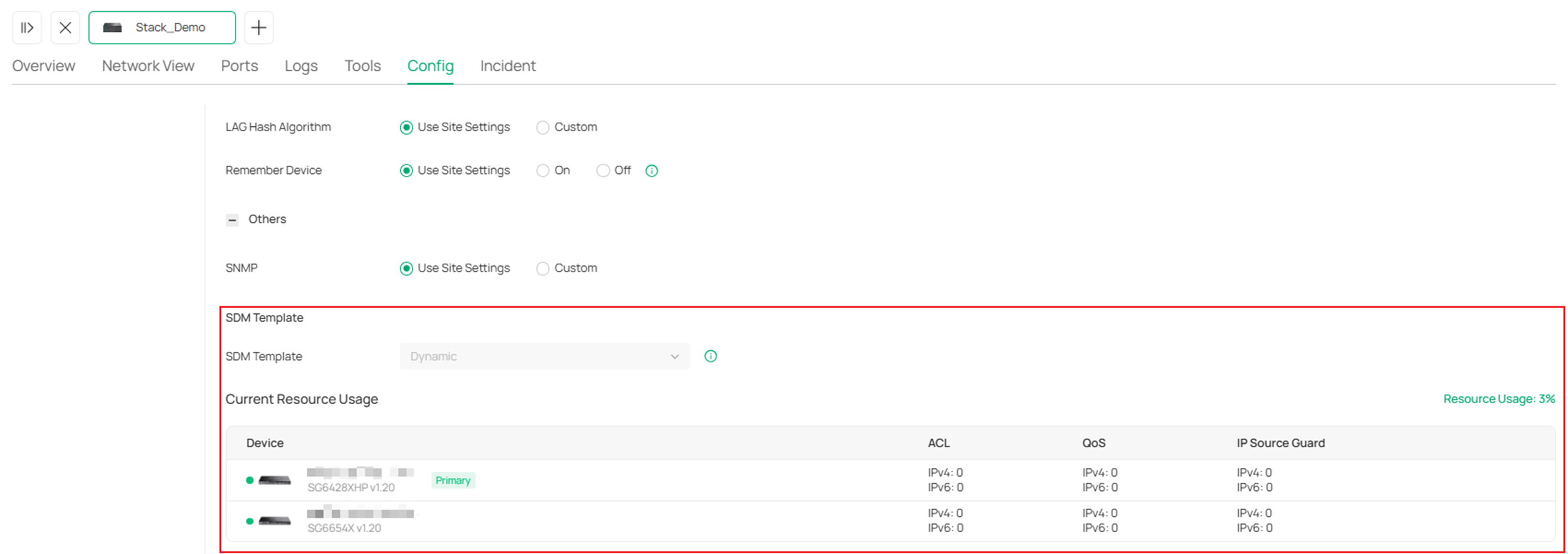
Note:
- The overall Resource Usage of a stack is calculated as the total hardware resource usage of all member switches divided by their total available hardware resources.
- If a member of the stack is disconnected, the Resource Usage will be shown as 'Unknown', and the resource usage for each feature of this device will be displayed as '–'.
- Even if you have not configured any ACL, QoS, or IP Source Guard rules, Resource Usage will not show as 0% because the Packet Control and CPP Ingress modules consume a few resources by default.
Step 4. Click Resource Usage: X% to go to the Available Resources view.

And you will see the maximum feature allowances of the omada dynamic template.

Conclusion
We have now finished introducing the SDM template for all Omada switches, excluding Agile and Industrial switches.
To learn more about each function and configuration, please visit Support Home to download or check the manual for your product.
This article applies to: All Omada switches, excluding Agile and Industrial switches
