


Contents
Why is AFC necessary for Wi-Fi 6E / Wi-Fi7?
Which Countries/Regions require AFC?
What Frequency Bands Require AFC Coordination?
Configuration for Controller Management
Configuration for Standalone Management
Objective
This article briefly introduces the basic concepts of AFC, technical implementation, and compliance with Omada AP products. It gives a detailed description of how to configure AFC under both Controller management and Standalone management.
Requirements
- Omada Network Application v6.2.10 and above
- Omada 6GHz Wi-Fi 7 AP
Introduction
What is AFC?
AFC (Automated Frequency Coordination) is a spectrum management system designed to enable the safe coexistence of unlicensed devices and incumbent users in the 6GHz frequency band. It is a critical regulatory mechanism that allows Wi-Fi 6E and Wi-Fi 7 devices to operate at a higher power level while preventing harmful interference with licensed services, such as fixed microwave links, satellite communications, and radio astronomy.
How does AFC Work?
- Config Device Query: The access point determines its geolocation (via GPS or other means) and device parameters to the AFC system.
- Spectrum Availability Computation: The AFC system cross-references the device’s location with a database of incumbent services (e.g., fixed microwave links, satellite stations) and calculates available channels and maximum allowable transmit power, ensuring compliance with regulatory constraints.
- Authorization Response: The AFC system provides the device with a list of approved frequencies and power levels for operation.
- Periodic Revalidation: Devices periodically re-query the AFC system to accommodate changes in incumbent spectrum usage.
- Omada EAP Mechanism:
- Outdoor AP: Relies heavily on GPS signals and must be installed in an open area.
- Indoor AP: Uses scanning of nearby SSIDs to assist with positioning.
Why is AFC necessary for Wi-Fi 6E / Wi-Fi7?
- Prevention of Interference with Incumbent Users: The 6GHz band has been historically used by licensed incumbent services, including fixed microwave links, satellite communications, and public safety networks. Without AFC, uncontrolled transmissions from newly licensed devices could cause harmful interference, disrupting critical operations such as emergency response, broadcasting, and telecommunications.
- Enabling Standard Power Wi-Fi in Outdoor and High-Power Environments: Unlike low-power indoor devices, which can operate without AFC but are restricted to indoor environments and low power levels, standard power Wi-Fi APs require AFC to ensure safe coexistence with incumbent users. AFC allows higher-power Wi-Fi deployments in outdoor and enterprise settings, essential for applications like campus-wide connectivity, industrial automation, and smart city infrastructure.
- Maximizing Spectrum Utilization: The 6 GHz band is a significant, underutilized spectrum resource for Wi-Fi expansion. AFC allows dynamic and efficient frequency allocation, ensuring unlicensed devices can use available spectrum without unnecessary restrictions while avoiding occupied frequencies. This results in better spectrum efficiency and higher overall network capacity.
Which Countries/Regions require AFC?
Regulatory bodies such as the FCC (Federal Communications Commission) in the United States and ISED (Innovation, Science and Economic Development) in Canada require AFC systems for standard power Wi-Fi devices operating in the 6GHz band. Other regions are also exploring similar frameworks to optimize spectrum usage while safeguarding incumbent services.
What Frequency Bands Require AFC Coordination?
The United States and Canada have similar AFC implementations, covering the UNII-5 (5945-6425 MHz) band and the UNII-7 (6525-6875 MHz) band for Standard Power 6GHz Wi-Fi. More countries/regions are expected to adopt AFC as demand for high-power Wi-Fi 6E and Wi-Fi 7 increases, but it is not yet finalized and is still a work in progress.
Which Omada APs support AFC?
AFC Supported – Current
- EAP772-Outdoor 1.0 (US/CA)
- EAP775-Outdoor 1.0(US)
- EAP772 2.0(US)
- EAP787 1.0(US)
Planned to support
- AP9788 1.0 (US/CA)
- EAP787 1.0(CA)
Note: The support plan may be fine-tuned; please pay attention to the firmware’s release note, which will introduce the specific changes.
Configuration
This article will elaborate on configuring AFC under both standalone and controller management, using the EAP772-Outdoor, Omada's first tri-band Outdoor AP supporting AFC, as a case in point.
Configuration for Controller Management
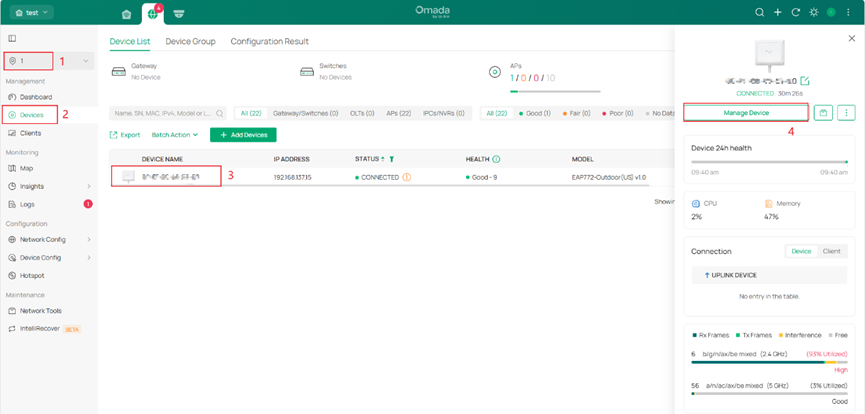
Step 1. Log in to Omada Controller and go to the Site View > Devices page, click the target AP to open its details page, then click Manage Device.
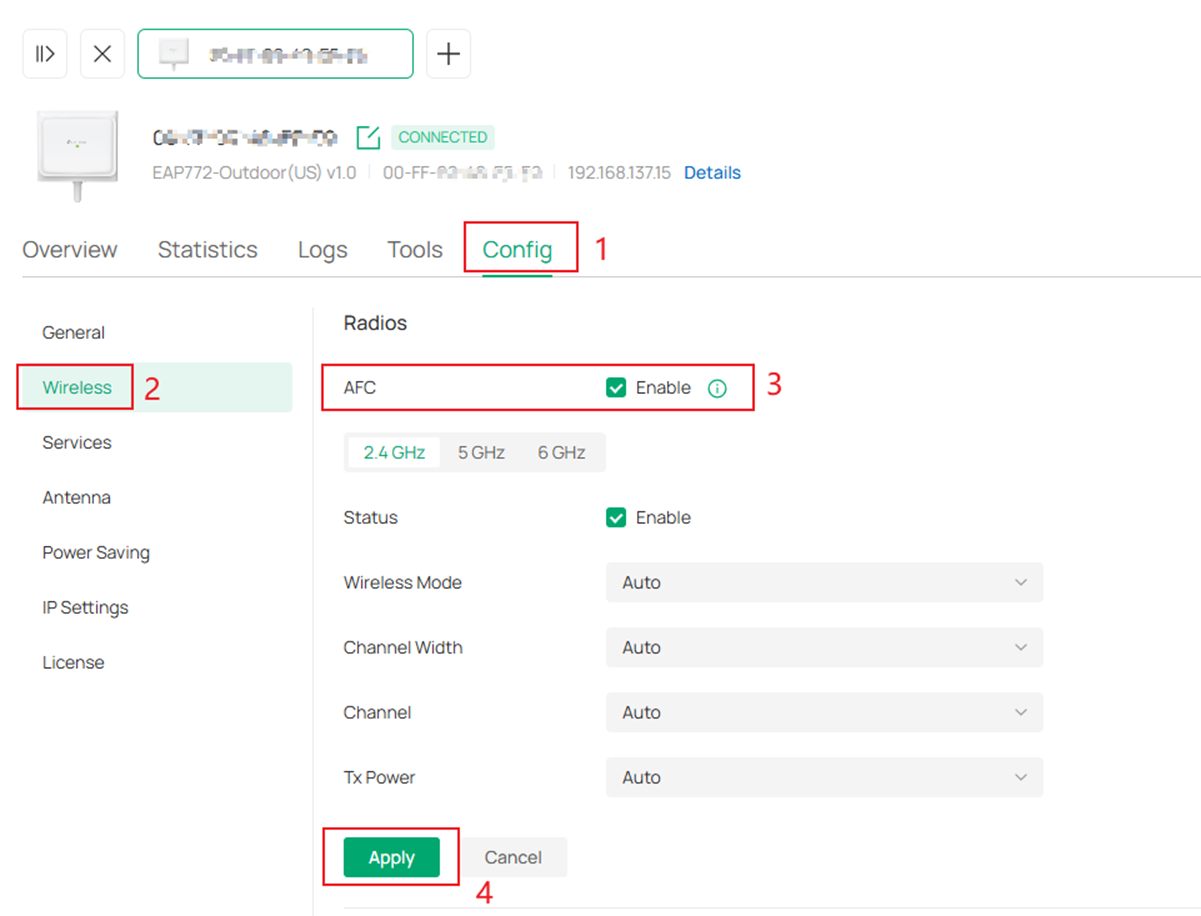
Step 2. Then go to Config > wireless > Radios to enable AFC and tick the Apply button. Then, the AFC feature will adjust the transmission power of the 6GHz band according to your geographic location to meet regulatory requirements.
Note: With AFC disabled, the Outdoor AP will stop to work in the 6GHz band. The other models’ 6GHz radio will operate in Low Power mode.
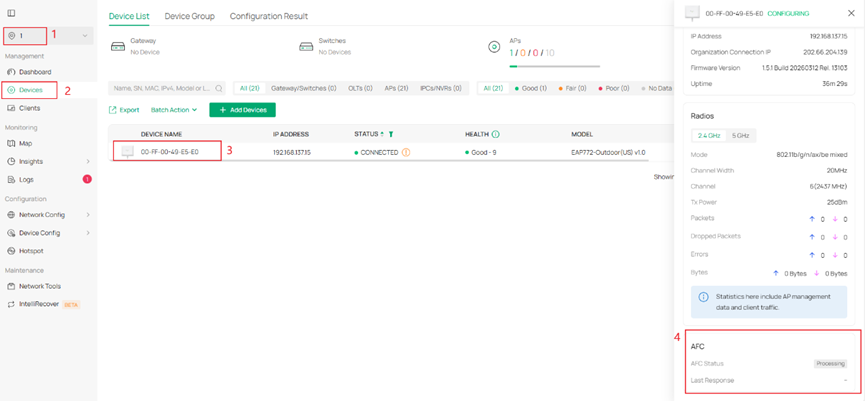
Step3. You can go to Device‘s Details Page > AFC to check the configuration results. The current status of AFC is ‘’Processing’’, which means AFC status is being retrieved.
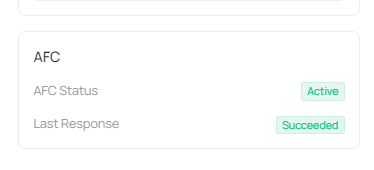
- AFC Status: The status of AFC is “Active,” which means that the last query was successful and that the AP successfully applied the power meter; “Inactive” means that the query is wrong, which may be due to the abnormality of the AFC server or the fluctuation of the local network, etc.
- Last Response: the previous query successfully received with the data returned by the AFC server.
When AP retrieving the AFC status fails, this page display the specific Error reason and the error code to assist in troubleshooting.
Note: This is a new feature in Controller v6.2.10; ensure that the AP firmware is fully compatible with Controller 6.2.
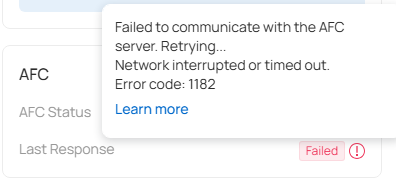
Current Error Messages and Corresponding Error Codes
1. AFC Not Supported in Current Geographic Location
Message:
1) For Outdoor mode: 6 GHz is not supported in this location.
2) For Indoor mode: Working in Low Power Indoor mode. 6 GHz is available.
Error Code: 2127 (not displayed)
2. Failed to Communicate with AFC Server
Message: Failed to communicate with the AFC server. Retrying… + specific error reason
Error Reasons and Error Codes:
|
Error Codes |
Error Reason |
|
1012, 1022, 1013, 1023, 1014, 1024, 1015, 1025, 1016, 1026, 1017, 1027, 1018, 1182 |
Network interrupted or timed out |
|
2145 |
Failed to obtain device location. Please ensure at least one 2.4G/5G SSID is configured and wait for the GPS signal to become available. (Outdoor devices only) |
|
2165 |
Failed to obtain device location. Please ensure at least one 2.4G/5G SSID is configured. (Indoor devices only) |
|
2065 |
Failed to obtain device location. No nearby SSIDs to scan for geolocation |
|
All other error codes |
The AFC server returned invalid data |
Configuration for Standalone Management
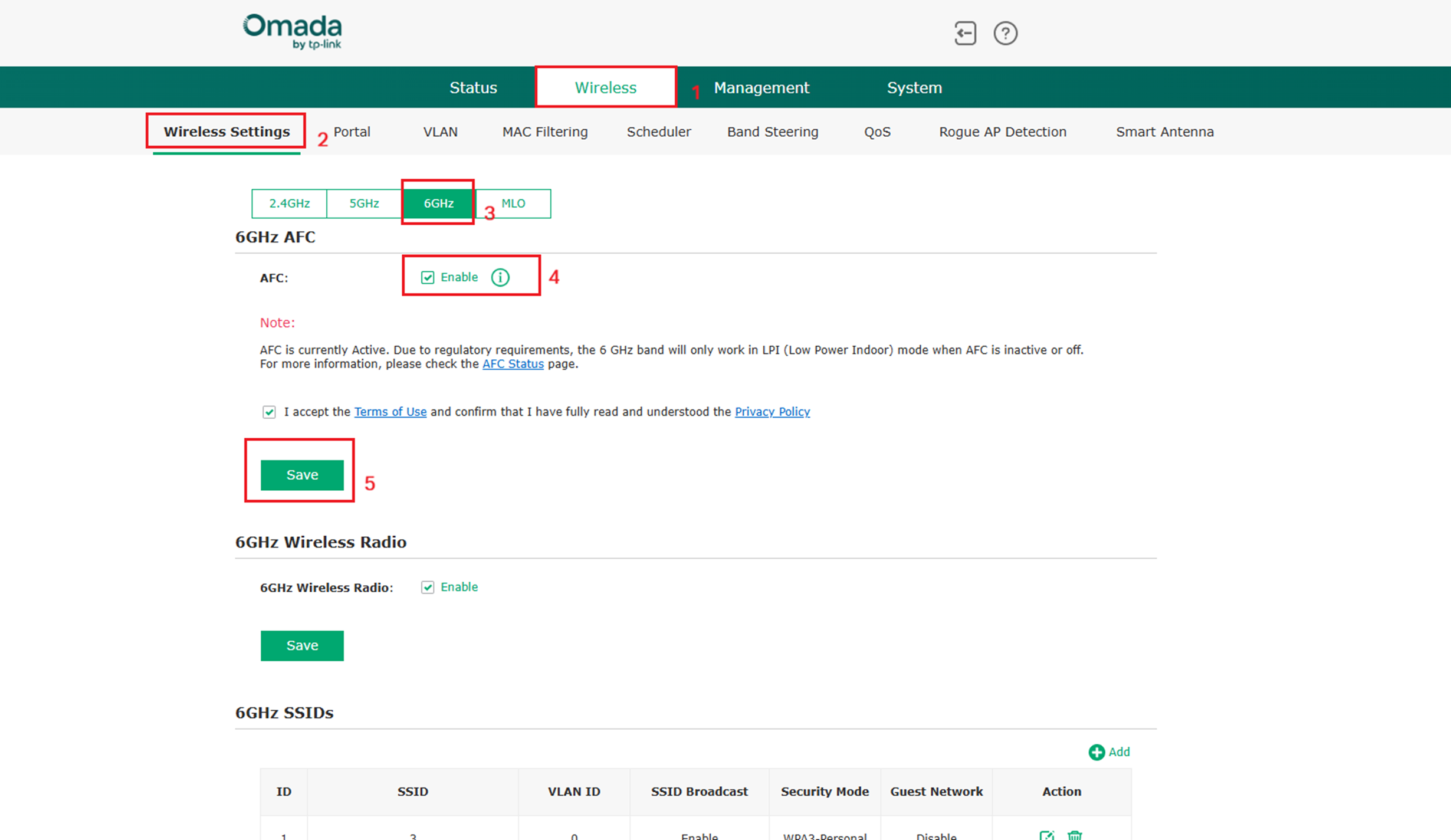
Step 1. Open a browser on your PC or mobile phone and access the AP’s GUI by entering its IP address. Then, go to Wireless > Wireless Settings > 6GHz to enable AFC.
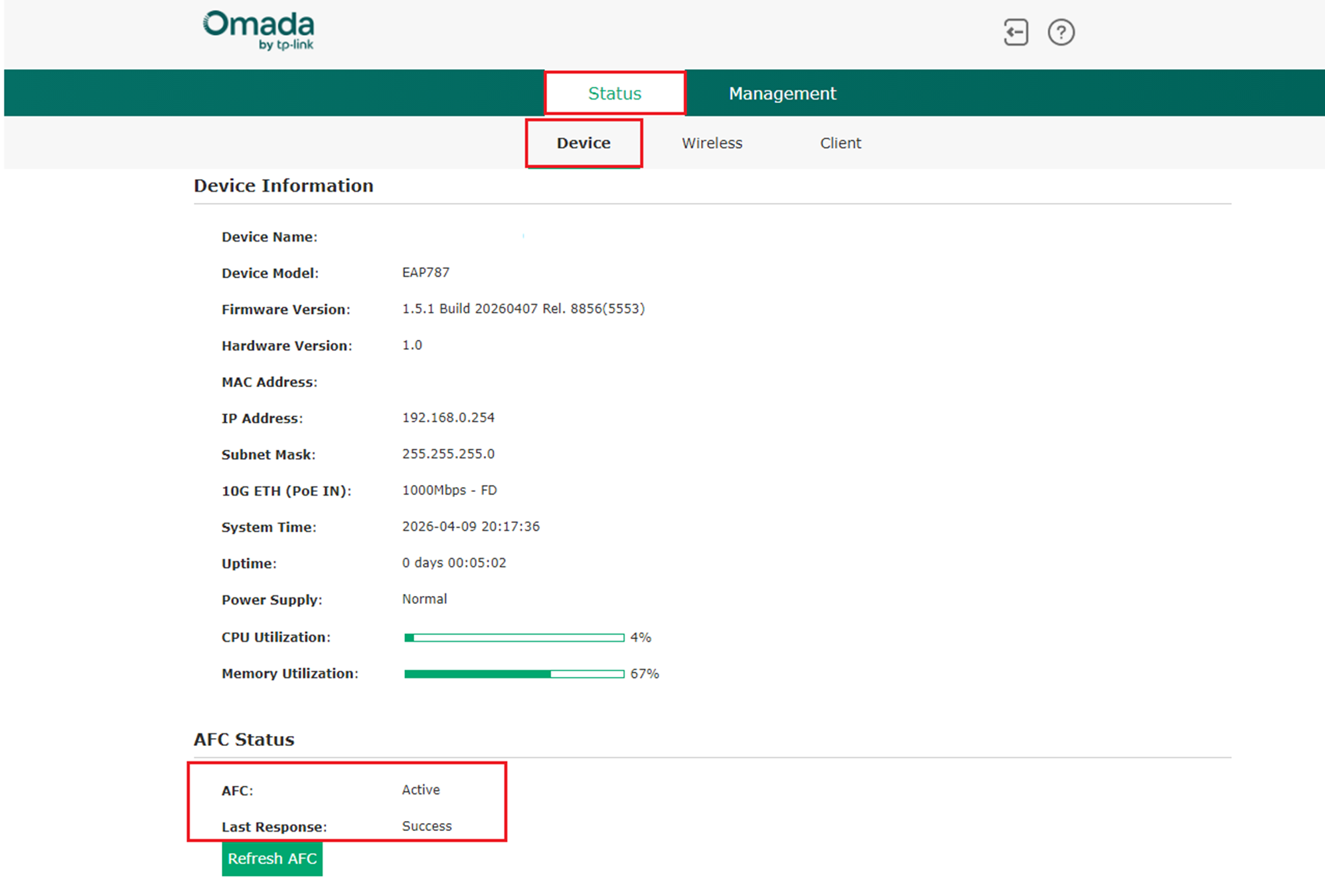
Step2. You can go to Status > Device > AFC Status to check the configuration results. When AP retrieves the AFC status fails, this page also displays the specific Error reason and the error code, which is the same as the controller mode.
Conclusion
The above is the entire Introduction and configurations of the AFC feature; please configure it according to your needs.
Get to know more details of each function and configuration please go to Download Center to download the manual of your product.
QA
Q1: What are the possible reasons for AFC activation failure?
A1: The following situations may lead to AFC activation failure:
Scenario 1: The AFC feature is not supported in your region. Currently, AFC is only supported in the United States and Canada. If the device is located outside these two regions, AFC activation will fail.
Scenario 2: The device is not configured with an SSID. If the device does not have an SSID configured, it will fail to obtain its location. Ensure that at least one 2.4/5G SSID is configured so the device can scan nearby SSIDs and obtain geographic location information.
Scenario 3: The device network is abnormal. Issues such as network disconnection or timeout can cause activation failure. Check the network topology and try activating again.
Scenario 4: Weak GPS signal. If the GPS signal is weak, the device may fail to acquire its location. Place the device in an area with a stronger GPS signal and try activating it again.
Scenario 5: AFC activation fails due to abnormal data returned by the AFC server.
Scenario 6: No scannable nearby SSIDs are available, causing the device to fail to obtain its geographic location.
Get to know more details of each function and configuration please go to Download Center to download the manual of your product.
