


Comment configurer un VPN IPsec sur une passerelle Omada en mode autonome


Contenu
Introduction
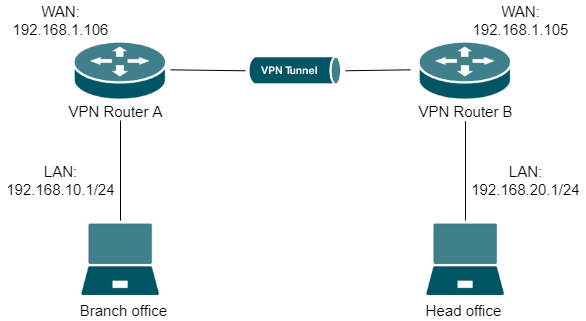
La fonction VPN de site à site permet de connecter différents réseaux privés via Internet. L'exemple de topologie suivant illustre la configuration d'un VPN IPsec de site à site en mode autonome.
Exigences
- Porte d'entrée d'Omada
- PC
Configuration
Étape 1. Vérifiez les paramètres nécessaires pour le VPN IPsec sur le routeur.
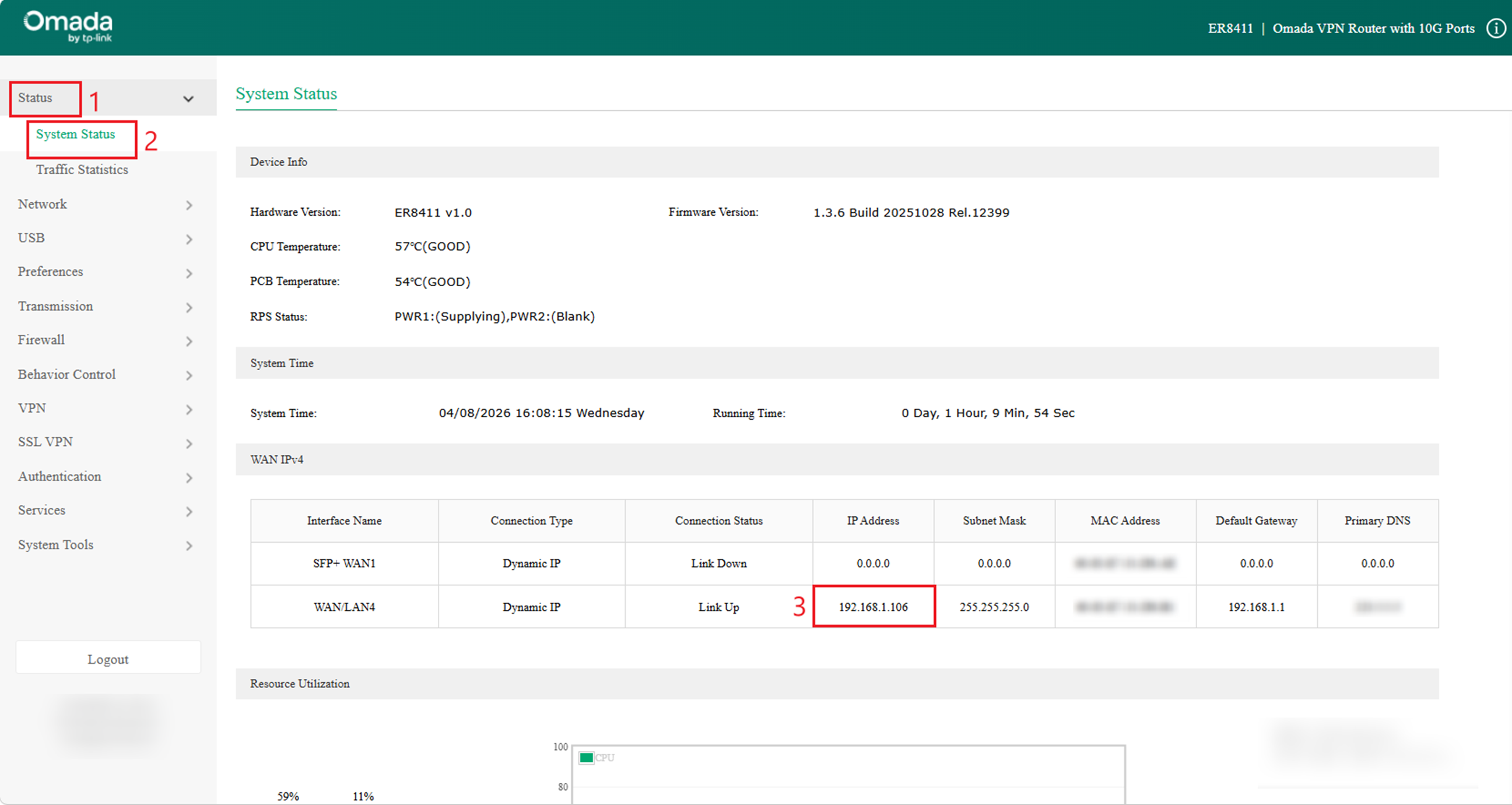
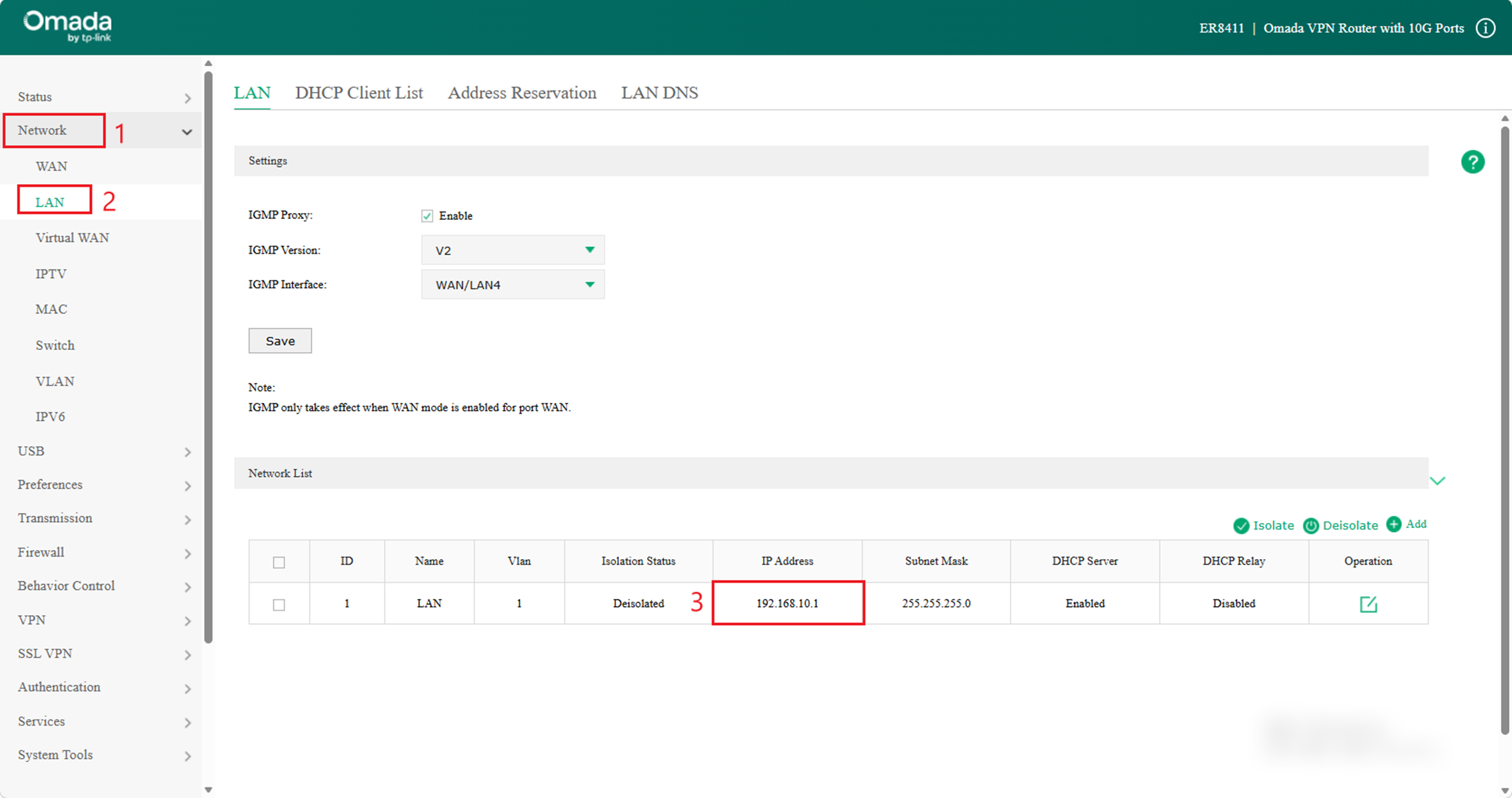
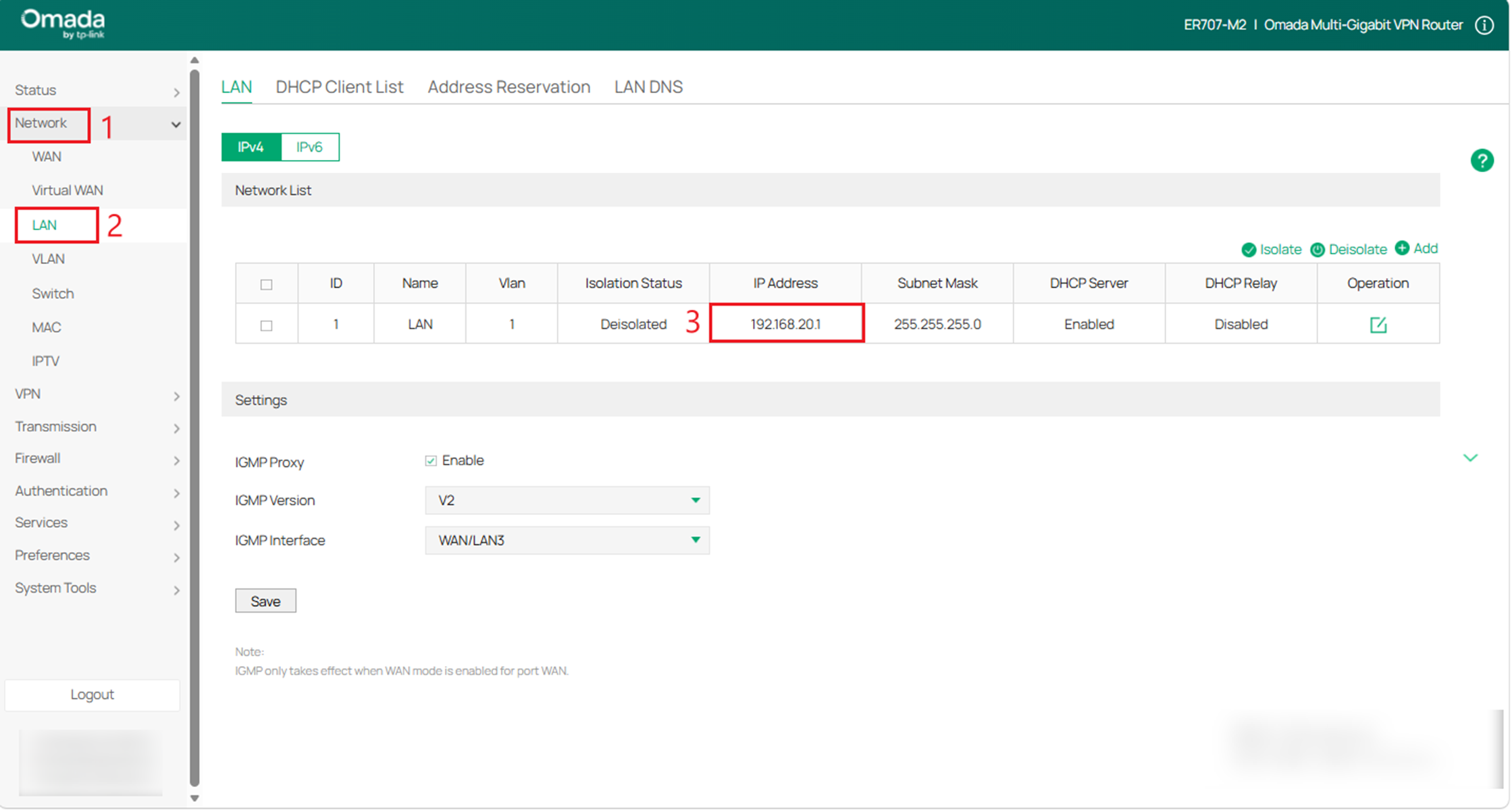
- Vérifiez l'adresse IP WAN et l'adresse IP LAN du routeur VPN A.
Sélectionnez le menu État > État du système et réseau > LAN .
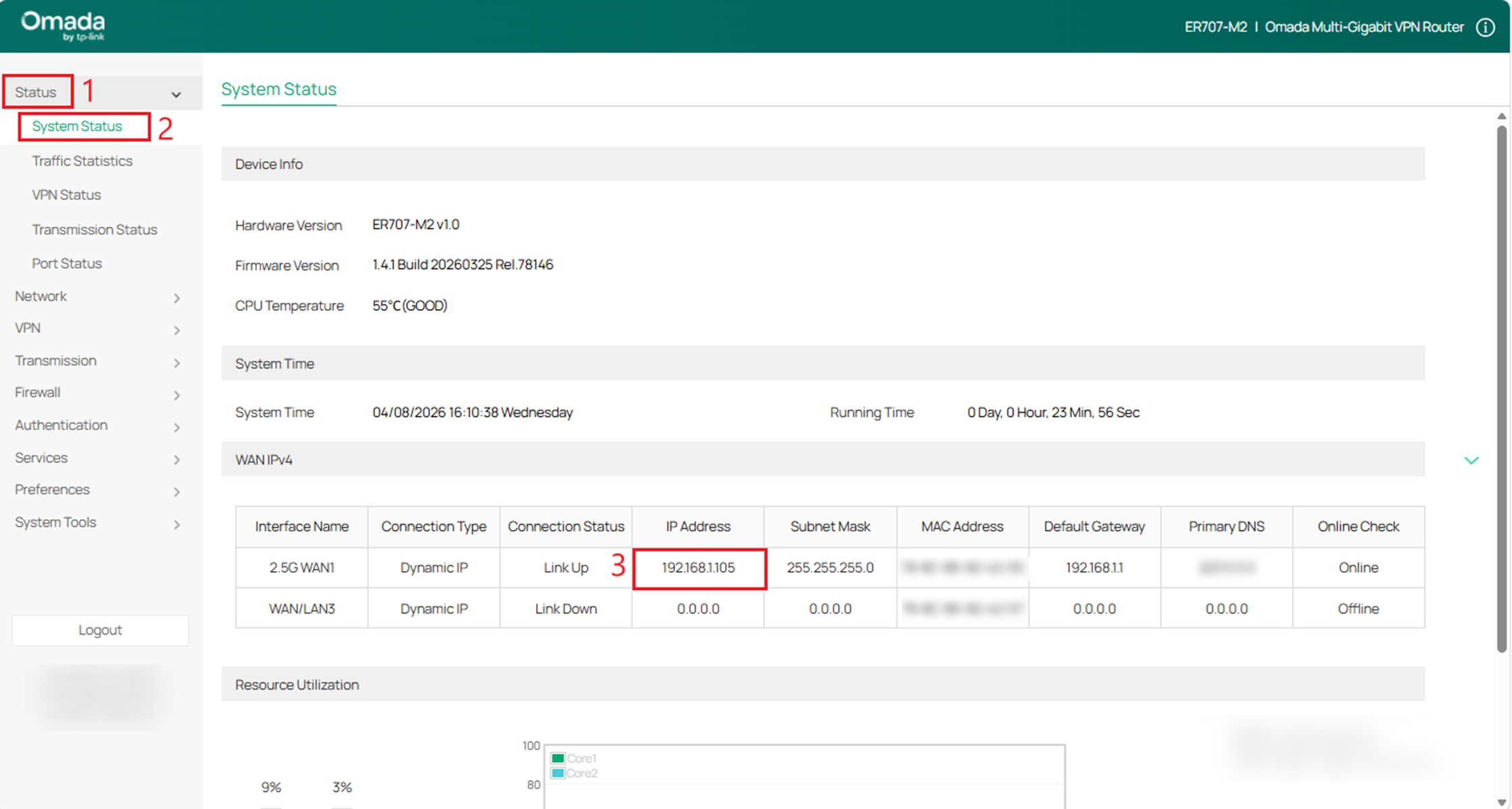
- Vérifiez l'adresse IP WAN et l'adresse IP LAN du routeur VPN B.
Sélectionnez le menu État > État du système et réseau > LAN .
Étape 2. Configurer les paramètres VPN IPsec sur le routeur A
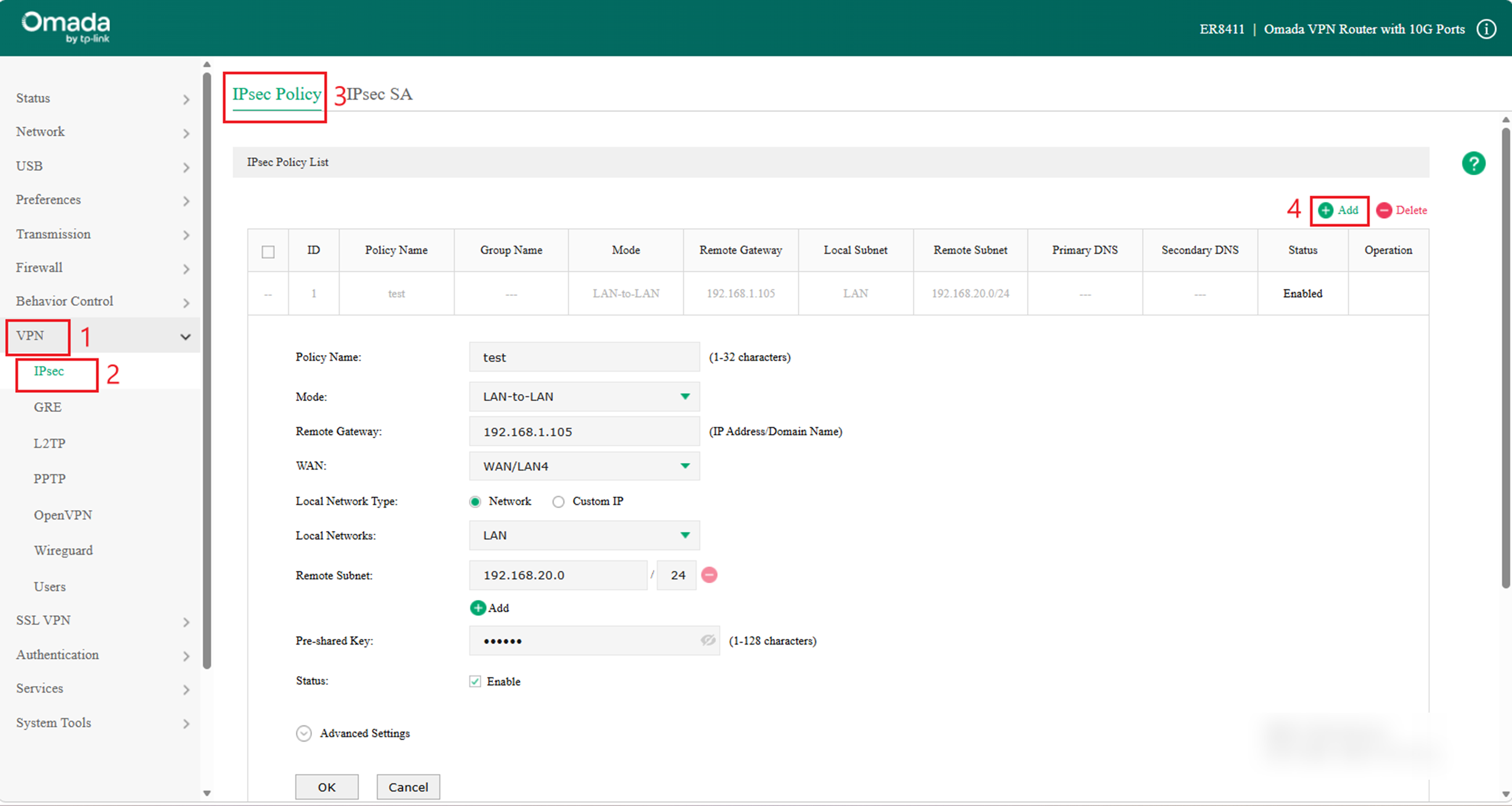
(1) Sélectionnez le menu VPN > IPSec > Stratégie IPSec > Liste des stratégies IPSec et cliquez sur Ajouter pour charger la page suivante sur le routeur VPN. Configurez les paramètres de base de la stratégie IPSec.
·Spécifiez le mode comme LAN-à-LAN.
·Spécifiez la passerelle distante comme 192.168.1.105.
·Spécifiez le WAN comme WAN/LAN4.
·Spécifiez le réseau local comme LAN et le sous-réseau distant comme 192.168.20.0/24.
Spécifiez la clé pré-partagée de votre choix. Ici, nous saisissons 123456.
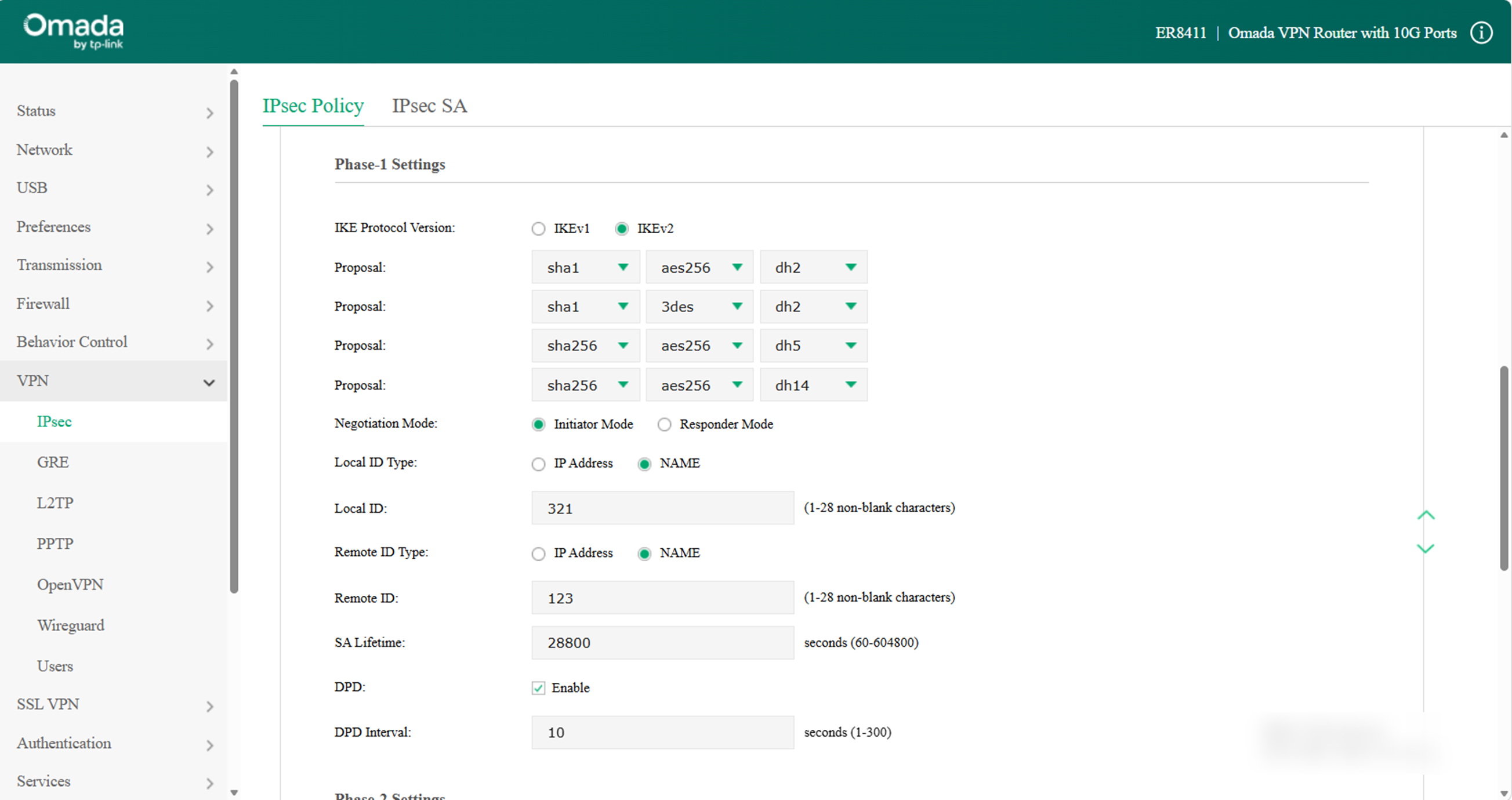
(2) Cliquez sur Paramètres avancés pour charger la page suivante. Dans la section Paramètres de la phase 1 , configurez les paramètres IKE de la phase 1.
Remarque : Les réglages de phase des deux côtés doivent correspondre.
·Sélectionnez sha1 - aes256 - dh2 comme proposition ou conservez les paramètres par défaut.
·Spécifiez le mode de négociation comme mode initiateur .
·Spécifiez le type d'ID local/distant comme NOM .
Lorsqu'un routeur se trouve derrière un NAT, vous pouvez utiliser l'adresse IP au lieu du nom comme type d'identifiant local/distant dans les scénarios suivants :
Si le routeur (A) est derrière un NAT, entrez l'adresse IP publique de l'autre routeur (B) dans le champ Passerelle distante.
Si l'autre routeur (B) se trouve sur le réseau public, entrez 0.0.0.0 dans le champ Passerelle distante.
Sinon, sélectionnez NOM comme type d'ID local/distant .
Spécifiez l'identifiant local/distant comme vous le souhaitez. Ici, nous spécifions l'identifiant local comme 321 et l'identifiant distant comme 123.
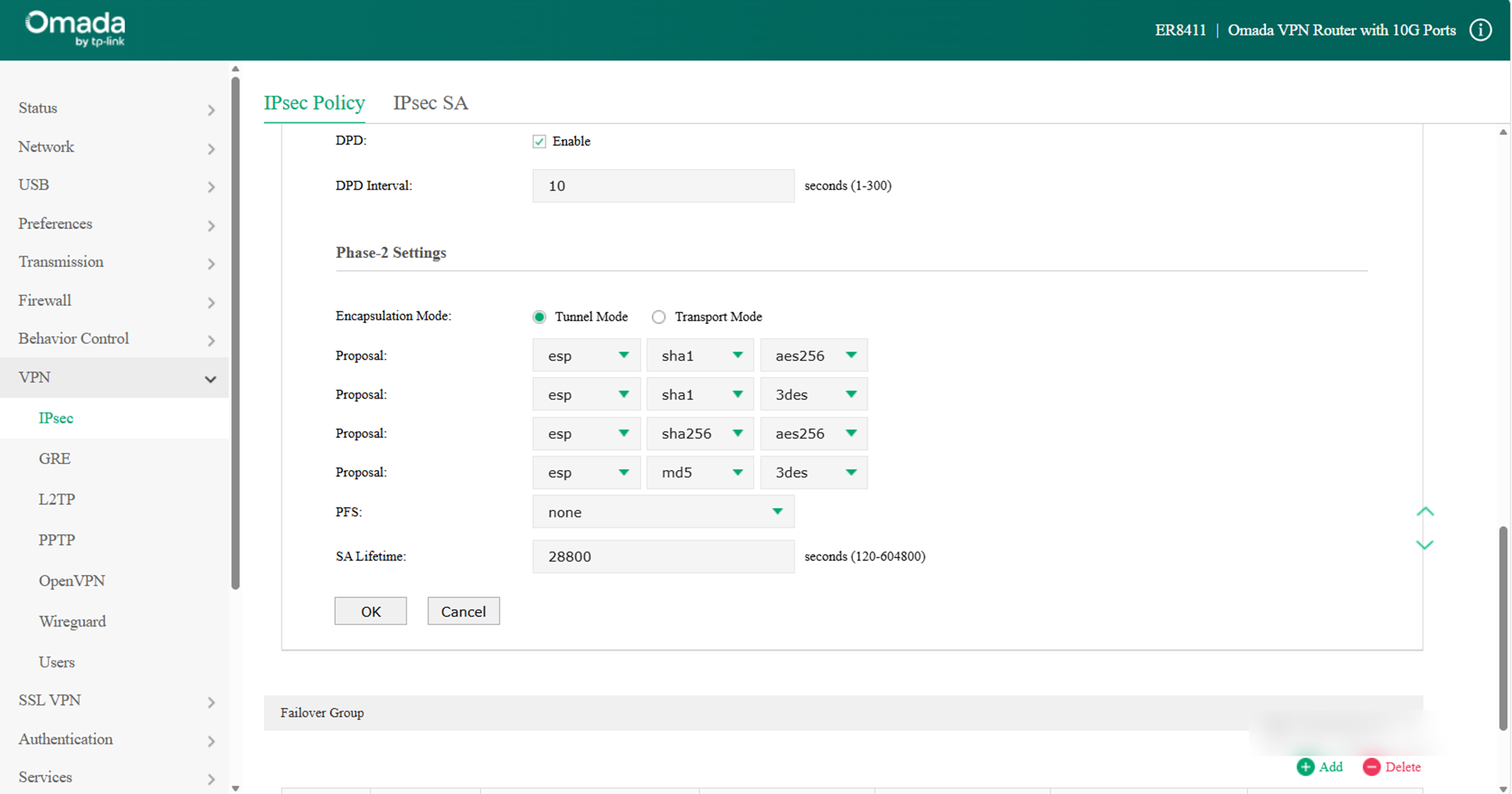
(3) Dans la section Paramètres de la phase 2 , configurez les paramètres de la phase 2 d'IKE. Cliquez sur OK .
· Spécifiez le mode d'encapsulation comme mode tunnel .
· Sélectionnez esp - sha1 - aes256 comme proposition ou conservez les paramètres par défaut.
Une fois que le routeur se trouve derrière un périphérique NAT, la proposition ne peut pas être spécifiée comme ah-md5/sha1/sha256/sha384/sha512 , sinon le tunnel VPN ne peut pas être établi.
Étape 3. Configurer les paramètres VPN IPsec sur le routeur B
Suite à une mise à jour du système, l'interface utilisateur web présente quelques différences. Cependant, la procédure de configuration reste similaire.
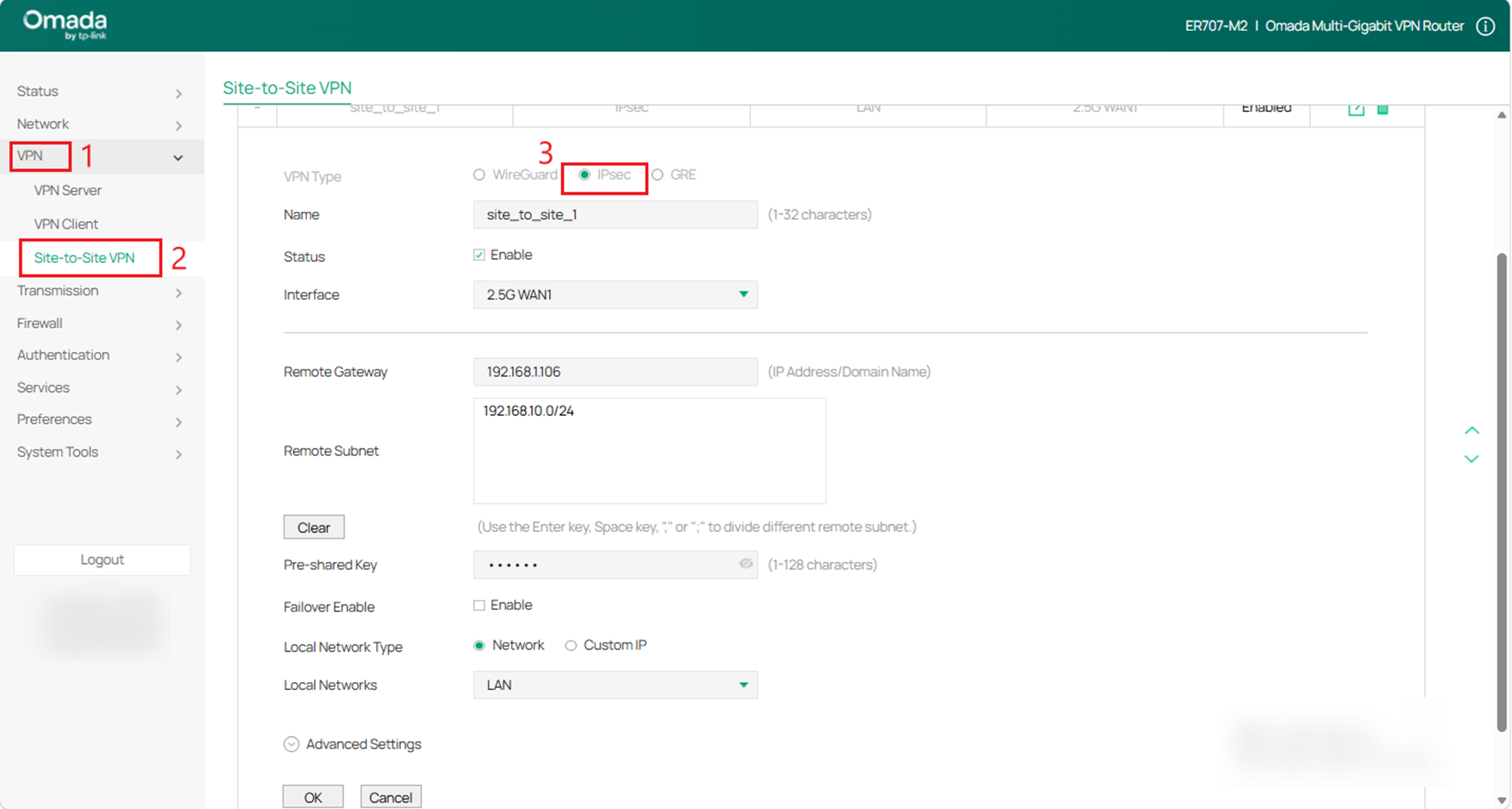
(1) Choisissez le menu VPN > VPN de site à site et cliquez sur Ajouter pour charger la page suivante sur le routeur VPN B. Sélectionnez IPsec comme type de VPN et configurez les paramètres de base.
(2) Cliquez sur Paramètres avancés pour charger la page suivante. Dans la section Paramètres de la phase 1 , configurez les paramètres IKE de la phase 1.
Remarque : Si la passerelle distante de l'un ou l'autre site est configurée sur 0.0.0.0, le mode de négociation doit être défini sur le mode Répondeur .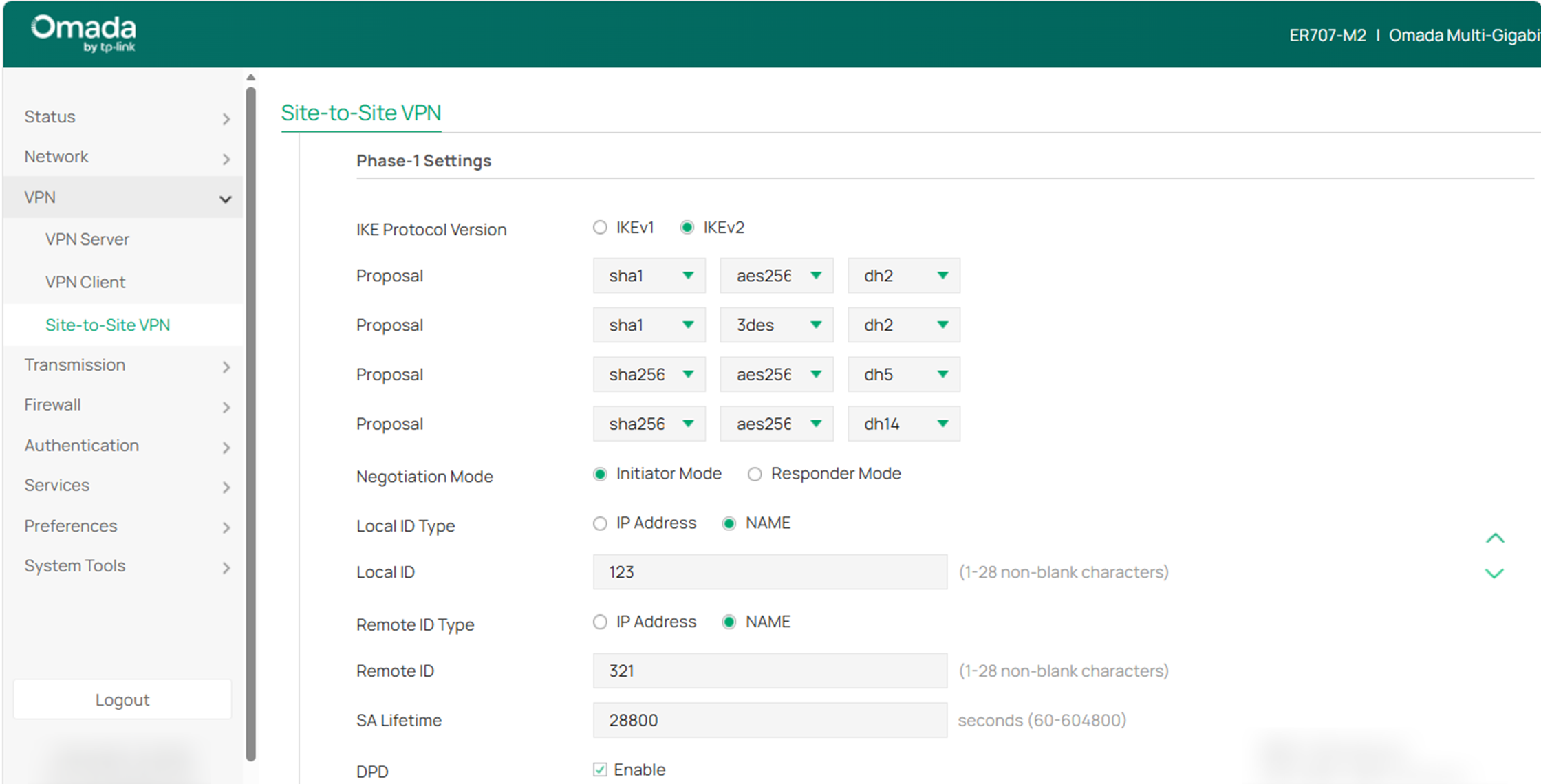
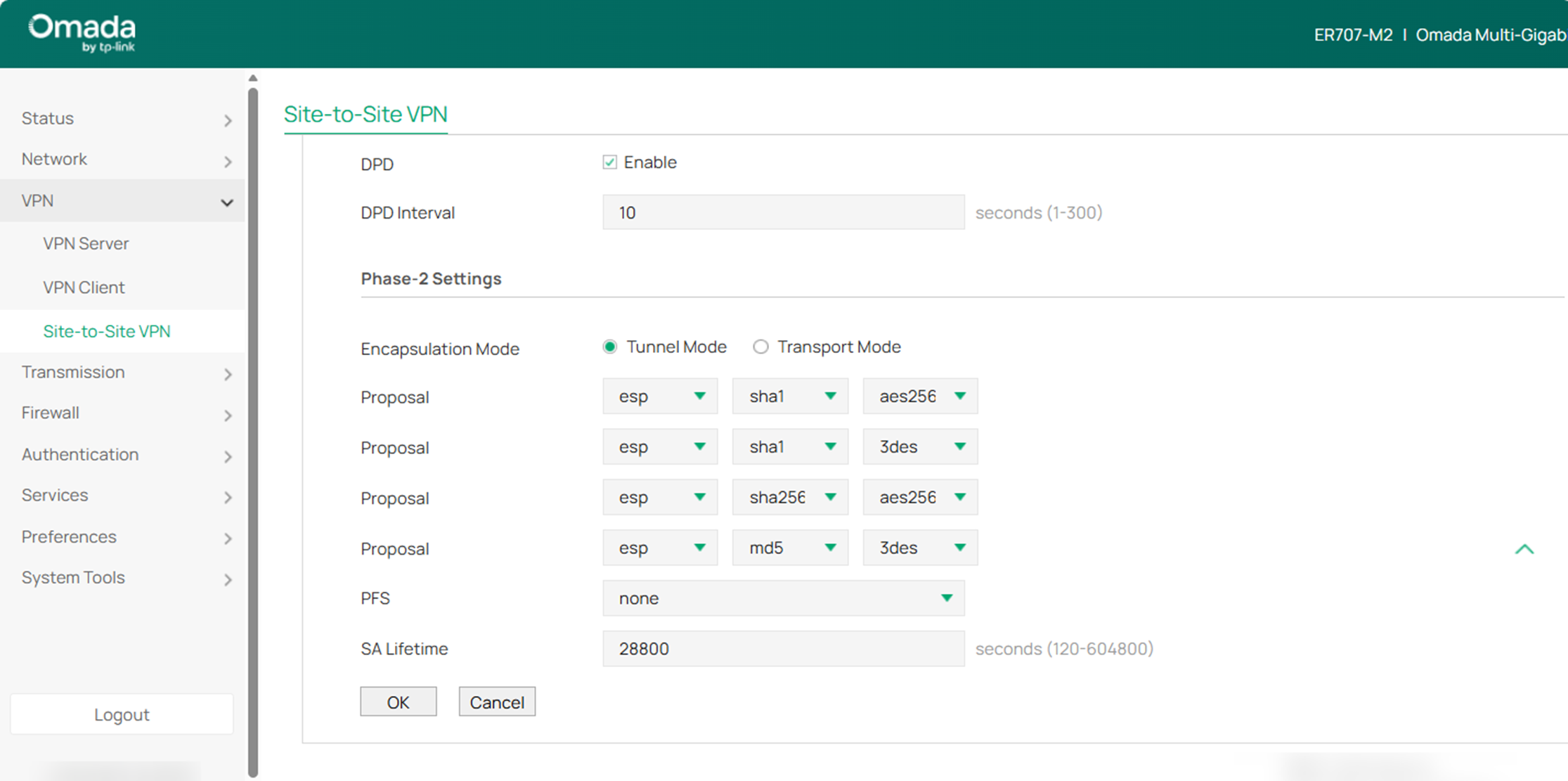
(3) Dans la section Paramètres de la phase 2 , configurez les paramètres de la phase 2 d'IKE. Cliquez sur OK .
Vérification
Vérifiez l'état de la connexion du tunnel VPN IPsec.
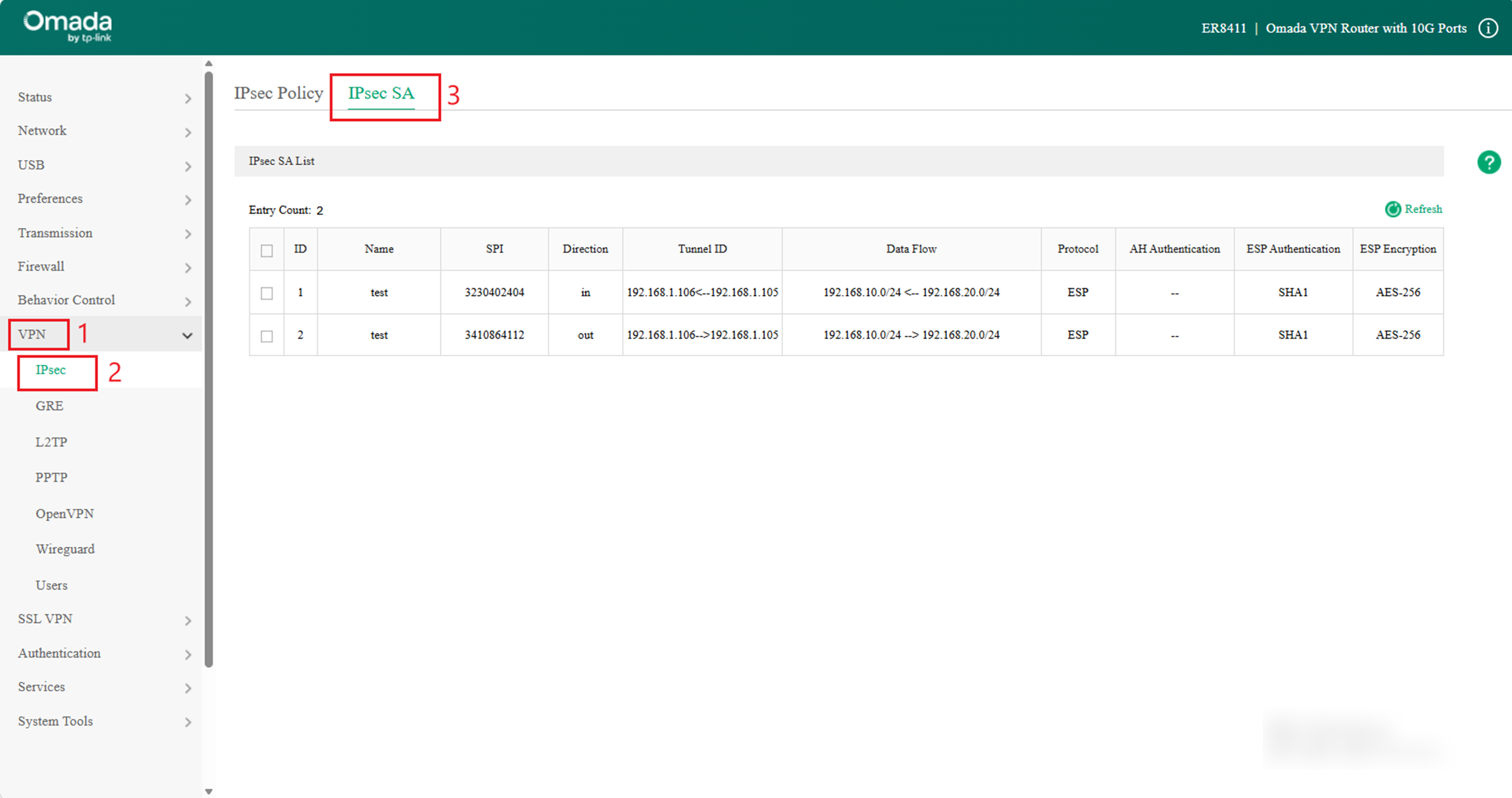
Pour le routeur A, accédez à VPN > IPsec > Association de sécurité IPsec pour charger la page suivante. Si le tunnel VPN IPsec est établi avec succès, il apparaîtra dans la liste.
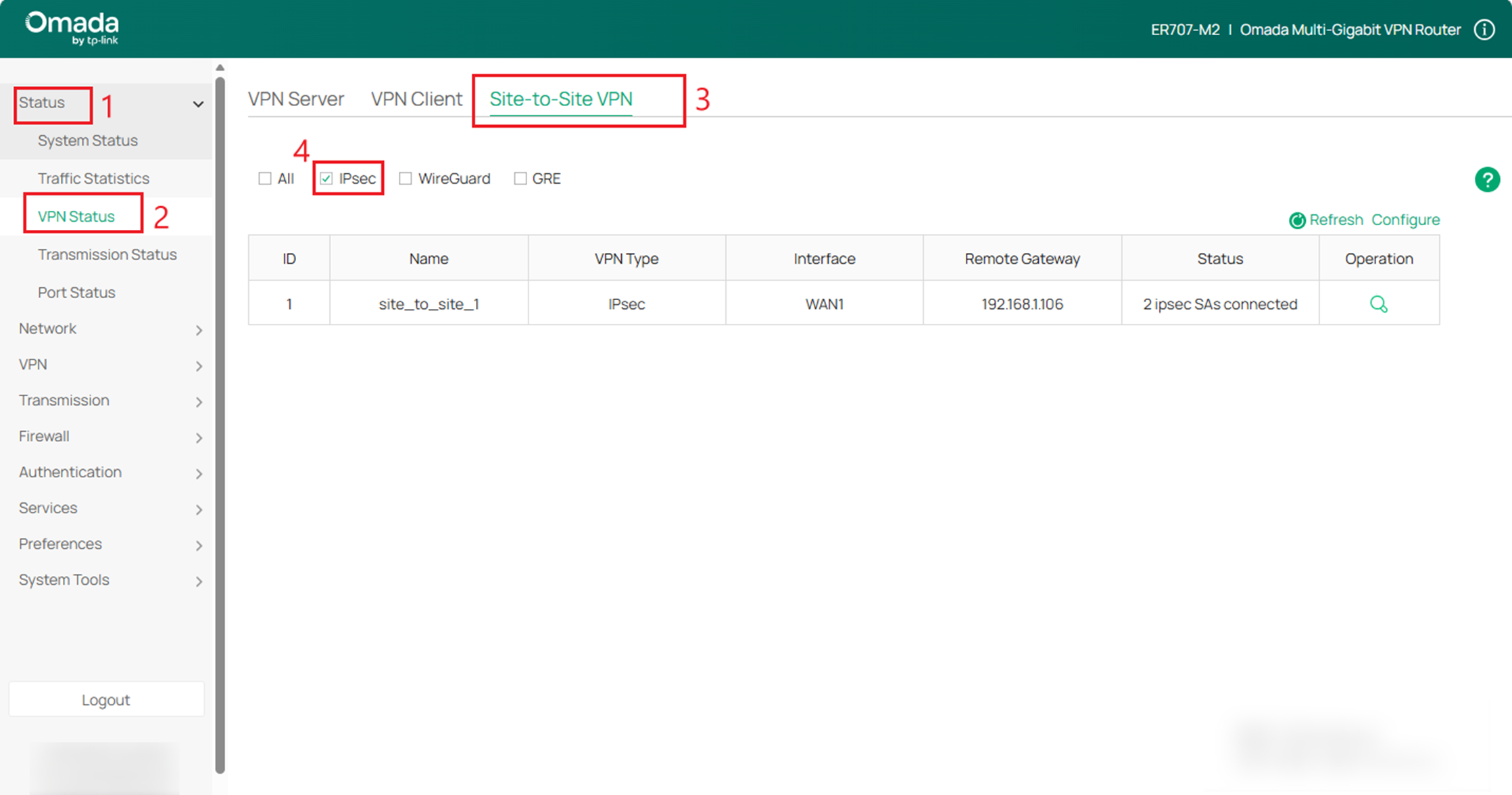
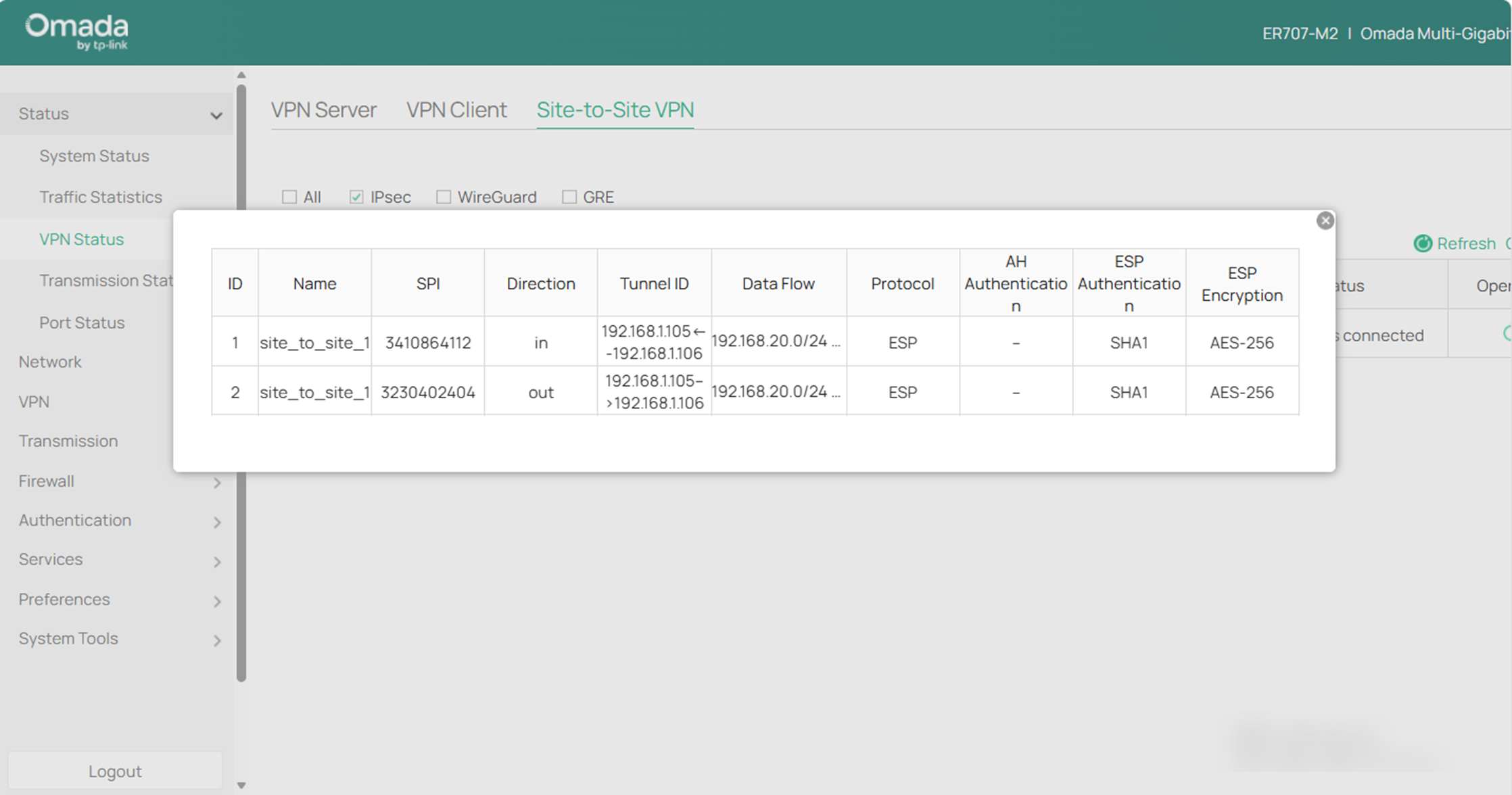
Pour le routeur B, accédez à État > État du VPN > VPN de site à site > IPsec pour charger la page suivante. Cliquez sur le bouton situé sous Fonctionnement à droite pour afficher les détails.
Conclusion
Vous avez maintenant appris à configurer un VPN IPsec site à site en mode autonome.
Pour en savoir plus sur chaque fonction et configuration, veuillez vous rendre dans le Centre de téléchargement pour télécharger le manuel de votre produit.
