


How to Configure User Accounts and Roles on Fusion Pro Gateway


Contents
Account types and permission architecture
Default roles on Fusion Pro Gateway
Configure custom roles (optional)
Introduction
Fusion Pro Gateway supports both Local Users and Cloud Users, allowing administrators to manage access based on operational requirements and security policies.
Unlike traditional gateways, Fusion Pro Gateway integrates Omada OS, Omada Network, and Omada Guard into a unified platform. User permissions can be assigned independently for each module, providing more granular and flexible access control. This article explains how to create and manage user accounts, assign roles, and configure custom permissions on Fusion Pro Gateway.
Requirements
- A Fusion Pro Gateway that has completed the initial setup process.
- A valid TP-Link ID (required for Cloud User accounts).
- An account with permission to create and manage users and roles on the Fusion Pro Gateway.
Note: If the Fusion Pro Gateway has not yet been initialized, refer to Getting Started with an Omada Fusion Gateway before continuing.
Module-based permission model
Fusion Pro Gateway integrates multiple management functions into a single platform. Permissions are assigned separately for each module.
|
Module |
Description |
|
Omada OS |
Manages system-level settings and platform administration. |
|
Omada Network Application |
Manages network deployment, configuration, monitoring, and maintenance. |
|
Omada Guard Application |
Manages surveillance, security, recording, and related functions. |
When creating a user account, a role must be assigned separately for each module.
Account types and permission architecture
Default and custom roles on Fusion Pro Gateway
Fusion Pro Gateway provides several predefined roles to simplify permission management and also supports custom roles for more granular access control.
|
Role |
Description |
|
Owner |
The account that first initializes the Fusion Pro Gateway becomes the Owner. The Owner has the highest level of privileges and full access to all system functions, users, roles, and settings. Ownership can be transferred to another eligible account when required. |
|
Super Admin |
Has full administrative permissions across the platform and can manage all configurations, users, services, and settings. |
|
Admin |
Has administrative permissions for assigned modules and can perform most configuration and management tasks, except those reserved for higher-level administrators. |
|
Viewer |
Has read-only access and can monitor system status and configurations without making changes. |
|
Live Only |
Provides access only to live video viewing functions in Omada Guard without additional management permissions. |
|
Custom |
A user-defined role with permissions configured according to operational requirements. |
Note: Although role names are consistent across modules, the permissions associated with a role may differ between Omada OS, Omada Network, and Omada Guard. Refer to the role configuration page for the exact permissions granted within each module.
Configure user accounts
Create a Local User
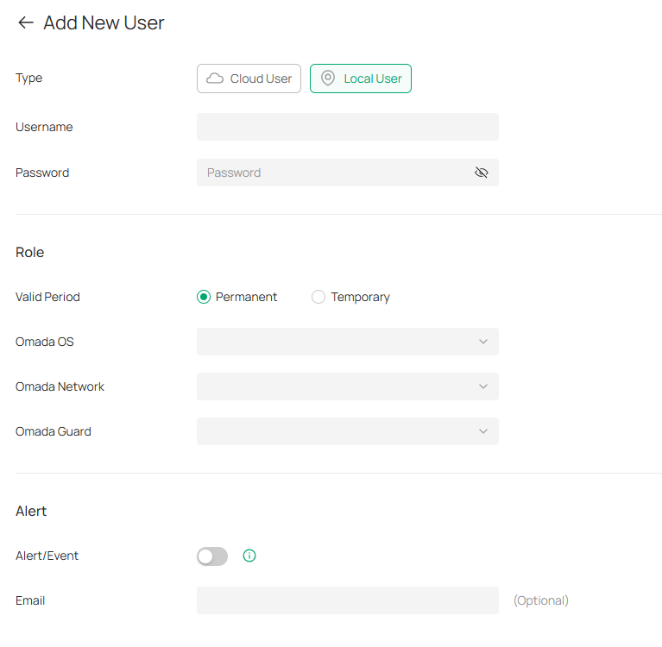
Step 1. Open the User Management page
Navigate to Accounts > User. Click Add New User.
Step 2. Select Local User, then configure user information
Select Local User, then configure the following settings:
Username: Specify the username used for local login.
Password: Specify the password used for local login.
Valid Period:
- Permanent: The account remains active until modified or deleted.
- Temporary: The account remains active only during the specified period.
Step 3. Assign roles
Assign a role for each module (Omada OS, Omada Network, and Omada Guard )
Note:
- If Super Admin is assigned to any one module, Fusion Pro Gateway automatically assigns Super Admin to the remaining modules as well.
- At least one role must be assigned. Omada Network and Omada Guard roles cannot both be set to None.
Step 4. (optional) Enable Alert/Event Notifications if the user should receive email notifications. When enabled, the user can receive:
- System alerts and event notifications from Fusion Pro Gateway.
- Alert notifications generated by Omada Guard.
To receive email notifications, an Email Server must be configured and relevant notification settings must be enabled under Log Settings.
Note: Omada Guard detection event notifications are configured separately in Event Notification Settings.
Step 5. Save the configuration
Click Create to save the configuration.
The new Local User account will appear in the user list.
Create a Cloud User
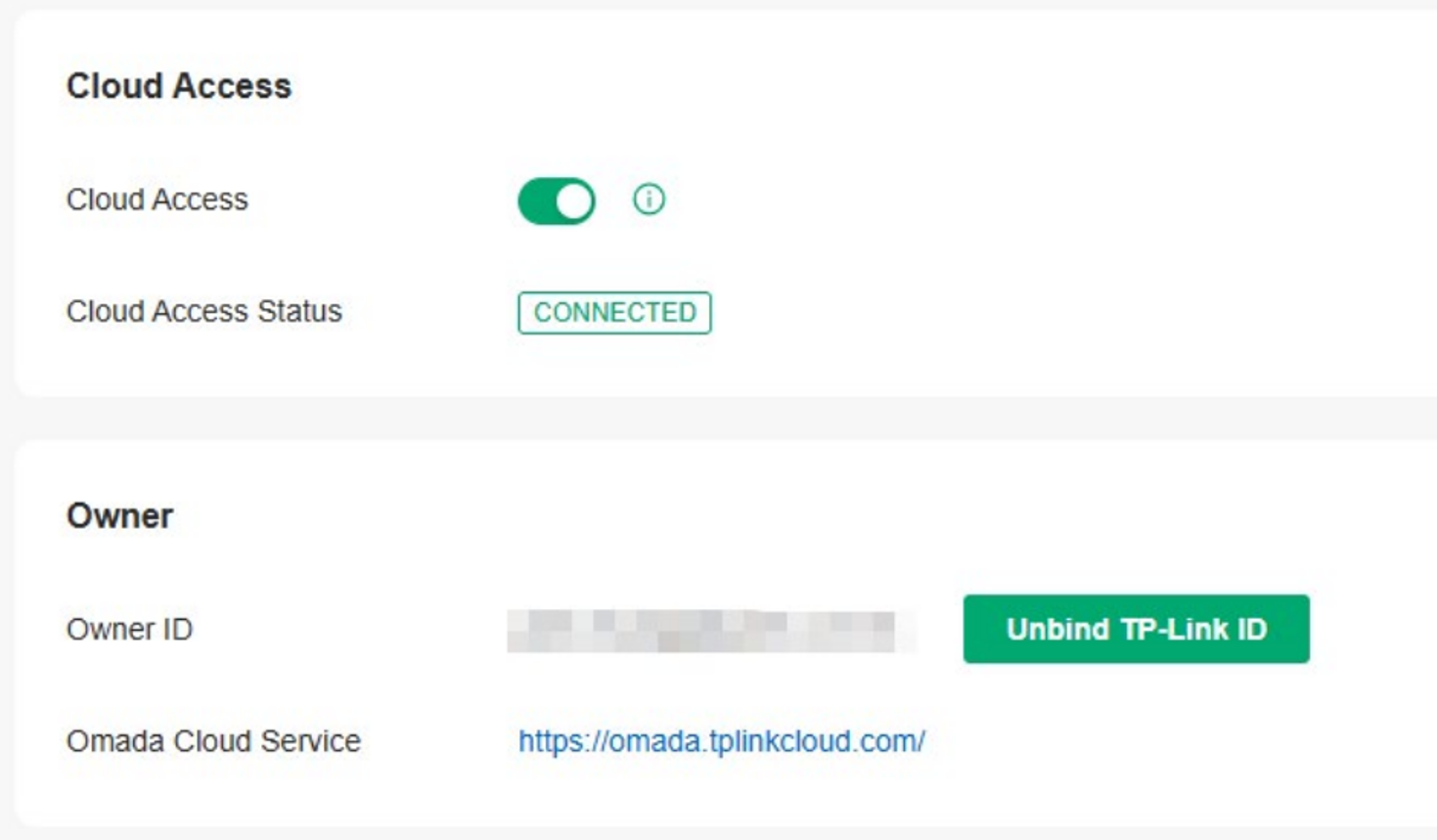
Step 1. Enable Cloud Access.
Before creating a Cloud User, ensure that Cloud Access is enabled and that the Fusion Pro Gateway is bound to a TP-Link ID. For configuration instructions, refer to How to Enable Cloud Access on Omada SDN Controller.
Note: If Cloud Access is disabled, Cloud Users cannot log in to the Fusion Pro Gateway until Cloud Access is re-enabled.
Step 2. Open the Cloud User creation page
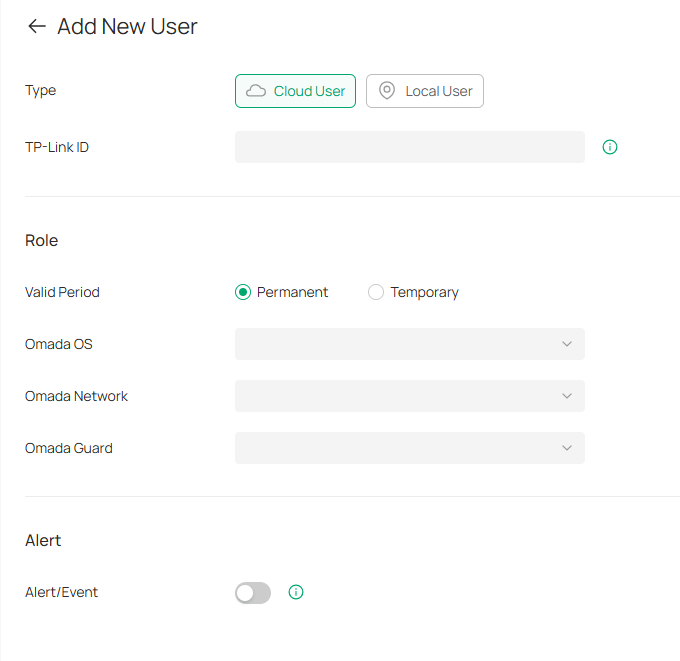
Navigate to Accounts > User, then click Add New User and select Cloud User.
Step 3. Configure user information and roles
Configure the user information and assign module roles as described in the Create a Local User section.
Assign roles for Omada OS, Omada Network, and Omada Guard.
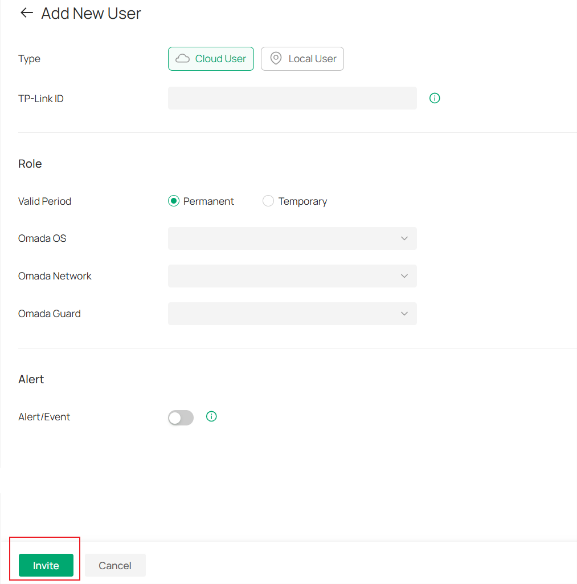
Step 4. Send the invitation
Click Invite in the lower-left corner of the page. The invitation will be sent to the specified email address.
Note:
- If the email address is already associated with a TP-Link ID, the recipient can access the Fusion Pro Gateway after accepting the invitation.
- If the email address is not associated with a TP-Link ID, the recipient must first register a TP-Link ID before access can be granted.
Configure custom roles (optional)
Create a custom role
Fusion Pro Gateway provides predefined roles that satisfy most deployment requirements. If additional permission granularity is required, custom roles can be created and assigned to users.
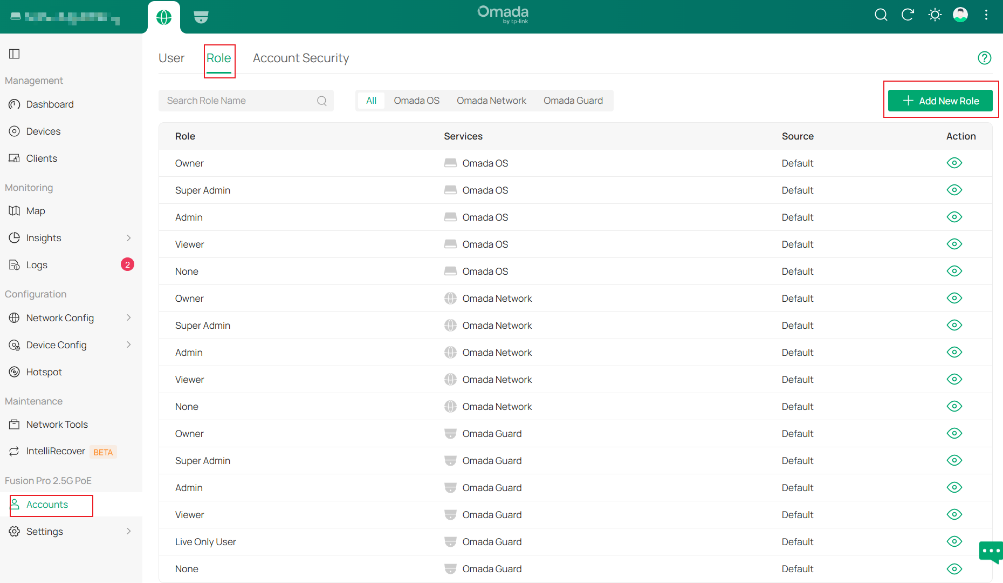
Step 1. Open the Role Management page
Navigate to Accounts > Role. The page displays predefined roles and any existing custom roles.
Step 2. Create a new role
Click Add New Role.
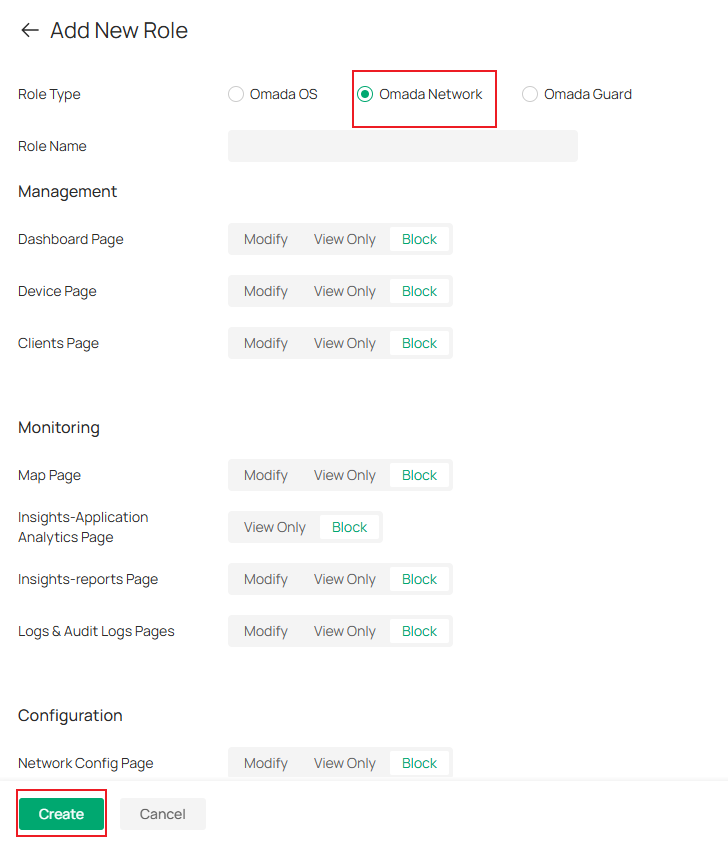
Step 3. Select the module and configure permissions
Select the module for which the role will be created:
- Omada OS
- Omada Network
- Omada Guard
Then:
- Enter a role name.
- Configure the required permissions.
- Review the assigned privileges.
Step 4. Save the role
Click Create to save the configuration.
The new custom role becomes available when assigning permissions to Local Users and Cloud Users.
Note: Custom roles can only be created, modified, or deleted by users with sufficient administrative privileges.
Conclusion
After completing the procedures in this guide, user access on the Fusion Pro Gateway can be managed through Local Users or Cloud Users, with permissions assigned according to organizational requirements. Where predefined roles do not meet deployment needs, Custom Roles can be used to provide more precise access control.
Proper role assignment helps maintain security, simplify administration, and ensure users have appropriate access to system, network, and surveillance functions.
QA
Q1: What is the difference between a Local User and a Cloud User?
A: Local Users authenticate using a username and password stored on the Fusion Pro Gateway. Cloud Users authenticate using a TP-Link ID. They can access the Fusion Pro Gateway through TP-Link Cloud services and can also log in directly from the local gateway login page using their TP-Link ID credentials, provided Cloud Access is enabled.
Q2: Can different roles be assigned to Omada OS, Omada Network, and Omada Guard?
A: Yes. Roles can be configured independently for each module. For example, a user can be assigned the Admin role for Omada Network while having Viewer permissions for Omada OS and Omada Guard. This allows more granular access control.
Q3: Why are all modules assigned Super Admin when Super Admin is selected for only one module?
A: On Fusion Pro Gateway, Super Admin is considered a platform-wide administrative role. To maintain consistent administrative authority across the integrated platform, assigning Super Admin to one module automatically applies Super Admin privileges to all modules.
To learn more about each function and configuration, please visit Support Home to download or check the manual for your product.
