


Scenario 1 Client Cannot Communicate with Certain Devices on Remote LAN
Scenario 2 Remote Device Cannot Communicate with the Remote LAN
Introduction
This guide provides quick, practical steps to help diagnose and resolve situations where a VPN tunnel shows as connected, but devices are unable to access resources on the remote network. Whether you're using a client-to-site or site-to-site setup, the issue is typically related to routing, firewall rules, or tunnel configuration. The sections below will help you isolate the cause and restore connectivity efficiently.
Requirements
- Omada Gateway
Configuration
Scenario 1 Client Cannot Communicate with Certain Devices on Remote LAN
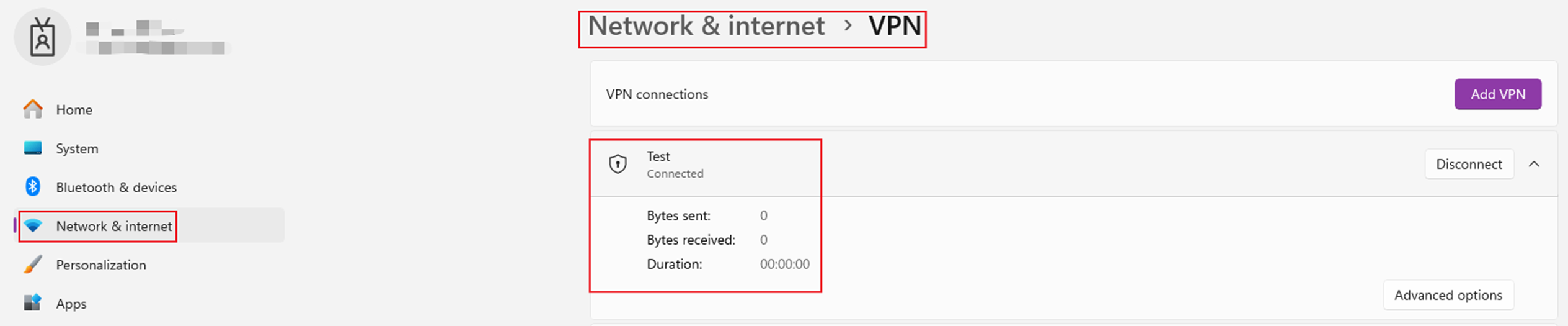
Step 1. Make sure that the clients VPN status is displayed as connected.
For Windows 11 navigate to Settings > Network & Internet > VPN.
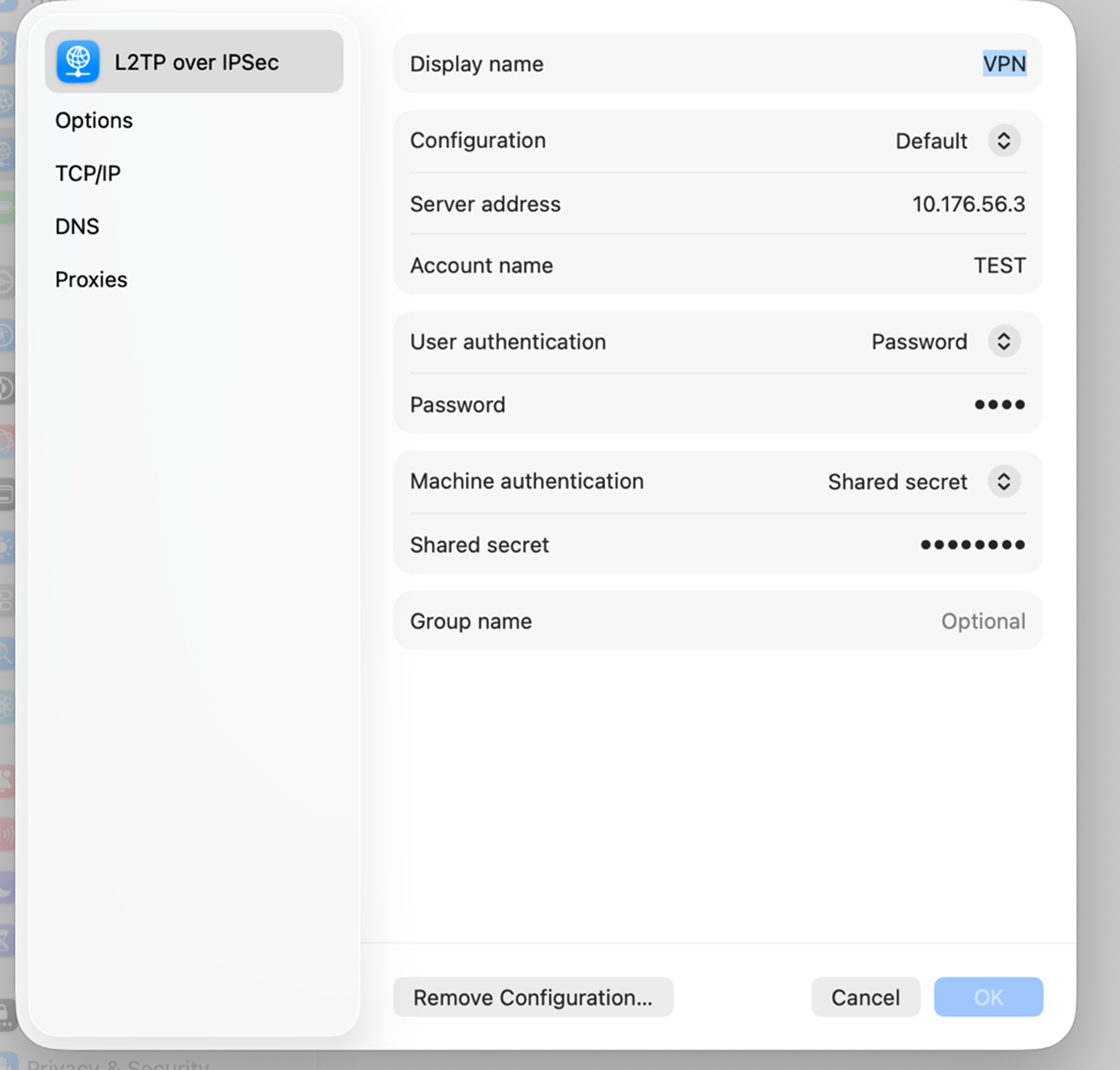
For Mac navigate to System Settings > VPN to verify the tunnel connection.
Step 2. Verify connection to the VPN server on controller mode or standalone mode.
Controller Mode: Navigate to Network Config > VPN > VPN Status.
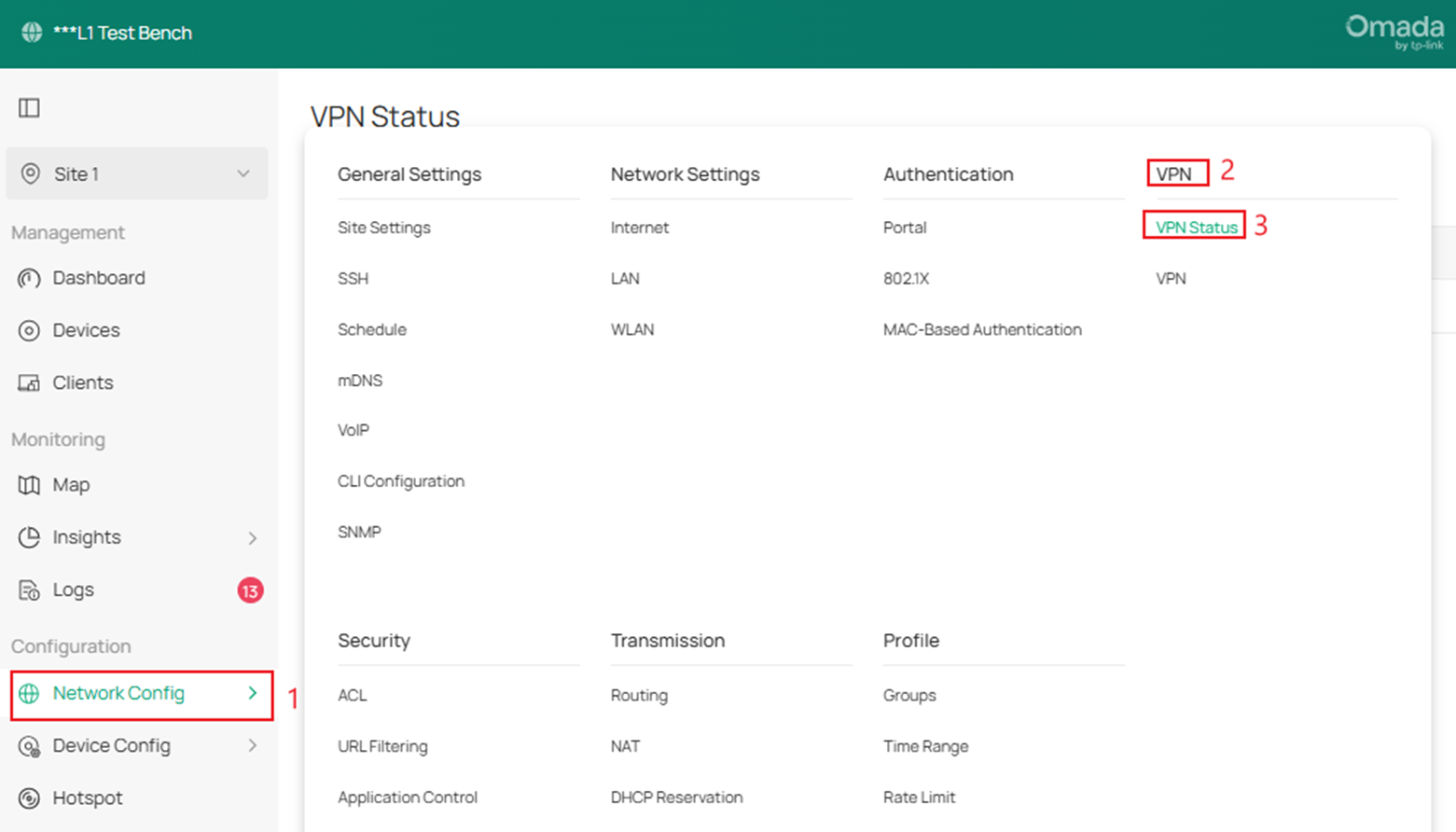
Check VPN server status based on your VPN type. Navigate to VPN Server to see tunnel activity.

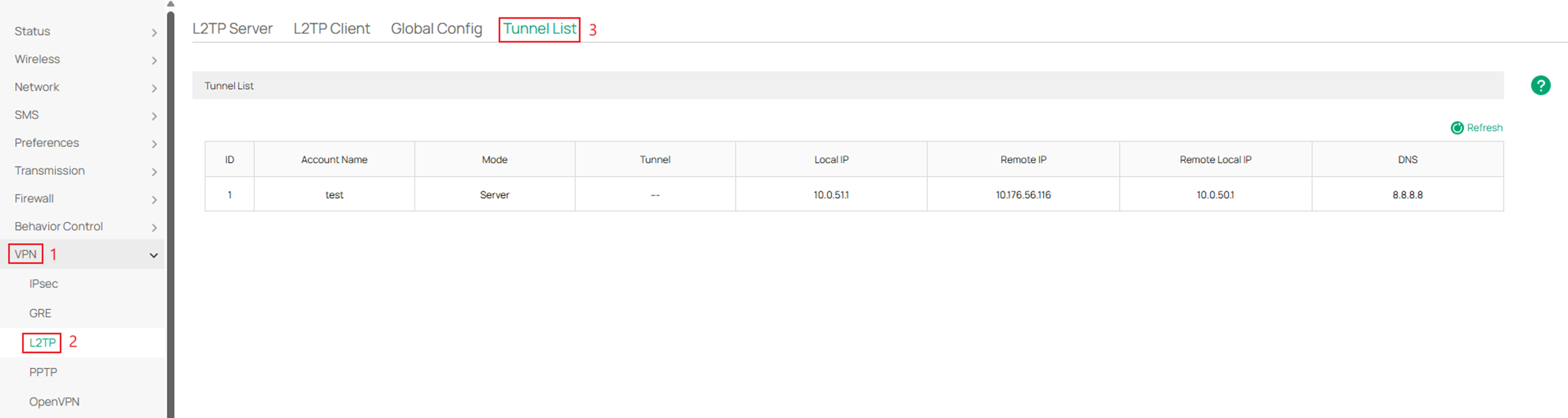
Standalone Mode: Navigate to VPN > L2TP(Choose your own VPN type ) >Tunnel List to verify devices are connected to your tunnel.
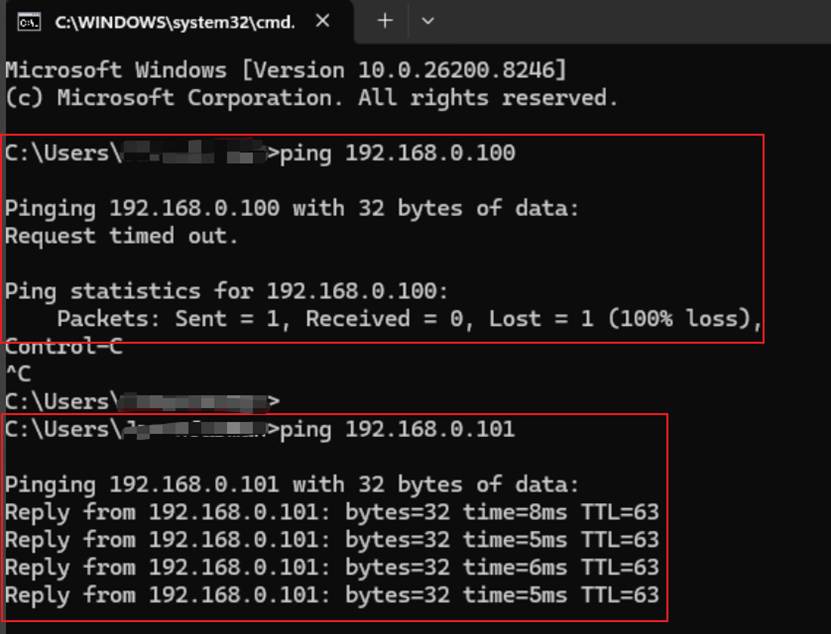
Step 3. Check access to the remote network using the Ping command. Please refer to How to Use the Ping Command. Try to ping the remote gateway and then try to ping local devices in the remote network.
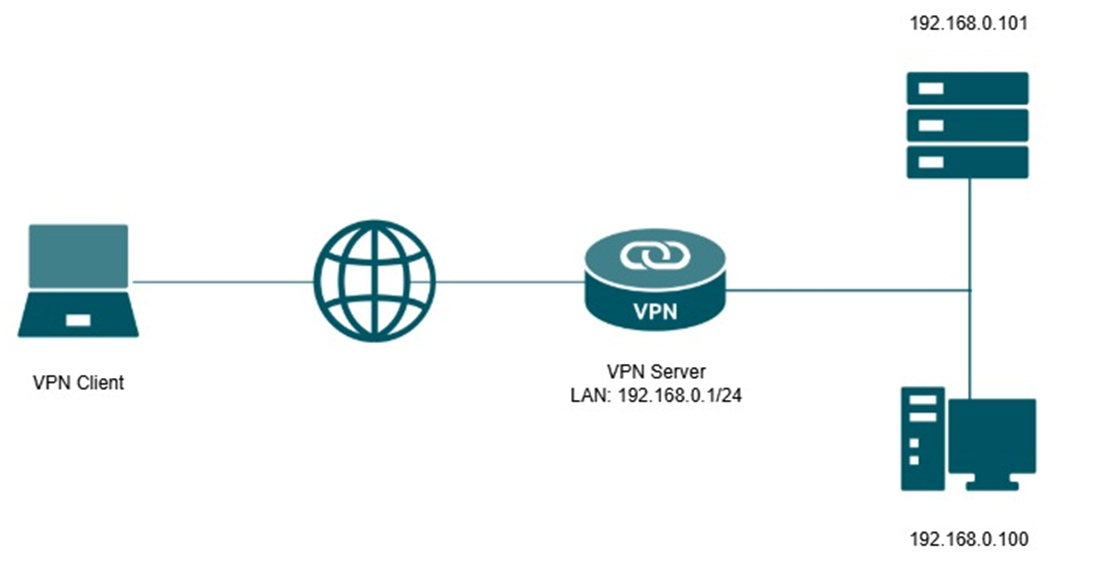
In the example, VPN client was able to ping the remote gateway and 192.168.0.101, but could not ping 192.168.0.100.
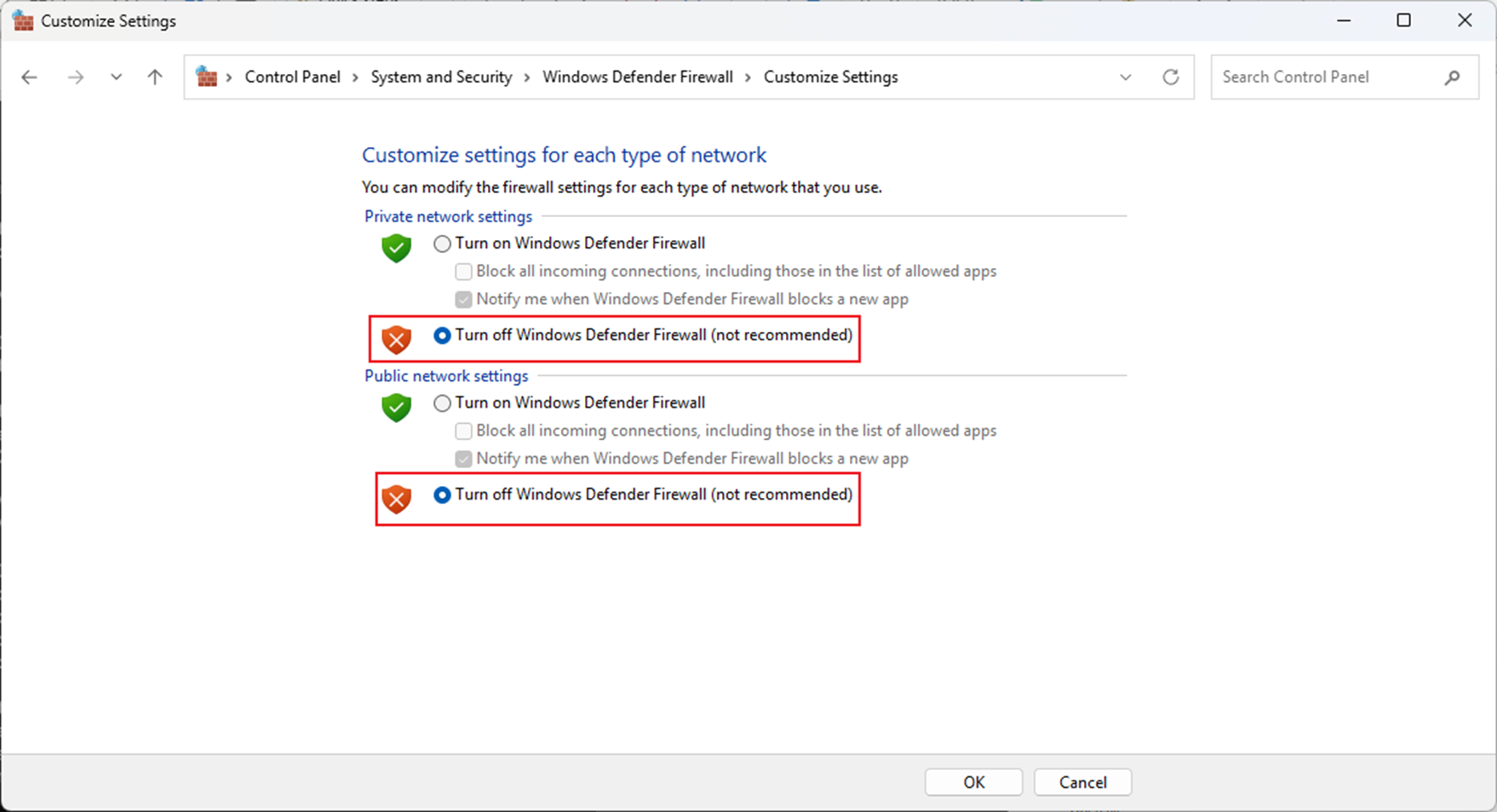
Step 4. Check to see if your devices firewall settings has certain protocols blocking it.
Here I turn off my firewall temporarily and retest the ping from the remote device.
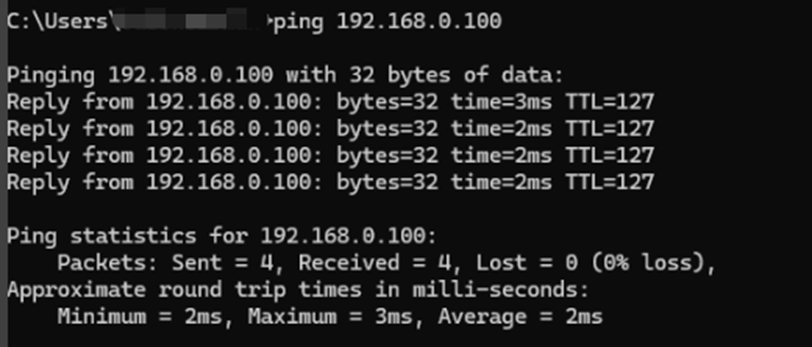
After turning off the Windows firewall, do the ping test again.
Scenario 2 Remote Device Cannot Communicate with the Remote LAN
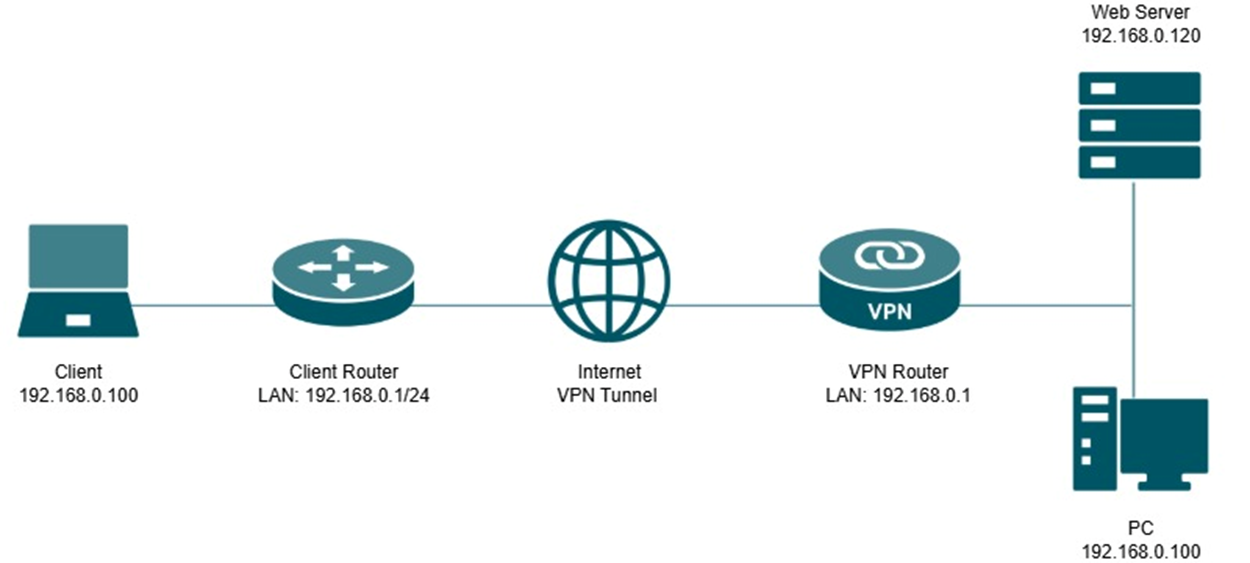
Step 1. Check VPN connection status for both client and server side. Follow steps 1 and 2 from Scenario 1.
Step 2. Check access to the remote network using the Ping command. Please refer to How to Use the Ping Command. Try to ping the remote gateway and then try to ping local devices in the remote network.
As shown in the figure above, the local IP address of the VPN client is 192.168.0.100, obtained from the client router with LAN IP 192.168.0.1. However, LAN IP of the VPN router is also 192.168.0.1, in the same subnet as the local network. Two networks share the same subnet 192.168.0.1/24. In this case, the VPN client may not be able to access the remote network. Change the LAN IP range of the local network or remote network.
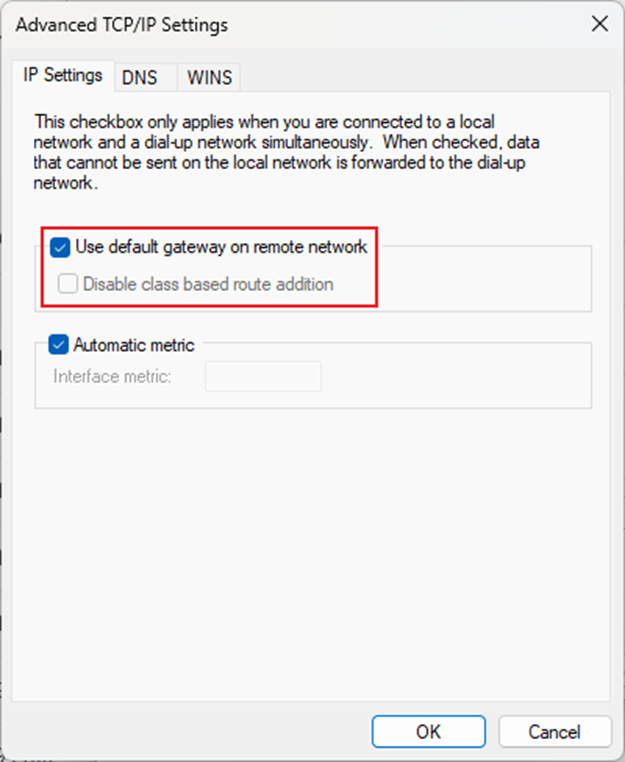
Step 3. Check the advanced settings for the VPN adapter.
This is mainly for the Windows devices. Go to Control Panel > Network and Internet > Network and Sharing Center > Change Adapter Settings, then you will find the PPTP/L2TP VPN adapters. Right-click the adapter > Properties > Networking, Double-click “Internet Protocol Version 4” > Advanced, then you will find the Advanced TCP/IP settings for the VPN.
By default, “Use default gateway on remote network” is enabled, all network request, whether to Internet or to the remote network, will be forwarded via the VPN tunnel, and handled by the VPN server. Please set up the configuration the same as the following figure, and check if the remote access is available.
Conclusion
This guide outlined common issues and troubleshooting steps for client-to-site VPN connections where the tunnel is established, but communication fails. By verifying connection status, testing reachability, checking firewall settings, and ensuring there are no subnet conflicts or misconfigured adapter settings, most client-to-site VPN issues can be quickly identified and resolved. Following this approach helps restore stable and reliable access to remote network resources.
Get to know more details of each function and configuration please go to Download Center to download the manual of your product.
QA
Q1: What should I do if I can’t even establish a connection to the VPN server?
A1: First, check whether the VPN server's public IP address on its WAN interface is reachable via ping.
