


How to configure WireGuard VPN Client to access peer server through IPsec Site-to-Site VPN using Omada Gateway


Contents
Introduction
This article explains how to enable the WireGuard VPN client to access a peer server via IPsec Site-to-Site VPN. It provides simple steps to help you configure your device for secure and seamless communication with the peer server.
Requirements
- Omada Gateways
- PCs
Configuration
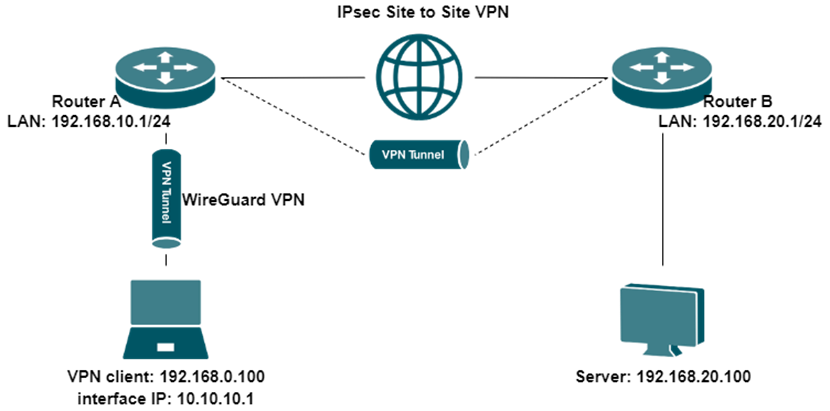
Suppose a client is connected to Router A via Wireguard VPN, and Router A and Router B are connected via IPsec Site-to-Site VPN. Now, the VPN Client wants to access a Server inside Router B through two of these two VPN tunnels.
Step 1. Create a Client-to-Site Wireguard VPN tunnel.
For a detailed configuration process, please refer to: How to configure Wireguard VPN on Omada Gateway
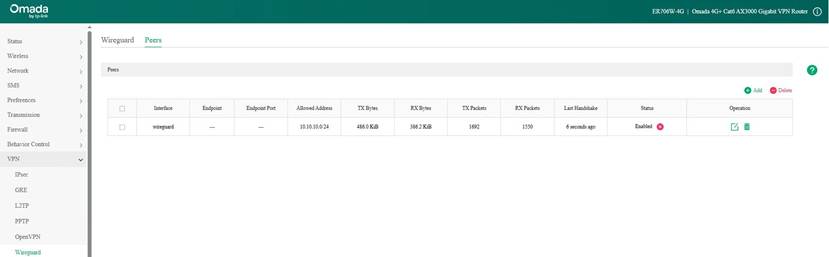
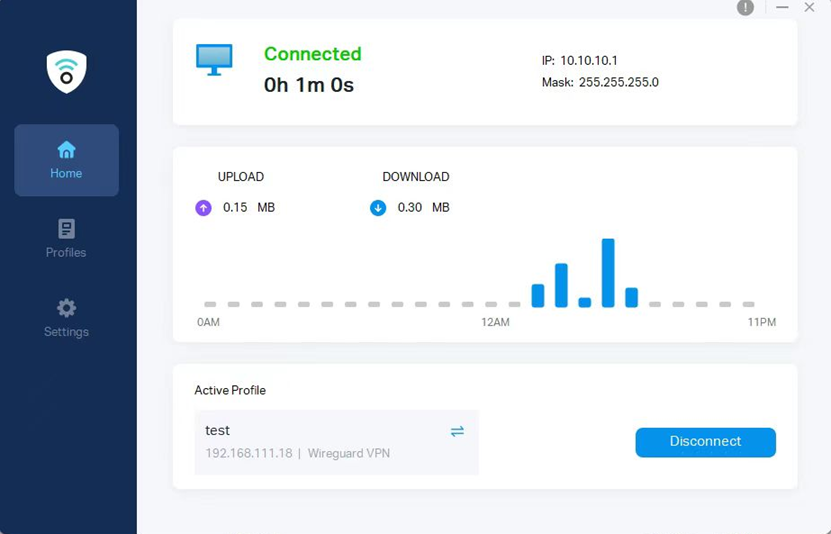
Here we take the WireGuard VPN tunnel establishment result as an example:
Step 2. Create an IPsec Site-to-Site VPN between Router A and Router B.
For a detailed configuration process, please refer to: How to set up Site-to-Site Manual IPsec VPN Tunnels on Omada Gateway via Omada Controller or How to configure LAN-to-LAN IPsec VPN on TP-Link Router using the new GUI.
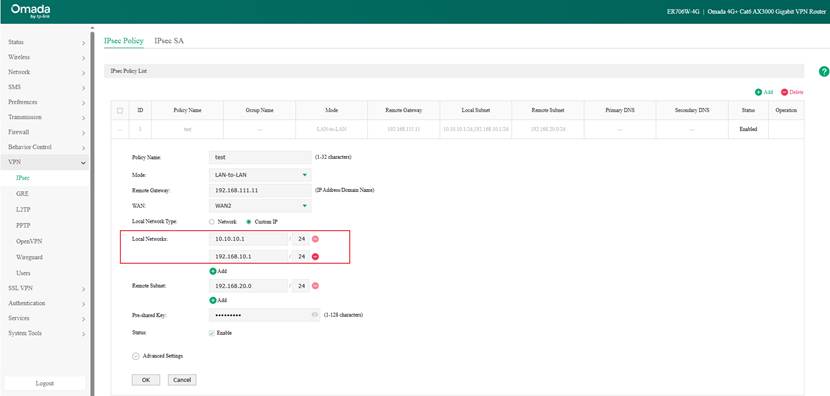
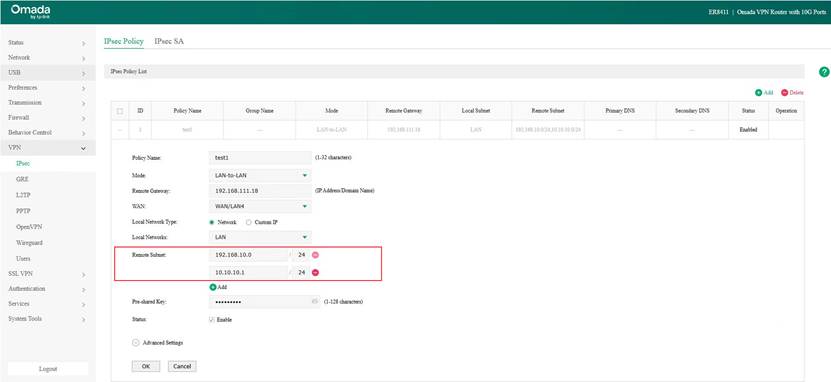
Please note that when configuring an IPsec VPN, the interface IP address of the WireGuard VPN client must be added to the IPsec tunnel. (In the example, we set the WireGuard client interface IP to 10.10.10.1/24.) For Router A’s IPsec configuration, modify the Local Network Type to Custom IP and add this IP. Additionally, Router B also needs to add this interface IP to the Remote Subnet. After that, the VPN client can access the LAN of Router B.
IPsec configuration of Router A in standalone mode:
IPsec configuration of Router B in standalone mode:
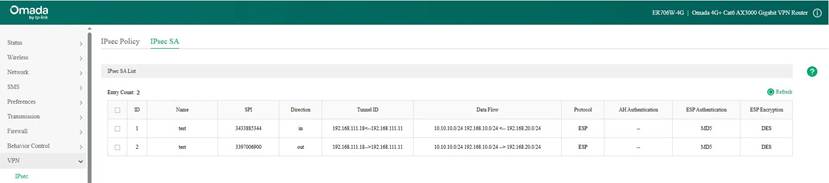
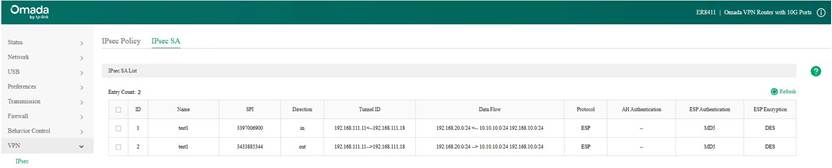
Here we take the IPsec VPN tunnel establishment result as an example:
Verification
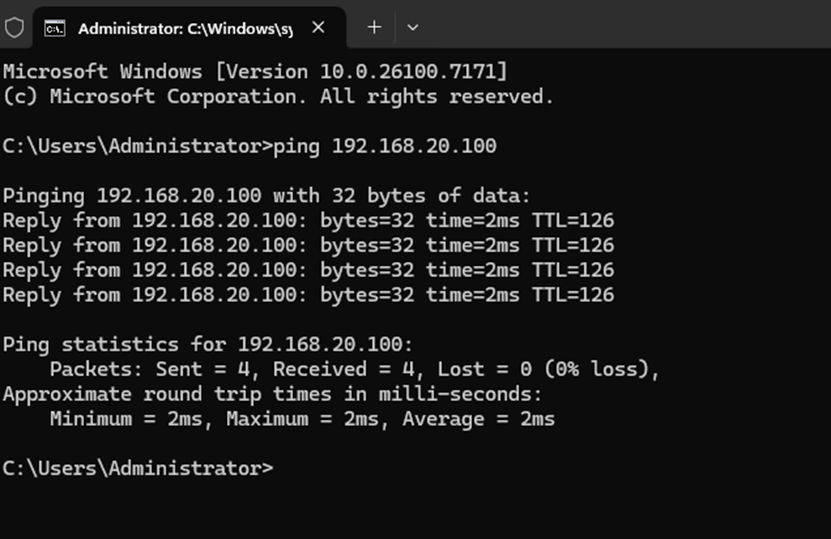
On the VPN client, we can test connectivity by pinging the server's IP address 192.168.20.100, and we received a reply, which indicates that the configuration is working correctly.
Conclusion
By following the steps above, you can use the WireGuard VPN client to access the remote server through an IPsec site-to-site VPN.
Get to know more details of each function and configuration please go to Download Center to download the manual of your product.
