


Contents
Preparation before Configuration
Configuration for People Counting Quick Setting
Introduction
This article provides instructions on how to configure Basic Counting Mode for the People Counting feature on Omada Central. Basic Counting Mode counts walk-ins and walk-outs only, without analyzing pass-by traffic. It is suitable for small and medium-sized retail scenarios where the camera coverage is limited to the store entrance and does not extend to external areas.
In contrast, Precision Analytics Mode additionally counts pass-by traffic and calculates the store entry rate, making it suitable for scenarios where customer flow both inside and outside the store needs to be analyzed. For configuration details of Precision Analytics Mode, please refer to: How to Configure People Counting on Omada Central Controller
Requirements
- VIGI Cameras (Hardware and Firmware support People Counting)
- VIGI Video Recorders (Hardware and Firmware support People Counting)
- Omada Central Standard
Preparation before Configuration
- Before you start using People Counting, make sure your devices support it. Devices Supported by People Counting: https://www.vigi.com/en/vigi-people-counting/product-list/ .
- A VIGI IPC managed by the Omada Central Standard requires a License to activate the device, while the VIGI NVR device does not need a License. The purchase and configuration guide of Omada licenses can be referred to in the following FAQ Omada License Configuration Guide
- Ensure the camera is successfully added to the NVR.
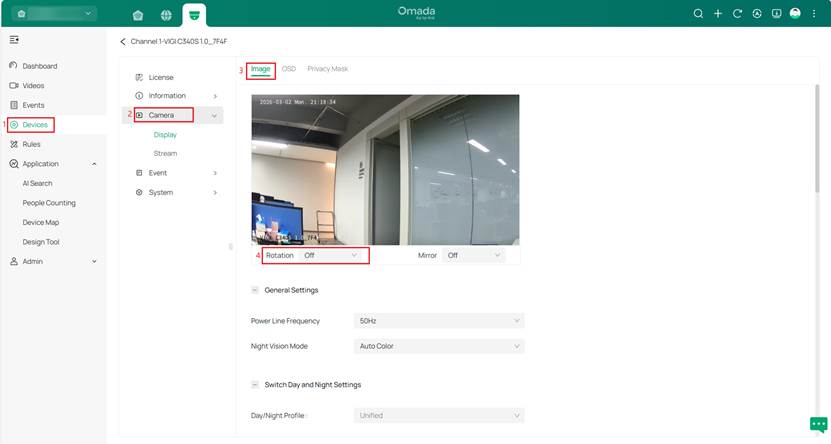
- Ensure that the Rotation function of the IPC is turned off to improve detection accuracy. To check this, go to the camera’s device settings page and navigate to Camera > Display> Image > Rotation, as shown in the following image.
- For the Omada Central Standard + VIGI NVR + VIGI IPC deployment scenario, navigate to Device > Event > VCA > Global Configuration, turn on Enable Smart Analysis (Beta) on the NVR, and click Apply to save the setting.

Configuration
Basic Counting Mode can be configured either on the People Counting Quick Setting Page or on the Camera Settings page. This article uses the People Counting Quick Settings page as an example for configuration.
Configuration for People Counting Quick Setting
Step 1. Navigate to Application > People Counting > People Counting Quick Settings.
If the IPC has not been configured in People Counting mode, select the desired IPC from the Device Not in People Counting Mode list, then click Switch to People Counting Mode.

Note: All selected devices will have People Counting enabled while Smart Events and Object Classification will be disabled. The devices will restart, which will take about 60 seconds.
Step 2. Click the gear icon in the Action column to enter the camera’s People Counting settings page.

Step 3. Click Basic Counting Mode, then click Add Rule to create a counting rule that defines the Inside and Outside boundaries. Click Apply to save the settings. Optionally, use the Test function to enter test mode, where Walk-In and Walk-Out data are displayed in real time during testing.

Note:
1. A maximum of 3 people counting rules can be added.
2. Hover over the counting rule, then click (left or right mouse button) to add a midpoint; double-click to remove a midpoint. Up to four midpoints can be added, allowing a single rule to form a polyline with up to five connected segments..
3. Hover over the counting rule, then click and hold the left mouse button to drag and reposition the entire rule (move it as a whole).

4. People counting rules cannot overlap.
5. Please leave some space between the edge of the People Counting rule and the edge of the IPC monitoring frame.
6. Counting Rules should be adjusted based on the specific scenario.
Rule Description
Assume the diagram below represents the IPC’s monitoring view. The upper side is defined as the Inside Area, and the lower side as the Outside Area. The polyline A–B–C–D serves as the People Counting rule.
For a movement to be counted, the trajectory of the person’s head must cross the rule and move sufficiently away from it after crossing.
Based on the crossing direction, the People Counting rule determines whether the movement is recorded as a Walk-in or a Walk-out.
The following diagram illustrates how different trajectories are evaluated.

Counting Principle
A person is counted only when they:
- Cross the counting rule
- Continue moving to the other side
- Move a sufficient distance away from the rule
Trajectory Evaluation
1. Disappears while moving along the rule.
The trajectory reaches the rule but disappears before clearly moving to either side. → Invalid data, Not Counted
2. Crosses the rule but does not move sufficiently away.
The trajectory crosses the rule but turns back or disappears before moving far enough from it. → Invalid data, Not Counted
3. Crossing from outside to inside.
The trajectory crosses the rule from the Outside Area to the Inside Area and moves sufficiently away from the rule. → Walk-in +1
4. Crossing from inside to outside.
The trajectory crosses the rule from the Inside Area to the Outside Area and moves sufficiently away from the rule. → Walk-out +1
5. Crosses multiple rule segments and moves sufficiently away.
The trajectory intersects multiple segments of the rule and ultimately moves far enough to one side. →Counted once based on the final direction (e.g., Walk-in +1)
6. Crosses the rule but disappears on the opposite segment.
The trajectory crosses toward the other side but disappears on the rule before moving sufficiently away. → Invalid data, Not Counted
Step 4. Adjust the time periods for Opening Hours as required, then click Apply to save the configuration.

Step 5. (Optional) To apply these settings to other devices, click Copy to other devices. Select the devices to which you want to copy the settings.

Verification
Once People Counting has been configured, select People Counting from the left menu to view statistics and metrics. The available data and options are described below.
For cameras operating in Basic Counting Mode, pass-by traffic and the walk-in rate are not calculated.
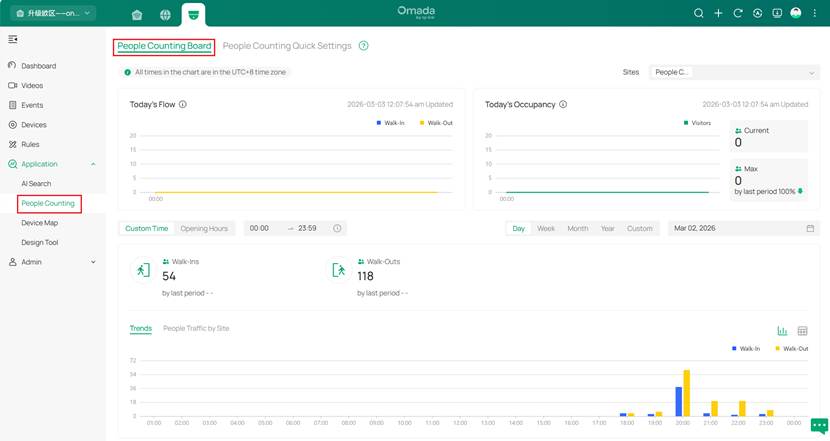
1. Select sites: Located at the top right of the page. The data between different sites is isolated, and real-time calculations are performed. (The calculations follow relevant statistical algorithms rather than simple aggregation.)
2. People Traffic Statistics for Today: This displays statistical data from midnight in the organization's time zone to the current time, with one data point every 15 minutes (calculating data for the completed 15-minute intervals, while incomplete intervals are not displayed). The data includes pass-by, walk-in, walk-out, and walk-in rates and refreshes automatically every minute.
3. Visitors for Today: This module displays real-time visitors. In addition to the visitors for today trend chart, it includes the current number of visitors, the maximum number of visitors for today, and the growth rate of today's peak walk-in visitors compared to yesterday. The data is automatically refreshed every minute.
4. Time: The time selection includes a custom time mode, where you can choose the start and end times for each day, with a minimum interval of half an hour. You can also select the opening hours mode, which will calculate data based on the opening hours configured on each device. The date selection includes multiple modes: day, week, month, year, and custom.
5.Total statistics: This includes pass-by, walk-in, walk-out, walk-in rate, and corresponding period-over-period growth data. Pass-by traffic and walk-in rate are available only for cameras operating in Precision Analytics Mode.
6. Trends: This chart displays based on the chosen time selection mode, including the data of pass-by, walk-in, walk-out, and walk-in rates. You can switch the chart to the People Traffic by site mode. Pass-by traffic and walk-in rate are available only for cameras operating in Precision Analytics Mode.
7.Table Mode and Data Export: In addition to the chart display, you can switch to table mode in the top right corner of the chart. In table mode, you can also export the data.

General usage tips
Camera Installation Guidelines
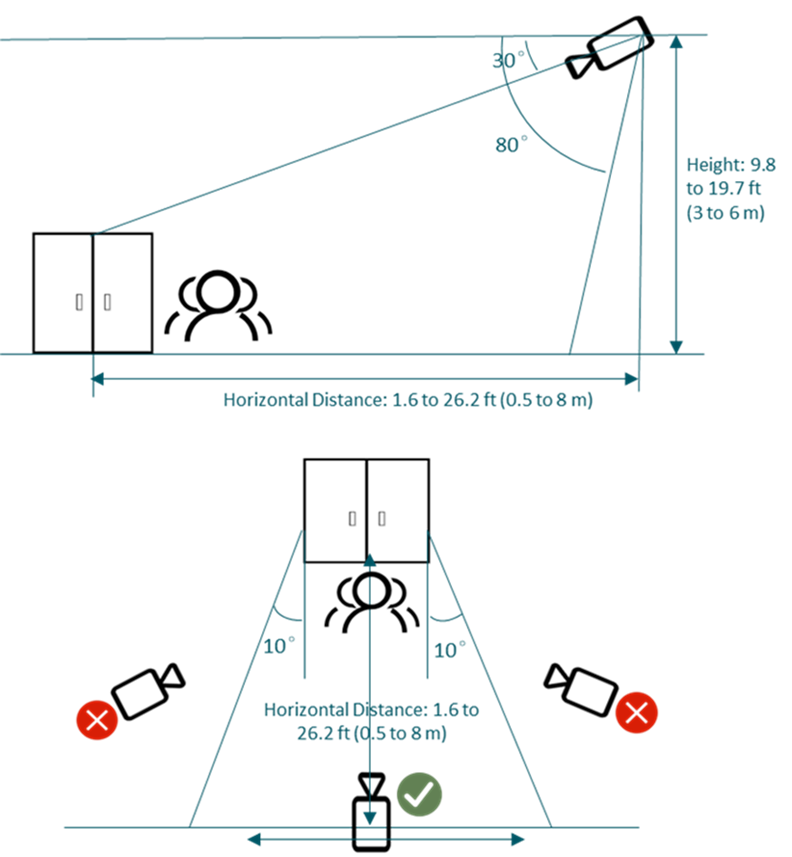
To ensure optimal performance and accurate people counting, please follow the recommended installation guidelines below:
1. Camera Mounting Height
The vertical distance from the camera to the ground should be between 9.8 to 19.7 ft (3 to 6 m).
2. Camera Tilt Angle
The downward viewing angle between the camera’s line of sight and the horizontal plane should be set within 30°to 80°.
3. Camera Placement
It is recommended to install the camera facing directly toward the entrance or exit. Avoid positioning the camera at an oblique angle to the target area.
4. Installation Coordination
The height, tilt angle, and positioning of the camera must work in coordination to minimize head occlusion between individuals in the frame. Improper setup may result in missed or incorrect counts.
Recommended Deployment Conditions
1. Install in Open and Clearly Defined Areas
Recommended for entrances, corridors, or open spaces with clear boundaries and a well-defined pedestrian flow direction.
2. Ensure Proper Lighting Conditions
Avoid environments with insufficient lighting, backlighting, strong glare, or overexposure. For optimal detection accuracy, use during daytime or in well-lit areas — usage under night-time infrared (IR) mode is strongly discouraged.
3. Avoid Clutter and Shadows in the Detection Area
Try to avoid scenes with excessive clutter, overlapping objects, or distracting shadows that may interfere with detection.
4. Keep Detection Zone Free from Obstructions
Do not place the camera where items may block or partially obstruct pedestrians within the detection area
People Counting rule Configuration Requirements
1. Determine People Traffic Direction
Identify the direction of customer flow — entering or exiting — based on the on-site layout.
2. Vertical Margins
Leave a gap between the people counting rule and the edges of the camera view. It is recommended to reserve at least the space of one human head (approximately 0.5 m / 1.6 ft).
3. Vertical Coverage
Ensure sufficient space on both the indoor and outdoor sides heights the detection area. A minimum of four human-head widths should be reserved on each side to ensure smooth counting.
Conclusion
Basic Counting Mode of People Counting is supported on Omada Central. It is particularly suitable for small and medium-sized retail environments where camera coverage is limited to the store entrance and external foot traffic does not need to be analyzed. This guide has outlined the requirements, configuration steps, and practical considerations to ensure proper setup. With proper configuration, administrators can use the collected data to monitor daily visitor flow, evaluate peak hours, and support operational planning.
QA
Q1: What are the differences between Basic Counting Mode and Precision Analytics Mode in terms of configuration, generated data, and application scenarios?
A1: Basic Counting Mode requires only a counting rule (straight line or polyline, up to five segments). It generates walk-in and walk-out data only and does not calculate pass-by traffic or walk-in rate. This mode is suitable for small and medium-sized stores where the camera mainly covers the entrance and only entry and exit statistics are required.
Precision Analytics Mode requires configuring both inside and outside areas in addition to the crossing rule. It generates walk-in, walk-out, pass-by traffic, and walk-in rate data. This mode is suitable for scenarios that require deeper customer flow analysis, such as evaluating store conversion rates or analyzing foot traffic both inside and outside the store.
Q2: Which devices support People Counting?
A2: A list of supported NVRs and IPCs for People Counting can be found here:
Devices Supporting People Counting
Q3. How many people counting rules can be created in Basic Counting Mode?
A3. Up to three counting rules can be created per supported camera. Each counting rule can consist of up to five segments (polyline).
Q4. Where do I view the People Counting statistics?
A4. Statistics can be viewed on the Omada Central dashboard under People Counting and can be filtered by device, site, or time period.
Q5. What are some application scenarios for People Counting?
A5. Typical uses include monitoring customer flow in retail stores, tracking visitor numbers in offices, and analyzing building entry/exit traffic.
This article applies to: A list of supported NVRs and IPCs for People Counting can be found here: Devices Supporting People Counting
Get to know more details of each function and configuration please go to Download Center to download the manual of your product.
