


Contents
Introduction
Keeping a backup of your Omada Controller configuration is a simple but important way to protect your network settings. If you ever need to move your controller, replace hardware, or recover from an unexpected issue, having a backup allows you to quickly restore your configuration instead of rebuilding everything from scratch.
This guide will walk you through how to generate and download a backup file using Omada Controller version 6 and above. The process only takes a few minutes and ensures that your sites, devices, and network settings can be restored whenever needed.
Requirements
- Omada Controller v6 and above
Configuration
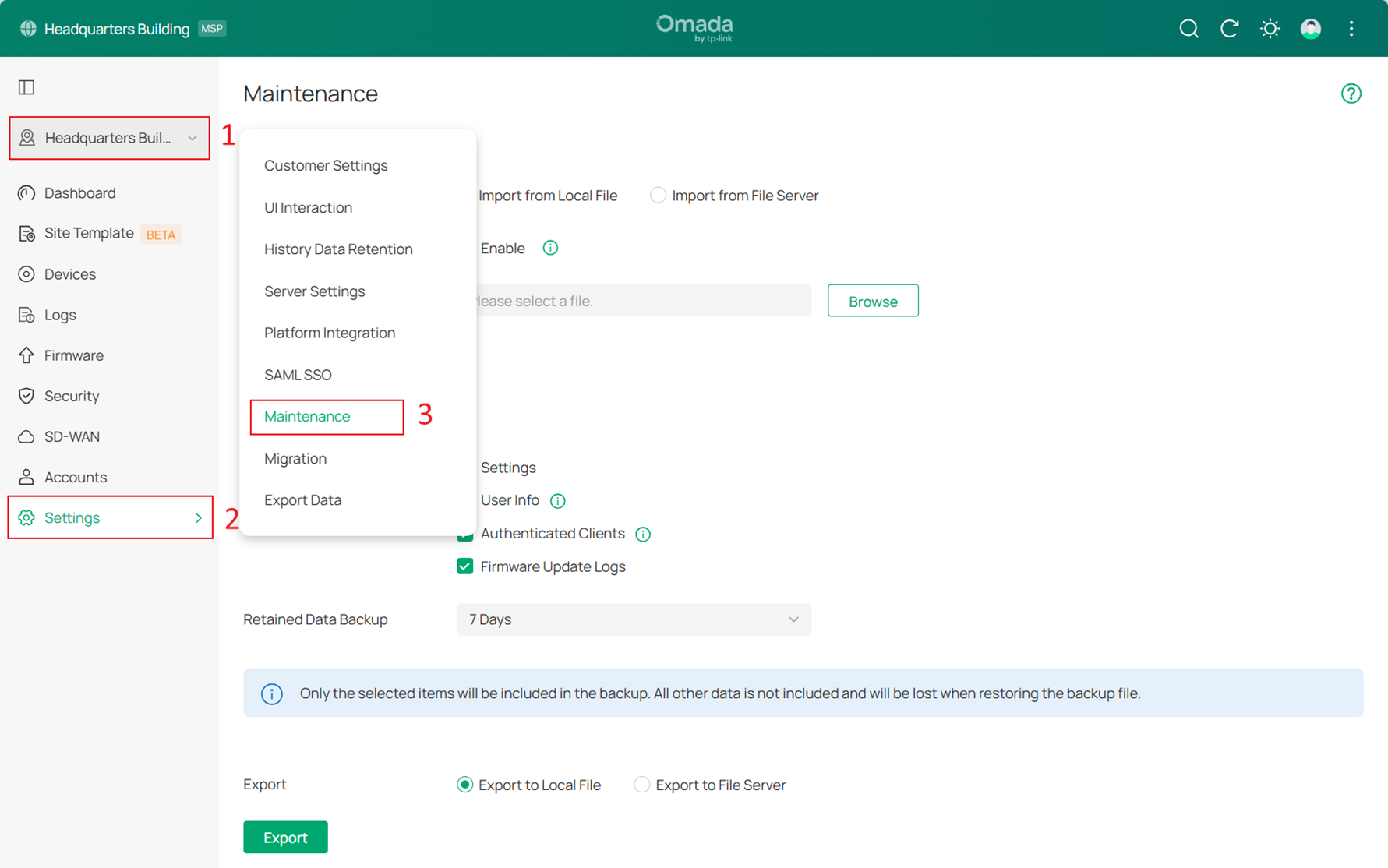
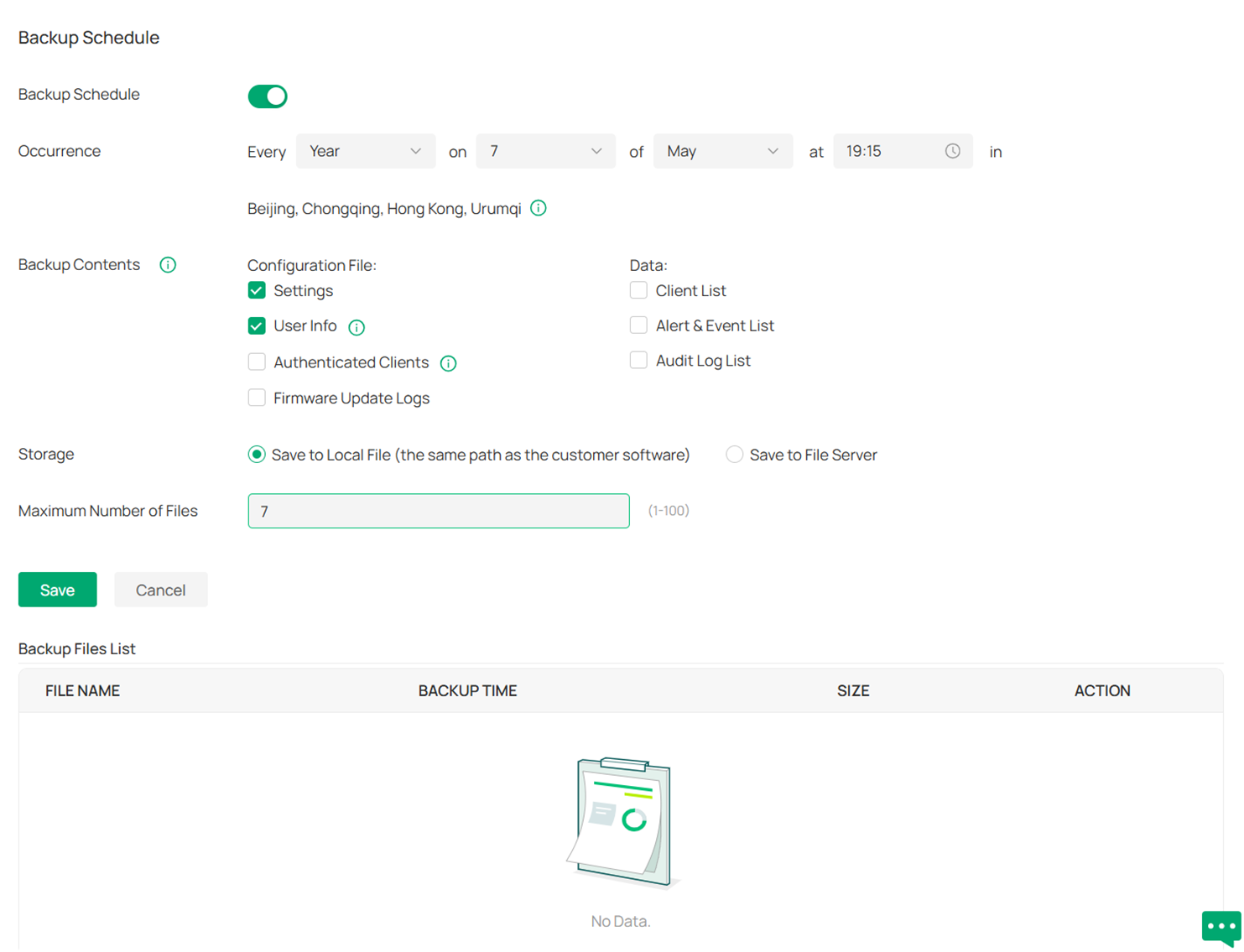
Backup Schedule Feature
The Backup Schedule allows you to create backups of your Omada Controller automatically. You can enable scheduled backups, choose how often they occur (for example, monthly), and select which data to include, such as controller settings, user information, client lists, logs, and firmware update records. You can also define how much historical data is retained, where the backup file is stored (locally or on a file server), the save path, and the maximum number of backup files to keep. The backup file can be saved locally or uploaded to a file server such as FTP, TFTP, SFTP, or SCP.
Note:
- For OC200/OC220, a Backup Schedule is available only when it is powered by a PoE device, and a storage device is connected to its USB port. Hardware controller requires the storage device to be formatted in FAT32 or NTFS.
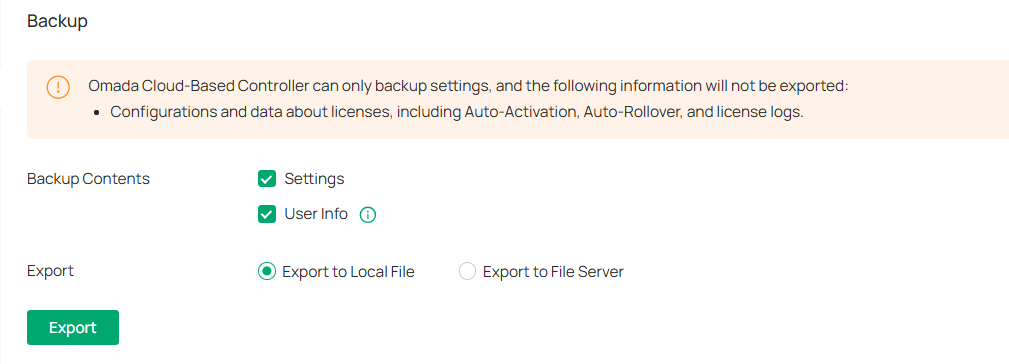
- On Omada Cloud-Based Controller, there is no need to configure a Backup Schedule. It will automatically save the configurations and data on the cloud.
You can store scheduled backups Locally or on a File Server with the Backup Schedule. (Global View > Settings > Maintenance > Backup Schedule)
Manual Backup Feature
Hardware & Software Controller:
Navigate to Global View > Settings > Maintenance > Backup.
This page (shown in screenshot below) lets you choose what controller data to include in a backup and where the backup file will be saved.
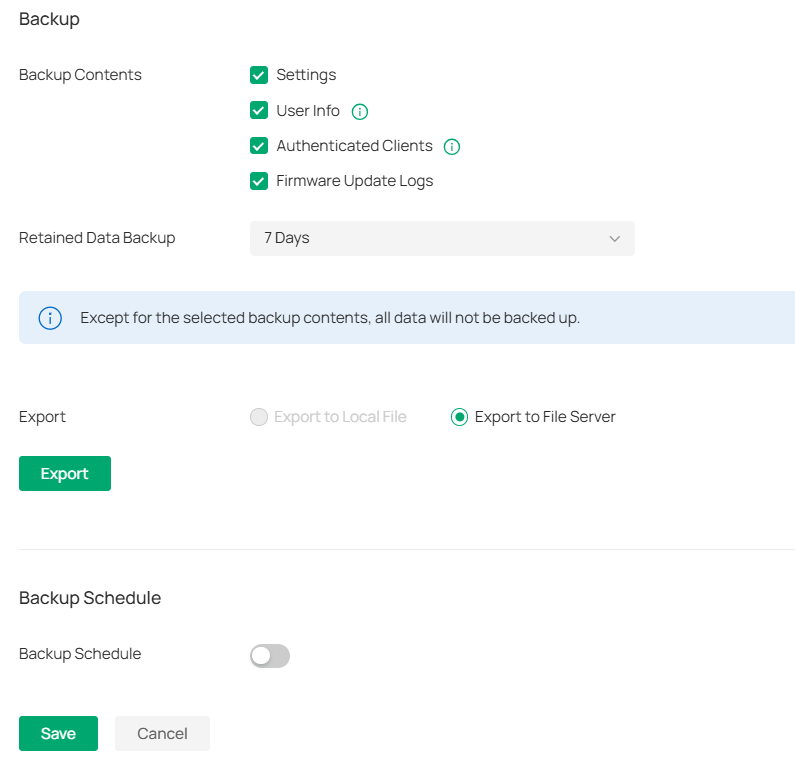
Select the backup contents (such as settings, user info, authenticated clients, and firmware logs), choose how much historical data to retain, and export the backup either to a local file or a file server. Only the selected items will be included in the backup.
When signed into the controller with Cloud Access, you will only have the option to “Export to File Server”, while when signed in locally, you will have the flexibility to “Export to Local File” or “Export to File Server.”
Cloud-Based Controller (Standard Only):
You can export backups to the local host or the file server. Navigate to Global View > Settings > Maintenance.
Site Backup
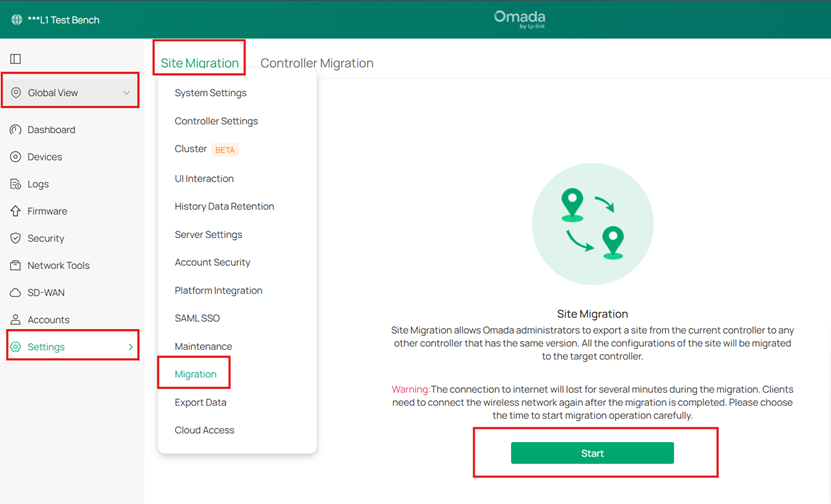
If you want to create a backup of a single site, this is currently only possible via Site Migration. Go to Global View > Settings > Migration > Site Migration.
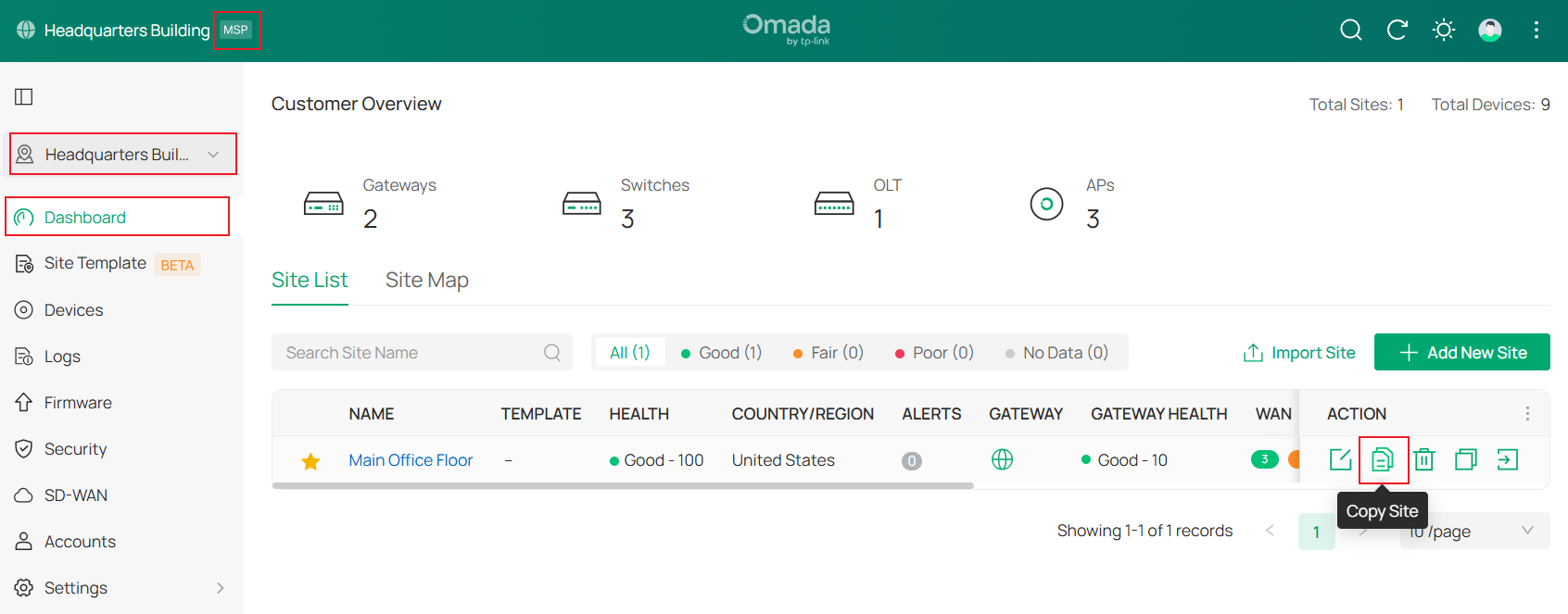
A way to duplicate the configuration is to copy the site in Global View > Dashboard > Site list. For example, it would be useful for an MSP to create a page for basic configuration and copy it to new sites repeatedly to keep the workload as low as possible.
Conclusion
Keeping a backup of your Omada Controller is one of the simplest ways to protect the time and effort you have put into configuring your network. If a controller ever needs to be replaced, migrated, or restored after an unexpected issue, having a recent backup allows you to quickly recover your sites, devices, and network settings without needing to rebuild the configuration from the beginning.
By using either the manual backup option or configuring a backup schedule, you can ensure that your controller data is safely stored and available whenever it is needed. Scheduled backups are especially helpful for maintaining regular copies of your configuration automatically, while manual backups provide a quick way to export the controller data whenever you make important changes.
Taking a few minutes to create and maintain backups can save significant time and prevent potential downtime in the future.
Get to know more details of each function and configuration please go to Download Center to download the manual of your product.
QA
Q1: What information is included in an Omada Controller backup?
A1: A backup can include controller settings, user information, authenticated client data, firmware update records, logs, and other configuration data depending on the options selected when creating the backup.
Q2: Can I schedule automatic backups on the Omada Controller?
A2: Yes. The Backup Schedule feature allows you to automatically create backups at a specified interval, such as weekly or monthly. You can also choose what data to include and where the backup file will be stored.
Q3: Where can backup files be saved?
A3: Backup files can be saved locally to your device or uploaded to a file server. Supported file server protocols include FTP, TFTP, SFTP, and SCP.
Q4: Can I create a backup for only one site?
A4: A single-site backup is currently available through the Site Migration feature. This allows you to export the configuration of a specific site instead of backing up the entire controller.
Q5: Why is the “Export to Local File” option not available?
A5: When you are signed in through Cloud Access, the controller only allows exporting backups to a file server. To export directly to a local file, you must log in to the controller locally.
Q6: Does the Omada Cloud-Based Controller require manual backups?
A6: No. The Omada Cloud-Based Controller automatically stores configurations and data in the cloud, so manual backup scheduling is not required.
Q7: How to use the backup file from the controller?
A7: Go to Global View > Settings > Maintenance. Choose the backup file and click Restore button to apply the backup file. Please take note of the following points.
- The controller will be restored to the selected file and all current configurations will be lost.
-
If the number of devices in the file exceeds the maximum management scale, the excess data will be discarded.
OC200: 100APs, 10 Gateways, up to 20 Switches*, up to 2 DeltaStream GPON OLTs*
OC220: 100APs, 10 Gateways, up to 20 Switches*, up to 2 DeltaStream GPON OLTs*
OC300: 500APs, 100 Gateways, up to 100 Switches*, up to 5 DeltaStream GPON OLTs*
OC400: 1000APs,100 Gateways, up to 200 Switches*, up to 10 DeltaStream GPON OLTs*
*The number of supported Omada Switches decreases by 5 for each DeltaStream GPON OLT added.
- Only the configuration file of controller v5.0.x or above is supported.
- The current controller only supports the configuration file of the controller with the same or a smaller first-three-part version number (Major.Minor.Patch).
