


Contents
Introduction
MAC flapping is a network monitoring feature that detects when the same MAC address is learned on different switch ports within a short period of time. This behavior typically indicates issues such as network loops, misconfigured link aggregation, virtualization migration, or unauthorized device connections. By identifying MAC flapping events, the switch can generate alerts and, depending on the configuration, take preventive actions to mitigate network instability, broadcast storms, and service disruptions.
Requirements
- Omada Managed Switch
Configuration
This feature monitors all MAC addresses within a specified VLAN and detects MAC address flapping events. When MAC address flapping is detected, the switch can be configured to take corresponding actions based on operational requirements, such as blocking the affected interface, or generating alarms and notifications.
Currently, this feature is supported only through the CLI. If the related commands are unavailable, or the system returns "Bad command" message, please verify that the switch is running a supported firmware version.
The required CLI commands are available only in firmware versions that are compatible with Omada Controller v6.1 or later. If you are using an earlier firmware version, please upgrade the device firmware before proceeding.
Step 1. Log into the switch management interface in CLI.
Step 2. Enter the related commands to configure MAC flapping. The commands include:
- mac-address flapping detection
This command will enable the mac-address flapping detection feature.
- mac-address flapping detection changed-time <value>
This command specifies the threshold of bearable MAC flapping times. If actual flapping times exceed the given threshold in a time range which we will talk about later, it is considered there is a MAC flapping and certain actions will be triggered.
- mac-address flapping detection exclude <vlan-id>
This command will open a sanctuary for the given VLAN. Mac flapping detection on the chosen VLAN will not take effect.
- mac-address flapping action <alert | port-down | vlan-quit>
This command is used to determine the action switch is going to take when mac-flapping has been detected. There are three kinds of action you can take in total.
alert: There will be a warning log telling MAC flapping is detected. Please check it.
port-down: This will shut down the port where MAC flapping is detected.
vlan-quit: This will remove the flapping VLAN from the port where MAC flapping is detected.
- mac-address flapping aging-time <value>
This command configures the aging time for MAC address flapping detection. The configured value defines the time window used to record flapping events. If the number of MAC address changes within this aging period reaches the configured threshold, the corresponding action (as defined by the user) will be triggered.
This command sets the recovery interval after flapping is detected on a designated port. During this interval, no repeated alerts or actions will be triggered. After the interval expires, the port returns to normal status before any configured action is applied again. If flapping persists, a new detection and recovery cycle will start.
Verification
After completing the configuration, you can use the following command to verify the settings:
show running-config
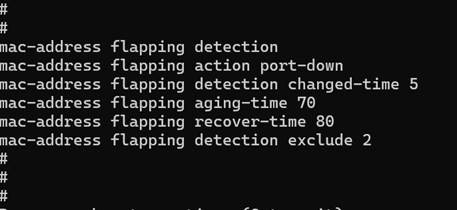
The output shows an example of the relevant configuration from the show running-config command after an instance is configured. In this example, if more than five MAC flapping events are detected within 70 seconds, the associated port will be shut down. The port will automatically recover after 80 seconds. Traffic in VLAN 2 is excluded from MAC flapping detection.
Conclusion
You have now learned how to configure MAC flapping for Omada managed switches.
Get to know more details of each function and configuration please go to Download Center to download the manual of your product.
