


Contents
Upgrade Organization with Omada Network and Omada Guard
Upgrade Organization with Omada Network
Upgrade Organization with Omada Guard
Introduction
With Plan Management in Omada Central, you can easily upgrade an existing Essentials organization plan to the Standard organization plan. This upgrade process enables advanced license management and activates Standard features automatically, without requiring device migration or re-adoption.
This guide explains how to upgrade an Omada Central organization from the Essentials plan to the Standard plan using Plan Management and license management tools, ensuring a seamless organization upgrade experience.
Requirements
- Omada Central Essentials
- Licenses Exceeding the Number of Owned Network Device and Camera Device in Omada Central Standard
Configuration
Upgrade Organization with Omada Network and Omada Guard
Step 1. Log in and go to the Omada Central Plane of your Omada Central Essentials Organization, navigate to Settings > Plan Management, then click Upgrade.
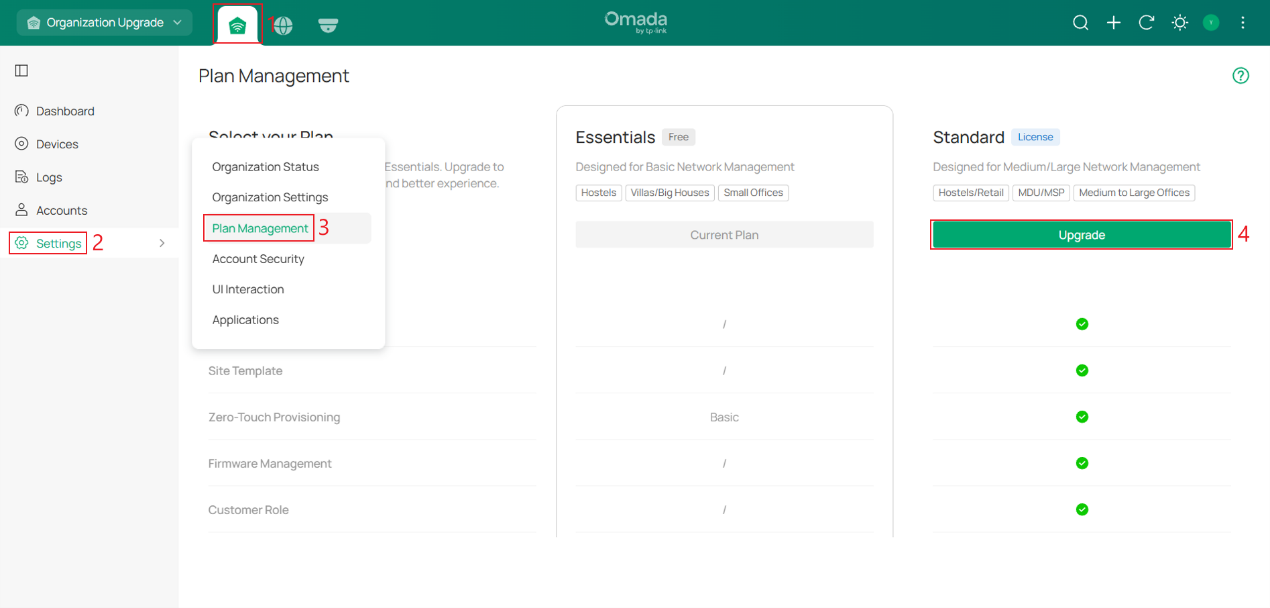
Note: Upgrading to Standard will affect your current device management. Please note the following important considerations before proceeding:
1. A Standard Organization requires valid licenses to manage devices. Please ensure you have prepared sufficient licenses before upgrading.
2. Your internet connection will be lost for several minutes during the upgrade. Please choose a time to upgrade carefully.
3. The organization cannot be downgraded back to Essentials after upgrading. Please proceed with caution.
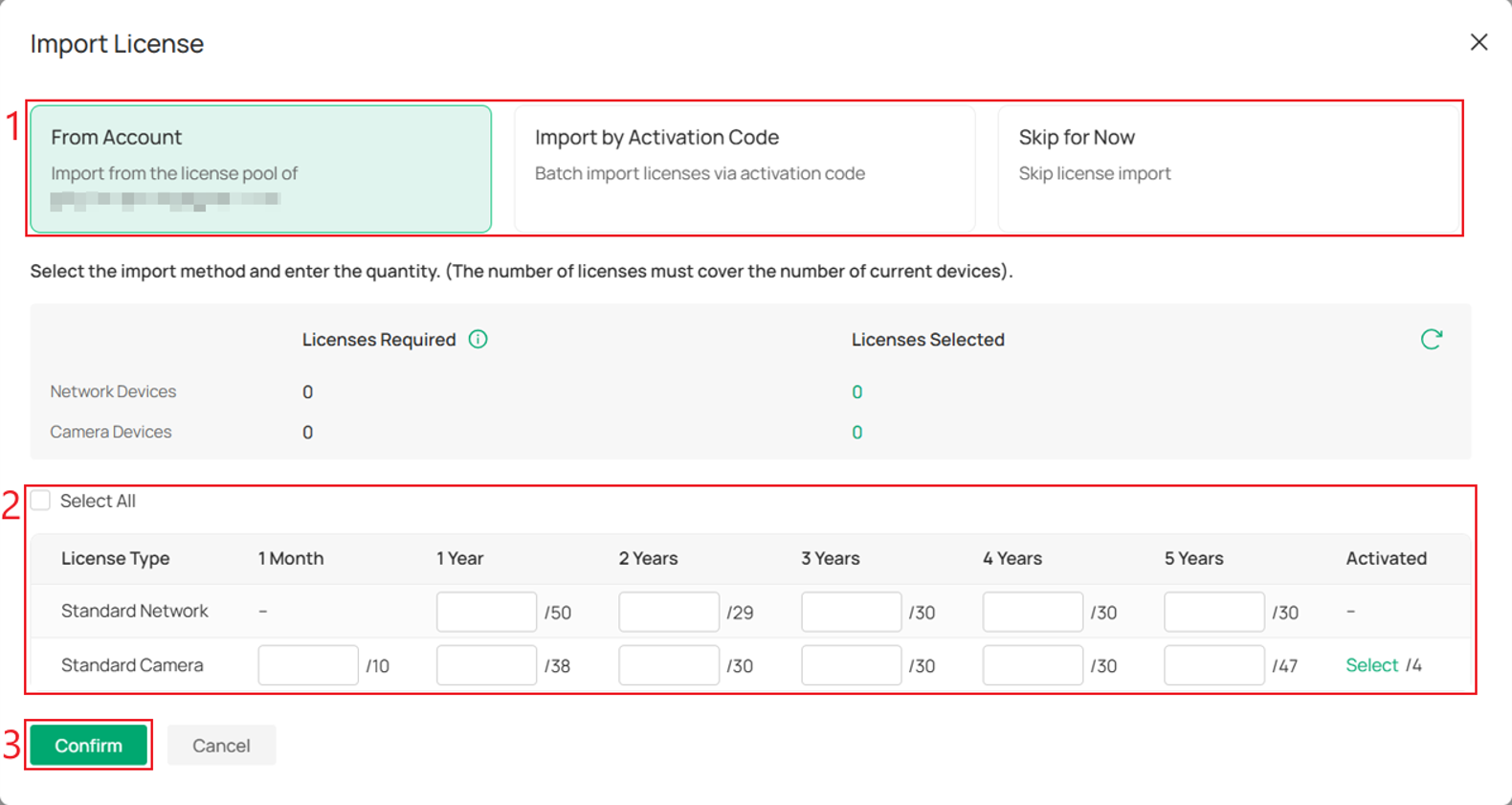
Step 2. You can import licenses using either From Account or Import by Activation Code. Alternatively, click Skip for Now to proceed without importing licenses at this stage.
Note: Skipping licence import will cause devices to go offline and disrupt the network after the upgrade. It is recommended to complete the license import before upgrading.
This article uses From Account as an example. After selecting and importing the required licenses for the organization, click Confirm.
Upgrade Organization with Omada Network
Step 1. Log in and go to your Omada Central Essentials Organization, navigate to Global View > Settings > Plan Management, then click Upgrade.
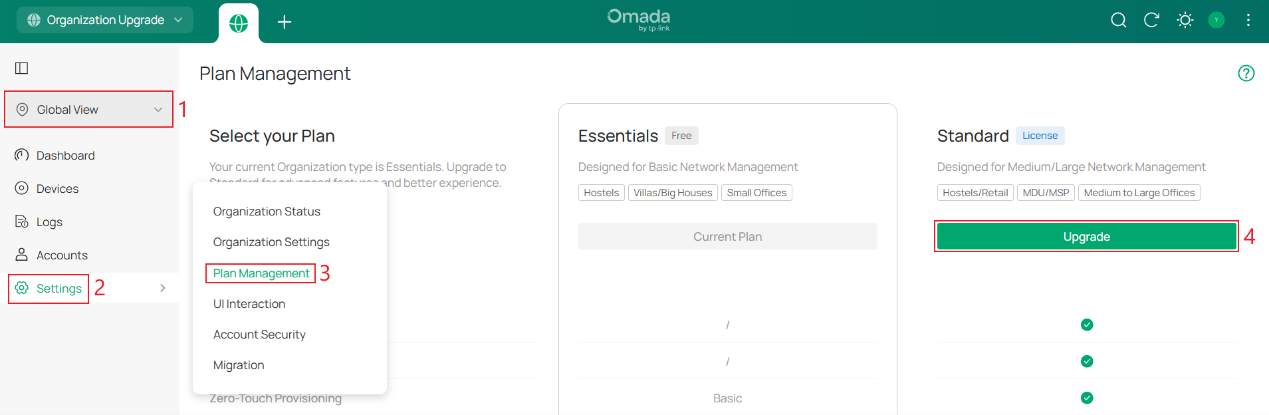
Note: Upgrading to Standard will affect your current device management. Please note the following important considerations before proceeding:
1. A Standard Organization requires valid licenses to manage devices. Please ensure you have prepared sufficient licenses before upgrading.
2. Your internet connection will be lost for several minutes during the upgrade. Please choose a time to upgrade carefully.
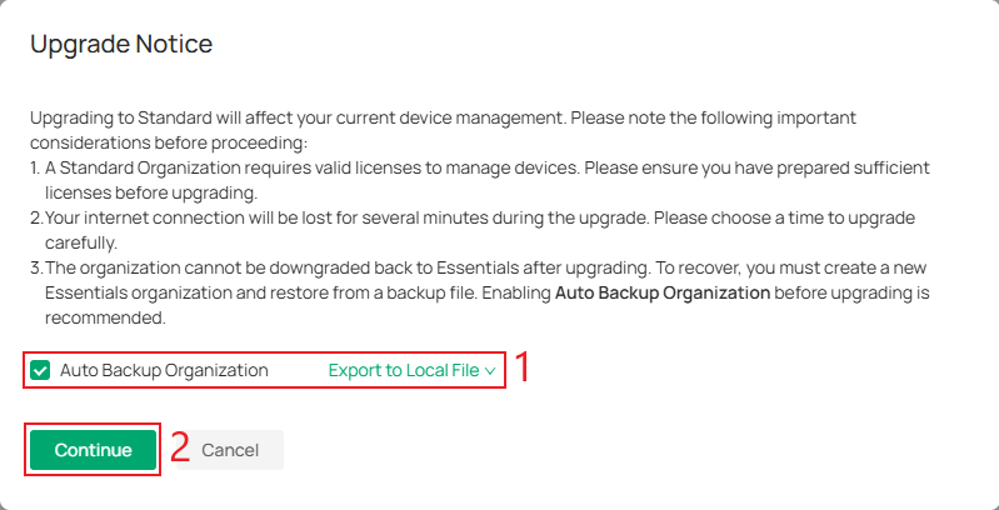
3. The organization cannot be downgraded back to Essentials after upgrading. To recover, you must create a new Essentials organization and restore from a backup file. Enabling Auto Backup Organization before upgrading is recommended.
Step 2. (Optional) Select Auto Backup Organization, then click Continue to automatically create a backup of the current organization.
If you later decide to downgrade back to the Essentials, you can restore this backup file when creating a new Essentials organization.
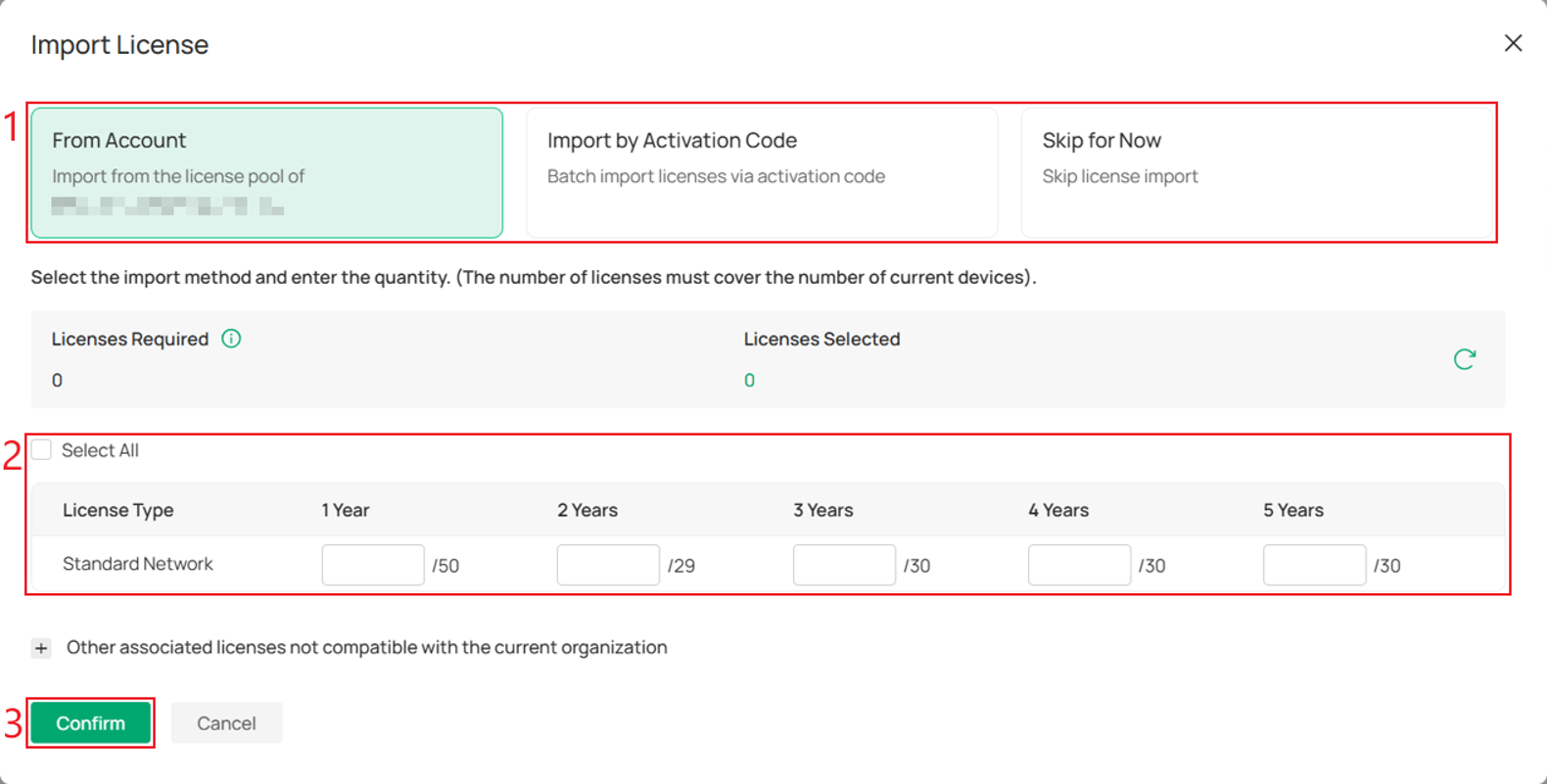
Step 3. You can import licenses using either From Account or Import by Activation Code. Alternatively, click Skip for Now to proceed without importing licenses at this stage.
Note: Skipping licence import will cause devices to go offline and disrupt the network after the upgrade. It is recommended to complete the license import before upgrading.
This article uses From Account as an example. After selecting and importing the required licenses for the organization, click Confirm.
Upgrade Organization with Omada Guard
Step 1. Log in and go to your Omada Central Essentials Organization, navigate to Admin > Plan Management, then click Upgrade.
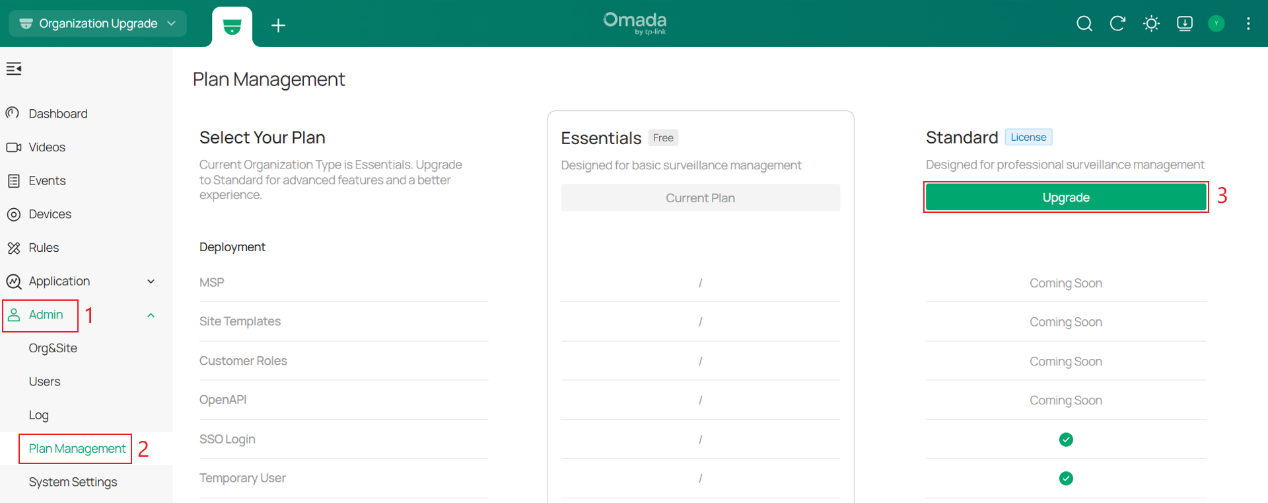
Note: Upgrading to Standard will affect your current device management. Please note the following important considerations before proceeding:
1. A Standard Organization requires valid licenses to manage devices. Please ensure sufficient licenses are prepared before upgrading, as the organization cannot be downgraded to Essentials afterward.
2. Your service will be unavailable for several minutes during the upgrade. Please choose a safe time to upgrade carefully.
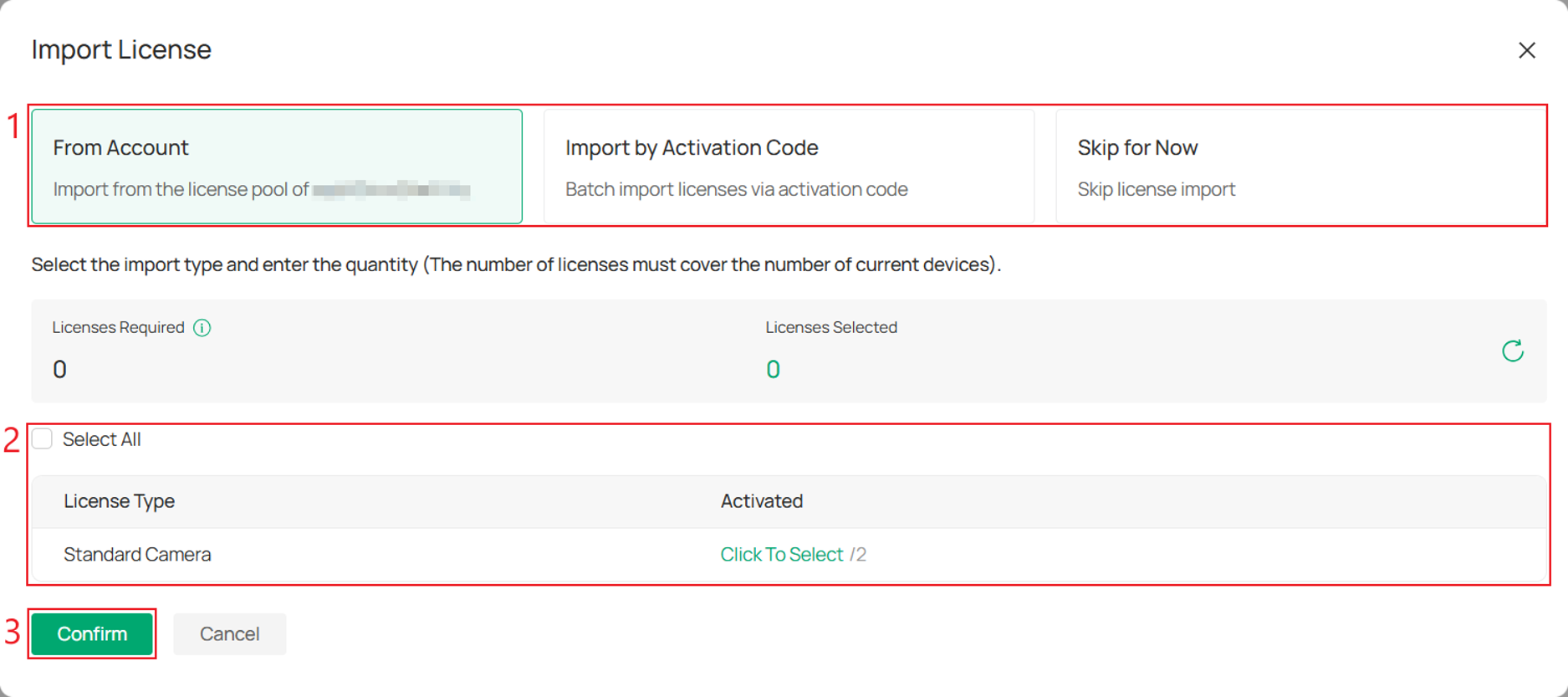
Step 2. You can import licenses using either From Account or Import by Activation Code. Alternatively, click Skip for Now to proceed without importing licenses at this stage.
Note: Skipping license import may cause some device features to not work after the upgrade.
This article uses From Account as an example. After selecting and importing the required licenses for the organization, click Confirm.
Verification
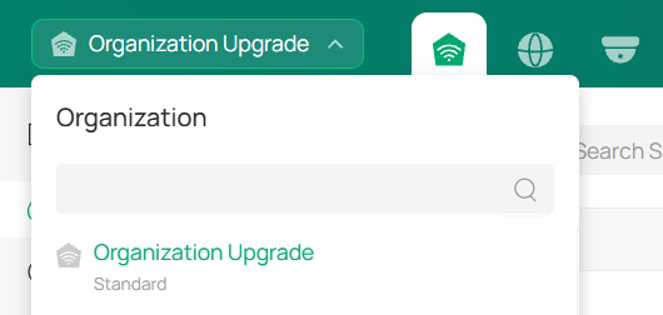
The organization has been successfully upgraded from Essentials to Standard.
Conclusion
This article describes how to upgrade an Omada Central organization from the Essentials plan to the Standard plan using Plan Management and license management, enabling a smooth organization upgrade with no device re-adoption required.
To learn more about each function and configuration, please visit Support Home to download or check the manual for your product.
QA
Q1: Will my network be affected if I don't import licenses during the upgrade?
A1: If you choose Skip for Now and do not import licenses during the upgrade, your devices will become Unactivated after the upgrade is completed. Unactivated devices continue to operate normally, but they will appear offline in the Controller. As a result, you can no longer manage the devices via the Controller. Features that depend on the Controller will also be unavailable.
You can assign valid licenses to the devices on the Licenses page to restore device management.
