


Understanding Management SSID Broadcast Behavior on Omada Flex Bridge 5 and Sector Bridge 5


Contents
When does the Management SSID stop broadcasting?
Where can I configure the Management SSID?
Configure via Controller Web UI
Configure via Omada App (Controller Mode)
Where can I view the Management SSID Stop-Broadcasting Reminder?
On Omada App (Controller Mode)
How does the Management SSID behave after a reboot, firmware upgrade, or controller disconnection?
How to keep the Management SSID broadcasting
Configure via Controller Web UI
Configure via Omada App (Controller Mode)
Introduction
The Management SSID on Omada Flex Bridge 5 and Sector Bridge 5 devices is a dedicated wireless network for local device setup, adoption, and management. It allows users to connect to the device wirelessly during initial configuration or ongoing management when a wired connection is unavailable or impractical.
To enhance security, the Management SSID may automatically stop broadcasting after approximately 2 hours under certain conditions. In Omada Controller 6.3 and Omada App v5.3, this behavior has been optimized with more visible risk reminders and easier recovery options, helping users quickly keep the Management SSID broadcasting when needed.
This article explains when the Management SSID stops broadcasting, the enhancements introduced in Omada Controller v6.3 and Omada App v5.3, and how to restore or keep the Management SSID broadcasting.
Requirements
- Flex Bridge 5
- Sector Bridge 5
- Omada Controller (Software/Hardware /Cloud-Based, v6.3 or above)
- Omada APP v5.3 or above
What is the Management SSID?
The Management SSID is used by single-unit Flex/Sector Bridge devices for device management and initial configuration. In some adoption scenarios, the device may temporarily broadcast this SSID so that users can access or manage the device.
However, if the Management SSID is using a default open configuration, such as OMADA_2.4G_XXXX, it is not encrypted and can be accessed by nearby wireless clients. To reduce the risk of unauthorized access to the device management interface, the device may automatically stop broadcasting this temporary Management SSID after about 2 hours.
When does the Management SSID stop broadcasting?
The following scenarios apply only when the device is managed by the Omada Controller, and the Management WLAN settings have not been modified or re-applied in the controller.
|
Scenario |
Management SSID Behavior After Adoption |
Will It Stop Broadcasting Automatically? |
|
Factory default device with no Standalone configuration |
If the Flex/Sector Bridge device is still in factory default state and has never been configured in Standalone mode before adoption, it may use a default open and unencrypted Management SSID, such as OMADA_2.4G_XXXX. |
Yes. For security reasons, this temporary Management SSID may stop broadcasting automatically after about 2 hours. |
|
Device configured with Enterprise security in Standalone mode |
If the device was previously configured with Enterprise security in Standalone mode, the RADIUS profile cannot be inherited after adoption by the controller. The device may fall back to a default open and unencrypted Management SSID while keeping certain SSID information, such as the SSID name, broadcast setting, or VLAN configuration. |
Yes. Since the Management SSID may fall back to an open and unencrypted mode, it may stop broadcasting automatically after about 2 hours to reduce the risk of unauthorized access. |
|
Device configured with non-Enterprise security in Standalone mode |
If the device was previously configured with non-Enterprise security, such as WPA/WPA2-Personal or a manually configured open SSID, the Management SSID configuration can be inherited normally. |
No. The SSID will continue broadcasting and will not be automatically stopped by the 2-hour temporary broadcast mechanism. |
Note: Once users modify the Management WLAN settings or click Re-apply, the settings will be resent to the device. The Management SSID will then continue broadcasting and will no longer be automatically stopped by the 2-hour temporary broadcast mechanism. And the current risk reminders, including the Device List icon and the reminder on the Management WLAN configuration page, will disappear. Existing Event Log and Device Log entries are historical records and will not be removed.
Where can I configure the Management SSID?
After the device is adopted by an Omada Controller, you can configure the Management SSID from the device detail configuration page.
Configure via Controller Web UI
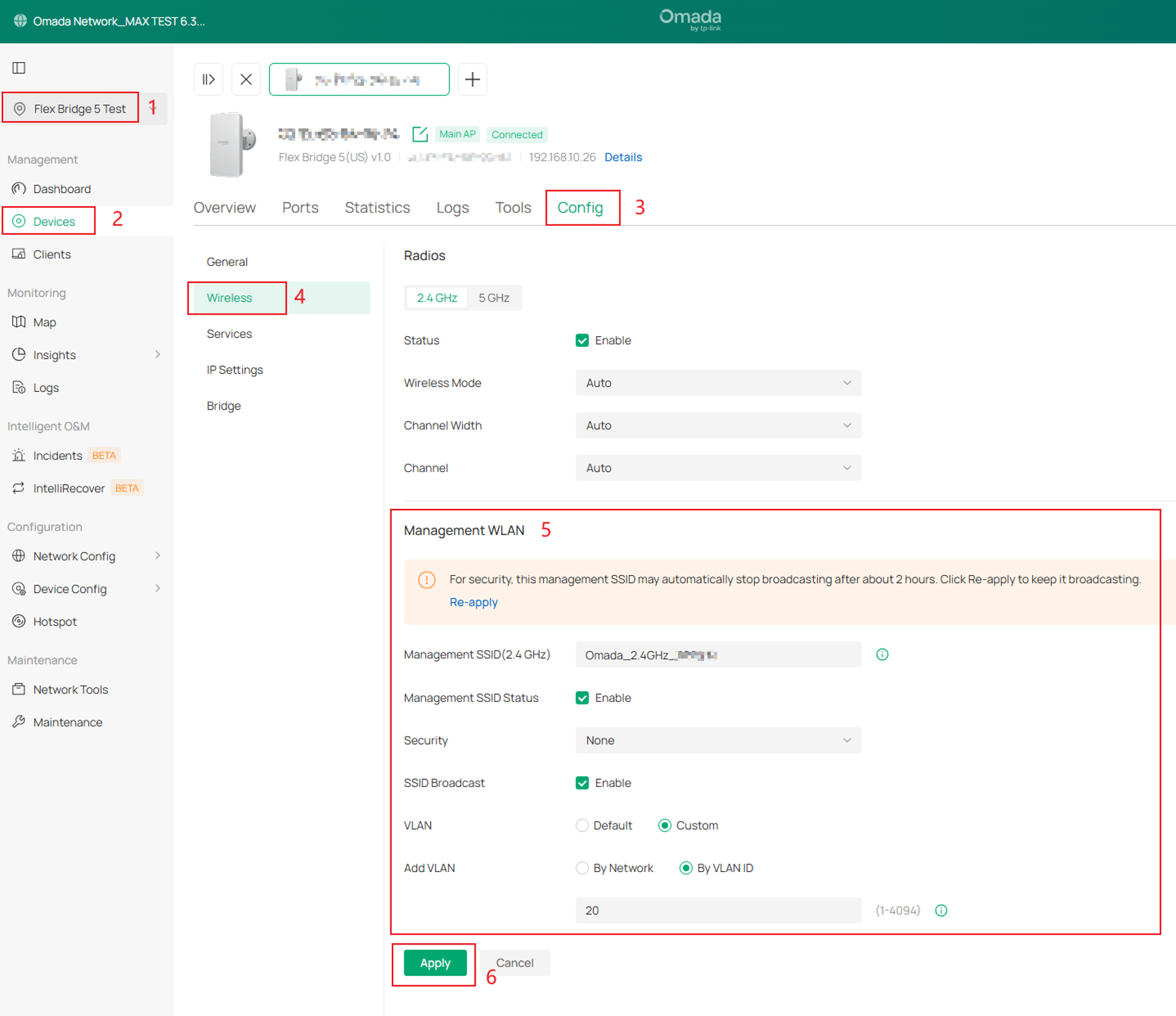
Go to Site View > Device List > Select the Flex Bridge 5 (or Sector Bridge 5)> Manage Device > Config > Wireless > Management WLAN. On this page, you can view and modify the Management SSID settings, including the Management SSID (2.4 GHz) name, Management SSID Status, Security settings, SSID Broadcast Settings, and VLAN settings.
Note: The SSID Broadcast option shows the configured broadcast setting, not the real-time SSID broadcasting status. The Management SSID may stop broadcasting automatically for security reasons even when this setting shows Enable. To keep it broadcasting, re-apply the Management WLAN settings.
Configure via Omada App (Controller Mode)
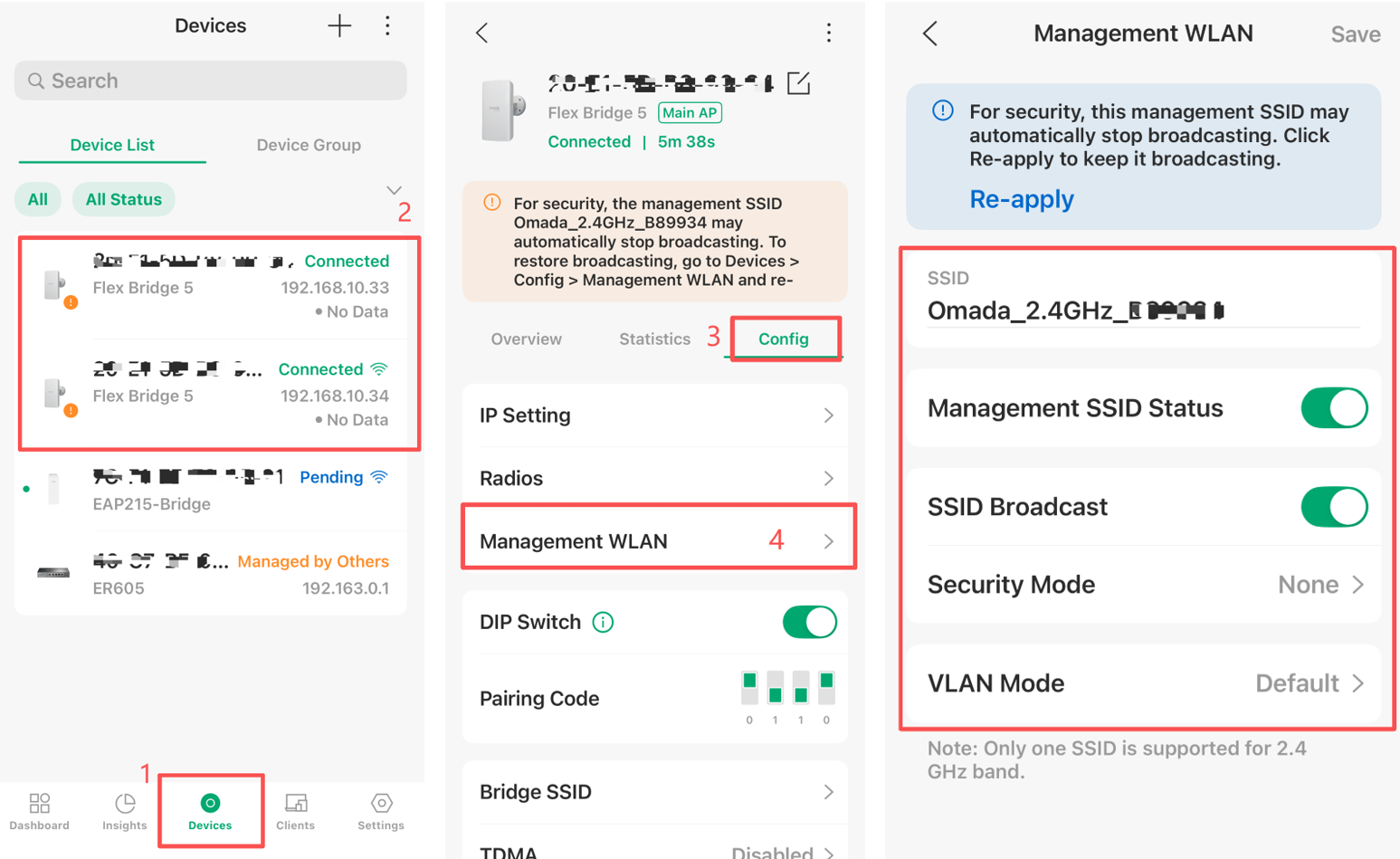
When using the Omada App, switch to Controller Mode, and open the site managed by the controller and go to the detailed page corresponding Flex/Sector Bridge 5 device. Devices > Select the Flex/Sector Bridge 5 Device > Config > Management WLAN.
On this page, you can view or modify the Management SSID settings in the same way as in the Controller Web UI. If users modify the settings or tap Re-apply, the Management WLAN settings will be resent to the device.
Where can I view the Management SSID Stop-Broadcasting Reminder?
In Omada Controller v6.3 and Omada App v5.3, reminders are displayed in several places to help users identify when the Management SSID may automatically stop broadcasting and quickly restore it when needed.
On Controller Web UI
Users can see the reminder in the following places:
- Device List
- Management WLAN configuration page
- Event Log and Device Log
1. Device List
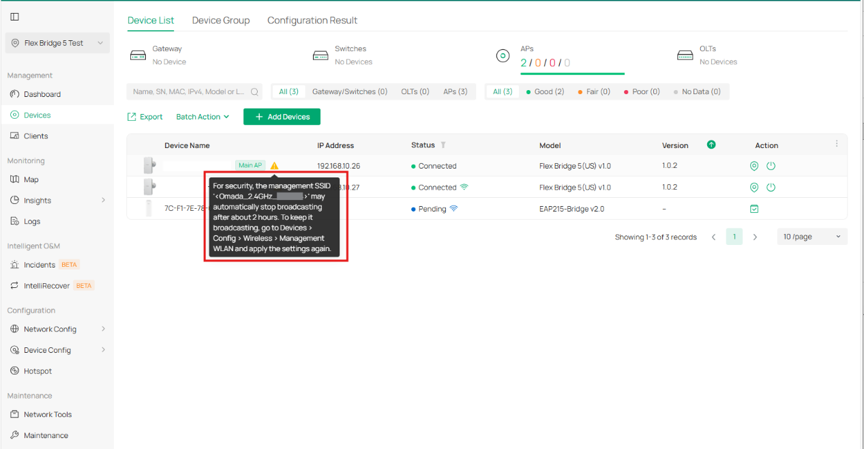
When a single-unit Flex/Sector Bridge device is adopted on the Controller v6.3 and its Management SSID may automatically stop broadcasting for security reasons, a reminder icon will be displayed in the Device List.
Users can hover over or click the icon to view more details, including the affected device, the Management SSID name, and how to keep the SSID broadcasting.
Example message:
For security, the management SSID “OMADA_2.4G_XXXX” may automatically stop broadcasting after about 2 hours. To keep it broadcasting, go to Devices > Config > Wireless > Management WLAN and apply the settings again.
2. Management WLAN Configuration Page
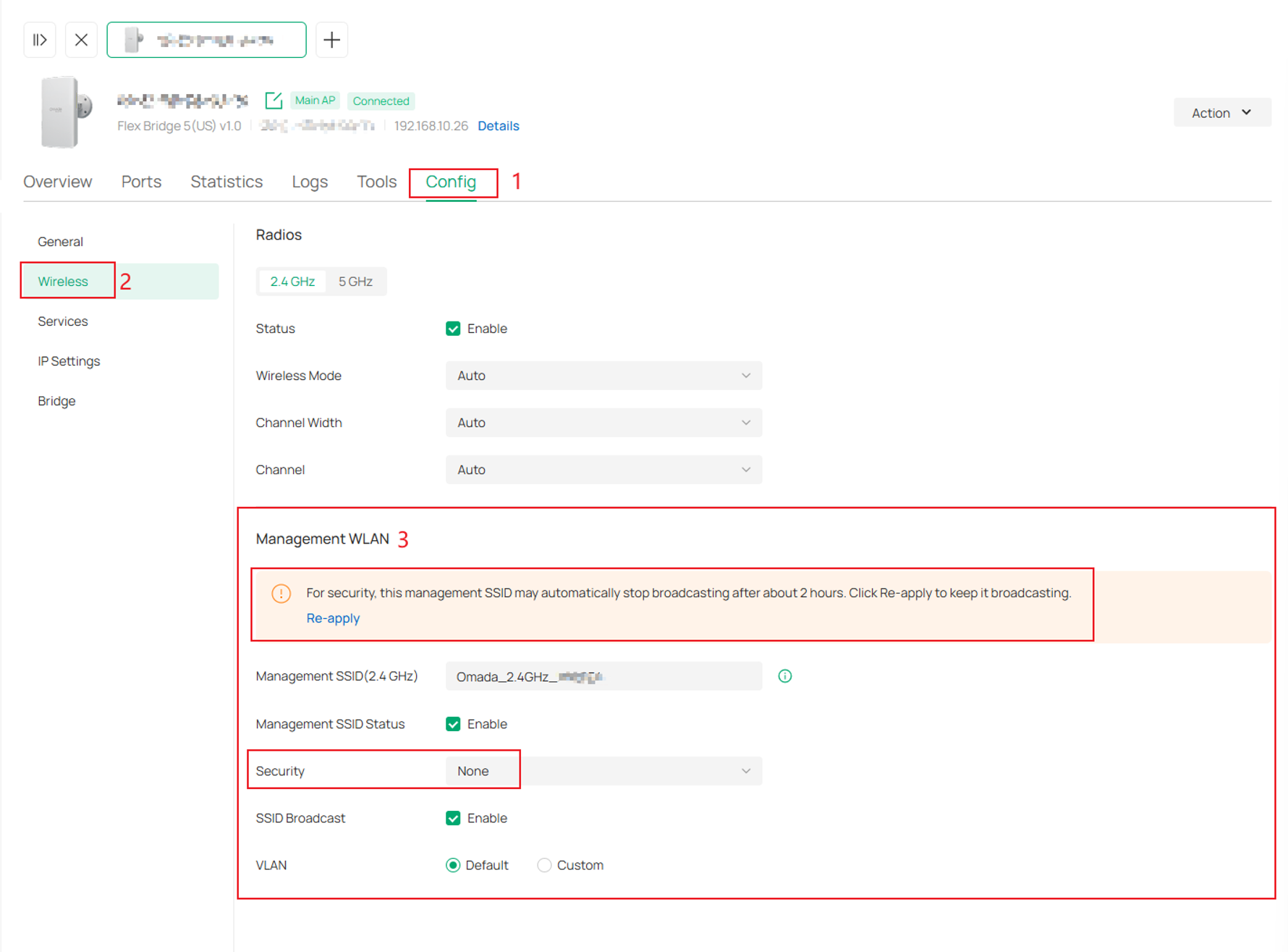
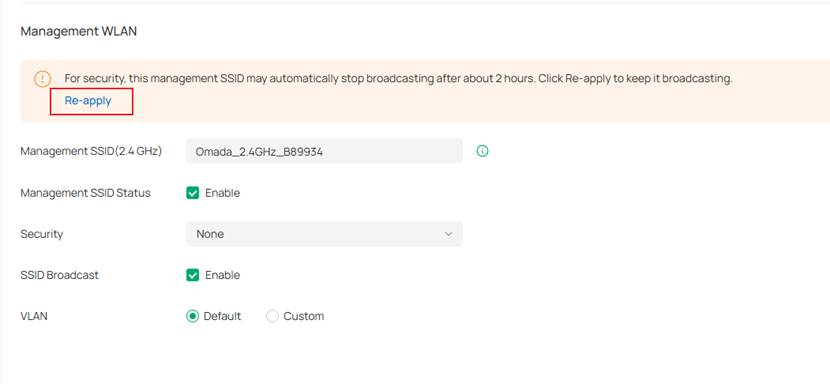
A reminder will also be displayed on the device’s Management WLAN configuration page:
Devices > Config > Wireless > Management WLAN. This reminder explains that the Management SSID may automatically stop broadcasting after about 2 hours. Users can click Re-apply to resend the Management WLAN settings and keep the SSID broadcasting.
Example message:
For security, this management SSID may automatically stop broadcasting after about 2 hours. Click Re-apply to keep it broadcasting.
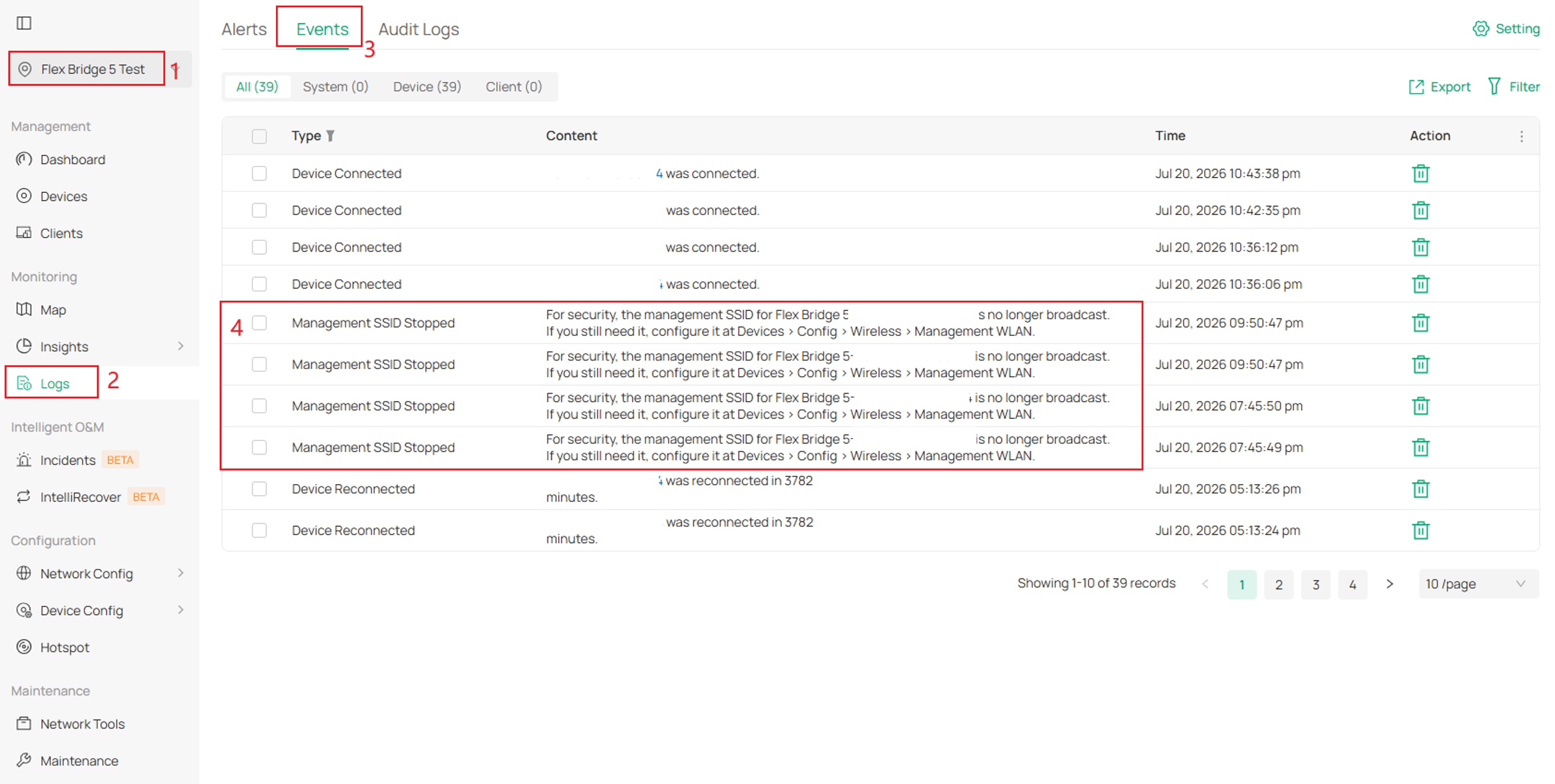
3. Event Log and Device Log
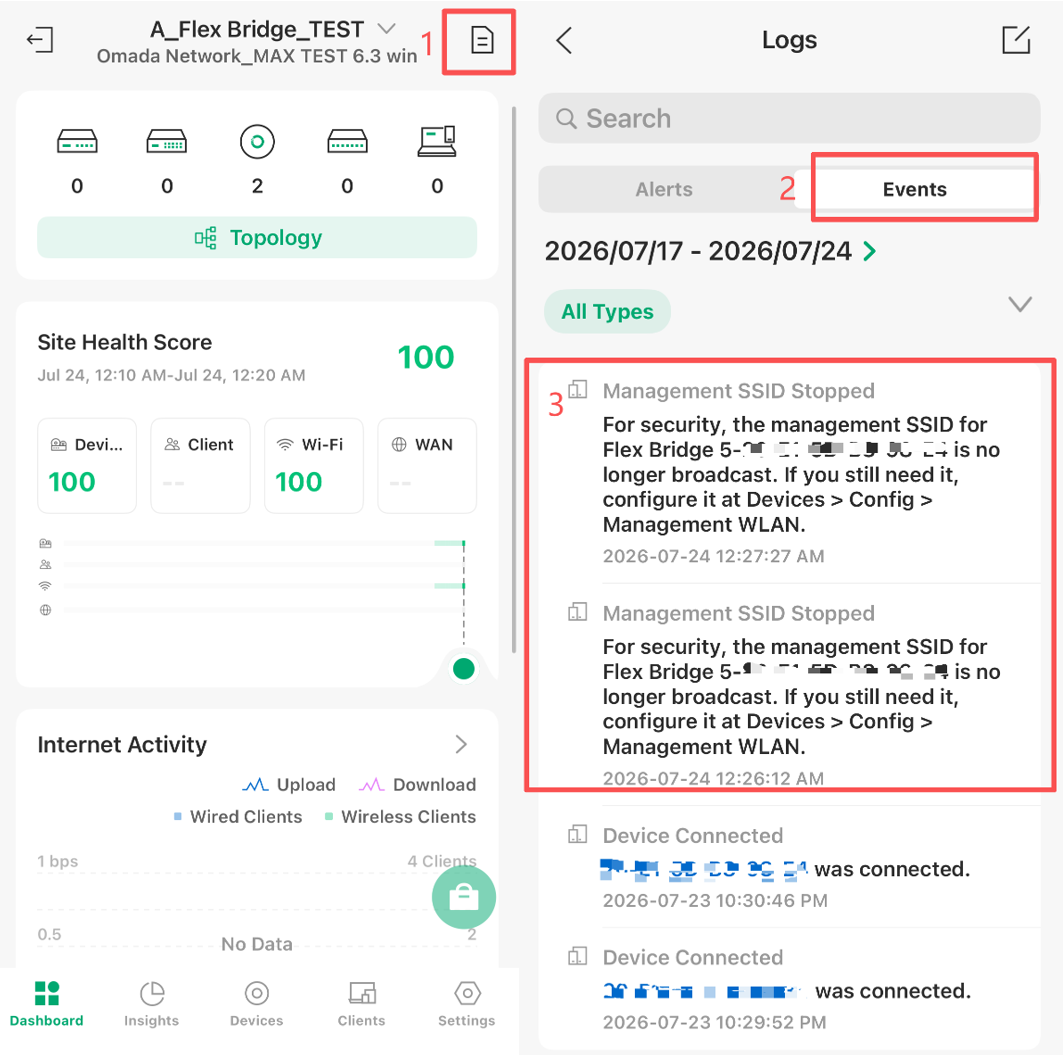
When the Management SSID stops broadcasting, related Event Log and Device Log entries will display the configuration path for recovery: Devices > Config > Wireless > Management WLAN.
Users can follow this path to manually locate the corresponding device and reapply the Management WLAN settings to restore or keep the Management SSID broadcasting.
On Omada App (Controller Mode)
When using the Omada App, users can also see related stop-broadcasting reminders in the following places:
- Device List Icon and Device Details page
- Management WLAN configuration page
- Event Log and Device Log
These reminders help users identify when the Management SSID may automatically stop broadcasting for security reasons and guide them to reapply the Management WLAN configuration.
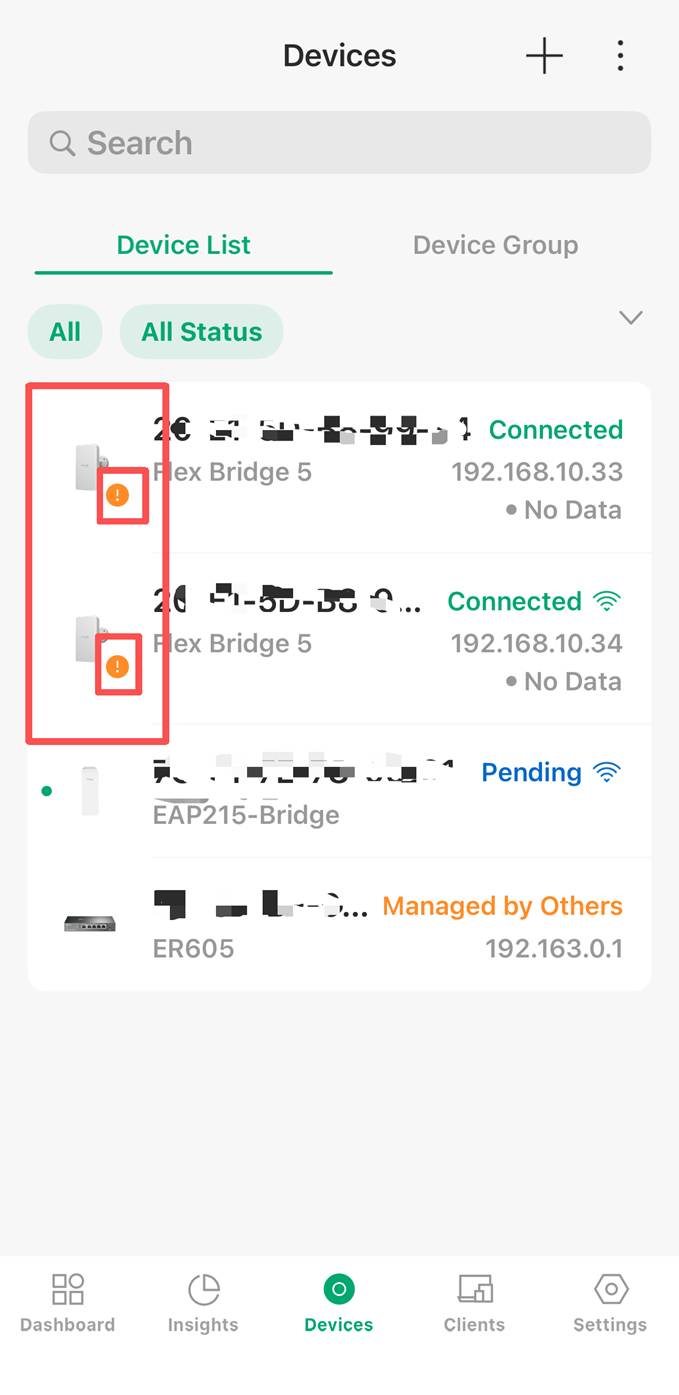
- Device List Icon and Device Details page
When a single-unit Flex/Sector Bridge device is adopted by the controller and matches a scenario where the Management SSID may automatically stop broadcasting, a reminder icon will be displayed next to the device name in the Device List.
This reminder is shown before the Management SSID actually stops broadcasting, so users can take action in advance instead of discovering the issue only after checking the logs.
Users can tap the device entry to open the device details page and view more information.
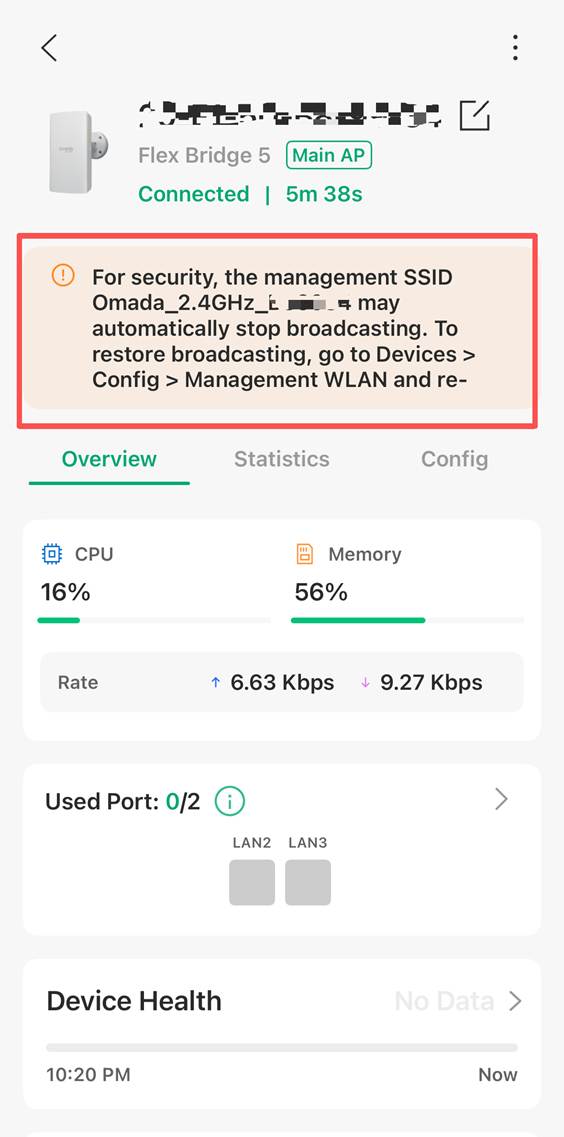
On the device details page, an information banner will be displayed when the Management SSID may automatically stop broadcasting. The banner indicates which Management SSID may be affected and provides the recovery path.
Example message:
For security, the management SSID “OMADA_2.4G_XXXX” may automatically stop broadcasting. To restore broadcasting, go to Devices > Config > Management WLAN and re-apply the configuration.
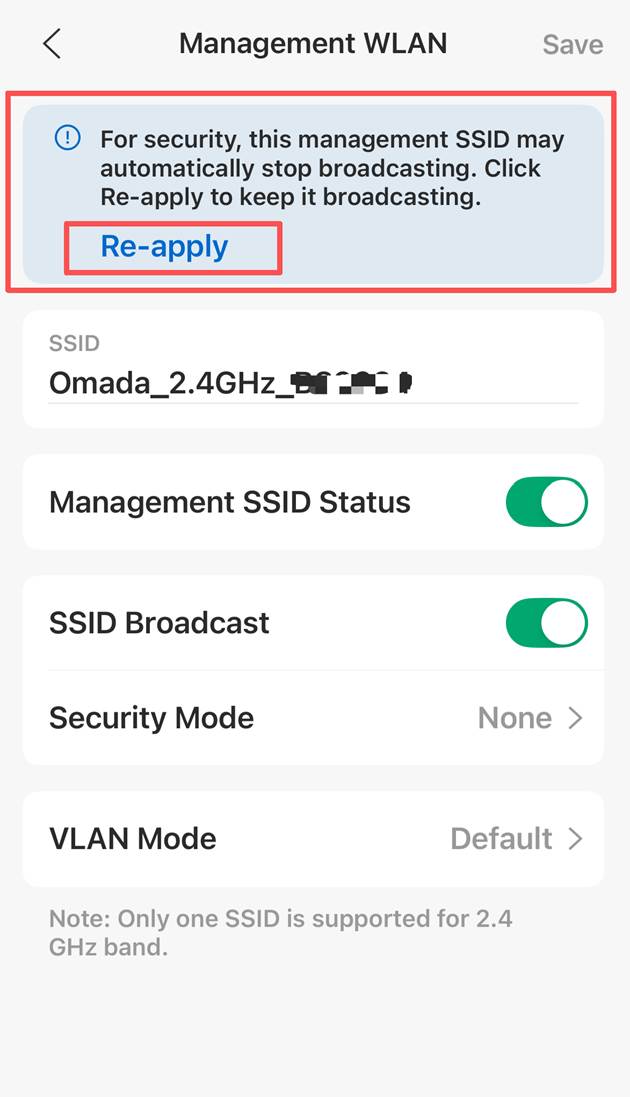
3. Management WLAN Configuration Page
Users can go to the Management WLAN configuration page in the Omada App to restore or keep the Management SSID broadcasting.
Path: Devices > Select the Flex/Sector Bridge Device > Config > Management WLAN.
On this page, a reminder will be displayed when the Management SSID may automatically stop broadcasting for security reasons. Users can tap Re-apply to resend the current Management WLAN settings to the device without changing the existing configuration.
Example message:
For security, this management SSID may automatically stop broadcasting. Click Re-apply to keep it broadcasting.
After users tap Re-apply, or modify and save the Management WLAN settings, the Management SSID will continue broadcasting and the related stop-broadcasting reminders will disappear.
4. Event Log and Device Log
When the Management SSID stops broadcasting, related Event Log and Device Log entries will display the recovery path: Devices > Config > Management WLAN. Users can follow this path to manually locate the corresponding device and reapply the Management WLAN settings to restore or keep the Management SSID broadcasting.
What Is the Re-apply button?
The Re-apply button allows users to resend the current Management WLAN settings to the device without modifying the existing configuration.
In both the Controller Web UI and the Omada App (Controller Mode), the regular apply action is available only after users change the Management WLAN configuration.
- In the Controller v6.3, the Apply button appears only when Management WLAN configuration is changed.
- In the Omada App v5.3, the Save button in the upper-right corner is grayed out and unavailable when no configuration has been changed. It becomes available only after users modify the corresponding settings.
Therefore, if users want to keep the Management SSID broadcasting without changing any settings, they can use the Re-apply button to resend the same Management WLAN configuration to the device.
After users click Re-apply, the Management SSID will continue broadcasting and will no longer be automatically stopped by the 2-hour temporary broadcast mechanism. The current risk reminders, including the Device List icon and the reminder on the Management WLAN configuration page, will disappear. Existing Event Log and Device Log entries are historical records and will not be removed.
How does the Management SSID behave after a reboot, firmware upgrade, or controller disconnection?
The temporary Management SSID broadcast mechanism may also be affected by device reboot, firmware upgrade, or controller disconnection.
- Device Reboot
After the device reboots, the temporary broadcast timer may be reset, the Management SSID has not been modified or re-applied, it can broadcast again temporarily and stop after about 2 hours.
- Firmware Upgrade
During a firmware upgrade, the device will reboot. Therefore, the same behavior as a normal reboot may occur: the Management SSID may temporarily broadcast again and stop after about 2 hours if it has not been reapplied.
- Controller Disconnection
If the device detects that it is no longer managed by the controller:
- If the Management SSID has already stopped broadcasting, the device may bring it back temporarily for about 2 hours.
- If the Management SSID is still broadcasting, the current timer will remain unchanged and will not be reset.
- After Re-apply or reconfigure the Management WLAN settings
Once the user re-applies or reconfigures the Management WLAN settings, the Management SSID will not be automatically stopped by the temporary 2-hour broadcast mechanism.
How to keep the Management SSID broadcasting
Configure via Controller Web UI
To keep the Management SSID broadcasting:
Step 1. Go to Devices > Config > Wireless > Management WLAN.
Step 2. Check the Management SSID settings.
Step 3. Click Re-apply, or modify and apply the Management WLAN configuration.
Configure via Omada App (Controller Mode)
Step 1. Go to Devices > Config > Management WLAN.
Step 2. Check the Management SSID settings.
Step 3. Click Re-apply, or modify and apply the Management WLAN configuration.
After the settings are reapplied, the Management SSID will continue broadcasting.
Conclusion
Omada Controller v6.3 and Omada App v5.3 improved the Management SSID experience for single-unit Flex/Sector Bridge 5 devices by providing clearer warnings and easier recovery.
These improvements help users understand why a Management SSID may stop broadcasting and how to restore it quickly, while maintaining a secure default behavior for temporary management networks.
To learn more about each function and configuration, please visit Support Home to download or check the manual for your product.
