


How to configure Management VLANs for Omada Switches and APs (for Business scenario)


Contents
Introduction
This article will configure separate management VLAN for switches and APs, and keep the default VLAN (changing its VLAN ID and subnet IP) for clients which is isolated from the management VLANs. The method of adding devices into a running network is also introduced.
When configuring the network, many customers would like to change the management VLANs for the Controller, gateway, AP and switch, then set another VLAN for clients, in this way, different kinds of devices are managed in different VLANs, and the clients connected won’t be able to access the devices, enhancing the network security.
This guide suits the configuration for a business setup, adding the method for integrating new devices into the running network. For a simple and small-scale home network setup, please refer to How to configure Management VLANs for Omada Switches and APs (for SOHO scenario).
Usually, the topologies are like the following, use the core switch to handle all Layer 3 forwarding and configure the DHCP server on core switch, the gateway will only be responsible for handling Internet traffic towards core switch:
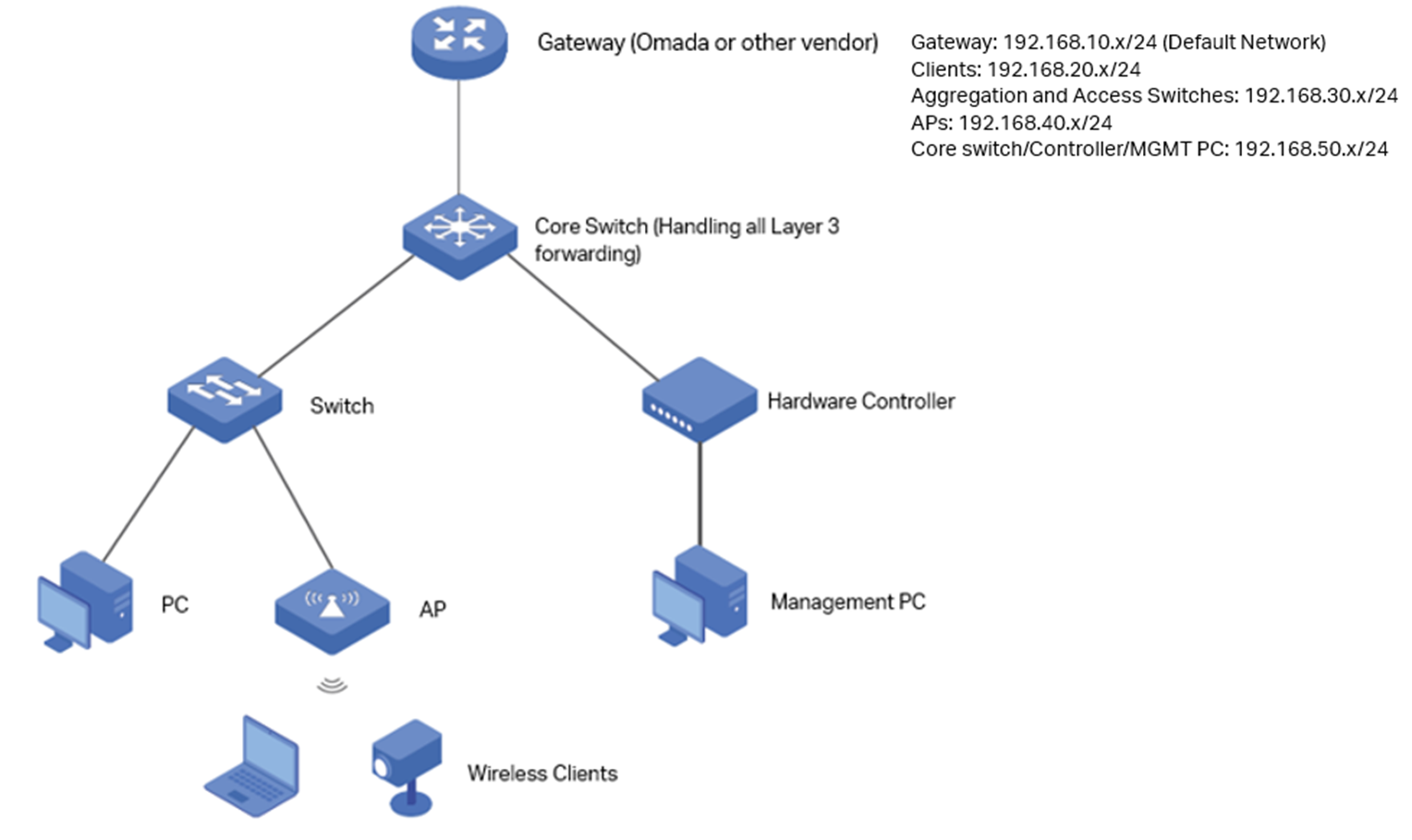
As shown in the topology, the final goal is to shutdown VLAN 1 from the network, set VLAN20 for clients usage, all the clients connected will obtain IP address at 192.168.20.0/24, set VLAN 30 for switch management, and the switches will use a management IP at 192.168.30.0/24, VLAN 40 for AP management, and the APs will use a management IP at 192.168.40.0/24, for router, Core Switch and Controller, their VLAN will still remain default, but change to another VLAN ID, you can also change the IP addresses for them.
Requirements
- Omada Controller (Software Controller / Hardware Controller / Omada Cloud-Based Controller, V6.0 and above)
- Omada Smart, L2+ and L3 switches
- Omada APs
- Omada Gateway
Configuration
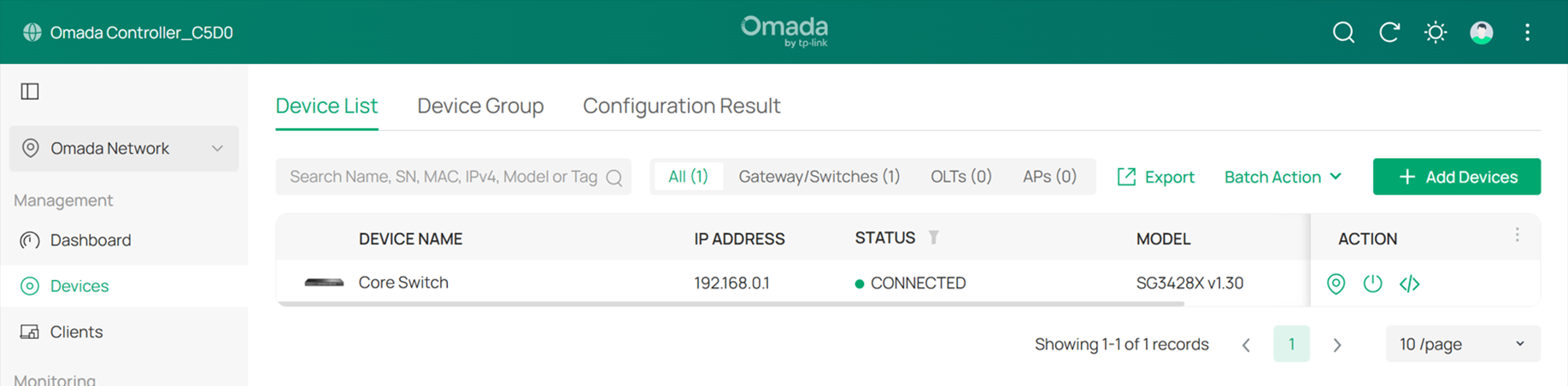
Step 2. Create the Networks needed.
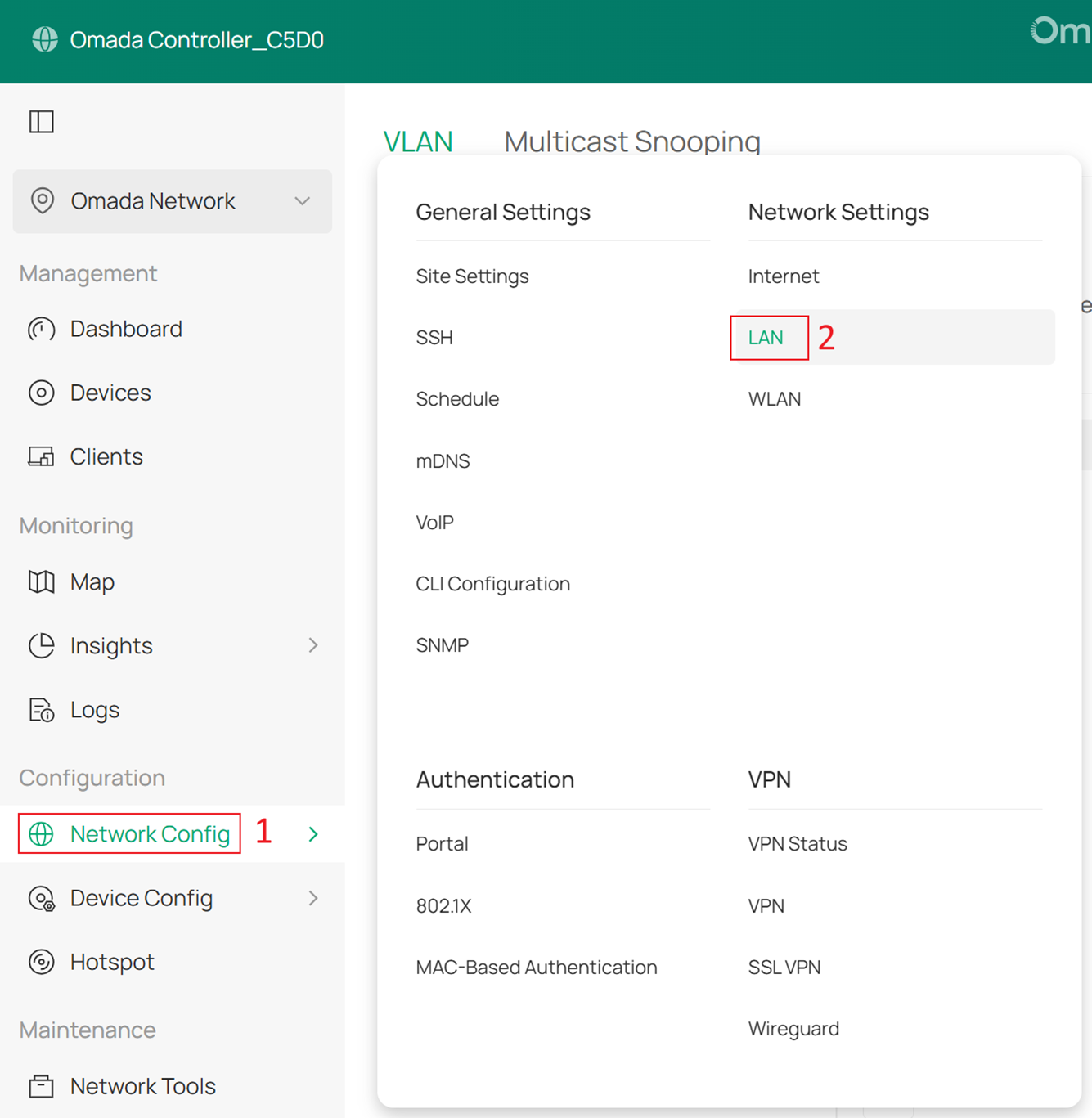
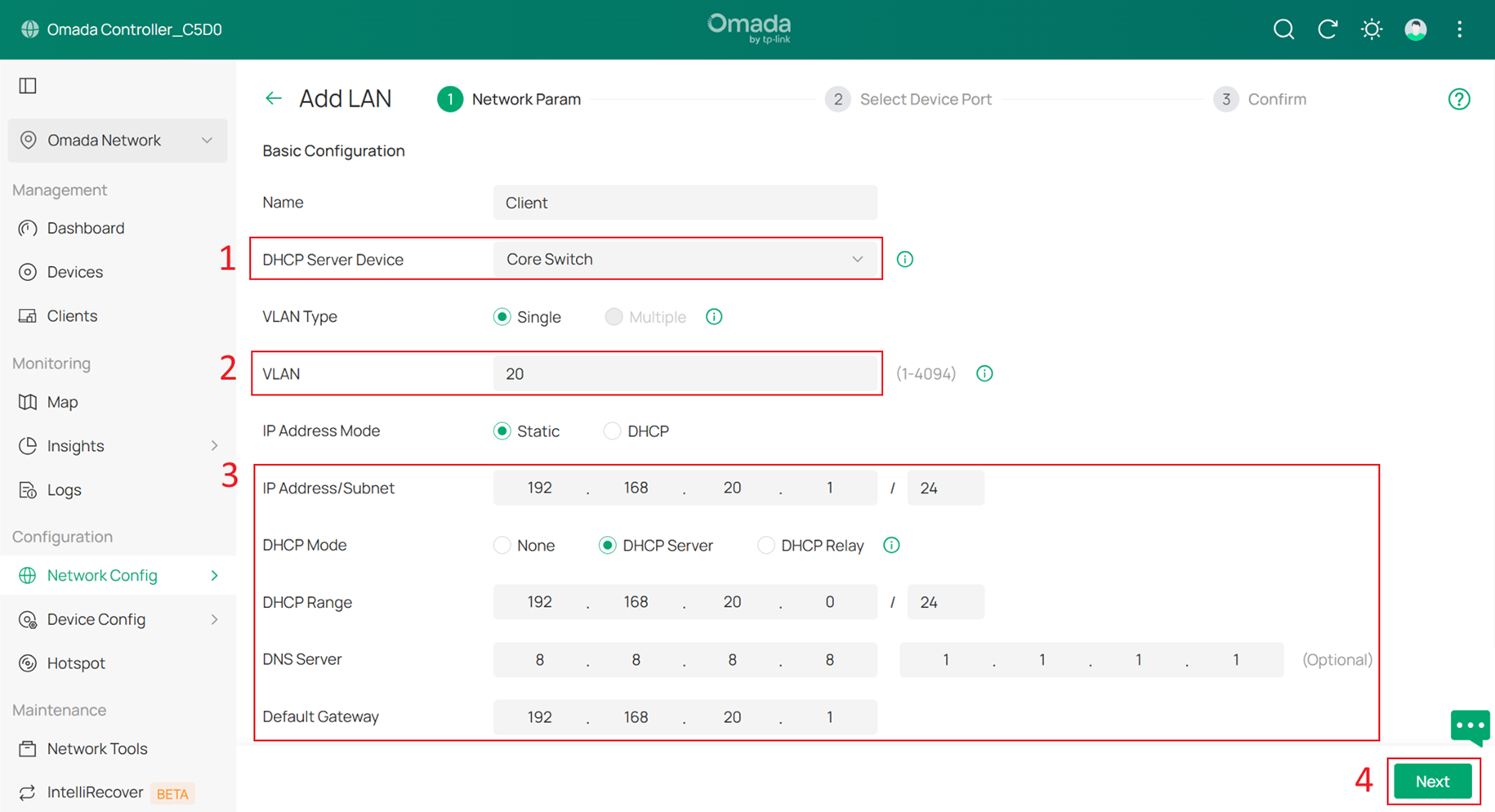
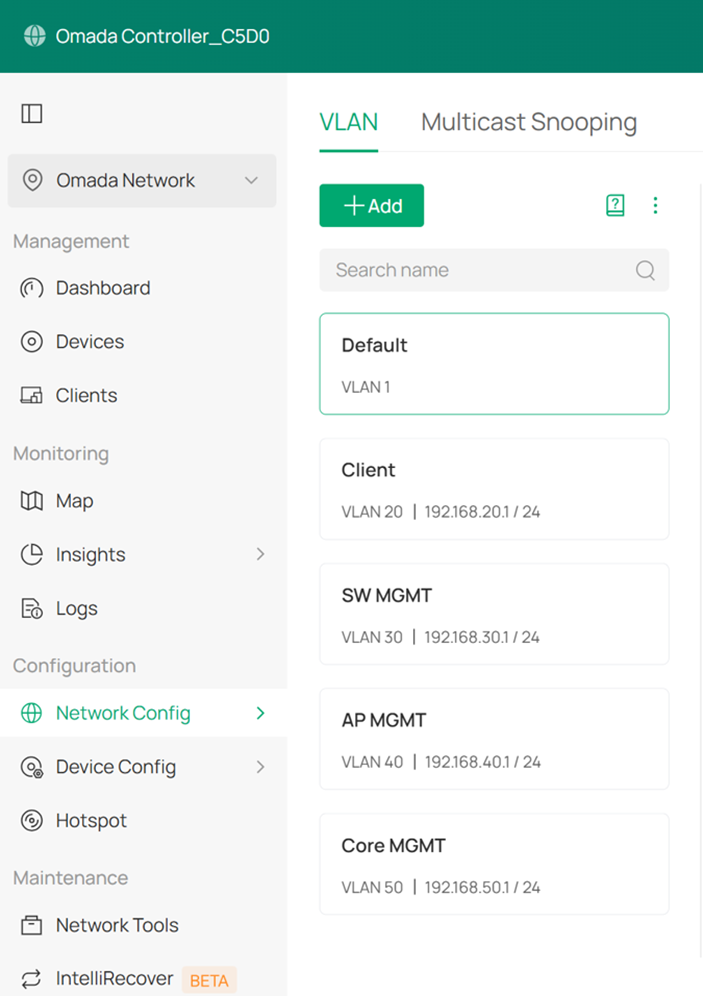
First, create the Client Network (VLAN 20), SW MGMT Network (VLAN 30), AP MGMT Network (VLAN 40) and Core MGMT Network (VLAN 50). Go to Network Config > Network Settings > LAN > VLAN, click +Add to create new LAN network.
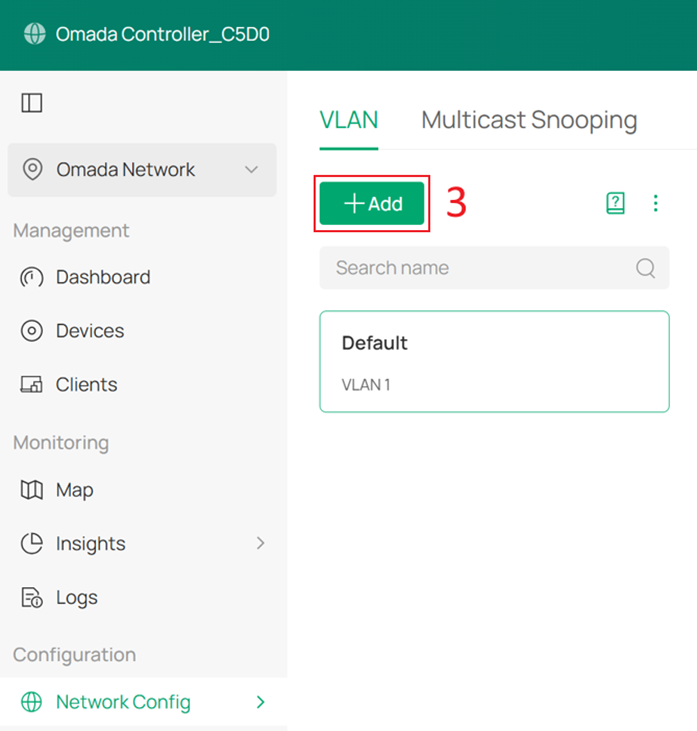
Below is the example of Client Network (VLAN 20), set the DHCP Server Device to Core Switch and the DHCP Mode to DHCP Server, and configure IP Address/Subnet, DHCP Range, DNS server and Default Gateway, in this example I set them are 192.168.20.1/24, 192.168.20.0/24, 8.8.8.8, 1.1.1.1 and 192.168.20.1. And click Next to Select Device Port, click Skip and Apply to apply the configuration.
Then create SW MGMT Network, AP MGMT Network and Core MGMT Network as the same method.
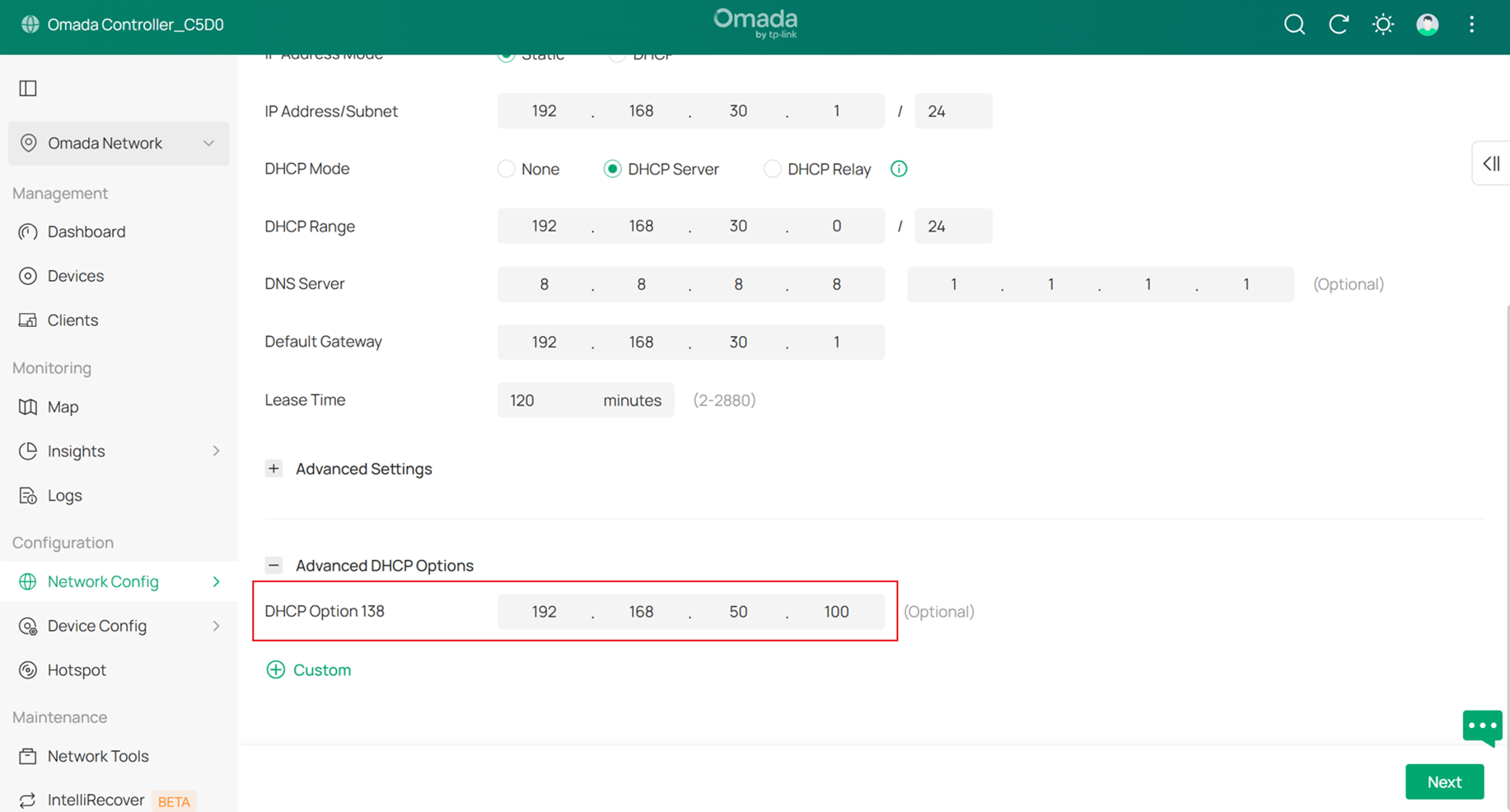
Note that the SW MGMT and AP MGMT Networks must be configured with DHCP Option 138.
DHCP Option 138 is used to inform devices of the Controller’s IP address during the DHCP process. This configuration is required because eventually all network devices will not be in the same VLAN; they need DHCP Option 138 to discover the Controller and be adopted.
In this example, DHCP Option 138 is set to 192.168.50.100, and the Controller will be assigned this IP address in later steps.
Final result should be like this:
Step 3. Configure the Core Switch port that will connect to the Controller.
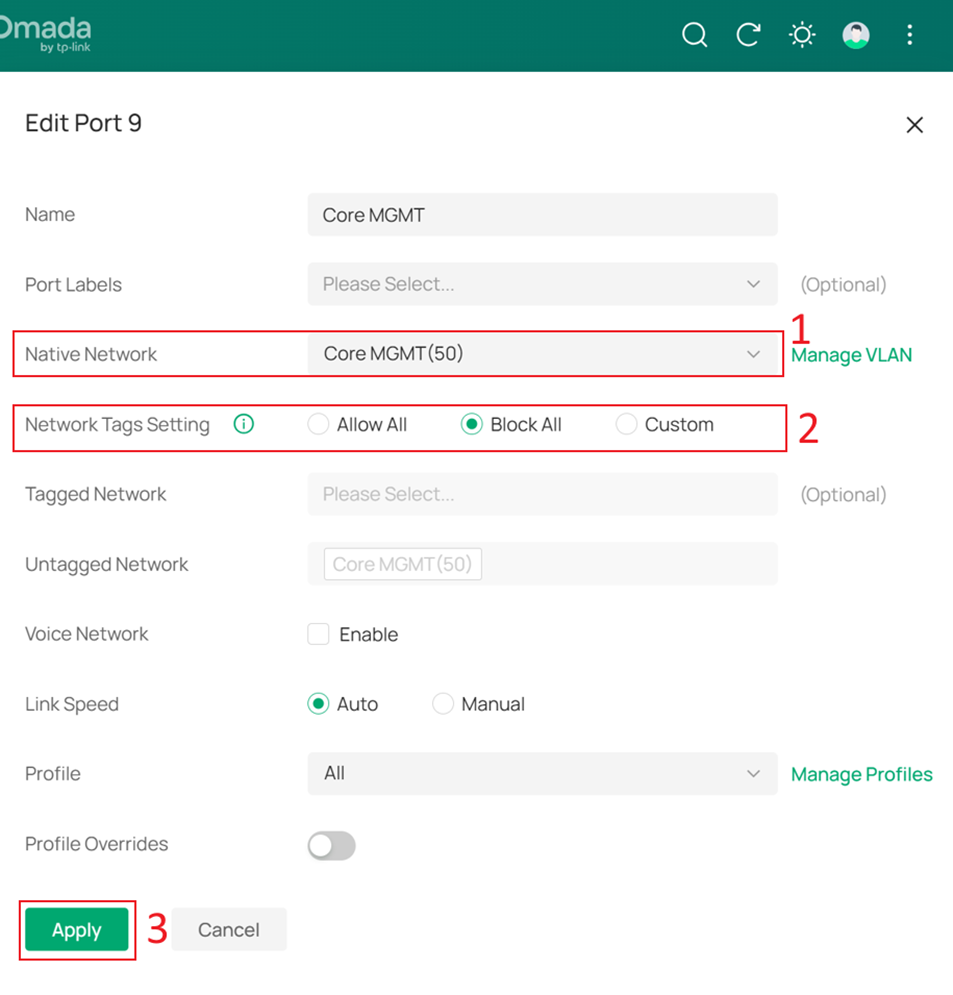
Go to Device Config > Switch > Switch Ports > Port Settings, and click Edit on the port that will be used to connect the Controller (different from the port currently in use). After changing the Core Switch’s Management VLAN, we will move the Controller to this port.
In this example, the Controller will be moved to port 9, so modify the port profile of port 9.
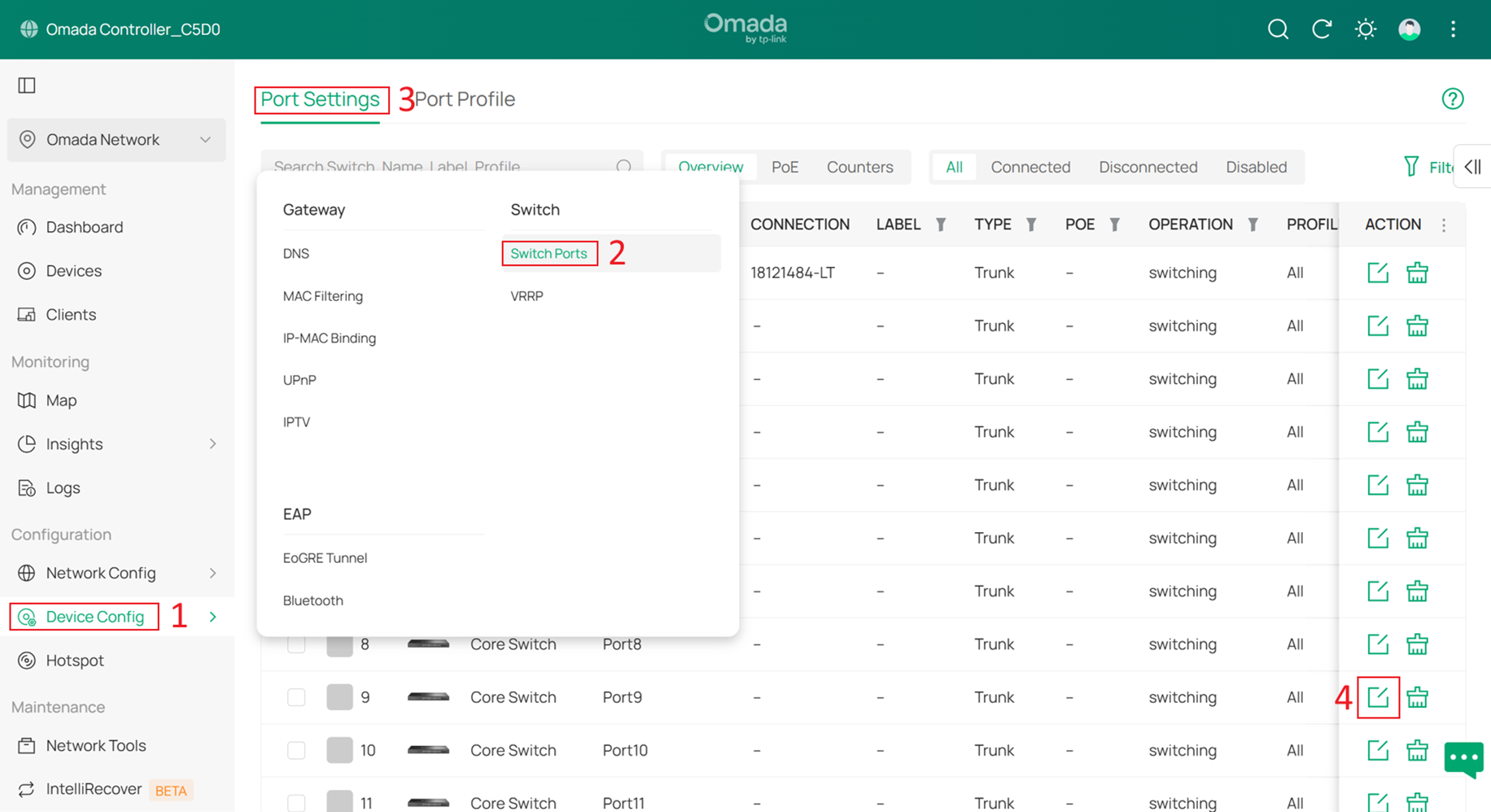
Set the Native Network to Core MGMT, and set Network Tags Setting to Block All, and click Apply to apply the configuration
Step 4 Change the Management VLAN of the Core Switch.
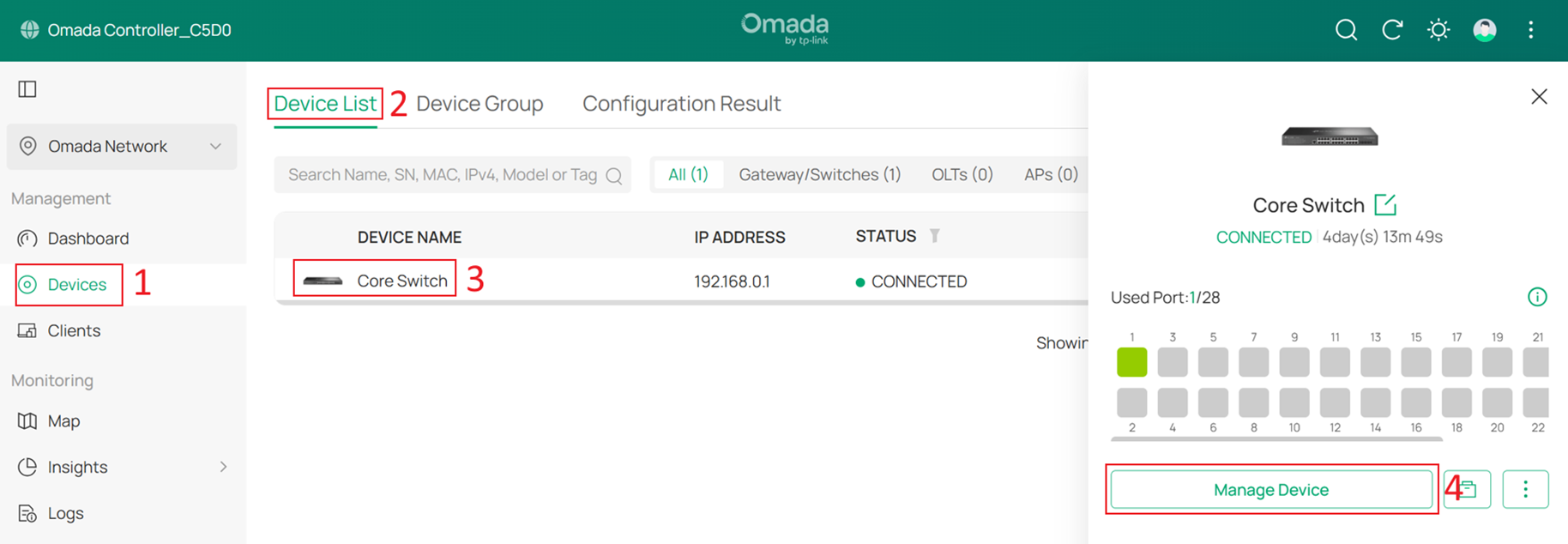
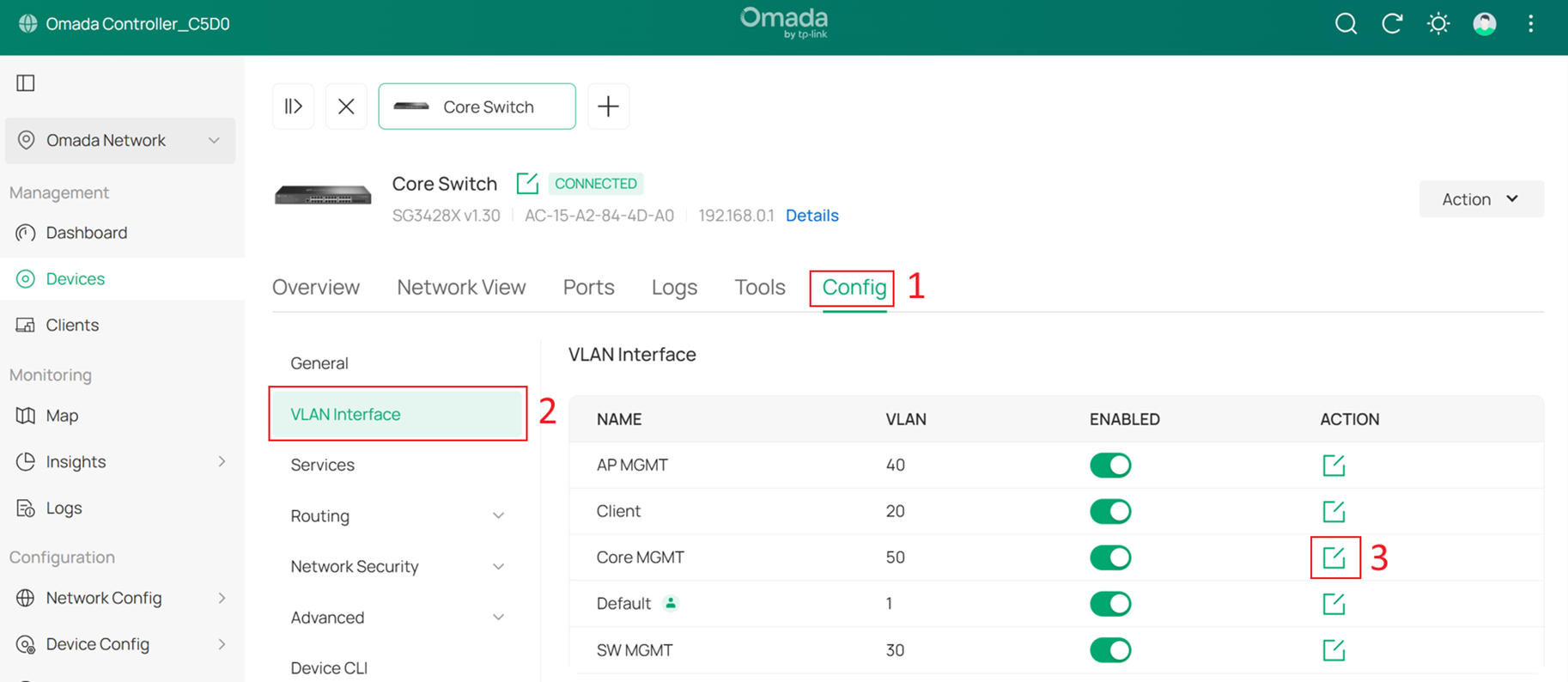
Go to Devices > Device List, click the Core Switch and Manage Device to enter its private configuration page, then go to Config > VLAN Interface, and click Edit for Core MGMT.
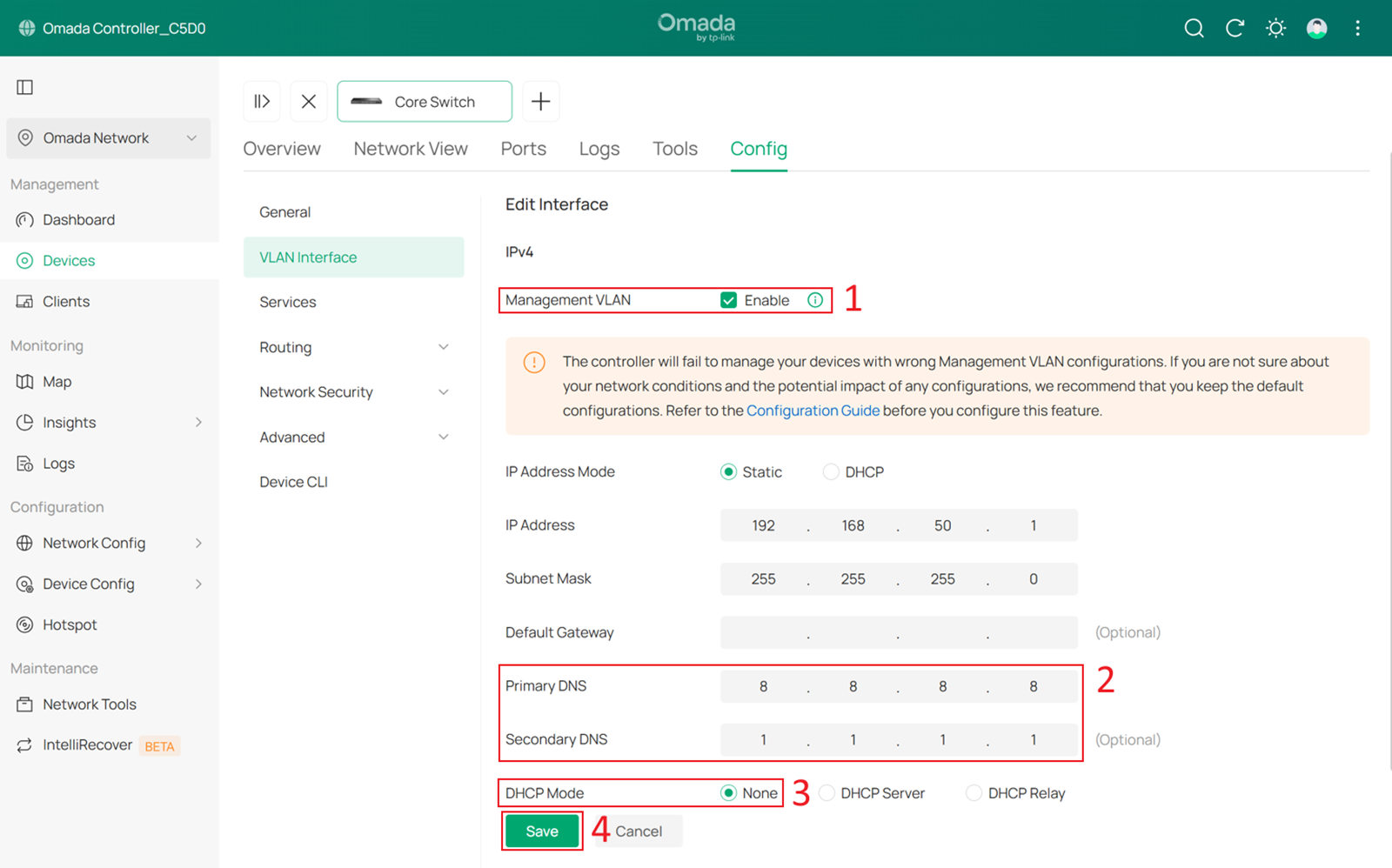
Enable Management VLAN, configure the DNS Server, change the DHCP Mode to None, and click Save to apply the configuration.
Step 5. Change the IP addresses of the Controller and the management PC.
Now, the Core Switch IP address will switch to the 192.168.50.1/24. Therefore, we need to configure the Controller and the management PC with static IP addresses in the same subnet to continue managing the devices.
To configure a static IP address on the hardware controller:
Go to Global View > Settings > Controller Settings, set Network Settings to Static, then configure the IP Address (in this example, 192.168.50.100), Gateway and DNS server. Then click Save to apply the configuration.
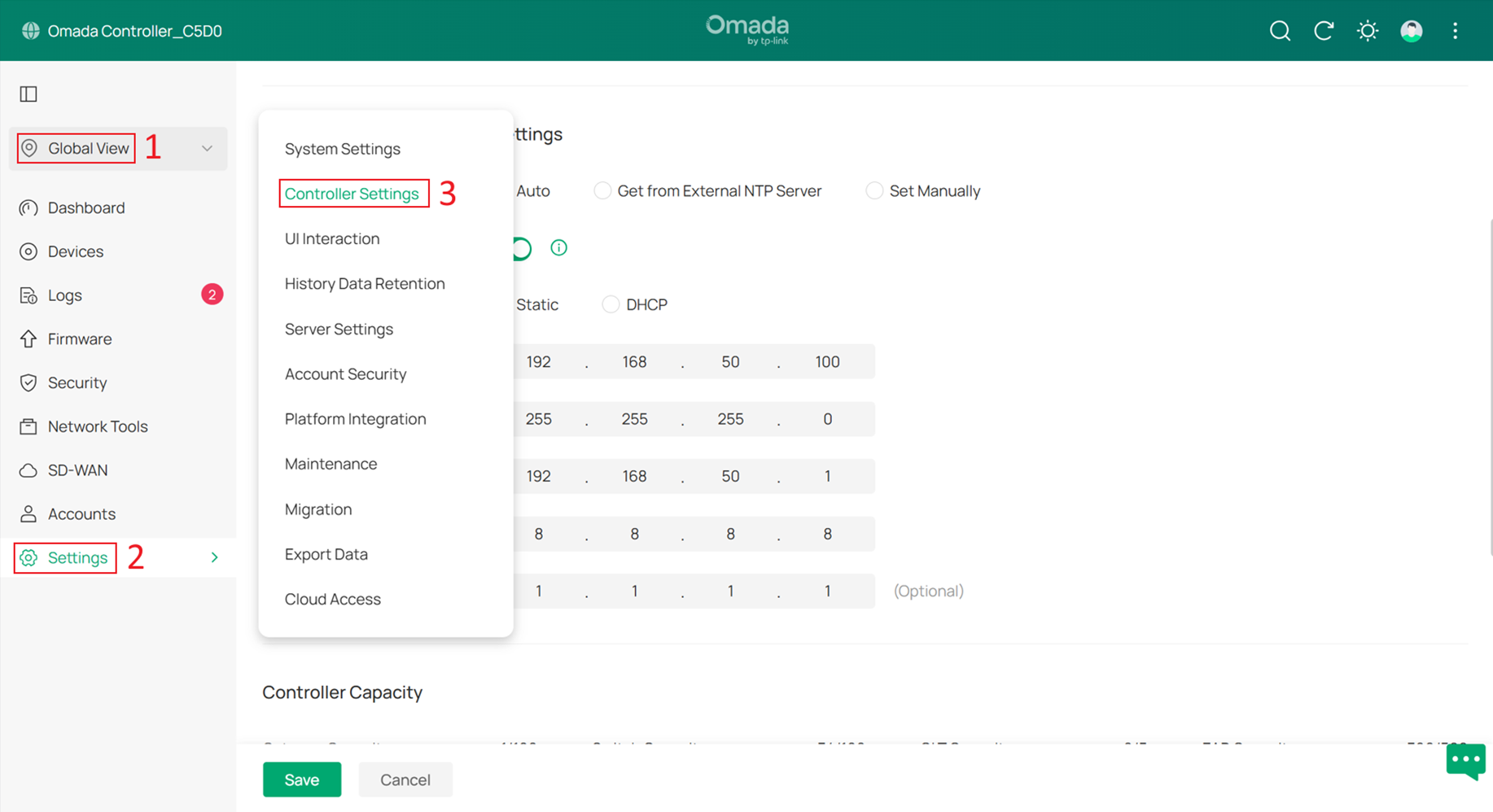

After configuring the Controller’s IP address, you also need to change the IP address of the management PC to the same subnet with the Controller, such as 192.168.50.101. Once the management PC IP address has been updated, enter the new IP address of the hardware controller in your browser to access the Controller Web UI again.
Step 6. Connect the Controller to the port with the correct Native Network configuration.
In Step 3, we changed the Native Network of the Core Switch port connected to the Controller to Core MGMT. Now, after changing the IP addresses of the Controller and the management PC, reconnect the Controller to this port to ensure proper communication between the Controller and the Core Switch.
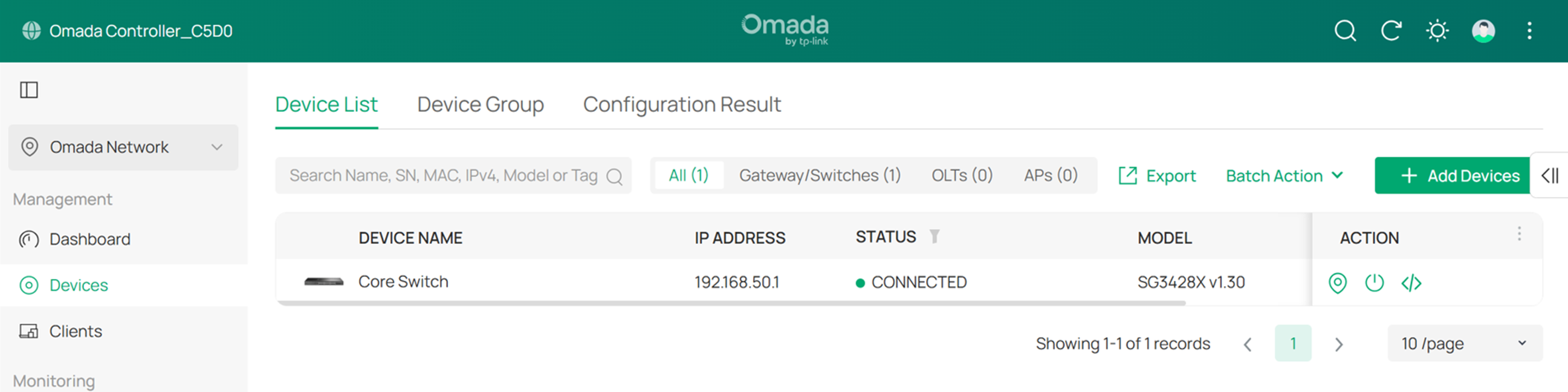
After completing this step, the Core Switch should be successfully rediscovered by the Controller.
Step 7. Configure the Default Network.
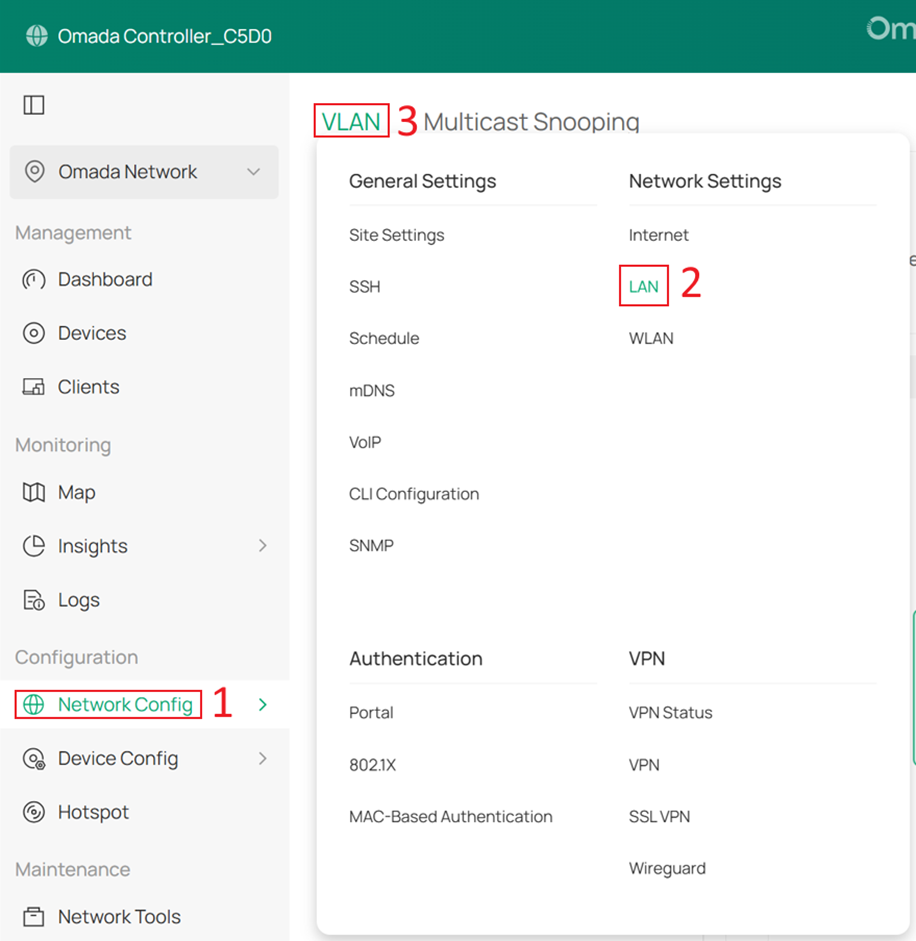
Go to Network Config > Network Settings > LAN > VLAN, select Default, and click Edit.
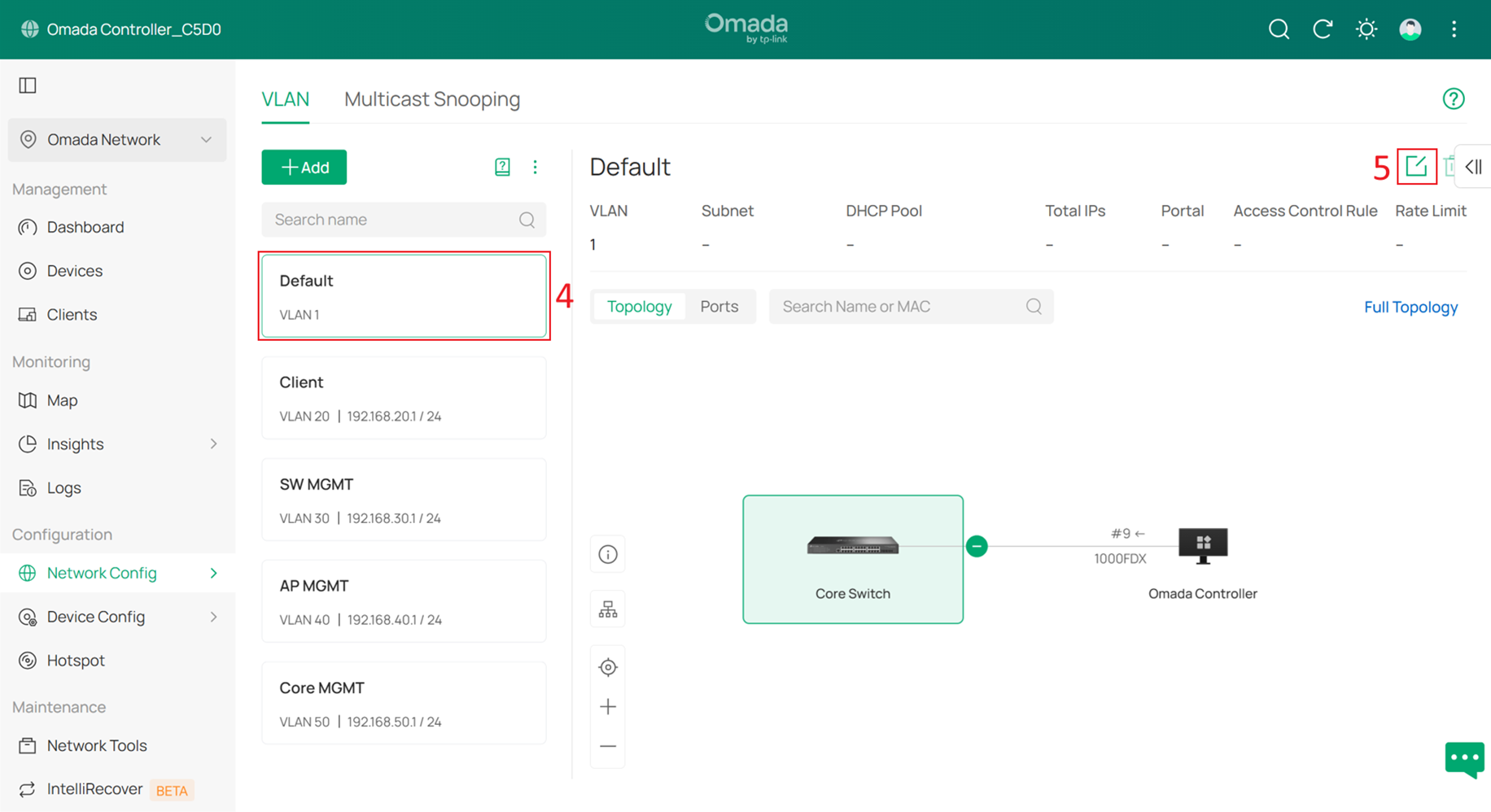
Change the VLAN ID and subnet IP address so that the Default Network no longer uses VLAN 1. In this example, change it to VLAN 10 and set DHCP Settings Overrides to Manual.
For the Gateway/Subnet, set it to 192.168.10.x/24. In this example, it is set to 192.168.10.2, which is the gateway IP address. This helps the Controller identify the Omada gateway later.
If you do not have an Omada gateway, you can still enter the gateway IP address here.
Finally, disable the DHCP Server.
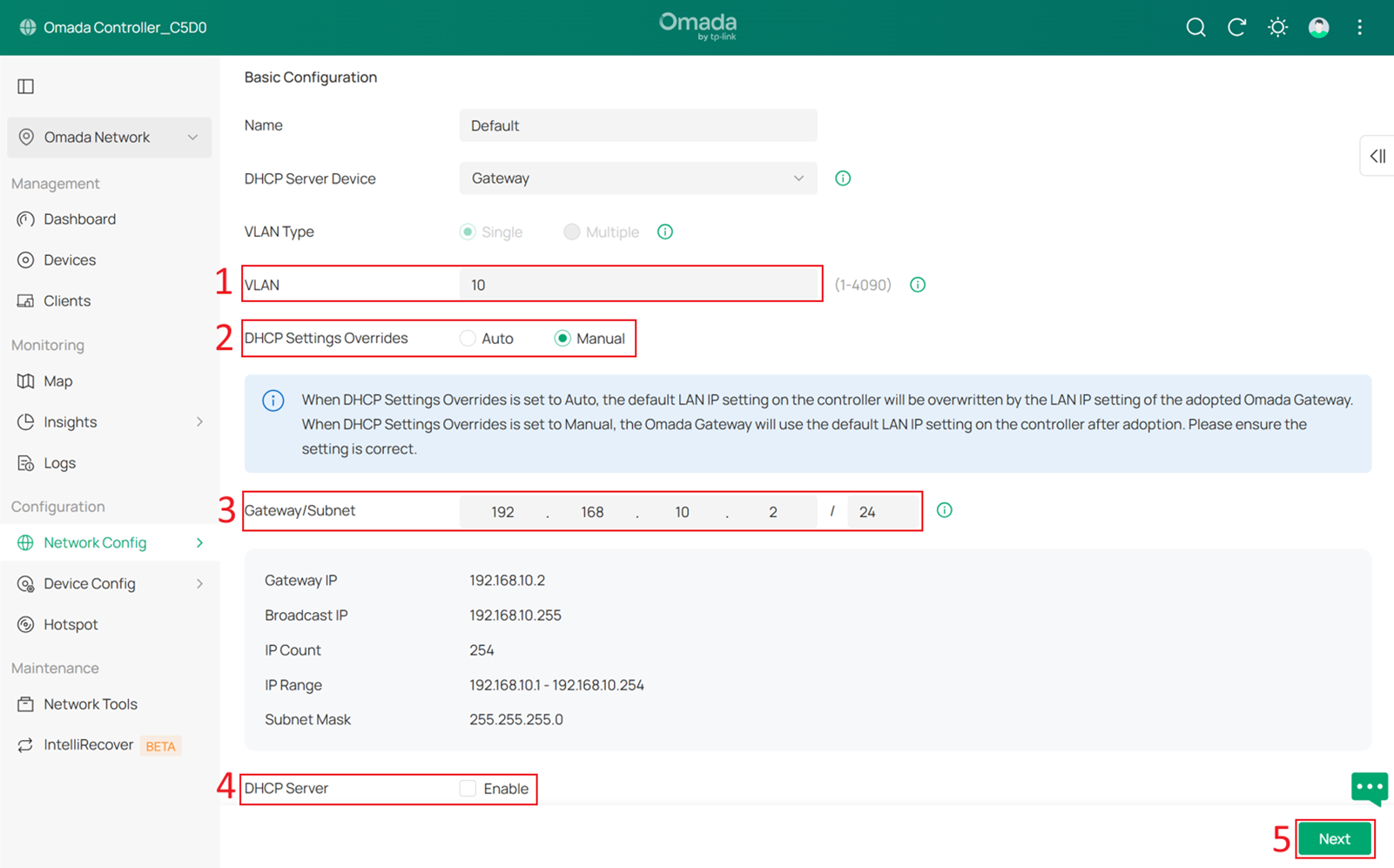
The final result should appear as shown below:
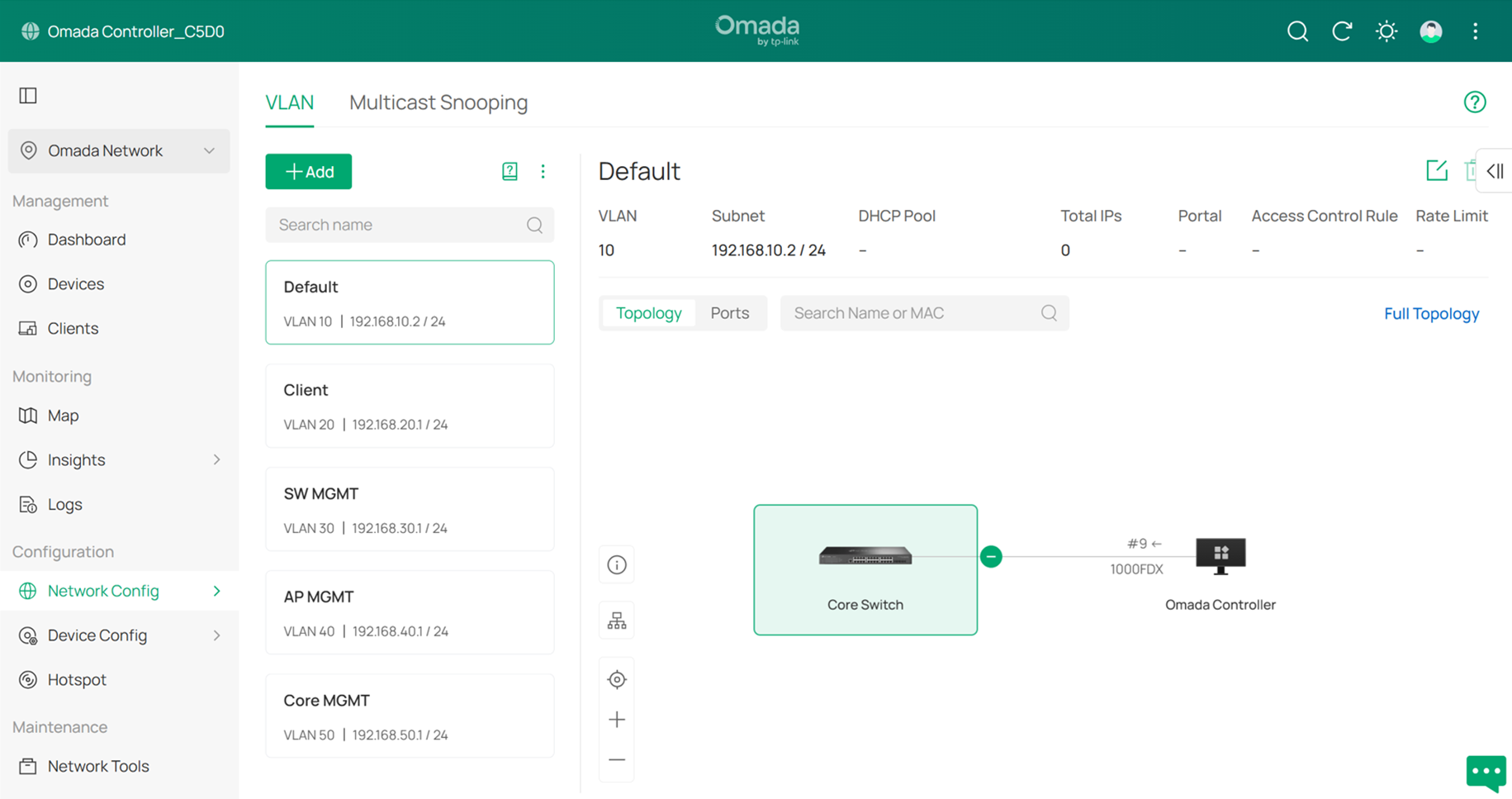
Step 8. Configure the Core Switch as the DHCP server for the Default Network.
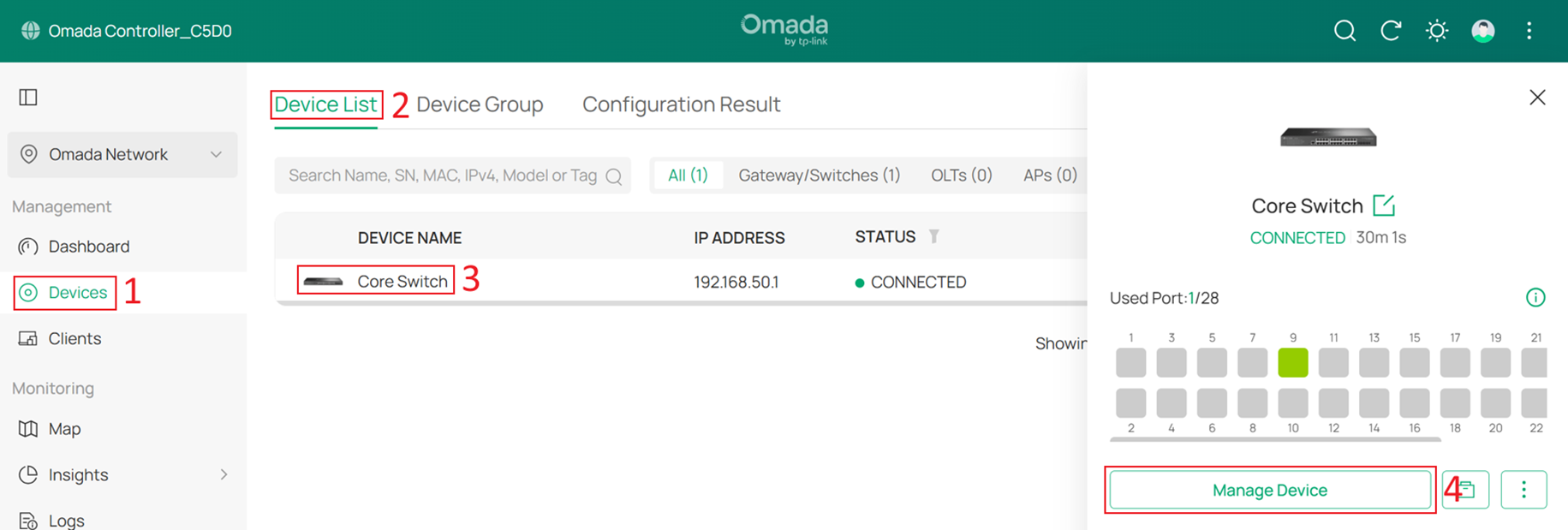
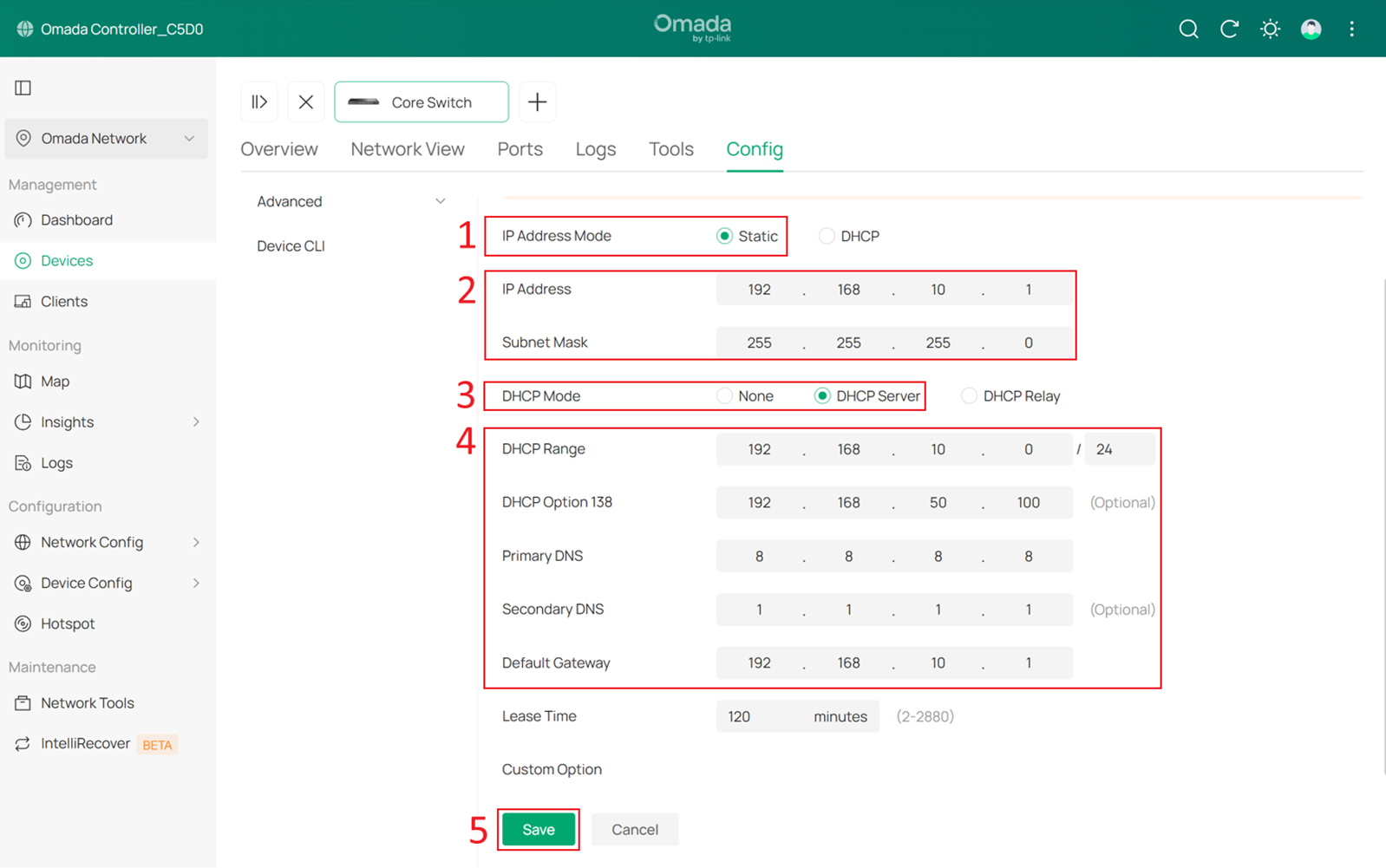
Go to Devices > Device List, click the Core Switch and Manage Device to enter its private configuration page, then go to Config > VLAN Interface and click Edit for Default.
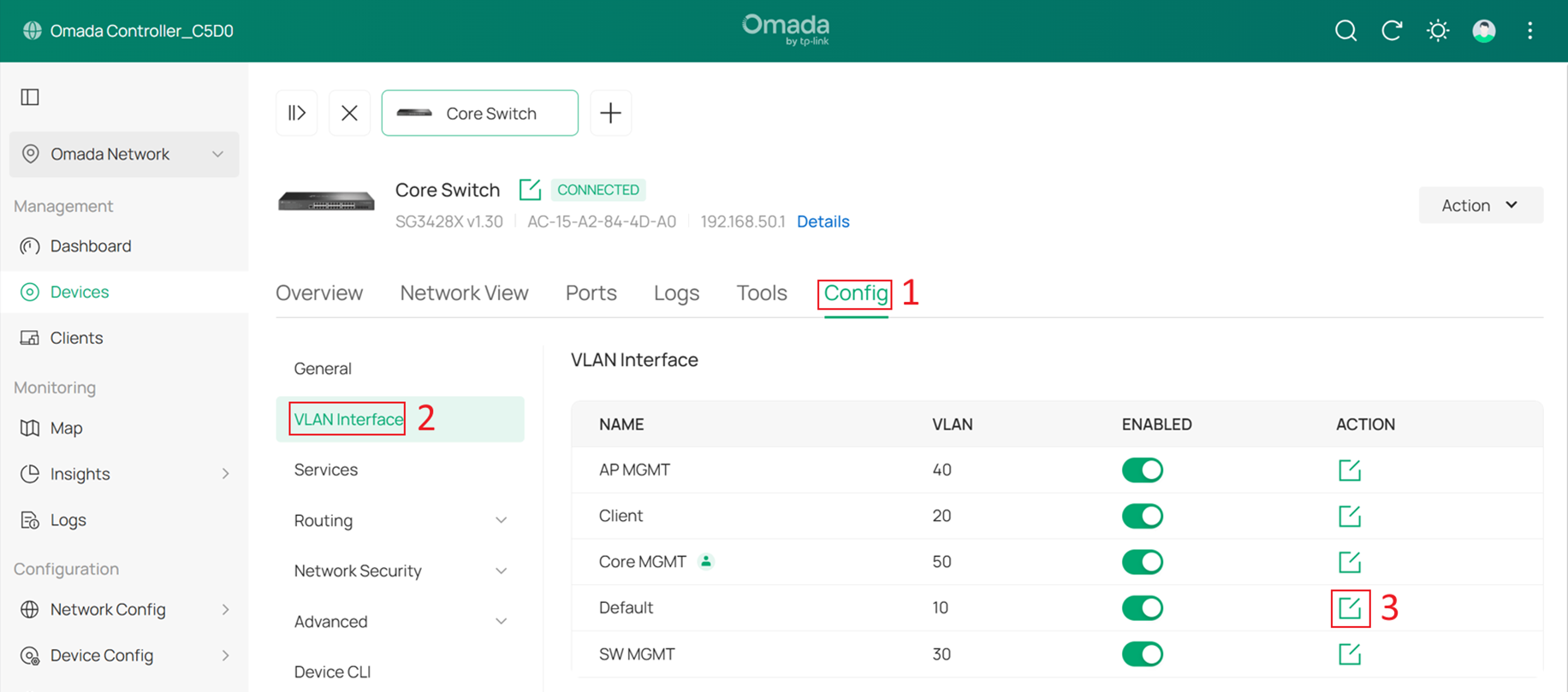
Set IP Address Mode to Static and DHCP Mode to DHCP Server. Configure the IP Address, DHCP Range, DHCP Option 138 and Default Gateway. In this example, these are set to 192.168.10.1, 192.168.10.0/24, 192.168.50.100 and 192.168.10.1. Configure the DNS servers as needed, then click Save to apply the settings.
Step 9. Connect and adopt all switches and APs.
After the switches and APs are connected, they should obtain IP addresses from the Default Network (subnet 192.168.10.0/24). 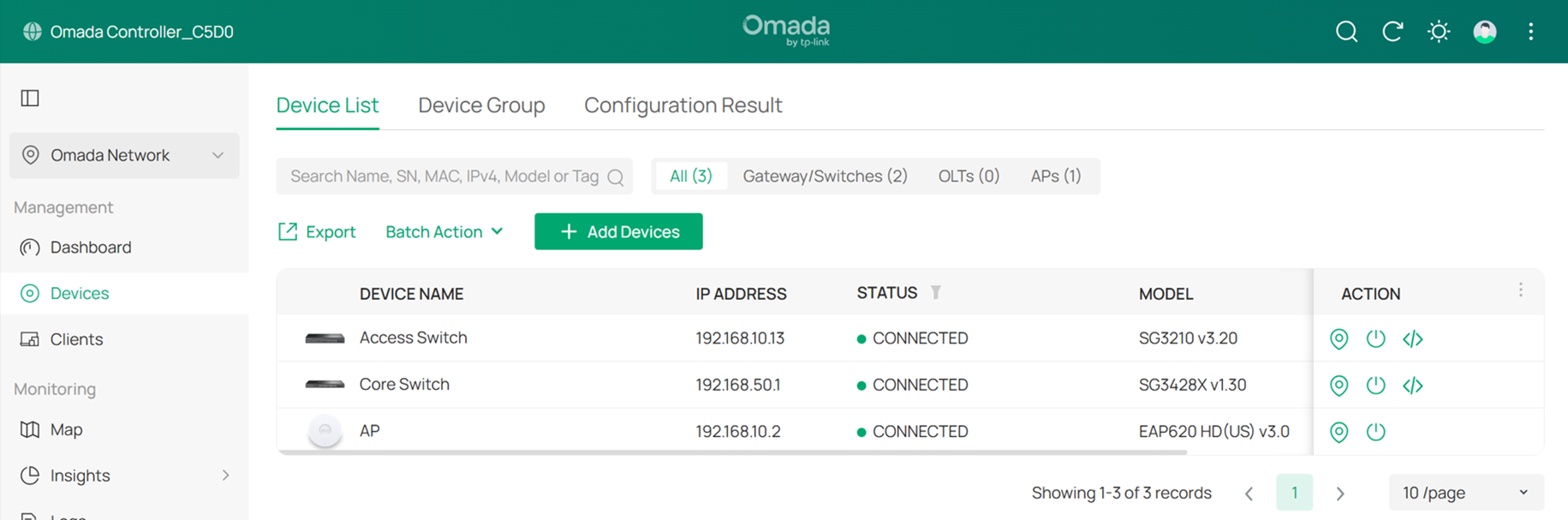
Step 10. Configure the Management VLAN for switches.
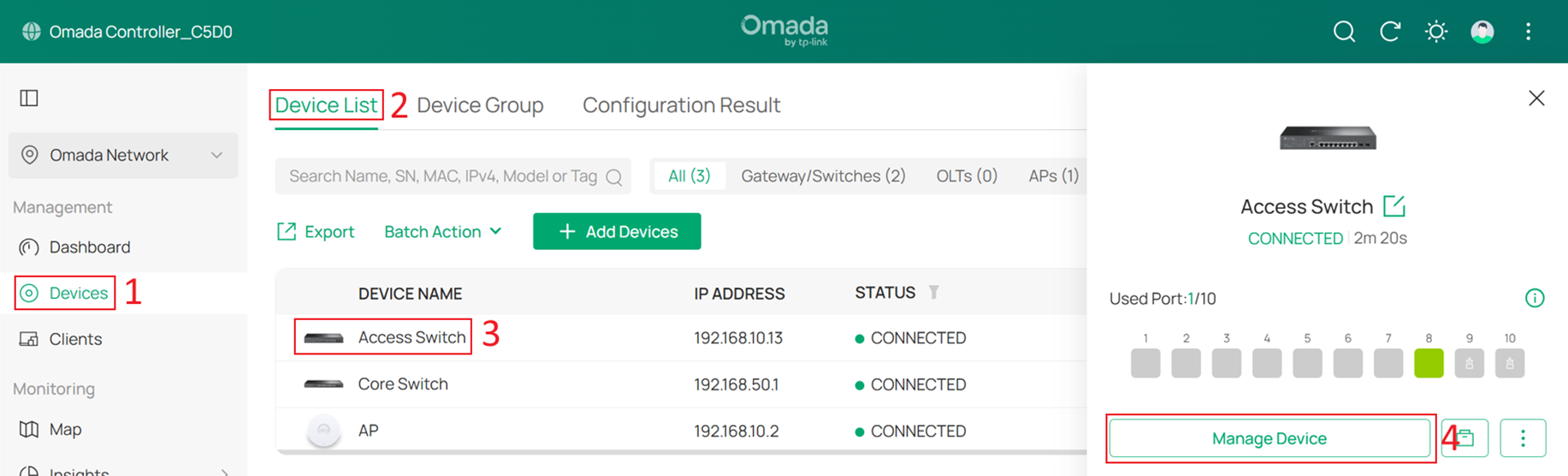
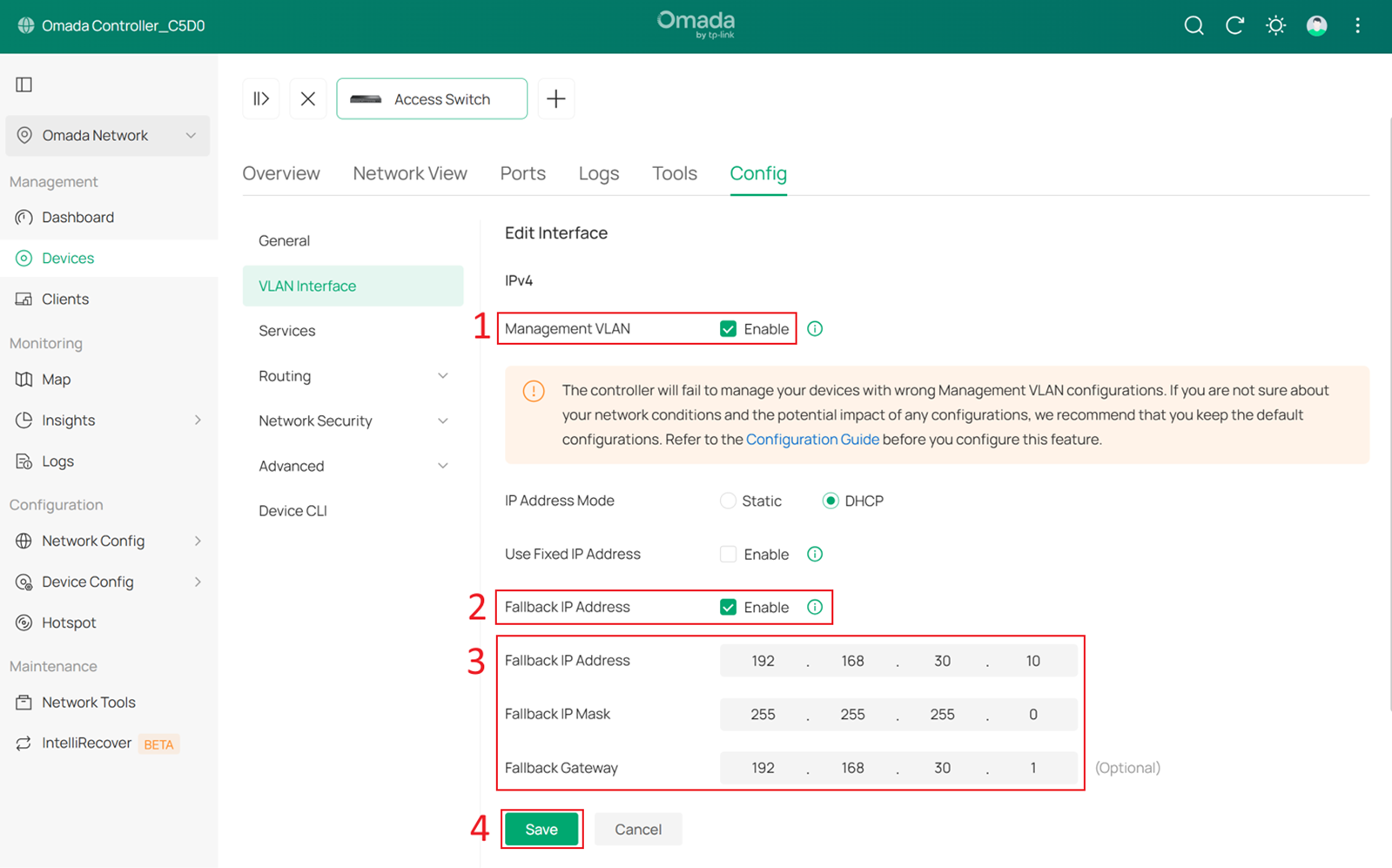
Go to Devices > Device List, click a switch and Manage Device to enter its private configuration page, then go to Config > VLAN Interface, Enable SW MGMT and click Edit.
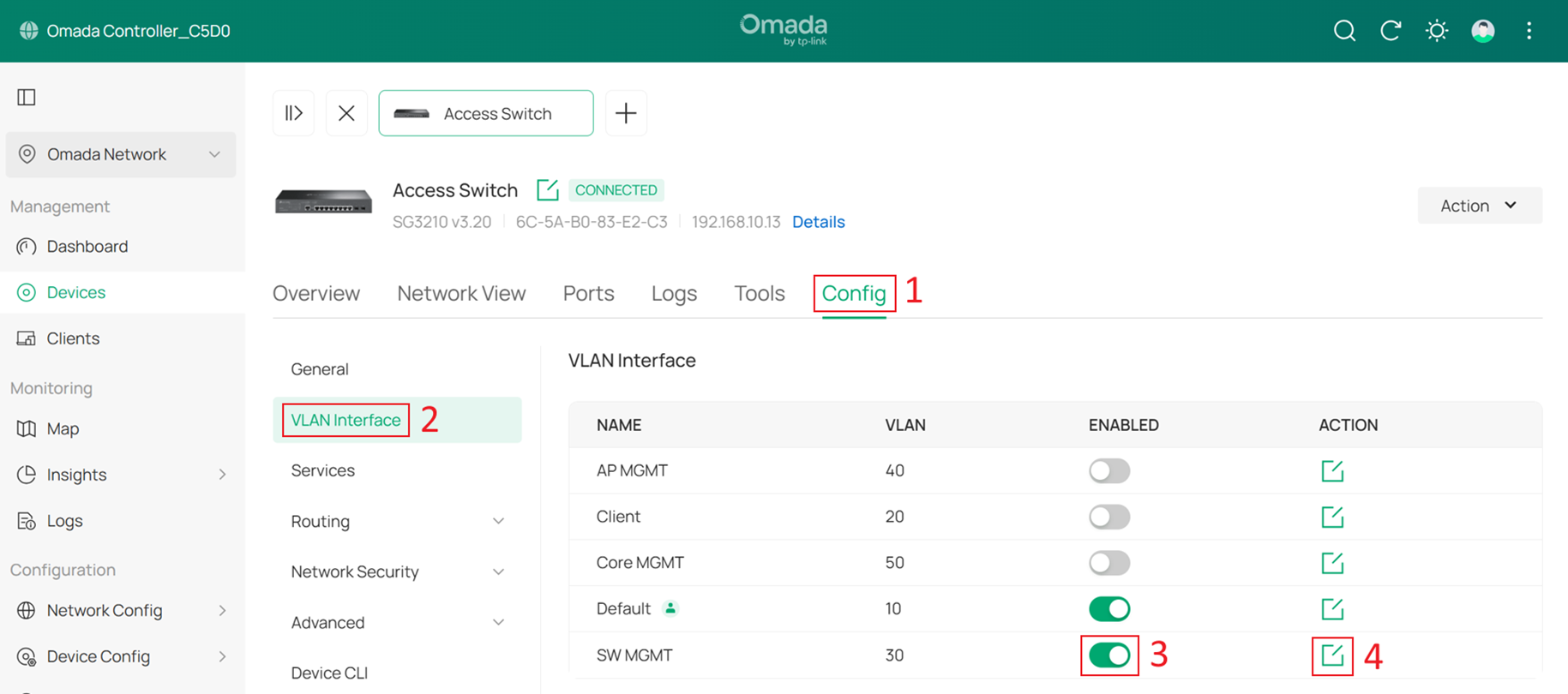
Tick the Enable box to set this VLAN interface as the Management VLAN. Optionally, configure the Fallback IP, and Fallback Gateway. These settings are used when the device fails to obtain an IP address via DHCP, ensuring continued management access.
In this example, they are set to 192.168.30.10 and 192.168.30.1. Click Save.
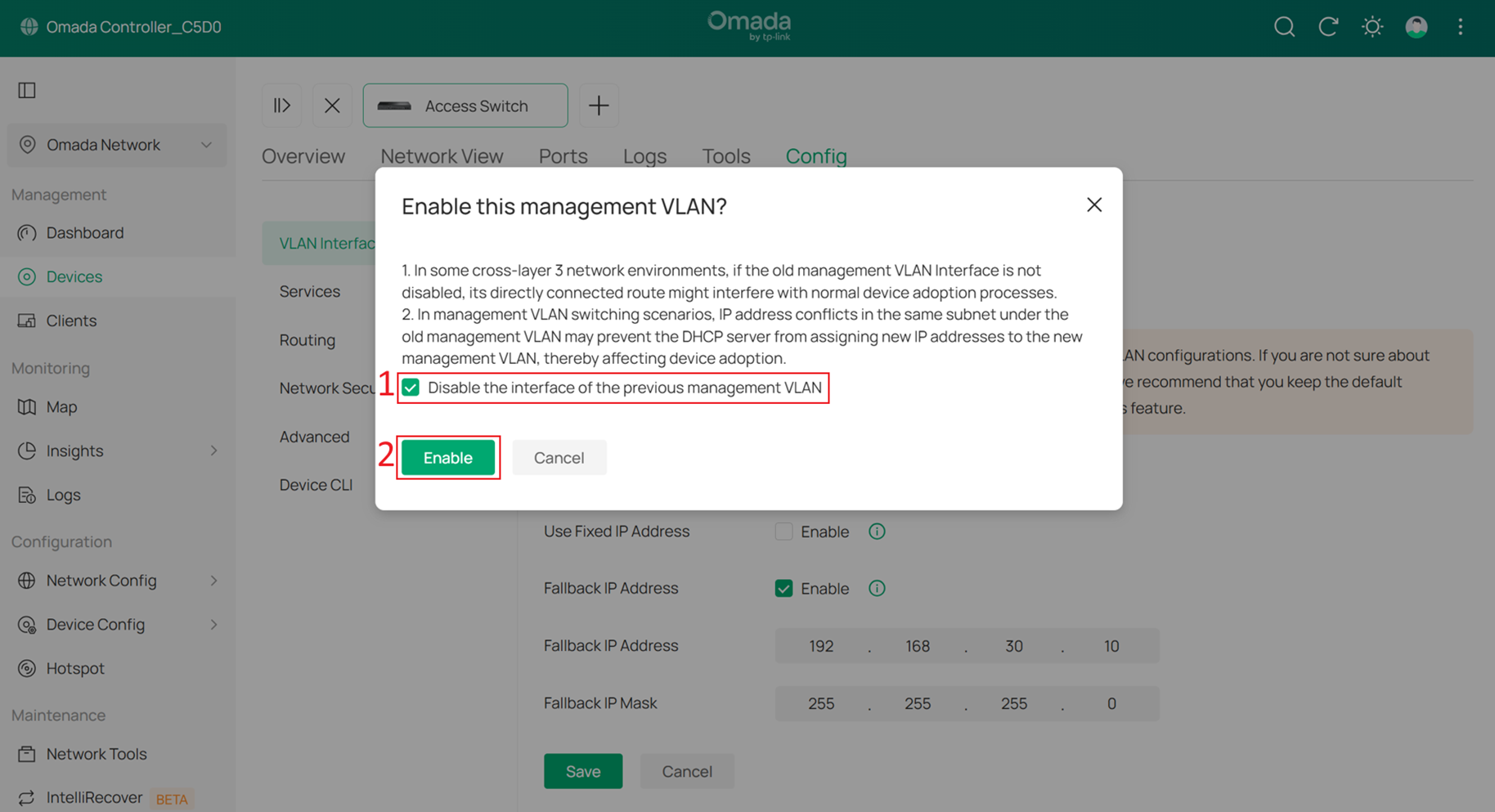
In the pop-up window, check Disable the interface of the previous management VLAN.
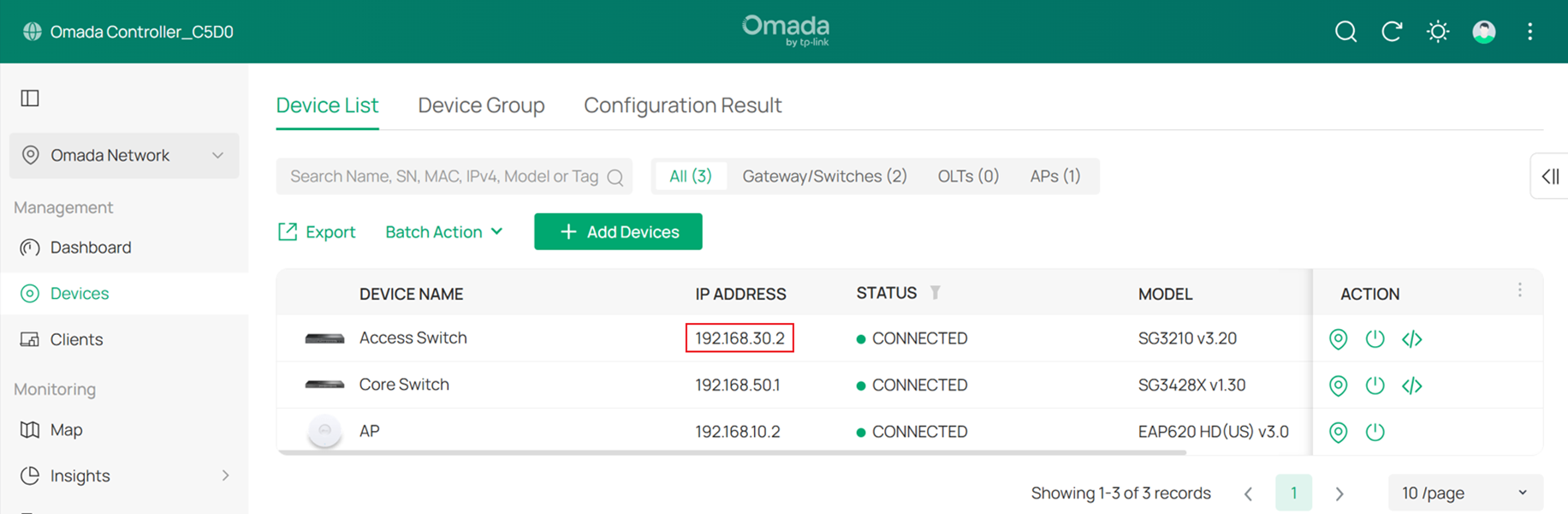
Wait a moment for the configuration to take effect. The switch may be reprovisioned during this process. Once the Management VLAN switch is complete, you will find that the switch’s IP address has changed to the subnet of SW MGMT.
Step 11. Configure the Management VLAN for APs.
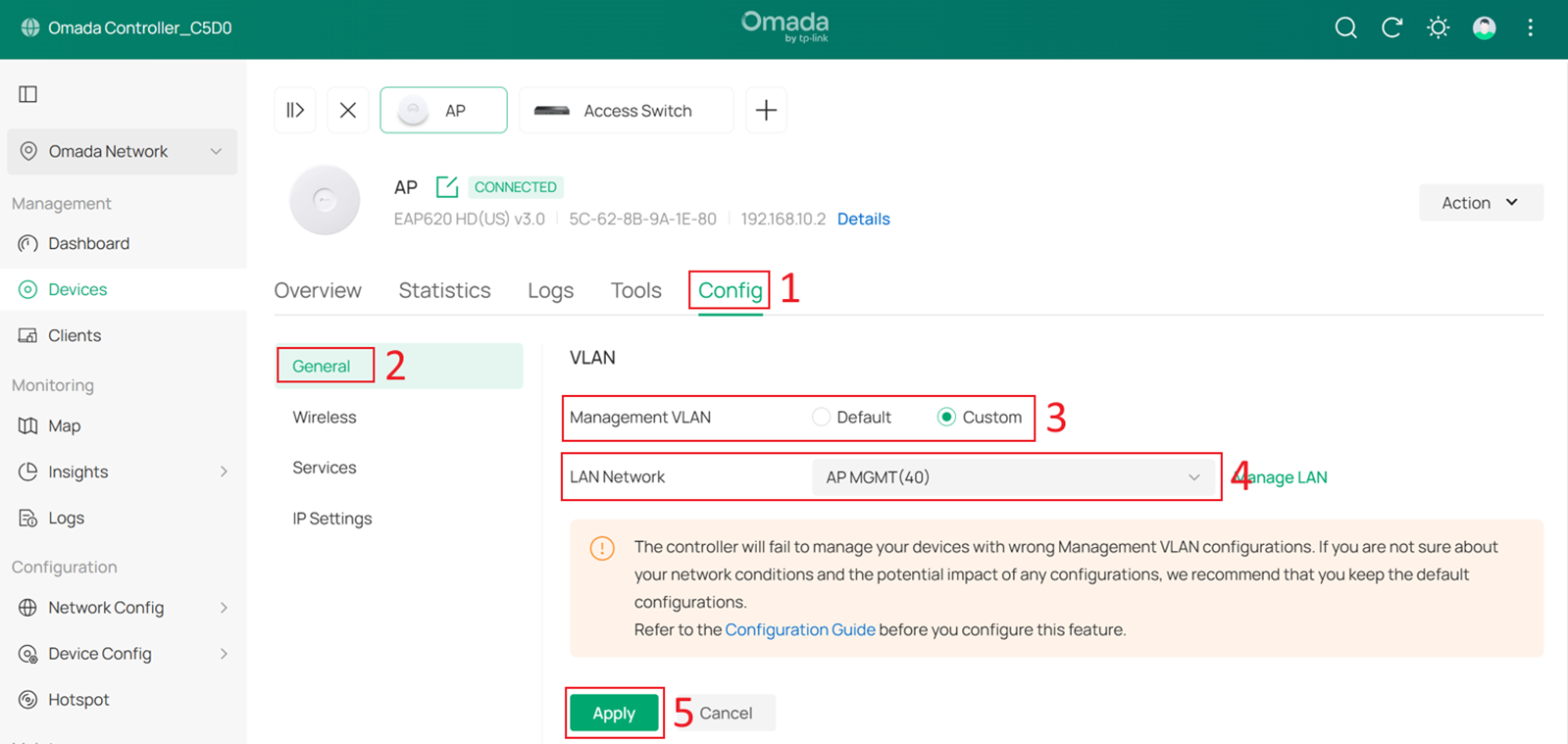
Go to Devices > Device List, click a AP and Manage Device to enter its private configuration page, then go to Config > General.
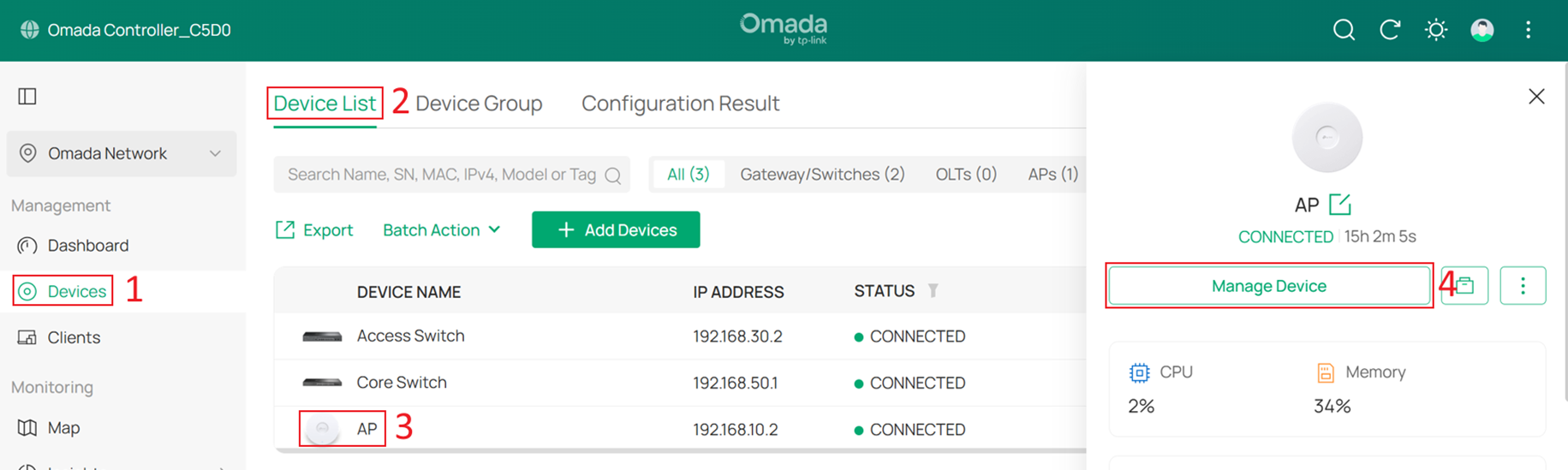
Change Management VLAN to Custom, and set LAN Network to AP MGMT.
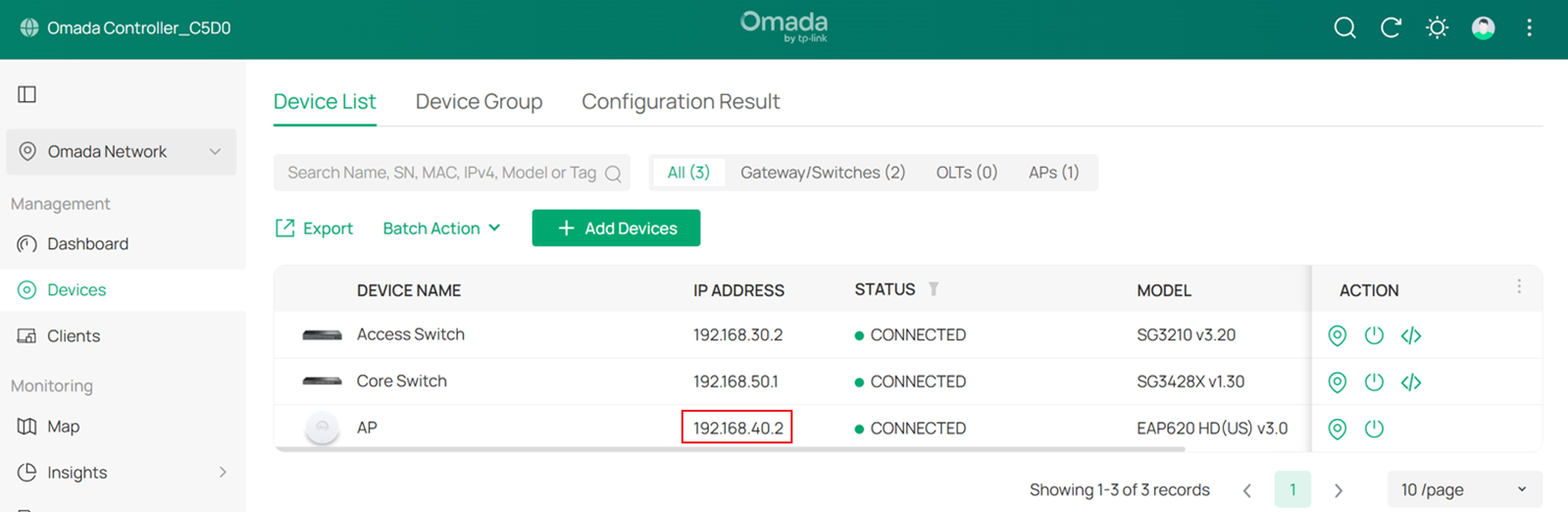
Wait a moment for the configuration to take effect. Once completed, you will find that the AP’s IP address has changed.
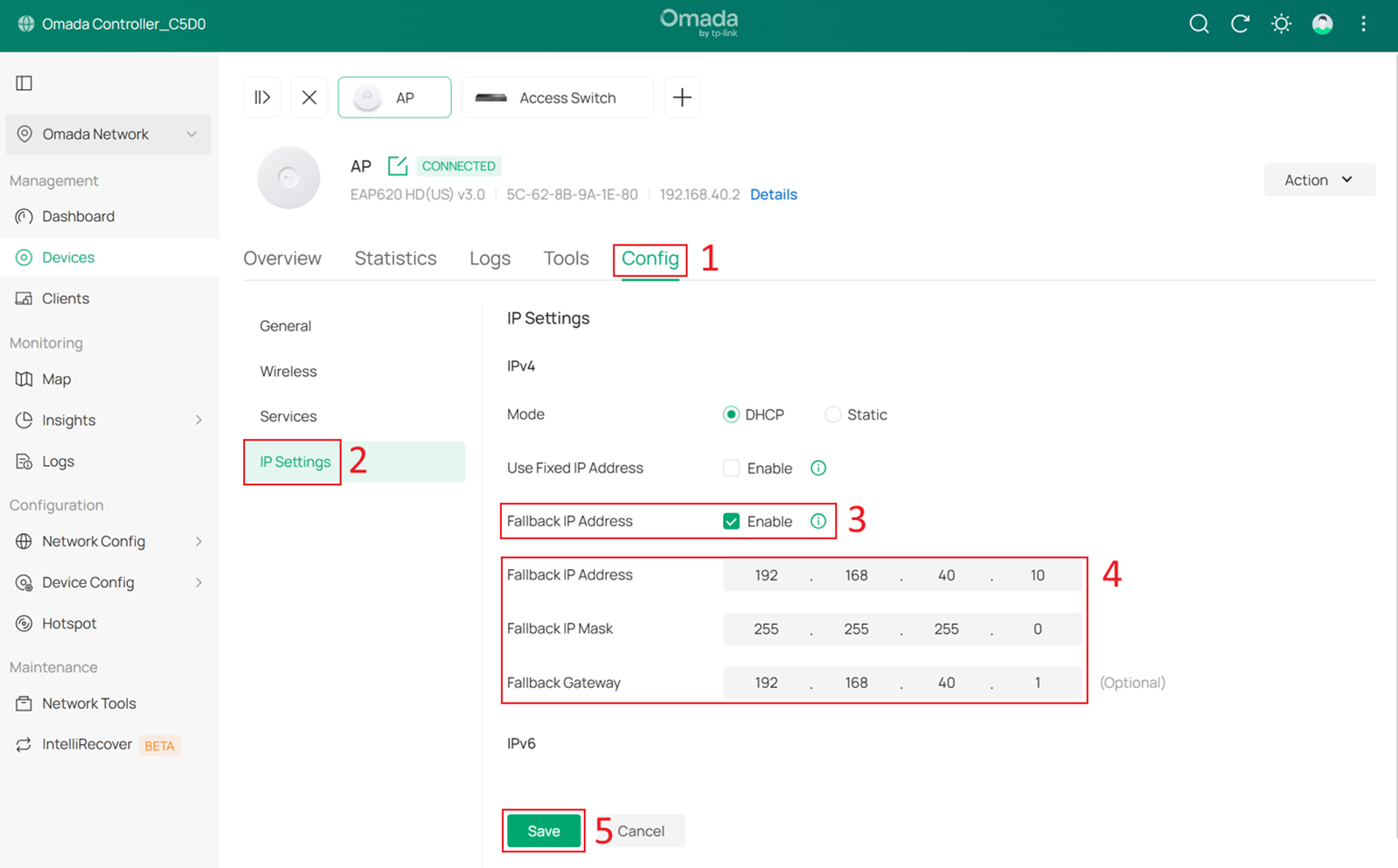
Optionally, you can configure the Fallback IP and Fallback Gateway by go to Config > IP Settings. In this example, they are set to 192.168.40.10, 255.255.255.0, and 192.168.40.1.
Step 12. Configure switch port VLAN configuration for the Client Network.
To ensure that all wired clients can obtain IP addresses from the Client Network, we need to change the port VLAN configuration of all downlink ports on the switches that are directly connected to end devices.
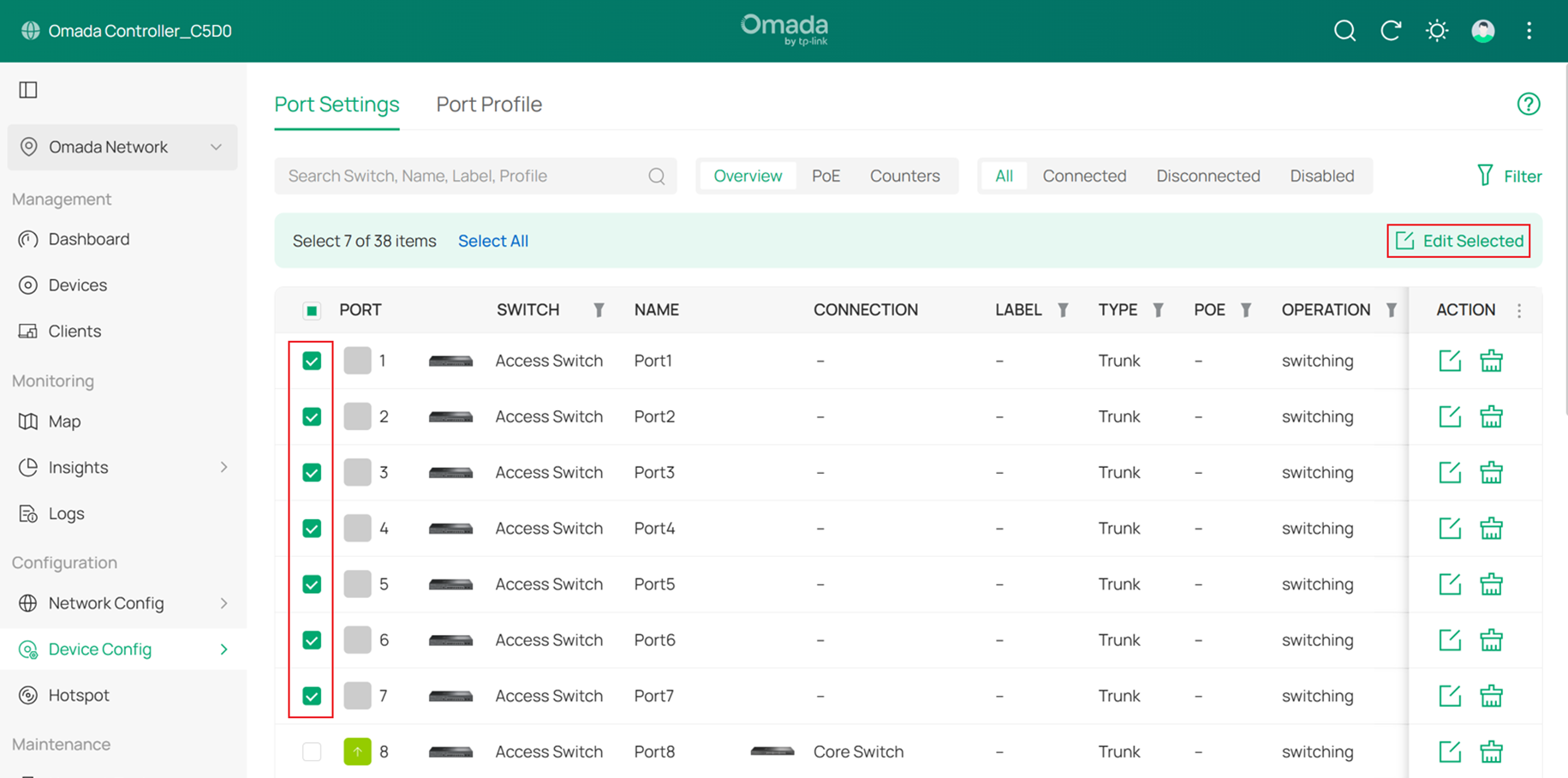
Go to Device Config > Switch > Switch Ports, select the downlink ports that are directly connected to client devices, and then click Edit Selected to batch modify their port profiles.
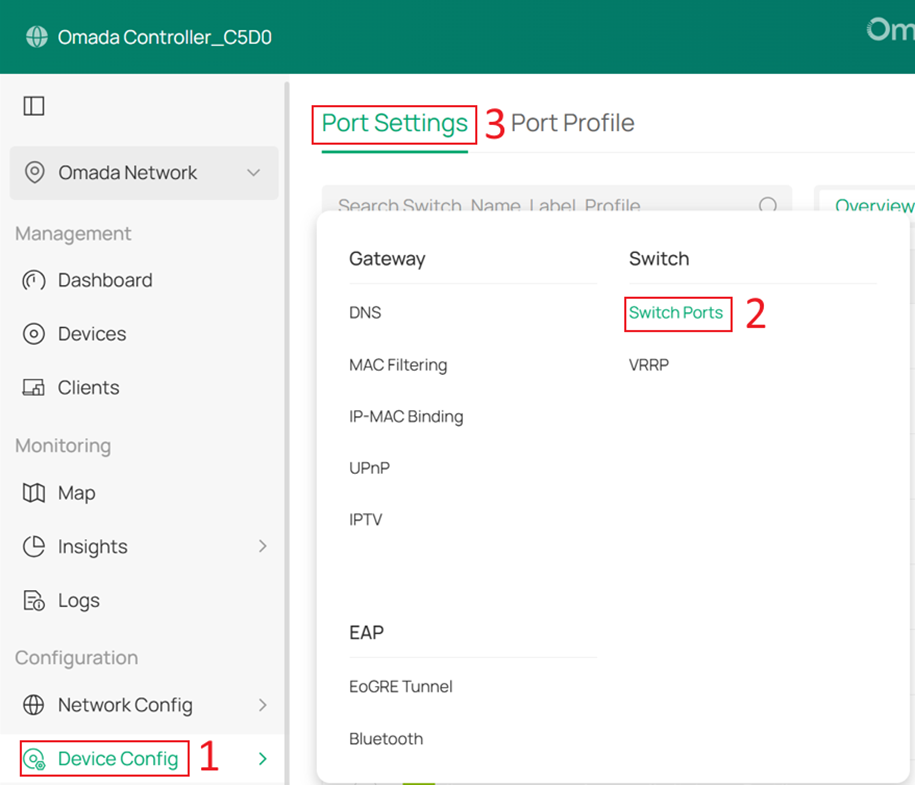
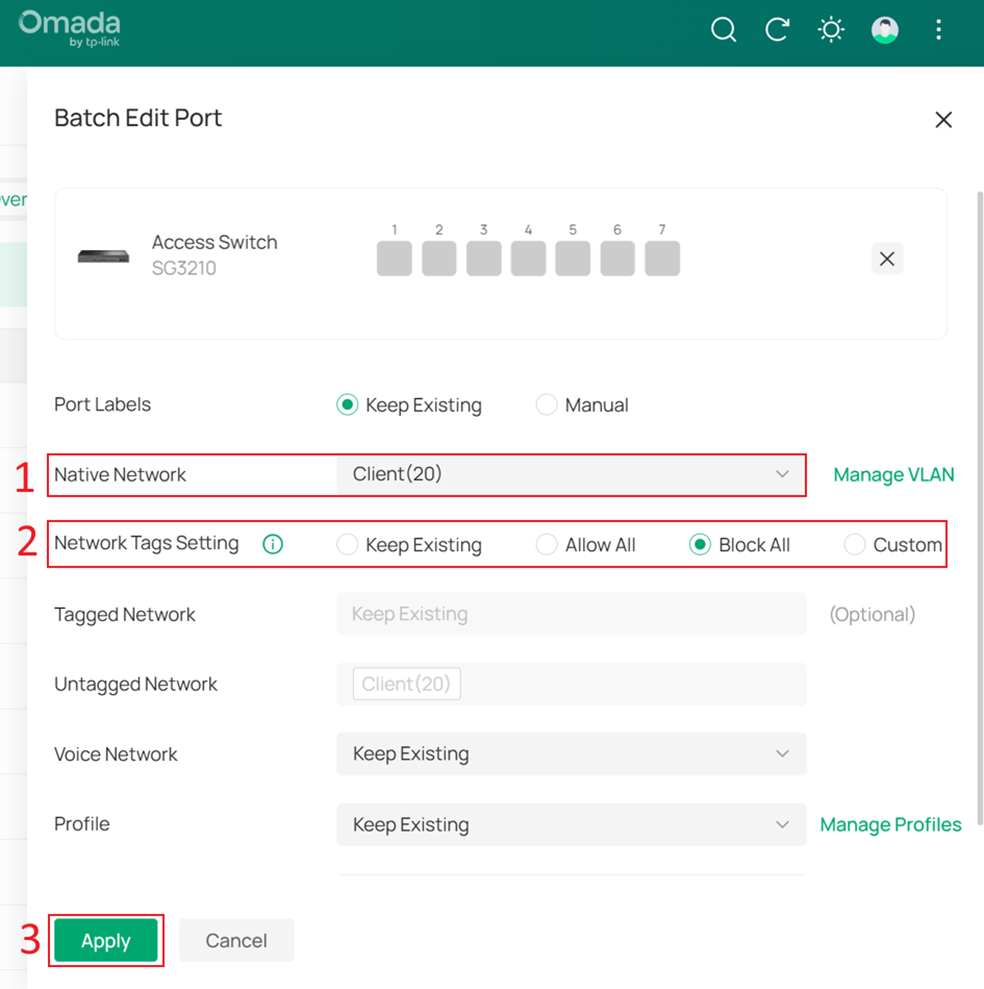
Change the Native Network of these ports to Client, set Network Tags Setting to Block All, and then click Apply to save the configuration.
Step 13. Configure the SSID for wireless clients.
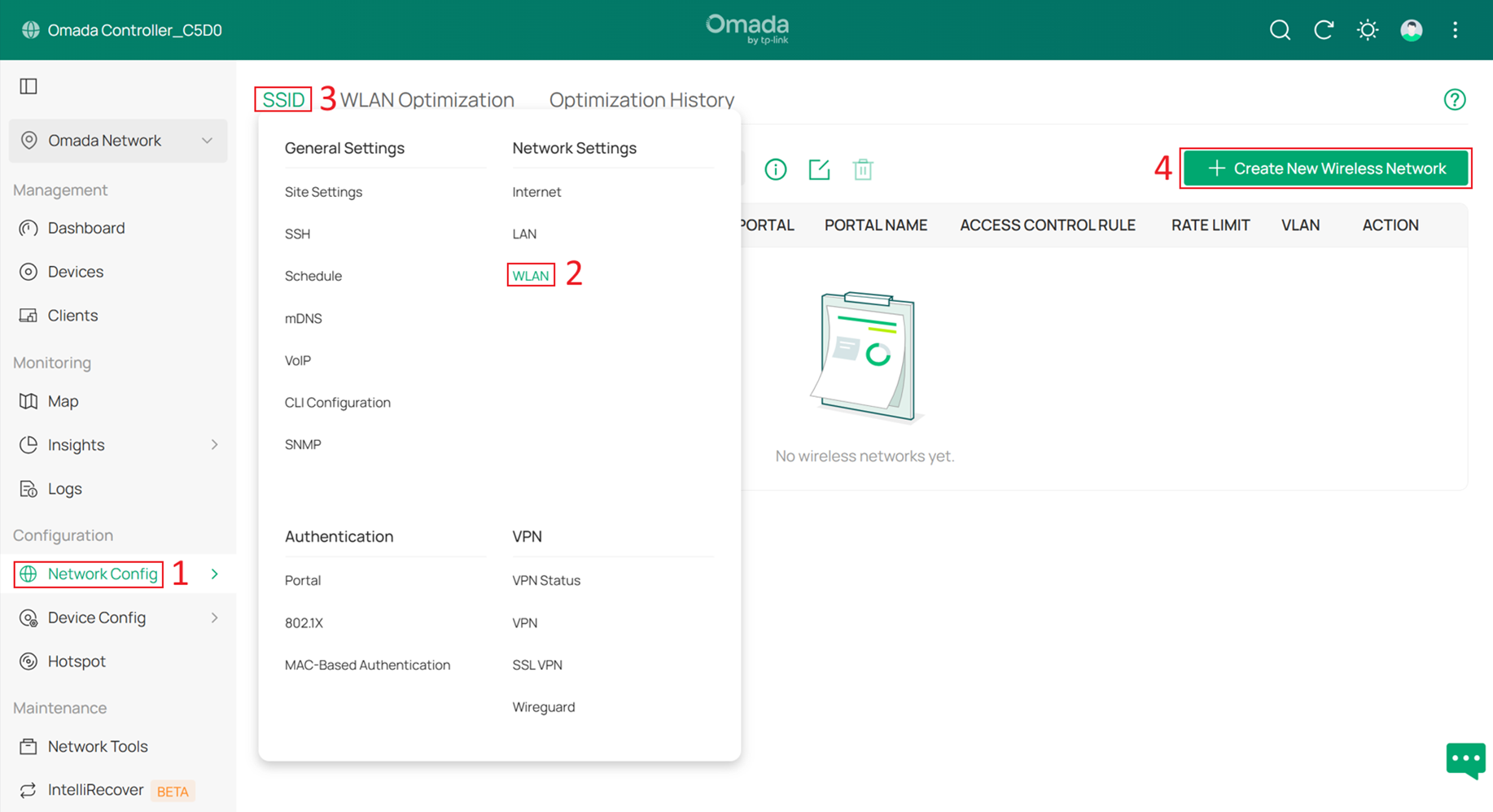
Go to Network Config > Network Settings > WLAN > SSID, and click +Create New Wireless Network.
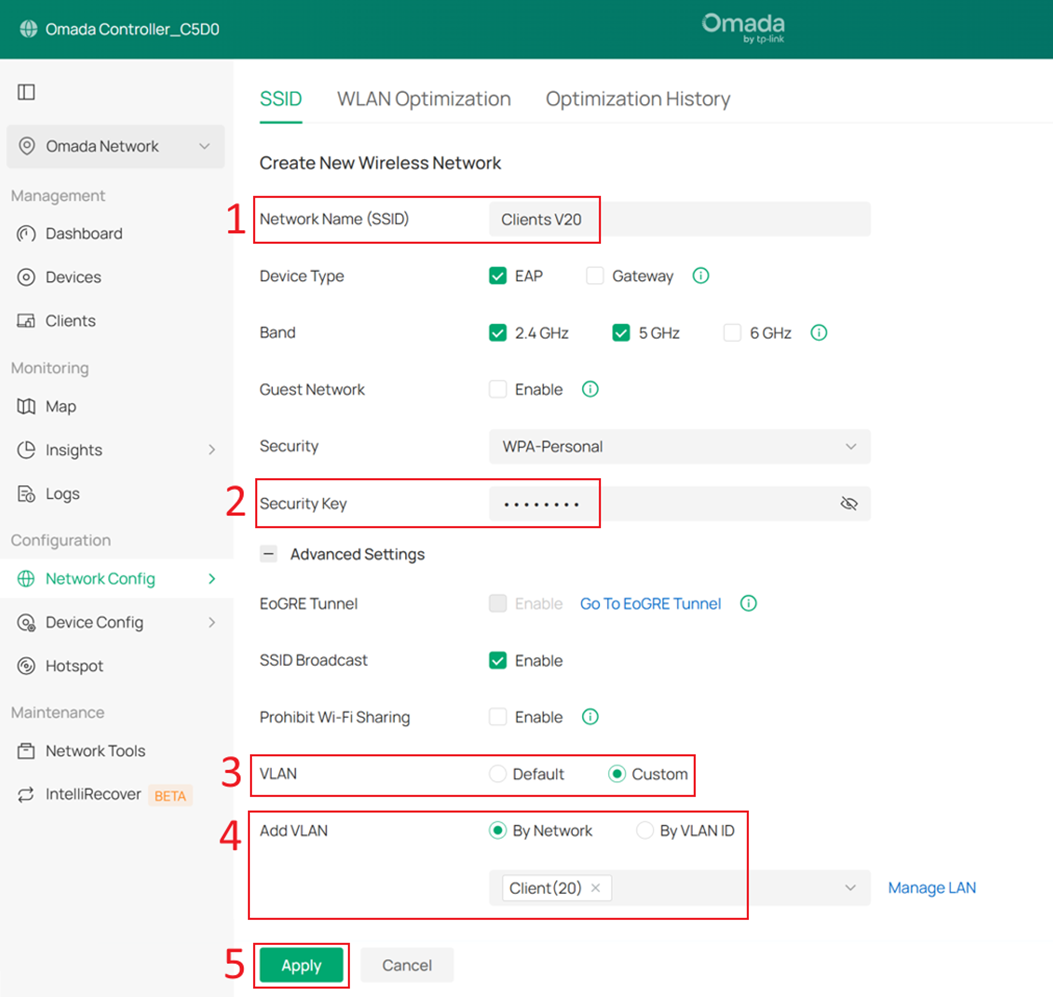
Set the SSID name and password, then expand Advanced Settings. Set VLAN to Custom, select By Network under Add VLAN, and choose the Client network that was created earlier.
Click Apply to save the configuration.
Step 14. Create IP Groups and ACL Rules to prevent clients from accessing the Controller and other Omada Devices.
Currently, some networks use the Core Switch as the DHCP server, so they cannot be selected as Network in Switch ACL rules. Therefore, we must first create IP Groups and then create ACL rules based on these IP Groups.
Go to Network Config > Profile > Groups, and click +Create New Group.
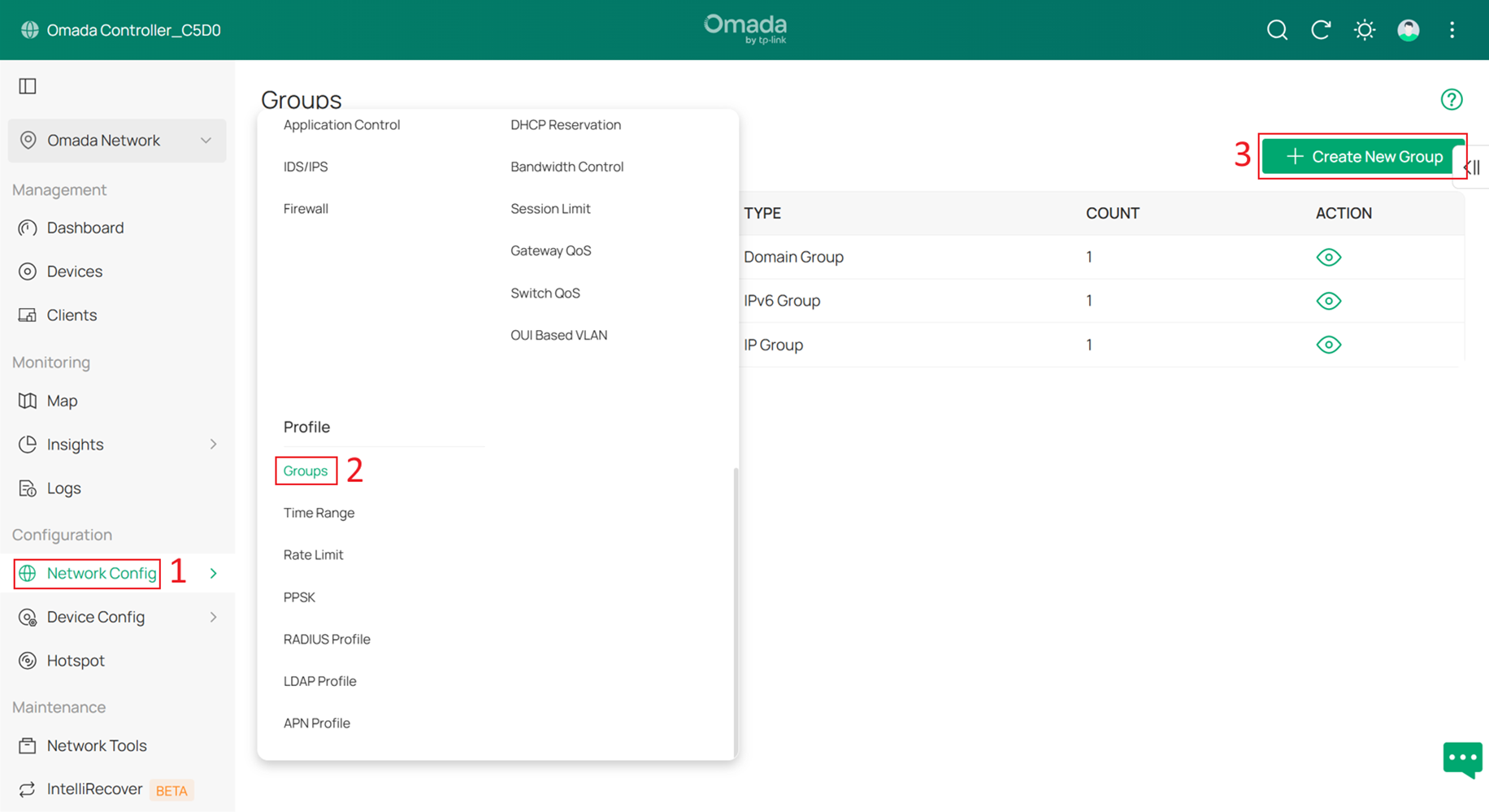
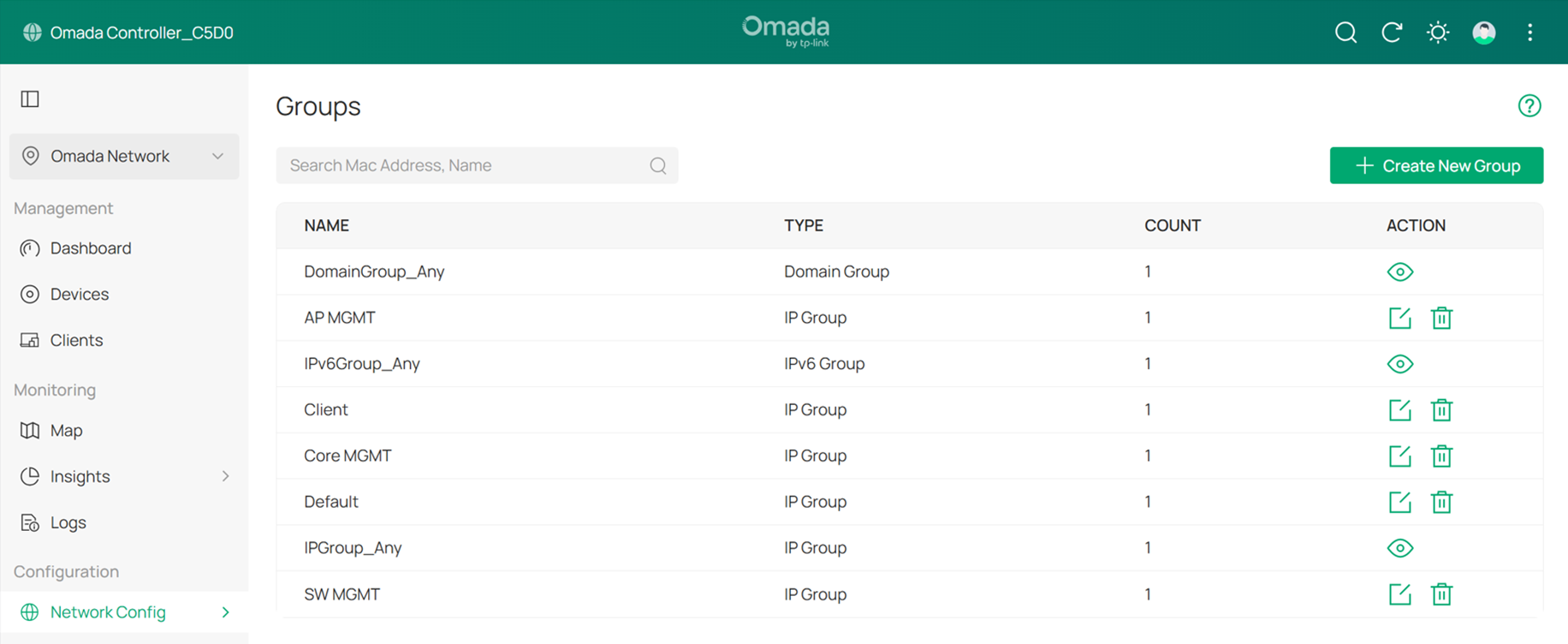
Create one IP Group for each subnet. In this example, there are five subnets: Default, Client, SW MGMT, AP MGMT, and Core MGMT.
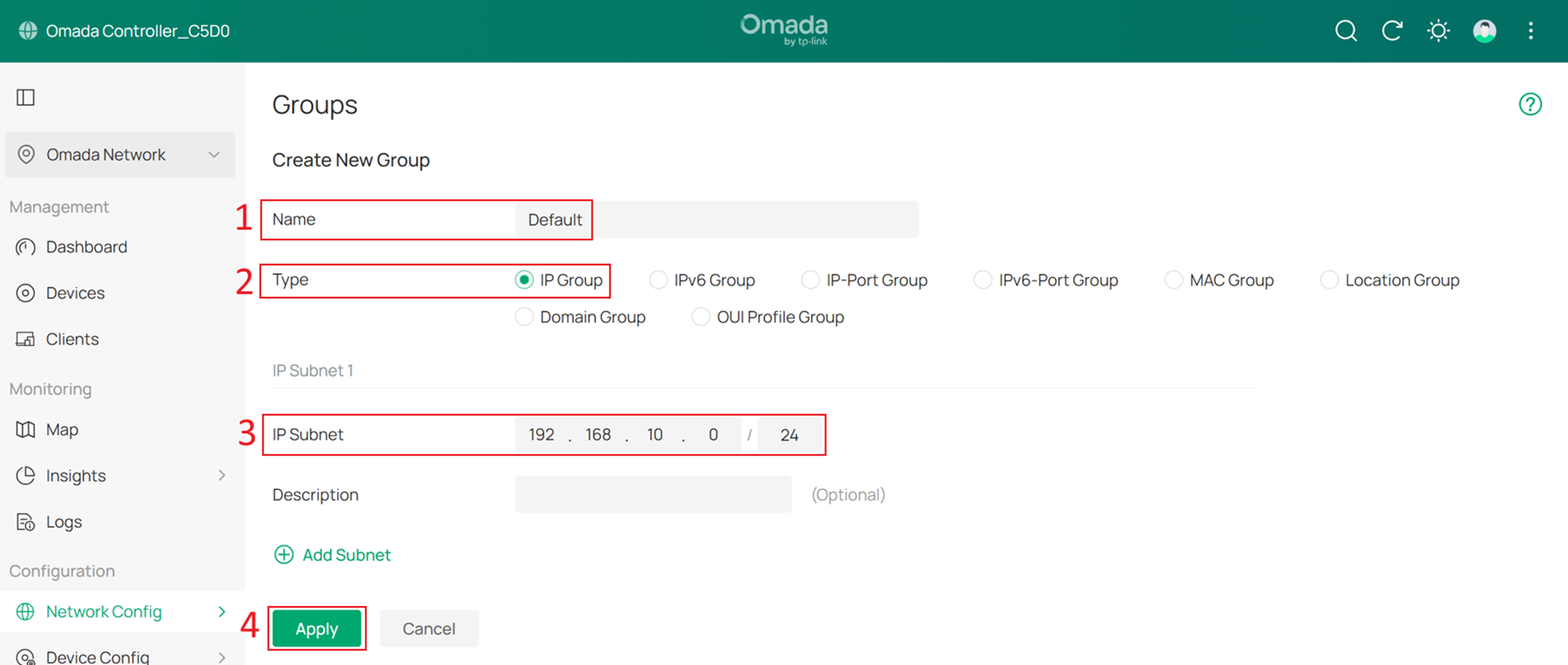
Enter a group name, set the Type to IP Group, and enter the network address of each subnet in IP Subnet. For example, the IP subnet of the Default group is 192.168.10.0/24. Click Apply to save the configuration.
The final result should appear as shown below:
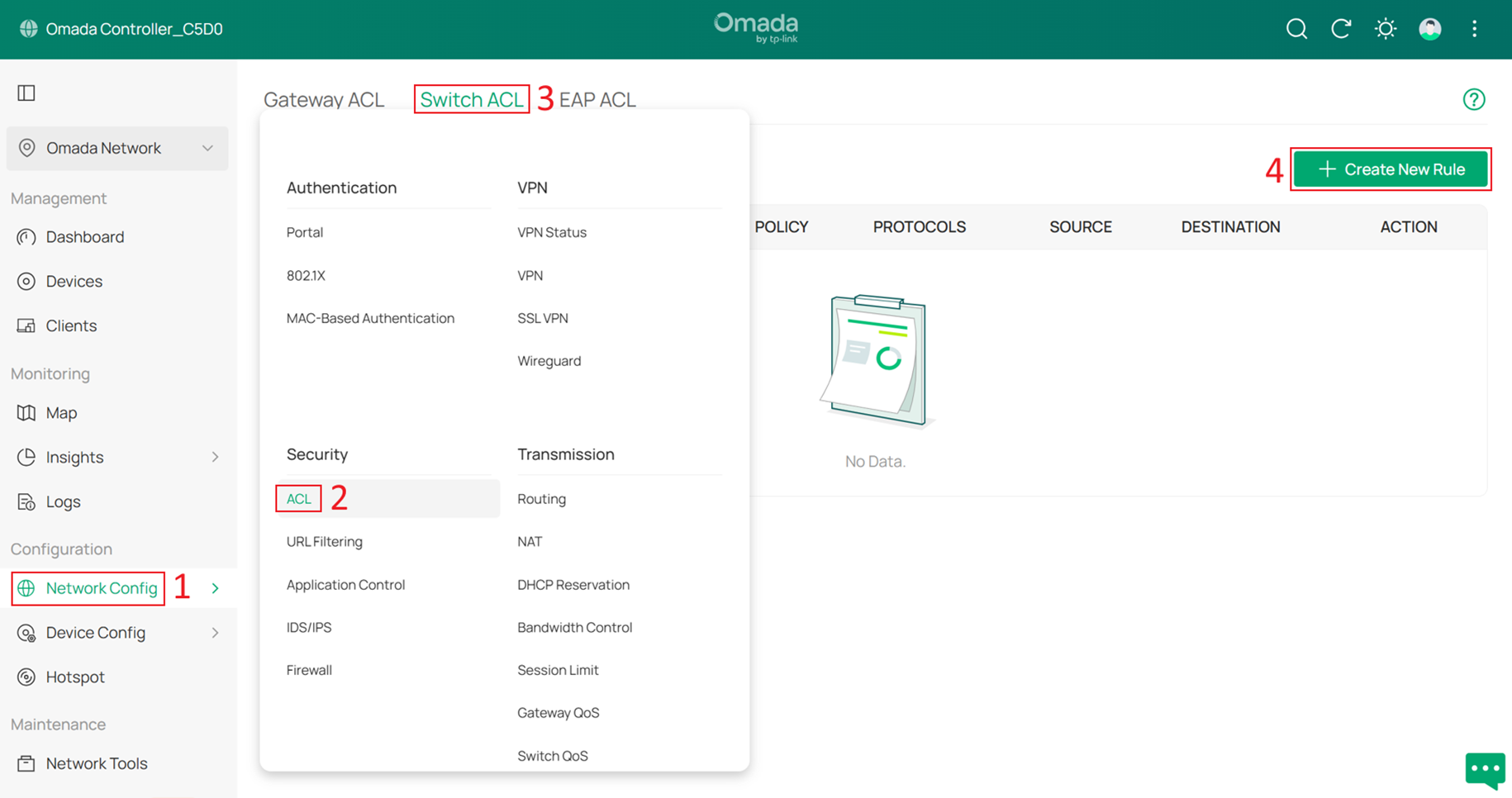
Next, go to Network Config > Security > ACL > Switch ACL, and click +Create New Rule to create a new ACL rule.
Enter a rule name as the Description, select Deny for Policy, and choose All for Protocol. For both Source and Destination, set the type to IP Group. Select the Client group as the Source, and select all other management groups as the Destination. Click Create to apply the rule.
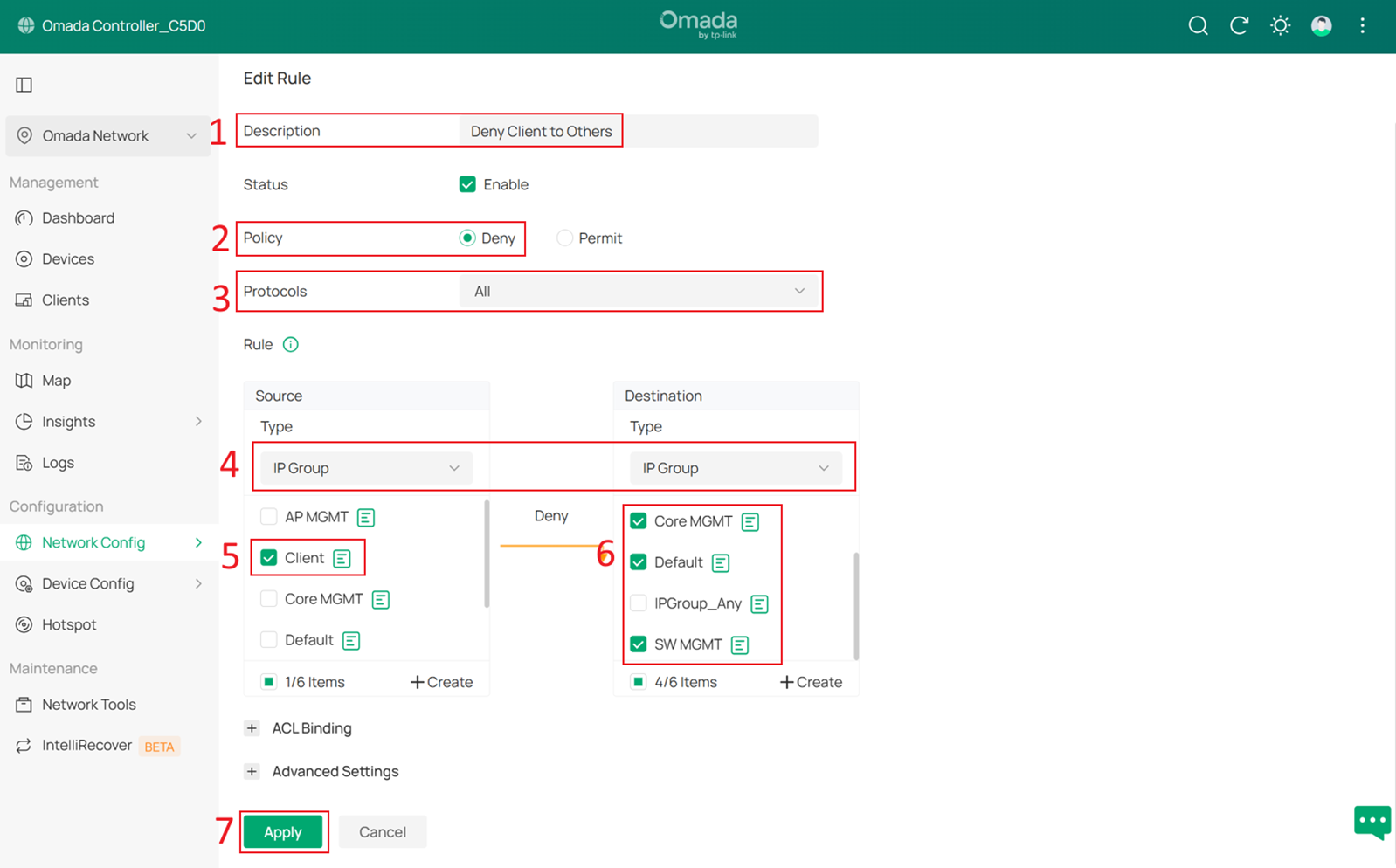
With this ACL rule in place, when client devices connect and obtain IP addresses from the 192.168.20.0/24 subnet, they will be unable to access the Omada Controller or other Omada devices, thereby enhancing overall network security.
Step 15. Adopt the Gateway to Omada Controller (In case you have Omada Gateway).
If you have Omada gateway, then you can also adopt it on the Omada controller for better management. But here we have already switched the default VLAN ID to 10, while the gateway will have DHCP server enabled by default and set itself as 192.168.0.1, this will cause the gateway failed to be adopted, so we need to make some pre-configuration on the gateway before adopting on the Omada controller.
Access 192.168.0.1 to log in to the gateway’s Web UI. After initialization and setting the username and password, go to Network > LAN > LAN, and click Edit on the default network.
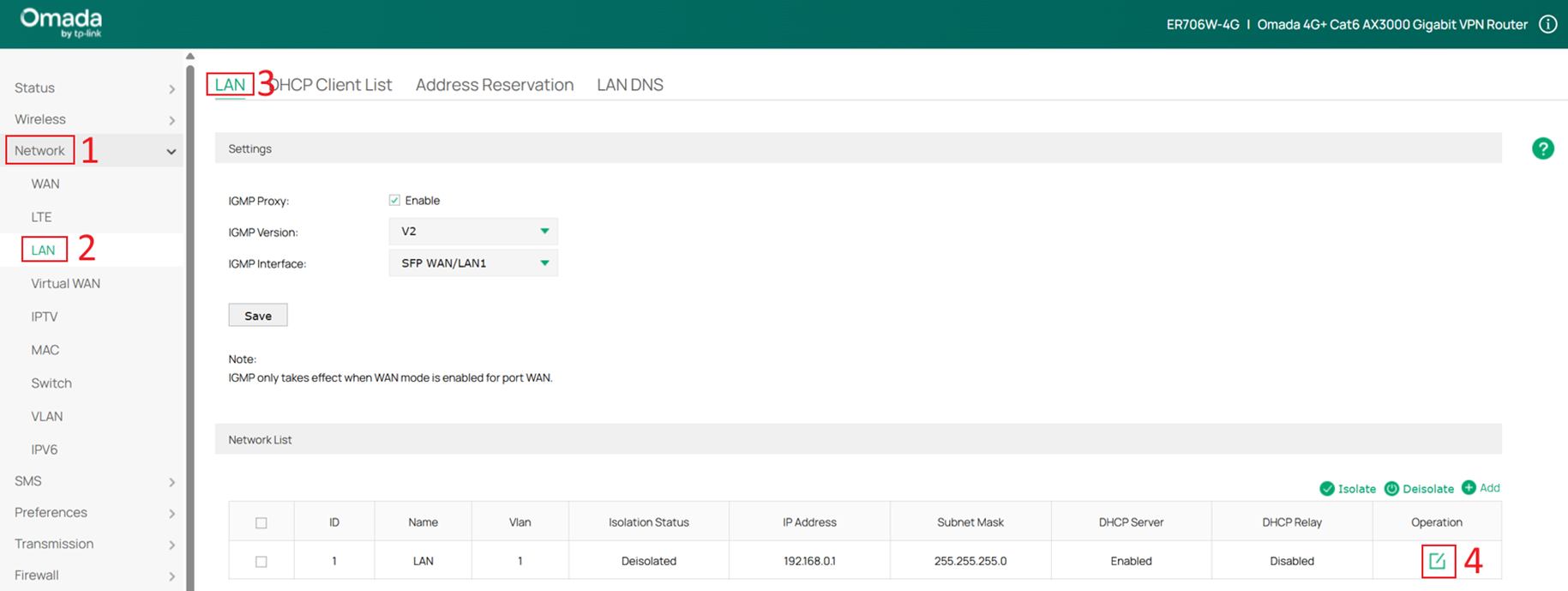
Change this network to VLAN 10 and modify the IP address to 192.168.10.x/24. For example, in this case it is changed to 192.168.10.2. Since the DHCP server is already enabled on the Core Switch, disable the DHCP server on the gateway by unchecking Enable under Status in the DHCP section. Click OK to save the configuration.
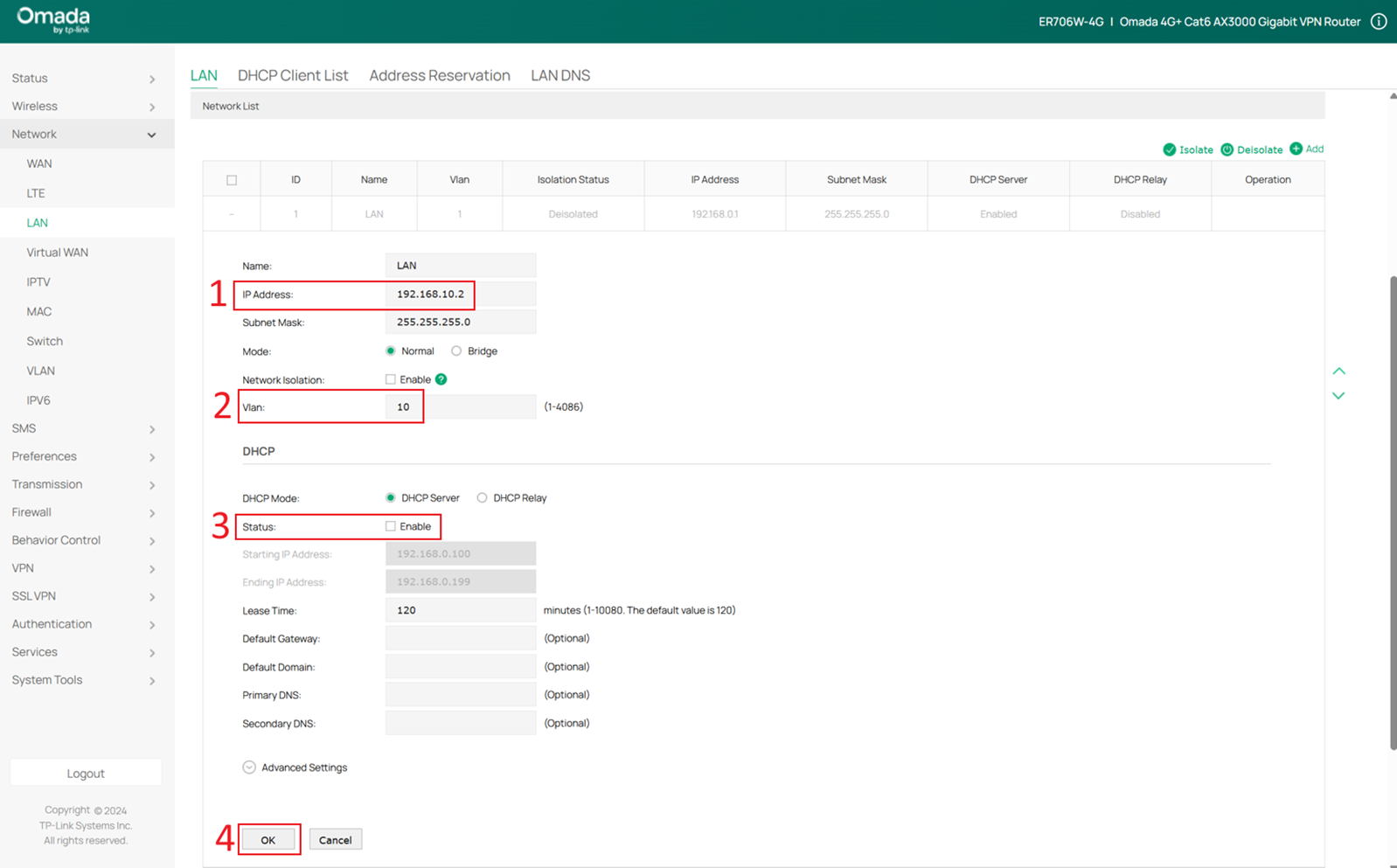
After changing the gateway’s IP address, you also need to change your PC’s IP address to the 192.168.10.x/24 subnet (for example, 192.168.10.100) in order to access the gateway’s Web UI again.
Go to System Tools > Controller Settings, enter the Controller’s IP address (192.168.50.100) in Inform URL/IP Address, and click Save.
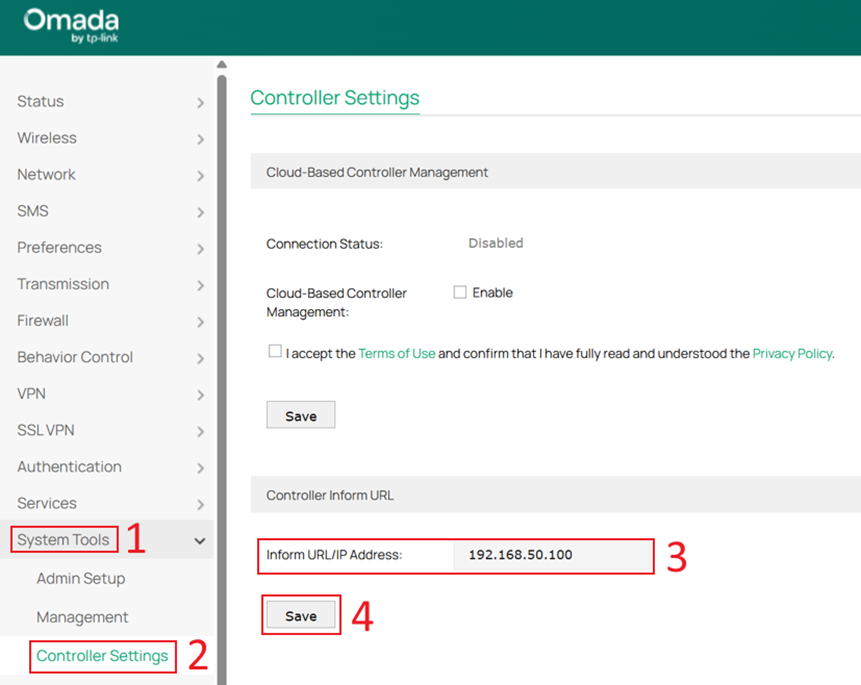
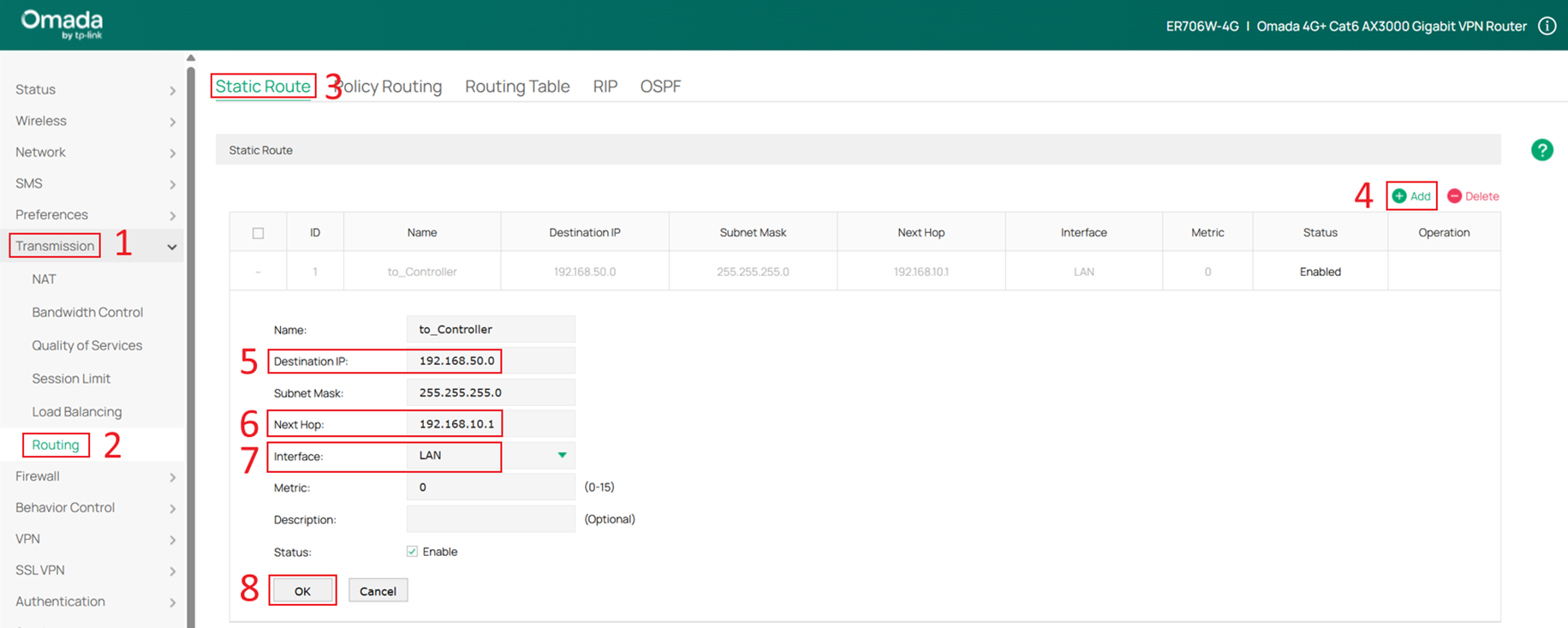
After configuring the Controller IP address, a static route is required so the gateway can reach the Controller. Go to Transmission > Routing > Static Route, then click Add to create a new static route.
Set Destination IP to the Controller’s IP address (192.168.50.100), and configure Next Hop as the Core Switch Default Network interface IP address (192.168.10.1). Select LAN for the interface, then click OK to create the route.
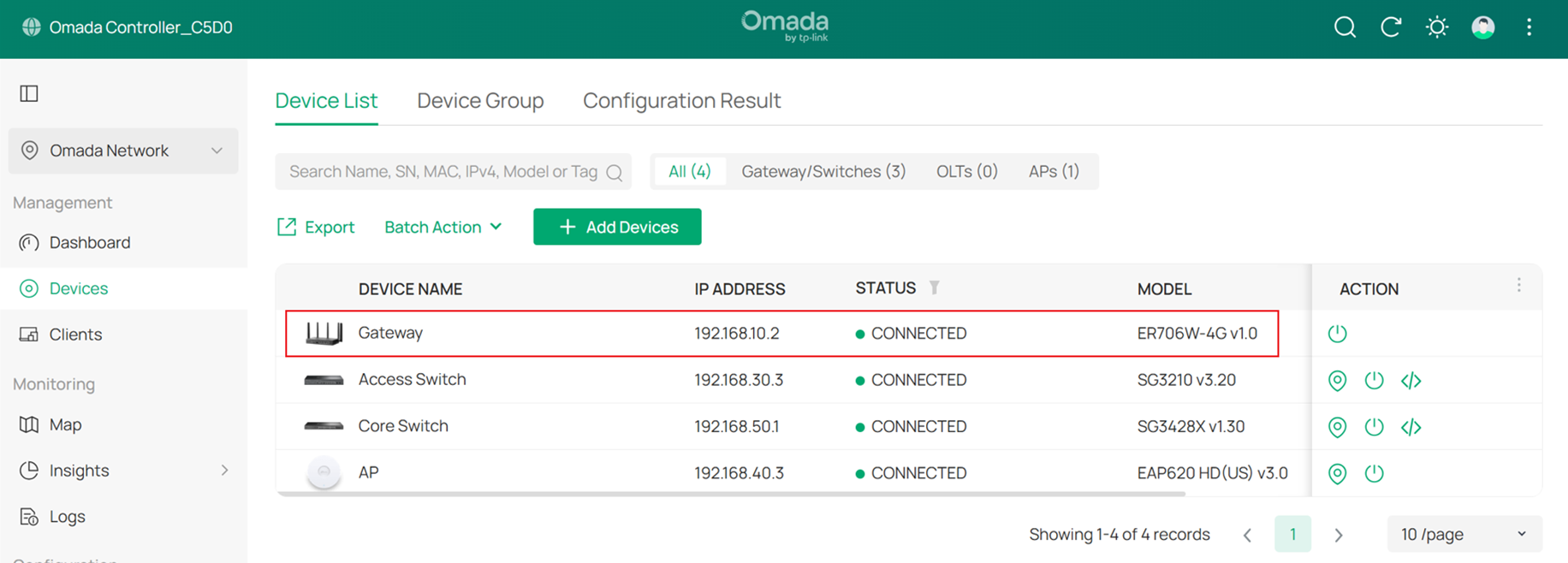
After completing the pre-configuration, connect the gateway to a Core Switch port whose Native Network is set to Default. You will see the gateway with IP address 192.168.10.2 in the device list. Use the username and password you configured to adopt it as a gateway.
Step 16. Configure static route on the Core Switch.
Regardless of whether you are using an Omada Gateway, you must configure static routes on the Core Switch and forward all Internet traffic to the gateway. This is because all Layer 3 forwarding is handled by the Core Switch, and the default gateway for each network is set to the Core Switch.
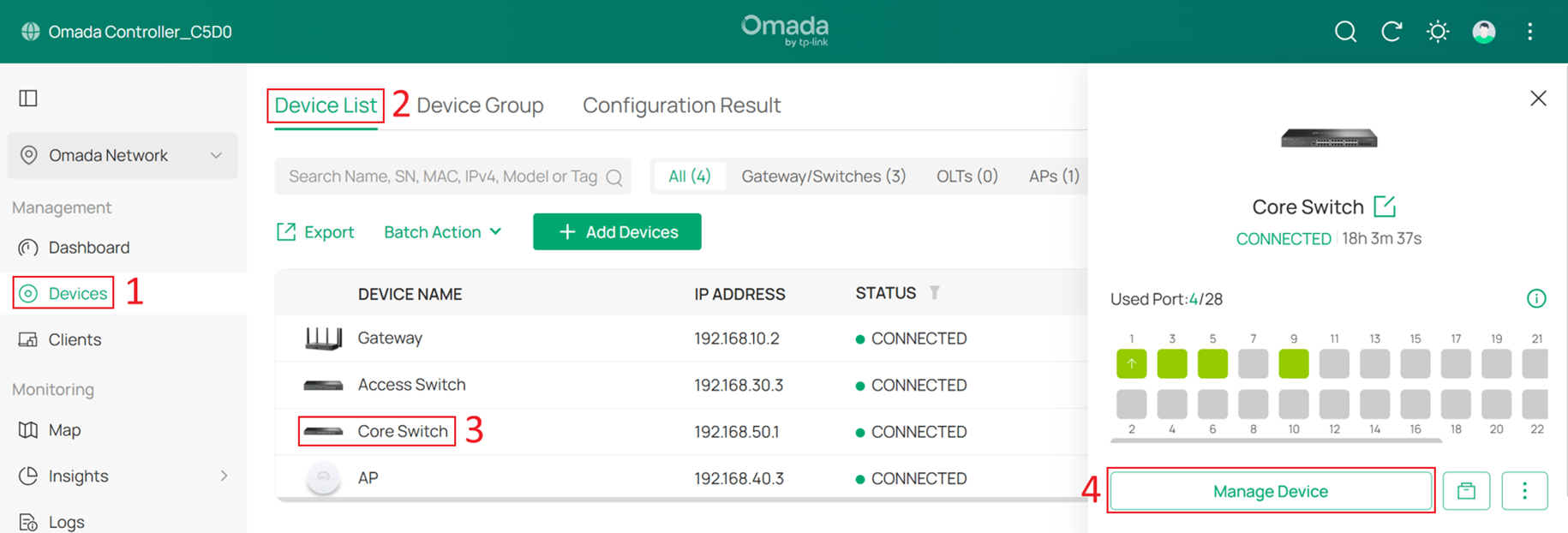
Go to Devices > Device List, click Core Switch and Manage Device to enter its private configuration page, then navigate to Config > Routing > Static Route. Click +Add to add a new static route.
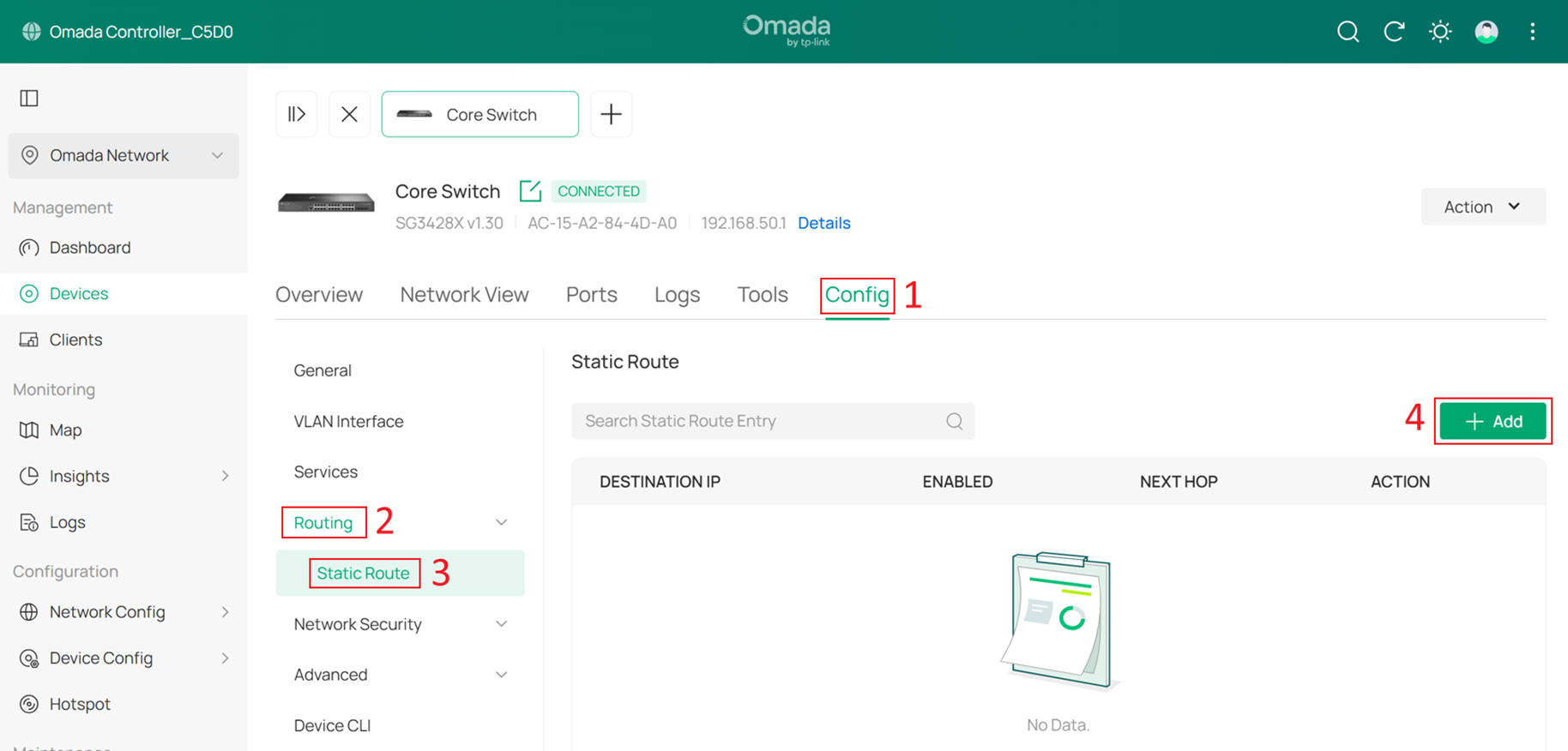
Enable the route by setting Status to Enable. Since this route is used for all Internet traffic, set Destination IP/Subnet to 0.0.0.0/0, and set Next Hop to the gateway IP address 192.168.10.2. For other traffic, the system will always prefer more specific routes, so simply set the Distance to 1, then click Apply to save the configuration.
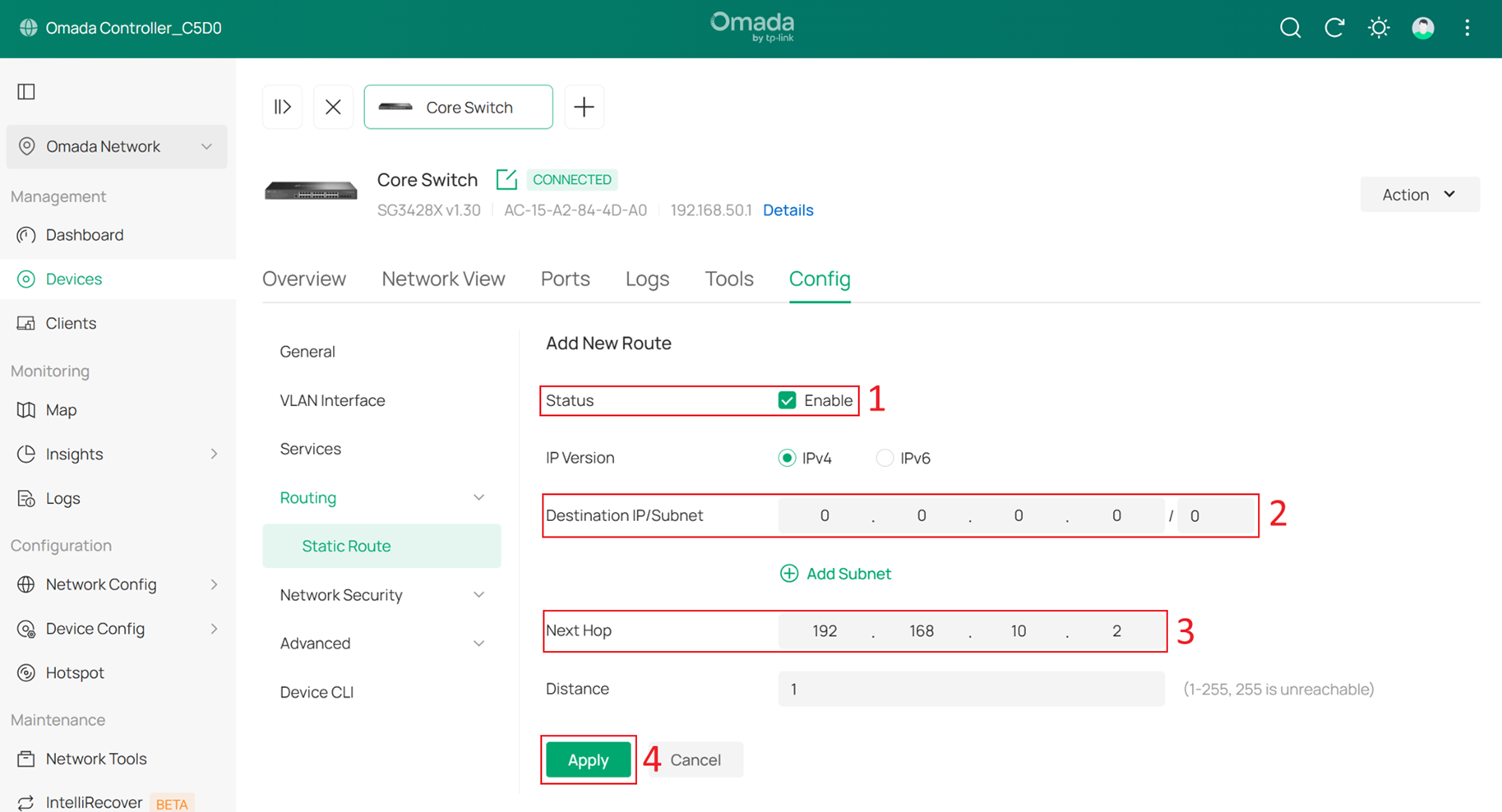
After configuring the static route on the Core Switch, reverse static routes must also be configured on the gateway to ensure that all traffic from the Internet is forwarded back to the Core Switch. On the Core Switch, the destination is set to 0.0.0.0/0 with a next hop of 192.168.10.2, so corresponding reverse routes are required on the gateway.
At this point, the subnets in the network are 192.168.10.0/24, 192.168.20.0/24, 192.168.30.0/24, 192.168.40.0/24, and 192.168.50.0/24. Since the gateway LAN IP belongs to 192.168.10.0/24, no manual route is required for this subnet. Therefore, four static routes are required, with the next hop set to 192.168.10.1, which is the Core Switch Default VLAN interface.
If you are not using an Omada Gateway, simply configure these static routes on your gateway. If you are using an Omada Gateway and it has already been adopted, follow Step 17 to configure the static routes on the Omada Gateway via the Controller.
Step 17. Configure static routes on the Gateway (In case you have Omada gateway).
Go to Network Settings > Transmission > Routing > Static Route, then click Create New Route.
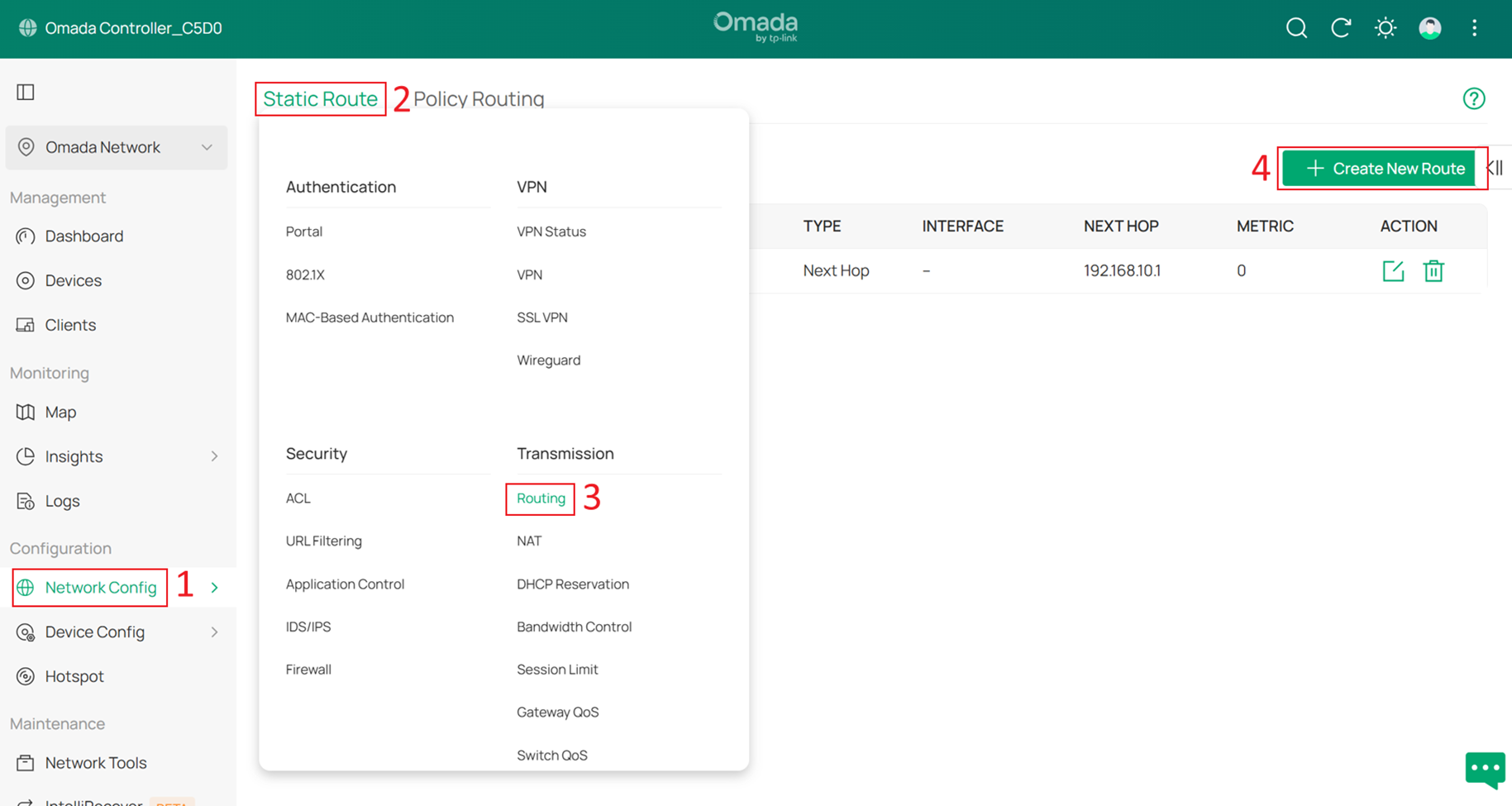
During the gateway pre-configuration, a static route for 192.168.50.0/24 has already been configured. Therefore, only three additional static routes are required.
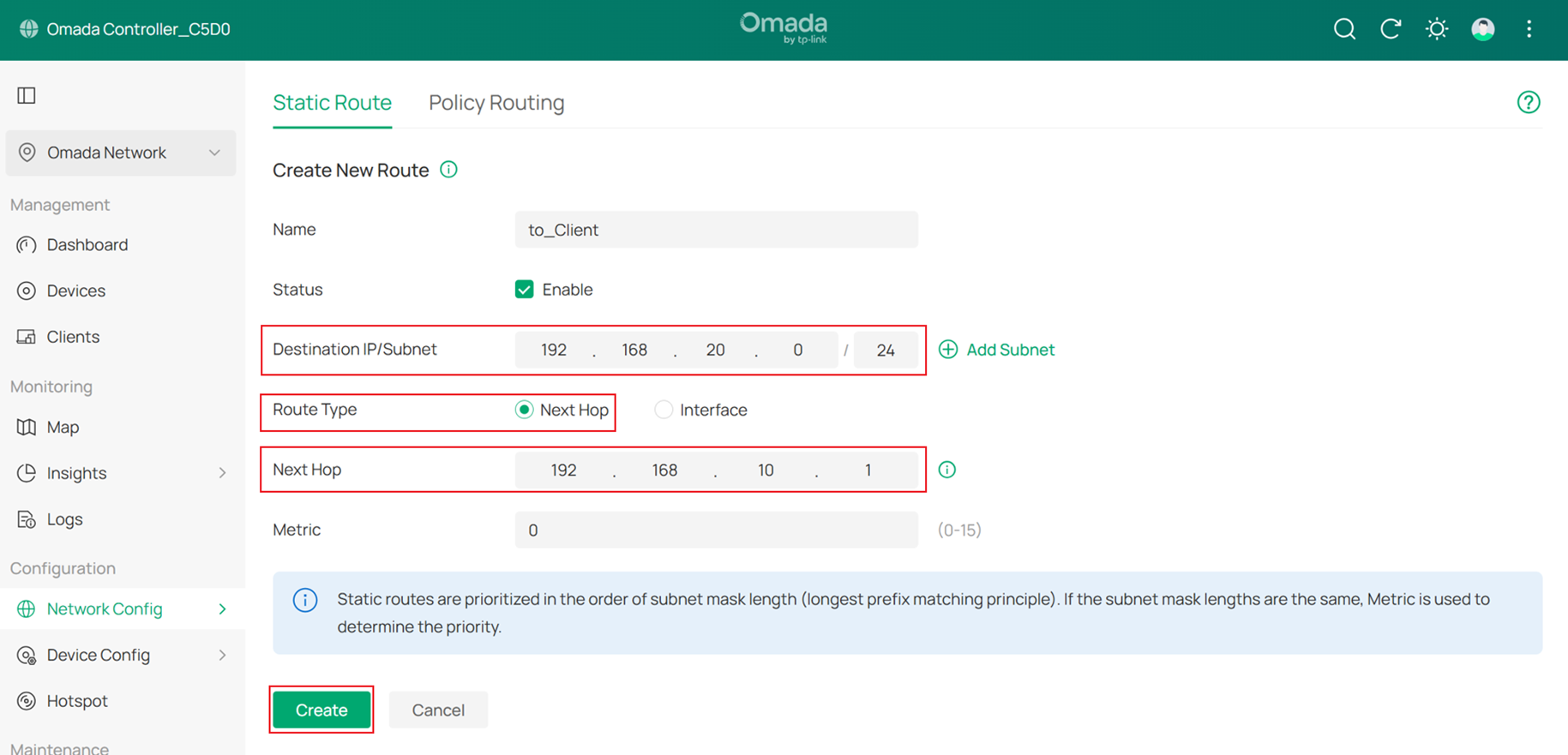
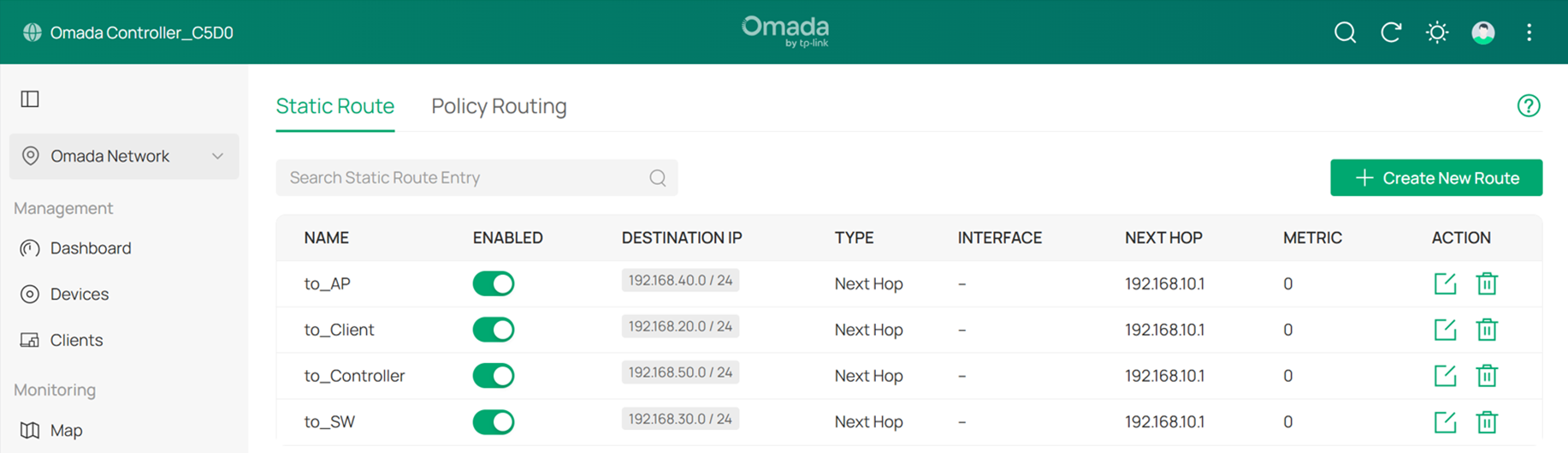
Set the Destination IP/Subnet of these routes to 192.168.20.0/24, 192.168.30.0/24, and 192.168.40.0/24 respectively. Set the route type to Next Hop, and configure the next hop address as the IP address of Core Switch (192.168.10.1). Click Create to add each static route.
The final result should appear as shown below:
Step 18. Add more switches and APs to the topology. (Optional)
To add more switches and APs to the network, simply connect them to switch ports where the Native Network is set to Default and Network Tags Setting is set to Allow All. They will then successfully obtain IP addresses from the Default Network (192.168.10.0/24). After they are adopted, follow the previous steps to change their Management VLAN.
Verification
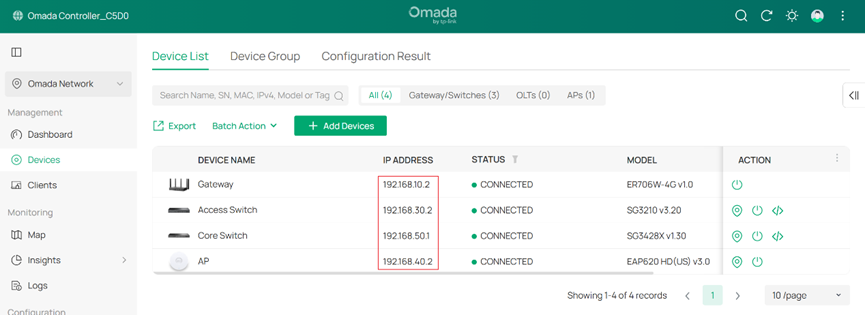
After this configuration, the gateway, switches and APs are in different management Networks.
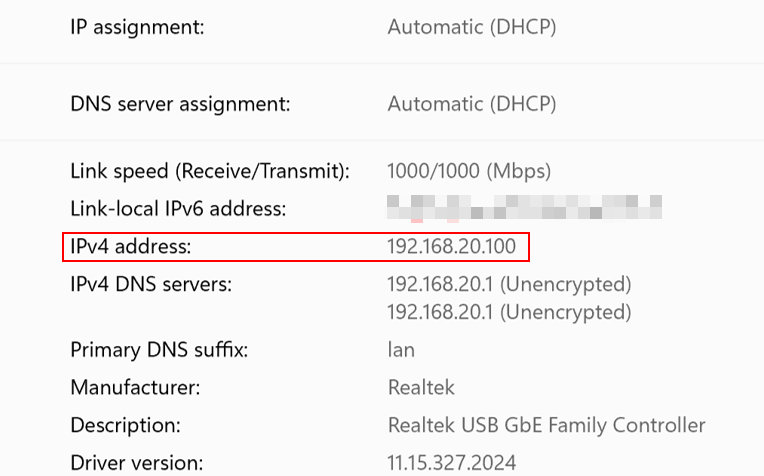
The wired PC connected on the switch is obtaining IP address from the clients VLAN 192.168.20.0/24 :
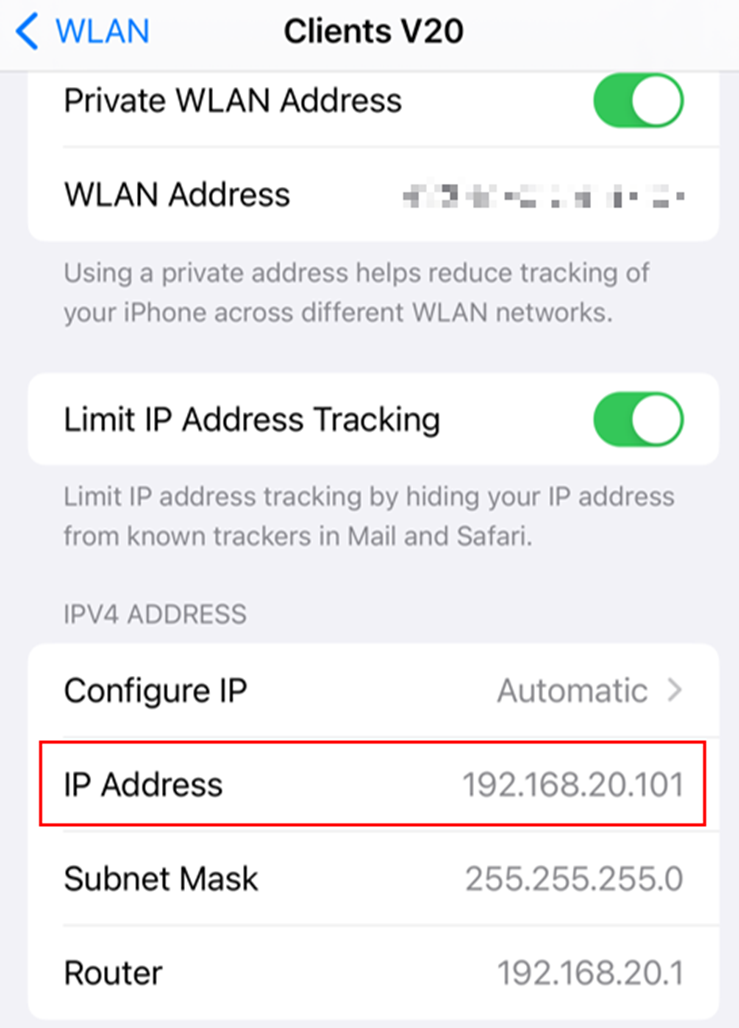
The phone connected wirelessly is obtaining IP address from clients VLAN 192.168.20.0/24:
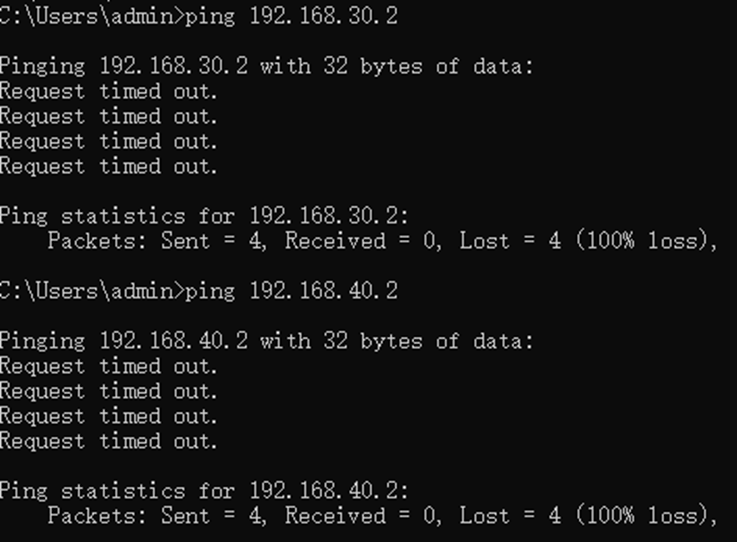
The client cannot access managed network devices:
Conclusion
Till now we have introduced how to set up a large scale network and use different VLAN networks to manage gateway, core switches, other switches and APs, then connect clients in a specific VLAN and isolate them with the network devices. The method of adding more devices in the running network and integrating gateways from Omada or other vendor is also introduced.
Get to know more details of each function and configuration please go to Download Center to download the manual of your product.
