


About This Guide
This document offers startup guidance for a Fusion gateway, including a detailed hardware overview and quick references for hardware installation and software configuration.
Related Documentation
The Quick Installation Guide can be found in the product packaging and on the Product Support page: https://support.omadanetworks.com/product/
The latest Regulatory Compliance document,and User Guide can be found on the Documents page: https://support.omadanetworks.com/document/
More Resources
| Main Site | https://www.omadanetworks.com/ |
|---|---|
| Video Center | https://support.omadanetworks.com/video/ |
| Documents | https://support.omadanetworks.com/document/ |
| Product Support | https://support.omadanetworks.com/product/ |
| Technical Support | https://support.omadanetworks.com/contact-support/ |
For technical support, the latest software, and management app, visit https://support.omadanetworks.com/.
Hardware Overview
This chapter provides a detailed hardware overview of the gateway.
Omada Fusion 2.5G
Front Panel
The gateway is equipped with a screen that indicates the system status, network statistics, network speed and more on the front panel. Turn on the gateway using the provided power adapter, and the screen will light up. Refer to Touchscreen Introduction for more details.
Rear Panel
The power port, Ethernet ports and the reset button are located on the rear panel.
| Item | Description |
|---|---|
| Power Port (5VDC/3A) | Connect to the power outlet via the provided power adapter. |
| Port 1 (WAN Port) | 2.5G WAN port. Connect to the internet. |
| Ports 2-5 | 2.5G LAN ports. By default, they are LAN ports for connecting to local PCs or switches. You can configure it to a WAN port on the management page. |
| Reset Button | With the device powered on, use a pin to press and hold this button for about 5 seconds until the sceen prompts the device is resetting. Then, release the button. The device will restore to its factory default settings. |
| Port LED | Each port has a LED on its upper left to show the connection status: On: The corresponding port is connected. Off: The corresponding port is disconnected. |
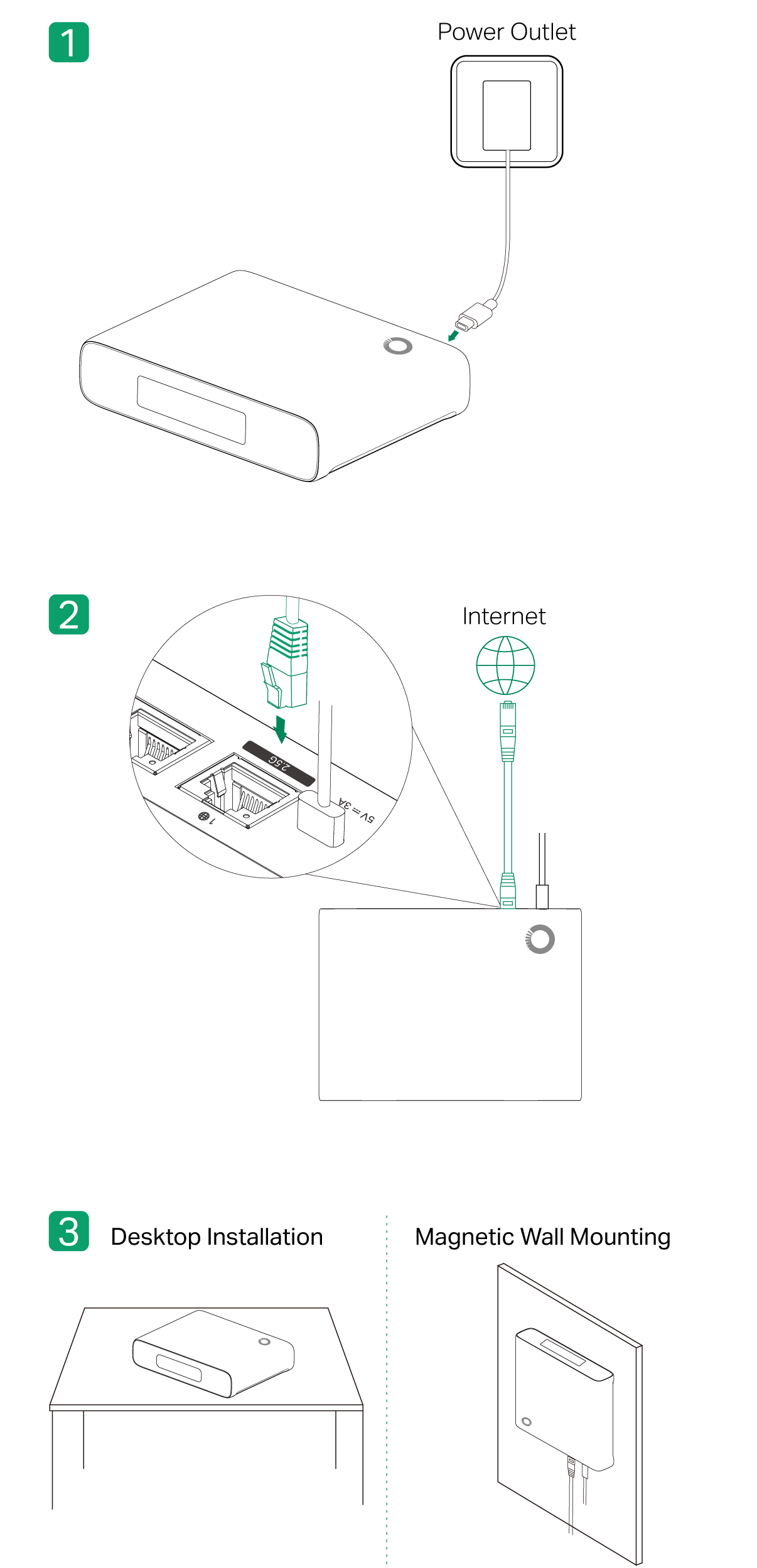
Hardware Installation
Connect the gateway to the internet and install it as needed.
Software Configuration
The Fusion gateway supports Bluetooth, allowing you to easily and quickly set it up on your phone by using the Omada app.
