


Contents
Recovering the password for Omada Cameras and NVRs
Changing password and resetting email for Omada NVR
Changing password and resetting email for the Omada Camera
Introduction
This section describes how to recover or reset the password of Omada Cameras and Omada NVRs.
Requirements
- Omada NVRs
- Omada Cameras
Password management
Recovering the password for Omada Cameras and NVRs
This section describes how to recover the password of Omada Cameras and Omada NVRs. Omada NVR and Camera both support three password recovery methods: QR Code, Email Verification, and Security Question Verification.
Note: To recover the NVR password, click "Forget Password" on the NVR GUI login page. To recover the Omada Camera’s password, go to the Devices Found list on the NVR, then click the Forget Password icon. Or, reset password on camera’s own management interface, which is not the essence of this article so we will skip it.
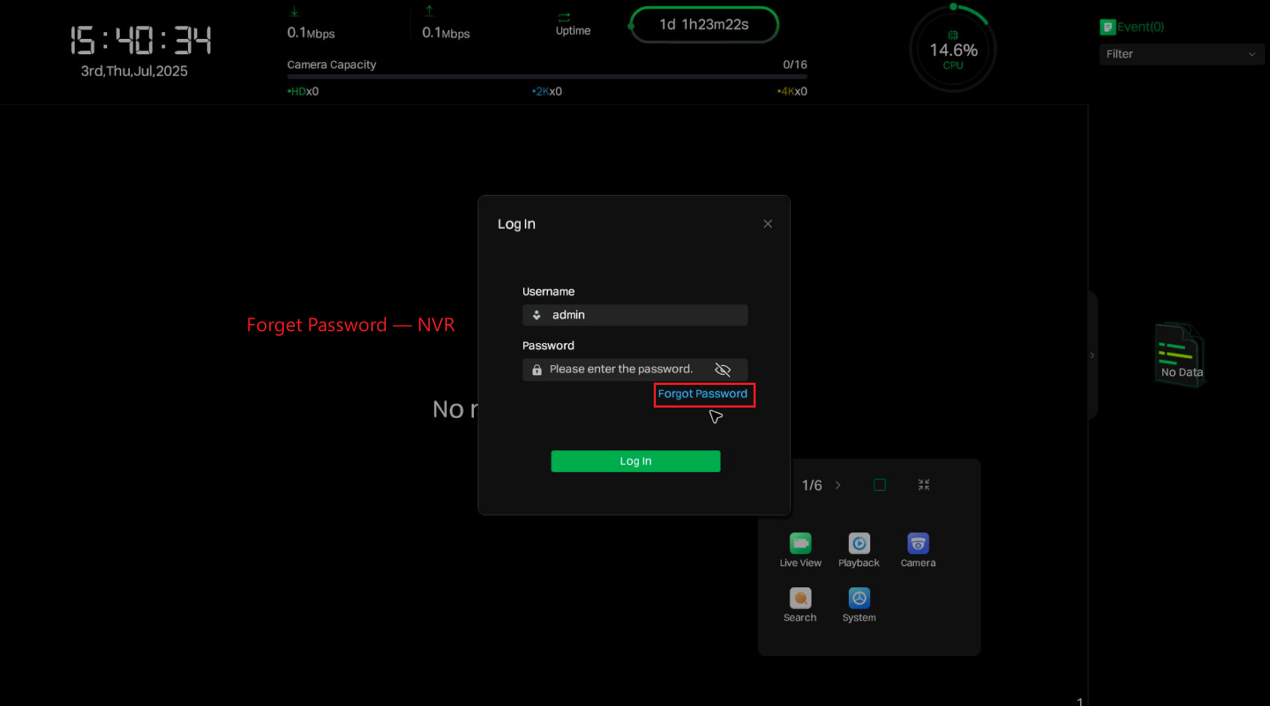
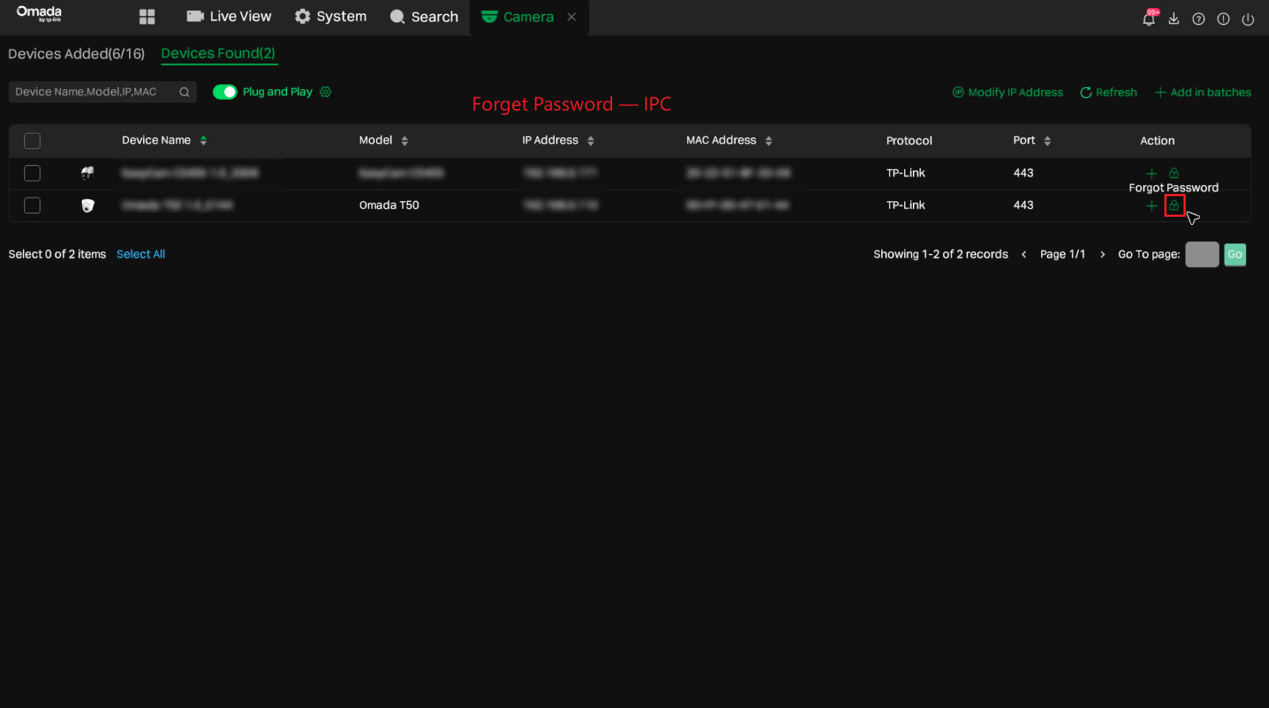
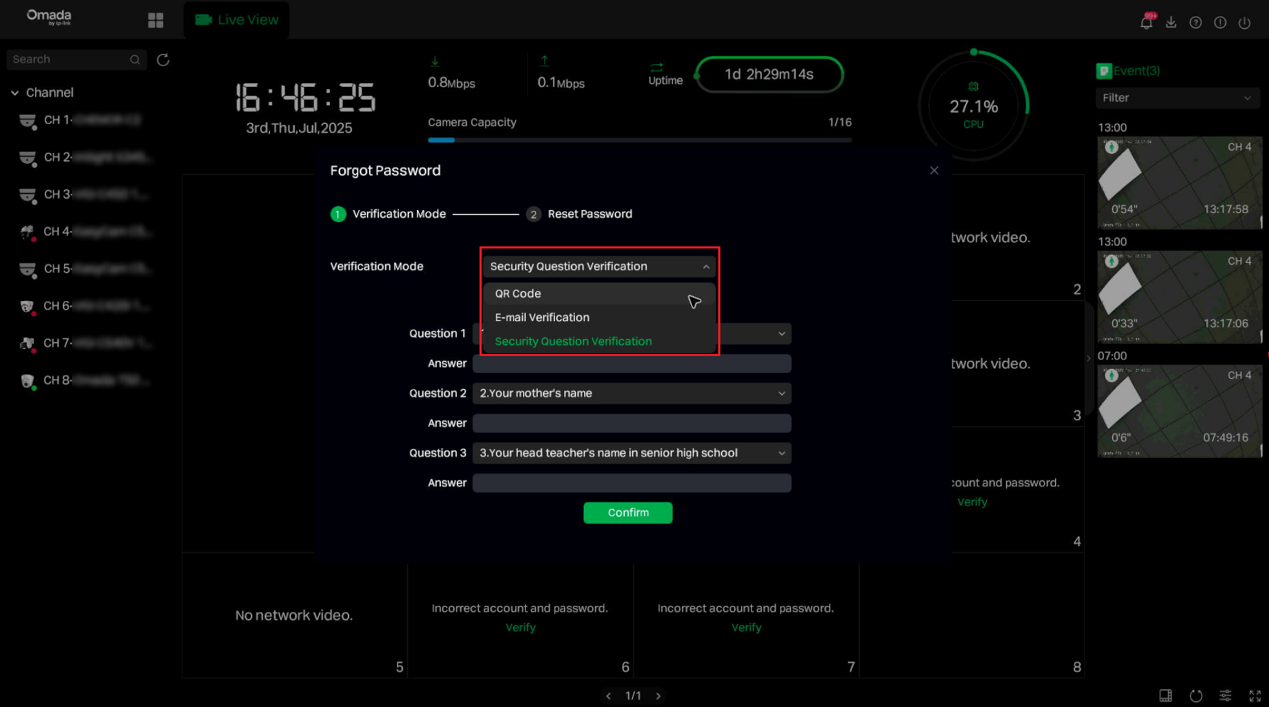
Step 1. Select the verification mode.
- E-mail Verification: Download the Omada Guard App from the App Store or Google Play. Scan the QR code on the left with the Omada Guard App, and a verification code will be sent to the Email Address Associated with Your Password Reset.
- QR Code: You can obtain the verification code by scanning the QR code with the Omada Guard App or by sending it to TP-Link technical support.
- Security Question Verification: Please enter the correct answer to complete the verification.
Note: For E-mail Verification and Security Question Verification, it is required that the E-mail or security questions have been configured already in settings. Otherwise they are not usable for verification.
Step 2. Enter the verification code and click Verify.
Step 3. Enter the new password.
Changing password and resetting email for Omada NVR
You can change the Password and Password Reset Email of the Omada NVR. Password Reset Email is used to receive the verification code when you need to reset your password.
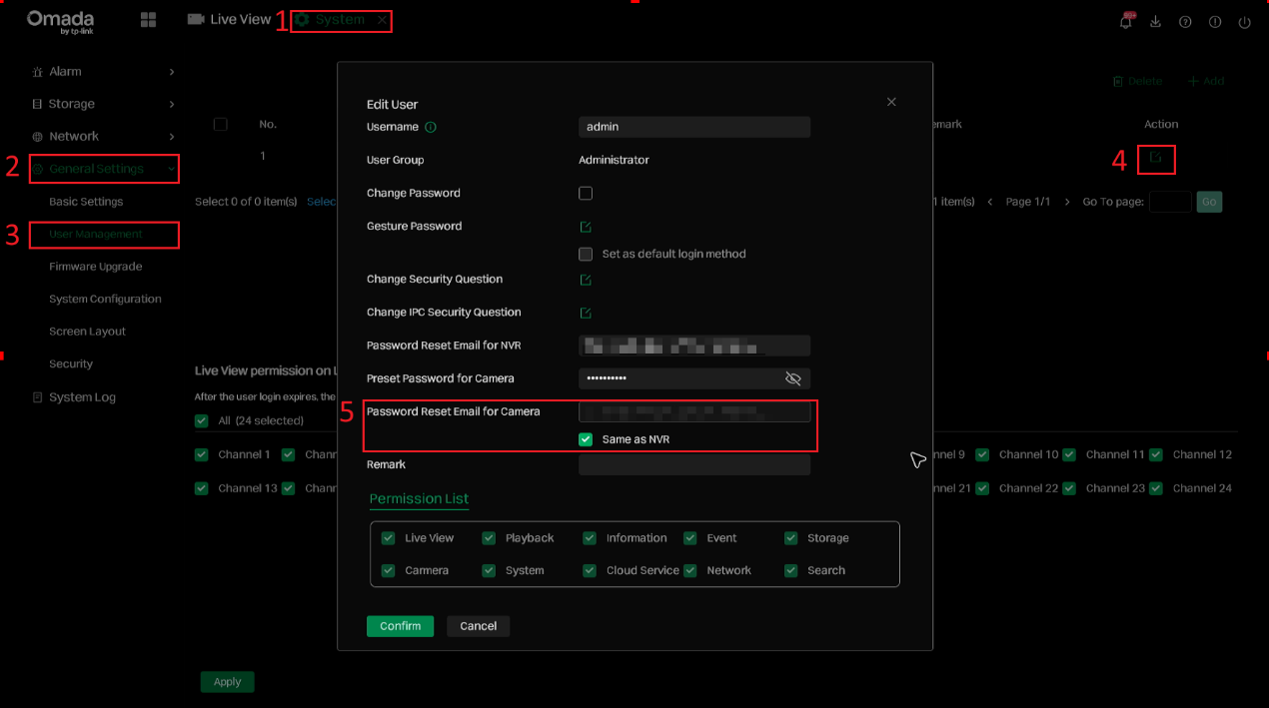
Step 1. Go to Systems > General Settings > User Management, select the admin account, and click the edit button.
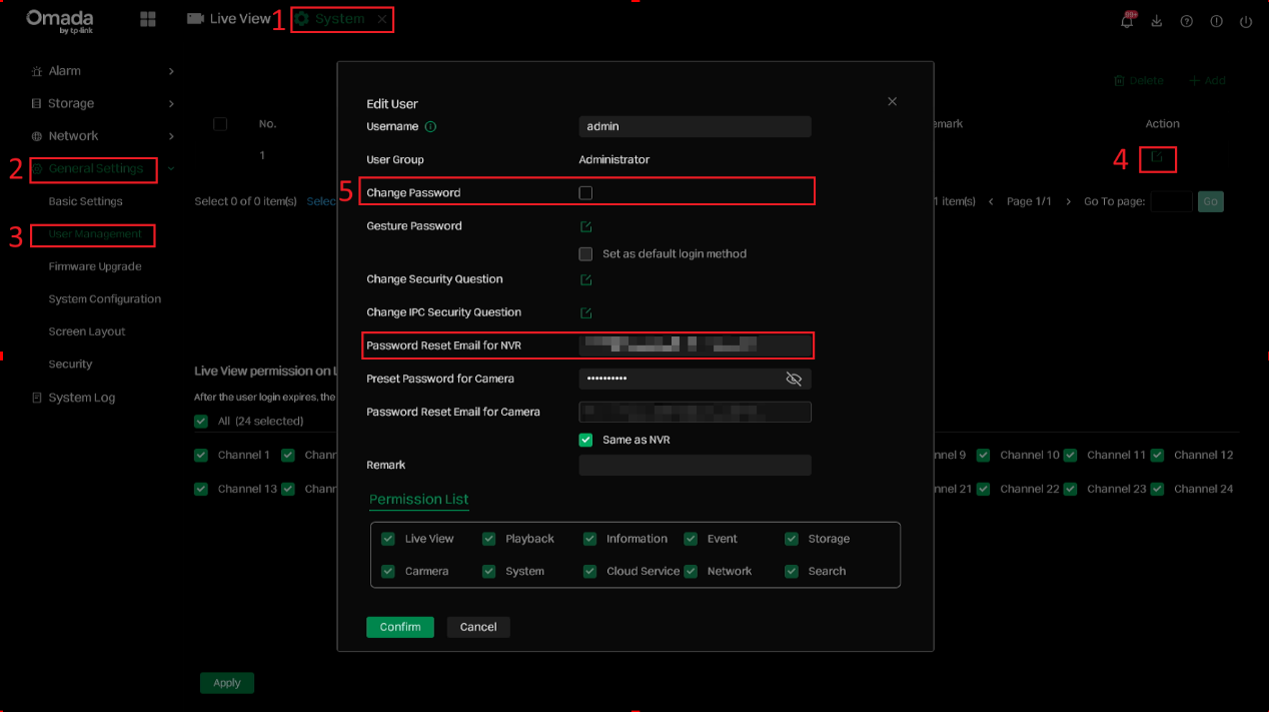
Step 2. Tick the 'Change Password' option, enter your old password and new password, and then click 'Save'. You can also change the Password Reset Email for NVR, Preset Password for Camera, and Password Reset Email for Camera here.
Changing password and resetting email for the Omada Camera
Omada Camera’s password can be either recovered on its own management interface or on NVR. In this article we mainly discuss the latter, resetting camera’s password on NVR.
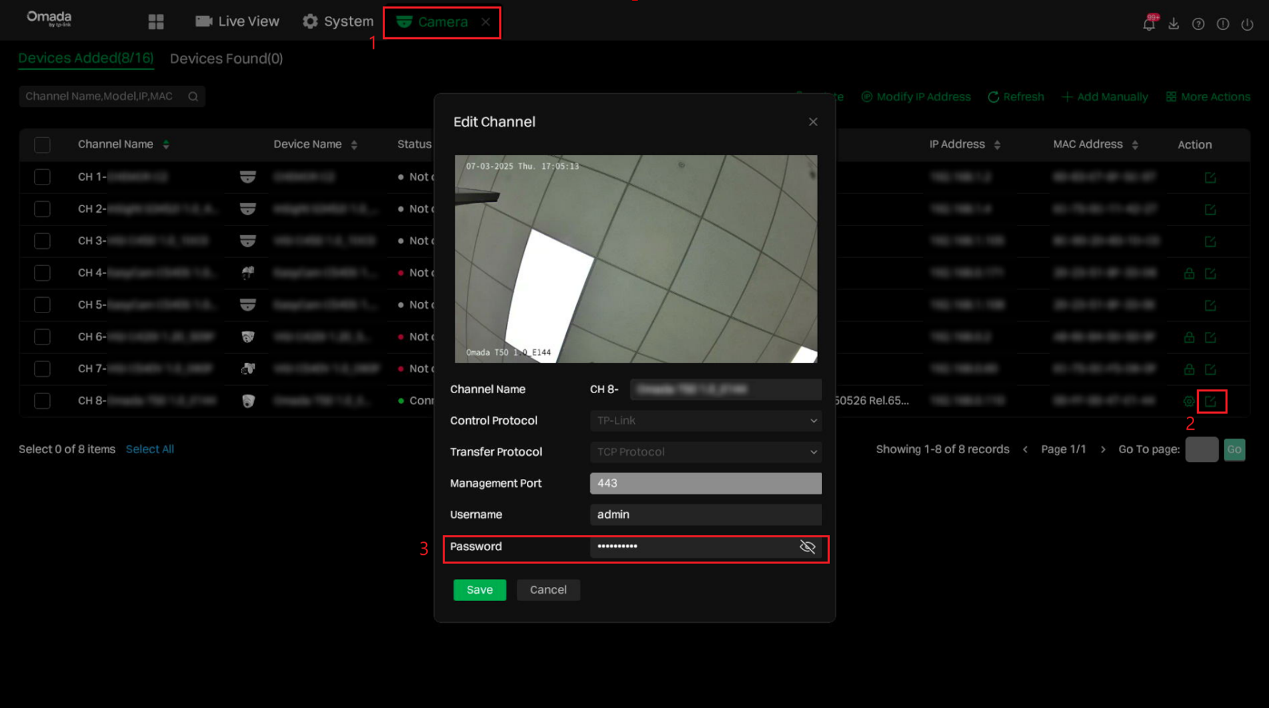
Step 1. You can modify the Omada Camera's password in the Omada NVR GUI. Go to Cameras > Devices Added in the NVR GUI, and click the edit icon of the camera. In the Edit Channel pop-up window, change the password.
Step 2. You can modify the Password Reset Email for Camera in the NVR GUI. Go to Systems > General Settings > User Management, select the admin account, and click the edit button. Then, update the Password Reset Email for Camera in the editing pop-up window.
Conclusion
This document outlines how to recover passwords and configure the password and Reset Password Email settings for Omada Cameras and NVRs, ensuring secure and reliable device access.
To learn more about each function and configuration, please visit Support Home to download or check the manual for your product.
