


Contents
Configure a Surveillance Network
Introduction
In CCTV deployment scenarios, cameras and network video recorders (NVRs) are typically placed on a dedicated network to isolate surveillance traffic from other services. The Surveillance Network option in Network Wizard provides a guided process for configuring network parameters, device ports, and recommended features such as Port Isolation, Flow Control, and Auto QoS. This simplifies deployment while helping improve video transmission stability and network security.
Requirements
- Omada Fusion Pro Gateways
Configuration
In this example, the supported Omada network devices are first added to and managed by Fusion Pro Gateway on the default VLAN. The surveillance devices are then connected to their intended ports and added to Fusion Pro Gateway before the surveillance VLAN is created. This allows Fusion Pro Gateway to display the devices and their port connections in the topology during configuration.
Alternatively, if the device-to-port assignments are planned in advance, create the surveillance VLAN and configure the ports before connecting the surveillance devices. After applying the configuration, connect the surveillance devices to the selected ports and add them to Fusion Pro Gateway.
Note: When using DHCP for the surveillance VLAN, set the IP address settings of the NVRs and cameras to Dynamic IP (DHCP). Also, disable Network Isolation on the NVRs so that connected cameras can obtain IP addresses from the surveillance VLAN.
Configure a Surveillance Network
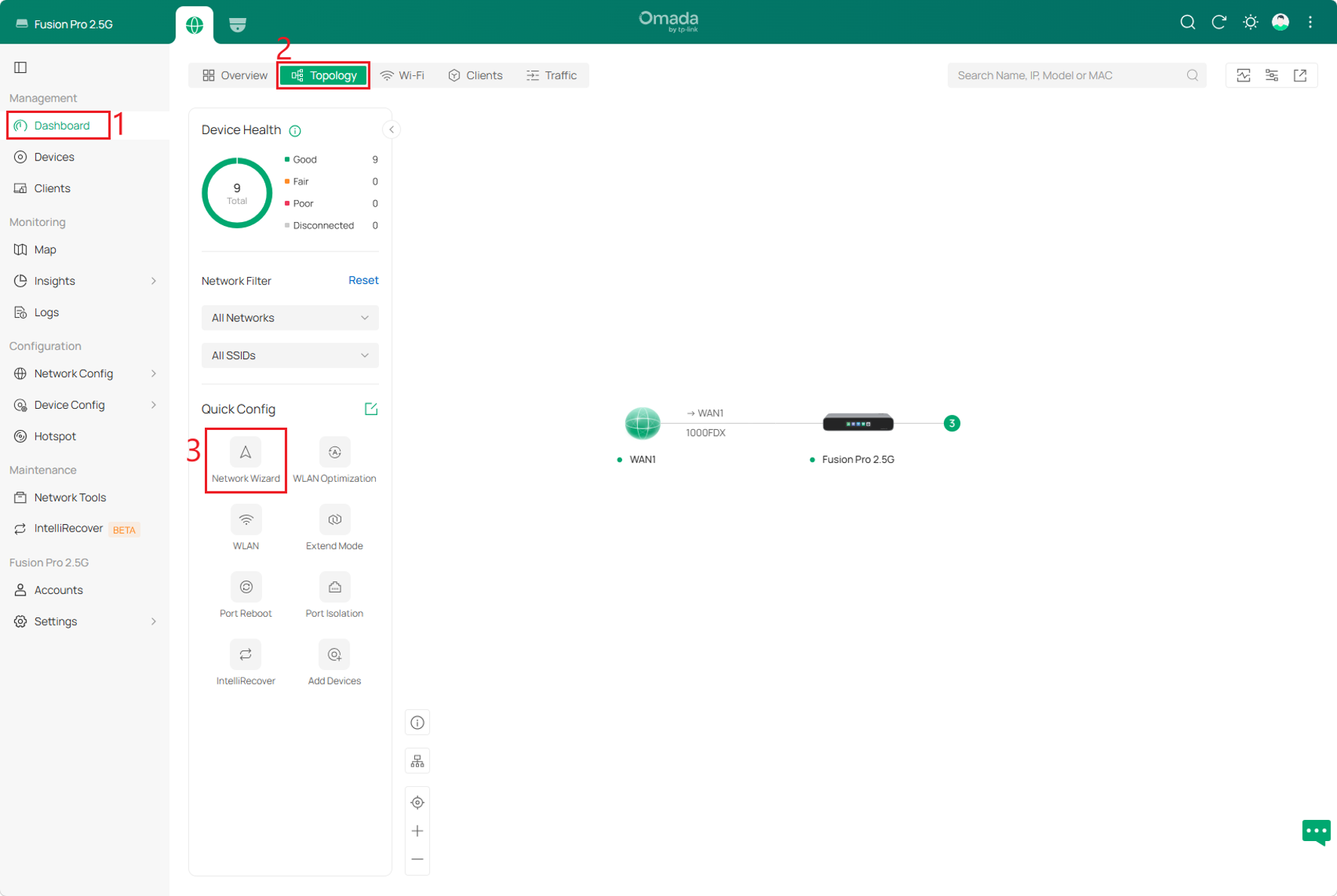
Step 1. Navigate to Dashboard > Topology and click Network Wizard under Quick Config.
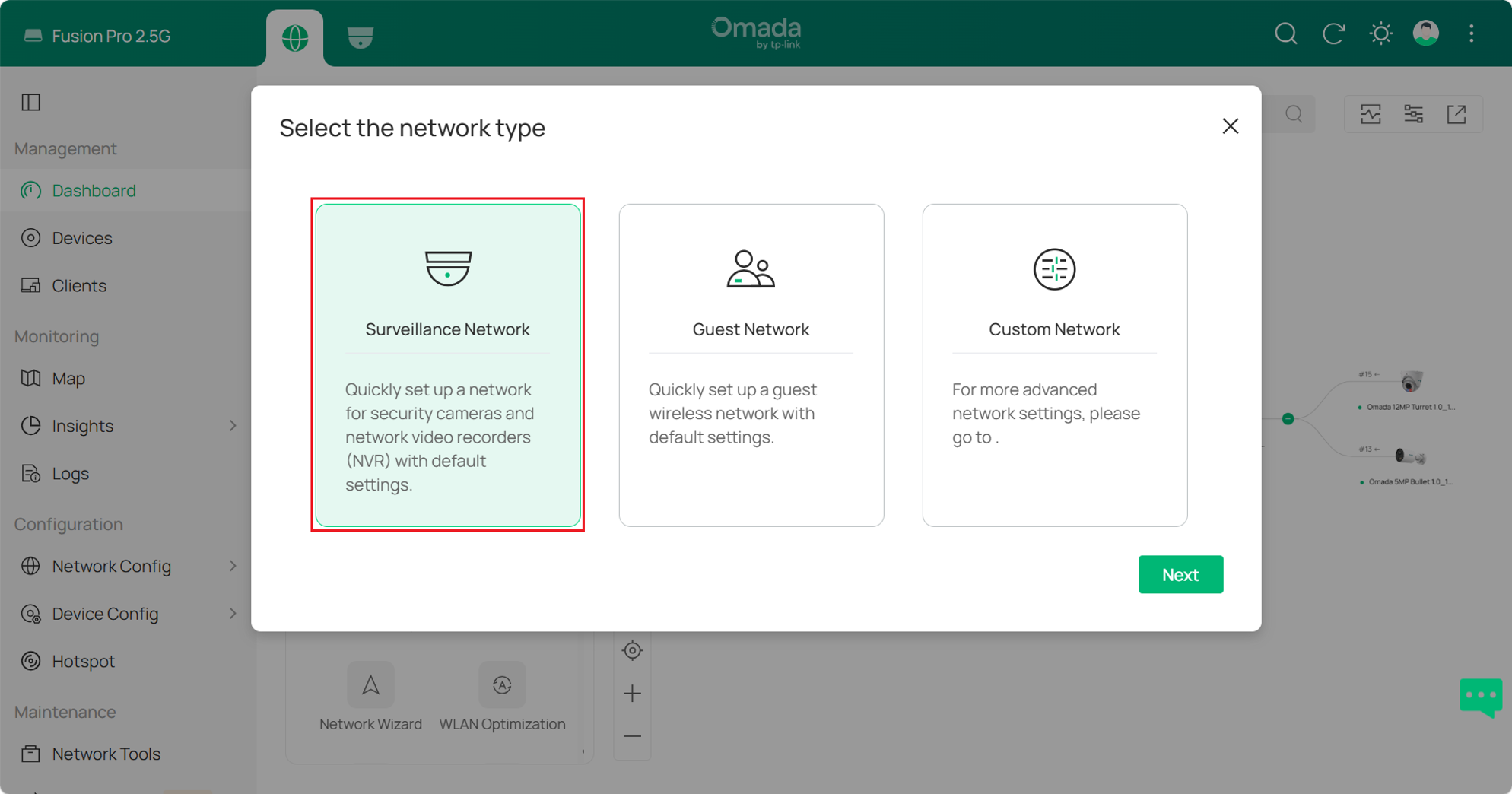
Step 2. In the Select the network type window, select Surveillance Network and click Next.
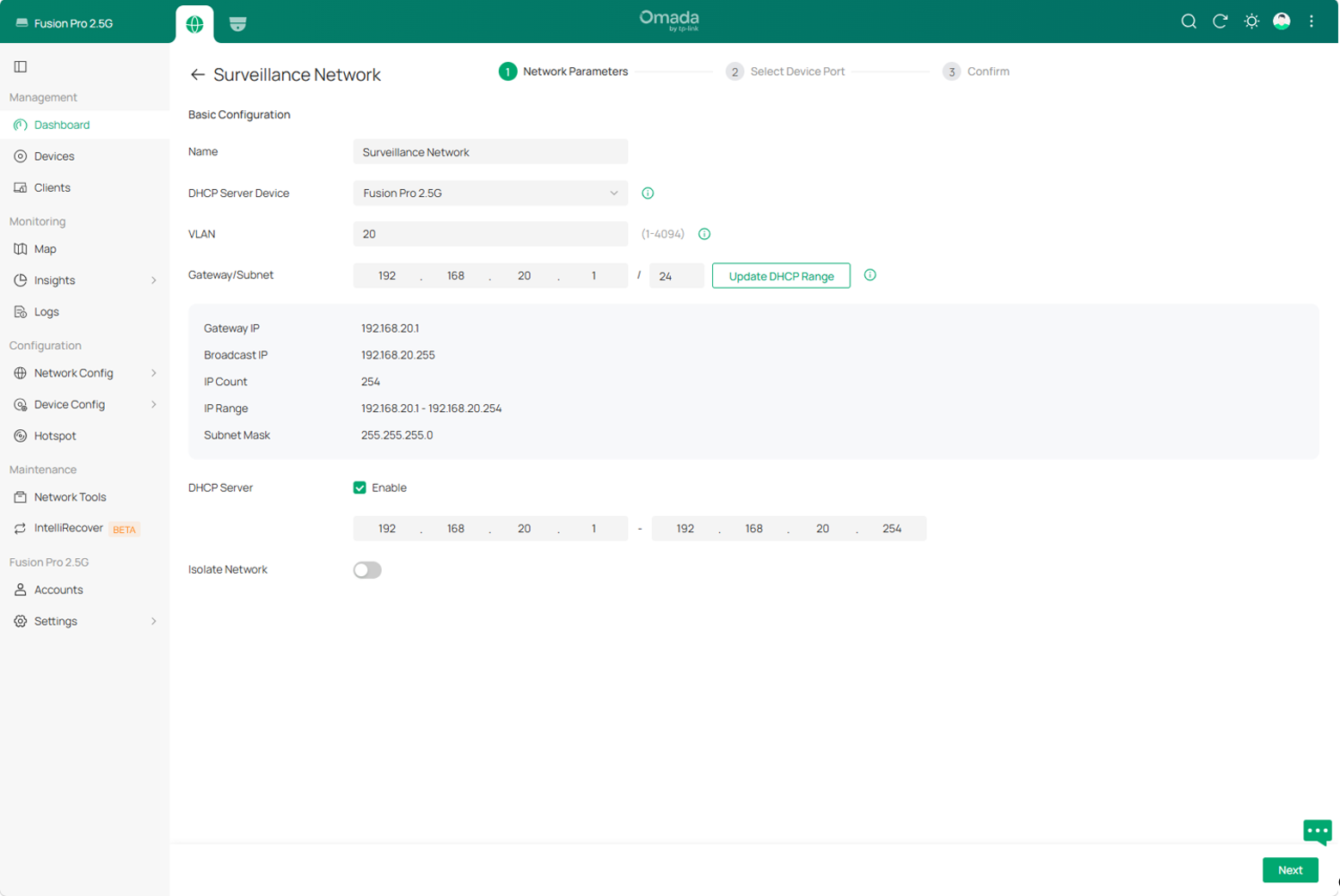
Step 3. On the Network Parameters page, select the DHCP Server Device. The available parameters vary depending on the selected device. The following configuration uses Fusion Pro 2.5G as the DHCP Server Device.
- Name: Enter a name for the surveillance network.
- DHCP Server Device: Select the DHCP Server Device based on your network topology. Available options include Fusion Pro Gateway, a supported Omada switch, External Device, and None. For this example, select Fusion Pro 2.5G.
- Gateway/Subnet: Enter the default gateway IP address and subnet prefix, such as /24, for the surveillance VLAN. This article uses 192.168.20.1/24. Devices in the VLAN therefore use 192.168.20.1 as their default gateway.
- DHCP Server: When Fusion Pro Gateway or a supported Omada switch is selected as the DHCP Server Device, enable this option to allow the selected device to assign IP addresses to devices in the surveillance VLAN. Then specify the DHCP address range.
- Update DHCP Range: If changing Gateway/Subnet changes the available IP range, click Update DHCP Range. The DHCP address range is recalculated based on the updated Gateway/Subnet settings.
- Isolate Network: This option is available only when Fusion Pro Gateway is selected as the DHCP Server Device. Enable this option to isolate the surveillance VLAN from communication with other networks while retaining internet access.
Click Next.
Note:
- A supported Omada Access, Access Plus, Access Pro, Access Max, Aggregation, or Campus Switch can also be selected as the DHCP Server Device. In this case, the switch acts as the default gateway for the surveillance VLAN and can assign IP addresses when DHCP Server is enabled.
- Select External Device when the gateway and DHCP service for the VLAN are provided by another network device.
- Select None to create a Layer 2 VLAN without DHCP service. Devices in this VLAN must use static IP addresses.
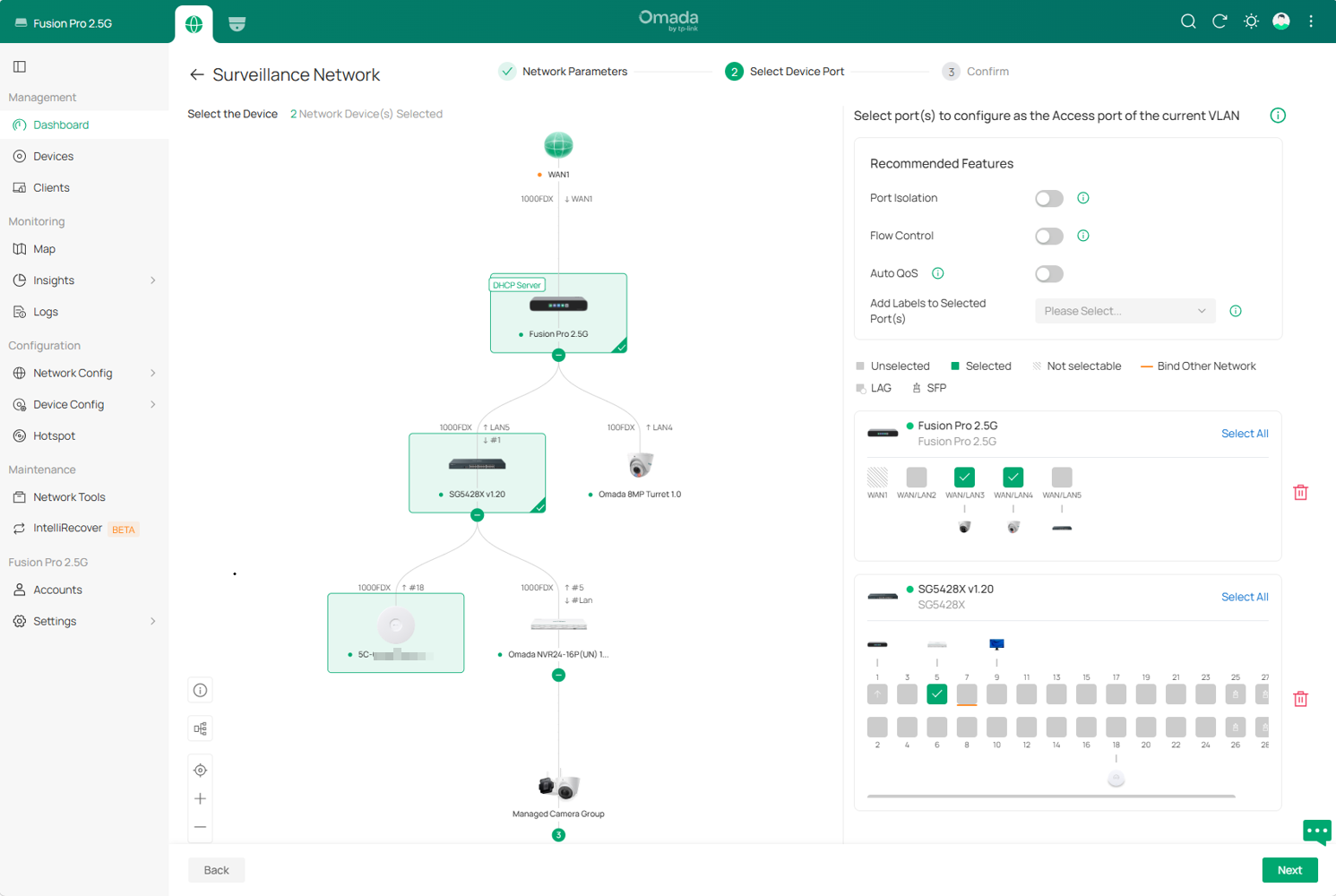
Step 4. On the Select Device Port page, select the target network device from the topology. Ports connected to cameras are automatically selected. Additional ports can be manually selected or deselected as needed. Selected ports are displayed in green and will be configured as access ports for the surveillance VLAN.
Configure the recommended features as needed:
- Port Isolation: Enable this option only when devices connected to the selected ports do not need to communicate directly with one another at Layer 2. Isolated ports can still communicate with devices connected through non-isolated ports.
- Flow Control: Enable this option only when the connected surveillance devices support IEEE 802.3x Flow Control. During temporary congestion, PAUSE frames can be used to help reduce buffer overflow and packet loss.
- Auto QoS: Enable this option to prioritize surveillance traffic from the selected ports during network congestion. Available only on supported Omada switches.
- QoS Priority: When Auto QoS is enabled, select a priority from 0 to 7. A higher value indicates a higher forwarding priority.
- Add Labels to Selected Port(s): Optionally, add labels to categorize or identify the selected ports.
Click Next.
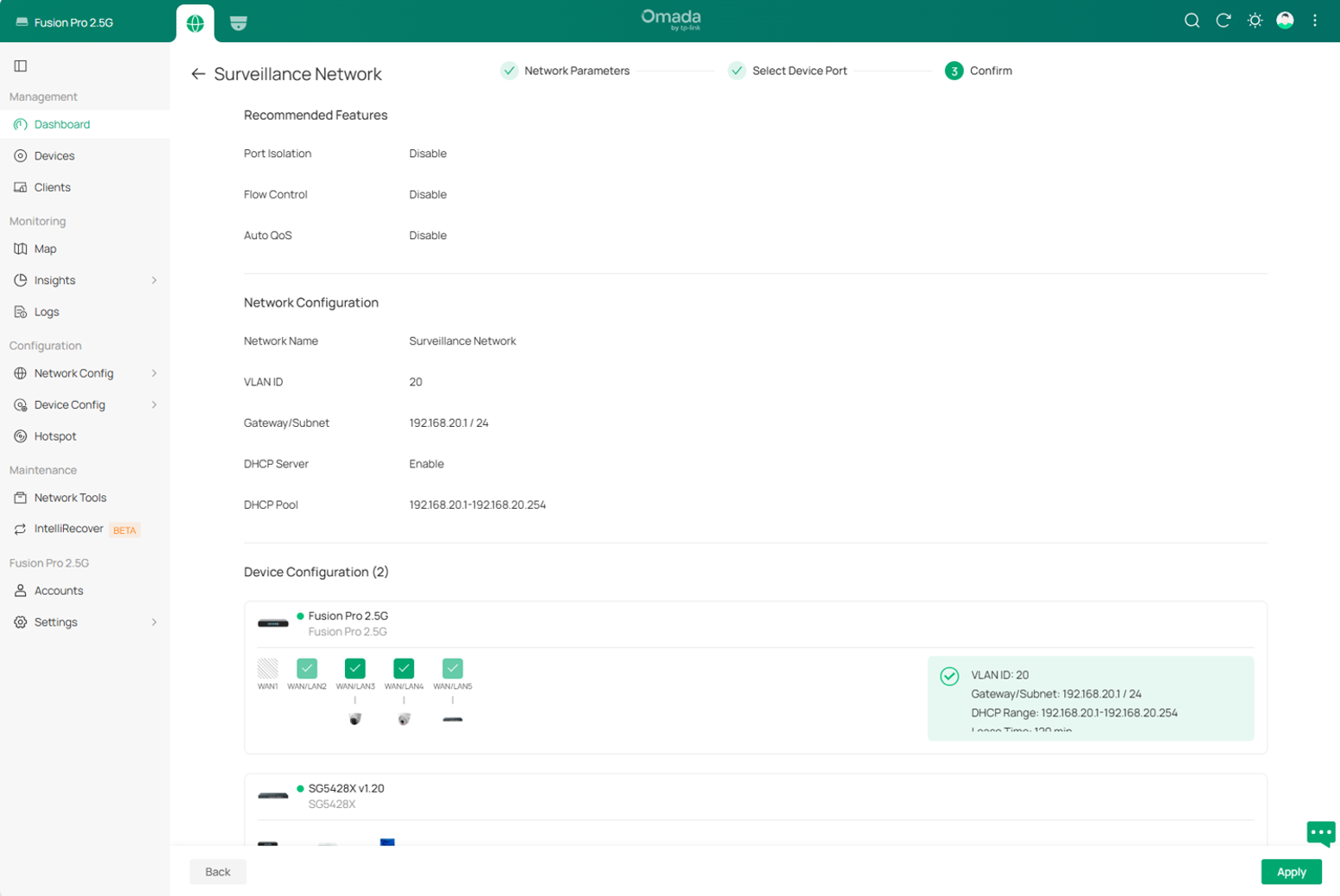
Step 5. On the Confirm page, review the Recommended Features, Network Configuration, and Device Configuration sections.
The Device Configuration section lists all ports that will be affected by the surveillance VLAN:
- A dark green checkmark identifies a port manually selected in Step 4. The port will be configured as an access port, with its PVID set to the surveillance VLAN ID and its other VLAN memberships removed.
- A light green checkmark identifies a port automatically included because its Network Tags Setting is set to Allow All. The surveillance VLAN will be added to the VLAN membership of this port.
If all settings are correct, click Apply to create the surveillance VLAN.
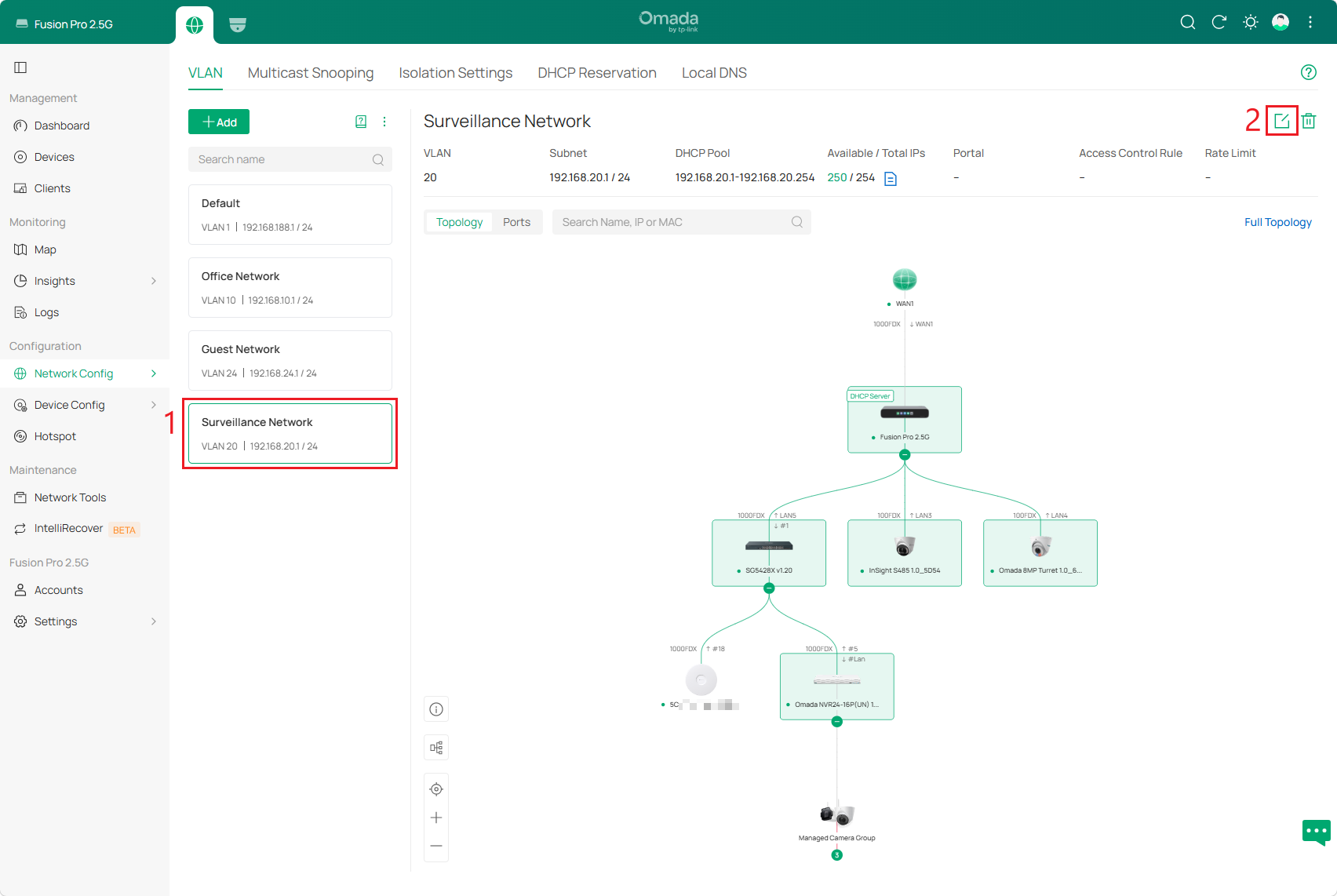
To view or modify the VLAN settings later, go to Network Config > Network Settings > LAN > VLAN, select the surveillance network, and click the edit icon.
Verification
Go to Omada Guard > Devices and verify that the surveillance devices are connected. Devices connected directly to the surveillance VLAN should have IP addresses within the configured subnet.
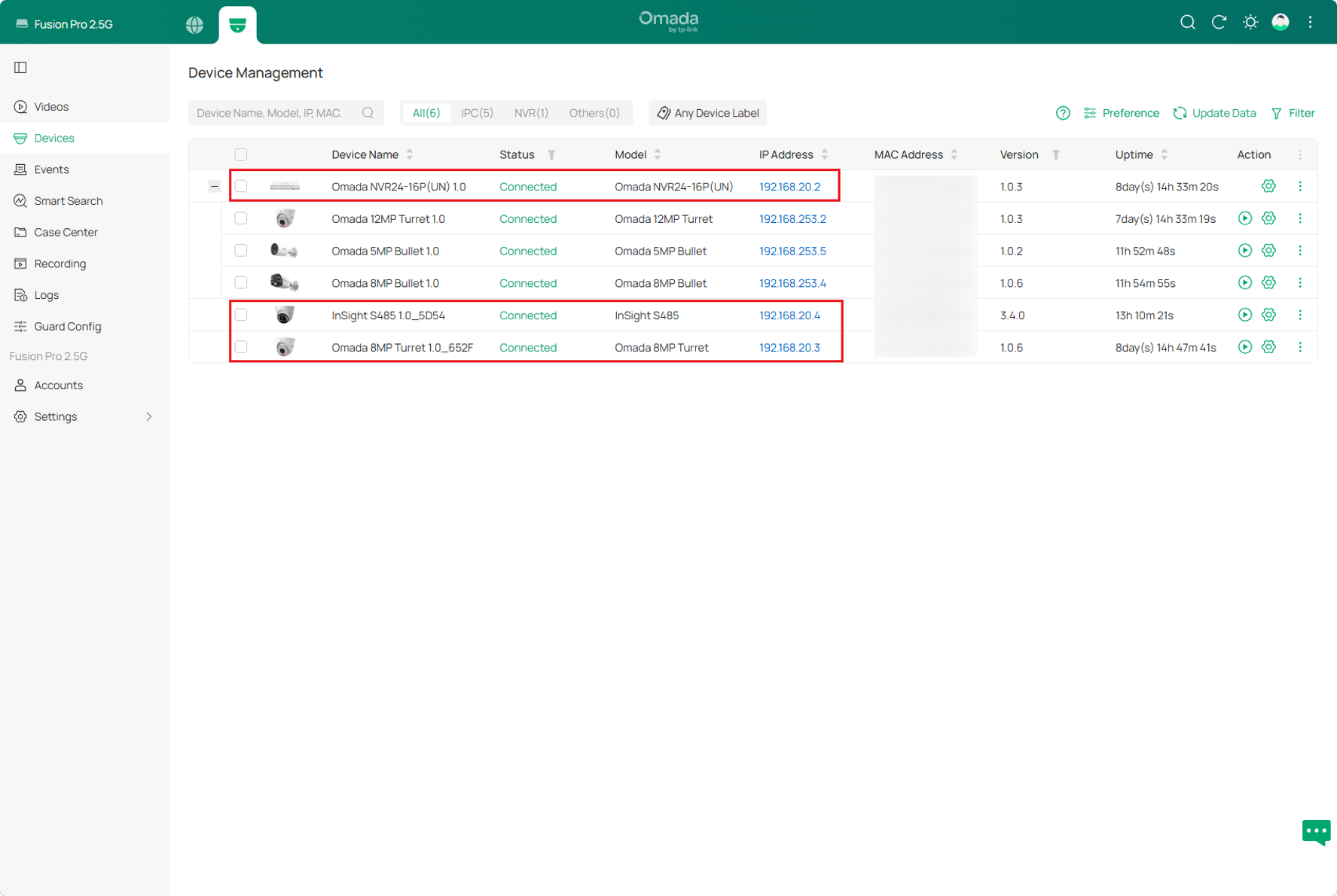
Note: When Network Isolation is enabled on an Omada or VIGI NVR, the NVR’s PoE network and LAN network use separate subnets. Cameras connected to the NVR’s PoE ports use IP addresses in the isolated internal subnet rather than the surveillance VLAN connected to the NVR’s LAN port.
Conclusion
The Surveillance Network wizard creates a dedicated VLAN and applies the specified network and port settings. After the configuration is completed, verify that the surveillance devices are connected and use IP addresses from the expected subnet. The VLAN configuration can be modified later under Network Config > Network Settings > LAN > VLAN.
To learn more about each function and configuration, please visit Support Home to download or check the manual for your product.

