


Omada Controller Backup and Restore Guide (v6 and Above)


Contents
Part 1: Controller Backup and Restore
Part 2: Site Backup and Restore
Introduction
Backing up the Omada Controller configuration helps protect network settings and provides a recovery point for the current Controller. If an unexpected issue affects its configuration or data, a backup file can restore sites, devices, users, and Controller settings on that Controller.
Starting with Omada Controller v6.4, Local Controllers support storing backup files directly on the Cloud Server and restoring configurations from backup files stored on the Cloud Server.
Requirements
- Omada Controller v6 and above
- Omada Controller v6.4 or later for Cloud Server backup and restore functionality
- Cloud Access enabled when using Cloud Server storage
Configuration
Omada Controller provides scheduled and manual backup options, single-site export through Site Migration, and full-controller restore. Starting with Omada Controller v6.4, on-premises controllers with Cloud Access enabled can save scheduled or manual backups to Cloud Server and restore directly from Cloud Server, in addition to using local storage or supported file servers. The following sections explain how to configure each option.
Part 1: Controller Backup and Restore
Scheduled Backup
The Backup Schedule feature allows Omada Controllers to automatically create configuration backups at specified intervals. Backup settings can be customized to include controller configurations, user information, client lists, logs, and firmware update records. Additional options include configuring the backup frequency, historical data retention period, storage location, and maximum number of backup files to retain. Backup files can be stored locally, uploaded to a file server using FTP, TFTP, SFTP, or SCP, or saved to the Cloud Server, which is supported starting with Omada Controller v6.4.
Notes: For OC200/OC220, Backup Schedule requires PoE power and a USB storage device formatted as FAT32 or NTFS.
Enable Backup Schedule under Global View > Settings > Maintenance to automatically store backups either locally, on a file server, or directly to the cloud server (v6.4 and above).
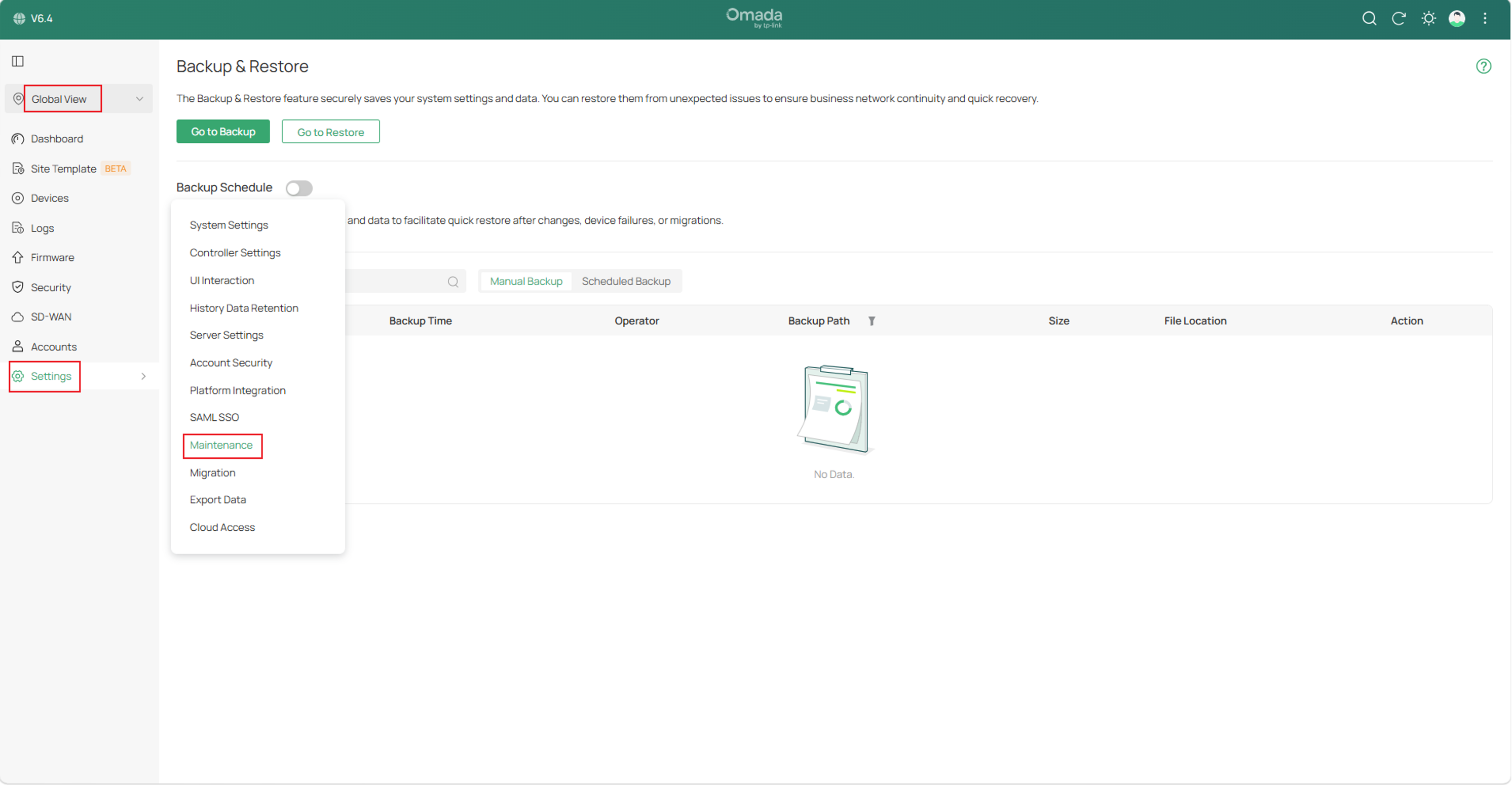
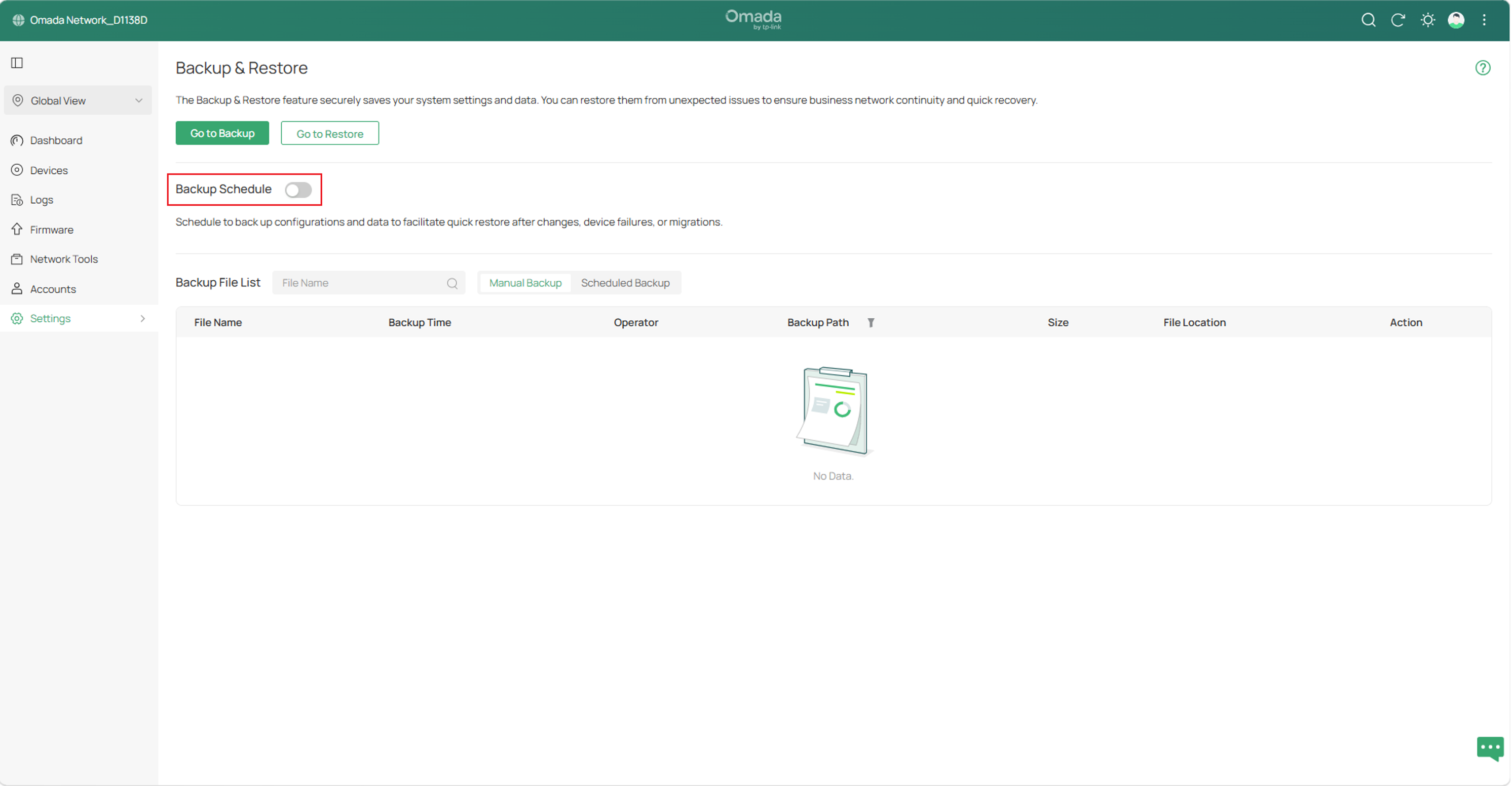
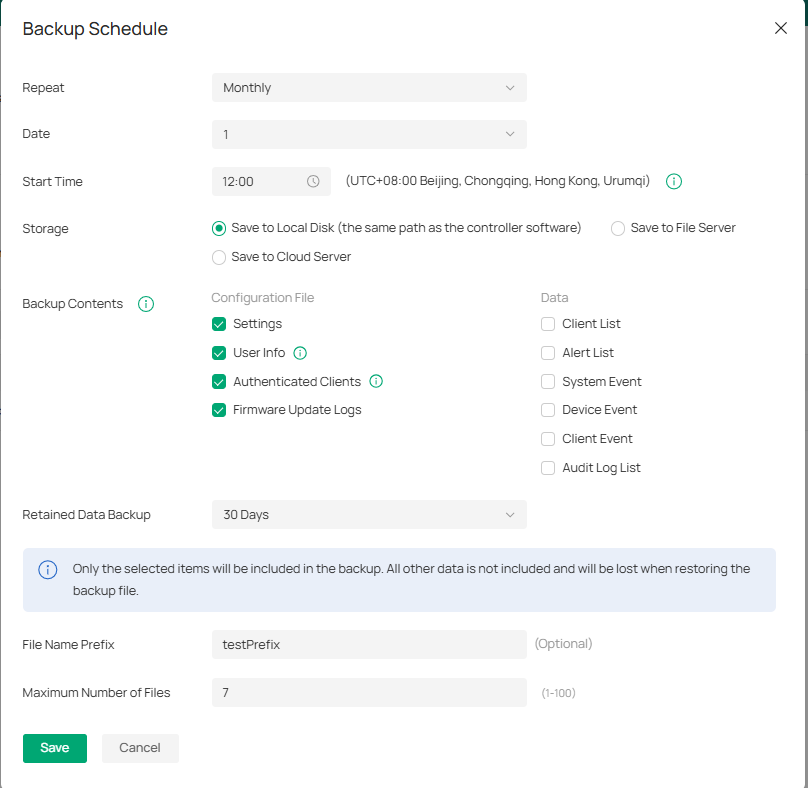
Save to Local Disk (the same path as the controller software): The backup file will be saved as a local file.
Save to File Server: The backup file will be saved in the specified file server. Four types of file server are available: FTP, TFTP, SFTP, and SCP.
Save to Cloud Server: The backup file will be saved to the cloud server.
Manual Backup
Note: For Cloud-Based Controllers, the options below are available only for Standard Controllers and not Essentials Controllers.
Navigate to Global View > Settings > Maintenance and select Go to Backup.
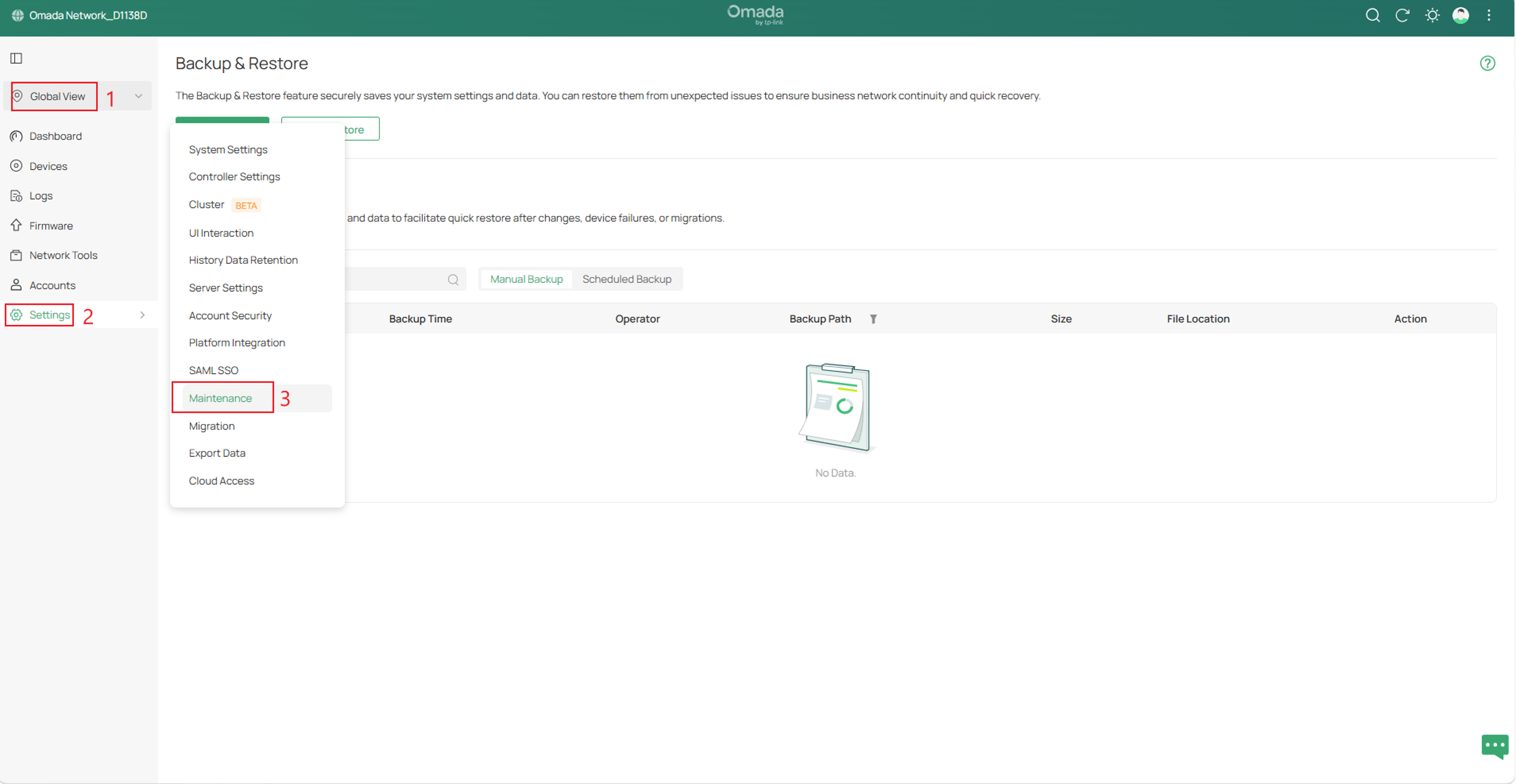
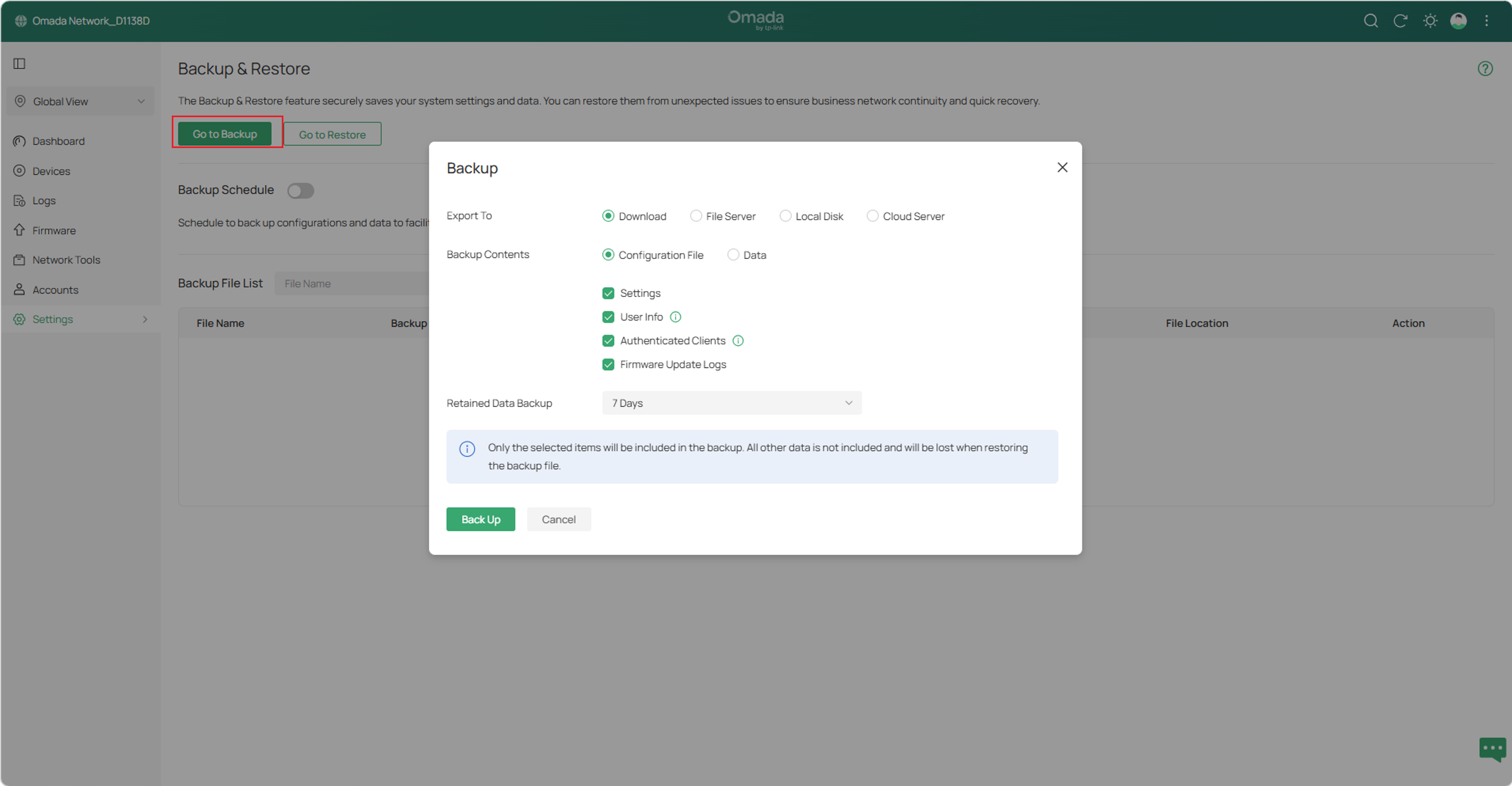
Select the backup contents (such as settings, user info, authenticated clients, and firmware logs), choose how much historical data to retain, and export the backup either locally, to a file server, or the Cloud Server (v6.4 and above). Parameter descriptions are listed below. Only the selected items will be included in the backup.
Download: Download the supported configuration and data to the computer running the browser.
File Server: Export and save the supported configuration and data to a file server. Select the desired file server type (FTP / TFTP / SFTP / SCP) and configure the parameters.
Local Disk: Export and save the supported configuration and data to a local disk.
Cloud Server (v6.4 and above): Export the configuration to Cloud Server. Data and historical records are not included. Cloud Access must be enabled.
Controller Restore
Notes: Only the backup configuration file of the current controller can be restored.
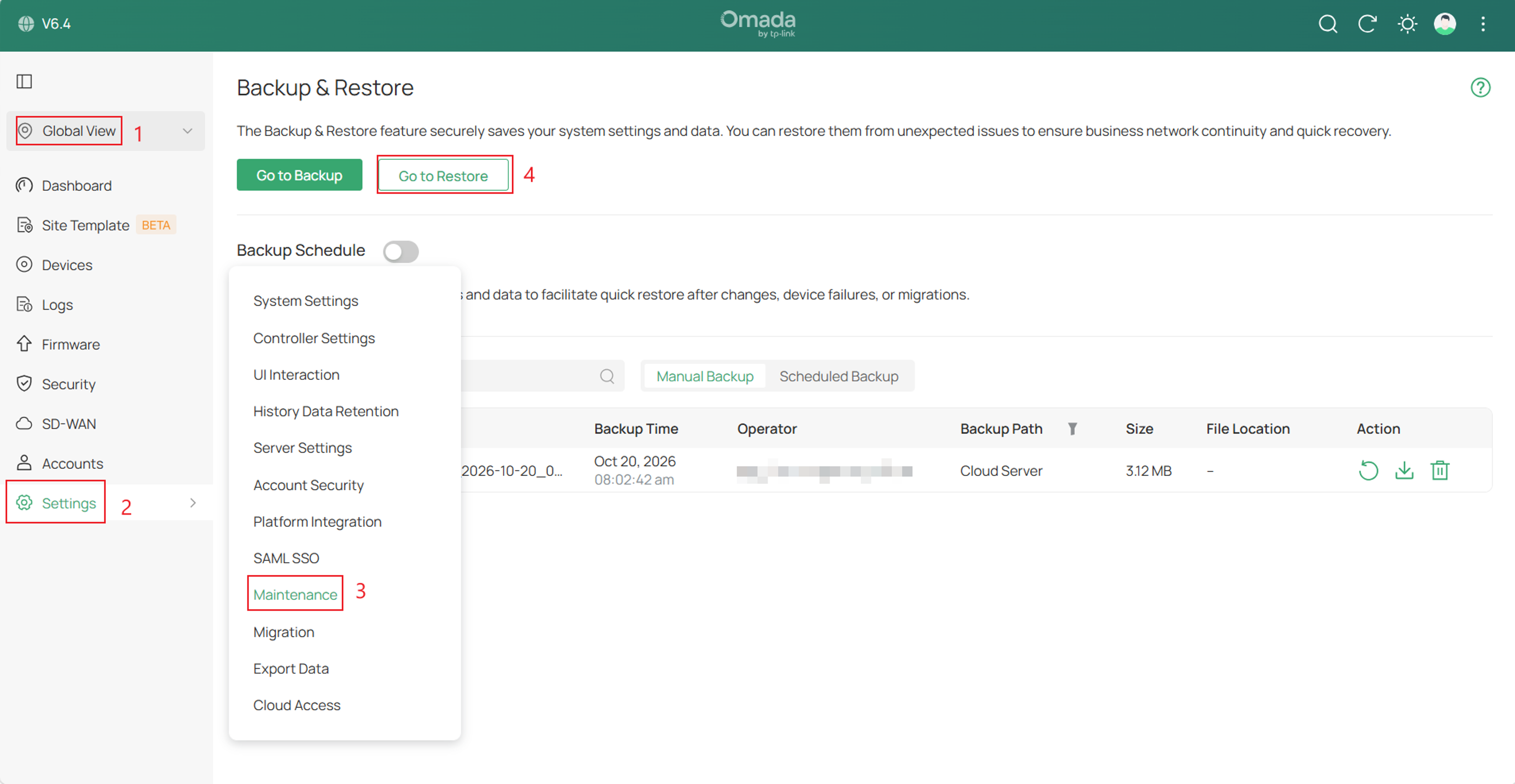
Step 1. Navigate to Global View > Settings > Maintenance > and select Go to Restore.
Step 2. Select the import method, configure the required parameters, and click Restore.
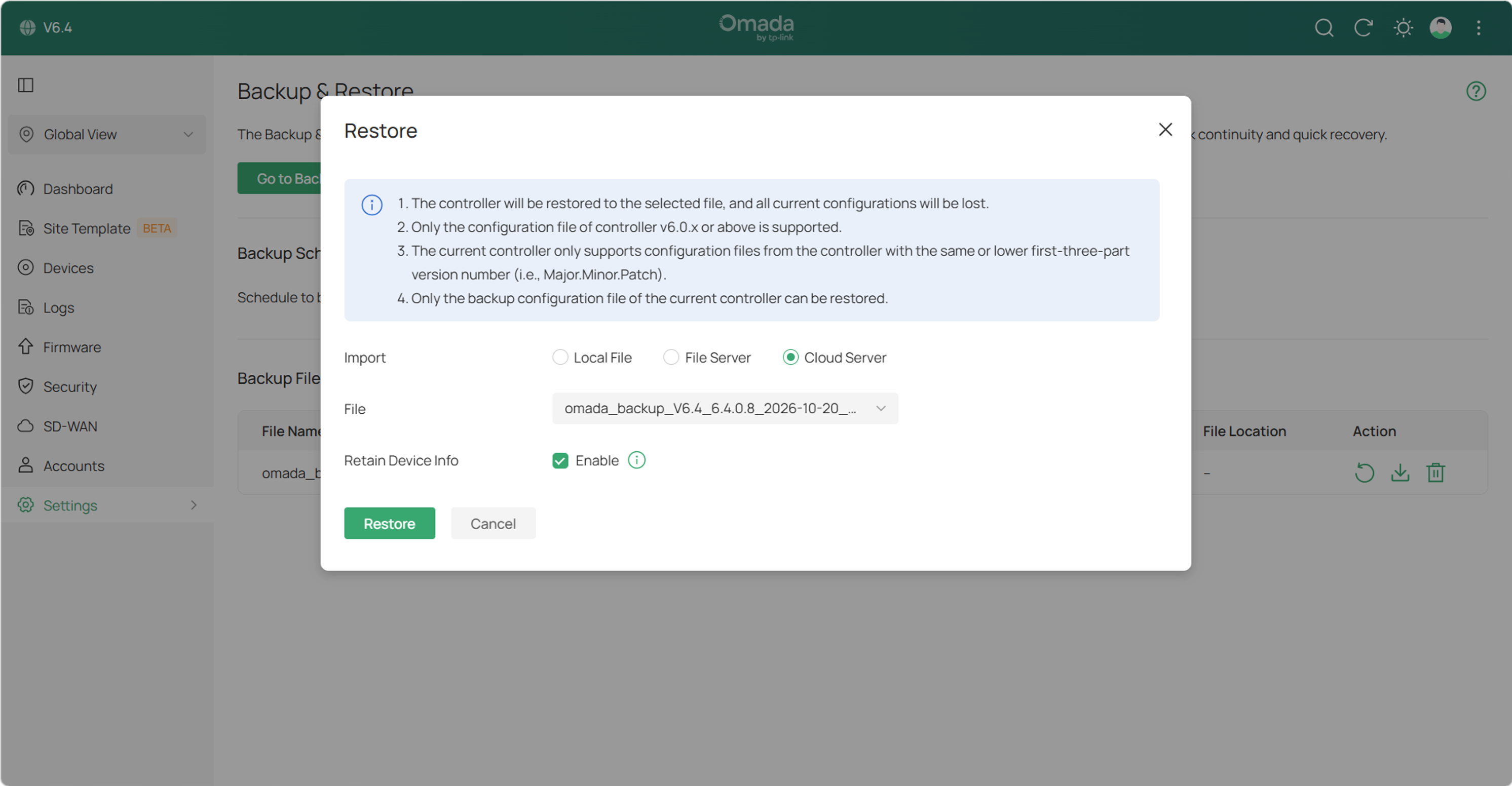
Local File: Import data from a local file.
File Server: Import data from a file server. Select the desired file server type (FTP / TFTP / SFTP / SCP) and configure the parameters.
Cloud Server: Import data from a cloud server.
Retain Device Info: If selected, the device list information in the configuration file will be imported, including device entries and their configurations. After importing, if the devices can communicate with the controller normally, they will be adopted automatically; otherwise, they will remain offline.
Part 2: Site Backup and Restore
Starting with version 6.3 of the Omada Controller, sites can now be backed up and restored in the Site View.
Site Backup
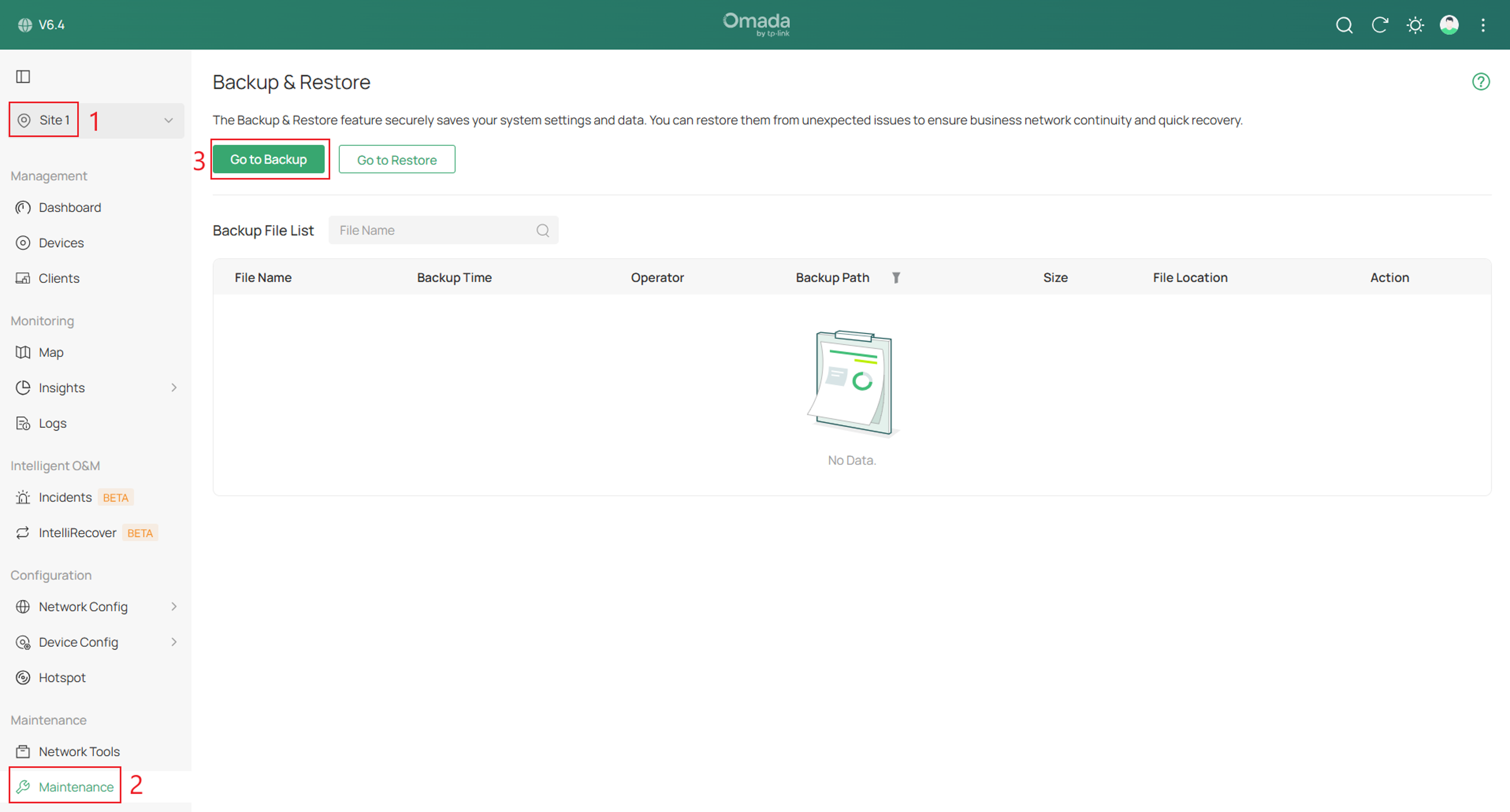
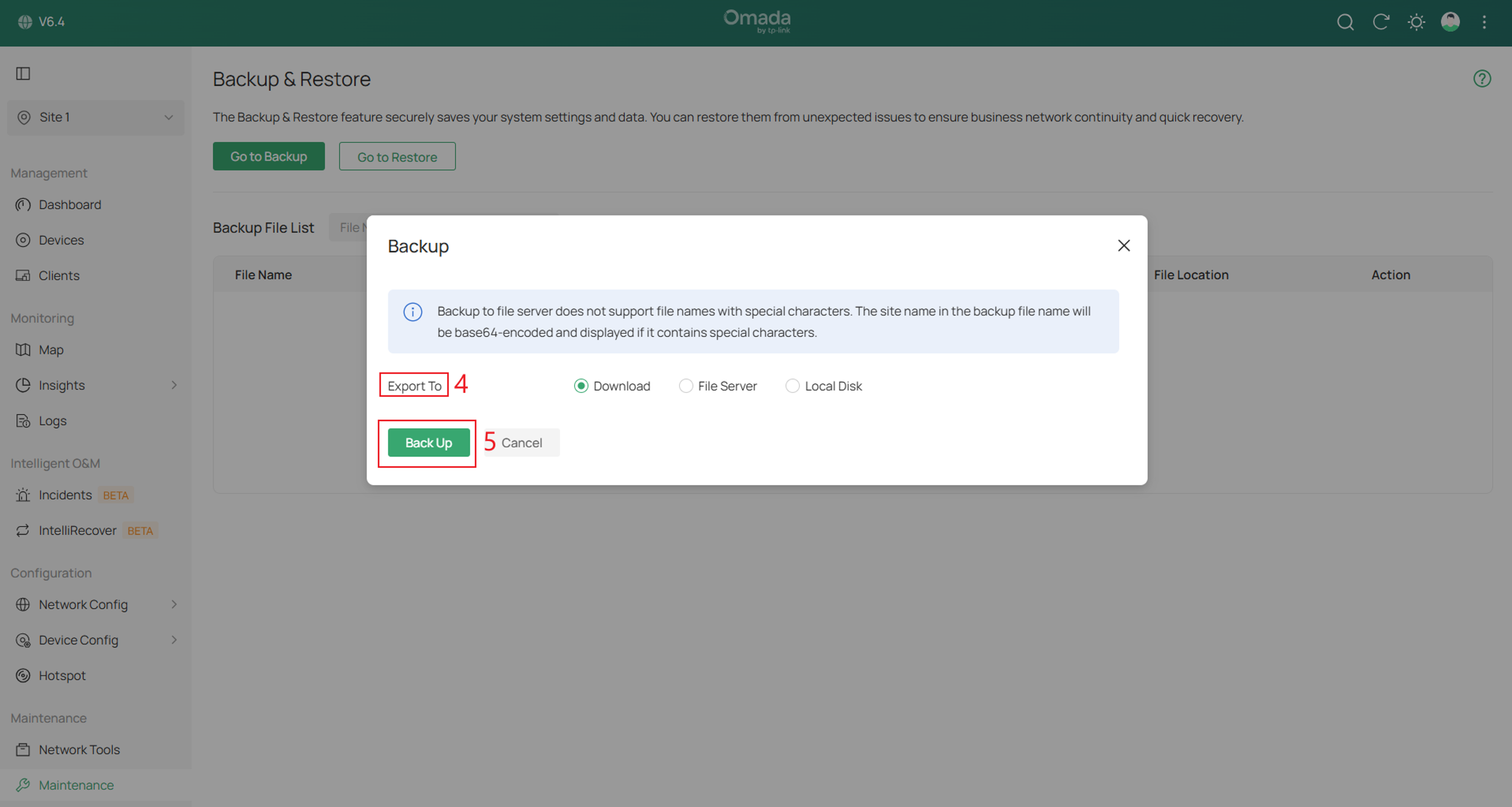
Navigate to the Site > Maintenance > select Go to Backup > choose where to Export To > click Back Up.
Site Restore
Notes: Site Restore can import the configuration file of only the current site. If you want to import the configuration file of another site, please use the Import Site function.
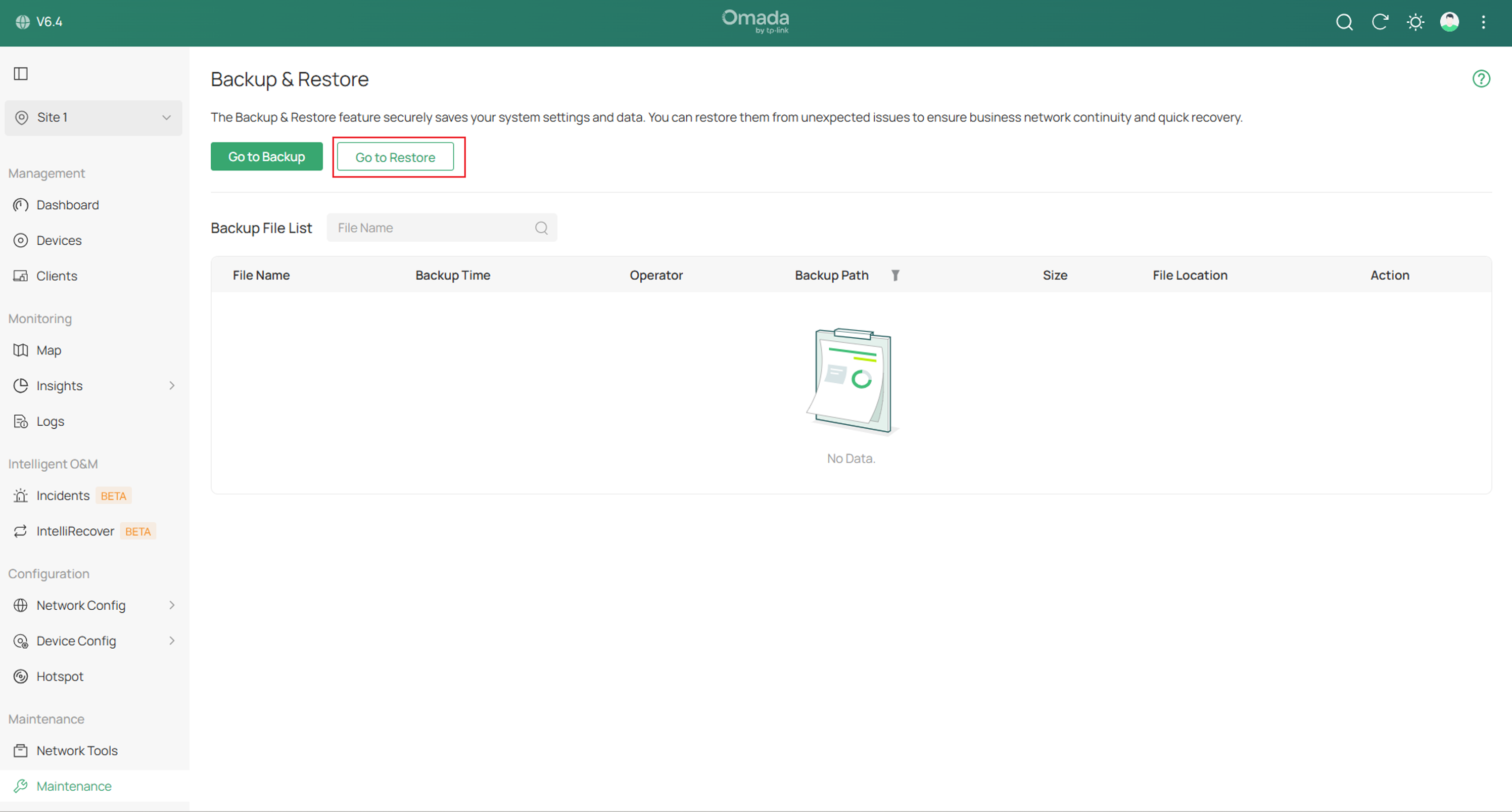
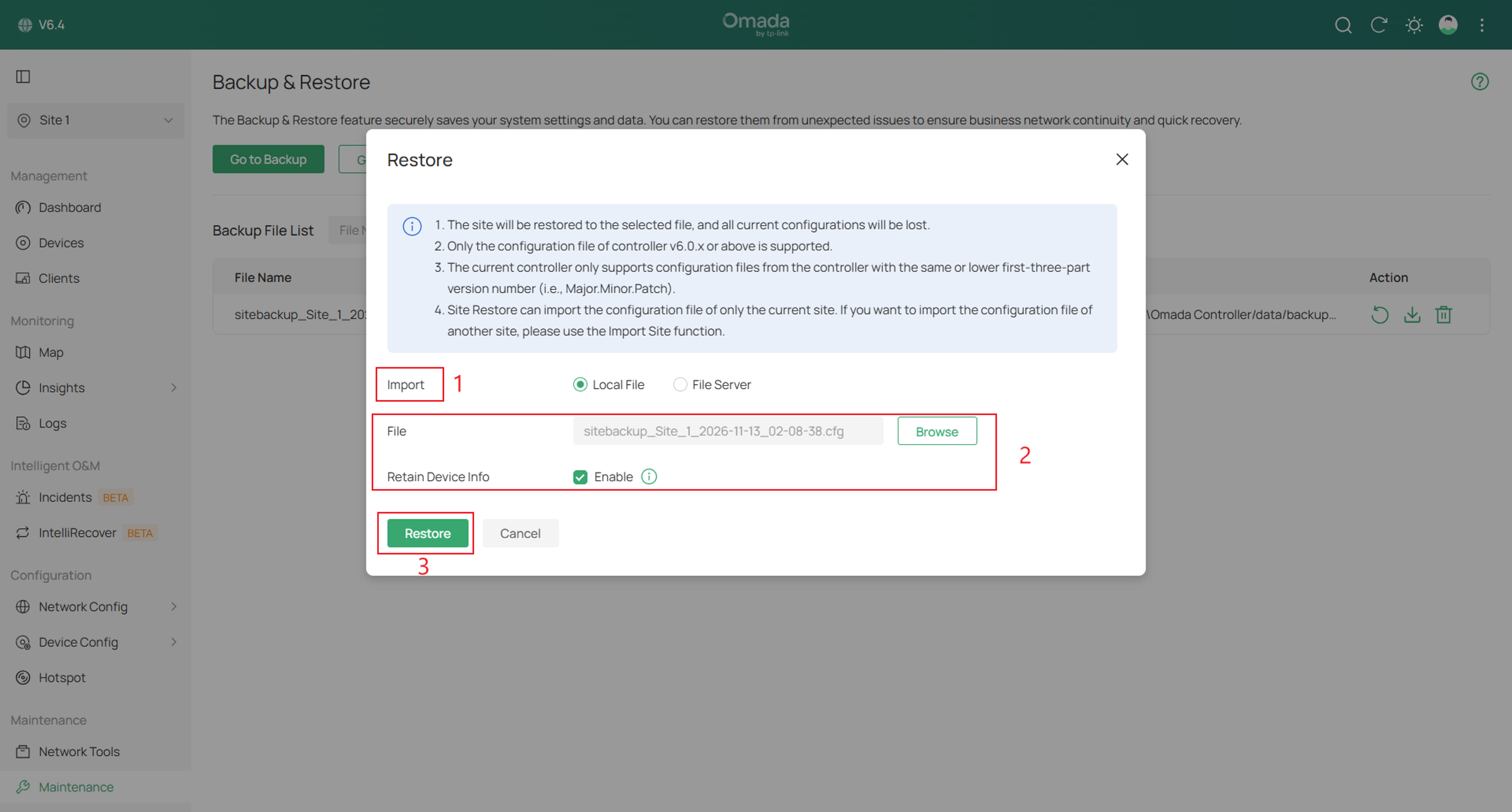
To restore a site, click Go to Restore > select the Import type and fill in the parameters.
Click Restore once complete.
Copy Site Feature
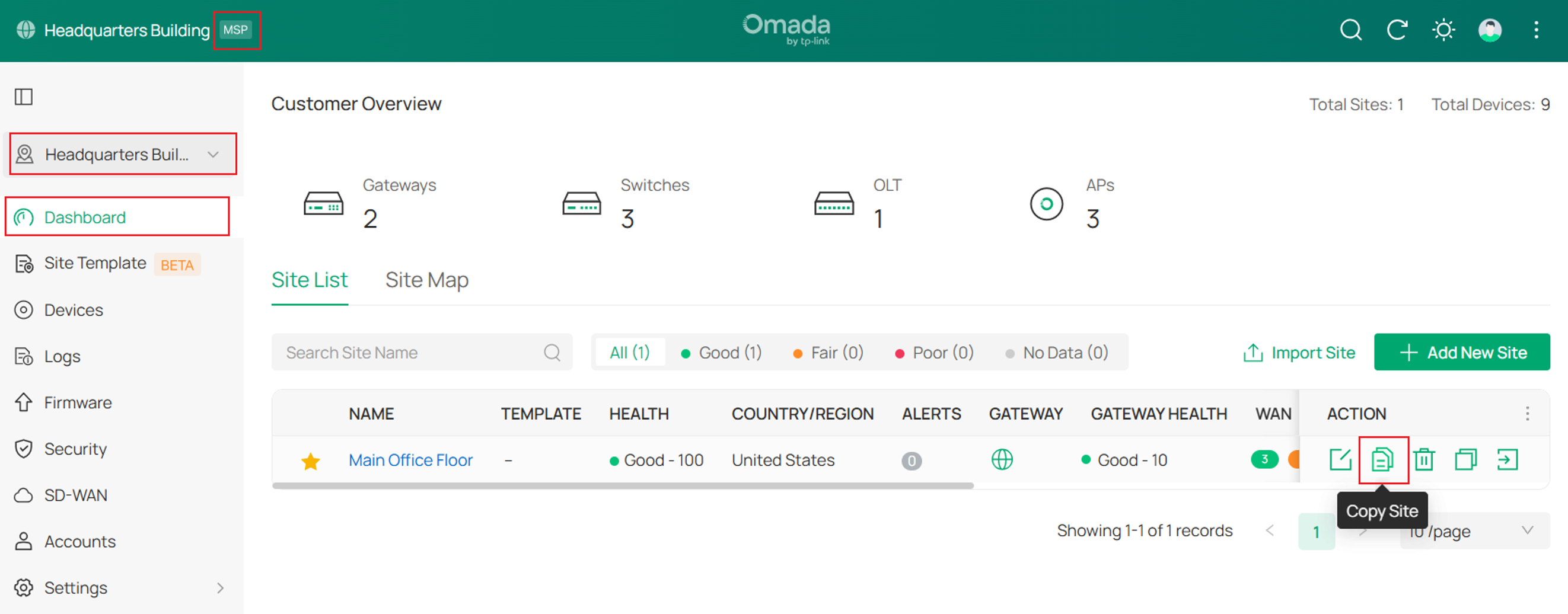
To replicate an existing configuration, copy the site from Global View > Dashboard > Site List. This approach is particularly useful for MSPs that maintain a standardized site template and deploy it across multiple customer sites, reducing configuration effort and ensuring consistency.
Conclusion
Regularly backing up your Omada Controller helps protect your network configuration and simplifies recovery if unexpected issues occur. With a recent backup, you can restore your Controller's sites, devices, and network settings without having to reconfigure everything from scratch. If you need to transfer configurations to another Controller or a replacement Controller, use Controller Migration instead.
Omada Controller supports both manual and scheduled backups. Manual backups allow you to save your Controller configuration whenever needed, particularly after making significant changes. Scheduled backups automatically create regular copies of your configuration, helping ensure that recent backup data is available when needed.
By maintaining up-to-date backups, you can simplify configuration recovery, reduce administrative effort, and minimize potential network downtime.
To learn more about each function and configuration, please visit Support Home to download or check the manual for your product.
QA
Q1: What information is included in an Omada Controller backup?
A1: A backup can include controller settings, user information, authenticated client data, firmware update records, logs, and other configuration data depending on the options selected when creating the backup.
Q2: Can I schedule automatic backups on the Omada Controller?
A2: Yes. The Backup Schedule feature allows you to automatically create backups at a specified interval, such as weekly or monthly. You can also choose what data to include and where the backup file will be stored. Automatic backups are not created until Backup Schedule is enabled and configured. In the latest v6.4 release, you can also specify a Backup Prefix for automatically generated file names.
Q3: Where can backup files be saved?
A3: Backup files can be stored locally, uploaded to a file server using FTP, TFTP, SFTP, or SCP, or saved to the Cloud Server starting with Omada Controller v6.4. Cloud Access must be enabled to use the Cloud Server option.
Q4: Can I create a backup for only one site?
A4: A single-site backup is currently available through the Site Migration feature. This allows you to export the configuration of a specific site instead of backing up the entire controller. Starting with version 6.3 the current site can be backed up and restored from the Maintenance menu in the Site view.
Q5: Does the Omada Cloud-Based Controller require manual backups?
A5: Yes. Backup Schedule must be enabled and configured before automatic backups are created on an Omada Cloud-Based Controller. When Cloud Server is selected as the backup destination, only the configuration is backed up; data is not included.
Q6: How to use the backup file from the controller?
A6: Go to Global View > Settings > Maintenance. Choose the backup file and click the Restore button to apply the backup file. Starting with Omada Controller v6.4, backup files can also be selected directly from the Cloud Server, provided that Cloud Access is enabled.
Please take note of the following points.
- The Controller will be restored to the selected file and all current configurations will be lost.
If the number of devices in the file exceeds the maximum management scale, the excess data will be discarded.
OC200: 100APs, 10 Gateways, up to 20 Switches*, up to 2 DeltaStream GPON OLTs*
OC220: 100APs, 10 Gateways, up to 20 Switches*, up to 2 DeltaStream GPON OLTs*
OC300: 500APs, 100 Gateways, up to 100 Switches*, up to 5 DeltaStream GPON OLTs*
OC400: 1000APs,100 Gateways, up to 200 Switches*, up to 10 DeltaStream GPON OLTs*
*The number of supported Omada Switches decreases by 5 for each DeltaStream GPON OLT added.- Only the configuration file of controller v5.0.x or above is supported.
- The current controller only supports the configuration file of the controller with the same or a smaller first-three-part version number (Major.Minor.Patch).
Q7: What should I do if my hardware Controller is damaged and I need to migrate to a new Controller?
A7: Use the Controller Migration feature. Backup and Restore only supports backup configuration files created by the current Controller and cannot be used to migrate configurations to a different or replacement Controller.
