


Contents
Configuration of LAN DNS for IP type
Configuration of LAN DNS for CNAME type
Configuration of LAN DNS for FORWARD type
Introduction
LAN DNS allows you to define custom DNS resolution rules for devices on the local network. It operates differently based on the selected type:
- LAN DNS for IP type primarily maps a domain name to a specific IP address, enabling precise addressing and communication for network devices
- LAN DNS for CNAME type is used to set aliases for domain names, simplifying management and maintenance. It also allows for flexible domain name redirection.
- LAN DNS for FORWARD type forwards query requests for specific domain names to other DNS servers to reduce query load, improve query efficiency, or implement specific resolution policies.
Requirements
- Omada Controller (Omada Network Application / Hardware Controller / Omada Cloud-Based Controller)
- Omada Gateway
Note: To use this function, the DNS server of the LAN host needs to be configured as the LAN IP of the gateway.
Configuration
Configuration of LAN DNS for IP type
Step 1. On the controller’s management page, go to Network Config > Network Settings > LAN > LAN DNS.
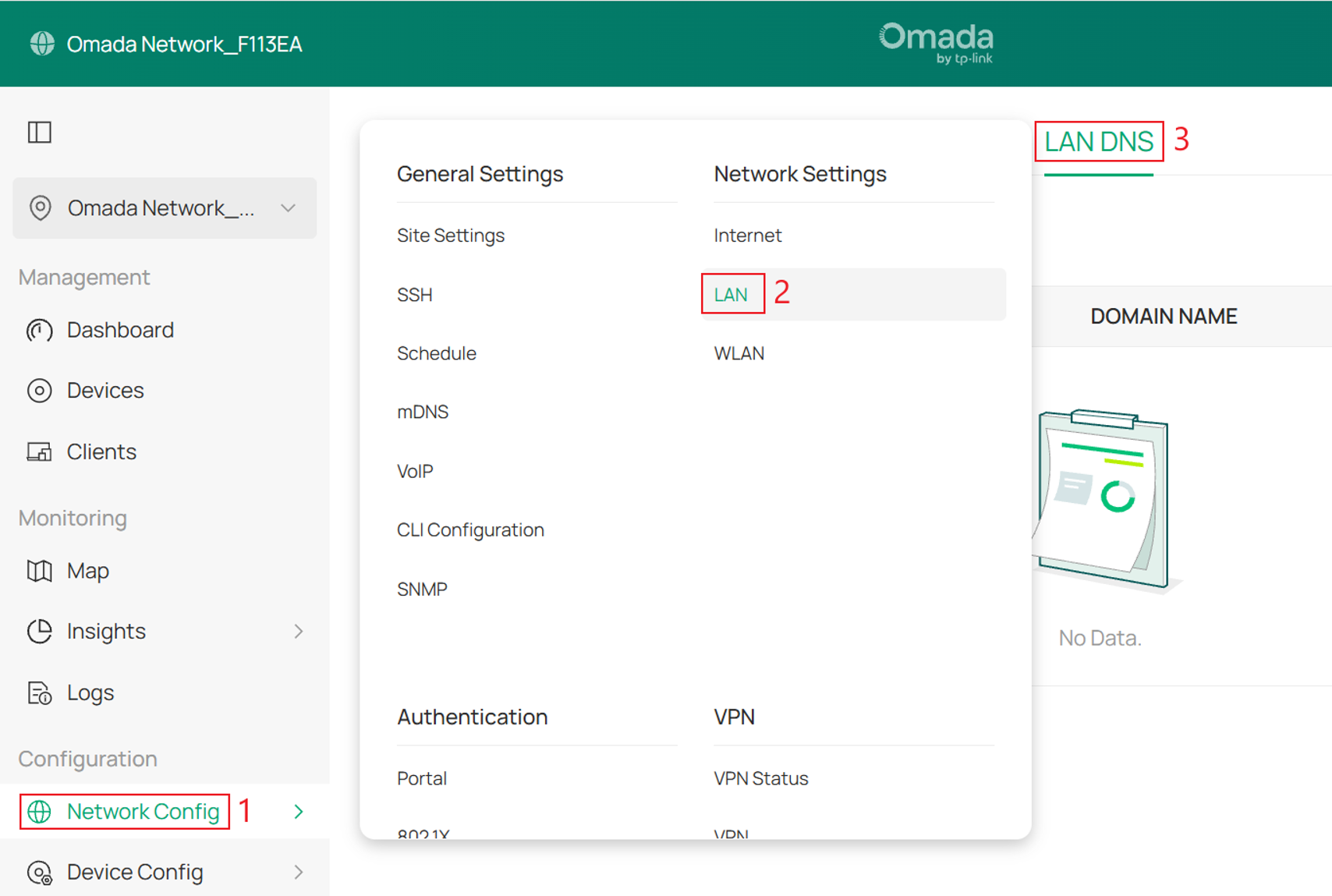
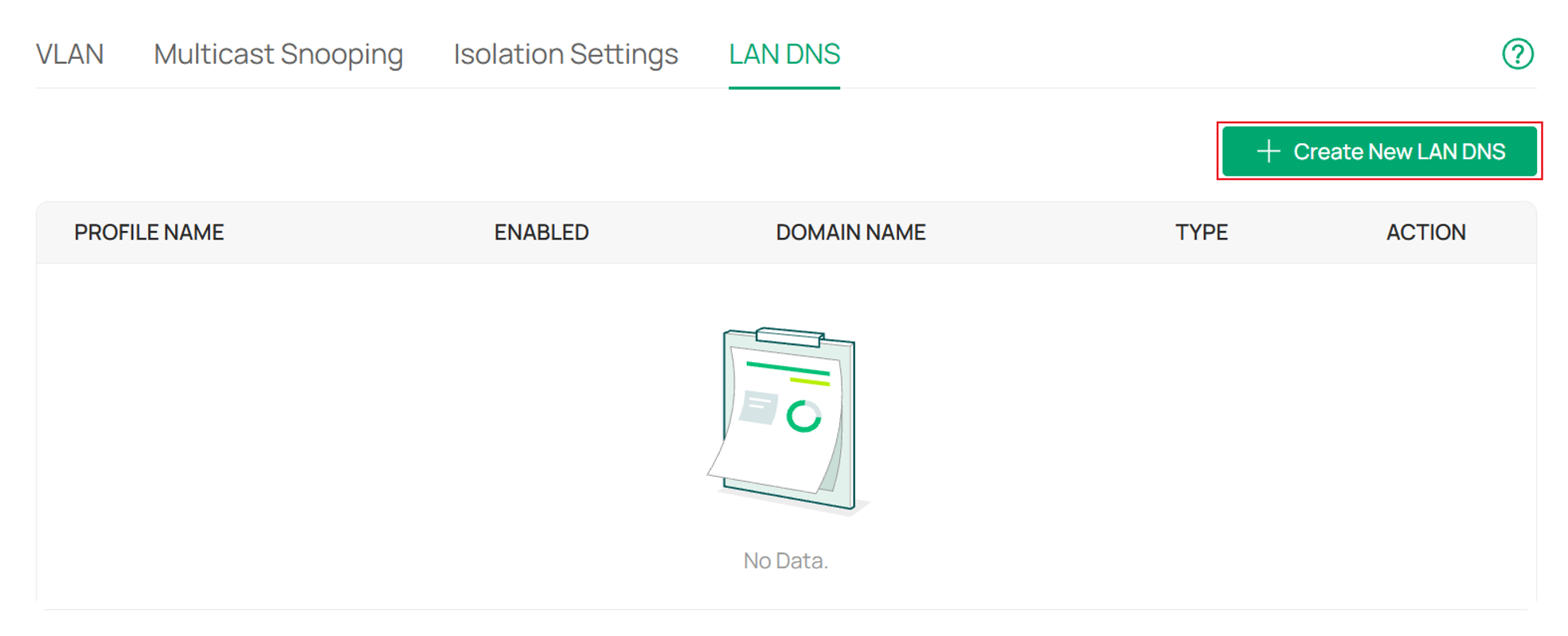
Step 2. Click + Create New LAN DNS to create a LAN DNS rule for the IP type.
Step 3. Enter a Profile Name and enable the rule on Status. Configure the Domain Name and Alias Domain Name if needed, then select IP as the Type. TTL is optional, you can leave the default value or specify a custom duration. Configure the IP Address and IPv6 Address as needed, select the LAN(s) to which this rule applies in Apply To LAN, and then click Save.
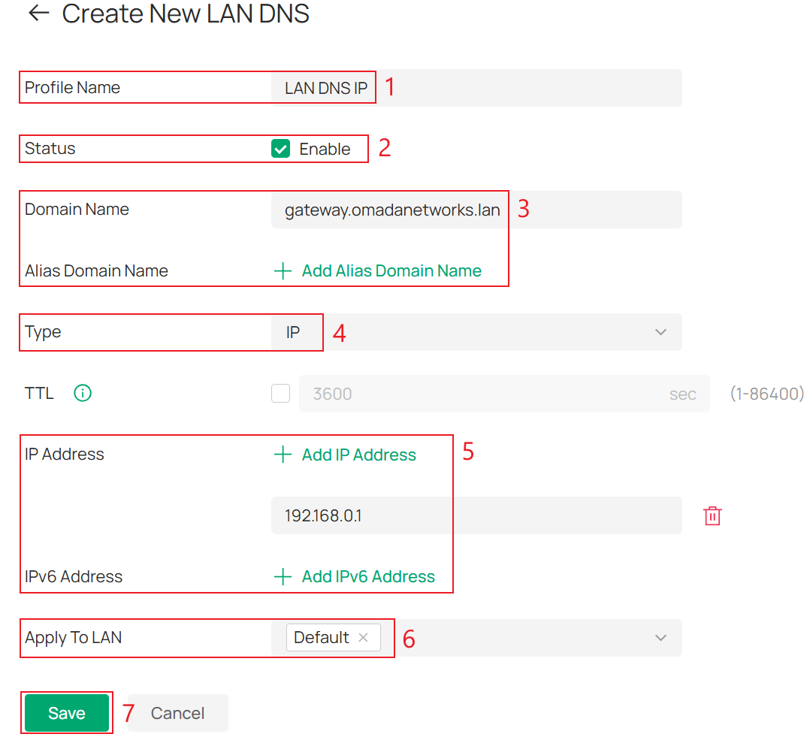
Alias Domain Name: Specify one or more additional domain names that should use the same LAN DNS rule. The primary domain name and all alias domain names in the same rule share the same rule configuration. For IP type, all domains resolve to the same IP address(es). Alias domain names cannot duplicate the primary or alias domain name of another LAN DNS rule.
TTL: The amount of time DNS information is allowed to be cached before it expires and needs to be refreshed. It is recommended to use the default TTL for each record.
Configuration of LAN DNS for CNAME type
The configuration procedure is similar to that for the IP type. For Step 1 and Step 2, please refer to the screenshots in Configuration of LAN DNS for IP type.
Step 1. On the controller’s management page, go to Network Config > Network Settings > LAN > LAN DNS.
Step 2. Click + Create New LAN DNS to create a LAN DNS rule for the CNAME type.
Step 3. Enter a Profile Name and enable the rule on Status. Configure the Domain Name and Alias Domain Name if needed, then select CNAME as the Type. Enter the target domain name in CNAME, select the LAN(s) to which this rule applies in Apply To LAN, and then click Save.
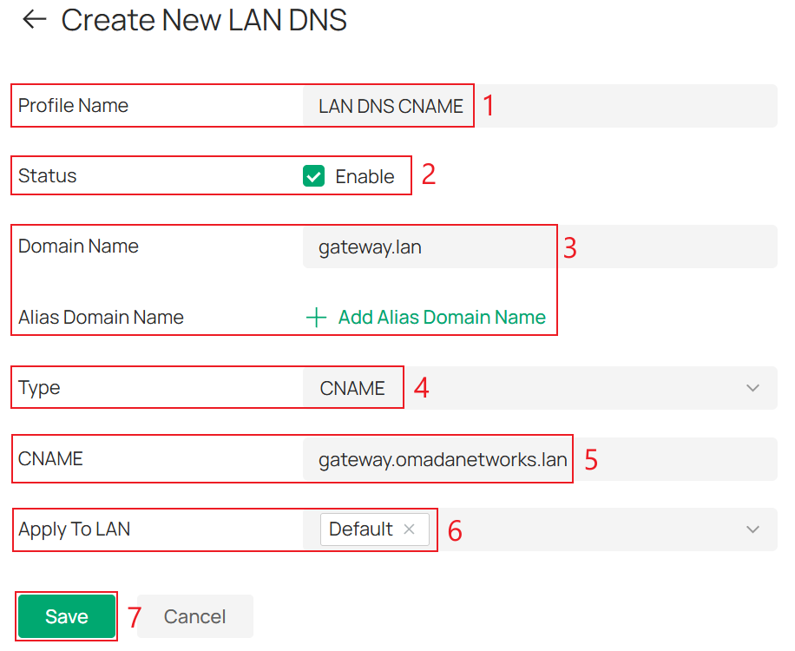
Alias Domain Name: Specify one or more additional domain names that should use the same LAN DNS rule. The primary domain name and all alias domain names in the same rule share the same rule configuration. For CNAME type, all domains point to the same target CNAME. Alias domain names cannot duplicate the primary or alias domain name of another LAN DNS rule.
Configuration of LAN DNS for FORWARD type
The configuration procedure is similar to that for the IP type. For Step 1 and Step 2, please refer to the screenshots in Configuration of LAN DNS for IP type.
Step 1. On the controller’s management page, go to Network Config > Network Settings > LAN > LAN DNS.
Step 2. Click + Create New LAN DNS to create a LAN DNS rule for the FORWARD type.
Step 3. Enter a Profile Name and enable the rule on Status. Configure the Domain Name and Alias Domain Name if needed, then select FORWARD as Type. Specify the upstream DNS Server, select the LAN(s) to which this rule applies in Apply To LAN, and then click Save.
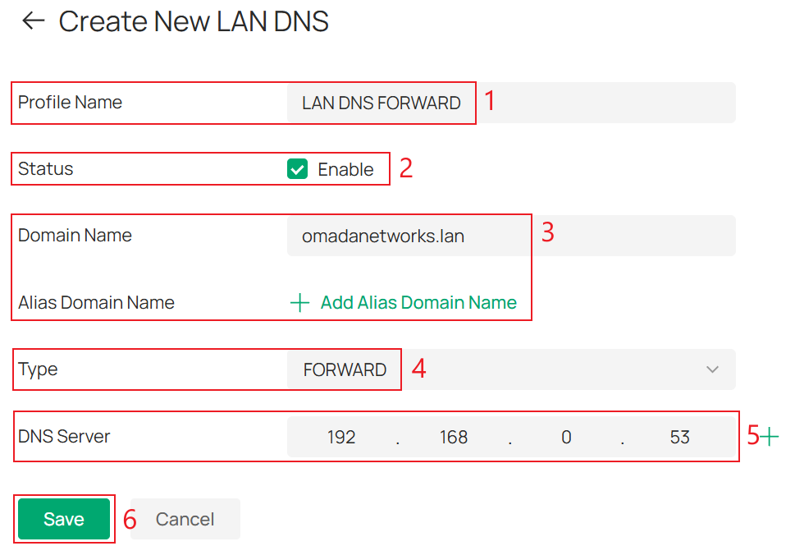
Alias Domain Name: Specify one or more additional domain names that should use the same LAN DNS rule. The primary domain name and all alias domain names in the same rule share the same rule configuration. For FORWARD type, all domains resolve using the same upstream DNS server(s). Alias domain names cannot duplicate the primary or alias domain name of another LAN DNS rule.
Note: LAN DNS rules for the FORWARD type can configure up to 2 upstream DNS servers.
Verification
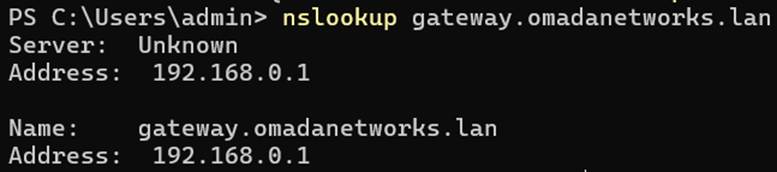
You can use the nslookup utility to verify that the LAN DNS rule is working correctly.
Conclusion
You have successfully configured LAN DNS on the Omada Controller. By using LAN DNS, you can customize DNS resolution for your local network, making it easier to access internal services and implement flexible DNS policies.
To learn more about each function and configuration, please visit Support Home to download or check the manual for your product.
QA
Q1: How do I choose the appropriate LAN DNS type?
A1: The appropriate record type depends on your DNS resolution requirements:
IP: Use this type when you want a domain name to resolve directly to one or more IP addresses. This is suitable for accessing local servers, network devices, or internal services using custom domain names.
CNAME: Use this type when you want one domain name to act as an alias for another domain name. This simplifies management because changes to the target domain's IP address do not require updating the alias record.
FORWARD: Use this type when you want DNS queries for specific domains to be handled by designated DNS server(s) instead of the gateway's default DNS server. This is useful for split-horizon DNS, private domain resolution, or implementing custom DNS policies.
Q2: Can I configure multiple IP addresses for a single IP-type LAN DNS rule?
A2: Yes. A single domain name can have multiple IPv4 and/or IPv6 address records. When resolving the domain name, the client operating system automatically selects one of the returned addresses for the actual connection.
Q3: How does the FORWARD type work when multiple DNS servers are configured?
A3: Omada Gateway sends DNS queries to one of the configured DNS servers. If the query fails, it automatically retries using another configured DNS server. LAN DNS rules for the FORWARD type can configure up to 2 upstream DNS servers.
Q4: Why don't I see the LAN DNS option in my Controller?
A4: LAN DNS is supported starting from Omada Controller v5.15.20 and requires an Omada Gateway running firmware that is fully compatible with Controller v5.15 or later.
Q5: Why is LAN DNS not taking effect?
A5: LAN DNS only affects devices that use the Omada Gateway as their DNS server. Before troubleshooting, make sure that:
- The LAN DNS rule is configured correctly
- The client device is connected to the Omada network
- The client's DNS server is configured as the LAN IP address of the Omada Gateway
You can also verify the result by running the following command on Windows, Linux, or macOS:
nslookup <lan_dns_domain> <gateway_lan_ip>

Note: some applications or devices may bypass the DNS server configured by the operating system and use their own DNS servers instead. In such cases, LAN DNS rules on the Omada Gateway will not take effect.
