


Contents
Overview of PPSK with RADIUS (Unbound MAC)
Introduction
With the introduction of the 6 GHz band (Wi-Fi 6E/7), WPA3 is required to meet higher security standards. PPSK with RADIUS provides a more secure and manageable access solution. By assigning a unique password to each client and leveraging centralized management through a RADIUS server, it enables better user isolation and more flexible access control.
Since 6 GHz networks require WPA3, and WPA3 uses SAE authentication, the AP needs to determine which PSK is associated with the client during the SAE authentication process.
However, during the initial connection, no MAC-to-PSK binding has yet been established for the client on the authentication side. Therefore, the authentication cannot rely on a pre-established binding and must instead be handled through the Unbound MAC process. After successful authentication, the authentication side can then establish the client's MAC-to-PSK binding for subsequent connections.
This article describes how to configure PPSK with RADIUS (Unbound MAC) for 6 GHz networks.
Requirements
- Omada Controller v6.2.10 or above
- Omada Wi-Fi 7 Access Points supporting the 6 GHz frequency band, with firmware fully compatible with Omada Controller v6.2.10 (See the Applicable Models table below for supported models and firmware versions.)
- Clients supporting WPA3
- A RADIUS Sever that supports PPSK with RADIUS (Unbound MAC) for 6 GHz networks
(For details, refer to the ‘RADIUS Server Preparation’ section.)
Applicable Models
|
Model |
Hardware Version |
Firmware Version |
|
EAP775-Wall |
1.0 / 1.6 |
1.5.1 Build 20260415 Rel. 64731 |
|
EAP770 |
2.0 / 2.6 / 2.8 |
1.5.1 Build 20260415 Rel. 64731 |
|
EAP772-Outdoor |
1.0 / 1.6 |
1.5.1 Build 20260415 Rel. 64731 |
|
EAP772 |
2.0 / 2.6 |
1.5.1 Build 20260415 Rel. 64731 |
|
EAP787 |
1.0 / 1.6 |
1.5.1 Build 20260415 Rel. 64731 |
|
AP9778 |
1.0 |
Upcoming release |
Overview of PPSK with RADIUS (Unbound MAC)
In 6 GHz networks (Wi-Fi 6E/7), WPA3 is required to meet higher security standards. In this scenario, when assigning unique Wi-Fi passwords (PPSK) to different users and enabling centralized management, authentication must be performed through a RADIUS server.
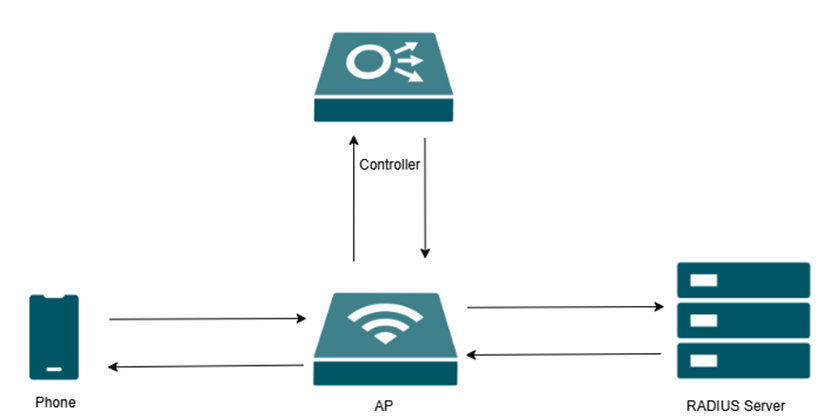
As shown in the figure, administrators configure the SSID and related features on the controller. The access point (AP) forwards client authentication requests to the RADIUS server, which stores PPSK-related information and performs credential verification. Upon successful authentication, the RADIUS server returns the required key information to the AP.
PPSK with RADIUS (Unbound MAC) allows clients to complete the initial authentication without pre-binding their MAC addresses. When a client connects to the wireless network and enters a password, the AP forwards the authentication request to the RADIUS server, where the password is verified and matched.
After successful authentication, the system automatically associates the client’s MAC address with the corresponding PPSK for subsequent connections, improving access efficiency while maintaining security.
RADIUS Server Preparation
RADIUS Server Requirements
1. Unbound MAC lookup
- The AP will send RADIUS Access-Request messages, which are identical to the WPA2 PPSK Unbound process.
- The server must be able to:
- Match the correct PSK
- Return Access-Accept messages containing the PMK, which will be sent back to the AP as required
2. Establishing MAC and PSK bindings
- Upon completion of the Unbound MAC query process:
- The server must automatically create bindings between MAC addresses and PSKs
- These bindings are used to handle subsequent Bound MAC queries
3. Bound MAC lookup
- The AP will send RADIUS Access-Request messages, which are identical to the WPA2 PPSK Bound MAC query process
- When the server finds a matching entry, it must:
- Return the correct PSK via the Tunnel-Password attribute
4. Implementation considerations (for open-source RADIUS)
- Some RADIUS servers (e.g., FreeRADIUS) do not natively support Unbound MAC lookup
- Additional development may be required to:
- Support Unbound MAC authentication
- Implement MAC–PSK binding logic
- Integrate database-based lookup mechanisms
Note: Commercial solutions such as RG Nets and Roaming IQ have been verified to meet these requirements. Open-source solutions may require customization.
RADIUS Server Workflow
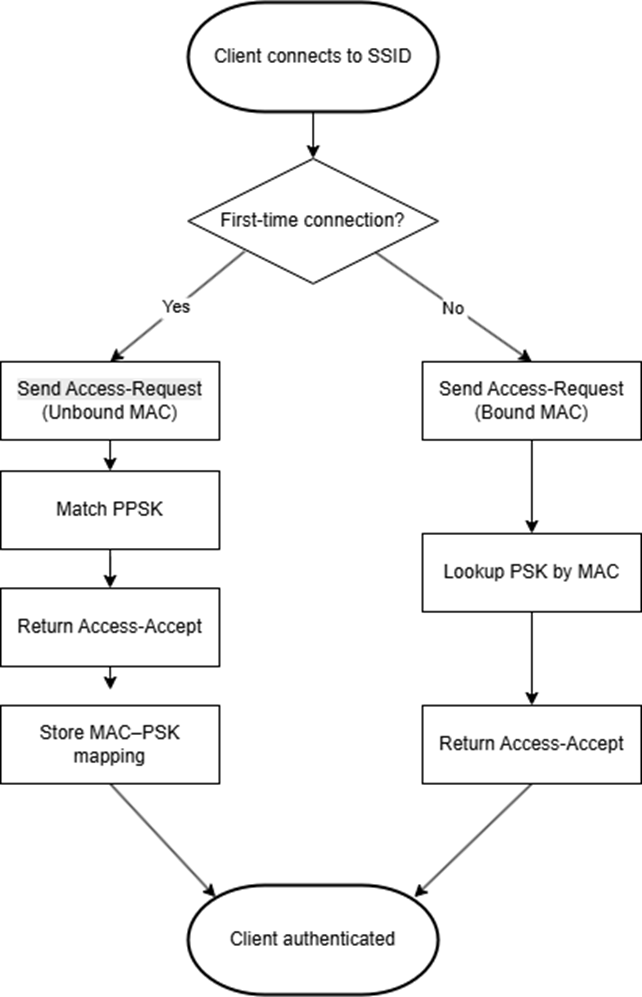
The following workflow applies to all RADIUS servers supporting PPSK with RADIUS (Unbound MAC).
I. When a client connects to the SSID for the first time, the AP sends an Access-Request (Unbound MAC) to the RADIUS server.
II. The RADIUS server matches the PPSK and returns an Access-Accept response.
III. After successful authentication, the RADIUS server establishes a binding between the client MAC address and the PPSK.
IV. For subsequent connections, the AP sends an Access-Request (Bound MAC), and the RADIUS server retrieves the corresponding PSK based on the stored MAC–PSK mapping to complete authentication.
RADIUS Server Implementation
The implementation approach depends on whether the RADIUS server natively supports Unbound MAC authentication.
I. Servers with Native Support (e.g., RG Nets & Roaming IQ)
For RADIUS servers with native support:
• Unbound MAC authentication is supported out of the box
• PPSK matching and MAC–PSK binding are handled internally
No additional customization is required.
II. Servers Requiring Customization (e.g., FreeRADIUS)
For RADIUS servers without native support, additional customization is required to implement the workflow described above:
- Unbound MAC authentication must be implemented to allow PPSK-based matching during the first connection.
- PPSK matching typically relies on external logic, such as scripts or database integration.
- MAC–PSK binding must be established after successful authentication to support subsequent connections.
- Subsequent authentication is performed based on database lookup using the client MAC address.
Configuration
Step 1. Configure the RADIUS Profile
After the APs are managed by the Omada Controller, launch the Site and enter the site view. Go to: Configuration > Network Config > Profile > RADIUS Profile. Click Create New RADIUS Profile to create a profile bound to the RADIUS server. If needed, Enable VLAN Assignment for Wireless Network.
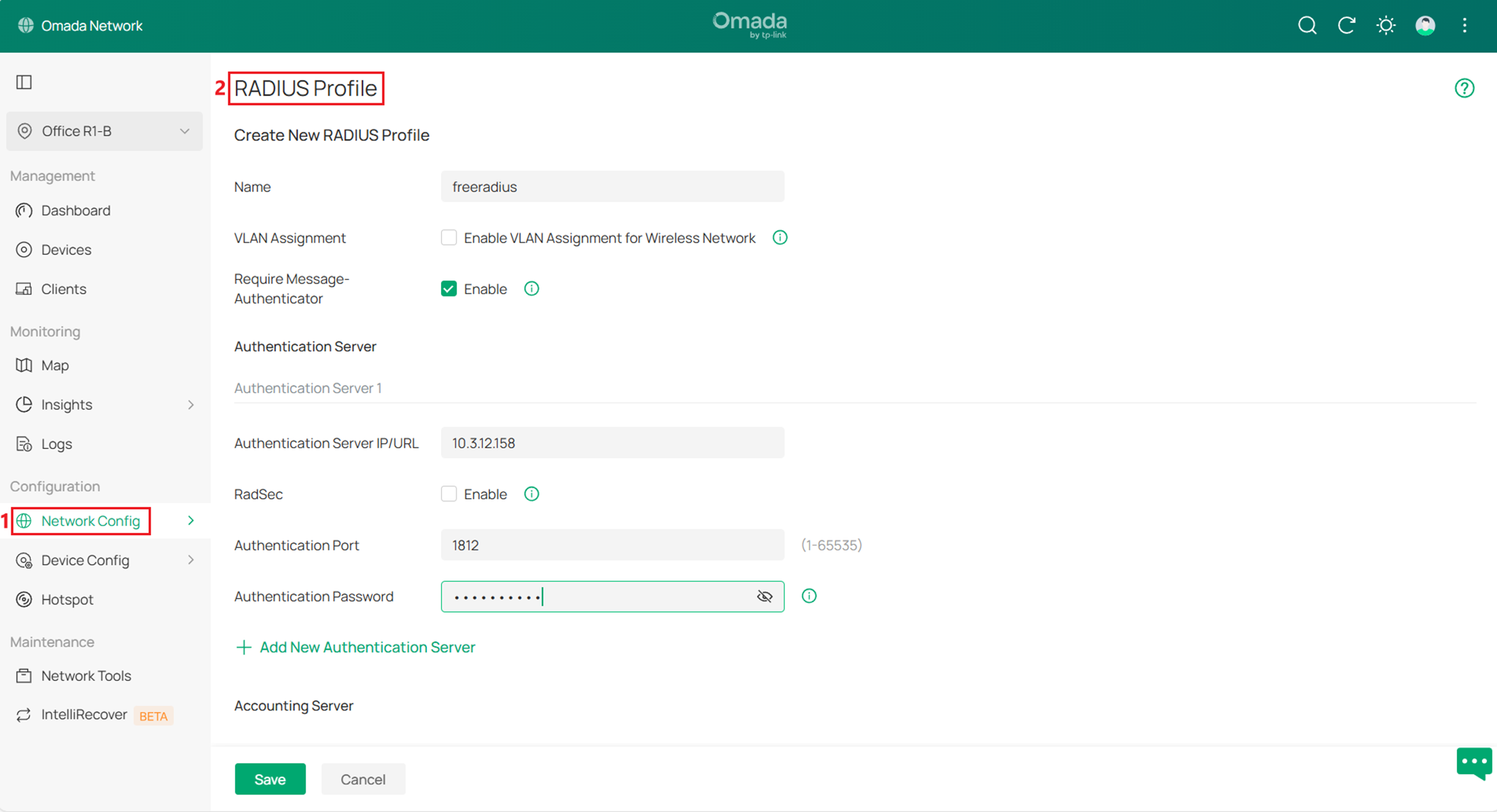
Note: Ensure the RADIUS server settings (IP address, authentication port, and Authentication Password) are consistent with the server configuration.
Step 2. Create the Wireless Network. Go to: Configuration > Network Config > Network Settings > WLAN, Click Create New Wireless Network to create a new SSID. Configure the SSID name, select the required bands (e.g., 2.4 GHz + 6 GHz, 5 GHz + 6 GHz, or 2.4 GHz + 5 GHz + 6 GHz), choose PPSK with RADIUS as the security mode, and select the RADIUS profile configured in Step 1, and the Authentication type is set to Generic RADIUS with unbound MAC. Configure other settings as needed, then click Apply to save the settings.
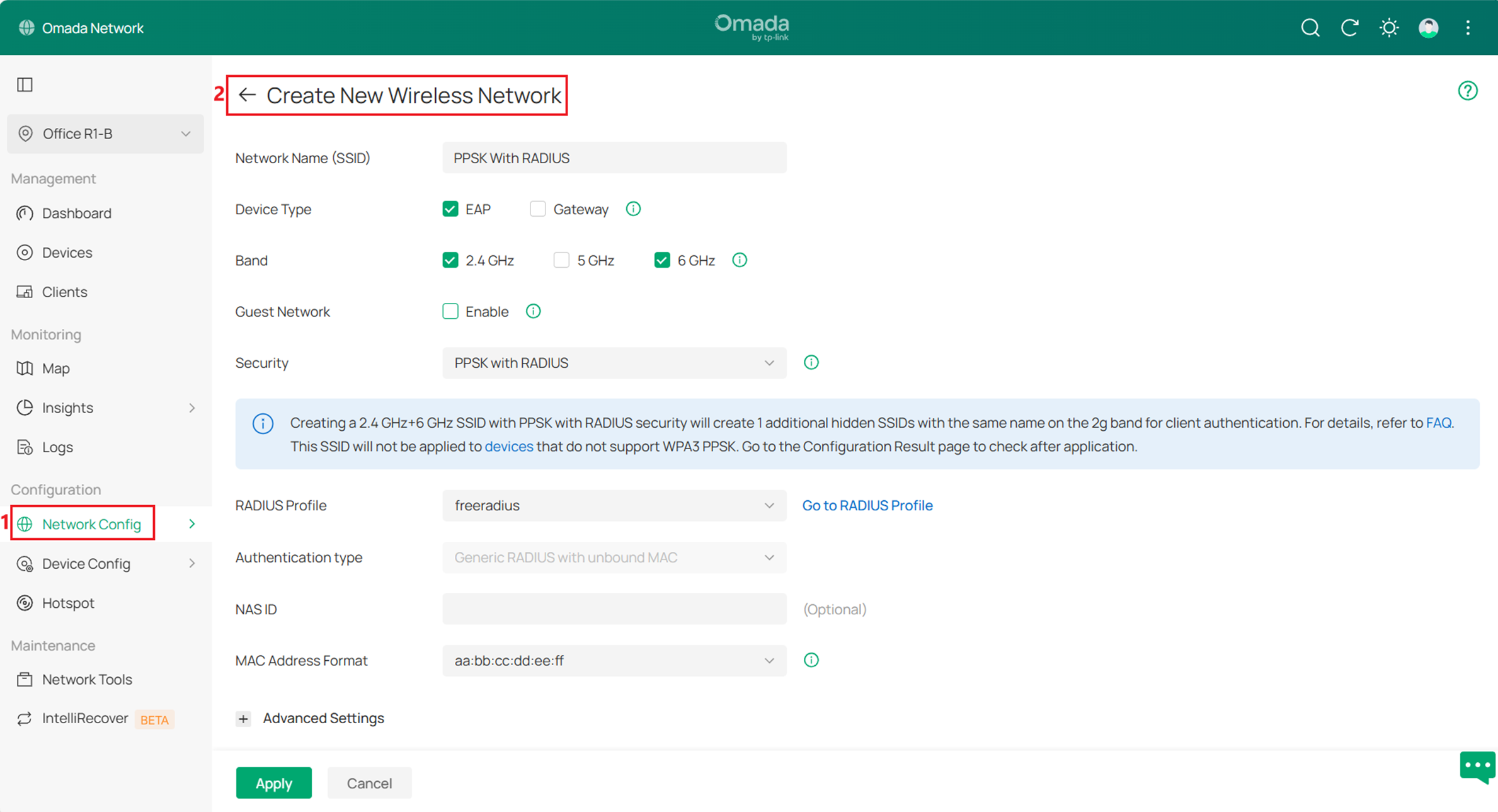
Note: Feature Limitations for 6 GHz PPSK SSID
I. The 802.11r option is not supported for 6 GHz PPSK SSIDs. This is because 6 GHz PPSK operates based on PPSK with RADIUS (Unbound MAC), which may introduce compatibility issues in RADIUS attribute handling when 802.11r is enabled.
II. The MLO option is not supported for 6 GHz PPSK SSIDs. MLO requires consistent security configurations across frequency bands, which is not applicable in this scenario.
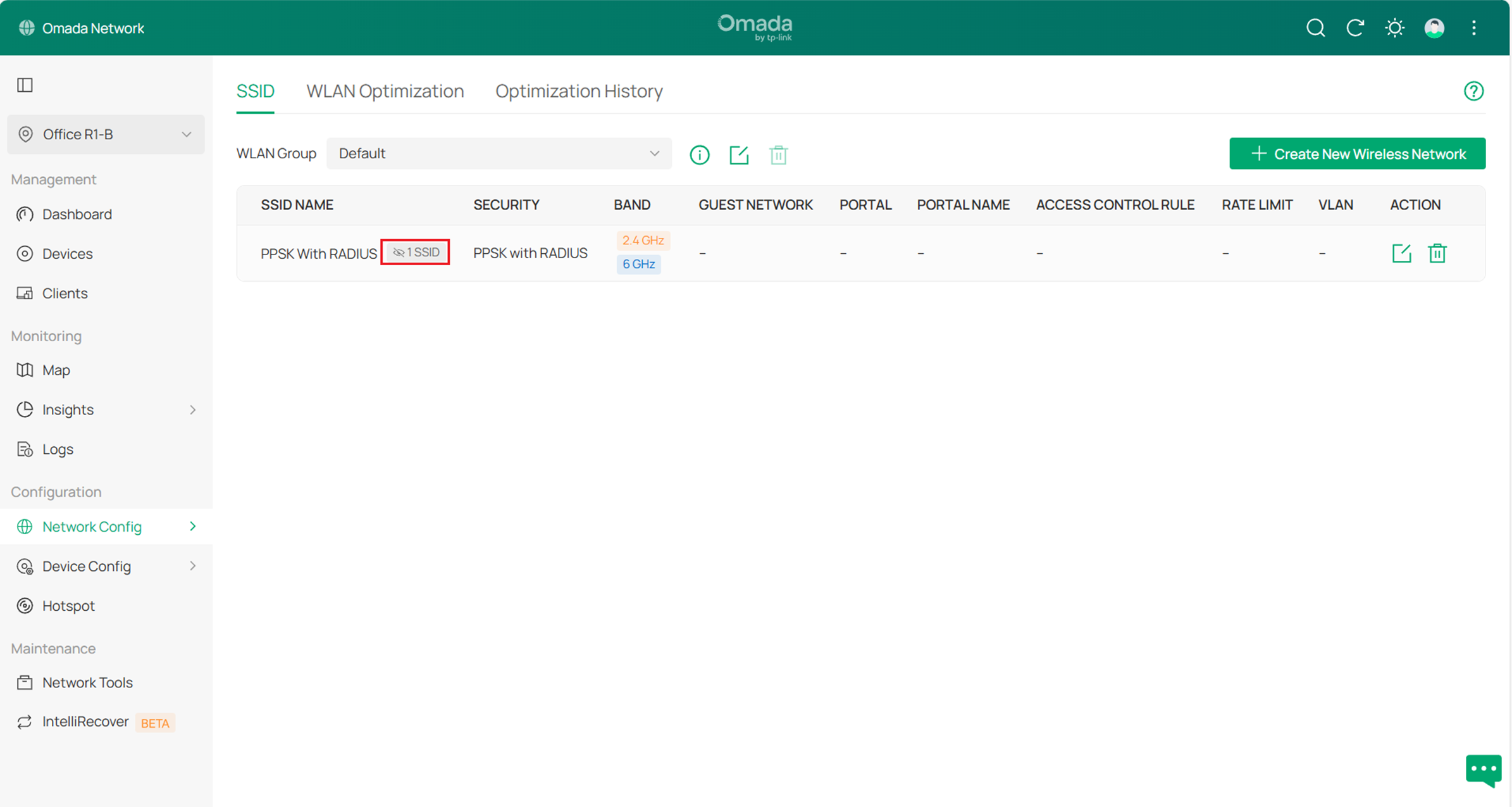
When creating a multi-band SSID (including 6 GHz) with PPSK with RADIUS security, the system automatically creates additional hidden SSIDs on non-6 GHz bands for client authentication.
- 2.4 GHz + 6 GHz: one hidden SSID is created on the 2.4 GHz band
- 5 GHz + 6 GHz: one hidden SSID is created on the 5 GHz band
- 2.4 GHz + 5 GHz + 6 GHz: hidden SSIDs are created on both the 2.4 GHz and 5 GHz bands
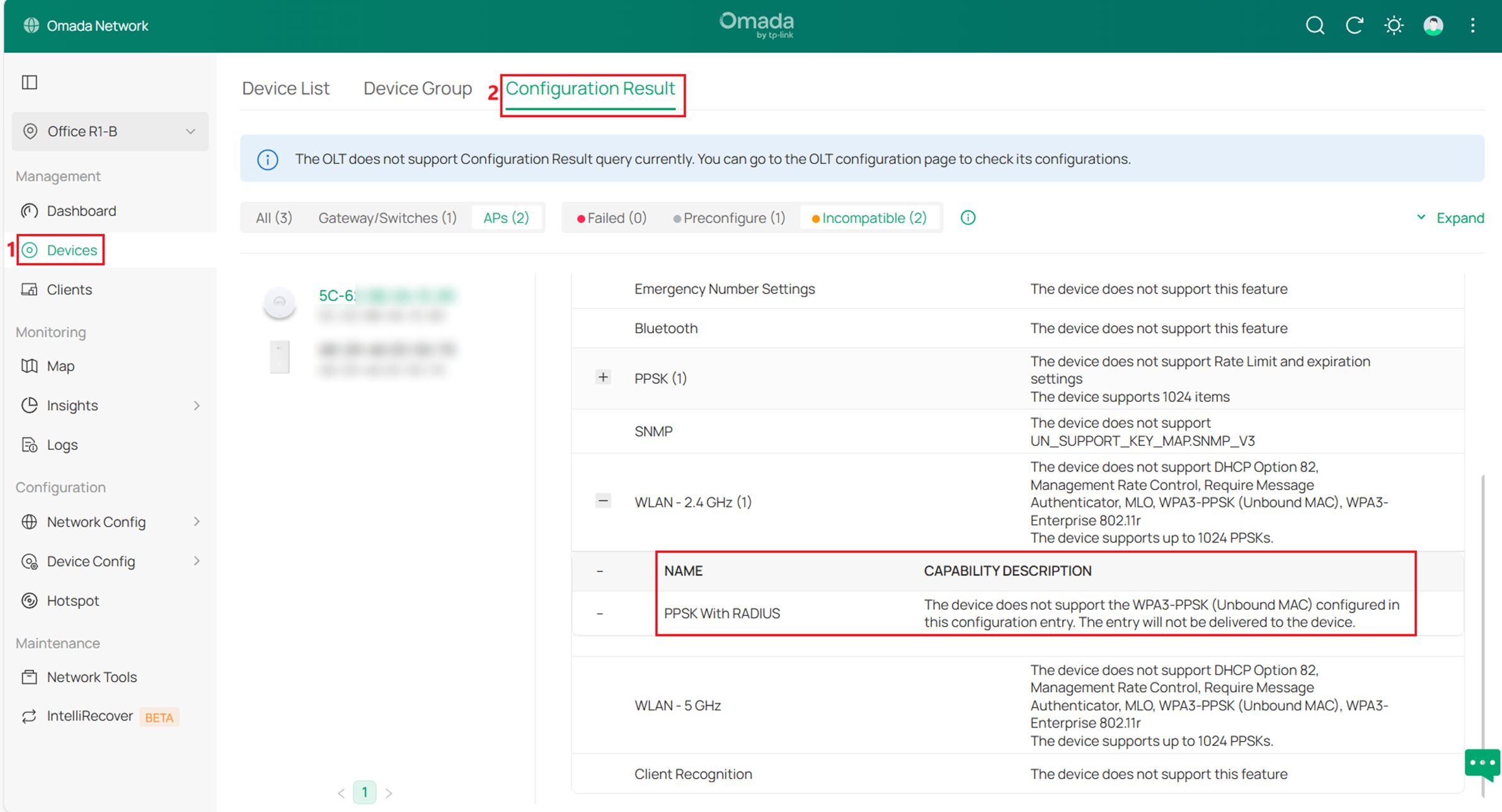
For APs that support PPSK but do not support 6 GHz PPSK, the SSID will only be applied as WPA2 PPSK with RADIUS (Unbound MAC). After applying the configuration, go to the Devices > Configuration Result page to check the status where unsupported devices will be marked as incompatible, as shown below.
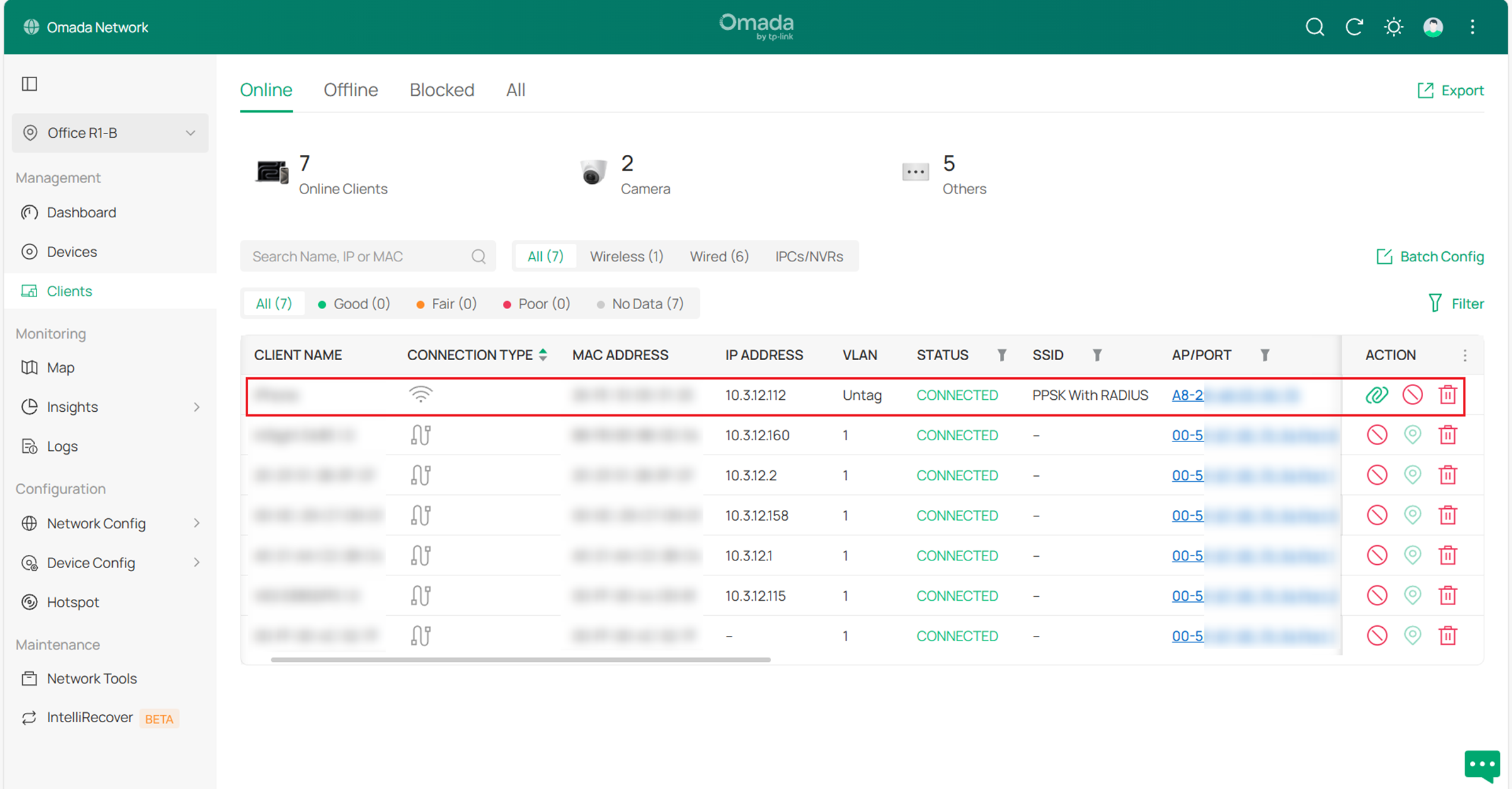
Step 3. Use a client to connect to the SSID created in Step 2. Enter the PPSK configured on the RADIUS server to complete authentication. After a successful connection, the authenticated client can be viewed in the Clients list.
Note:
The following client-side considerations may affect connection behavior:
• Due to client limitations, some devices (e.g., certain Windows laptops) may not be able to connect to the 6 GHz band. Forgetting the SSID and reconnecting may help resolve the issue.
• In some cases, the client may fail to connect on the first attempt. Reconnecting typically resolves the issue.
• Band Steering and Load Balance may affect the initial association process and interfere with PPSK registration on 6 GHz. To ensure successful registration, these features may not take effect during the first connection but will function normally afterward.
• After changing the PPSK, the client may need to connect more than once to complete authentication. The new password must first be registered via the hidden SSID on non-6 GHz bands before it can be used on other bands.
Conclusion
With the above steps, PPSK with RADIUS (Unbound MAC) authentication for 6 GHz networks can be configured to meet your network requirements.
To learn more about each function and configuration, please visit Support Home to download or check the manual for your product.
QA
Q1: Why is the 802.11r option not available for 6 GHz PPSK SSIDs?
A1: 802.11r is not supported for 6 GHz PPSK SSIDs because it may introduce compatibility issues in the RADIUS-based authentication process.
Q2: Why is MLO not supported for 6 GHz PPSK SSIDs?
A2: MLO is not supported because it requires consistent security configurations across different frequency bands. This requirement is not met in PPSK with RADIUS (Unbound MAC) deployments for 6 GHz networks.
Q3: Why does the client fail to connect or require multiple attempts?
A3: During the initial connection, the client may not complete the authentication or registration process successfully. Reconnecting typically resolves the issue.
If needed, forgetting the Wi-Fi network and reconnecting can help force the client to restart the connection process, allowing it to complete registration or reselect an appropriate band.
If the issue persists after multiple connection attempts, check whether the client uses MAC address randomization or a similar privacy feature for this Wi-Fi network. If available, try disabling this feature for this Wi-Fi network and reconnect to Wi-Fi. This may help improve authentication stability.
Q4: Why are Band Steering or Load Balance not effective during the first connection?
A4: Band Steering and Load Balance may affect the initial association process and interfere with PPSK registration. To ensure successful registration, these features may not take effect during the first connection but will function normally after the client is successfully registered.
Q5: Why do I need to connect multiple times after changing the PPSK?
A5: After the PPSK is changed, the client must first complete a registration process via the hidden SSID on non-6 GHz bands. If the client attempts to connect directly before this process is completed, the authentication may be rejected. Reconnecting allows the registration process to complete successfully.
