


Contents
When the ODU is in Router mode
Introduction
When deploying a 5G ODU, different networking requirements may require different operating modes. In some scenarios, the downstream device, such as a router or firewall, needs to obtain the public IP address assigned by the mobile network directly for routing, VPN, or advanced network management purposes. In other scenarios, the ODU itself is expected to perform gateway functions such as NAT, DHCP, and Internet sharing for connected devices.
To accommodate these deployment requirements, the 5G ODU supports both IP Passthrough (IPPT) mode and Router mode:
In IPPT mode, the ODU transparently forwards the IP address obtained from the SIM card to the downstream gateway. This mode is enabled by default on the device.
In Router mode, the ODU functions as a standard gateway, providing routing and network address translation services for devices on the local network.
Understanding the differences between these two modes helps users select the most suitable deployment option for their network environment. The device supports switching between these two modes. For detailed instructions, please refer to Troubleshooting Guide for Common Issues with 5G ODU.
Requirements
- Omada Controller (Software Controller v6)
- Omada 5G ODU (ER701-5G-Outdoor V1.0)
- Omada gateway (Omada Standard Gateways or Omada Fusion Gateways)
Configuration
This section describes the detailed process of adopting the ODU device by the local controller in the two different modes of the ODU.
When the ODU is in IPPT mode
Step 1. Set up the topology.
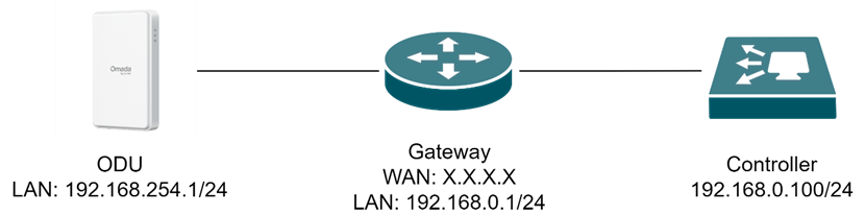
The typical topology for an ODU operating in IP Passthrough (IPPT) mode is shown below (the switch device is omitted to simplify the topology). The ODU device is powered via PoE. The WAN port of the gateway device remains in its default DHCP dial-up mode and is connected to the LAN port of the ODU device’s PoE power supply. The controller is connected to the LAN side of the gateway device.
Since the gateway is a Layer 3 (L3) device, with the ODU located on the WAN side and the Controller on the LAN side, they reside in different Layer 3 networks. In this case, the ODU cannot directly discover the Controller through L2/L3 discovery mechanisms. So it is necessary to configure port forwarding rules on the intermediate gateway device to enable discovery and adoption.
Additional configuration for Omada Fusion Gateway deployments
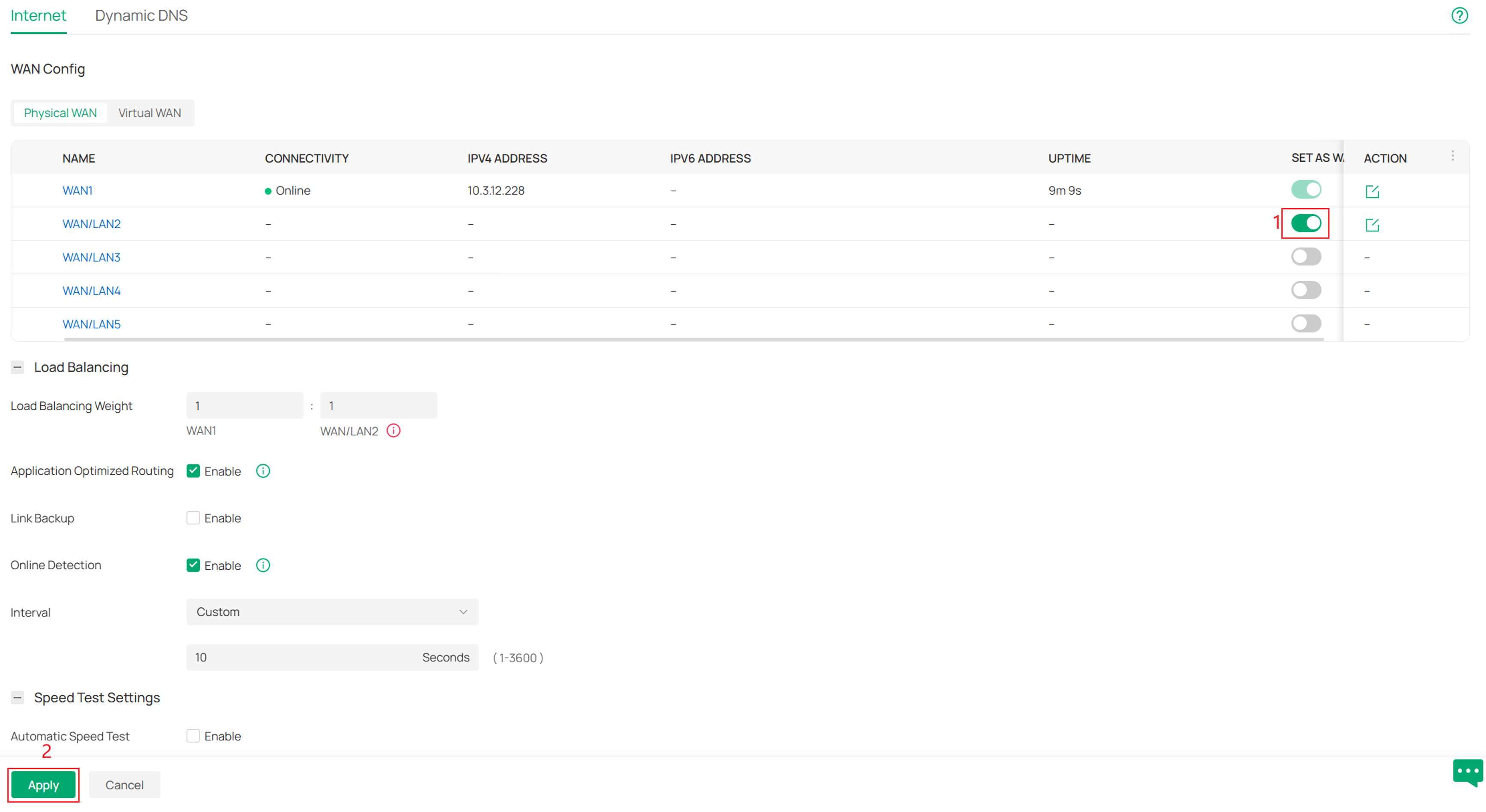
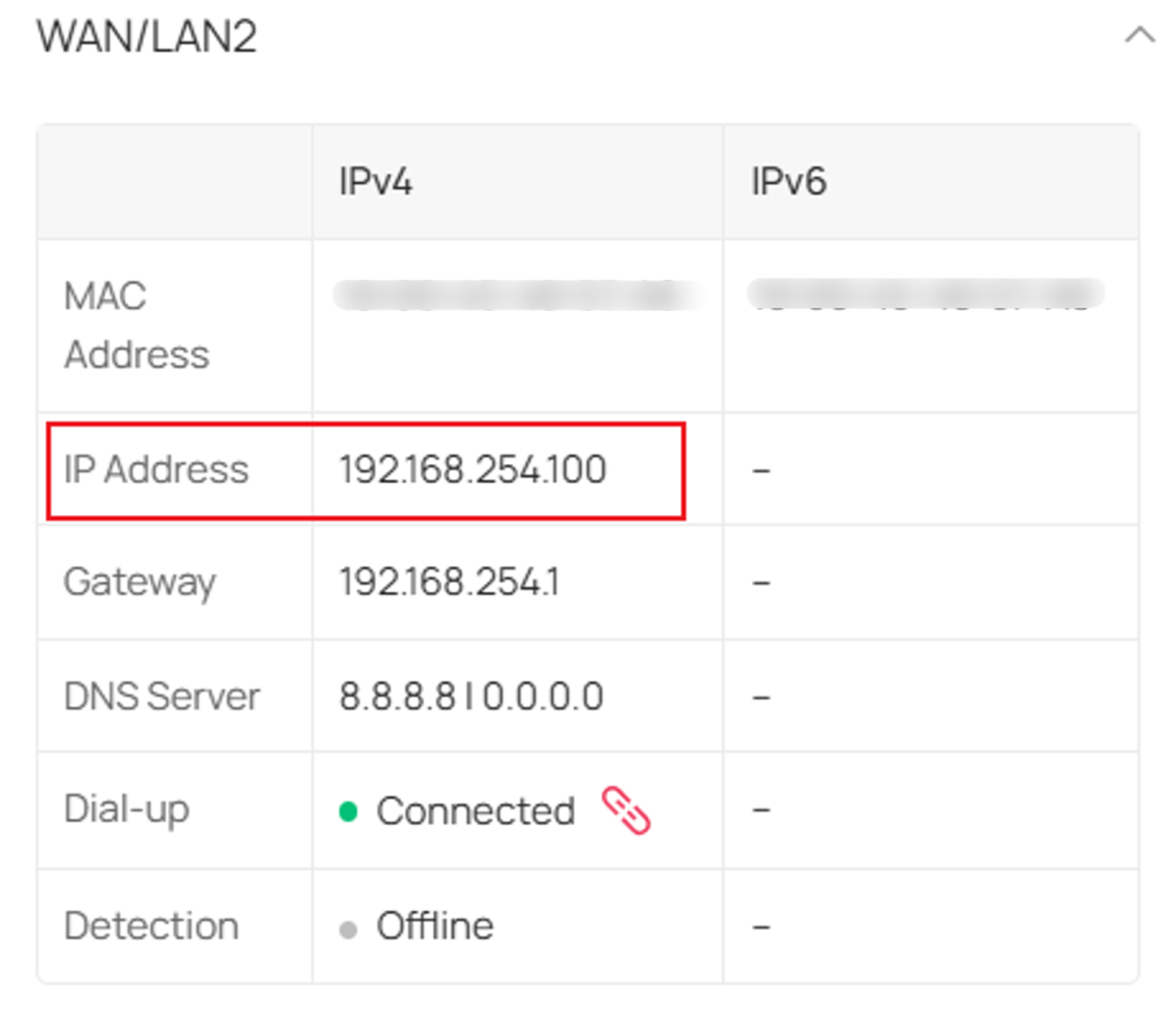
If an IPPT-mode ODU is adopted through one of the WAN interfaces on an Omada Fusion Gateway while multiple WAN interfaces are active, and the DNS server configured on the WAN interface used for ODU adoption has been modified, a static route to the 5G ODU must be added on the Fusion Gateway. Otherwise, controller traffic may be routed through another WAN interface and fail to reach the ODU.
- Enable the WAN interface connected to the ODU.
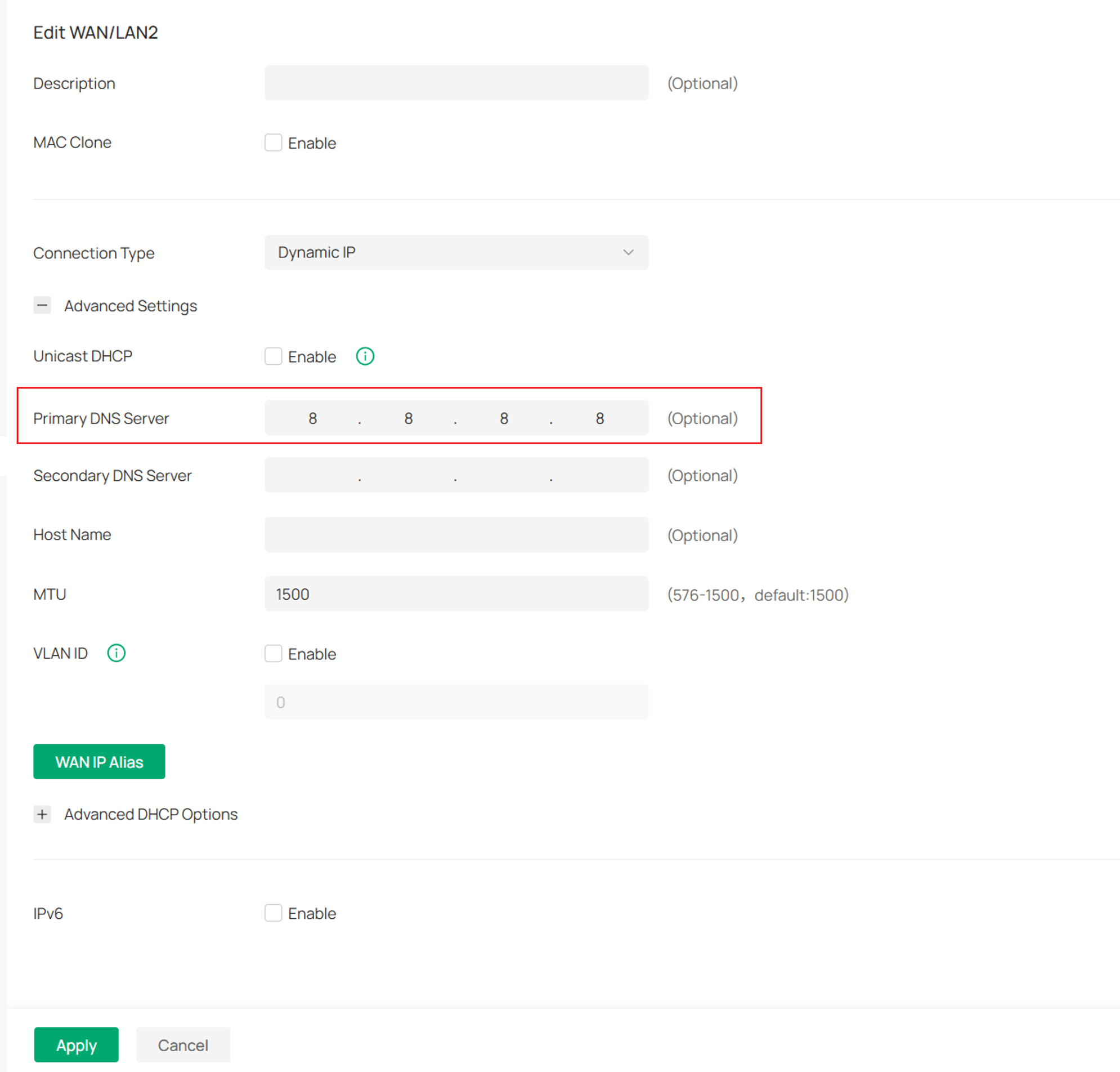
- Click Edit and modify the DNS server settings if required.
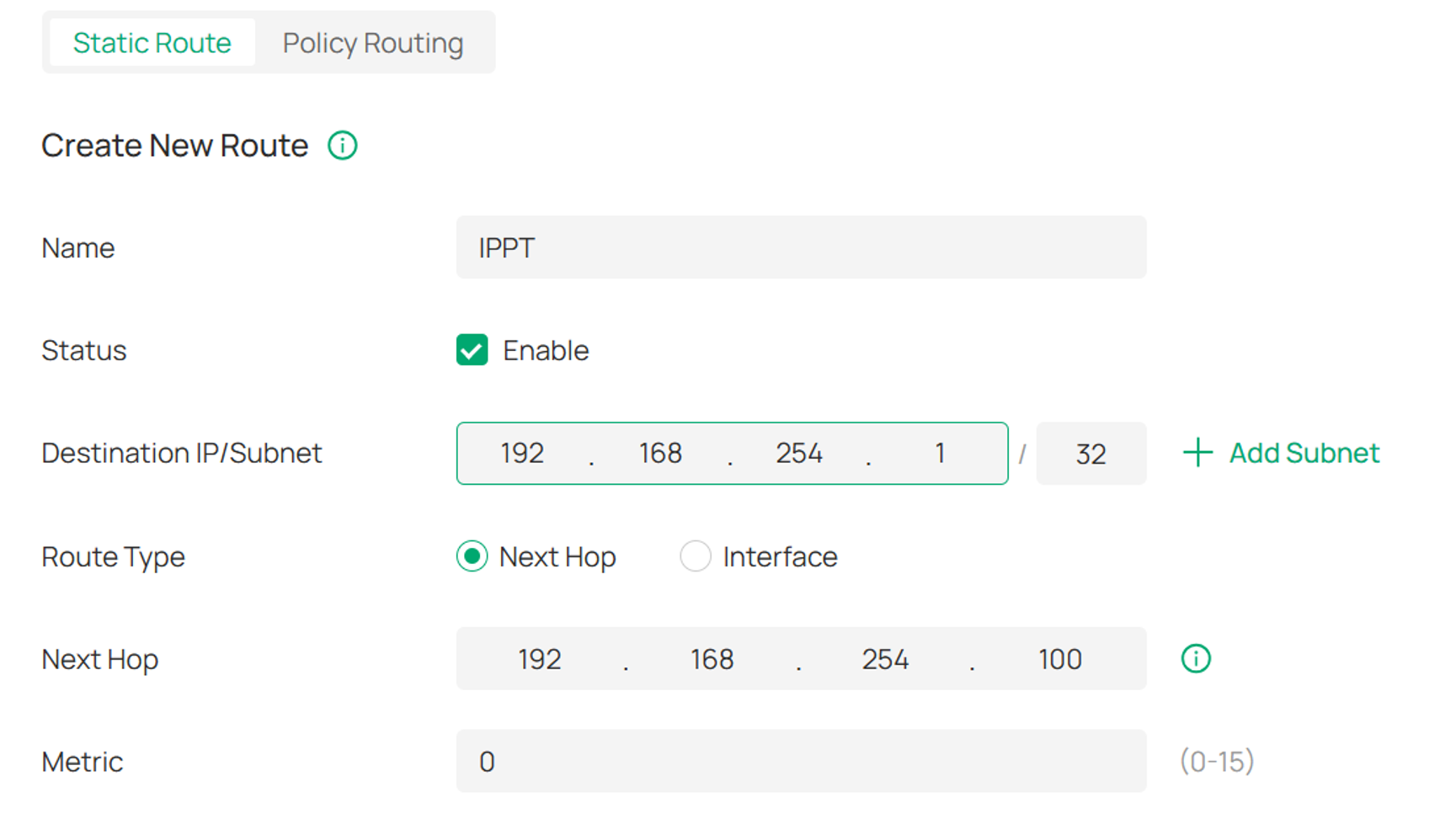
- Navigate to Config > Routing and click Create New Route.
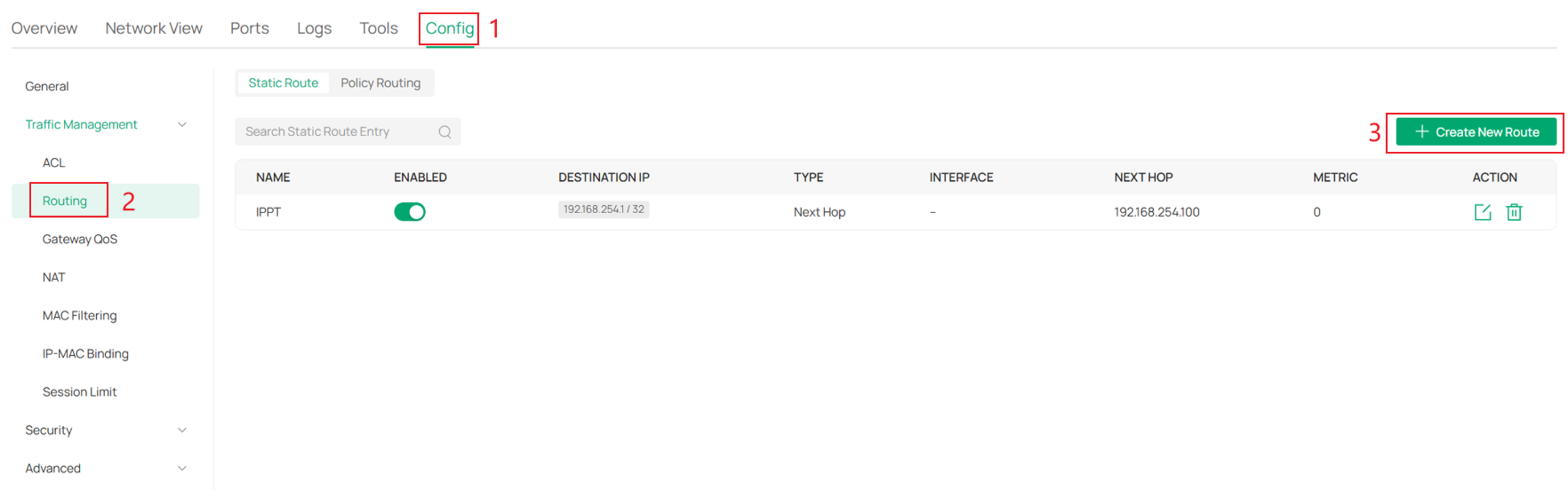
- Configure the route by setting 192.168.254.1/32 (the default IP address of the ODU) as the Destination IP Address, and the IP address of the designated WAN port as the Next Hop.
Step 2. Create a new site in the controller (optional).
Log in to the controller web interface. In Global View, navigate to Dashboard and click Add New Site. Enter the required site information, including the site name and the device login credentials (username and password) that will be applied to devices after they are adopted into the site.
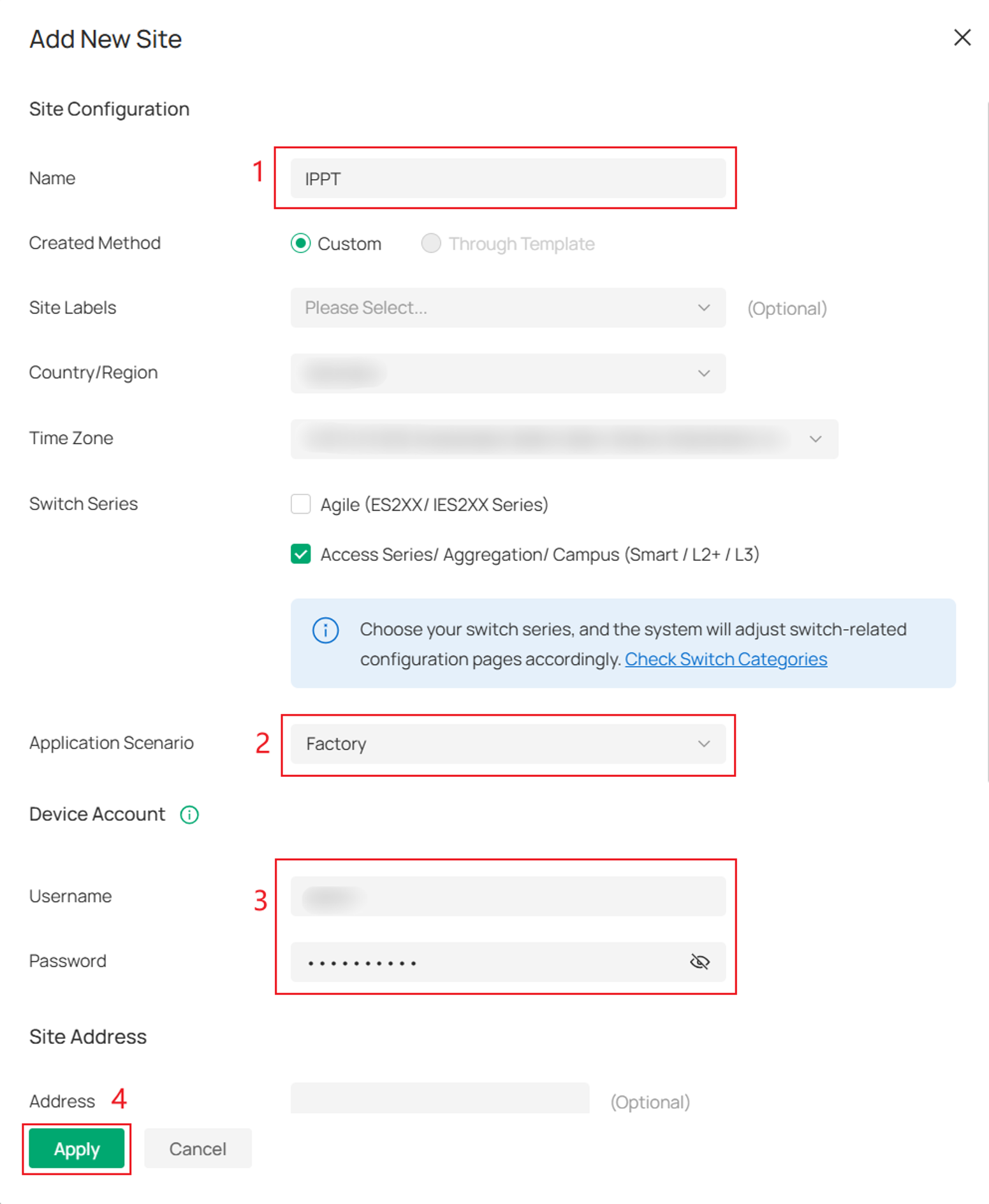
Note: If an IDU already exists in a site, the ODU can be adopted into the same site without creating a new site.
Step 3. Adopt the gateway device and configure port forwarding rules.
After entering the site, the gateway should appear in the Pending state. Click Adopt and wait until the device status changes to Connected.

After the gateway reaches the Connected status, select the gateway in the Device List and click Manage Device in the details panel to access the gateway's management interface.
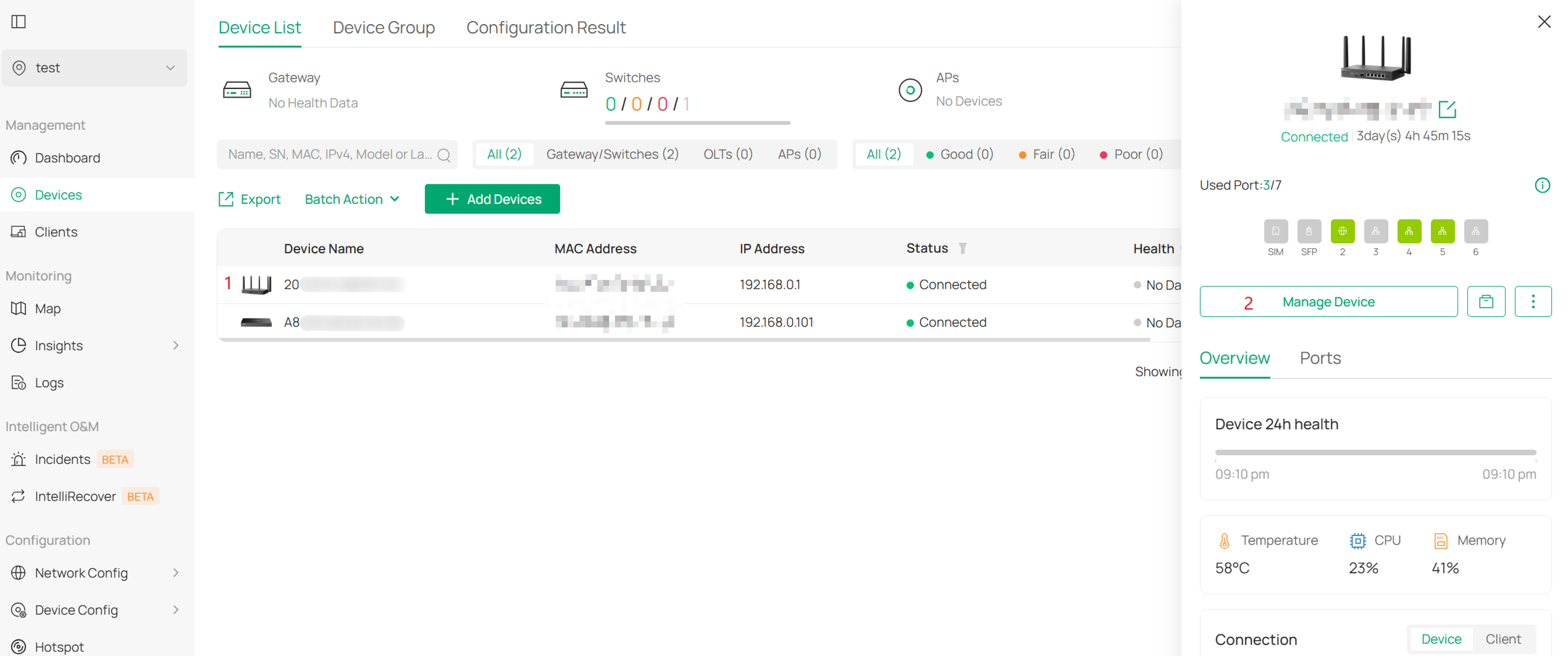
Once in the private management page of the gateway, click on Config > Transmission > NAT > Create New Rule in sequence.
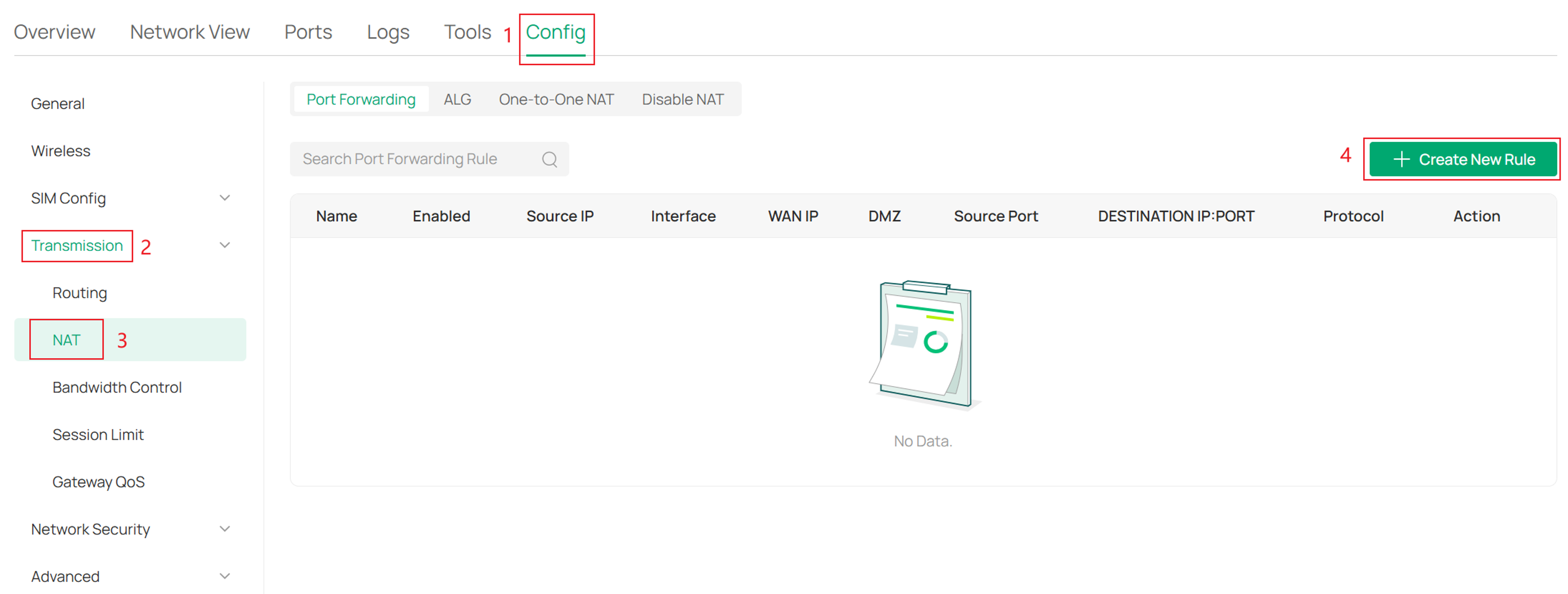
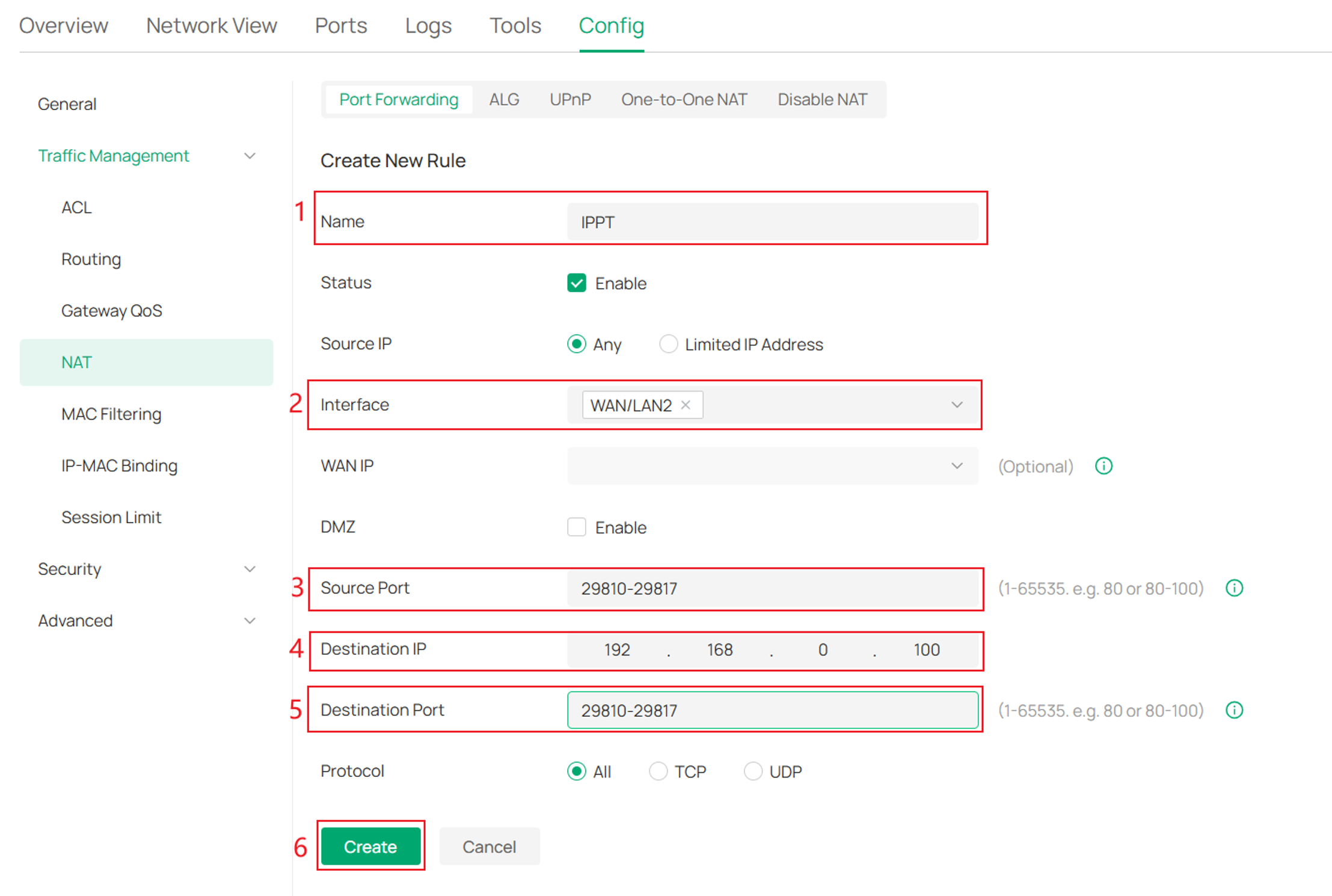
In the pop-up Create New Rule page, configure the corresponding port forwarding rules. The specific steps and explanations are as follows:
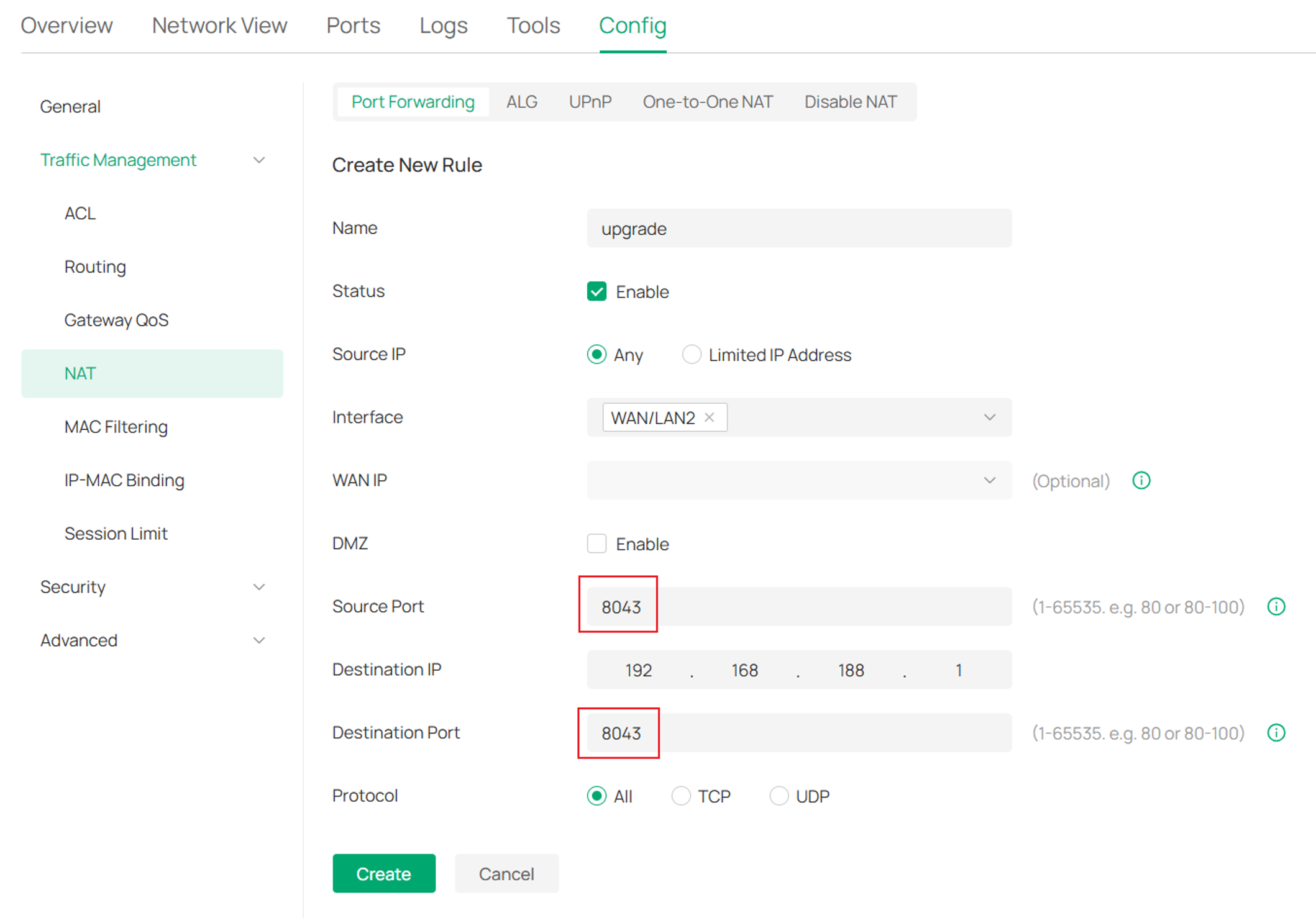
Note:
- Create two separate port forwarding rules.
- The first rule is required for device adoption. The source and destination ports must be configured within the range 29810–29817.
- The second rule is required for manual firmware upgrades. The source and destination ports should be set to 8043 by default.
- Set the interface correctly. Select the WAN interface connected to both the gateway and the ODU device.
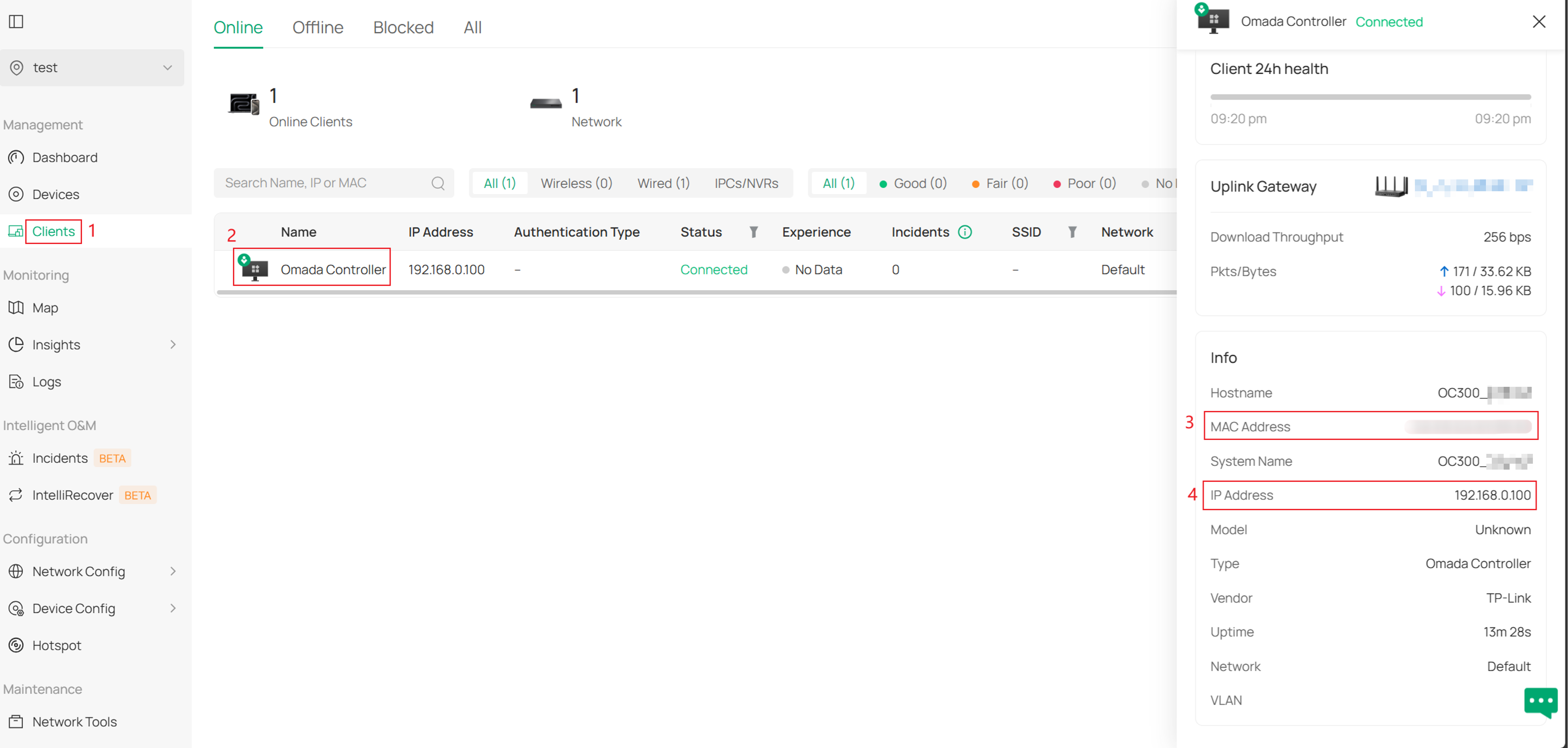
- Specify the controller IP address as the destination IP address. To locate the controller IP address, navigate to Site View > Clients, then select the controller from the client list. The controller's IP address and MAC address are displayed in the details panel on the right.
Step 4. Configure DHCP Reservation on the Gateway (Optional).
If the controller receives a different IP address, the port forwarding rules configured in Step 3 may no longer function correctly.
To prevent this issue, configure a DHCP reservation for the controller.
Navigate to Network Config > Transmission > DHCP Reservation > Manual Add.
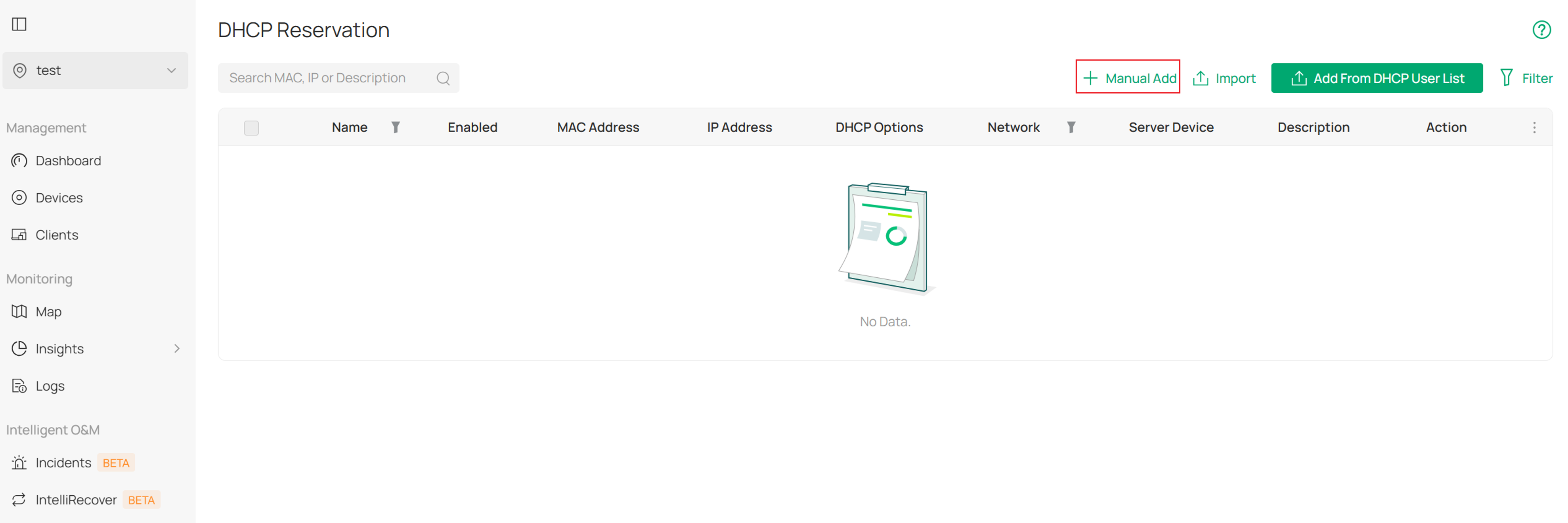
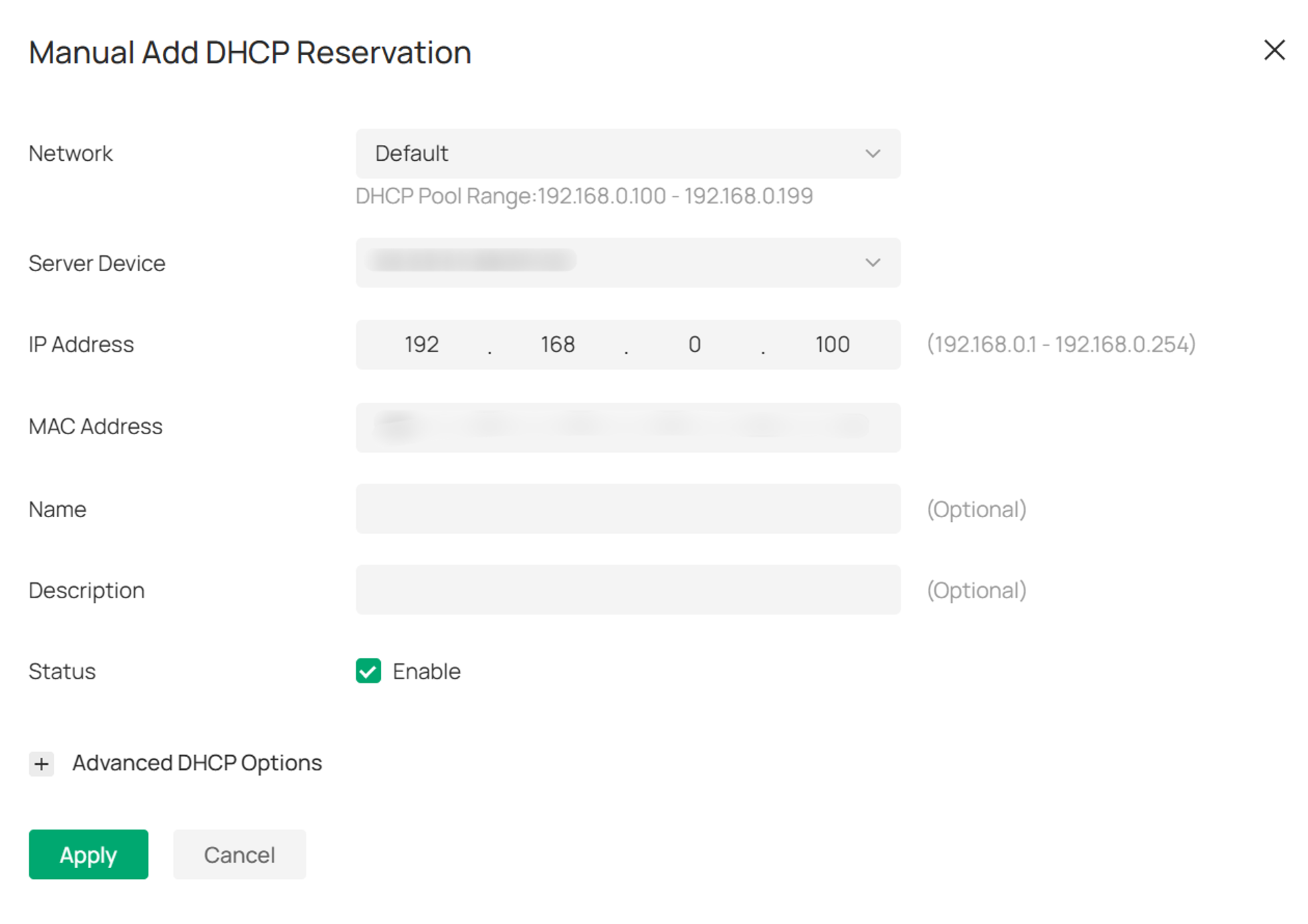
In the Manual Add DHCP Reservation window:
- Set Network to the LAN network where the controller resides.
- Select the gateway as the Server Device.
- Enter the controller's MAC Address and IP Address.
Step 5. Adopt the ODU.
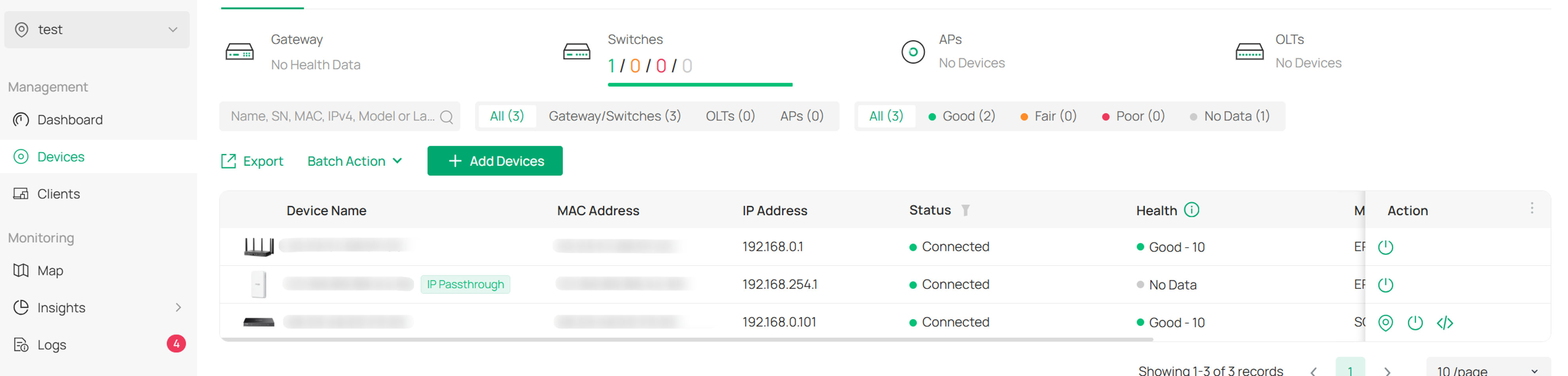
Return to Devices within the site.
After device synchronization completes:
- The gateway should appear as Connected.
- The ODU should appear as Pending.
- An IP Passthrough label should be displayed next to the ODU.
Click the adoption button under Action to add the ODU to the controller.
When the ODU is in Router mode
When the ODU is in Router mode, it can be regarded as a common gateway device. For adopting a common gateway using the local controller, you may refer to the following FAQ: How to Discover Omada Devices Using the Software Controller and Hardware Controller. However, please note that the LAN interface IP of the ODU is 192.168.254.1/24, and in Router mode, it currently cannot be adopted using the device key method described in the referenced FAQ.
Conclusion
By following the procedures in this guide, the 5G ODU can be successfully discovered and adopted by an Omada Local Controller in either IPPT mode or Router mode. For IPPT deployments, ensure that the required port forwarding rules are configured correctly and, where applicable, that static routing is configured on multi-WAN Omada Fusion Gateways to maintain reliable controller communication with the ODU.
To learn more about each function and configuration, please visit Support Home to download or check the manual for your product.
QA
Q1: In IPPT mode, what should I do if the ODU is not displayed in the Device List?
A1:
- Verify that the port forwarding rules in Step 3 are correctly configured.
- Ensure that the Controller’s IP address matches the port forwarding configuration.
Q2: In IPPT mode, if the ODU appears as Pending in the Controller but cannot be adopted. What should I do?
A2:
- Confirm that the link between the ODU and the gateway is functioning properly.
- Check whether ports 29810–29817 are being blocked by a firewall.
Q3: In IPPT mode, what should I do if the Controller fails to upgrade the ODU?
A3:
- Ensure that port 8043 has been properly configured for port forwarding.
- Verify whether the ODU firmware version supports adoption by the Local Controller.
Q4: Is it necessary to create a new site?
A4: If an IDU is already part of an existing site, the ODU can be directly adopted under that same site without the need to create a new one.
