


Contents
Objective
This guide provides instructions for configuring Management VLAN for Omada Devices.
Requirements
- Omada Controller v6.2 and higher
- Omada AP/Omada Switch
Introduction
The management VLAN is a VLAN created to separate the management network from the data network. By default, the management VLAN is the LAN network in a network centrally managed by Omada SDN Controller.
You can change the management VLAN to improve network security. With a separated management VLAN, it is much harder for unauthorized users to modify the configurations or monitor the network.
Note:
1. Configurations in Omada Hardware Controller and Software Controller are the same. Before configuring the Management VLAN, refer to the User Guide to add the devices to the controller, and set up the computer running the controller to obtain an IP address dynamically.
2. When using the Omada Cloud-Based Controller, you do not need to configure the Management VLAN because it has separated the management data from the user data to ensure privacy. No user data will pass through the cloud.
Configuration
1. Use the default management VLAN
Note: In default mode, only untagged and VLAN 1 frames can communicate with the device.
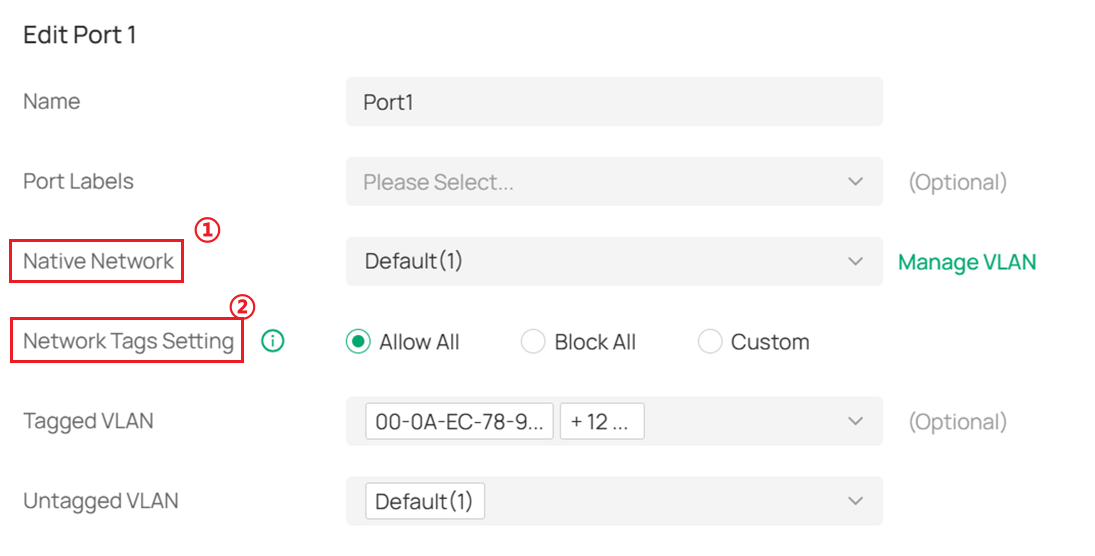
When using the default management VLAN, set the Network Tags Setting of the port connected to the EAP to Allow All.
2. Use custom management VLAN
Note: When set to a specific VLAN, only packets carrying that VLAN tag can communicate with the EAP.
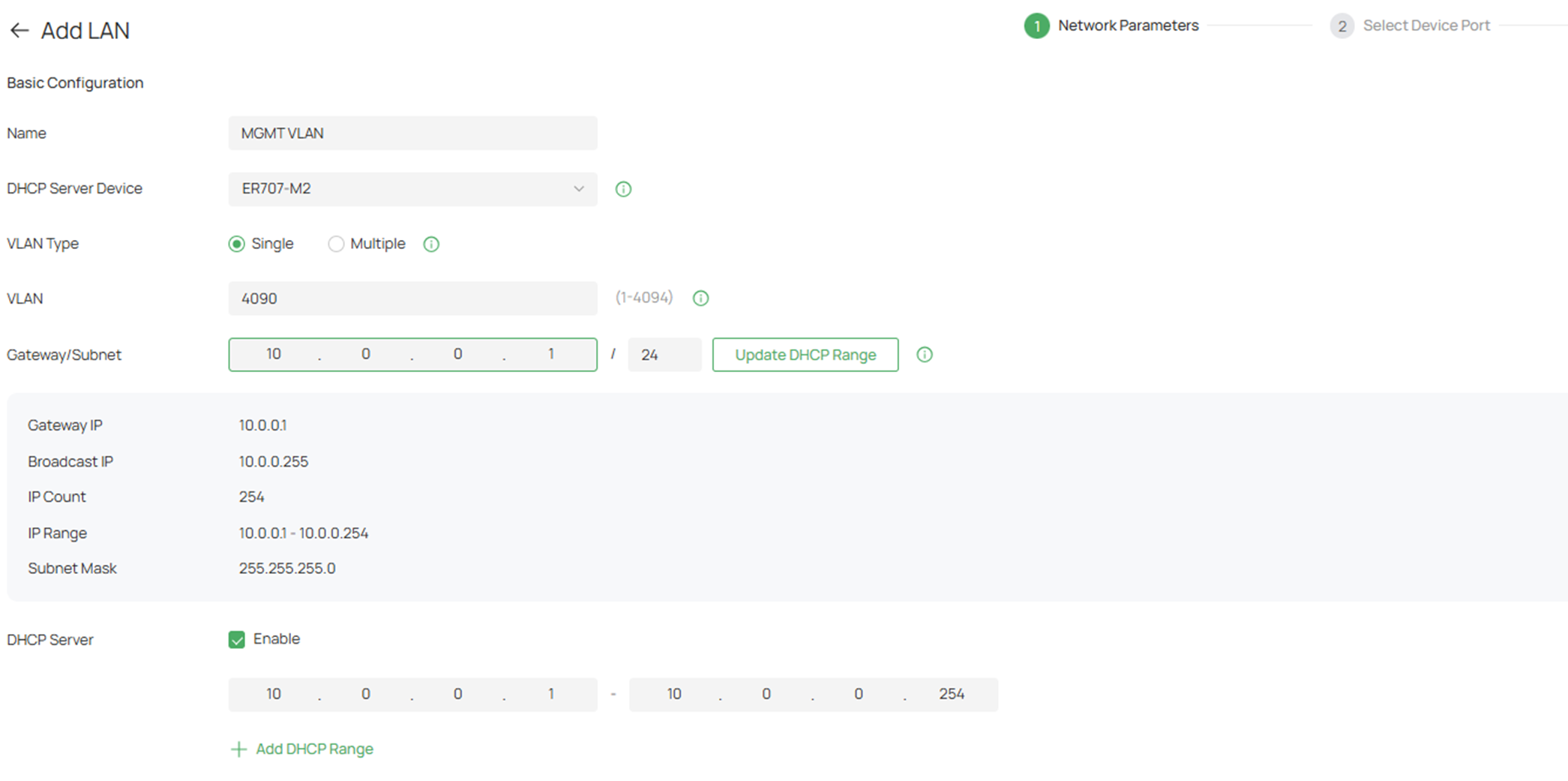
Step 1. Go to Network Config > Network Settings > LAN and click Add to create a network (named MGMT VLAN with VLAN ID 4090 in this example) as Interface. Click the box of the associated LAN interface (LAN1), enable the DHCP Server, and fill in the DHCP range to assign IP addresses to devices in this network. After being created, a profile with the same name will be added automatically, and its PVID is 4090.
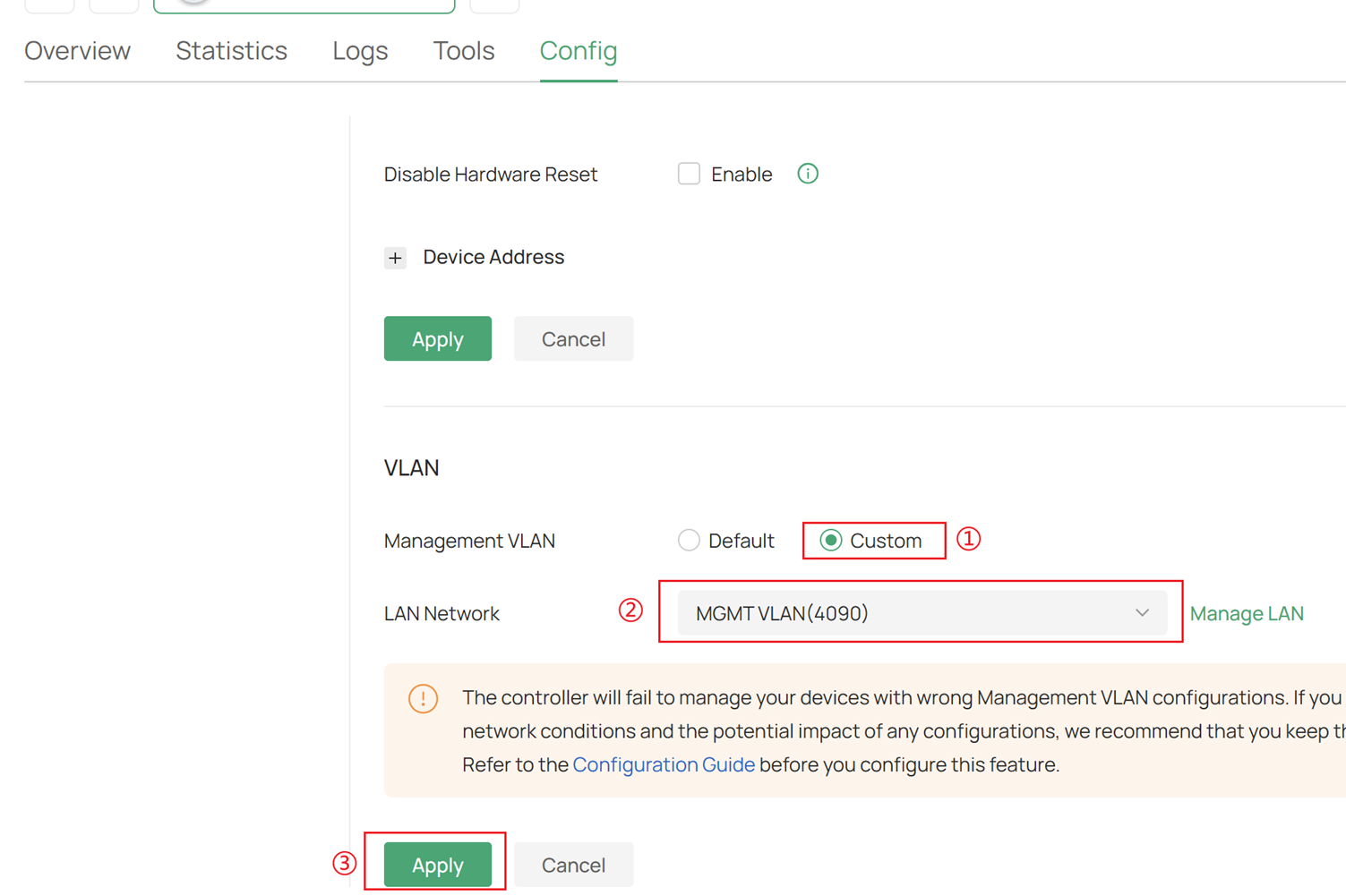
Step 2. Change EAP’s management VLAN. Make sure the switch port connected to the EAP is configured as a trunk, and that the Management VLAN is tagged. Go to Device page and click EAP you want to configure management VLAN. On the Config page, change the management VLAN from default to Custom.
Step 3. Go to Devices and add the devices to MGMT VLAN (VLAN 4090). The steps for switches and EAPs are similar.
For the switch, click Manage Device to enter the configuration page.
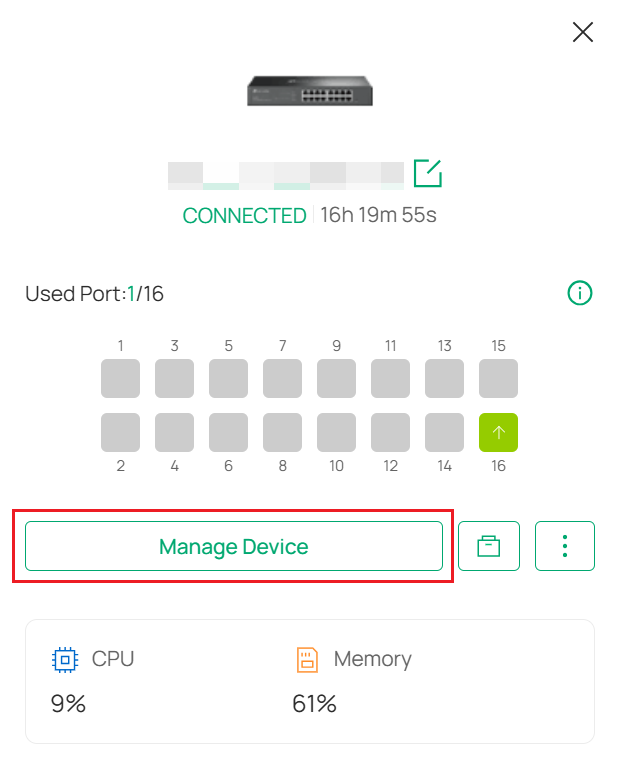
Go to Config > VLAN Interface. Enable MGMT VLAN, and click the action icon to configure it.
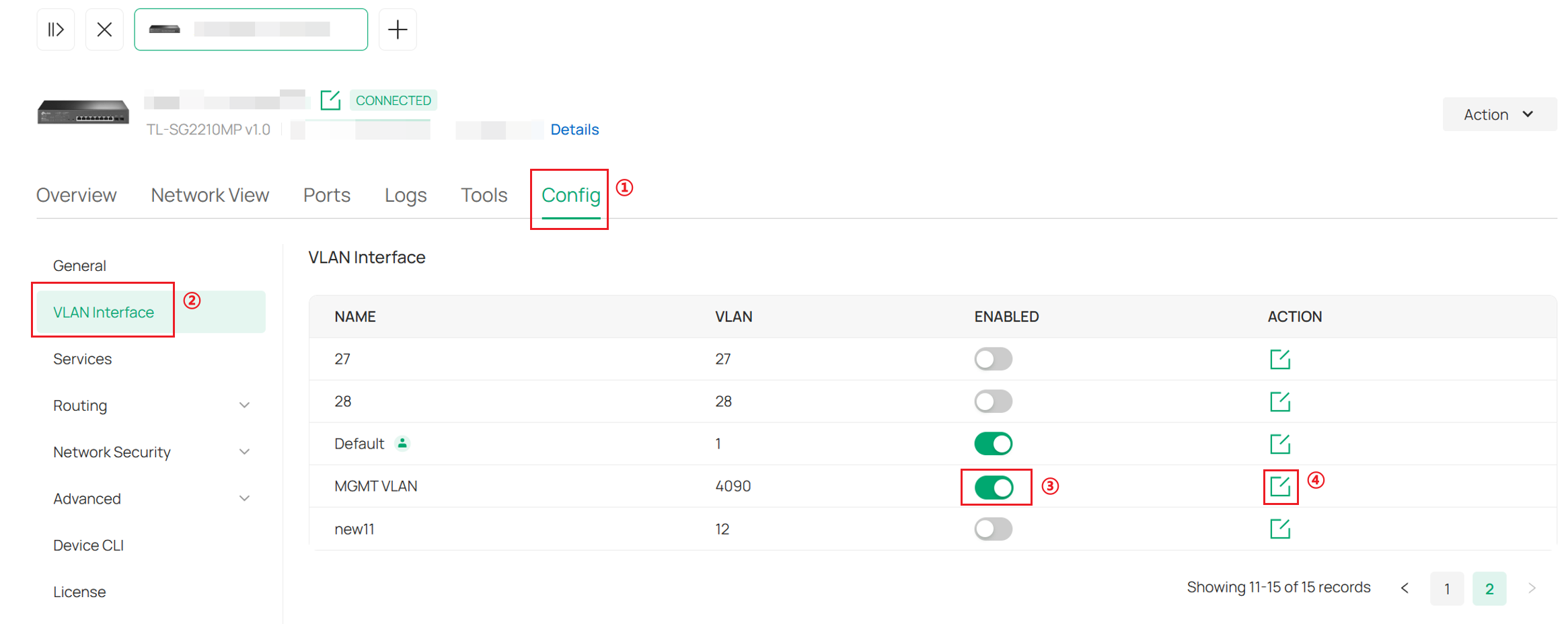
Enable Management VLAN.
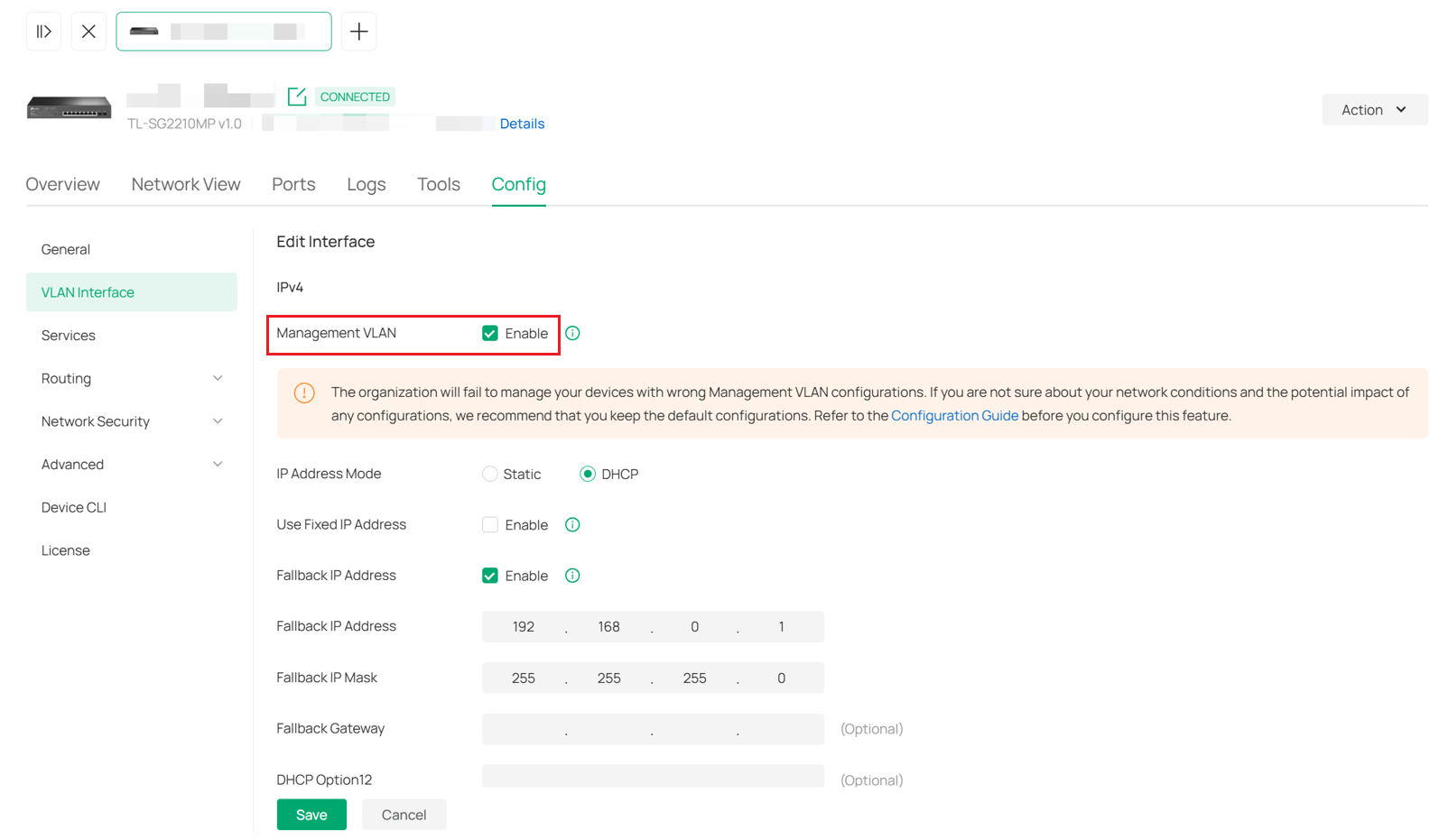
Step 4. If you are using on-primise controller, change the PVID of the uplink switch port on hardware controller/software controller. After that, only the IP address of AP/Switch outside the Management VLAN will be displayed. It will take time for the device to retrieve its new IP address from the management VLAN.
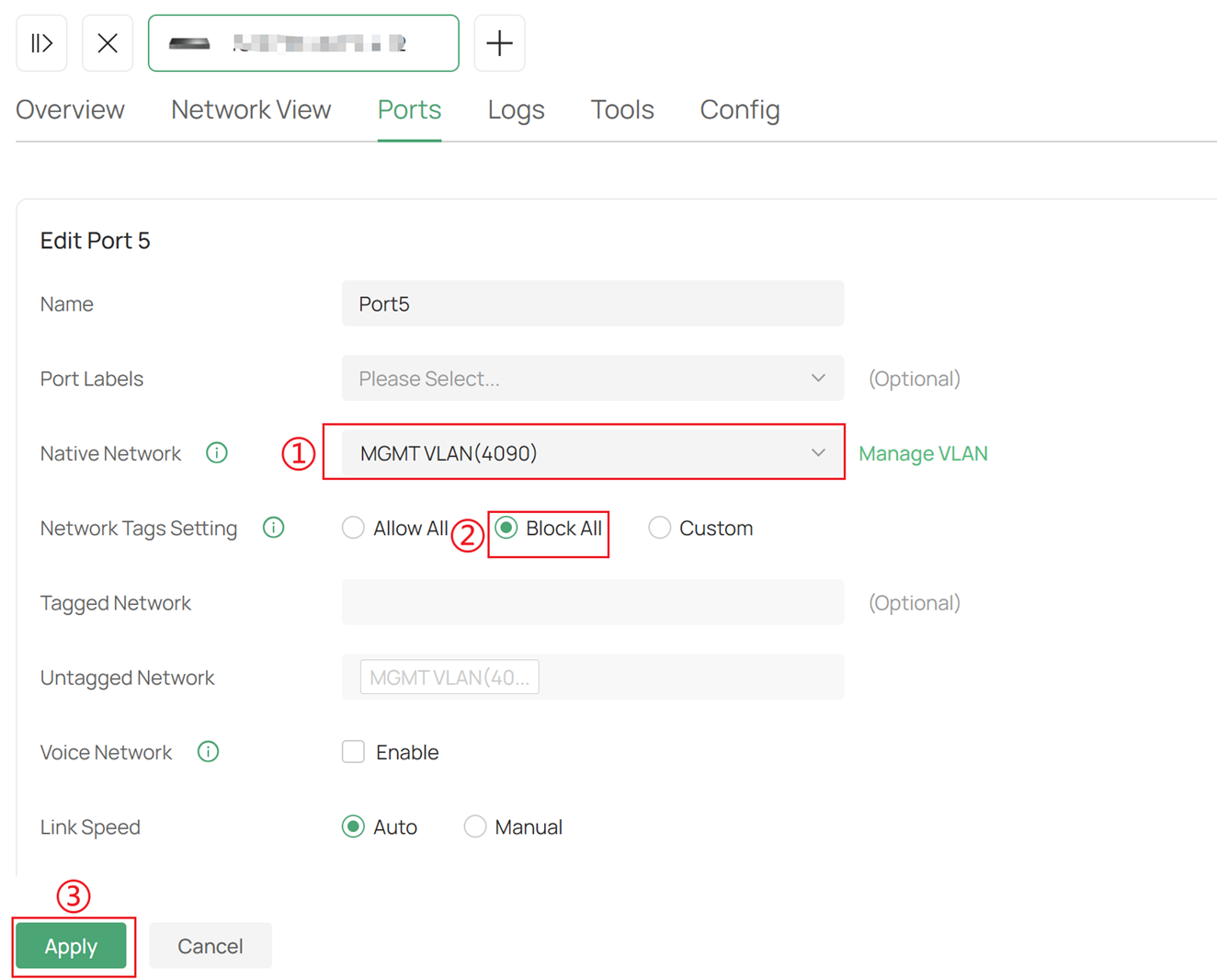
Note: The switch port where hardware/software controller is connected can be configured either as a trunk port or as an access port.
Conclusion
You have now successfully configure management VLAN for Omada devices.
To learn more about each function and configuration, please visit Support Home to download or check the manual for your product.
