


Contents
Objective
This article describes how does the behavior of the client health differ under software /hardware /cloud-based controller types.
Requirements
- Omada Controller v6.1
Introduction
Client Health is a new monitoring feature introduced in Omada Controller 6.1 that evaluates and tracks the connection quality and experience of all wireless client devices on your network. By enabling this feature, the system continuously collects and calculates wireless client-level health data, helping network administrators quickly identify wireless client connectivity issues and optimize network performance.
Key Features
- Health Scoring: Calculates health scores for each wireless client device , providing an intuitive view of device connection status
- Multi-dimensional Monitoring: Covers critical health metrics, including:
- Client Access Time: Monitors how quickly wireless clients establish connections
- RSSI (Signal Strength): Evaluates wireless signal quality
- Other Wi-Fi experience-related indicators
- Trend Analysis: Provides 24-hour health trend charts for easy issue tracking
- Problem Identification: Quickly identifies wireless clients with abnormal health scores to aid troubleshooting
Configuration
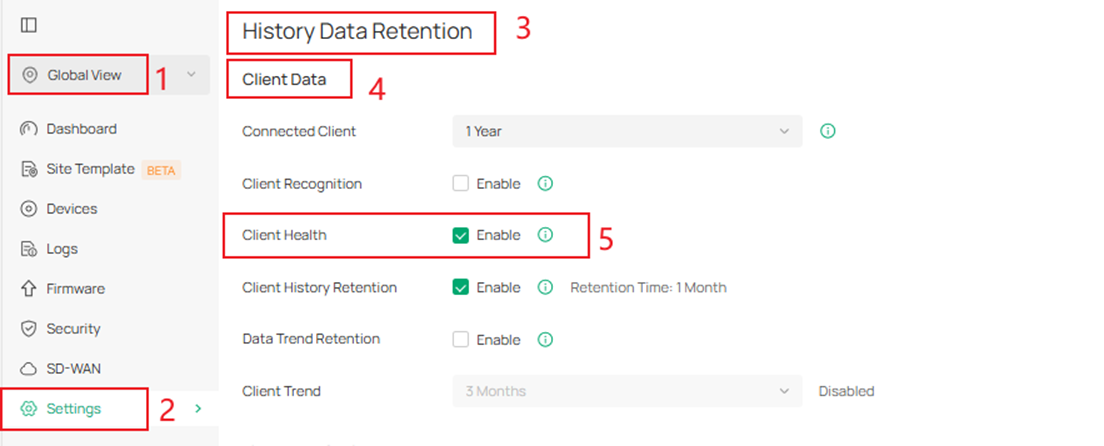
Step 1. Go to Global View > Settings > History Data Retention > Client Data > Client Health. You can enable /disable the function. When enabled, client health data will be recorded, which may consume a significant amount of storage space.
Behavioral Differences in Client Health Across Controller Models:
1. Windows / Linux Controller
- Existing Controllers (upgrade to v6.1): The Client Health is disabled by default.
- New Controllers: The Client Health is enabled by default. Recommended Server Specifications for Omada Software Controller | TP-Link
- MSP Mode: In Customer view, the Client Health cannot be overridden per-site[YT3] and can only be adjusted within the MSP view > Settings > History Data Retention.
2. CBC Standard
- The Client Health is enabled by default.
3. ER7212PC v2
- The Client Health is enabled by default.
4.OC220 / OC300 / OC400
- New Controllers: The Client Health is enabled by default. If the number of managed devices later exceeds Recommended Management Capacity due to device adoption or migration, the system will alert the user to potential performance impacts and recommend disabling the function.
-
- Existing Controllers (upgrade to v6.1): If the number of managed devices already exceeded the Recommended Management Capacity before the upgrade, the Client Health will be disabled by default post-upgrade, and the user will be notified. If the threshold was not exceeded, the Client Health remains enabled by default. Subsequent adoption or migration that causes the number to exceed the threshold will similarly trigger a performance alert and recommendation to disable the Client Health.
|
Model |
Recommended Management Capacity (All functions stable with assured performance and smoothness) |
|
OC220 |
40 |
|
OC300 |
160 |
|
OC400 |
300 |
5. OC200 / Essential
The Client Health feature is not supported, and therefore the Client Health is not present.
When Client Health is enabled, related charts are displayed in the following locations:
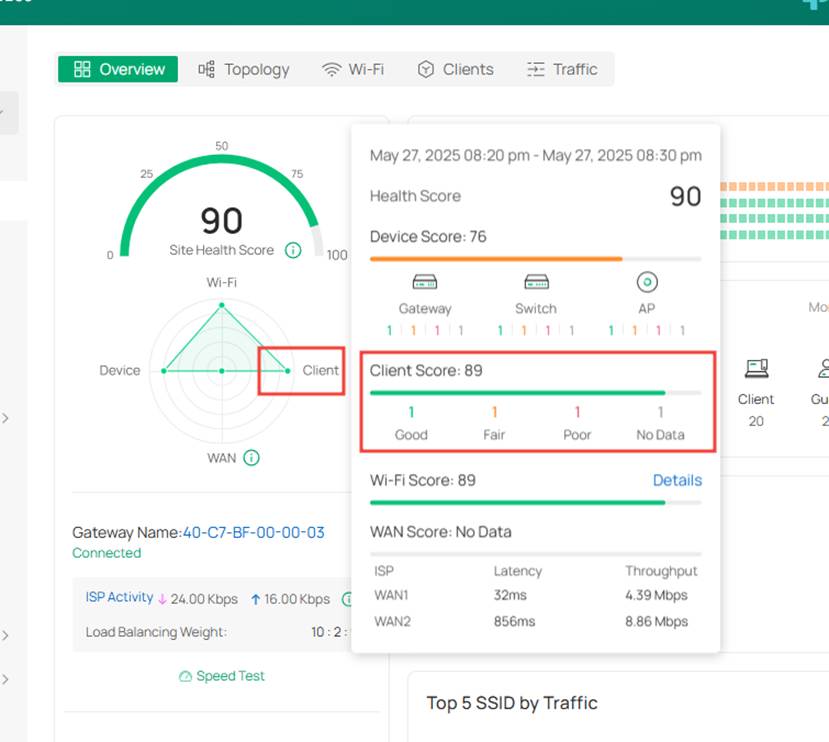
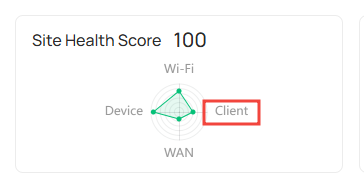
- Site View > Dashboard > Overview > Emergency: The radar chart now displays Client. Added display of Client Score on the hover.
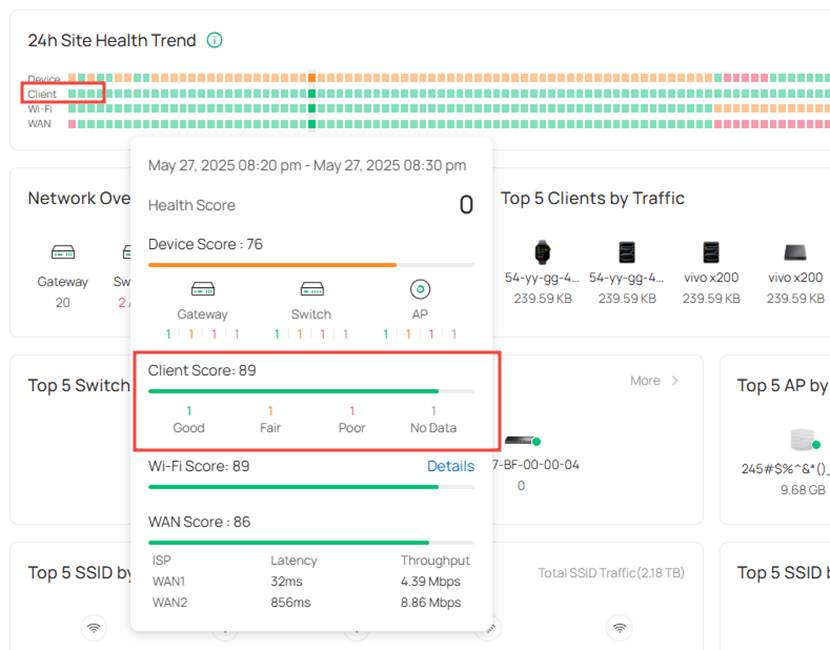
- Site View > Dashboard > Overview > 24h Site Health Trend: Added display for Client and Client Score.
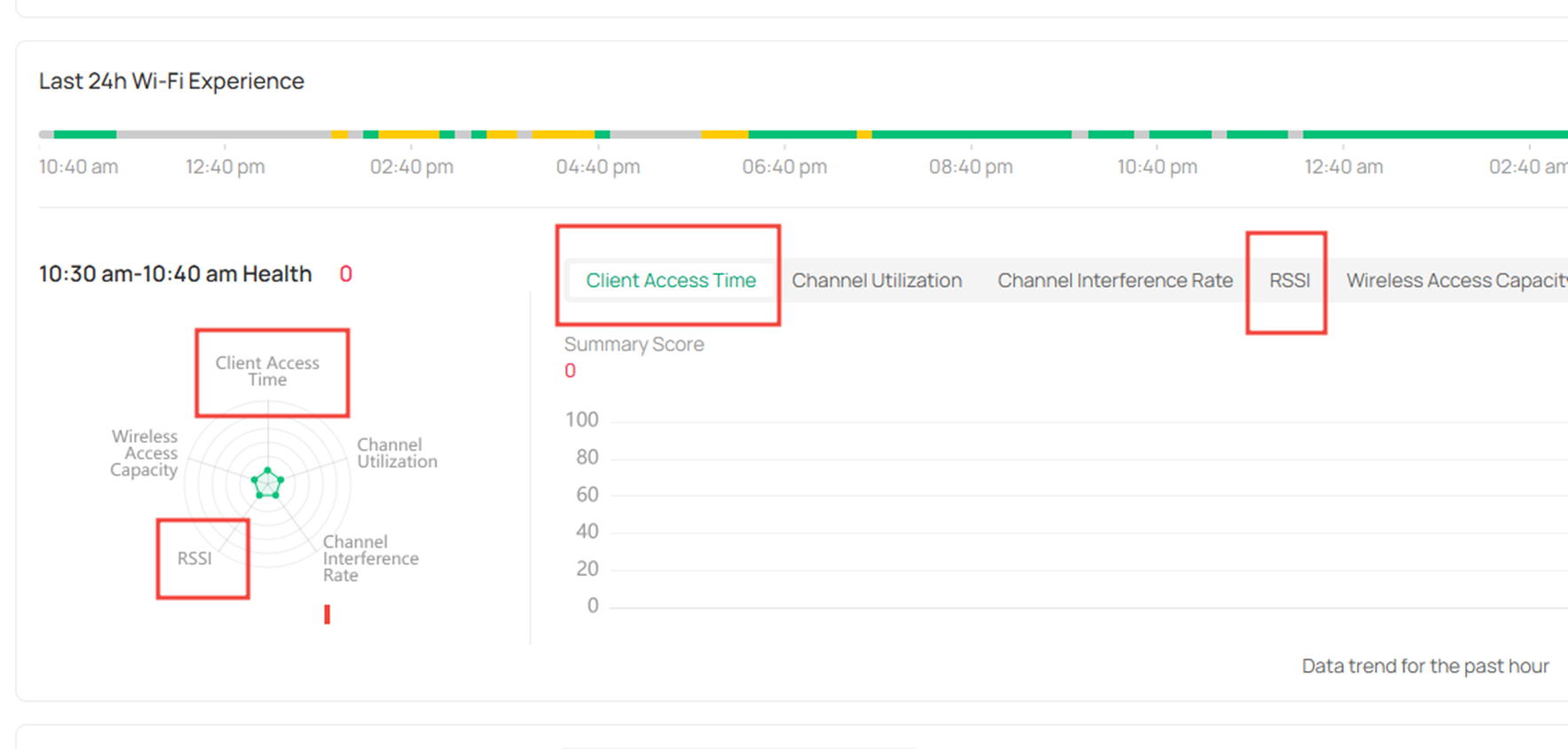
- Site View > Dashboard > Wi-Fi > Last 24h Wi-Fi Experience: Added display of Client Access Time and RSSI.
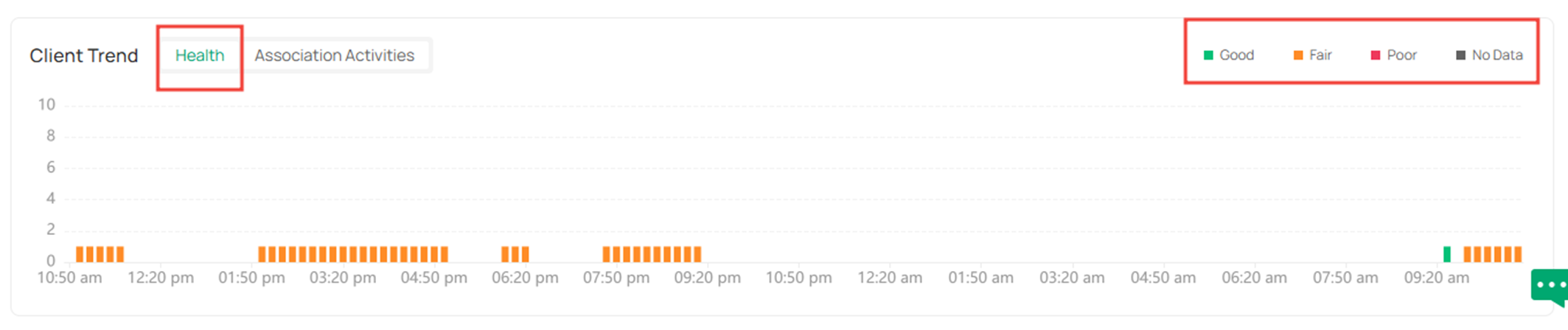
- Site View > Dashboard > Client >Client Trend: Added display of Client Health.
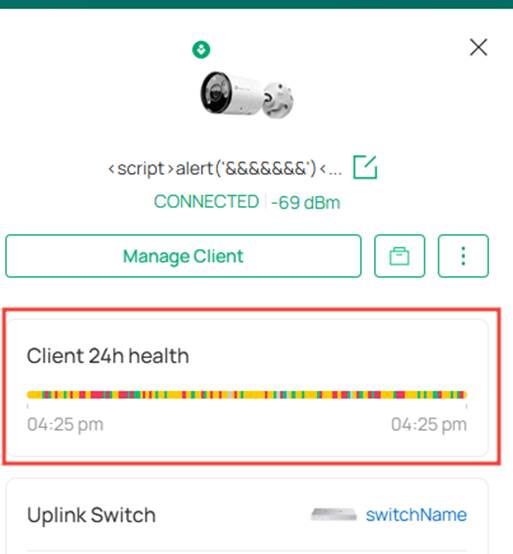
- Site View > Client List > Client: Added display of Client 24h Health.
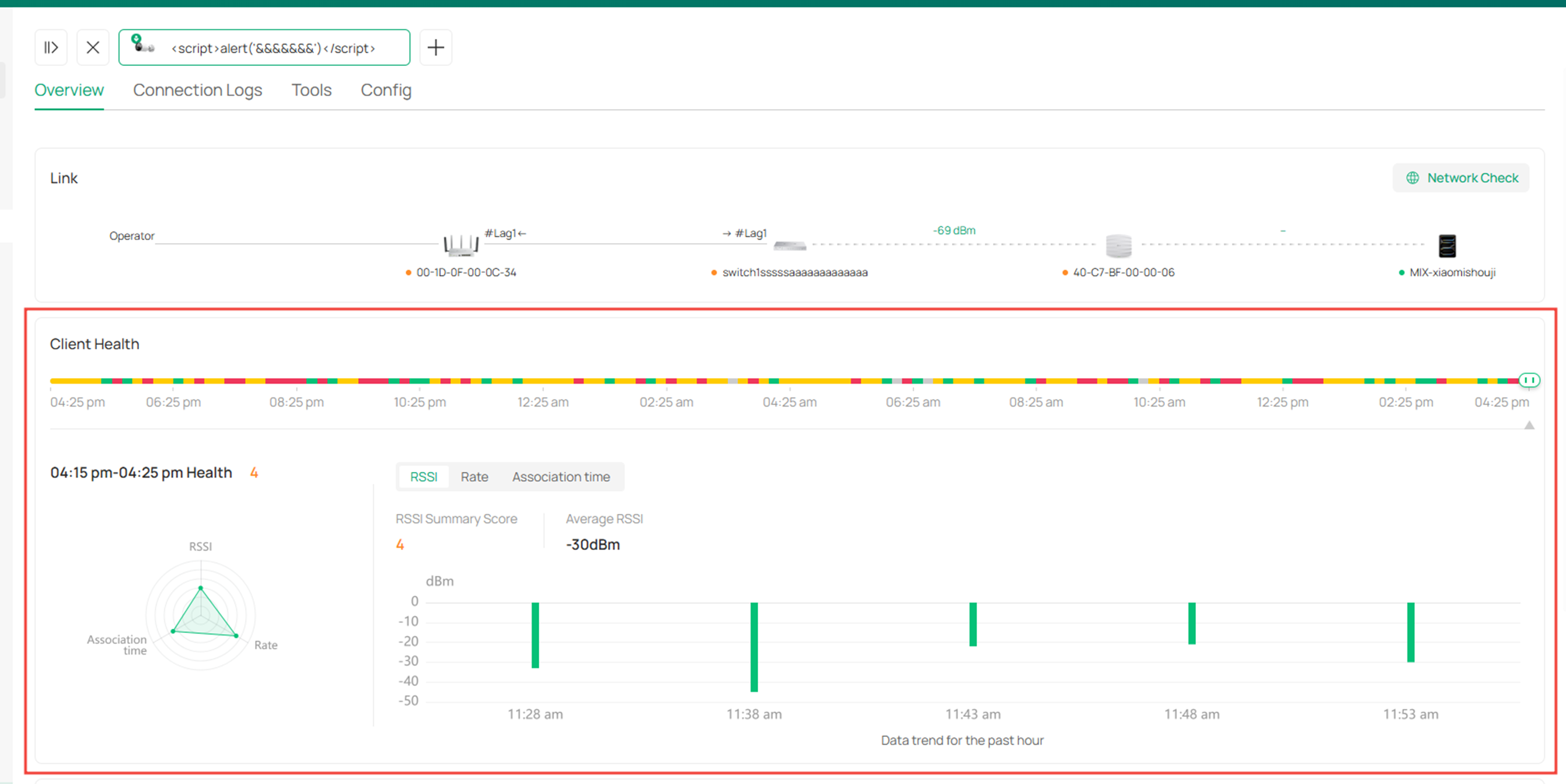
- Site View > Client List > Manage Client > Overview: Added display of Client Health module.
- Site View > Insights > Reports > Summary: Added display of client on the radar chart and Client Heath Trend.

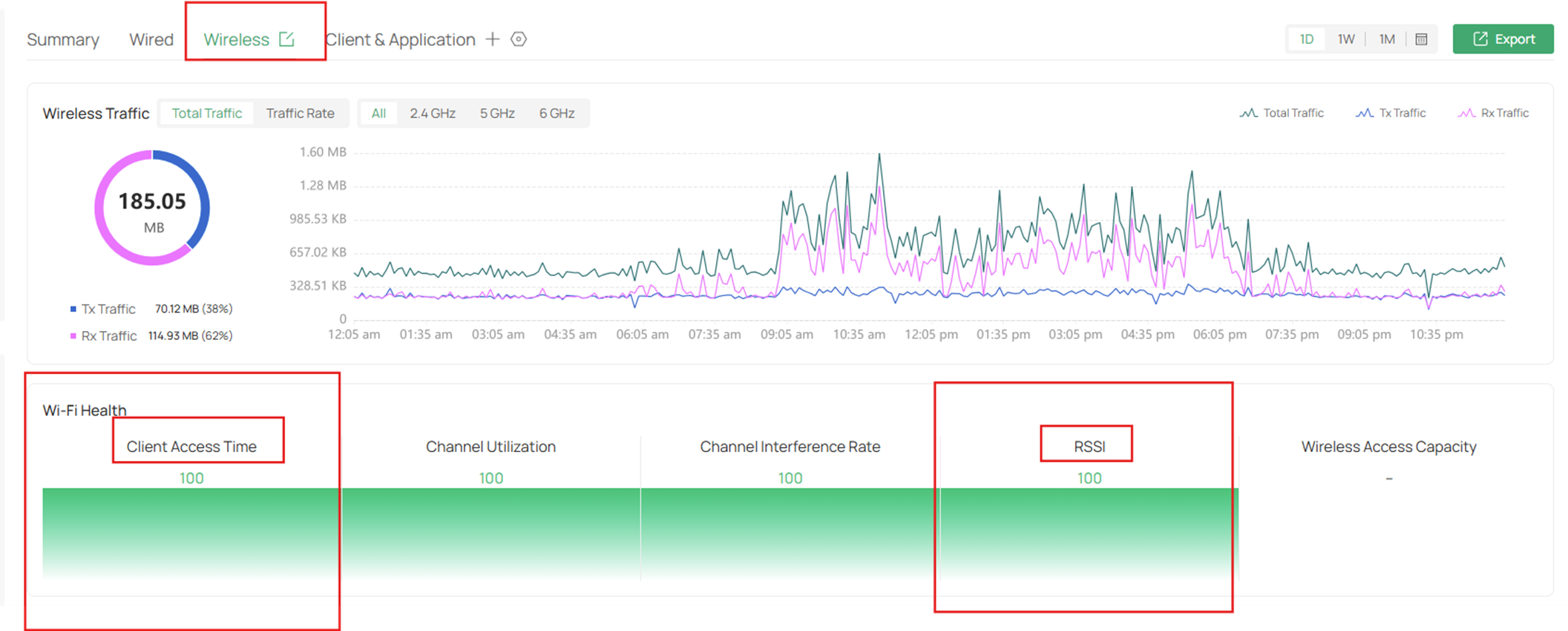
- Site View > Insights > Reports > Wireless: Added display Client Access Time and RSSI.
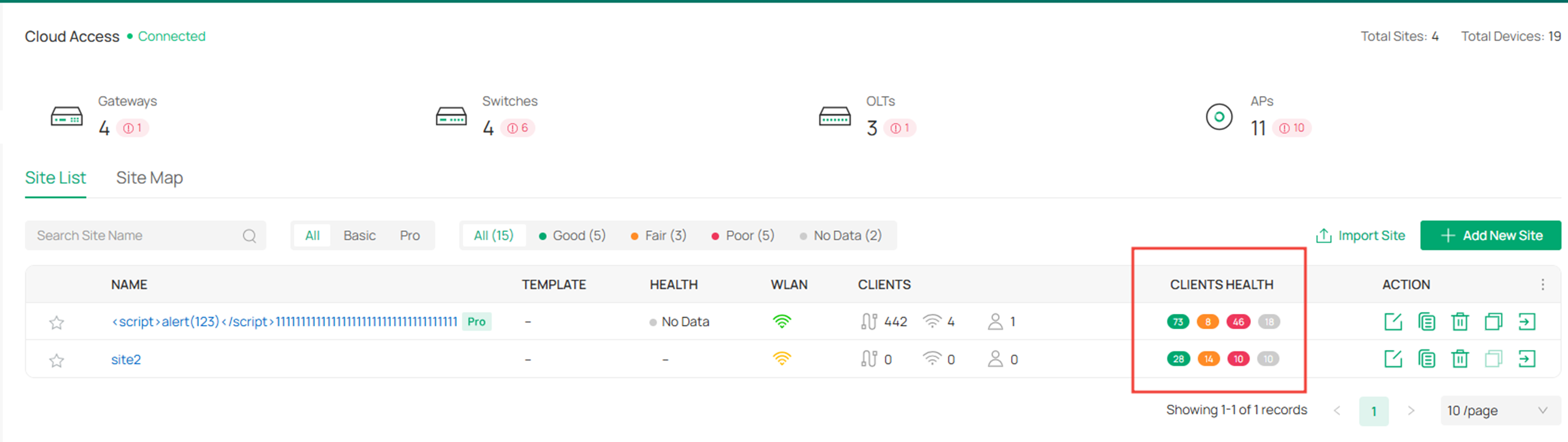
- Site List: Site-level client health statistics
Conclusion
When enabling Client Health function, client health data will be recorded, which may consume a significant amount of storage space. Therefore, the status of the client health switch varies under different controller types.
Get to know more details of each function and configuration, please go to Download Center to download the manual of your product.
