


Contents
Login Account of Omada Controller
Cloud Account of Omada Controller
Device Account on Omada Controller
Introduction
When using Omada Controller software to manage Omada devices, you can see four kinds of accounts, including login account of Omada Controller, Cloud account of Omada Controller, device account on Omada Controller and user account of a device. This article introduces the difference between these accounts.
Requirements
- Omada Controller v5.0 or Omada Controller v6.0 and above.
Login Account of Omada Controller
When launching the software for the first time, you need to create an owner account during Quick Setup. At the same time, you can link your TP-Link ID, which will bind the controller to a cloud account.
Note: Remember to configure the mail server after you log in to Omada Controller. Then if you forget the password of administrator login account, you can retrieve your password via the email address. Or you may need to reinstall the software if you forget your password.
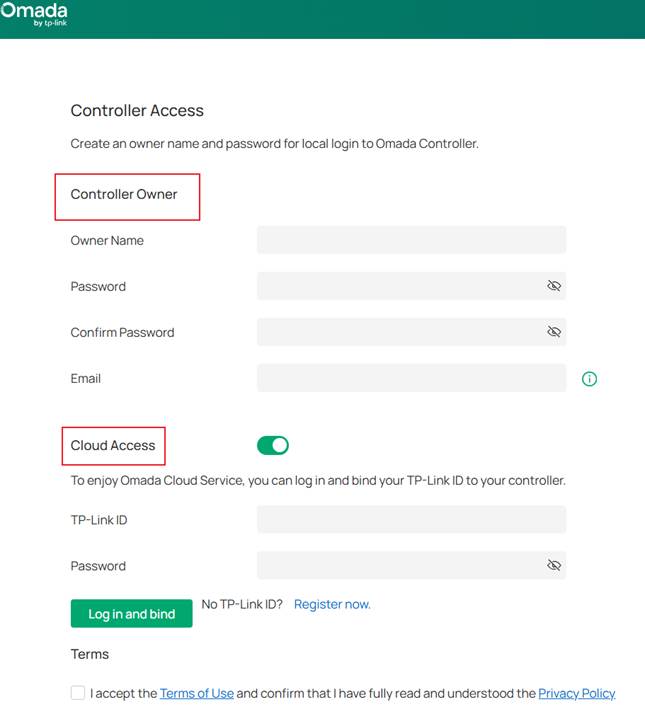
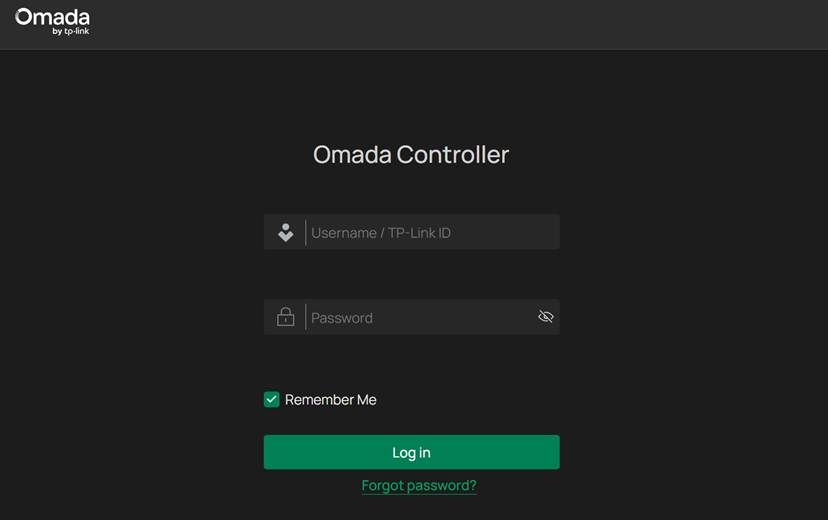
After the quick setup is done, you can use this account to log in to Omada Controller.
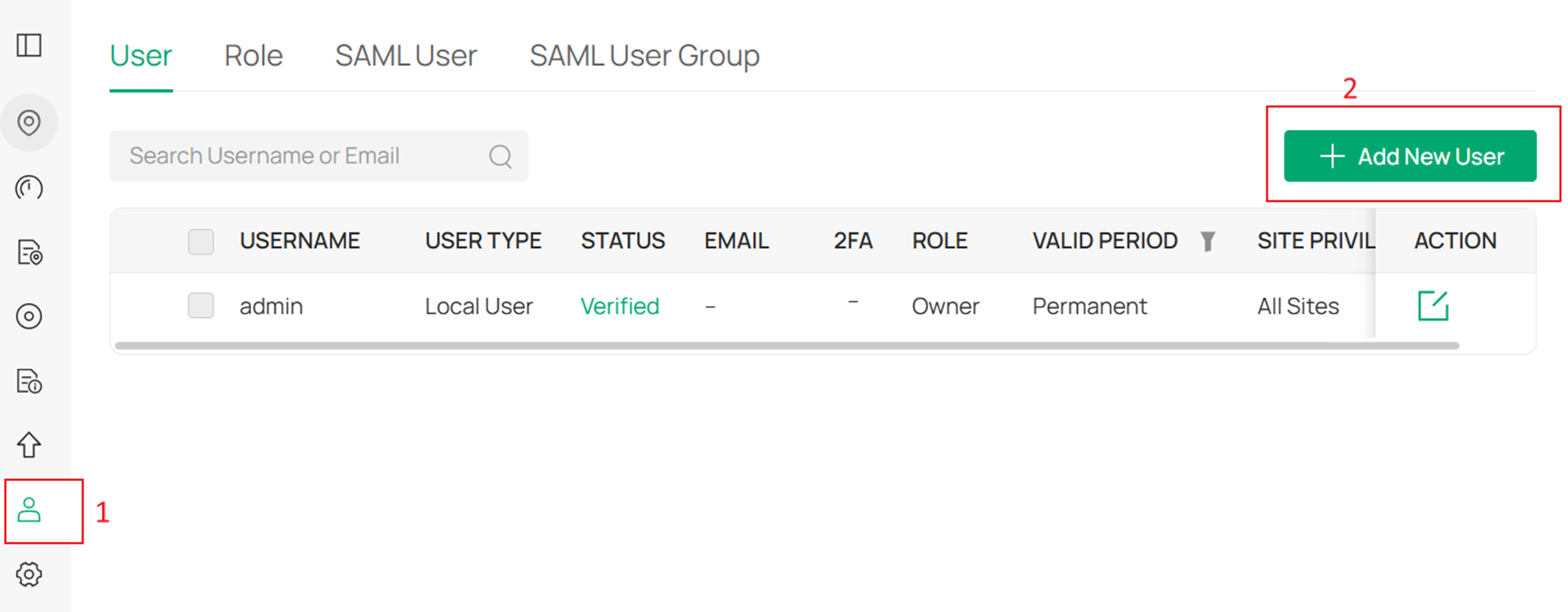
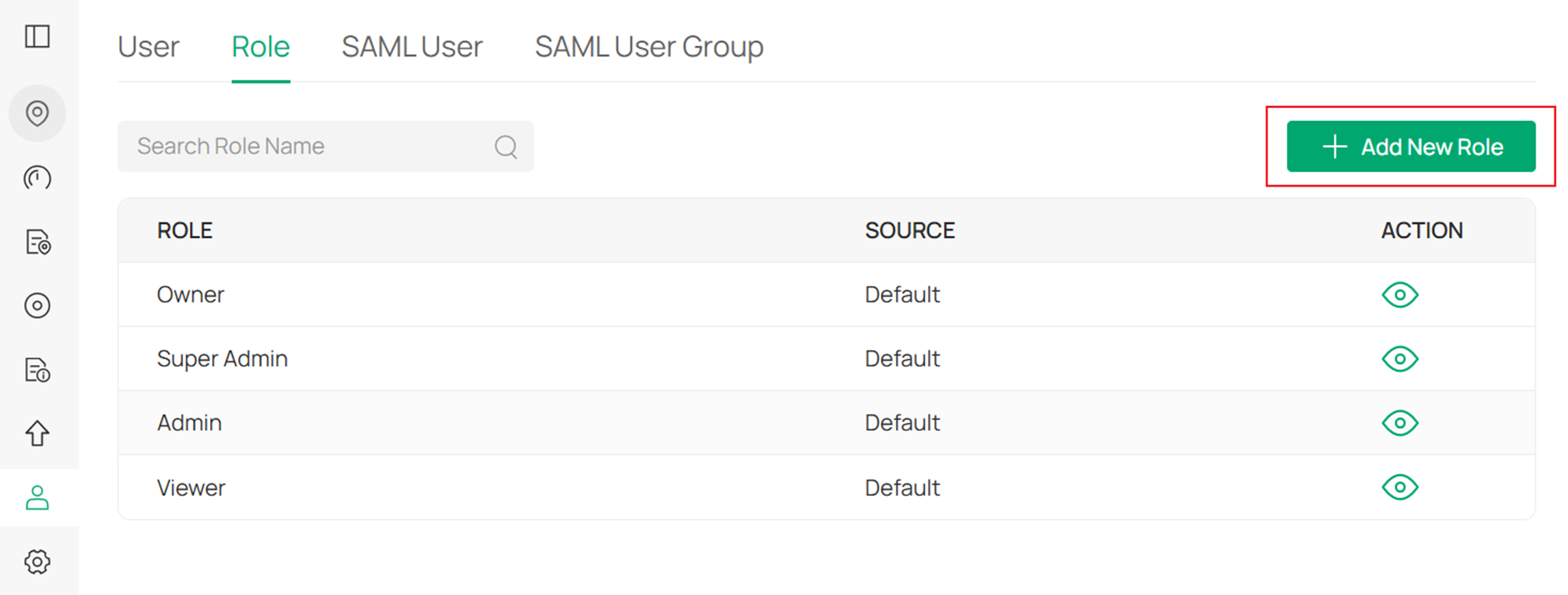
To create a new account, go to Accounts > User > Add New Users.
In the pop-up window, select your desired account role and configure the username, email, password and site privileges.
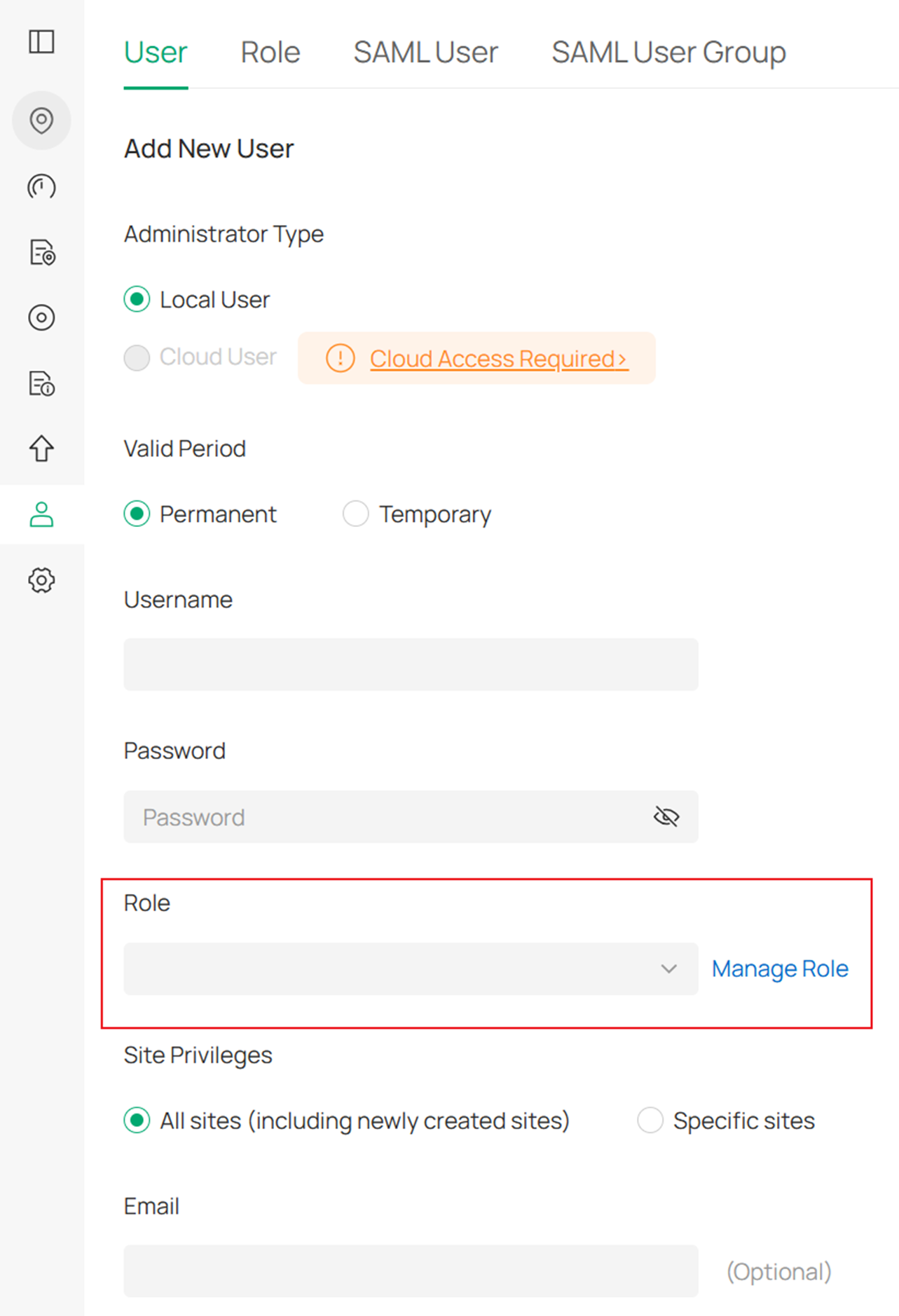
You can view the permissions assigned to each role under “Role”. By default, there are four roles: Owner, Super Admin, Admin, and Viewer. You can also add custom roles to meet more specific permission requirements.
Cloud Account of Omada Controller
The cloud users is used to manage Omada Controller through cloud service.
First, you need to have a TP-Link ID, and bind your TP-Link ID to the controller. Then you can remotely access the controller as a Cloud User.
During Quick Setup, you can register a TP-Link account and bind it to the controller. If you skip the registration and login steps, you can later log in via Cloud Access, or click Register Now to create a TP-Link account and then sign in.
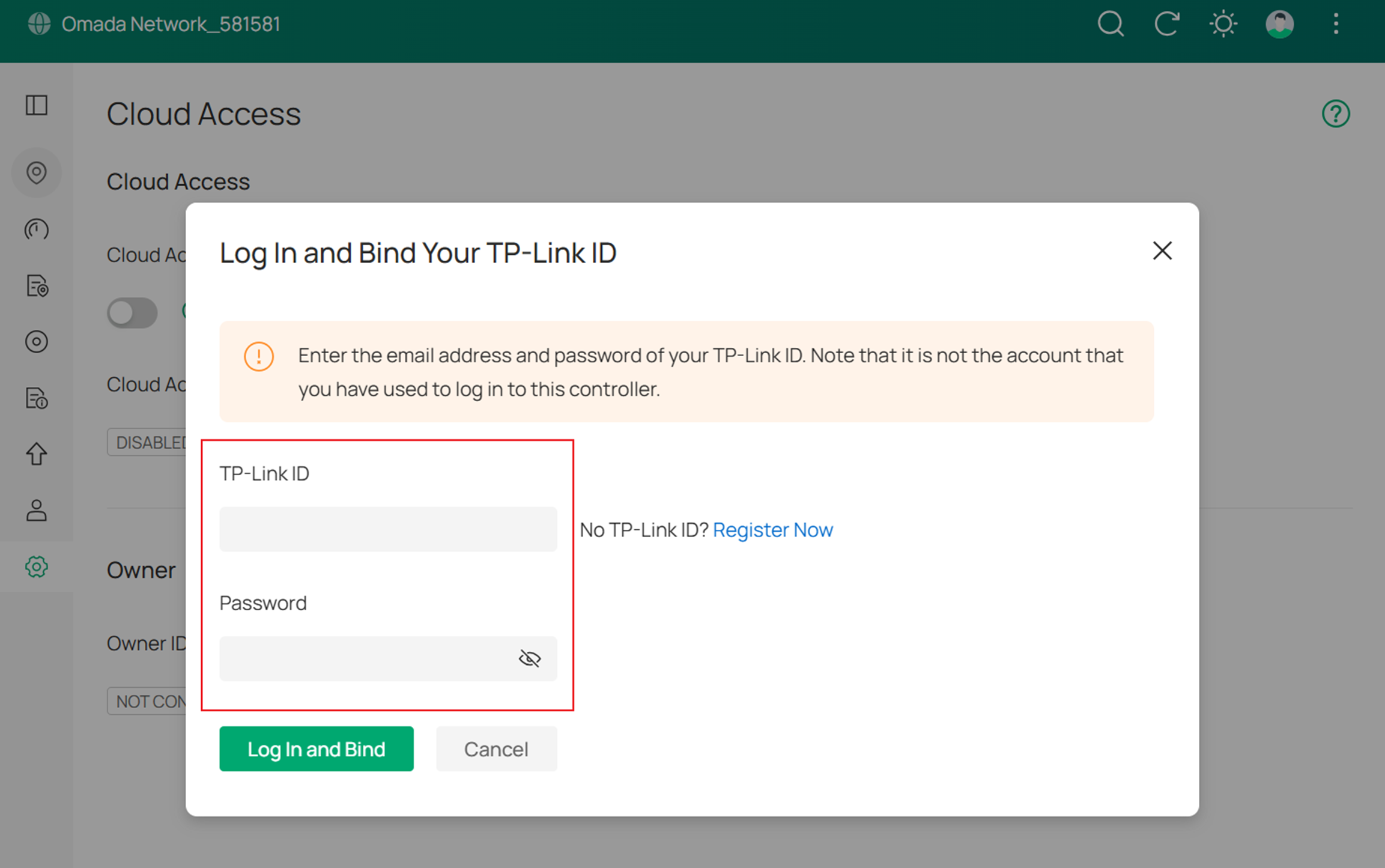
The TP-Link ID which is bound with the controller for the first time will be automatically bound as an owner. And only one TP-Link ID can be bound with the controller as an owner. An owner account can add or remove other TP-Link IDs to or from the same controller as Cloud Users.
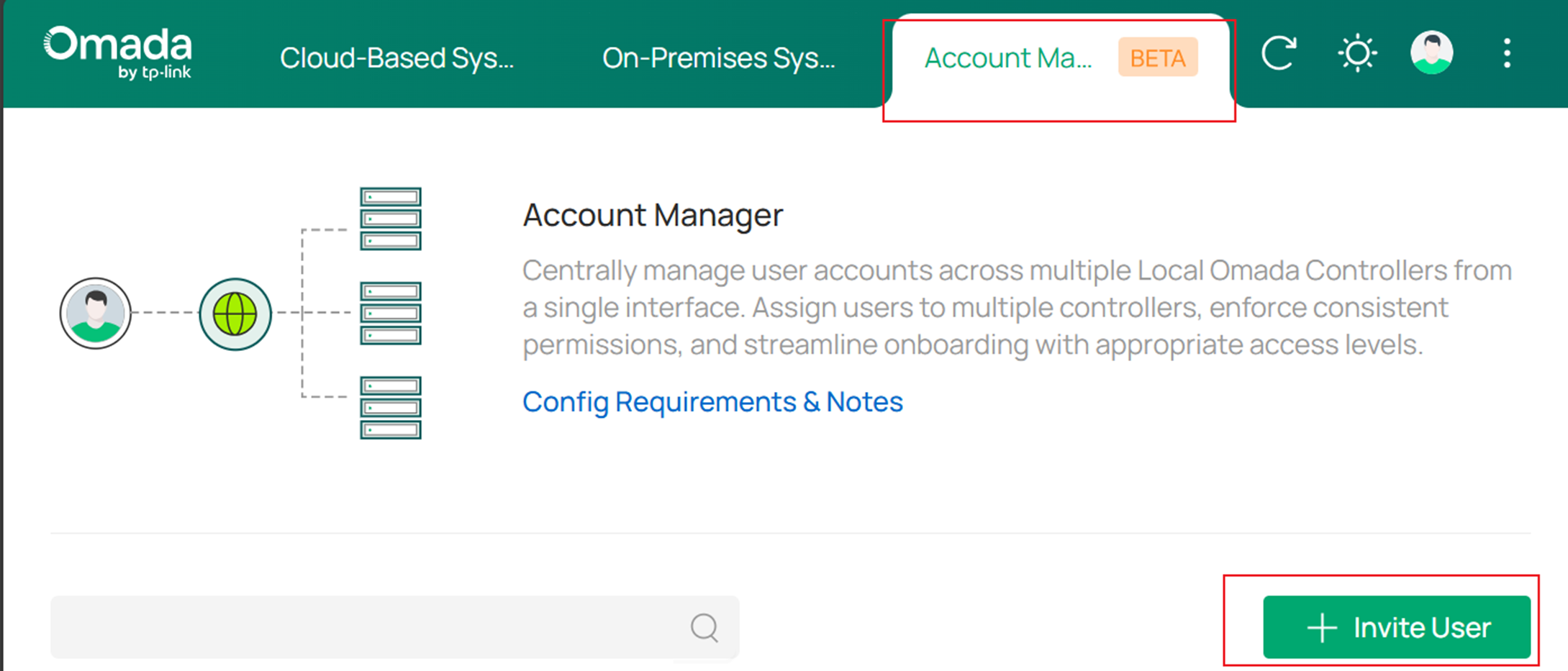
To create a new cloud user, go to Account Manager > Invite User. In the pop-up window, select your desired user role and configure the TP-Link ID and privileges. Once this TP-Link ID is accepted in the email invitation, the new user will be added.
Device Account on Omada Controller
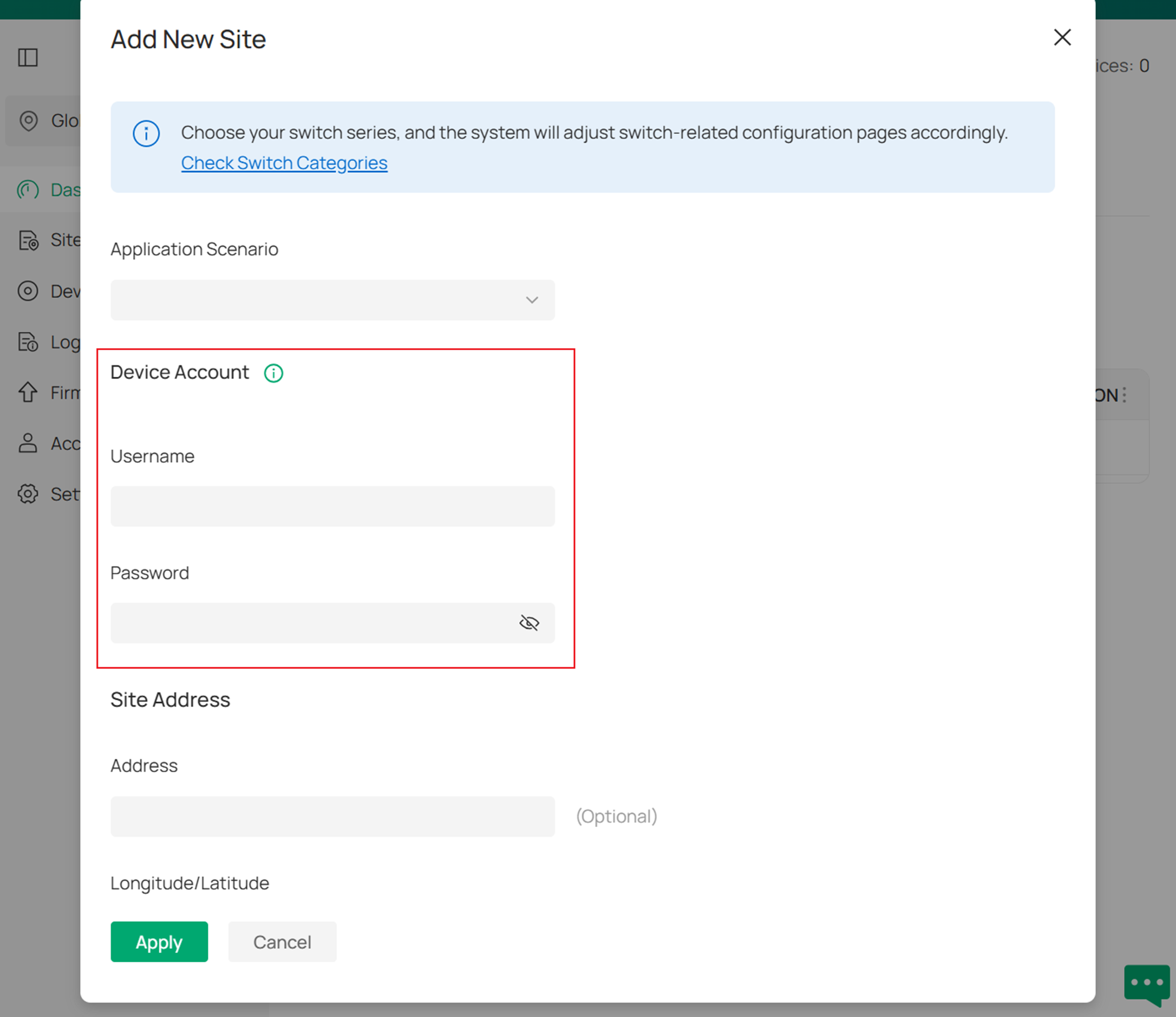
The device account is configured on the Omada Controller and deployed to all managed Omada devices. The device account is synchronized with the site account. After an Omada device is successfully adopted, its user account is automatically updated to match the device account on the Omada Controller.
You can create a site account during the Quick Setup process. If you select Skip, you can later create a new site account from Dashboard > Add New Site.
User Account of Omada device
The user account of an Omada device is used to log in to the Omada device when it is not managed by Omada Controller. What’s more, this account is needed when you adopt the Omada device on Omada Controller. The default username and password of user account are both admin.
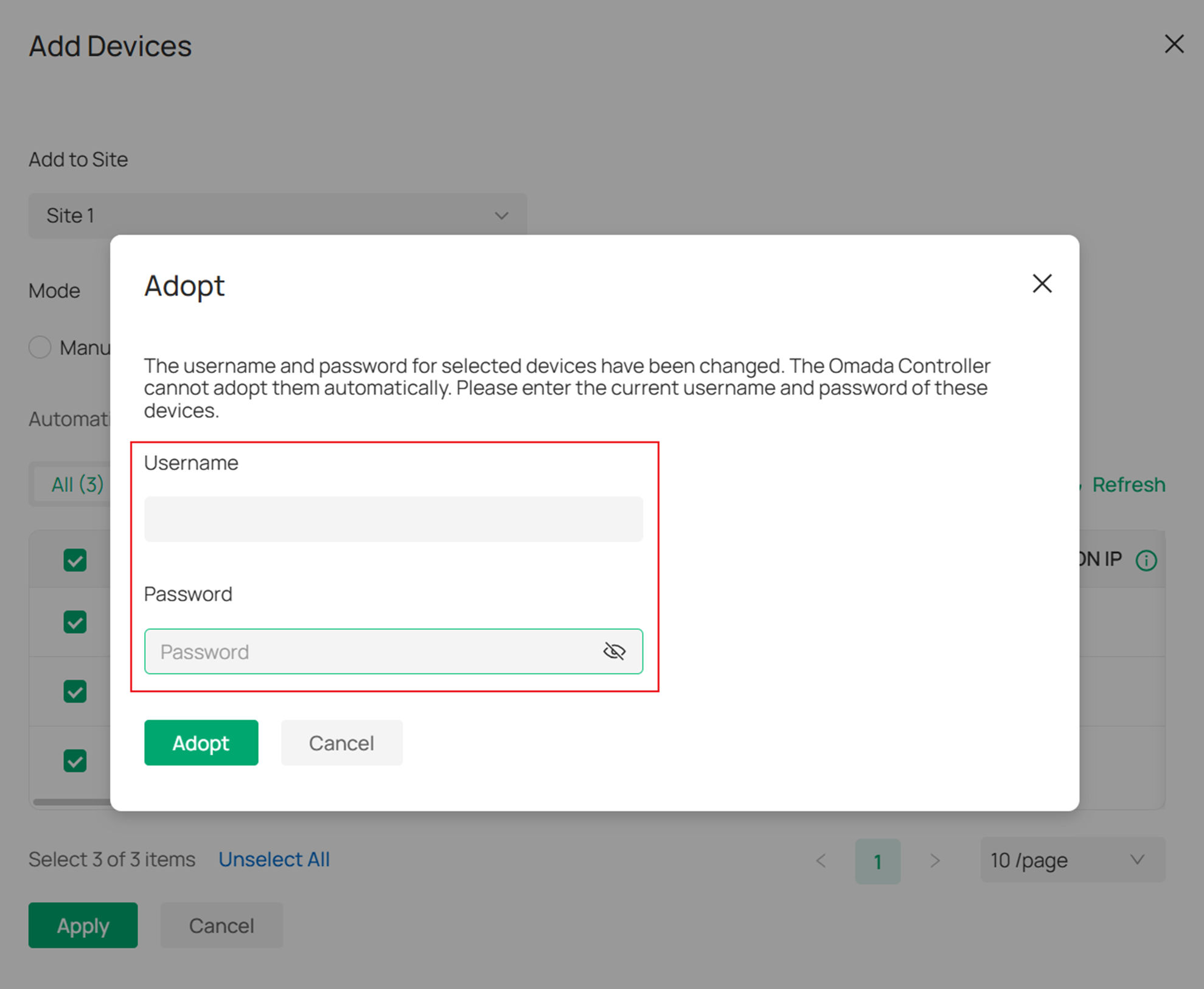
In the quick setup, Omada Controller automatically tries to adopt the selected Omada devices using the default username and password of user account (both are admin). However, if you have changed the username or password of your Omada devices before, Omada Controller cannot automatically adopt them, and you need to adopt them manually:
Go to Add Devices > Add to Site > Adopt. The table displays all the Omada devices that have not been adopted. Click the Retry button.
When an Omada device is adopted, please note the following points:
You cannot log in to the web page of the device.
If the site account is changed, the user account of the device will be changed simultaneously.
If you forget the password, you may check the site account or reset the device.
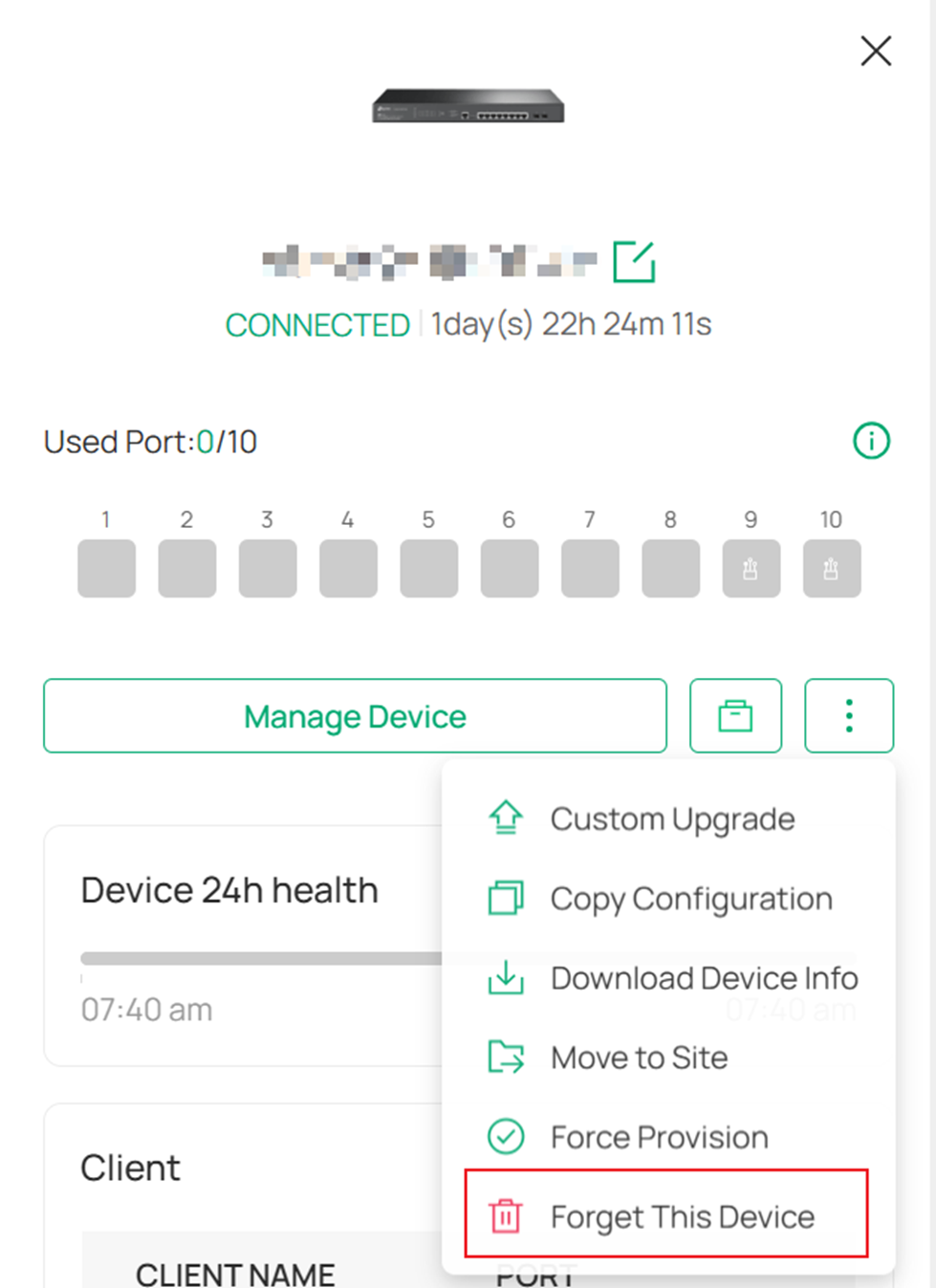
If you do not need to manage an Omada device through Omada Controller, you can forget this device. Then the device will be reset to the factory defaults and you can use the default username and password of the user account (both are admin) to log in to this device.
Conclusion
This article introduces the roles and differences among the four types of accounts in Omada Controller and explains how they work together during setup, cloud management, and device adoption.
Get to know more details of each function and configuration please go to Download Center to download the manual of your product.
