


Contents
Objective
This article introduces how to use the WAN Mode function to switch the WAN port status according to actual network requirements.
Requirements
- Omada Gateway series
- Omada Software Controller / Hardware Controller / Cloud Based Controller
Introduction
Determine the number of WAN ports according to your needs. After saving the changes, the gateway will automatically restart, and the changes will take effect after the restart. All old configurations related to the port will be deleted, and the port will be set to the WAN port or LAN port. Each WAN port in the open state can be configured with the connection type and other parameters according to your service provider's requirements. This article takes Controller 6.2.0.12 as an example.
Configuration
When Gateway is under Controller Management.
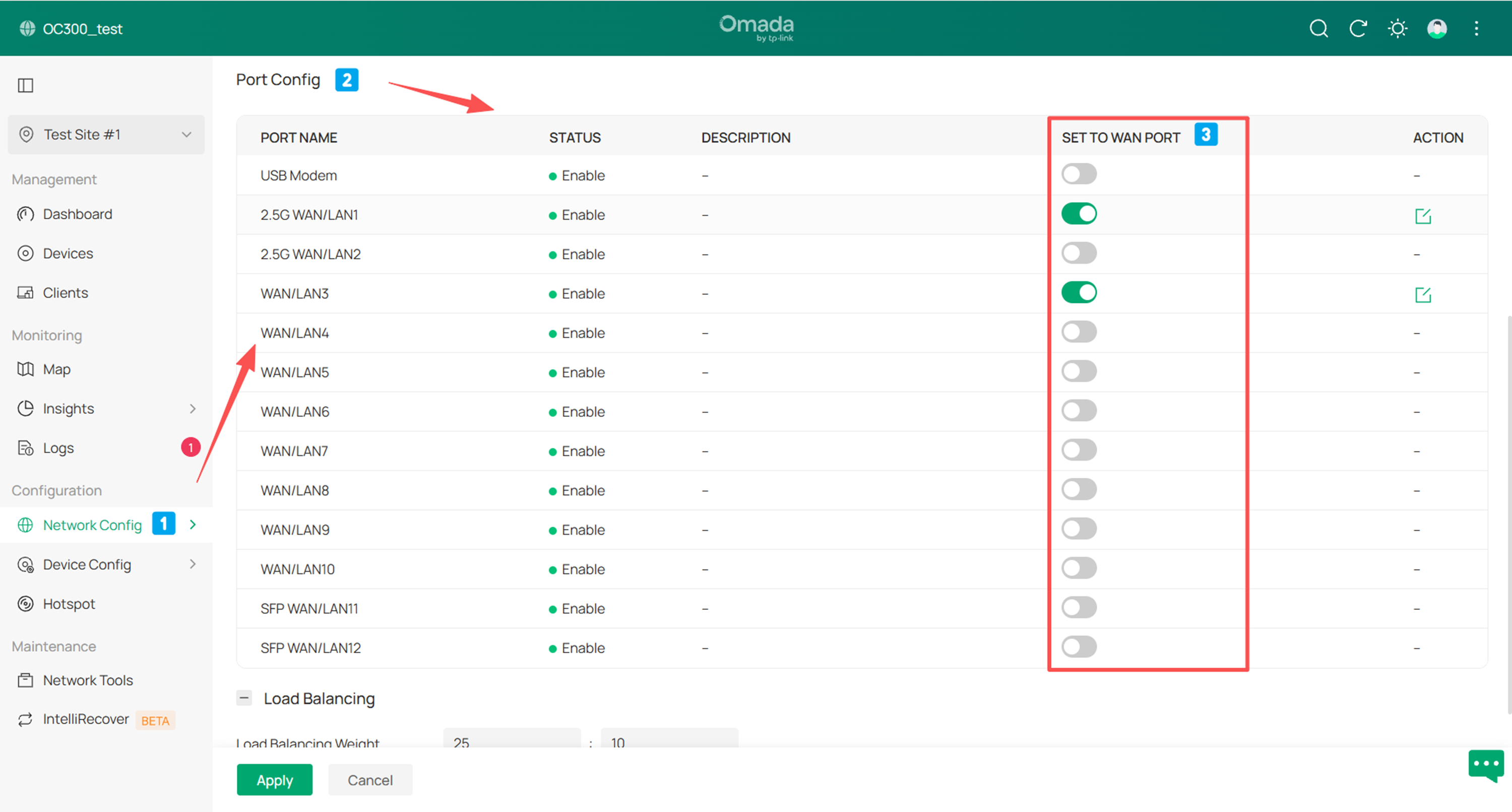
Step 1. Log in to the Controller, go to access the site of the adopted gateway and go to Network Config > Network Settings > Internet > Port Config.
Step 2. You need to operate the button status in the "SET TO WAN PORT" column. Enable or disable the port according to your needs.
The button is green in the enabled state and gray in the disabled state. (The fixed WAN port is displayed as "--" because the operation is not allowed.) When the status corresponding to the port is set to enabled, it means it is set as a WAN port. When the status corresponding to the port is set to disabled, it means it is set as a LAN port.
Step 3. Click Apply. After confirming the modification, the gateway will automatically restart for the settings to take effect.
When Gateway is under Standalone Mode.
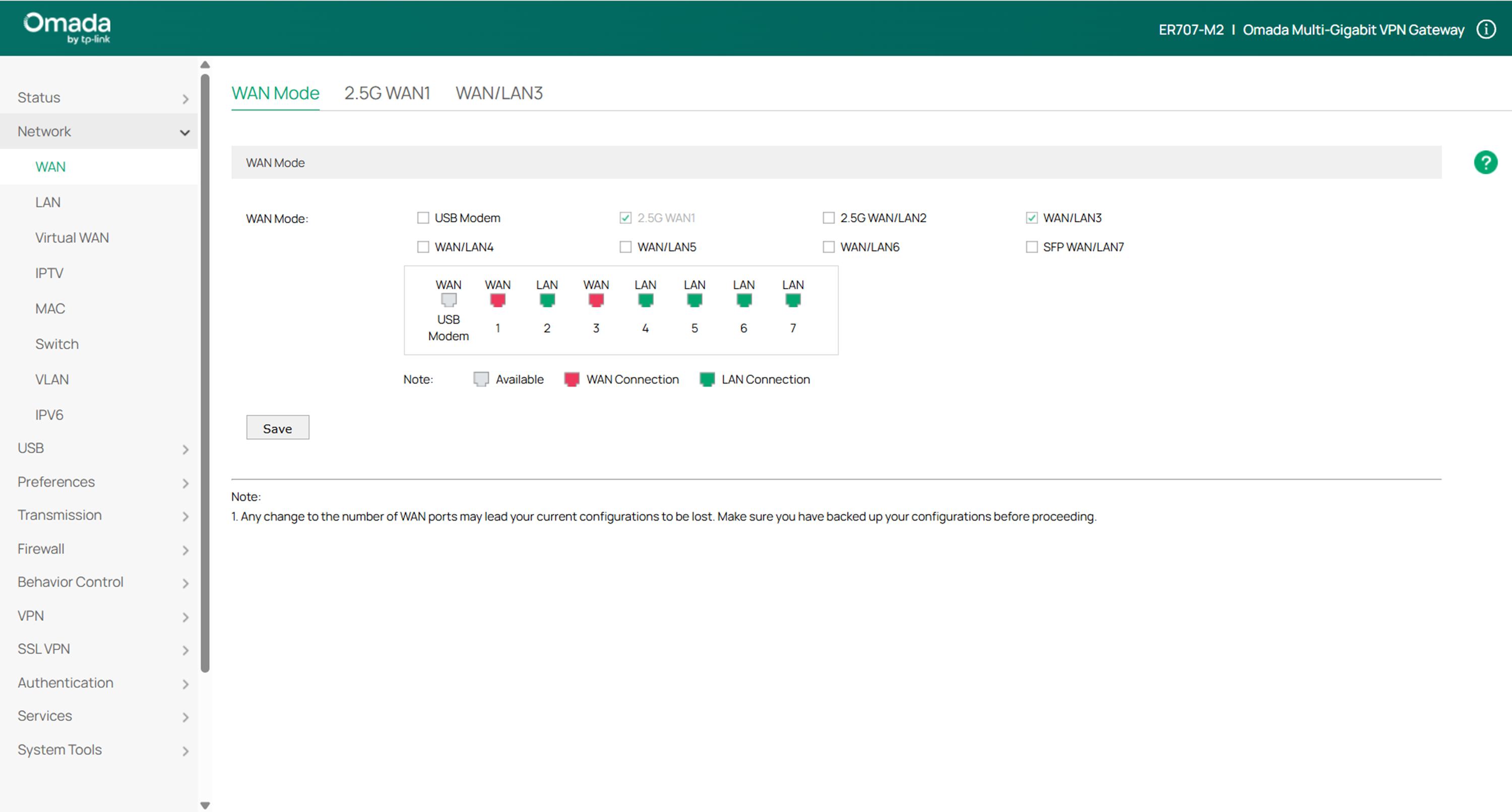
Step 1. Log in to the Web Interface of the gateway which is by default 192.168.0.1. If you have modified the management IP of gateway before, use the IP you changed previously.
Step 2. Go to Network > WAN > WAN Mode, you can see all the WAN ports here:
Step 3. You can change the port status to WAN mode by checking the boxes:
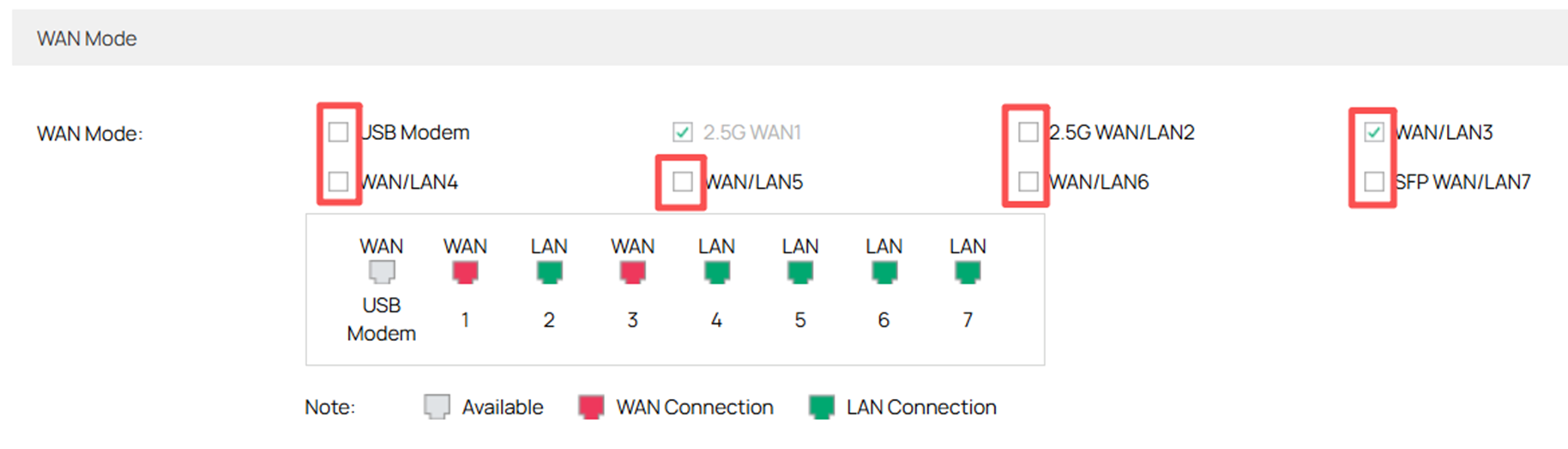
Note: Some ports are fixed WAN port or fixed LAN port, you can’t change the status of these fixed ports.
Step 4. Don’t forget to click Save button below to save the WAN configuration and to make it take effect.
Conclusion
Any change to the number of WAN ports will cause the device to restart, and the changes will take effect after the restart.
To learn more about each function and configuration, please visit Support Home to download or check the manual for your product.
QA
1. Can I modify the WAN Mode of multiple ports at the same time?
Re: Yes, you can enable/disable one or more ports as WAN ports within the allowed range according to your actual needs. Make sure the wiring on the modified port is correct after the configuration is saved.
2. Which modules will be affected after I modify the WAN Mode?
Re: When the WAN Mode is modified, the device will restart and all configurations on the associated modified ports will be cleared. Related modules containing WAN port option configuration entries may be affected, such as VPN, ACL, Load Balancing, Link Backup, Policy Routing, DDNS, etc. For example, when you modify the WAN Mode to reduce a WAN port, the VPN entry previously associated with the WAN port will be deleted, and the previously established VPN tunnel will no longer take effect. Therefore, before modifying the WAN Mode, please confirm that the selection of the WAN port in the entry configuration of other modules is as expected. After modifying the WAN Mode, you can update the WAN port options in other module entries according to the latest WAN port configuration.
3. Should I switch the WAN Mode?
Re: For the following scenarios, it is recommended that you switch the WAN Mode to meet your usage needs.
- If you have multiple broadband access and want to access the internet through multiple lines, and the number of WAN ports currently set by the gateway does not meet your needs, you can switch the idle WAN/LAN ports to WAN ports.
- If the number of default WAN ports on the gateway is greater than your usage requirements, or if you need more ports to be used as LAN ports, you can switch the idle WAN/LAN ports to LAN ports.
