Before you submit a replacement request, please ensure you have completed troubleshooting with TP-Link technical support. When TP-Link technical support confirms your product is defective under warranty, they will start an RMA case for your product. At this point, you can submit a replacement request by following the steps below.
Step 1. Visit https://myproducts.tp-link.com/ and log in with your TP-Link ID.
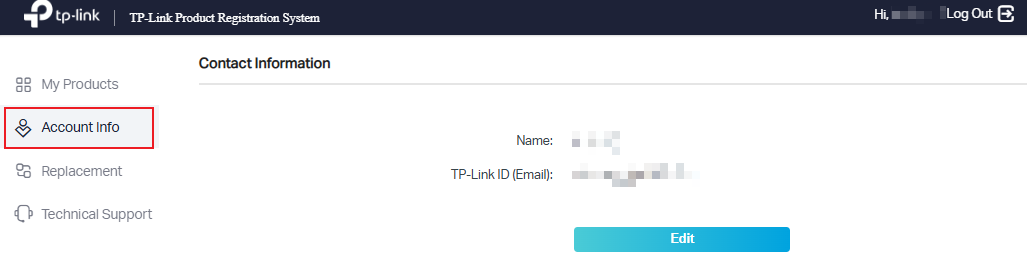
Step 2. Go to Account Info, to edit your name and shipping address.
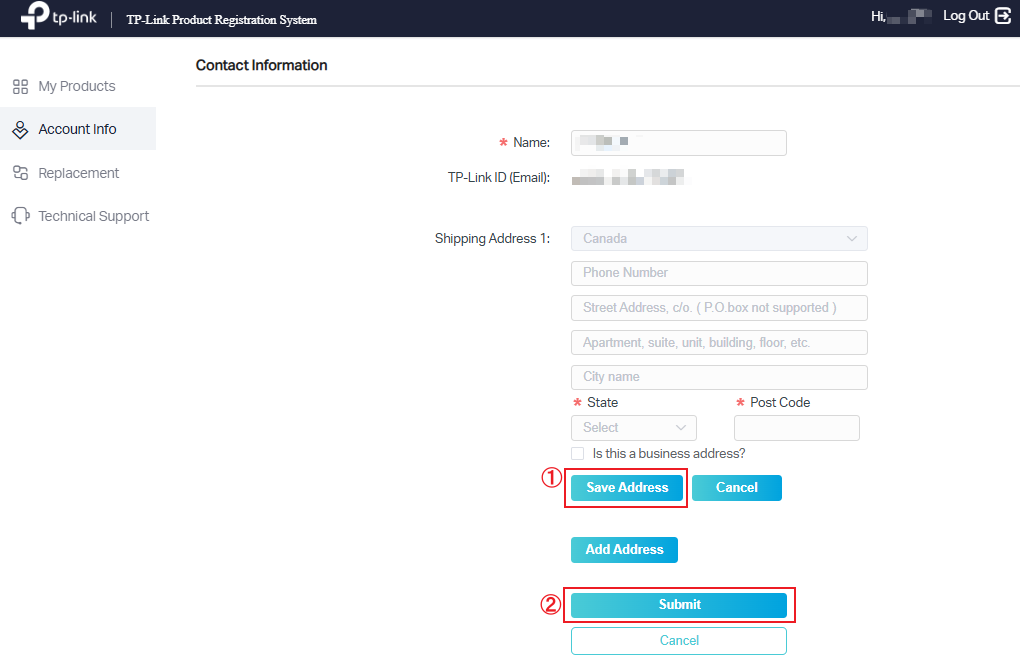
Step 3. Click Edit > Add Address, fill in your physical shipping address, click Save Address and, then click Submit.
Ensure that you enter a physical address; a PO Box address is not acceptable.
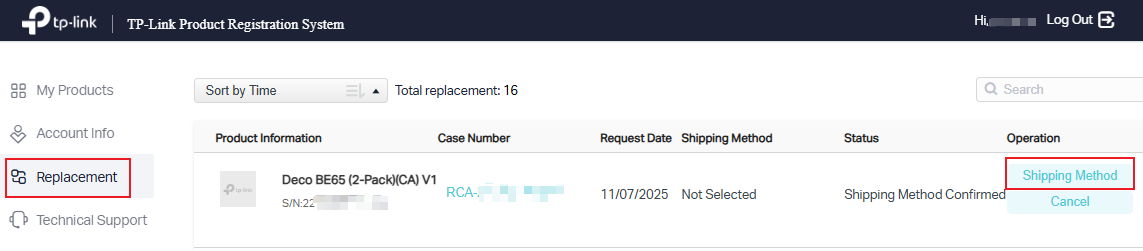
Step 4. Go to Replacement on the left sidebar. You will see RMA case for the defective product, please click Shipping Method.
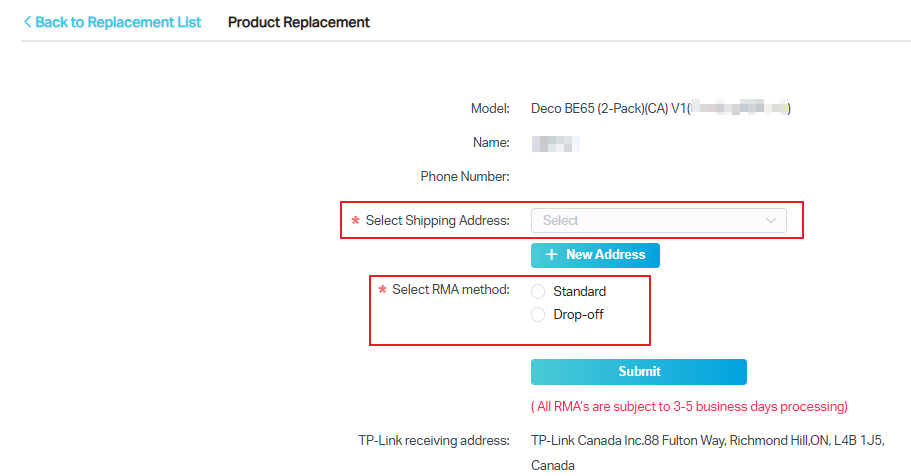
Step 5. Select your shipping address and RMA Method to submit the replacement request.
For more information, please refer TP-Link CA Shipping Methods Explained
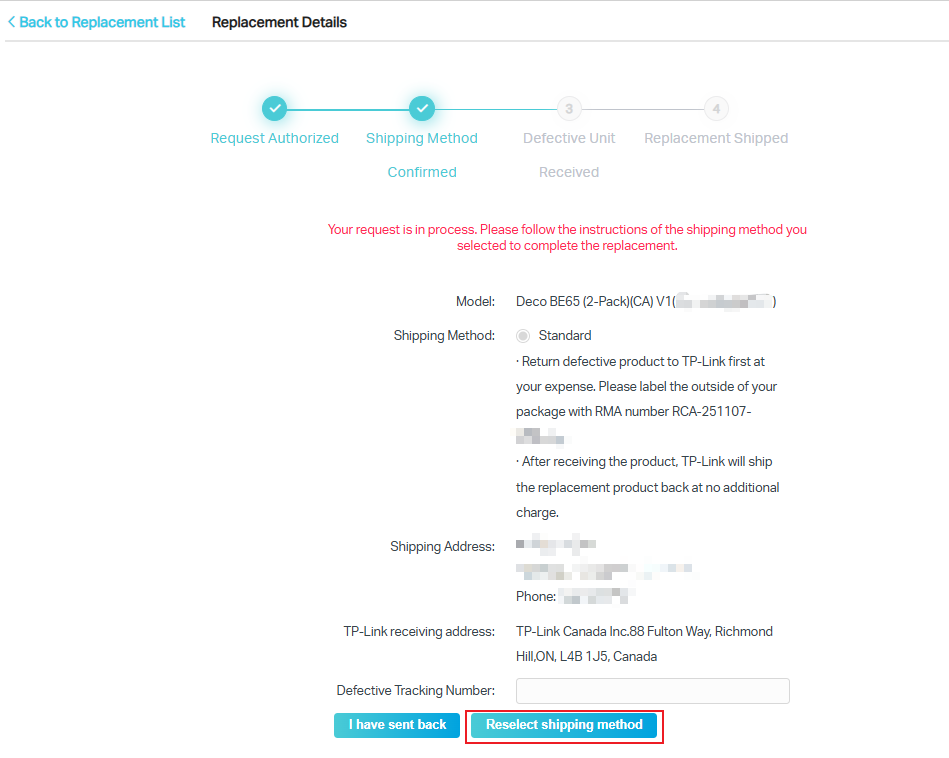
Step 6. After submitting the information, a replacement details page will pop up You can double-check the information, or click the Reselect shipping method button to change the shipping address or RMA method as needed.