


How to Upgrade OS and Applications on Fusion Pro Gateway


Contents
Upgrade Systems with Version Dependencies
Introduction
Omada Fusion Pro Gateway provides centralized management for Omada OS, Network, and Guard. On the OS & Application page, administrators can view the current version of each system, check for available updates, select an upgrade channel, and monitor the upgrade progress. When version dependencies exist, the gateway guides administrators through the required updates to maintain compatibility between Omada OS and applications.
Requirements
- Fusion Pro Series
- A stable internet connection and power supply
Configuration
This section describes how to update Omada OS, Network, and Guard, handle updates with version dependencies, and select an upgrade channel on the Fusion Pro Gateway.
Perform a Cloud Upgrade
Follow the steps below to check for and install an available update for Omada OS, Network, or Guard.
Step 1. Log in to the management interface of the Fusion Pro Gateway.
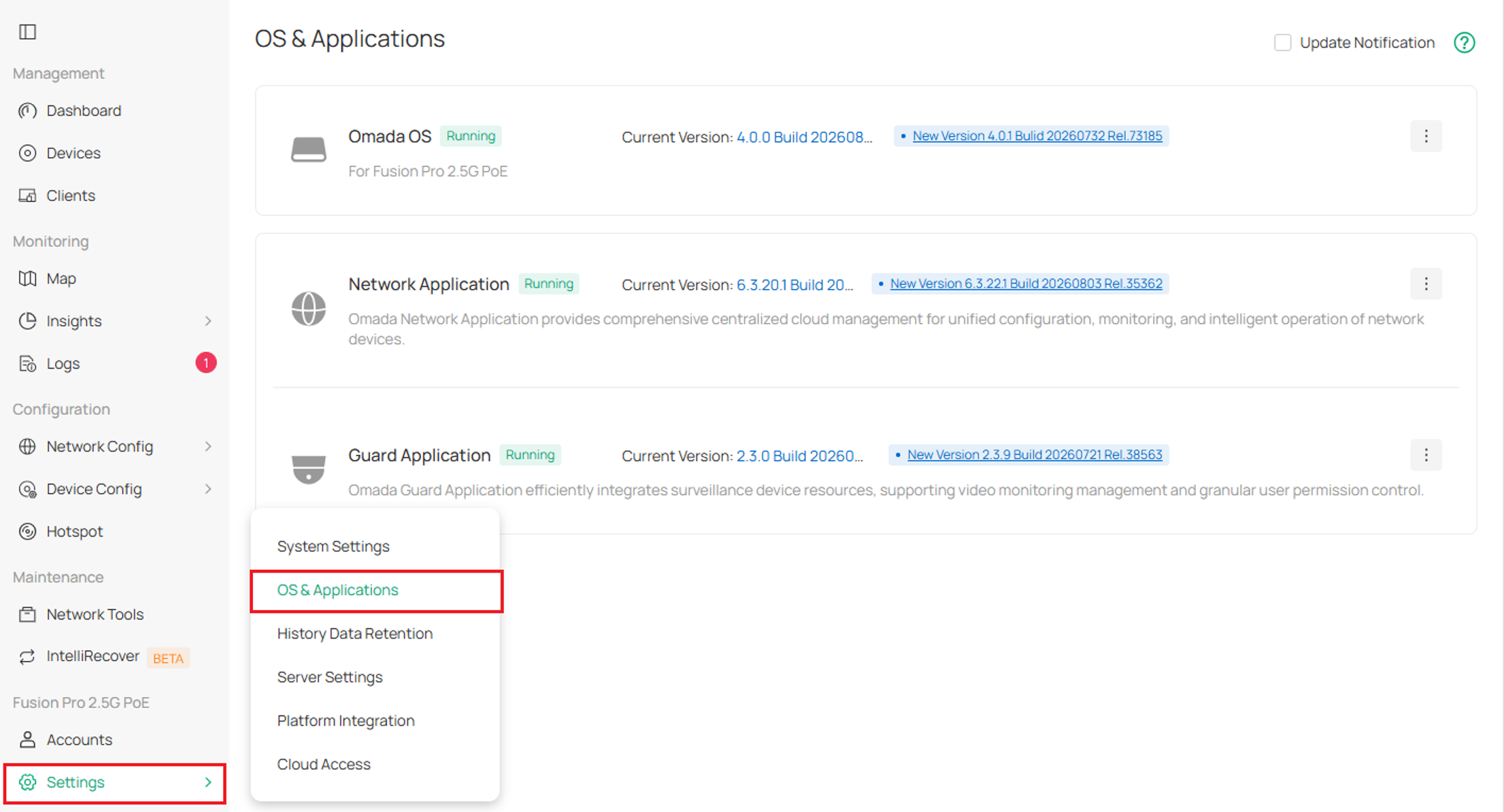
Step 2. Go to Settings > OS & Application.
The page displays the current versions and operating status of Omada OS, Network, and Guard.
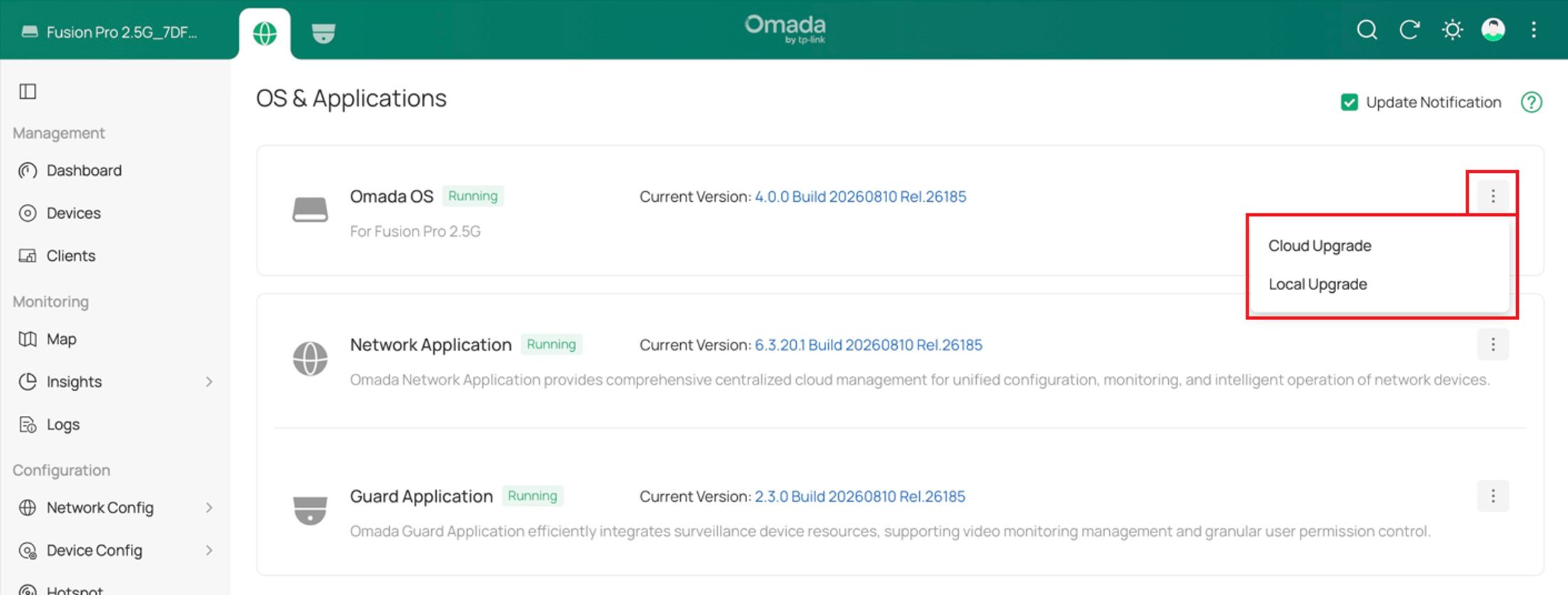
Step 3. Locate the OS or Applications that you want to update, click the corresponding action button, and select Cloud Upgrade.
Step 4. In the Cloud Upgrade window, select a release channel:
- Stable: Provides stable releases intended for general use.
- RC: Provides release candidate versions for evaluation before a stable release.
- Beta: Provides prerelease versions for testing upcoming features.
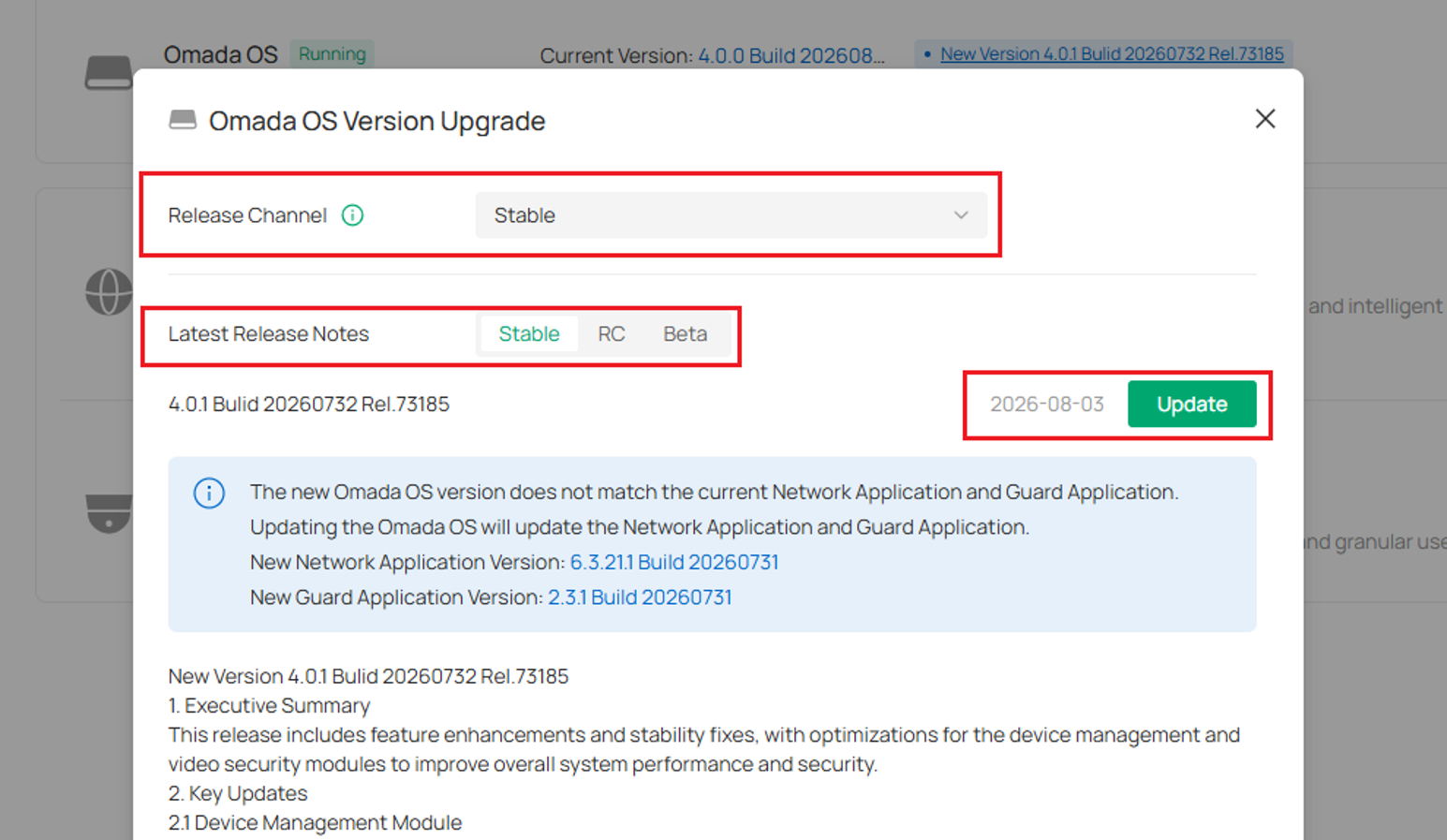
Step 5. Review the upgrade information and confirm the operation. Do not power off the Fusion Pro Gateway while an update is in progress.
- Updating Omada OS restarts the Fusion Pro Gateway automatically.
- Updating Network or Guard temporarily interrupt the corresponding service.
- Configuration operations may be temporarily unavailable during the update.
Step 6. After the update is complete, return to Settings > OS & Application and confirm that the updated system displays the target version and a normal operating status.
Perform a Local Upgrade
The Local Upgrade option allows you to upload a compatible firmware file from your local device and install it on Omada OS, Network, or Guard.
Step 1. Download the correct firmware file for your Fusion Pro Gateway model from the official website. Firmware Download | Omada Network Support
Step 2. Log in to the management interface and go to Settings > OS & Application.
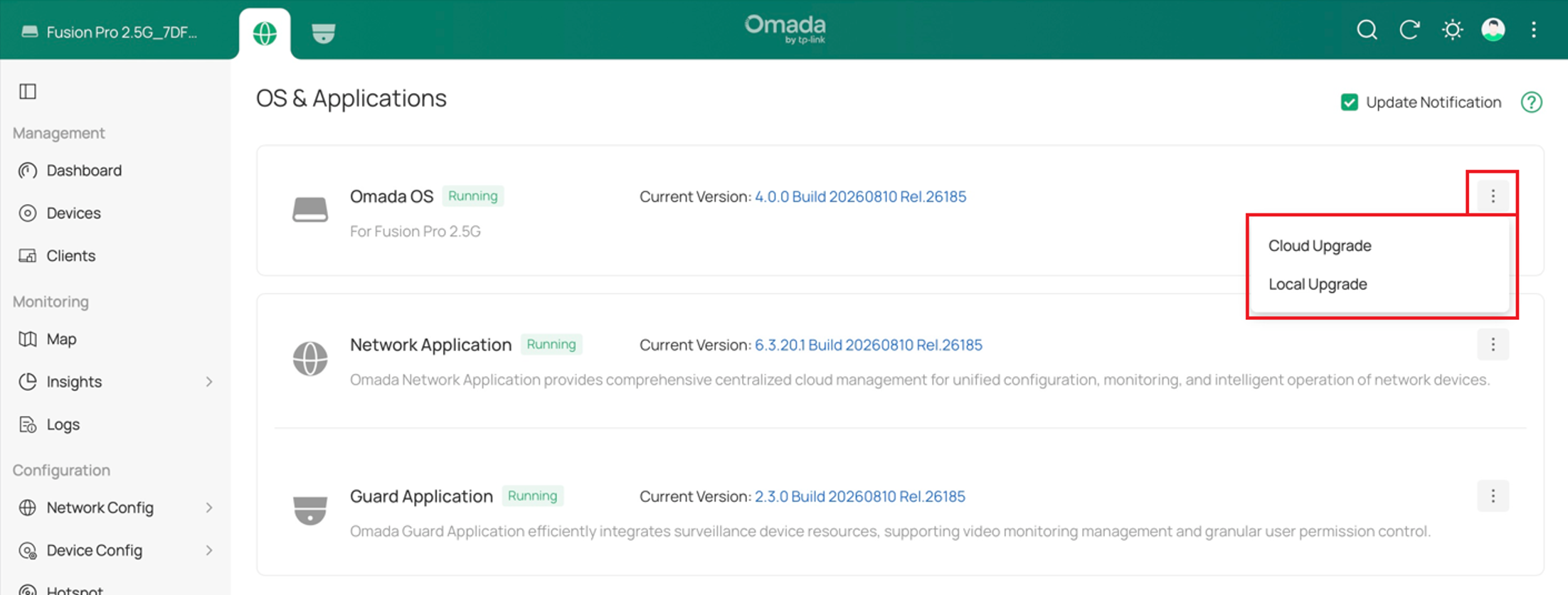
Step 3. Locate the OS or Applications that you want to update, click the corresponding action button, and select Local Upgrade.
Step 4. Click Browse, and select the corresponding firmware file.
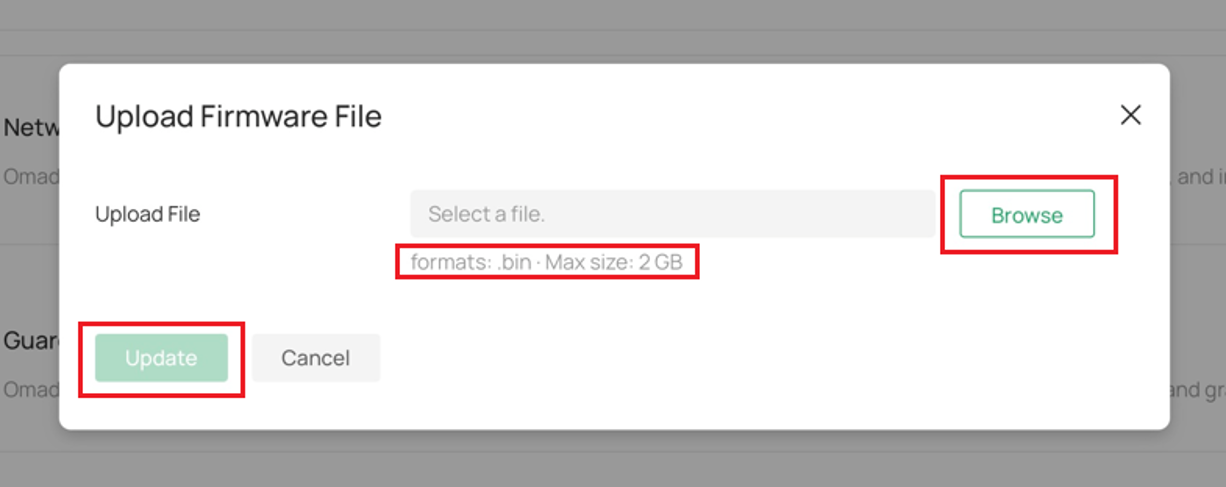
Note: Select firmware that matches the Fusion model and the target system. For example, do not upload Network or Guard firmware through the Omada OS upgrade entry.
Step 5. Wait while the Fusion Pro Gateway uploads and verifies the firmware file. Click Upgrade and confirm the operation. Do not power off the Fusion Pro Gateway while an update is in progress.
- Updating Omada OS restarts the Fusion Pro Gateway automatically.
- Updating Network or Guard temporarily interrupt the corresponding service.
- Configuration operations may be temporarily unavailable during the update.
Step 6. Return to Settings > OS & Application and confirm that the target system displays the expected version and a normal operating status.
Upgrade Systems with Version Dependencies
Some Network or Guard releases require a compatible version of Omada OS. If the current Omada OS version does not meet the requirement, the Fusion Pro Gateway displays a compatibility prompt.
- Application Updates That Require a Later Omada OS Version
A new version of Network or Guard may require features or services provided by a later version of Omada OS. If the current Omada OS version does not meet the requirement, the application update cannot proceed.
For a cloud upgrade, update Omada OS first as prompted. After the gateway completes the update and becomes accessible again, return to Settings > OS & Application and check for available Network or Guard updates.
For a local upgrade, the Fusion Pro Gateway verifies the compatibility of the uploaded firmware before installation. If the firmware is incompatible with the current Omada OS version, the upgrade is blocked and a compatibility message is displayed.
- Omada OS Updates That Include Application Updates
An Omada OS release includes compatible versions of Network and Guard. When upgrading Omada OS, the system checks whether the currently installed application versions meet the minimum compatibility requirements of the target Omada OS version.
If an installed application version is lower than the minimum compatible version required by the target Omada OS, the system displays a notification in the upgrade dialog and upgrades the application to the corresponding compatible version during the Omada OS upgrade process.
If an installed application version is newer than the version bundled with the target Omada OS release and is still compatible with that Omada OS version, the application remains unchanged and is not downgraded during the upgrade.
- Application Downgrades
Downgrading the Application alone is not supported. If the uploaded firmware would downgrade either application, the Fusion Pro Gateway blocks the operation and displays a message.
Downgrading Omada OS resets the Fusion Pro Gateway to its factory default settings and erases the current configuration. Depending on the target Omada OS version, applications that are not supported by the target version may also be removed. After the downgrade, reconfigure the Fusion Pro Gateway
Note: After an Omada OS downgrade, you must reconfigure the Fusion Pro Gateway or restore a compatible configuration backup. Do not power off the gateway during the downgrade.
Conclusion
You have now learned how to upgrade Omada OS, Network, and Guard through Cloud Upgrade or Local Upgrade on the Fusion Pro Gateway. You can select an appropriate Release Channel, review the latest release notes, and follow the on-screen instructions to complete updates while maintaining version compatibility between Omada OS and the applications.
To learn more about each function and configuration, please visit Support Home to download or check the manual for your product.
