About this Installation Guide
This Installation Guide describes the hardware characteristics, installation methods and the points that should be attended to during the installation. This Installation Guide is structured as follows:
Chapter 1 Introduction
This chapter describes the external components of the switch.
Chapter 2 Installation
This chapter illustrates how to install the switch.
Chapter 3 Connection
This chapter illustrates how to do the physical connection of the switch.
Chapter 4 Configuration
This chapter illustrates how to configure the switch.
Conventions
■ Some models featured in this guide may be unavailable in your country or region. For local sales information, visit https://www.omadanetworks.com/.
■ The figures in Chapter 2, Chapter 3, and Chapter 4 are for demonstration purposes only. Your switch may differ in appearance from that depicted.
■ PoE budget calculations are based on laboratory testing. Actual PoE power budget is not guaranteed and will vary as a result of client limitations and environmental factors.
■ This guide uses the specific formats to highlight special messages. The following table lists the notice icons that are used throughout this guide.
 |
Remind to be careful. A caution indicates a potential which may result in device damage. |
 |
Remind to take notice. The note contains the helpful information for a better use of the product. |
Related Document
The User Guide and CLI Reference Guide of the product are provided on Download Center. To obtain the latest product information, visit the official website: https://support.omadanetworks.com/document/.
Chapter 1 Introduction
1.1 Product Overview
The Omada Access Managed Switch is designed for medium businesses. In addition to wire-speed performance, they can provide abundant L2 management features respectively. A variety of service features and multiple powerful functions with high security are also available.
The EIA-standardized framework and smart configuration capacity can provide flexible solutions for a variable scale of networks. ACL, 802.1x and Dynamic ARP Inspection provide robust security strategies. QoS and IGMP snooping/filtering optimize voice and video application. Link aggregation (LACP) increases aggregated bandwidth, optimizing the transport of business critical data. SNMP, RMON, WEB and CLI Log-in bring abundant management policies.
The switches integrate multiple functions with excellent performance, and are friendly to manage, which can fully meet the need of the users demanding higher networking performance.
SG3428MP/SG3452P is also a Power Sourcing Equipment (PSE*). All the RJ45 ports on the switch support Power over Ethernet (PoE*) function, which can automatically detect and supply power to those powered devices (PDs*) compliant with IEEE 802.3af and IEEE 802.3at.
 Note:
Note:
■ PSE: a device (switch or hub for instance) that provides power through an Ethernet cable.
■ PoE: This technology describes a system to transmit electrical power, along with data, to remote devices over standard twisted-pair cable in an Ethernet.
■ PD: a device powered by a PSE and thus consumes energy. Examples include powering network cameras, wireless LAN access points, IP telephones, network hubs, embedded computers etc.
1.2 Appearance
Front Panel
(The figures are for demonstration only. They may differ from your actual products.)
The front panel of SG3210 is shown as the following figure.
3.0_前面板-01_20260108072851o.png)
The front panel of SG3428 is shown as the following figure.
1.20_前面板-01_20260108073322u.png)
The front panel of SG3428MP is shown as the following figure.
6.30_前面板-01_20260108073719x.png)
The front panel of SG3452 is shown as the following figure.
1.0_前面板-01_20260108073938v.png)
The front panel of SG3452P is shown as the following figure.
1.0_前面板-01_20260108074144q.png)
| LED | Indication |
|---|---|
| PWR | On: The switch is powered on. Off: The switch is powered off or power supply is abnormal. Flashing: Power supply is abnormal. |
| SYS | Flashing: The switch works properly. On or Off: The switch works improperly. |
| PoE Max (For SG3428MP/ SG3452P) |
On: The remaining PoE power is ≤ 7 W. Flashing: The remaining PoE power keeps ≤ 7 W after this LED is on for 2 minutes. Off: The remaining PoE power is > 7 W. |
| FAN (For SG3428MP/ SG3452P) |
Green: All the fans work properly. Yellow: Not all the fans work properly. |
| Port 1–8 of SG3210/ Port 1-24 of SG3428/ Port 1-48 of SG3452 |
Green On: Running at 1000 Mbps, but no activity. Green Flashing: Running at 1000 Mbps and transmitting or receiving data. Yellow On: Running at 10/100 Mbps, but no activity. Yellow Flashing: Running at 10/100 Mbps and transmitting or receiving data. Off: No device is linked to the corresponding port. |
| Port 1-24 of SG3428MP/ Port 1–48 of SG3452P |
When the Speed LED is on: When the PoE LED is on: |
| SFP |
For SG3428/SG3428MP: For SG3210/SG3452/SG3452P: |
Port Feature
| Model | 10/100/1000 Mbps RJ45 Port | SFP Slot | Console Port |
|---|---|---|---|
| SG3210 | 8 | 2 | 2 |
| SG3428 | 24 | 4 | 2 |
| SG3428MP | 24 | 4 | 2 |
| SG3452 | 48 | 4 | 2 |
| SG3452P | 48 | 4 | 2 |
Note:
■ SG3428 is designed with a USB Type-C console port, while other models are designed with a micro-USB console port.
Rear Panel
The rear panel of the switch is shown as the following figure. The figure is for demonstration purposes only. Your switch may differ in appearance from the depicted.
_后面板-01_20260108092931k.png)
Kensington Security Slot
Secure the lock (not provided) into the security slot to prevent the device from being stolen.
Grounding Terminal
The switch already comes with lightning protection mechanism. You can also ground the switch through the PE (Protecting Earth) cable of AC cord or with Ground Cable. For detailed lightning protection measures, refer to the Lightning Protection Guide from: https://support.omadanetworks.com/r/1004/.
Power Socket
Connect the female connector of the power cord here, and the male connector to the AC power outlet. Make sure that the voltage of the power supply meets the requirement of the input voltage (100–240V~ 50/60 Hz).
Caution:
Please use the provided power cord.
Chapter 2 Installation
2.1 Package Contents
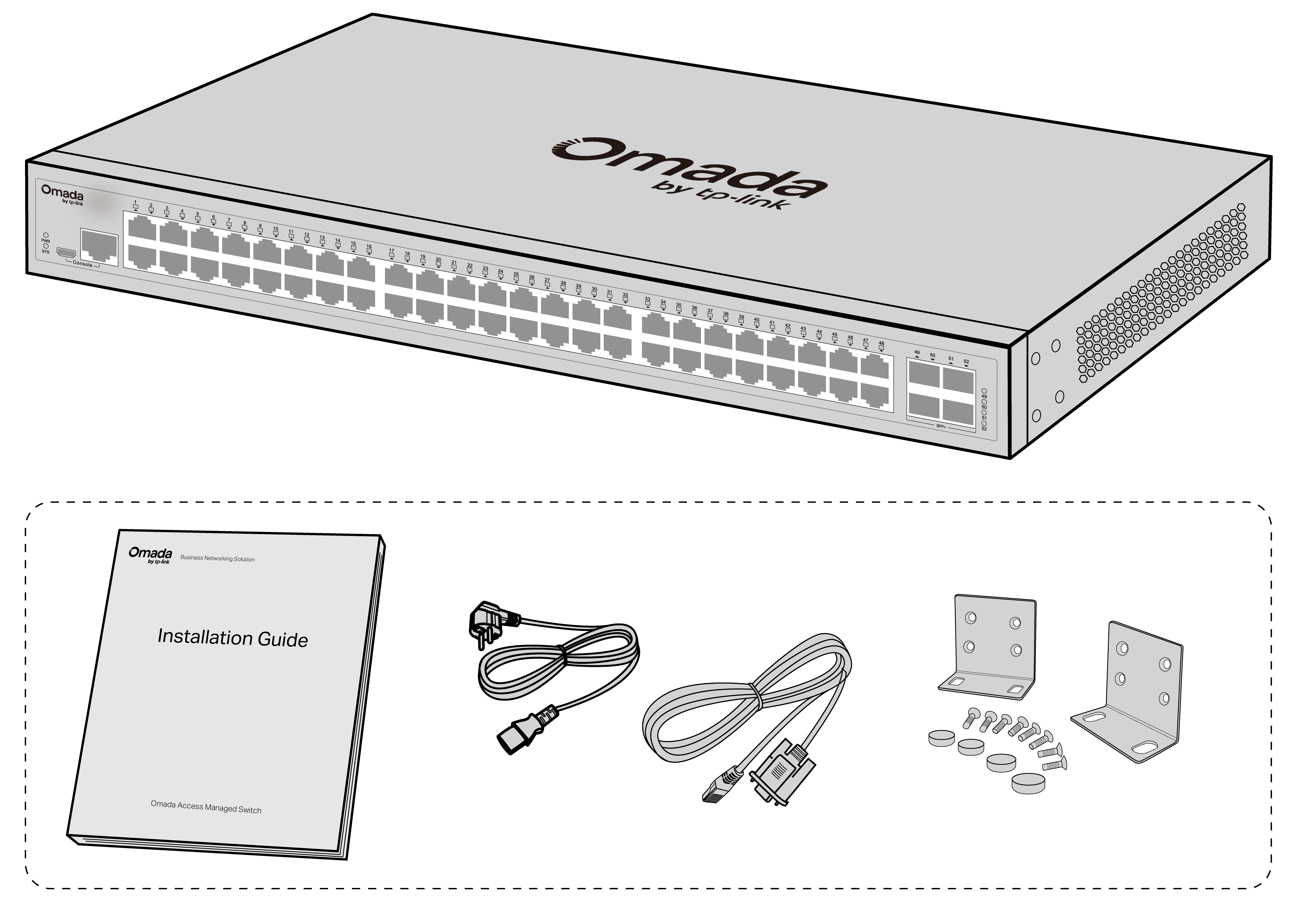
Make sure that the package contains the following items. Please contact your distributor, if any of the listed items is damaged or missing. The figures are for demonstration only. The actual items may differ in appearance and quantity from the depicted.
■ Switch
■ Installation Guide
■ Power Cord and Console Cable
■ Mounting Brackets, Screws and Rubber Feet
2.2 Safety Precautions
To avoid any device damage and bodily injury caused by improper use, you should observe the following rules.
Safety Precautions
■ Keep the power off during the installation.
■ Wear an ESD-preventive wrist strap, and make sure that the wrist strap has a good skin contact and is well grounded.
■ Use only the power cord provided with the switch.
■ Make sure that the supply voltage matches the specifications indicated on the rear panel of the switch.
■ Ensure that the switch is installed in a well-ventilated environment and its ventilation hole is not blocked.
■ Do not open or remove the cover of the switch.
■ Before cleaning the device, cut off the power supply. Do not clean it by the waterish cloth, and never use any other liquid cleaning method.
■ Place the device with its bottom surface facing downwards.
■ Only instructed person or skilled person can be allowed to install, replace, or service this device.
Site Requirements
Temperature/Humidity
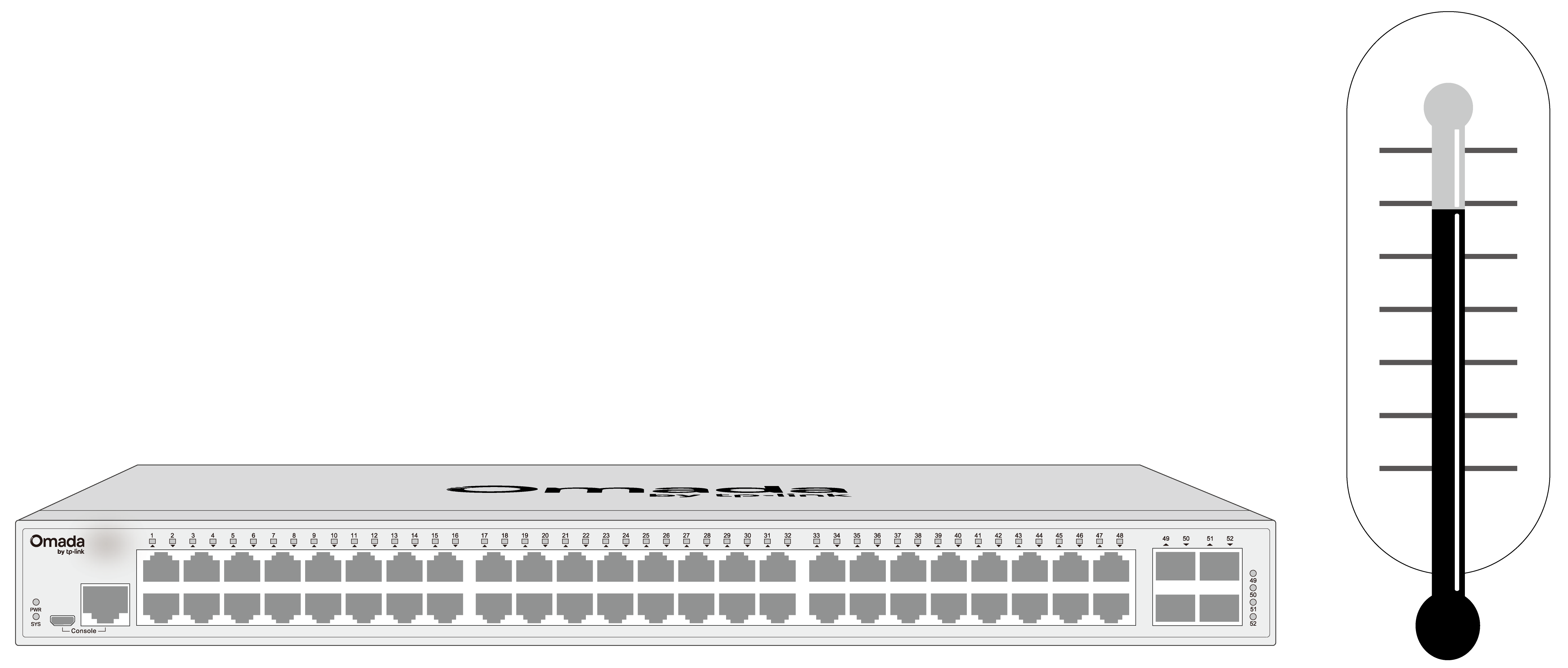
Keep the equipment room at an appropriate level of temperature and humidity. Too much or too little humidity may lead to bad insulation, leakage of electricity, mechanical property changes, and corrosion. High temperatures may accelerate aging of the insulation materials, significantly shortening the service life of the device. To find out the best temperature and humidity conditions for the device, check the Appendix B Specifications.
Clearness
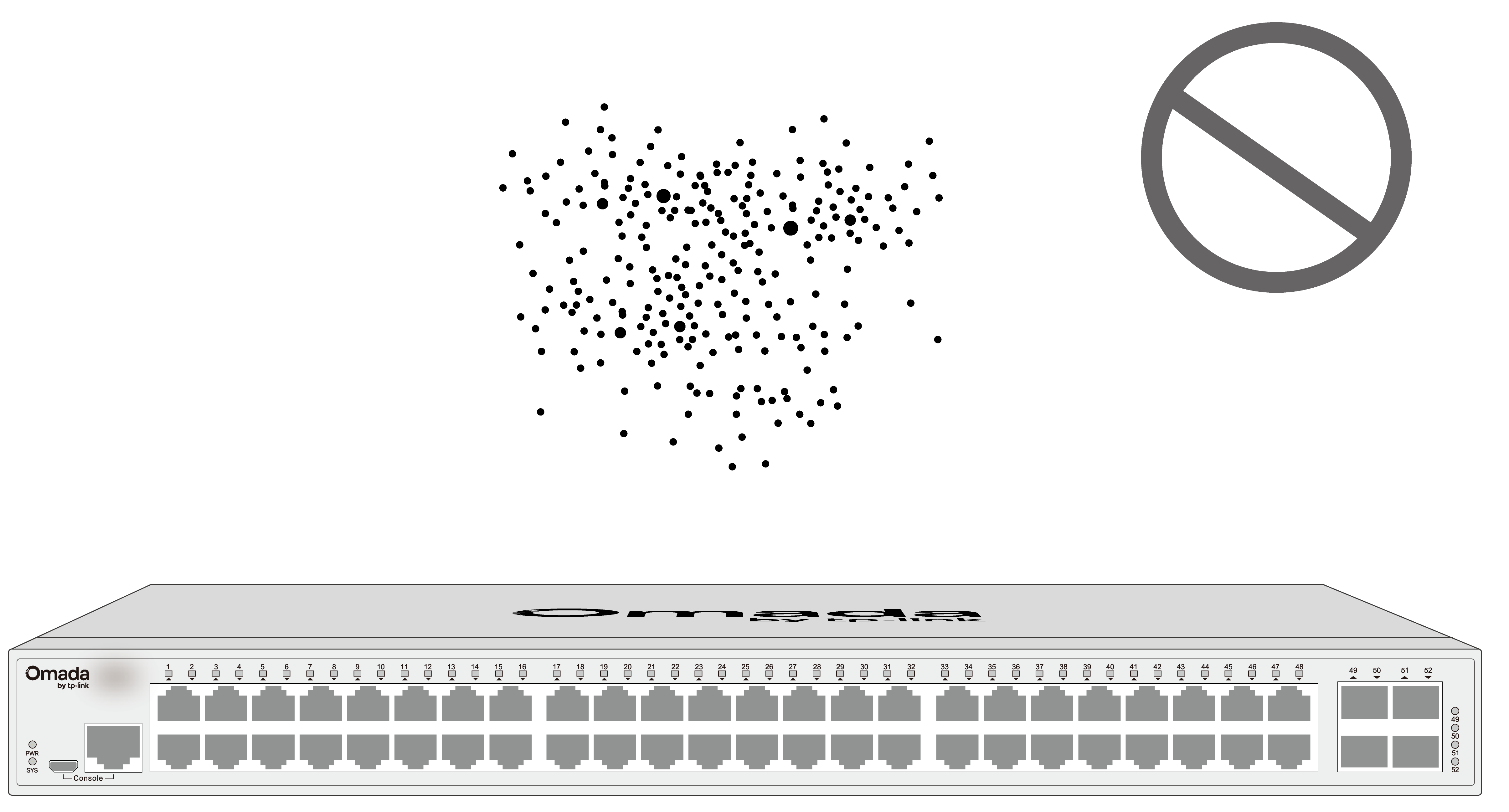
The dust accumulated on the switch can be absorbed by static electricity and result in poor contact of metal contact points. Some measures have been taken for the device to prevent static electricity, but too strong static electricity can cause deadly damage to the electronic elements on the internal circuit board. To avoid the effect of static electricity on the operation of the switch, attach much importance to the following items:
■ Dust the device regularly, and keep the indoor air clean.
■ Keep the device well grounded and ensure that the static electricity has been transferred.
Electromagnetic Interference
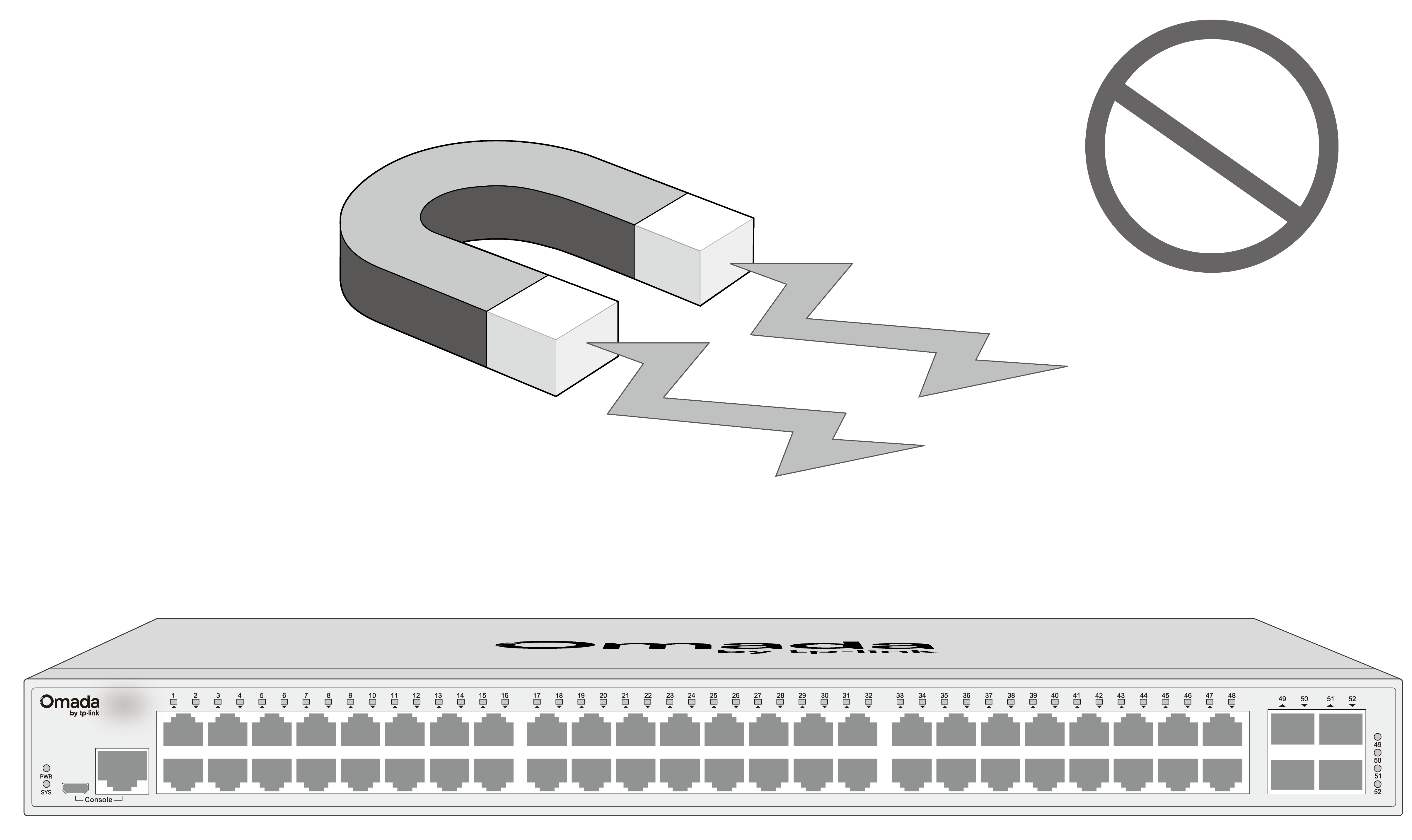
Electronic elements including capacitance and inductance on the device can be affected by external interferences, such as conducted emission by capacitance coupling, inductance coupling, and impedance coupling. To decrease the interferences, make sure to take the following measures:
■ Use the power supply that can effectively filter interference from the power grid.
■ Keep the device far from high-frequency and strong-current devices such as radio transmitting station.
■ Use electromagnetic shielding when necessary.
Lightning Protection
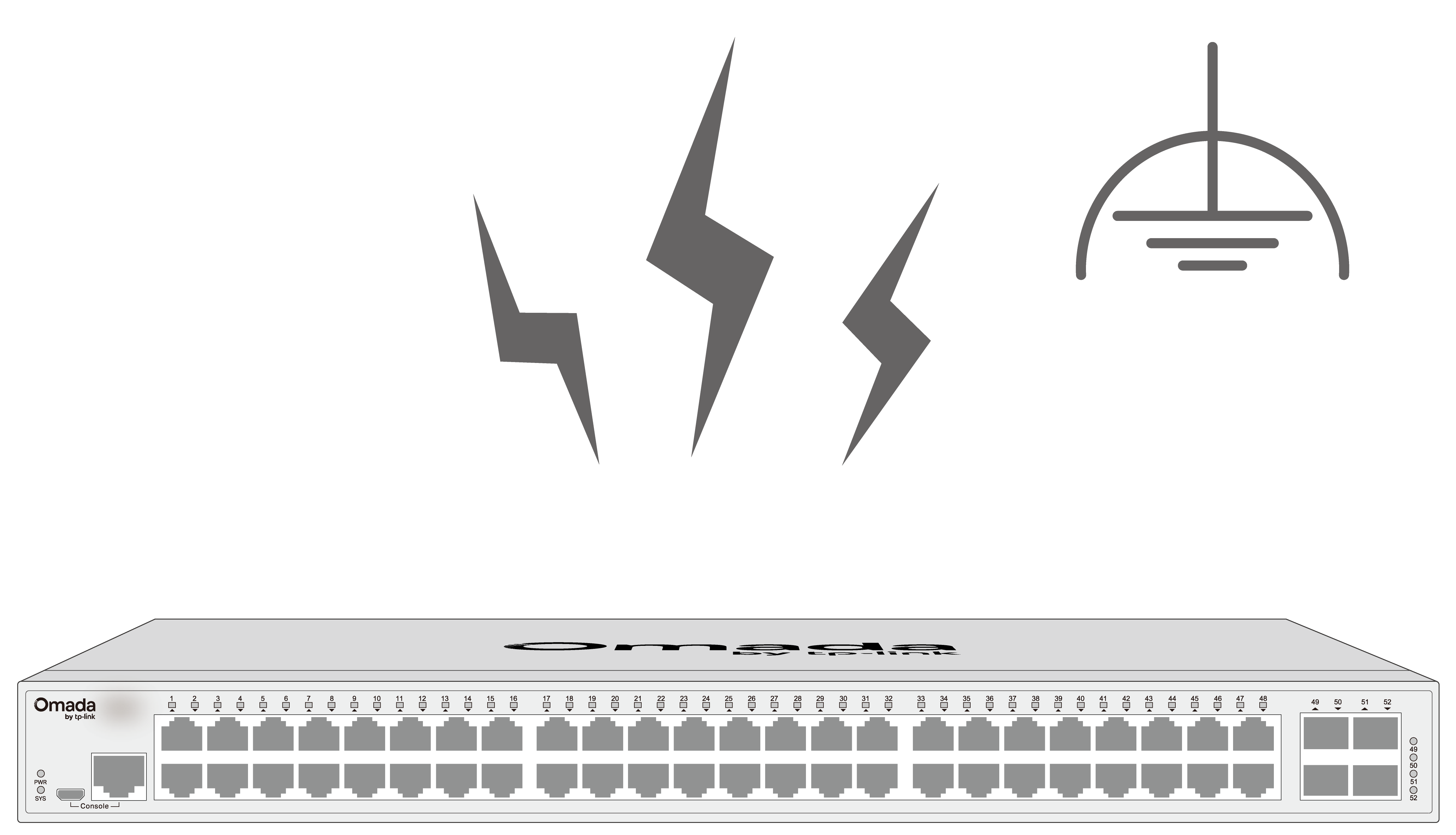
Extremely high voltage currents can be produced instantly when lightning occurs and the air in the electric discharge path can be instantly heated up to 20,000 °C. As this instant current is strong enough to damage electronic devices, more effective lightning protection measures should be taken.
■ Ensure that the rack and the device are well earthed.
■ Make sure the power socket has a good contact with the ground.
■ Keep a reasonable cabling system and avoid induced lightning.
■ Use the signal SPD (Surge Protective Device) when wiring outdoor.
Note:
For detailed lightning protection measures, refer to the Lightning Protection Guide from: https://support.omadanetworks.com/r/1004/.
Installation Site
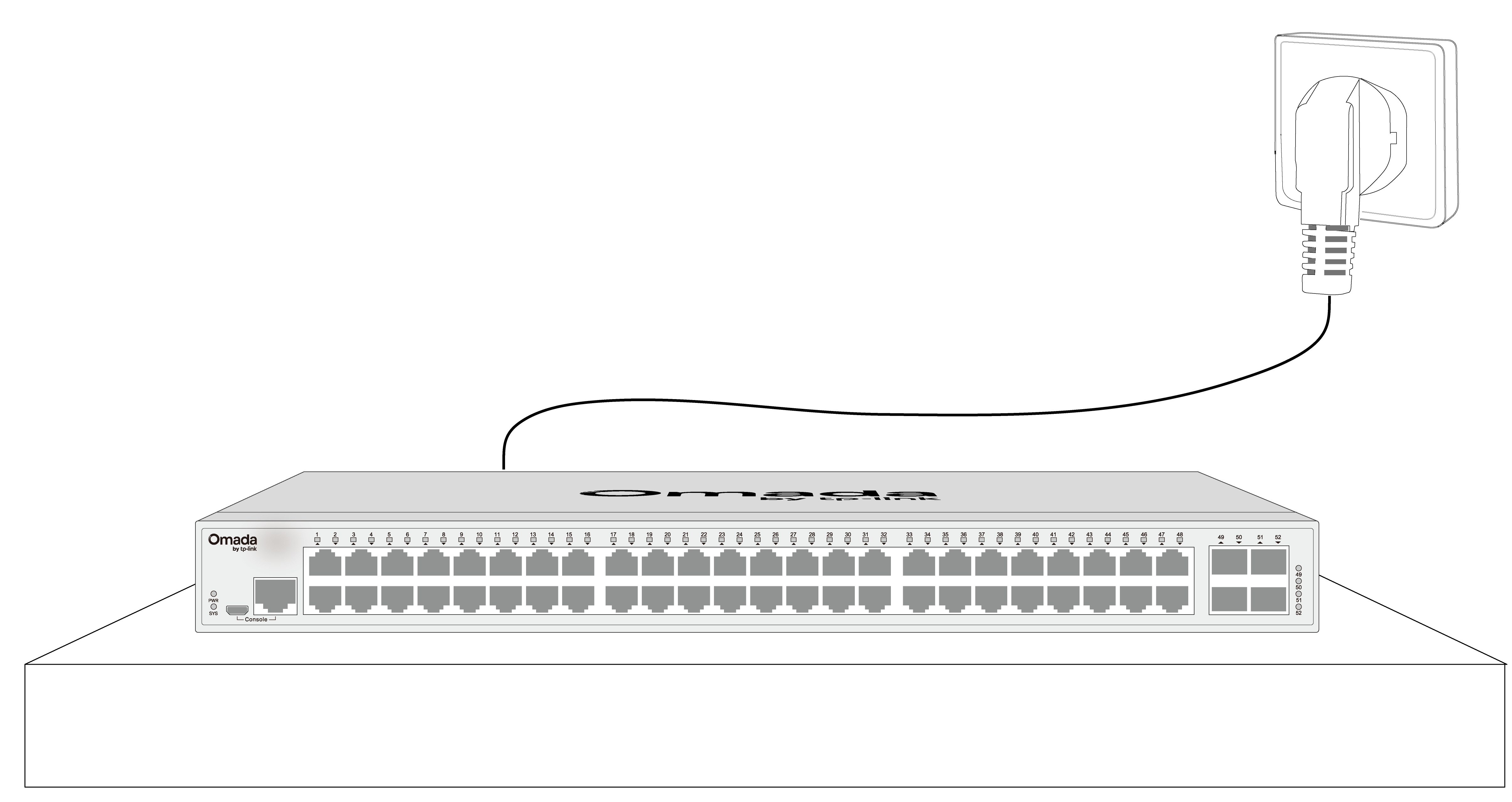
When installing the device on a rack or a flat workbench, attach much importance to the following items:
■ Install the device with its bottom surface facing down only.
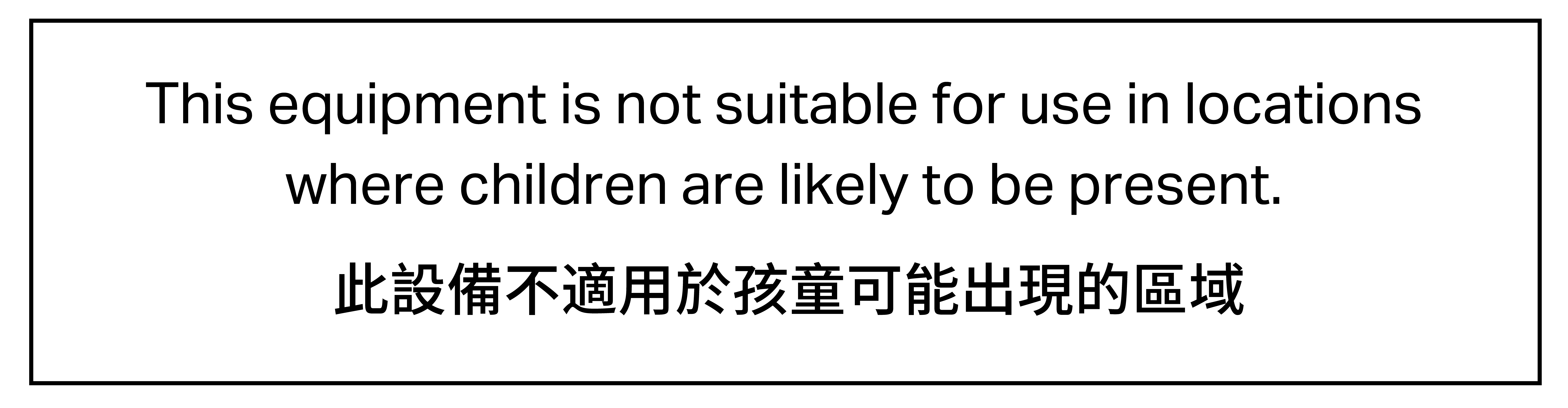
■ This equipment is not suitable for use in locations where children are likely to be present.
■ The rack or workbench is flat, stable, and sturdy enough to support the weight of 5.5 kg at least.
■ The rack or workbench has a good ventilation system. The equipment room is well ventilated.
■ The rack is well grounded. Keep the device less than 1.5 meters away from the power socket.
2.3 Installation Tools
■ Phillips screwdriver
■ ESD-preventive wrist wrap
■ Cables
Note:
These tools are not included with our product. If needed, you can purchase them separately.
2.4 Product Installation
Desktop Installation
To install the device on the desktop, follow the steps:
1. Set the device on a flat surface which is strong enough to support the entire weight of the device with all fittings.
2. Remove the adhesive backing papers from the rubber feet.
3. Attach the rubber feet to the bottom of the device to prevent it from slipping when placed on a desktop.
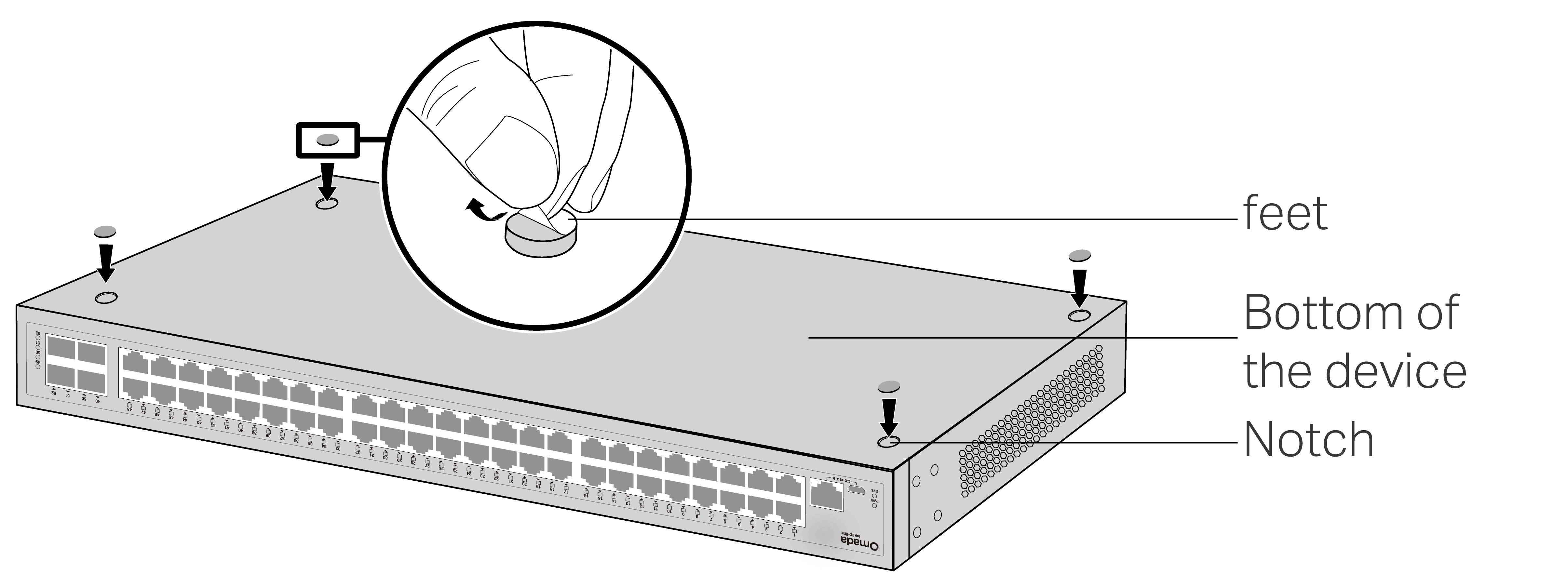
Note:
SG3210 is shipped with rubber feet attached. Please skip steps 2 and 3 when installing this device.
Rack Installation
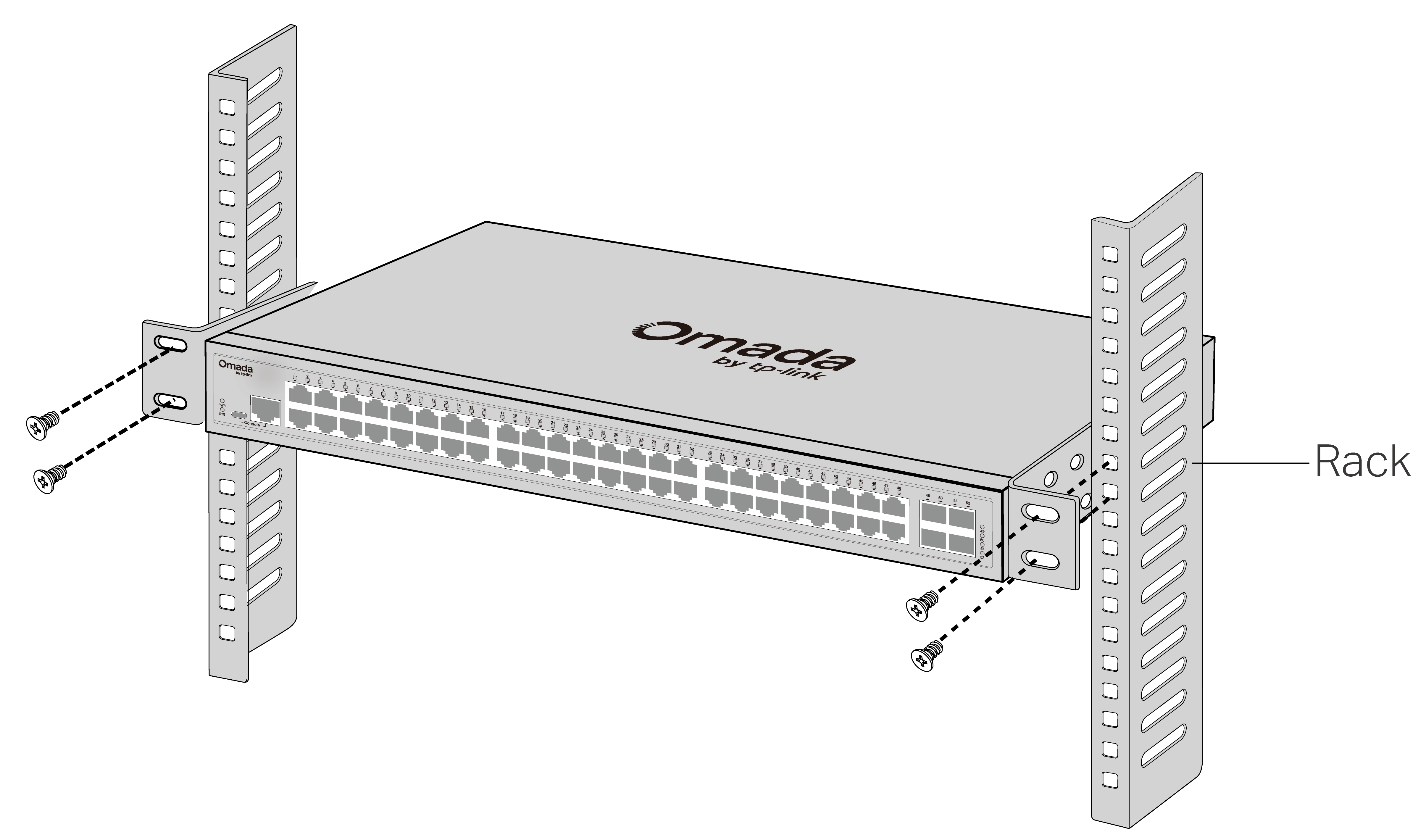
To install the device in an EIA standard-sized, 19-inch rack, follow the instructions described below:
1. Check the efficiency of the grounding system and the stability of the rack.
2. Secure the supplied rack-mounting brackets to each side of the device with supplied screws, as illustrated in the following figure.
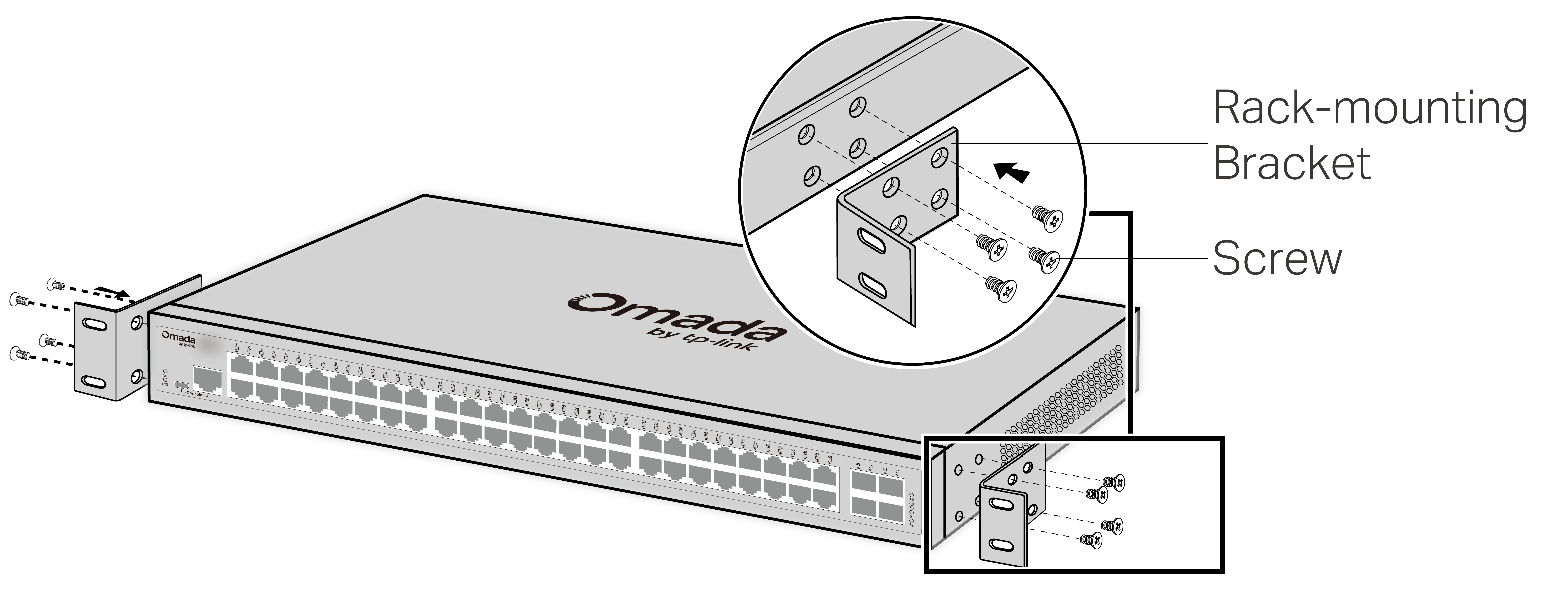
3. After the brackets are attached to the device, use suitable screws (not provided) to secure the brackets to the rack, as illustrated in the following figure.
Caution:
■ Leave 5 to 10 cm gaps around the devices for air circulation.
■ Avoid placing heavy things on the device.
■ Place the device with its bottom facing downwards.
■ Mount devices in sequence from the bottom to top of the rack and ensure a certain clearance between devices for the purpose of heat dissipation.
Chapter 3 Connection
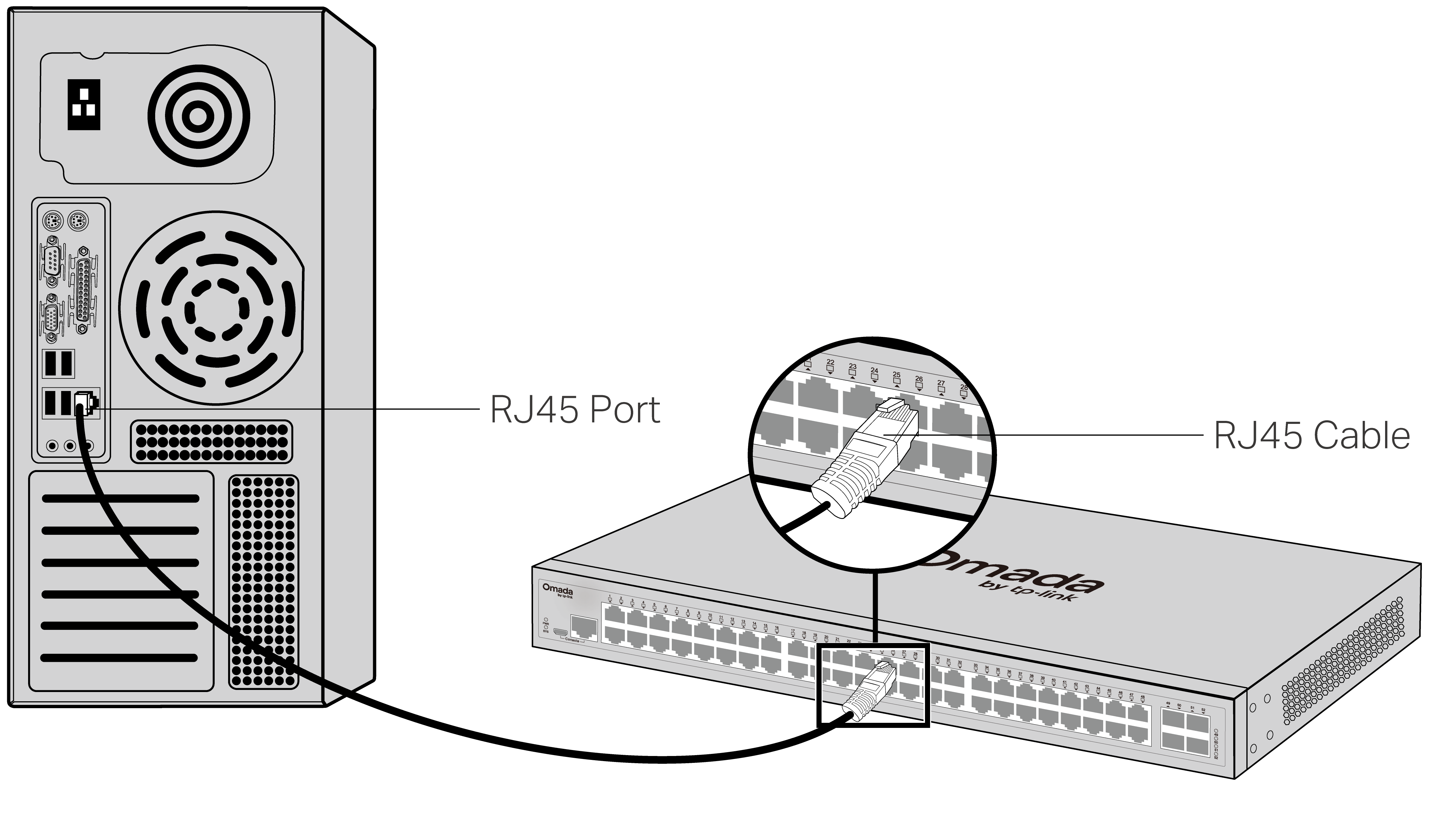
3.1 Ethernet Port
Connect an Ethernet port of the switch to the computer by RJ45 cable as the following figure shows.
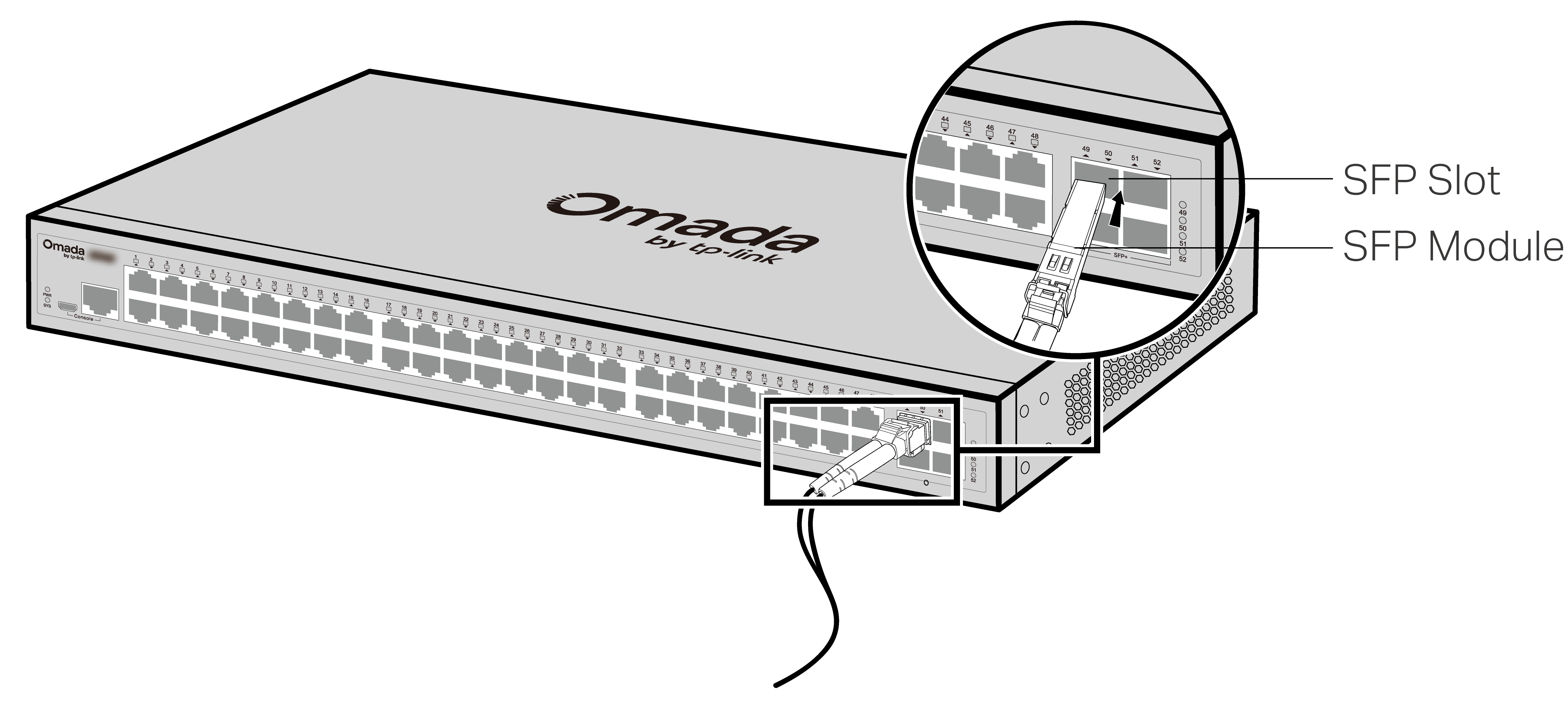
3.2 SFP Slot
The following figure demonstrates the connection of SFP slot to an SFP module.
3.3 Console Port
CLI (Command Line Interface) enables you to manage the switch, thus you can load the CLI after connecting the PCs or Terminals to the console port on the switch via a cable (an RJ45 console cable is provided, while micro-USB/USB Type-C cable is not provided).
Connect the console (RJ45) port of the device with your computer by the console cable as the following figure shows.
_Port-01_20260109080258x.png)
Connect the console (USB) port of the device with your computer by the USB cable (not provided) as the following figure shows.
_Port-01_20260109080515k.png)
Note:
■ Console (RJ45) port and console (USB) port cannot be used concurrently. Console (USB) port takes priority over the Console (RJ45) port.
■ The console (USB) port is hot-pluggable while the console (RJ45) port is not. Keep the device power off when plugging the console cable into the console (RJ45) port.
■ Do not connect the console port with other ports by RJ45 cable.
3.4 Verify Installation
After completing the installation, verify the following items:
■ There should be 5 to 10 cm of clearance around the device for ventilation and make sure the air flow is adequate.
■ The voltage of the power supply meets the requirement of the input voltage of the device.
■ The power socket, device and rack are well grounded.
■ The device is correctly connected to other network devices.
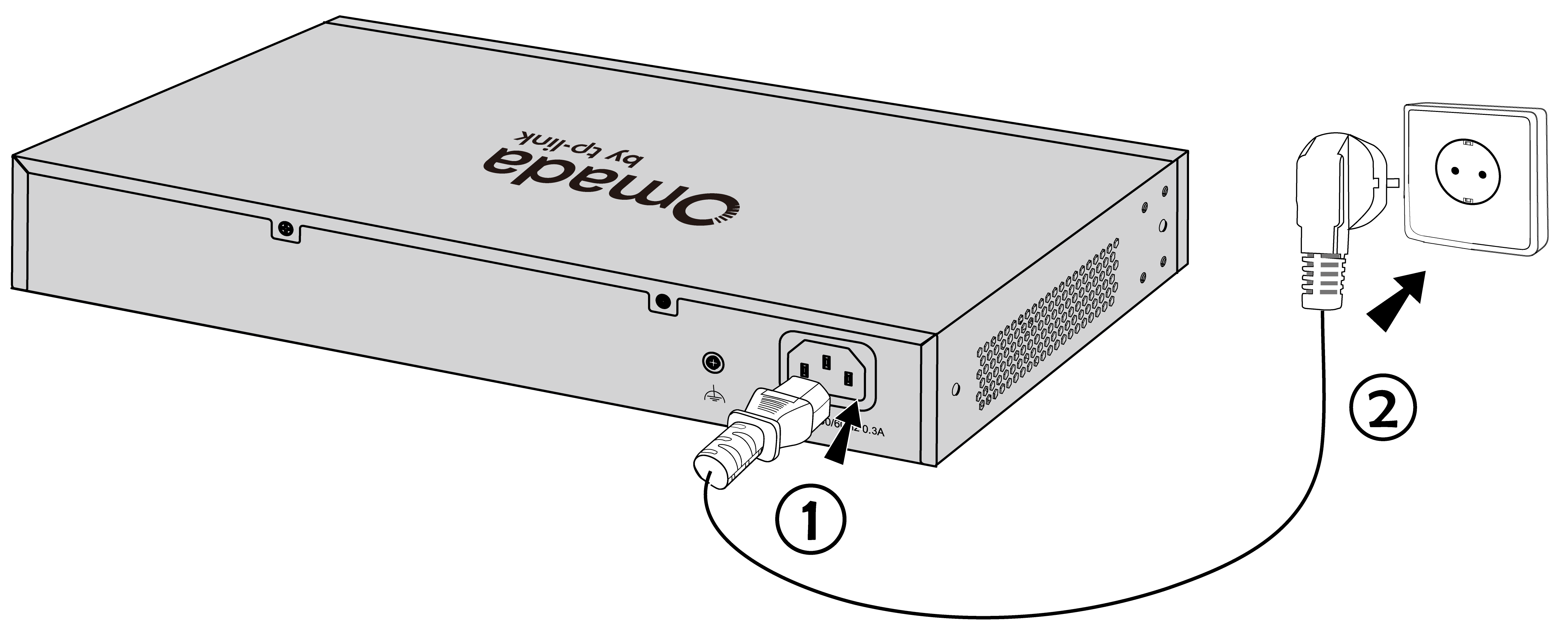
3.5 Power On
Plug the female connector of the provided power cord into the power socket of the device and plug the positive connector into a power outlet as the following figure shows. Make sure that the voltage of the power supply meets the requirement of the input voltage (100‑240 V~ 50/60 Hz).
Note:
The figure is to illustrate the application and principle. The provided plug and the socket in your region may differ from the figures above.
3.6 Initialization
After the device is powered on, it begins the Power-On Self-Test. A series of tests run automatically to ensure the device functions properly. During this time, its LED indicators will respond in the following order:
1. The PWR LED indicator lights on all the time. The SYS LED and the LED indicators of all the ports keep off.
2. After about one minute, the SYS LED and LED indicators of all the ports will flash momentarily and then turn off.
3. Several seconds later, the SYS LED indicator will flash, which represents a successful initialization.
Chapter 4 Configuration
4.1 Configuration Overview
The switch supports two configuration options:
■ Standalone Mode: Configure and manage the switch singly.
■ Controller Mode: Configure and manage the network devices centrally. It is recommended in the large-scale network, which consists of mass devices such as access points, switches, and gateways.
Note:
When the switch is changed from Standalone Mode to Controller Mode, configurations of the switch will be lost. For details, refer to the related documents on the download center of our official website: https://support.omadanetworks.com/product/.
4.2 Standalone Mode
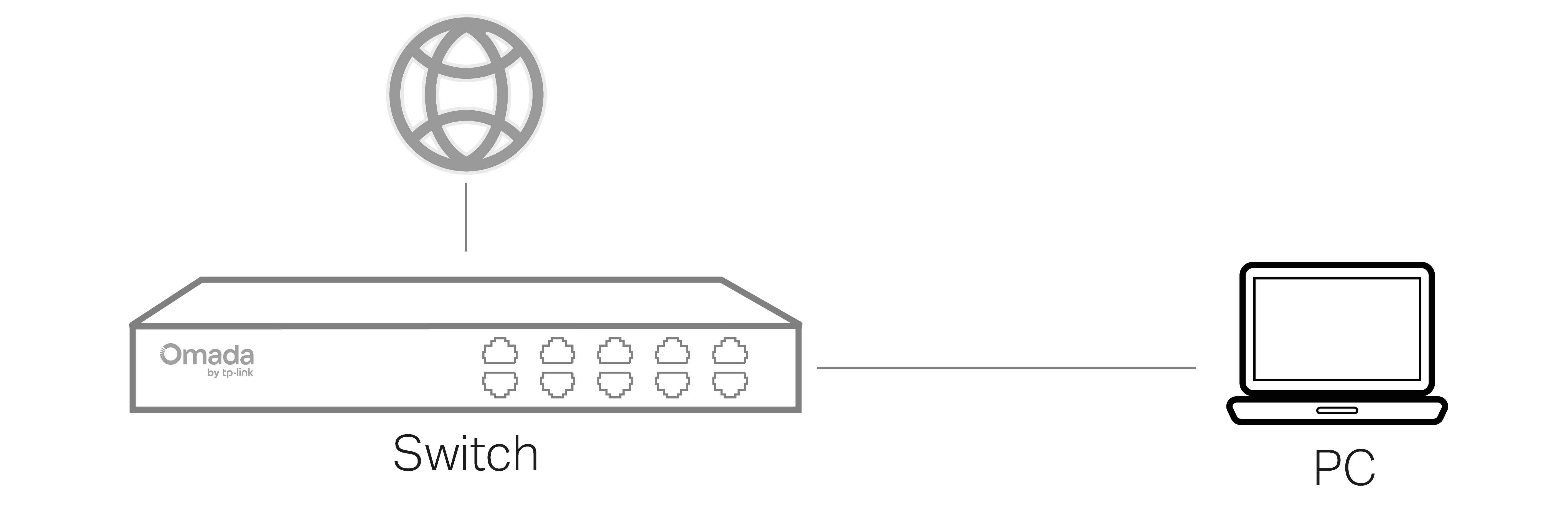
In Standalone Mode, use a computer to configure and manage the switch using GUI (Graphical User Interface) or CLI (command-line interface).
Figure: Topology for Standalone Mode
Using the GUI
1. To access the management page of the switch, make sure the switch and computer are in the same subnet. Open a browser and type the switch’s IP address in the address field, then press the Enter key. If the switch obtains IP address from the DHCP server (typically a gateway), find the switch’s IP address on the DHCP server. If not, use the default IP address 192.168.0.1 to launch the switch’s management page.
2. The first time you log in, set the username and password to better protect your network and devices. After that, the system will automatically redirect you back to the login interface to authenticate with the newly created credentials.
3. After a successful login, the main page will appear. You can click the menus on the top side and left side to configure the corresponding functions.
For the detailed configurations, refer to the User Guide and CLI Guide. The guides can be found on the download center of our official website: https://support.omadanetworks.com/product/.
Using the CLI
1. Set up a Telnet or SSH connection to access the switch via CLI.
2. Use the console port to access the switch. When using the console port, start the terminal emulation program (such as the Hyper Terminal) on the PC and configure the terminal emulation program as follows:
| Baud Rate | Data Bits | Parity | Stop Bits | Flow Control |
|---|---|---|---|---|
| 38400 bps | 8 | None | 1 | None |
For the detailed configurations, refer to the User Guide and CLI Guide. The guides can be found on the download center of our official website: https://support.omadanetworks.com/product/.
Note:
For certain devices, you may need to change the password the first time you log in, which will better protect your network and devices.
4.3 Controller Mode
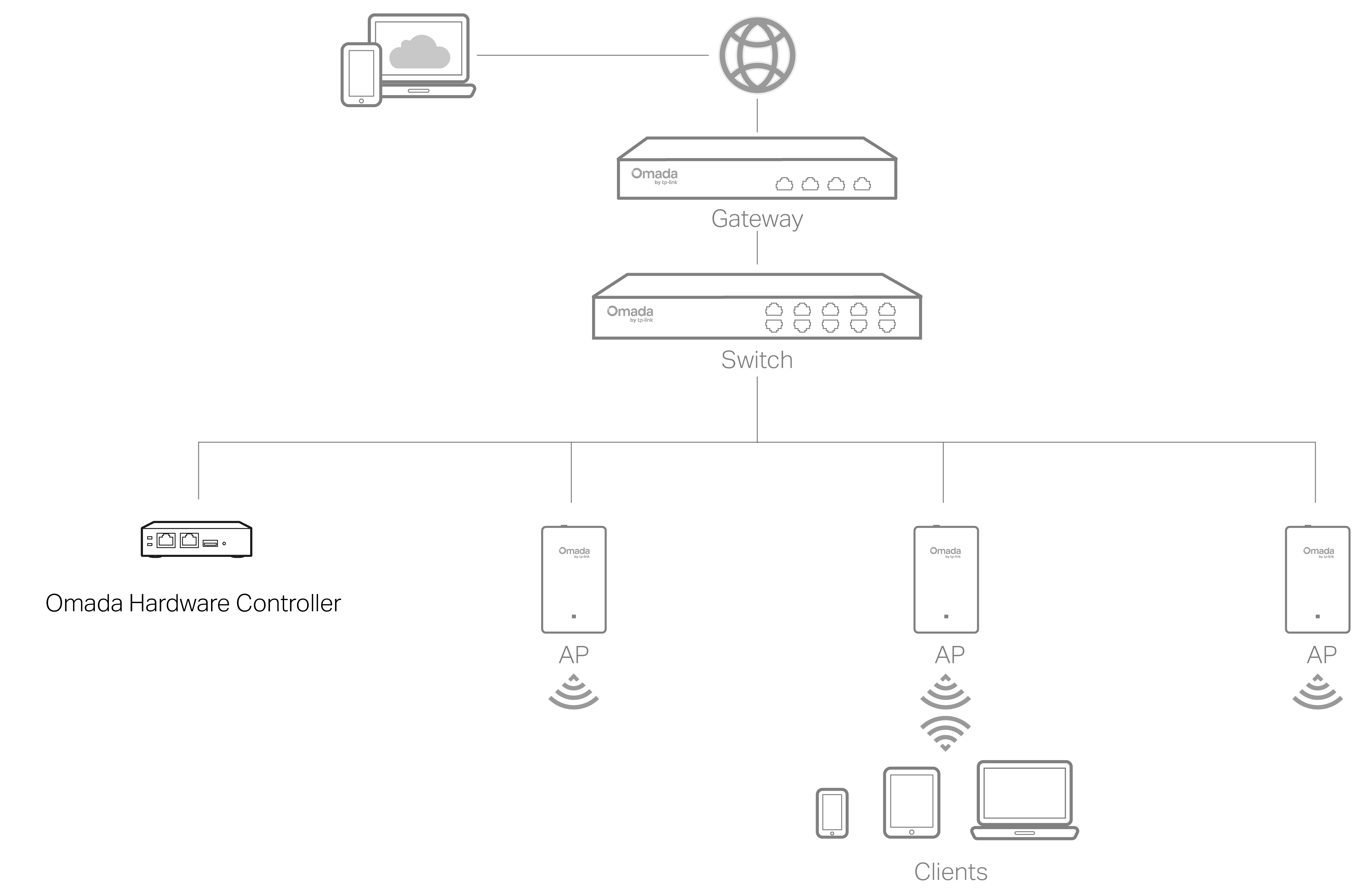
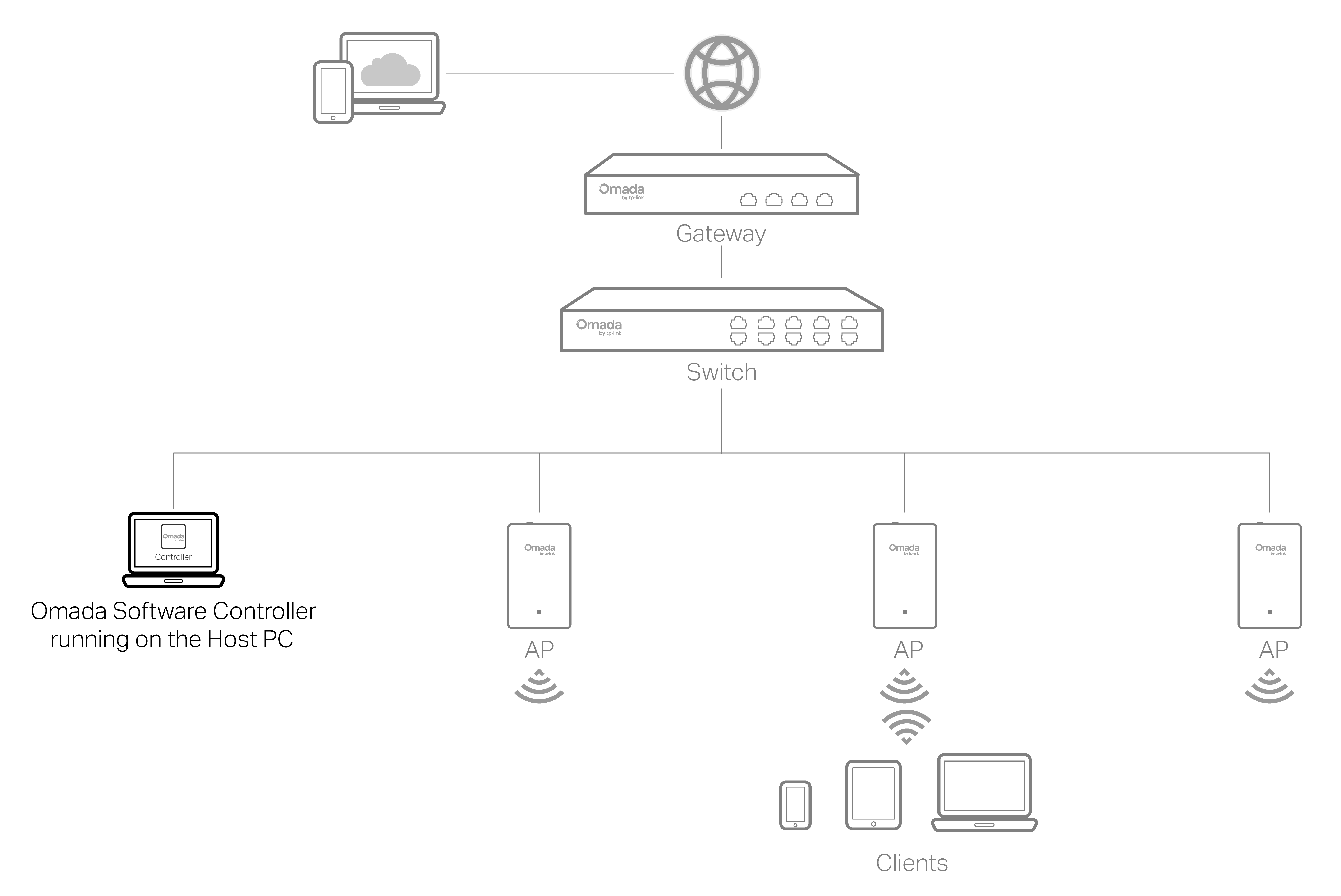
Controller Mode applies to the large scale network with mass devices. All devices can be centrally configured and monitored via Omada Hardware Controller or Omada Software Controller.
Note:
Before the following configurations, make sure the switch can access the internet. When using Omada Hardware/Software Controller, make sure the switch and the controller are in the same subnet. Typically, the switch obtains IP address from the DHCP server. You can check the switch’s IP address on the DHCP server.
Via Omada Hardware Controller
Omada Hardware Controller is a good alternative if you have no spare PC to keep running Omada Software Controller in the network. It needs to be purchased additionally. Follow the steps below to configure the Omada Hardware Controller.
Figure: Manage the network via Omada Hardware Controller
Note:
■ Before you start, be sure to power up and connect your devices according to the topology figure.
■ A DHCP server (typically a gateway with DHCP function enabled) is required to assign IP addresses to the EAPs and clients in your local network.
■ Omada Controller must have network access to your Omada devices (the gateway, switch, or EAPs) in order to find, adopt, and manage them.
1. Find the IP address of the gateway. Open the command line on your PC and enter ipconfig. In the result list, find the Default Gateway, which is also the IP address of the gateway.
2. Launch a web browser and enter the IP address of the gateway. Log into the gateway’s web page. Then go to Network > LAN > DHCP Client List to find the IP address of your controller according to its MAC address.
3. Enter the IP address of the your controller in the address bar to open its web page.
4. On the Omada Controller’s web page, follow the wizard to complete the quick setup.
5. After the quick setup, the login page appears. Enter the username and password you have created and click Log in. Then you can further configure the controller.
6. If you want to manage the devices reomotely, follow the next steps:
a. Make sure that Cloud Access is enabled on your controller. By default, Cloud Access is enabled. Make sure that the Cloud LED is flashing slowly.
b. Launch a web browser and enter https://omada.tplinkcloud.com in the address bar. Enter your TP-Link ID and password to log in. Click + Add Controller and choose Hardware Controller to add your controller. Then you can further configure the controller.
For more details, refer to the Installation Guide of OC200/OC220/OC300/OC400.
Via Omada Software Controller
On a PC with Windows OS or Linux OS, download the Omada Software Controller from https://support.omadanetworks.com/product/omada-software-controller/. Then run the file and follow the wizard to install the Omada Software Controller. Follow the steps below to configure the Controller.
Figure: Manage the network via Omada Software Controller
1. Launch the Omada Software Controller on your PC. After the initiation process, the controller automatically opens its web page. If not, click Launch a Browser to Manage the Network.
2. On the Omada Controller’s web page, follow the wizard to complete the quick setup.
3. After the quick setup, the login page appears. Enter the username and password you have created and click Log in. Then you can further configure the controller.
4. If you want to manage the devices reomotely, follow the next steps:
a. Make sure that Cloud Access is enabled on your controller and your controller has been bound with your TP-Link ID. On the Omada Controller’s web page, go to Settings > Cloud Access to enable Cloud Access and bind your TP-Link ID. If you have set it up in the quick setup, skip this step.
b. Launch a web browser and enter https://omada.tplinkcloud.com in the address bar. Enter your TP-Link ID and password to log in. A list of controllers that have been bound with your TP-Link ID will appear. Then you can click Launch to further configure the controller.
Note:
To manage your devices, Omada Software Controller needs to keep running on your computer.
Via Omada App
With the Omada app, you can also manage your controller at a local site or a remote site via your mobile device.
For the detailed configurations, refer to the User Guide of the controller. The guide can be found on the download center of our official website: https://support.omadanetworks.com/product/.
Appendix A Troubleshooting
Q1: What could I do if I forgot the username and password of the switch?
1. Connect the console port of the PC to the console port of the switch and open a terminal emulation program.
2. Power off and restart the switch. Perform the action indicated by the terminal emulation program to reach the bootUtil menu. The action differs from product to product. Possible actions are listed below:
■ Press any key to stop autoboot.
■ Press CTRL-B to reach the bootUtil menu.
3. The bootUtil menu will be shown. Enter the number 6 to select the “Password recovery” option and enter Y to delete all the users and passwords. Then you can reset the username and password.
Q2: Why does the PWR LED work abnormally?
The PWR LED should be lit up when the power system works normally. If the PWR LED worked abnormally, take the following steps:
1. Make sure that the power cable is connected properly, and the power contact is normal.
2. Make sure the voltage of the power supply meets the requirement of the input voltage of the switch.
Q3: What should I do if I cannot access the web management page?
Try the following:
1. Check every port LED on the switch and make sure the Ethernet cable is connected properly.
2. Try another port on the switch and make sure the Ethernet cable is suitable and works normally.
3. Power off the switch and, after a while, power it on again.
4. Make sure the IP address of your PC is set within the subnet of the switch.
5. If you still cannot access the configuration page, reset the switch to its factory defaults. Then the IP address of your PC should be set as 192.168.0.x ("x" is any number from 2 to 254) and subnet mask as 255.255.255.0.
Q4: Why is the terminal emulation program not displaying correctly?
Try the following:
1. Make sure the power supply is normal and the console cable is properly connected.
2. Check if the console cable is the right type.
3. Ensure the parameters of the terminal emulation program are correct: configure Bits per second as 38400, Data bits as 8, Parity as None, Stop bits as 1, and Flow control as None.
Appendix B Specifications
| Item | Content |
|---|---|
| Standards | IEEE 802.3, IEEE 802.3i, IEEE 802.3u, IEEE 802.3ab, IEEE 802.3ad, IEEE 802.3z, IEEE 802.3x, IEEE 802.1p, IEEE 802.1q, IEEE 802.1x, IEEE 802.1d, IEEE 802.1s, IEEE 802.1w, IEEE 802.1ab |
| IEEE 802.3af/at (For SG3428MP, SG3452P) | |
| Transmission Medium | 10BASE-T: 2-pair UTP/STP of Cat. 3,4,5 (maximum 100 m) 100BASE-TX: 2-pair UTP/STP of Cat. 5 or above (maximum 100 m) 1000BASE-T: 4-pair UTP/STP of Cat. 5e or above (maximum 100 m) 100BASE-FX/LX10/BX10: MMF, SMF (For SG3210, SG3452, SG3452P) 1000BASE-SX/LX/LX10/BX10: MMF, SMF |
| LED | SG3210: PWR, SYS, Port 1-8, SFP SG3428: PWR, SYS, Port 1-24, SFP SG3428MP: PWR, SYS, PoE Max, FAN, Speed, PoE, Port 1-24, SFP SX3452: PWR, SYS, Port 1-48, SFP SG3452P: PWR, SYS, PoE Max, FAN, Speed, PoE, Port 1-48, SFP |
| Operating Temperature | SG3210, SG3452: -5 °C to 50 °C (23 °F to 122 °F) SG3428, SG3428MP, SG3452P: -5 °C to 45 °C (23 °F to 113 °F) |
| Storage Temperature | -40 °C to 70 °C (-40 °F to 158 °F) |
| Operating Humidity | 10% to 90% RH Non-condensing |
| Storage Humidity | 5% to 90% RH Non-condensing |
CE Mark Warning

This is a class A product. In a domestic environment, this product may cause radio interference, in which case the user may be required to take adequate measures.
EU Declaration of Conformity
TP-Link hereby declares that the switch is in compliance with the essential requirements and other relevant provisions of directives 2014/30/EU, 2014/35/EU, 2011/65/EU and (EU)2015/863.
The original EU Declaration of Conformity may be found at https://www.tp-link.com/en/support/ce/.

UK Declaration of Conformity
TP-Link hereby declares that the switch is in compliance with the essential requirements and other relevant provisions of the Electromagnetic Compatibility Regulations 2016 and Electrical Equipment (Safety) Regulations 2016.
The original UK Declaration of Conformity may be found at https://www.tp-link.com/support/ukca/.

-01_20260109093759b.png)
Продукт сертифіковано згідно с правилами системи УкрСЕПРО на відповідність вимогам нормативних документів та вимогам, що передбачені чинними законодавчими актами України.
Safety Information
■ Keep the device away from water, fire, humidity or hot environments.
■ Do not attempt to disassemble, repair, or modify the device.If you need service, please contact us.
■ Place the device with its bottom surface downward.
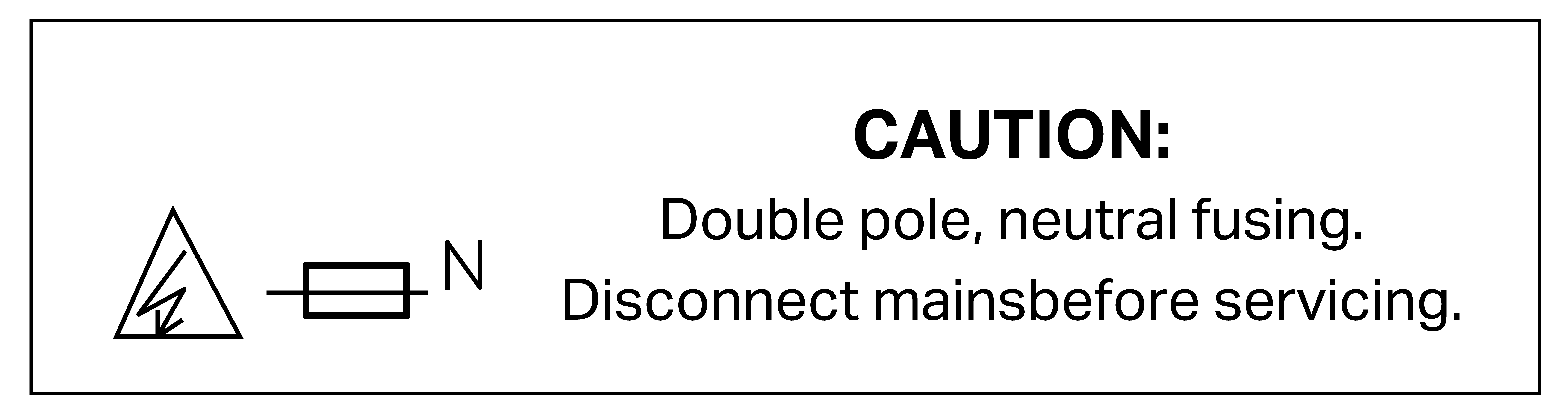
■ The plug on the power supply cord is used as the disconnect device, the socket-outlet shall be easily accessible.
■ Plug the product into the wall outlets with earthing connection through the power supply cord or plug.
■ The socket-outlet shall be installed near the equipment and shall be easily accessible.
■ The PoE ports shall not be used to charge lithium batteries or devices supplied by lithium batteries.
In Denmark: “Apparatets stikprop skal tilsluttes en stikkontakt med jord som giver forbindelse til stikproppens jord.”
In Finland: "Laite on liitettävä suojakoskettimilla varustettuun pistorasiaan"
In Norway: “Apparatet må tilkoples jordet stikkontakt”
In Sweden: “Apparaten skall anslutas till jordat uttag”
■ Operating temperature:
SG3210, SG3452:
-5 °C to 50 °C (23 °F to 122 °F)
SG3428, SG3428MP, SG3452P:
-5 °C to 45 °C (23 °F to 113 °F)
■ 運作溫度 :
SG3210,SG3452:
-5°C 至 50°C(23°F 至 122°F)
SG3428,SG3428MP,SG3452P:
-5°C 至 45°C(23°F 至 113°F)
Please read and follow the above safety information when operating the device. We cannot guarantee that no accidents or damage will occur due to improper use of the device. Please use this product with care and operate at your own risk.
For technical support, user guides and other information, please visit https://support.omadanetworks.com/, or simply scan the QR code.