


Contents
Objective
This article describes how to configure a guest network on Omada EAP.
Requirements
- Omada Controller (Software Controller / Hardware Controller / CBC)
- Omada EAP
Introduction
The guest network allows you to set up a network that is independent of the main network. You can configure a separate SSID and password for the guest network, allowing guests to access the internet while being isolated from the main network. Clients connected to the guest network can access the internet but cannot access or download the internal network resources, thereby safeguarding the privacy and network security of the main network.
Configuration
Configuration Steps in Controller mode
Here we take Omada Controller v6 as an example.
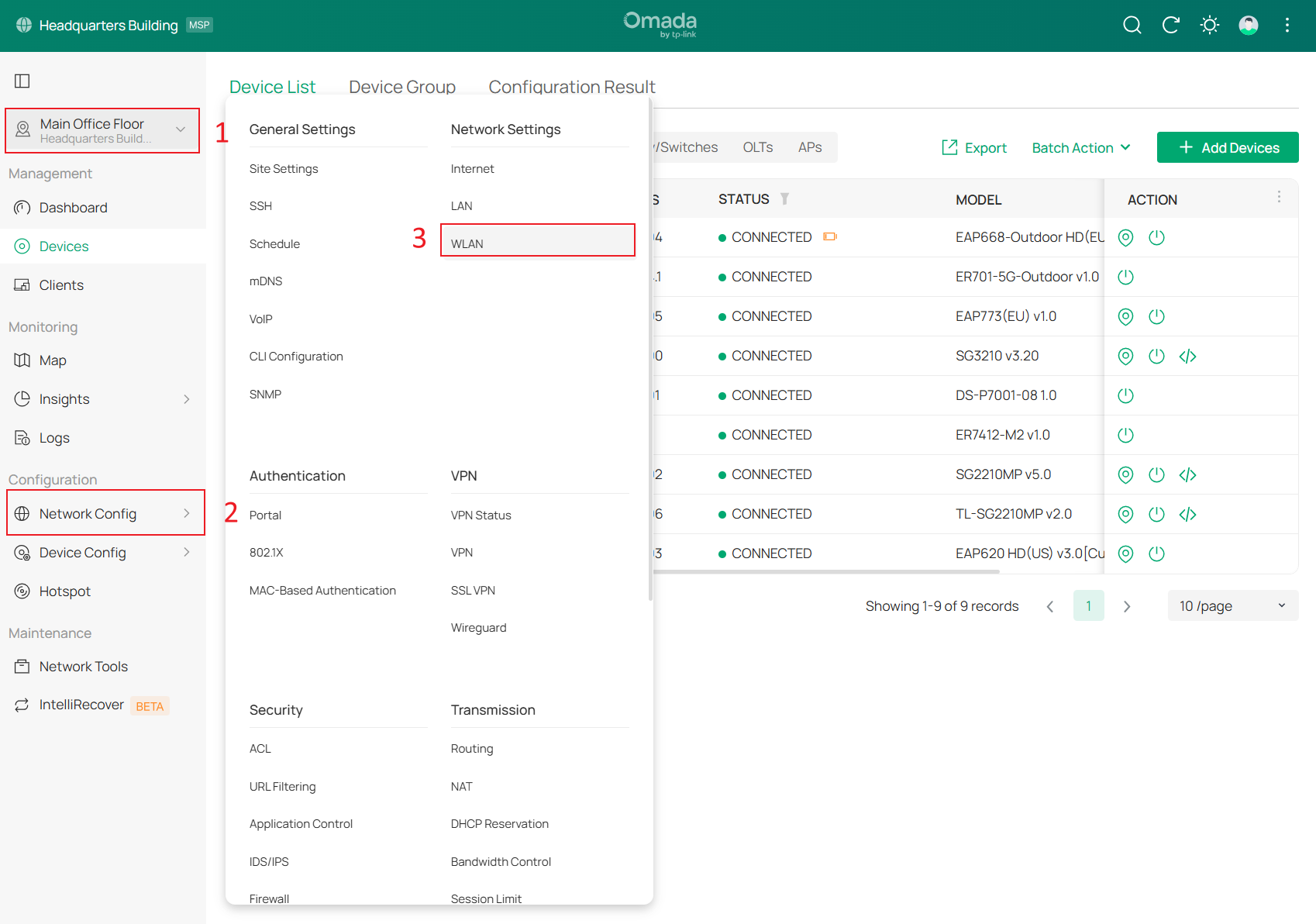
Step 1. Go to Site > Network Config > WLAN.
Step2. Click Create New Wireless Network or Edit the existing SSID. 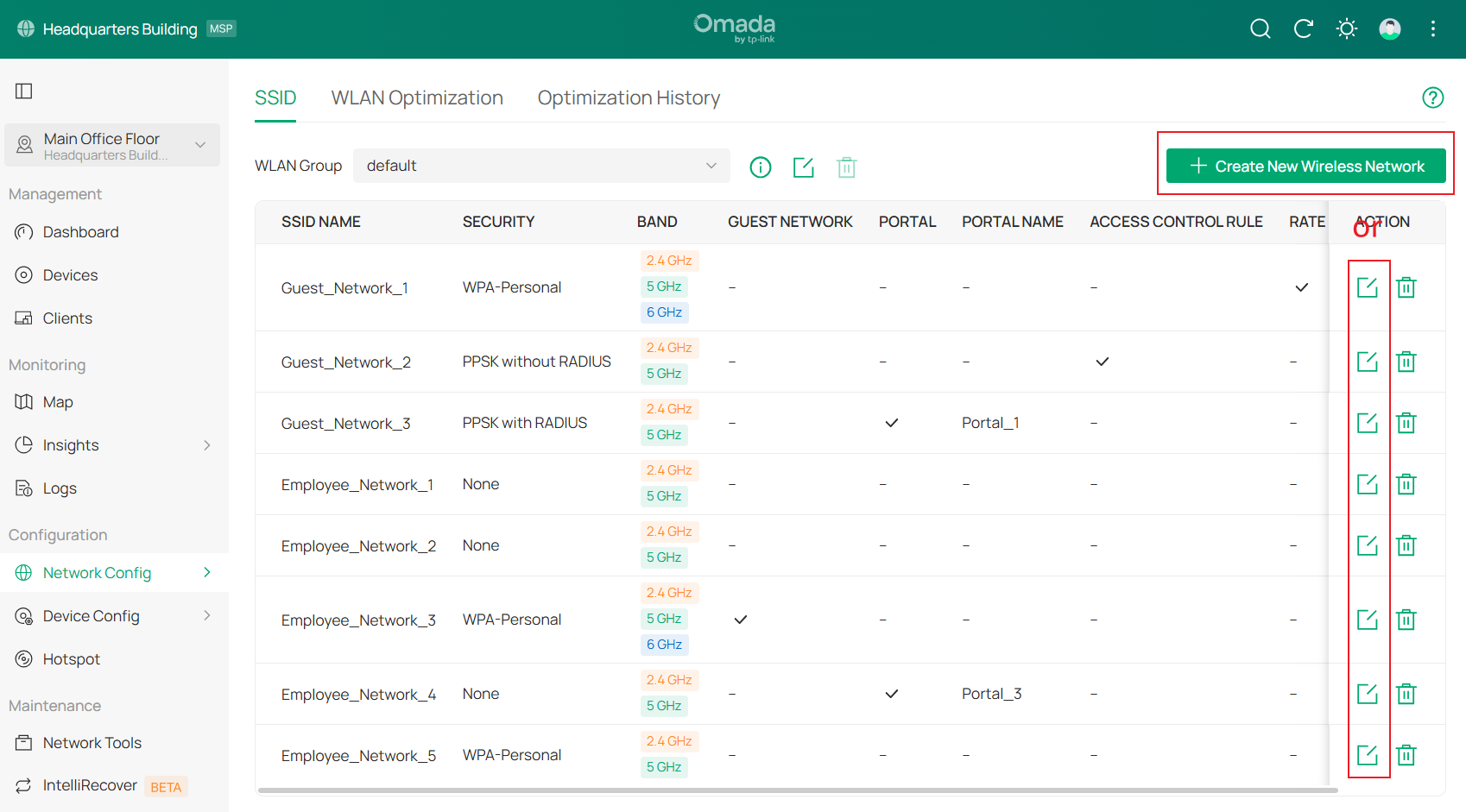
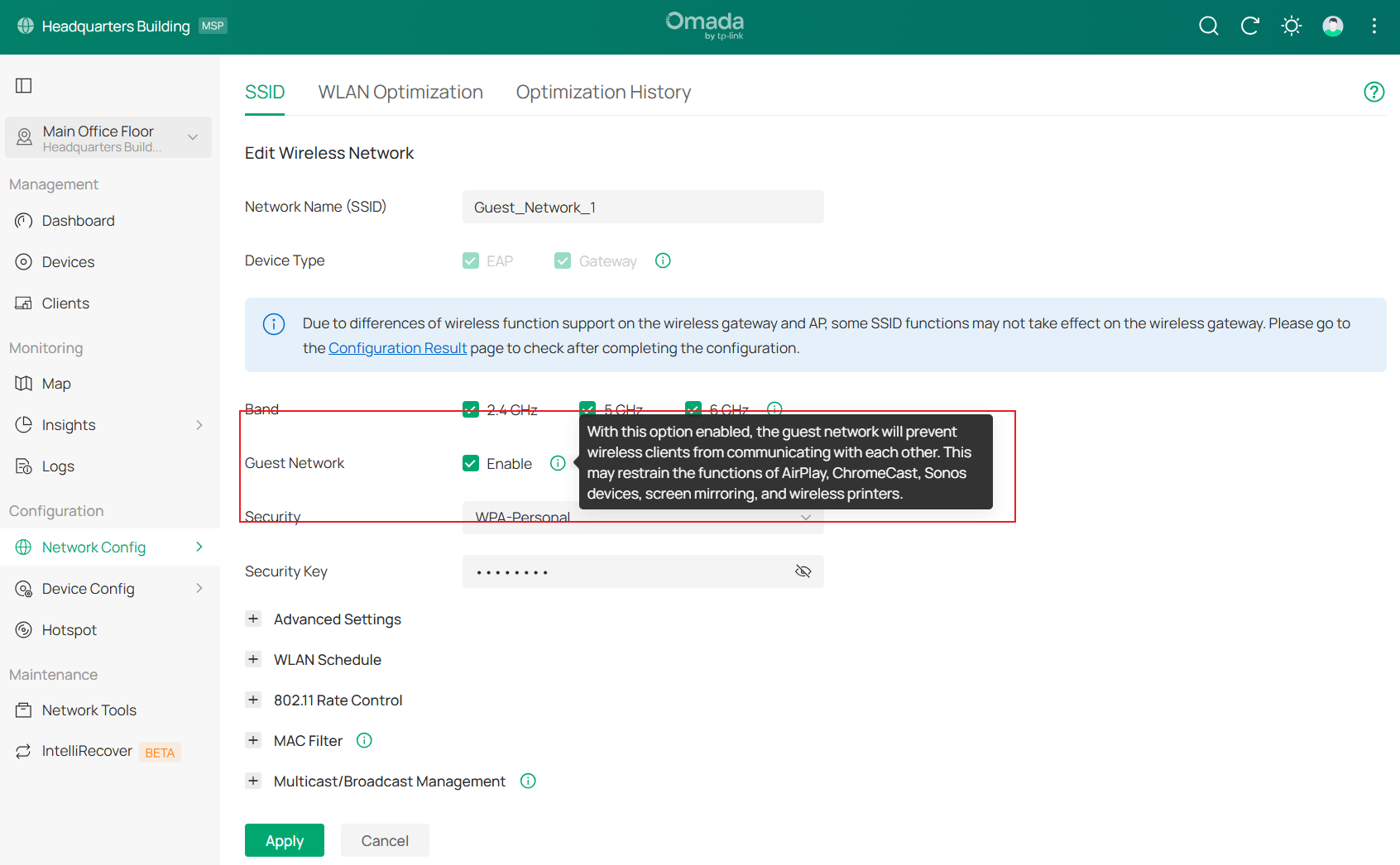
Step 3. Custom the Network Name(SSID), select a Security mode (here WPA-Personal is used as an example), enter the Security Key, check the box to enable Guest Network, and click Apply to save the settings.
Configuration Steps in Standalone mode
Step 1. Log in EAP's web management page. For more detailed steps, please refer to How to login to the web management page of the Omada Device (Standalone mode)
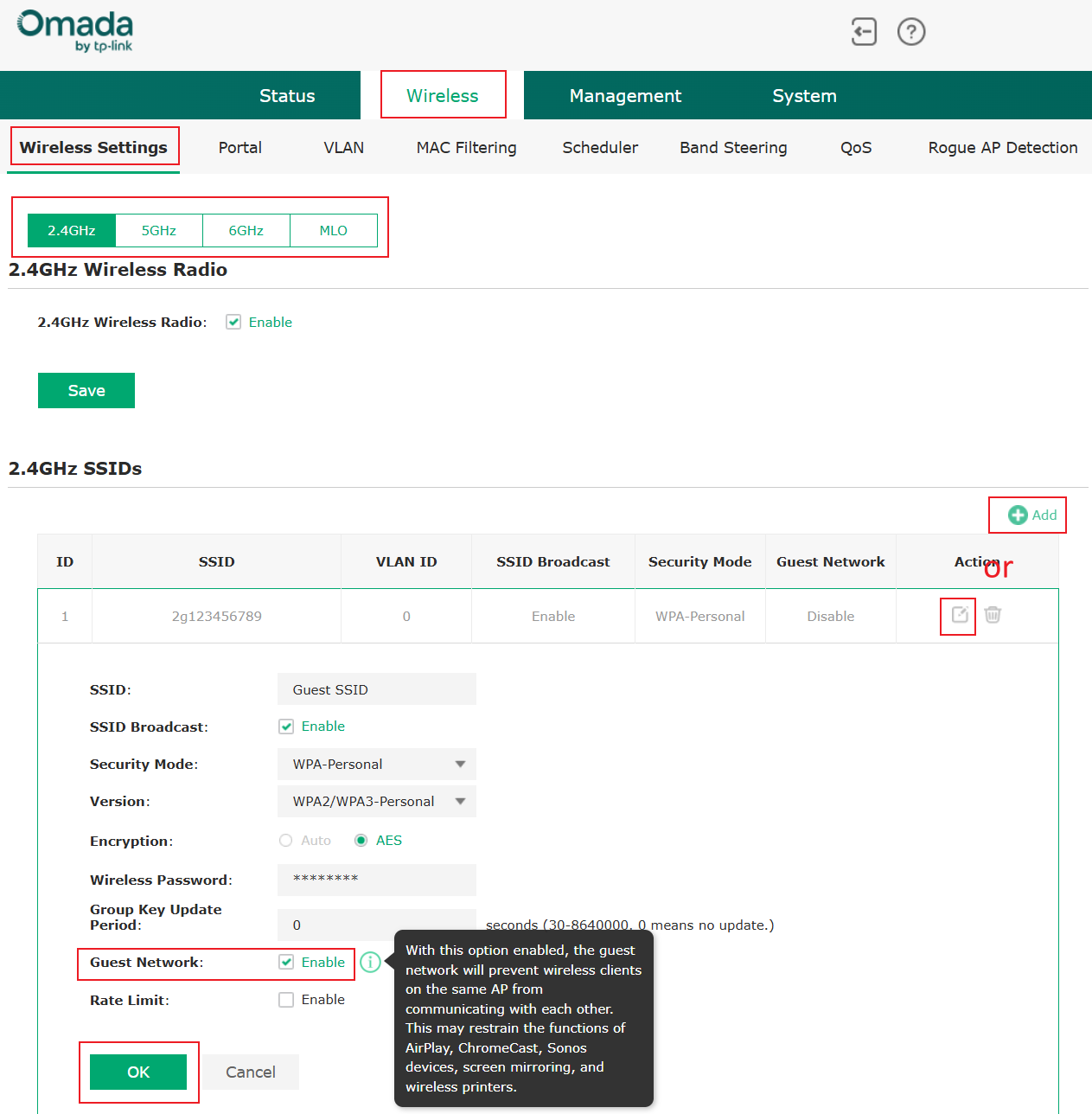
Step 2. Go to Wireless > Wireless Settings. Choose the Wireless Radio that you want to set guest networks to.
Step 3. Add a new SSID or Edit existing SSID. Enable Guest Network and save the settings.
Verification
Once configured, you can use two clients to verify that the function works.
Step 1. Connect two clients to the SSID, for example, a desktop computer (IP: 192.168.0.102) and a mobile phone (192.168.0.101) connected to a guest network SSID.
Step 2. On the desktop computer, ping the mobile phone’s IP. The ping fails, but both the computer and the phone can access the internet, indicating that the function has been enabled and is working properly.

Conclusion
Wireless guests can access the internet through the guest network. Now you can set guest networks based on your needs.
Get to know more details of each function and configuration please go to Download Center to download the manual of your product.
