


Contents
Introduction
Virtual WAN on an Omada Gateway allows multiple logical WAN connections to operate through a single physical WAN port. Each connection can use its own VLAN ID and network settings to support different upstream services.
In standalone mode, Virtual WAN interfaces can be selected when configuring supported services and policies, such as NAT Port Forwarding and Policy Routing. This article explains how to configure a Virtual WAN connection and verify its connectivity and available integrations.
Requirements
- Omada Gateway
Configuration
This configuration adds a Virtual WAN connection to a physical WAN port using the appropriate VLAN ID and network settings. For connectivity to work, the upstream switch, router, or ISP equipment must also support and carry the same VLAN.
Note: In standalone mode, Virtual WAN interfaces are not available in the IPTV WAN Port selection. IPTV must instead be configured on a physical WAN port using the ISP-provided IPTV VLAN ID and the required LAN port assignments.
Please go to this article for IPTV configuration: How to Configure IPTV/IGMP Proxy on Omada Gateway
Step 1. Log in to the router and navigate to Network > Virtual WAN, click Add, and configure the required parameters.
Click OK once complete.
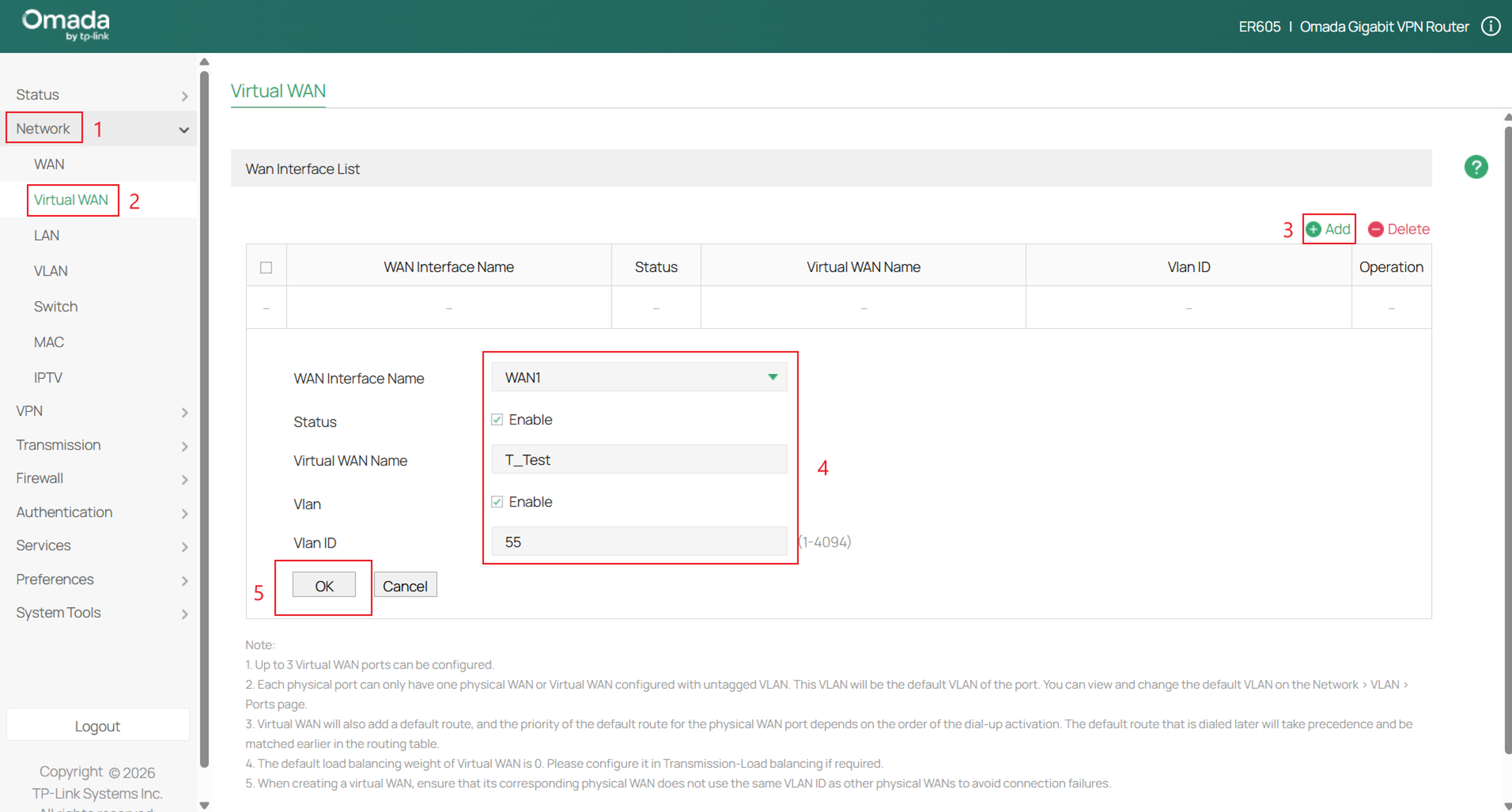
WAN Interface Name: Select the physical WAN port to be mapped.
Status: Check the box to enable the Virtual WAN.
Virtual WAN Name: Enter a name to identify the Virtual WAN
VLAN ID: Enter the VLAN ID required for the Virtual WAN connection. By default, the egress rule is set to TAG, so Virtual WAN traffic is transmitted with a VLAN tag. To transmit Virtual WAN traffic without a VLAN tag, set the egress rule to UNTAG.
Only one WAN connection on the same physical WAN port can use untagged traffic. If the Virtual WAN is configured as UNTAG, the associated physical WAN must be configured as TAG.
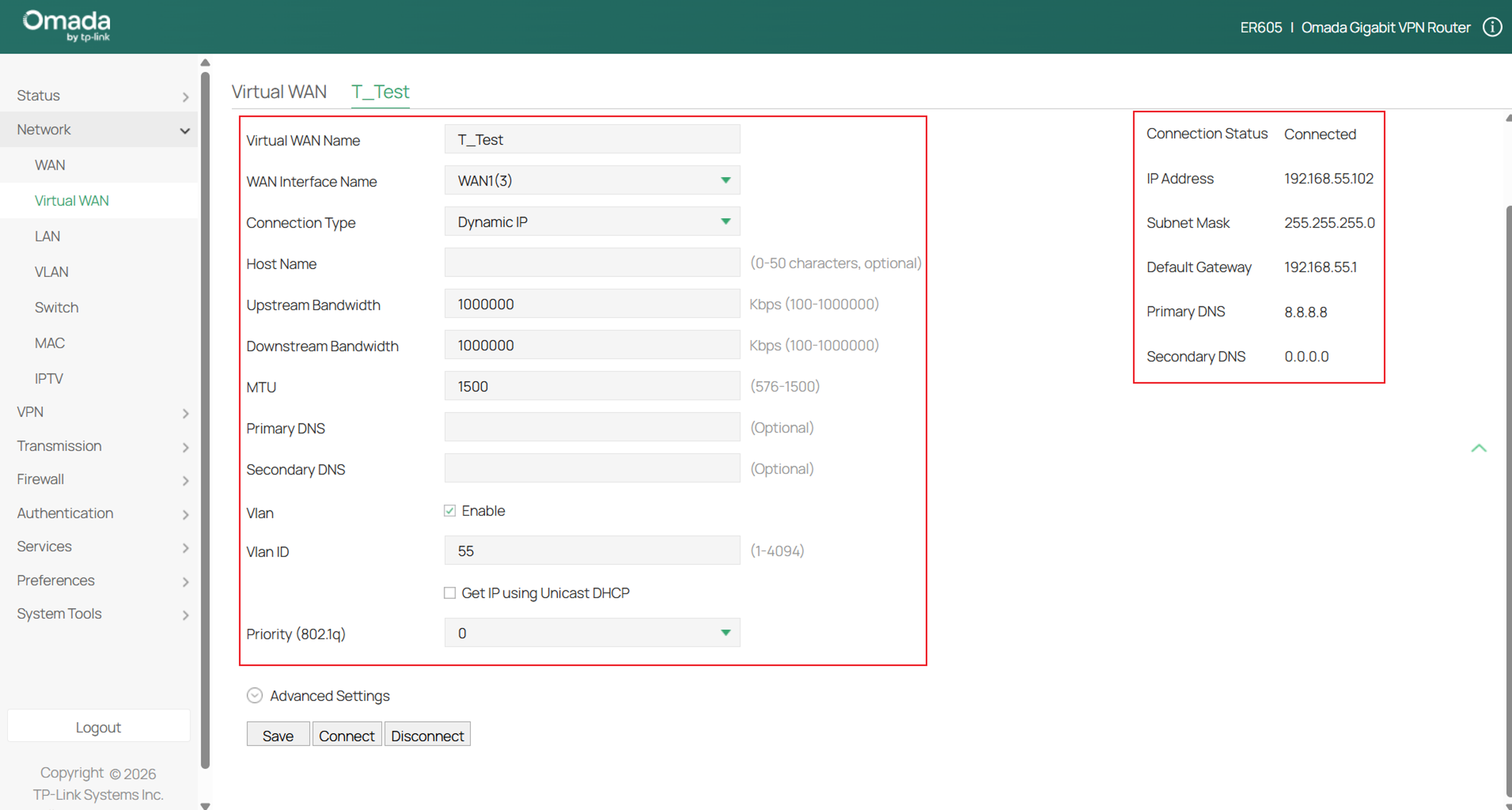
Step 2. Next, navigate to the Virtual WAN that was just created and fill out the parameters for the virtual interface.
Click Connect and Save once complete.
After completing the configuration, check the Connection Status on the right-hand side. A status of Connected indicates that the Virtual WAN configuration is active and that the upstream gateway is reachable, confirming basic VLAN forwarding.
Verification
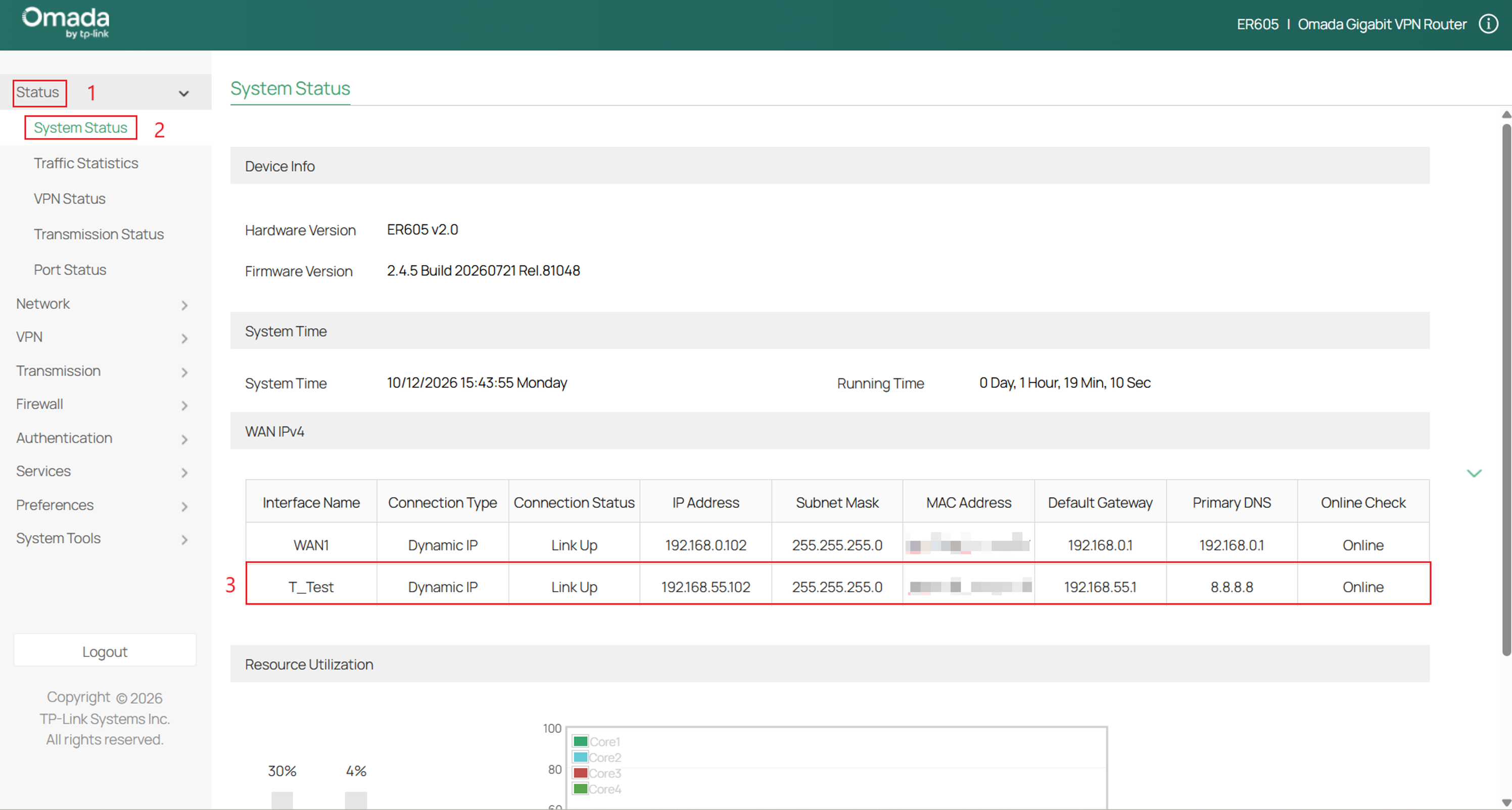
To verify Internet connectivity, navigate to Status > System Status. Under WAN IPv4, confirm that the newly created Virtual WAN appears with the expected IP address and that the Online Check column displays Online. The Online status confirms that Internet connectivity has been established.
Conclusion
Virtual WAN provides a flexible way to run multiple logical WAN connections through a single physical port. Once the VLAN and upstream network settings are configured, the connection can be verified through connection status and assigned IP address. Virtual WAN interfaces can also be applied to supported policies and services, such as NAT Port Forwarding and Policy Routing.
To learn more about each function and configuration, please visit Support Home to download or check the manual for your product.
QA
Q1: What is required to configure a Virtual WAN connection in standalone mode?
A1: A Virtual WAN connection requires a physical WAN port, the appropriate connection settings, and a VLAN ID that matches the upstream network. Once connected, the Virtual WAN interface can be used with supported features such as NAT Port Forwarding and Policy Routing.
