


Contents
Configure automatic firmware updates
Configure the Early Access Program (EAP)
Configure notification settings
Manage firmware versions in the firmware pool
Review firmware risk notifications
Create update tasks for multiple models
Roll Back and Retry firmware upgrades
Introduction
Firmware upgrades play an essential role in maintaining device stability, security, compatibility, and access to new features. As networks grow in size and complexity, administrators often require a centralized way to manage firmware versions, schedule upgrades, and monitor upgrade results across multiple sites.
Starting with Omada Controller v6.4, firmware management has been redesigned into a centralized workflow that consolidates firmware version management, update task configuration, and upgrade history into a single interface. These enhancements simplify large-scale firmware maintenance and provide greater visibility into upgrade operations across the entire network.
This guide explains how to configure firmware management, create update tasks, monitor upgrade progress, and perform rollback or retry operations.
Requirements
|
Model |
Version |
|
Omada Software Controller |
v6.4 or above |
|
Omada Hardware Controller |
Controller version v6.4 or above |
|
Cloud Based Controller |
v6.4 or above |
|
ER7212PC |
Controller version v6.4 or above |
|
Omada Fusion/Fusion Pro Gateways |
Not supported* |
* Does not support the centralized Firmware Management module described in this document.
Firmware
The Firmware module is located under Global > Firmware.
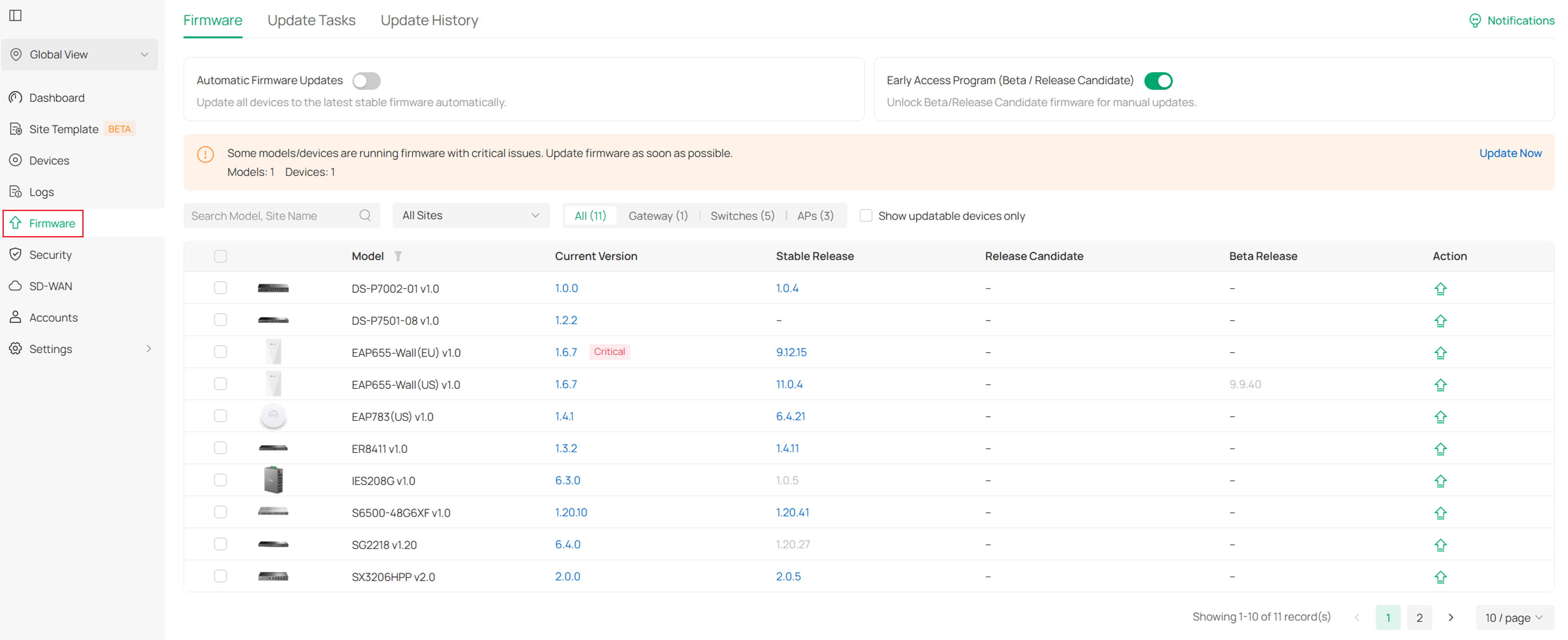
The firmware feature consists of three main tabs:
- Firmware: Manage firmware versions and configure firmware update settings.
- Update Tasks: Create and manage firmware update tasks.
- Update History: View task execution records and perform rollback or retry operations.
Configure automatic firmware updates
Automatic Firmware Updates keeps eligible devices across all sites on the latest Stable firmware.
When enabled:
- The Controller automatically checks eligible devices and upgrades them to newer Stable versions during the configured update periods.
- Configure at least one and up to three non-overlapping update periods.
- Update schedules follow each site's local time.
- Existing custom update tasks are retained but suspended.
- Suspended tasks can be used again after Automatic Firmware Updates is disabled.
- No additional update tasks can be created while Automatic Firmware Updates is enabled.
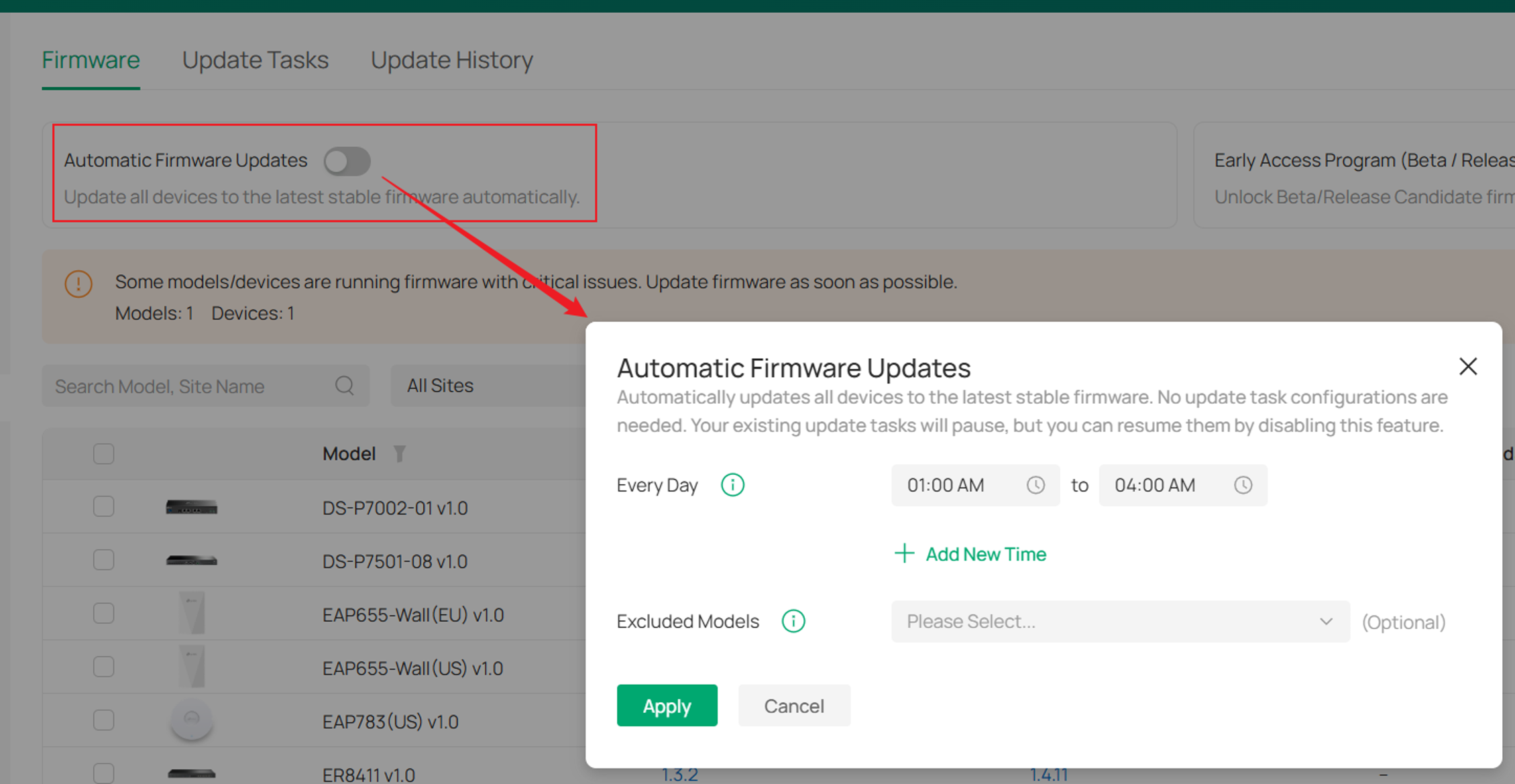
The configuration window allows up to three non-overlapping update periods.
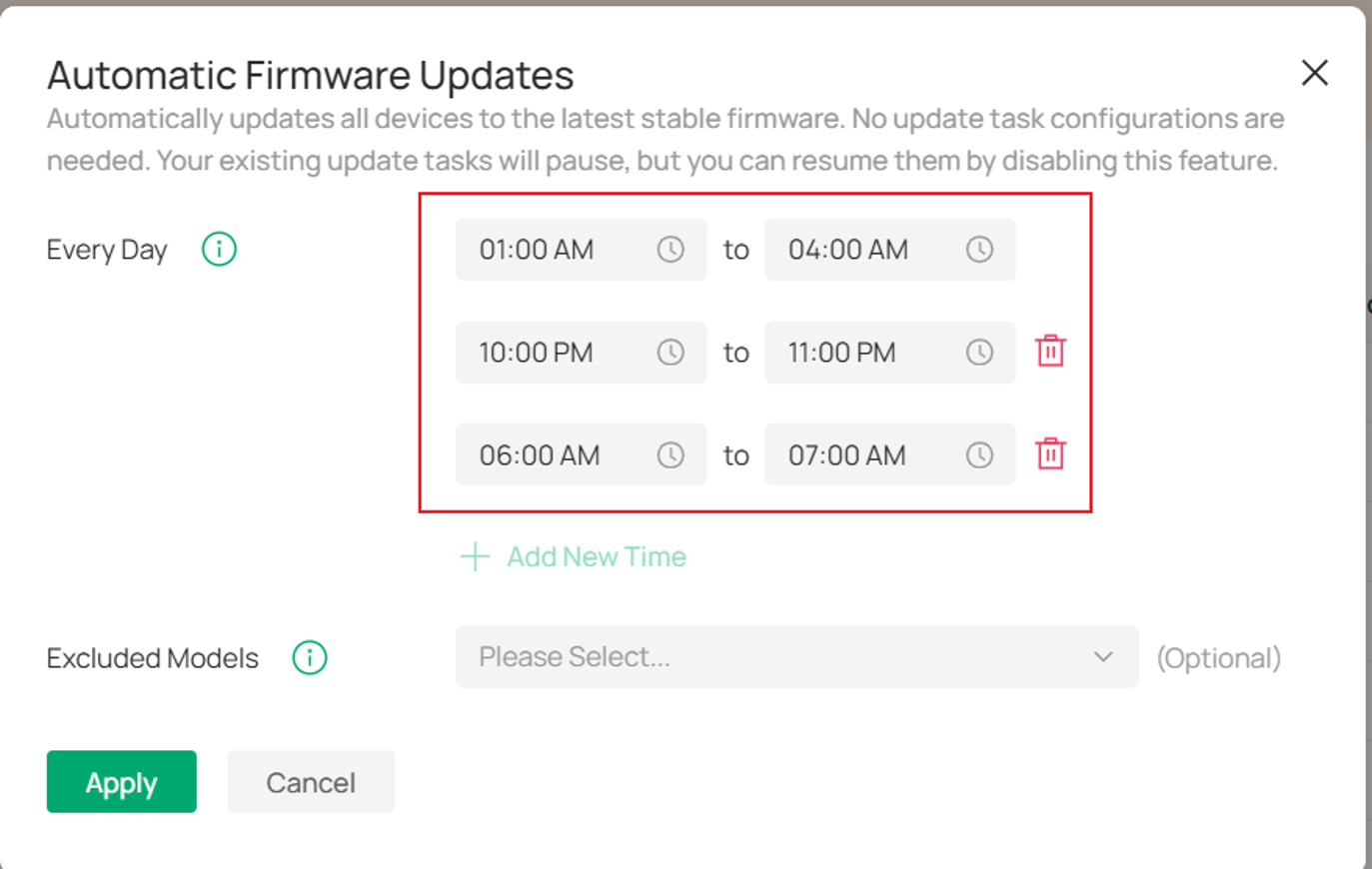
Specific device models can be excluded from automatic updates. Excluded models must be upgraded manually. This option is recommended for critical devices that should not reboot automatically.
After Automatic Firmware Updates is enabled, the Update Tasks tab is hidden.
When Automatic Firmware Updates is enabled, existing custom update tasks are retained but suspended. They can be used again after Automatic Firmware Updates is disabled.

Configure the Early Access Program (EAP)
The Early Access Program (EAP) controls whether Release Candidate (RC) and Beta firmware can be selected in custom update tasks.
When EAP is enabled:
- Stable, RC, and Beta firmware become available when creating update tasks.
- Owner or Super Admin permissions are required.
Enabling EAP does not affect Automatic Firmware Updates. Automatic Firmware Updates always upgrade eligible devices to the latest Stable firmware.

Configure notification settings
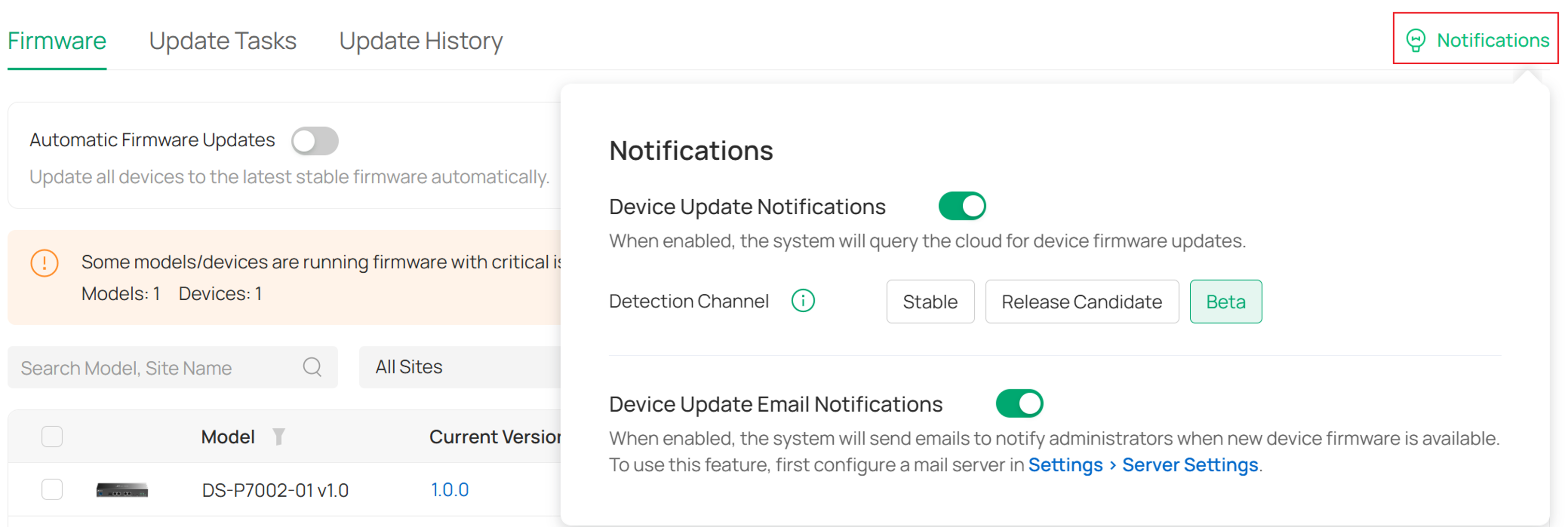
Click Notification Settings to configure firmware availability notifications.
Device update notifications
Provides in-app notifications when new firmware is detected for managed devices. In addition to update notifications displayed on the Devices page, this setting also affects in-app and email notifications triggered by firmware detection results.
Detection Channel settings are available only when Device Update Notifications is enabled.
These settings affect firmware detection on the Devices page, as well as related in-app and email notifications. They do not affect firmware versions available in the Firmware tab or Update Tasks.
Note:
The Detection Channel determines which firmware channels are checked on the Devices page. When set to RC (Release Candidate), both RC and Stable firmware are evaluated; when set to Beta, Beta, RC, and Stable firmware are evaluated. The highest available firmware version among the selected channels will be used for comparison, and an update notification is generated only if the detected version is newer than the device's current firmware.
Device update email notifications
Provides email notifications when new firmware is detected for managed devices.
Before enabling this feature, configure an email server. For more information, refer to:
How to Use an Encrypted SMTP Server on Omada SDN Controller.
Both notification options can be enabled or disabled independently.
Manage firmware versions in the firmware pool
The Firmware Pool is displayed in the lower section of the Firmware page.
Review firmware risk notifications
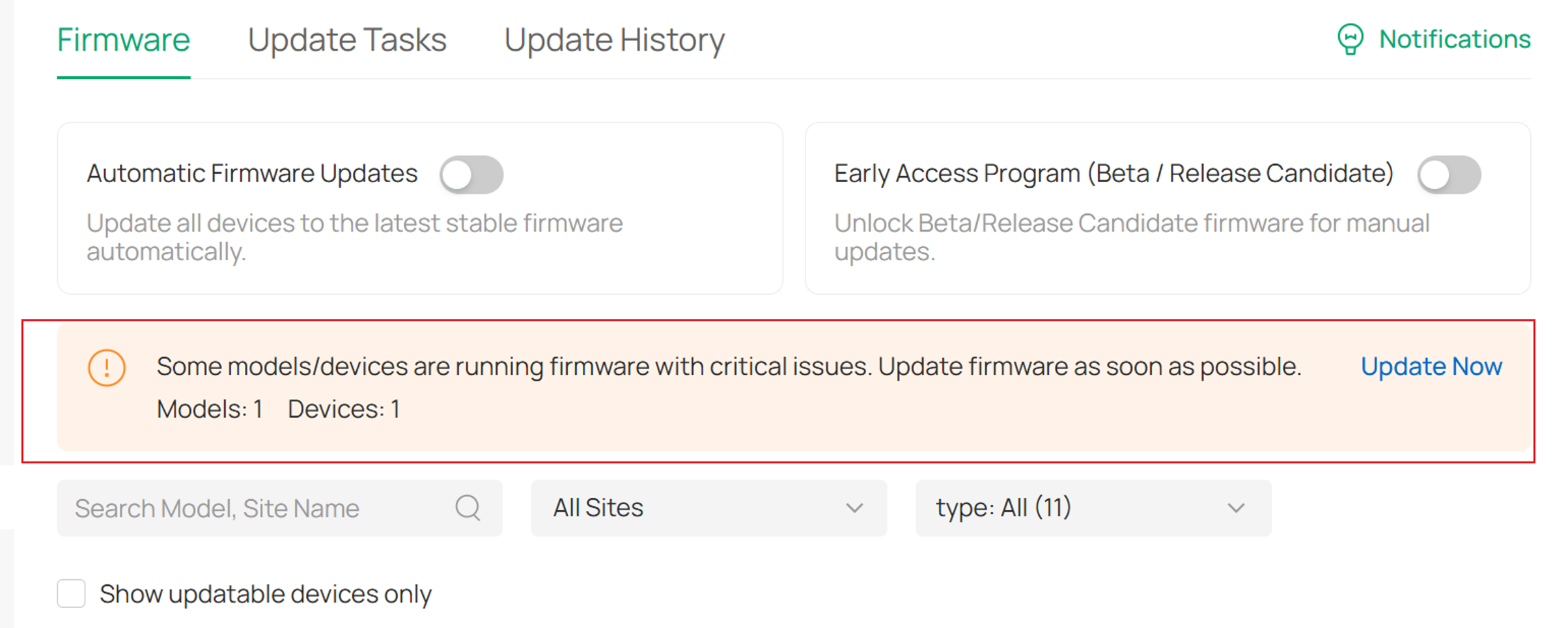
The Risk Notification Panel displays firmware-related risk notifications when devices are running Critical or withdrawn firmware versions.
This panel is displayed only when affected device models are detected and includes:
- Affected device models
- Number of affected devices
View firmware versions
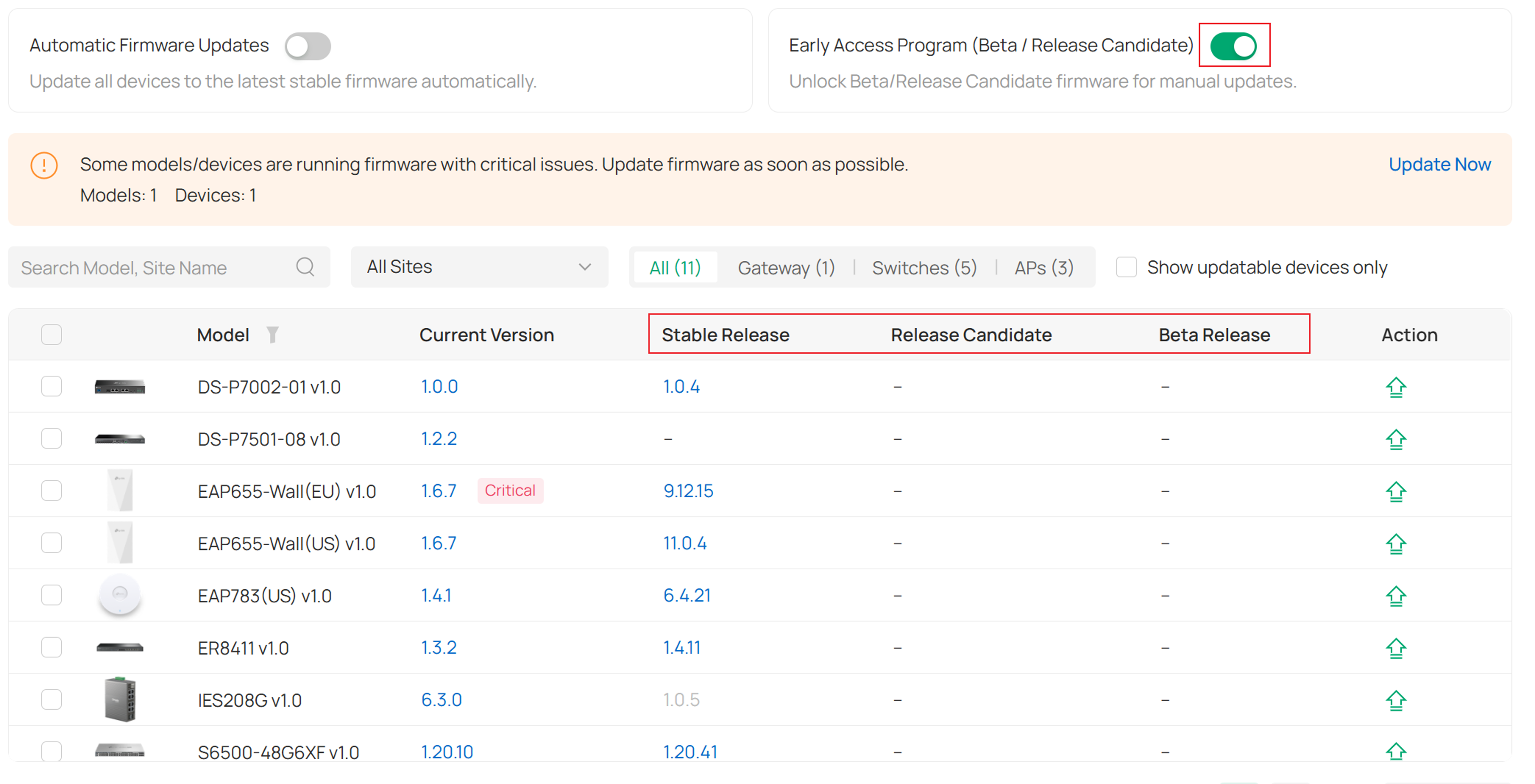
The Firmware Pool displays firmware information on a per-model basis, with devices of the same model aggregated into a single row across all managed sites.
When the Early Access Program is enabled, firmware versions from the following channels are displayed:
- Stable Release
- Release Candidate (RC)
- Beta Release
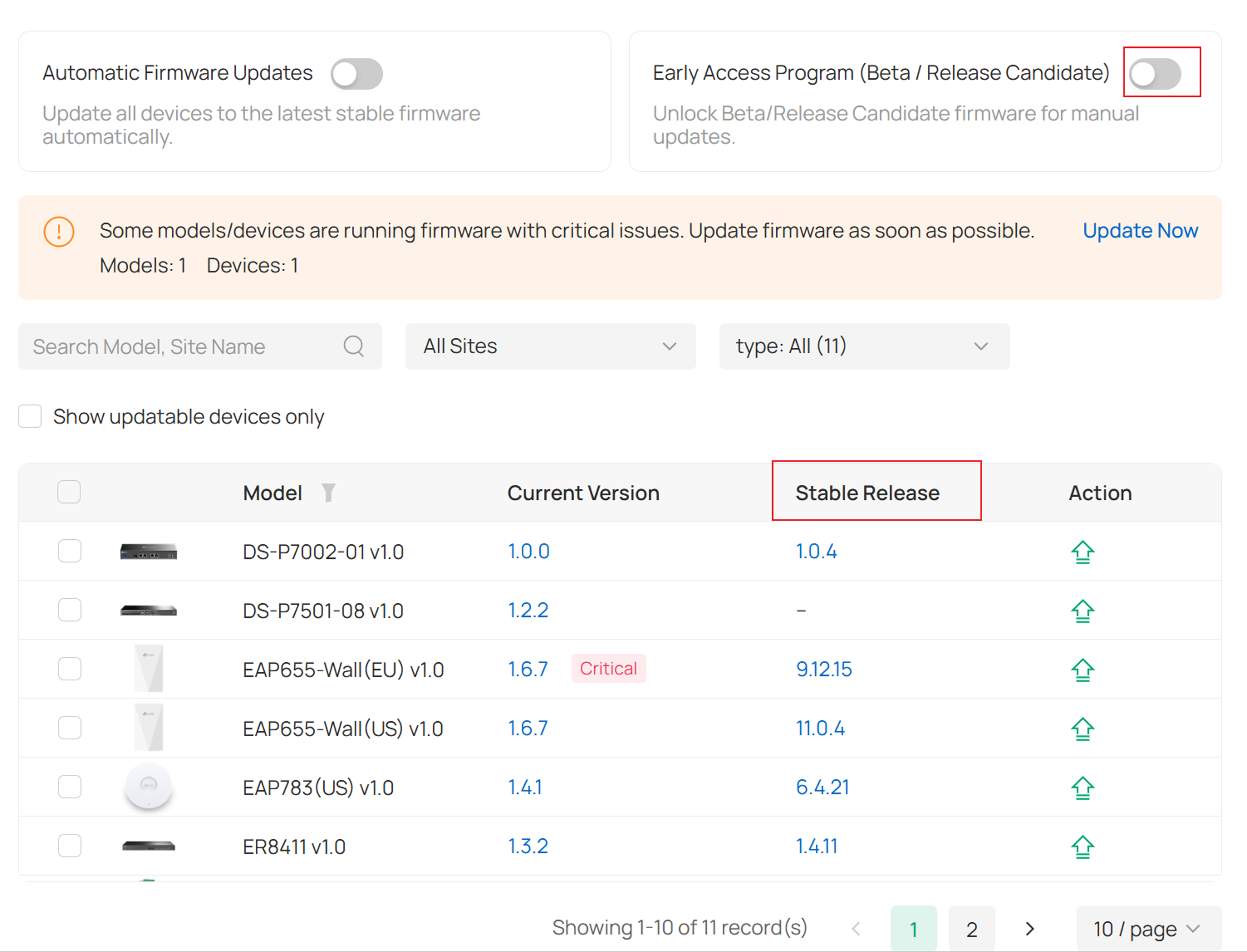
When EAP is disabled, only firmware versions from the Stable Release channel are shown. Administrators can click Update for a model to create a firmware update task.
Note: When EAP is disabled, existing Release Candidate/Beta update tasks will be disabled while their configurations are retained. After EAP is re-enabled, these tasks must be manually reactivated. If the Detection Channel in Notifications was previously set to RC or Beta, it will revert to Stable when EAP is disabled, and the original channel selection will not be automatically restored after EAP is re-enabled.
Understand the Mixed status
When devices of the same model are running different firmware versions, the Current Version column displays Mixed.
This indicates that multiple firmware versions currently exist for the same device model across managed sites.

Update Tasks
Create firmware update tasks
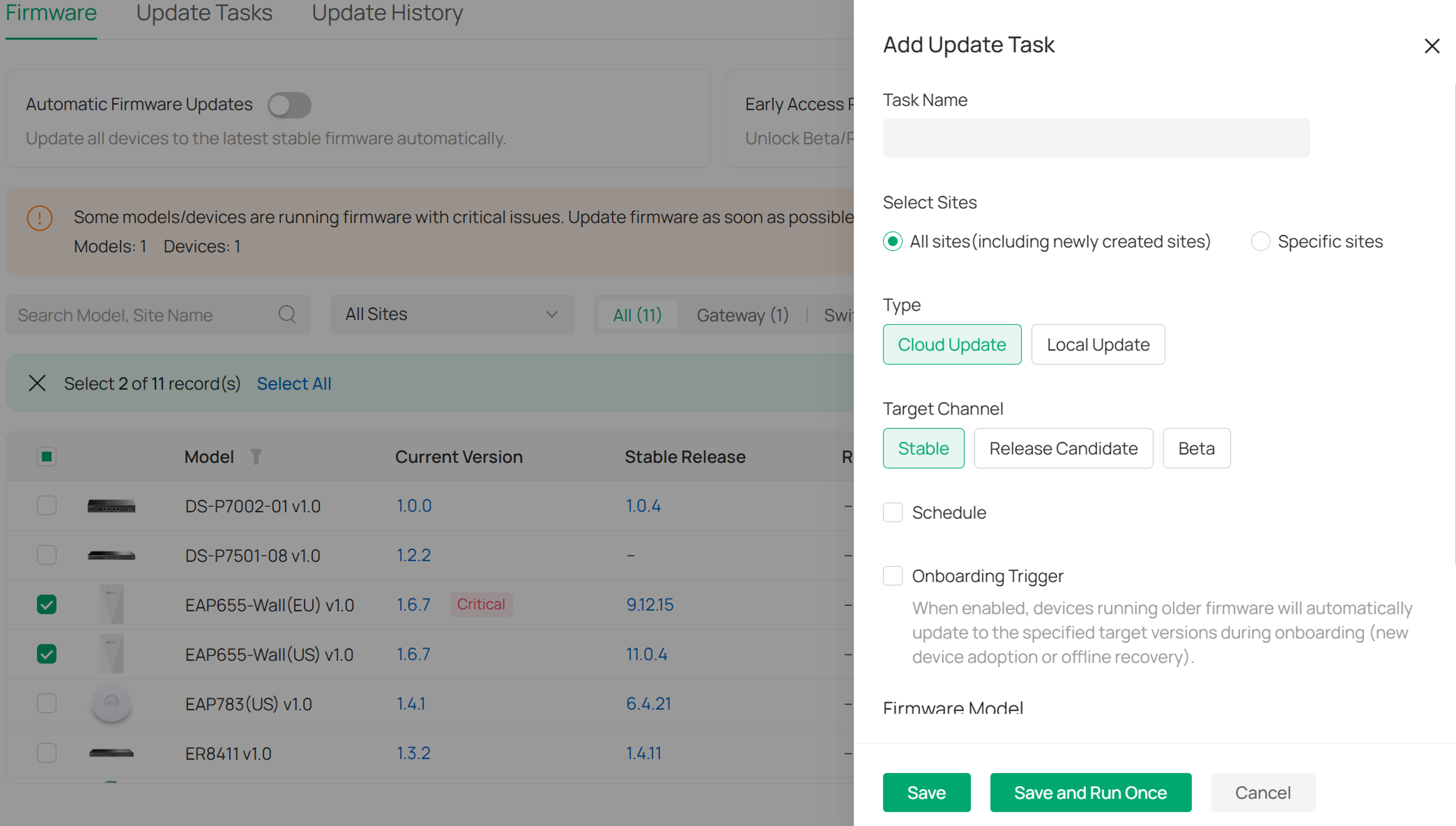
Administrators can create firmware update tasks directly from the Firmware page by selecting a model and clicking Update. Only one task can be created for the same model within a site.
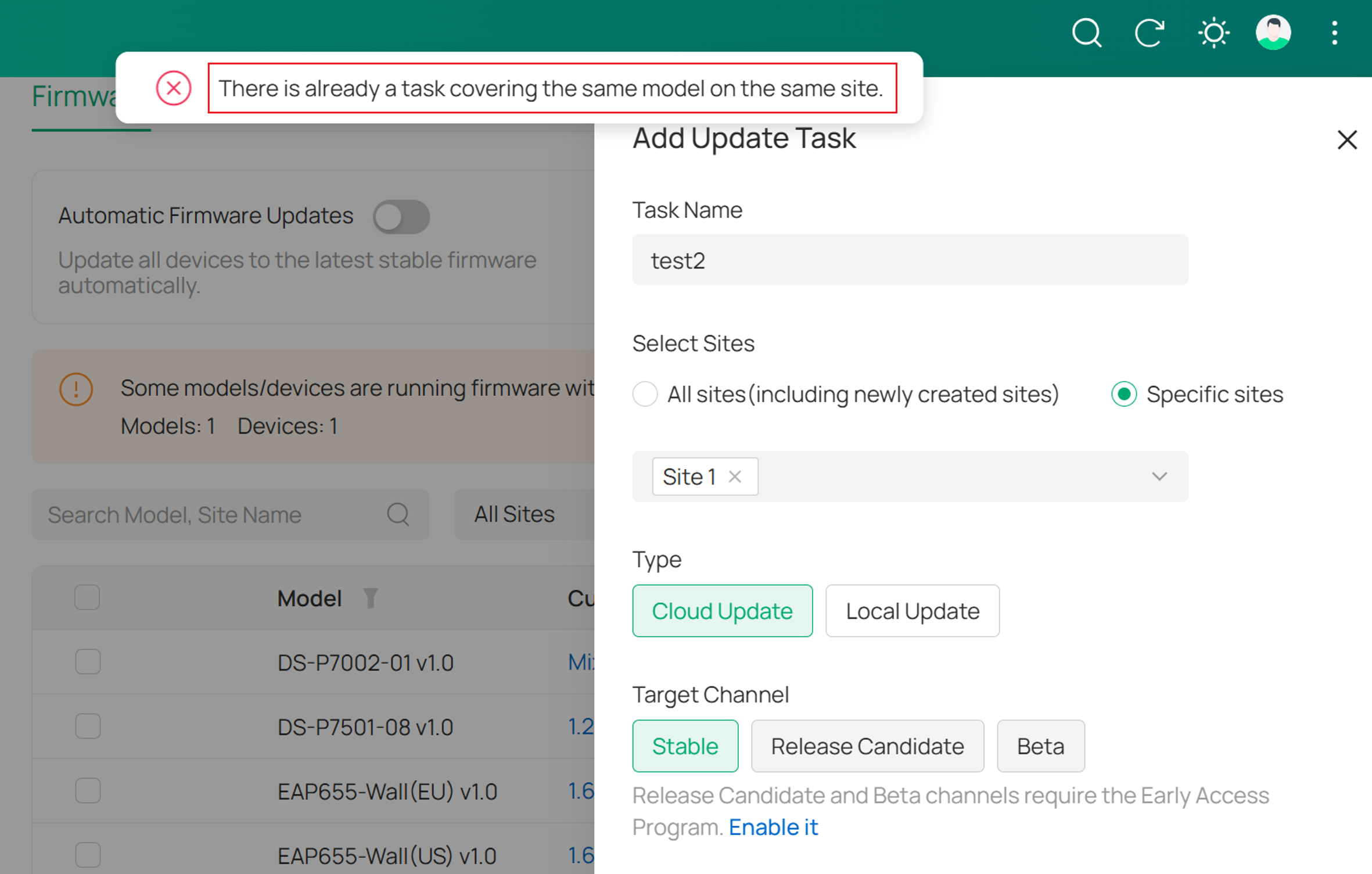
Cloud Update
When Cloud Update is selected, choose the desired firmware channel and target firmware version.
Devices can be upgraded to:
- The latest available firmware version
- A specified firmware version
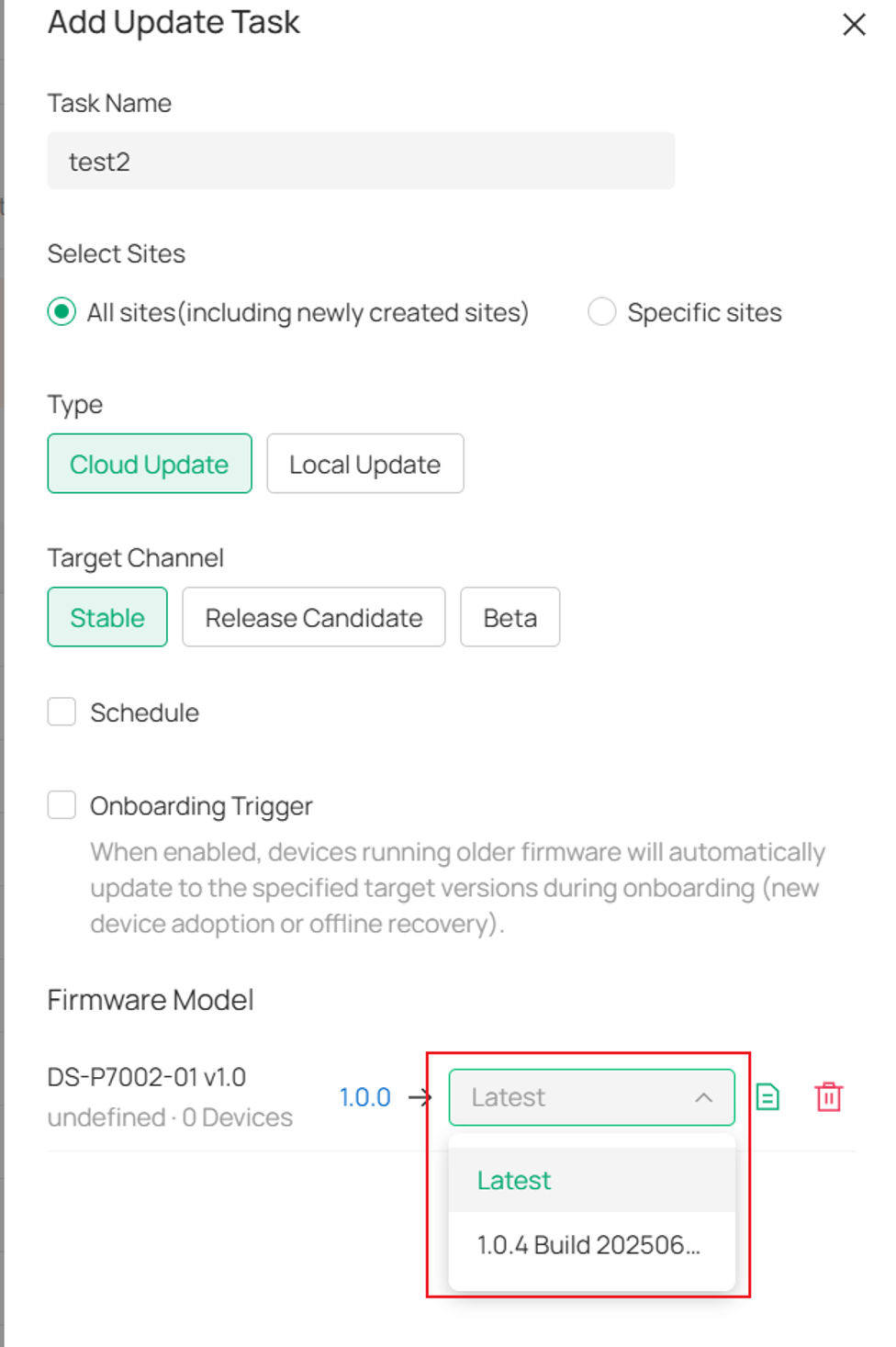
Note: Select Latest to retrieve the latest available firmware version from the selected firmware channel when the task is executed, or select a specific firmware version to use it as a fixed upgrade target. Devices already running a firmware version later than the specified target version will not be downgraded.
Local Update
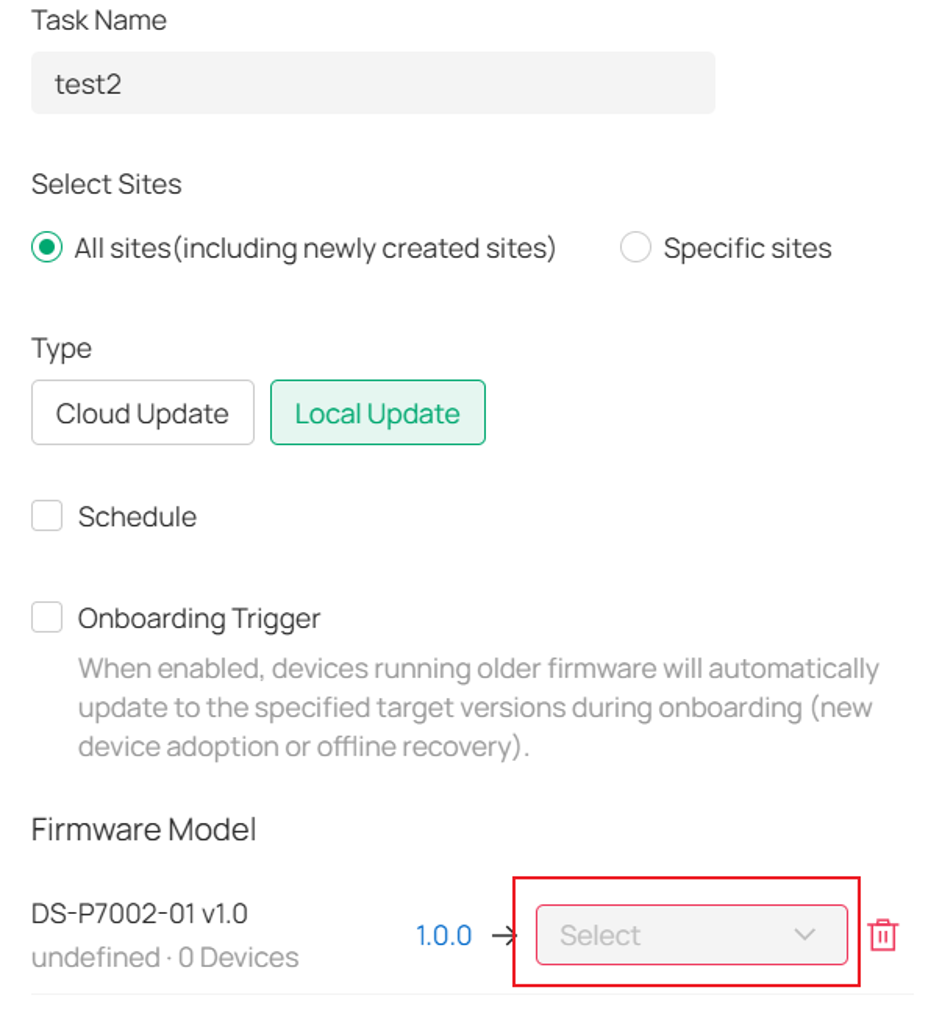
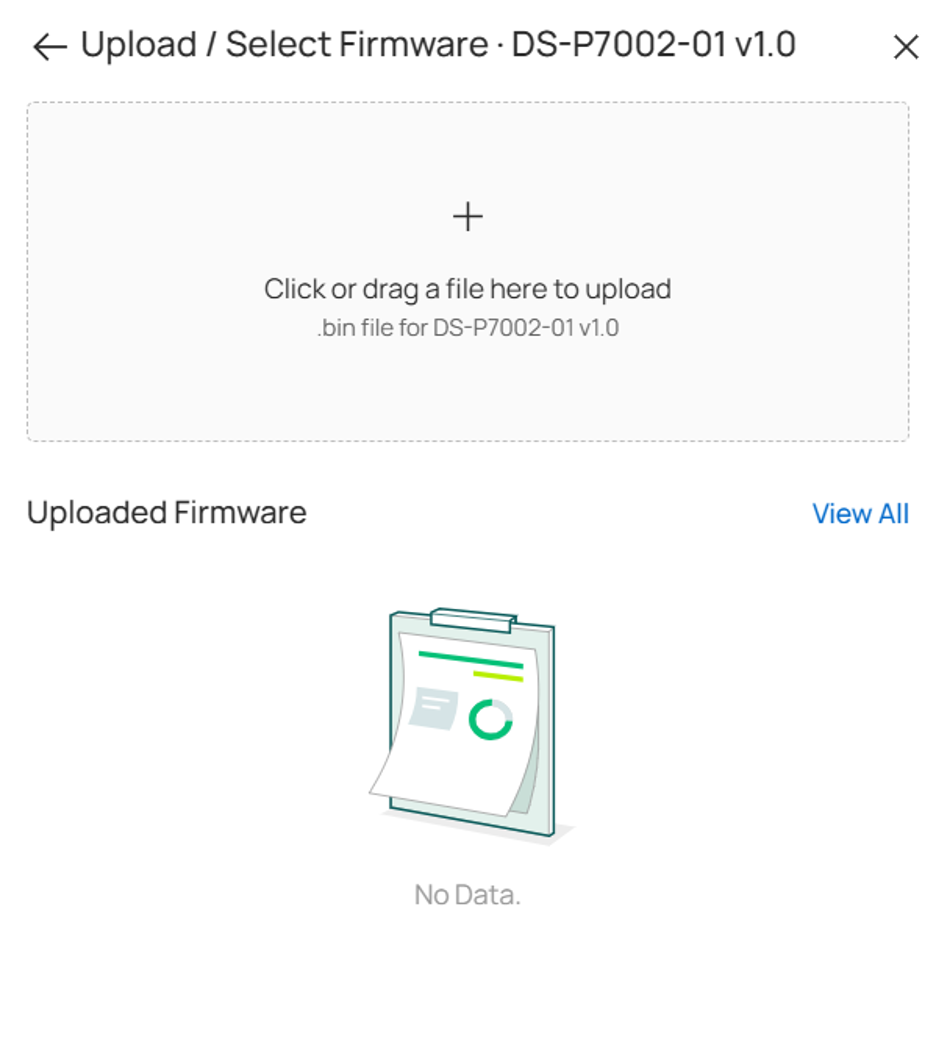
When Local Update is selected, choose the target firmware version and upload a firmware file manually.
Note: Local Update does not require the firmware file to be uploaded each time. A previously uploaded firmware file that matches the selected device model can be reused, or a new firmware file can be uploaded.
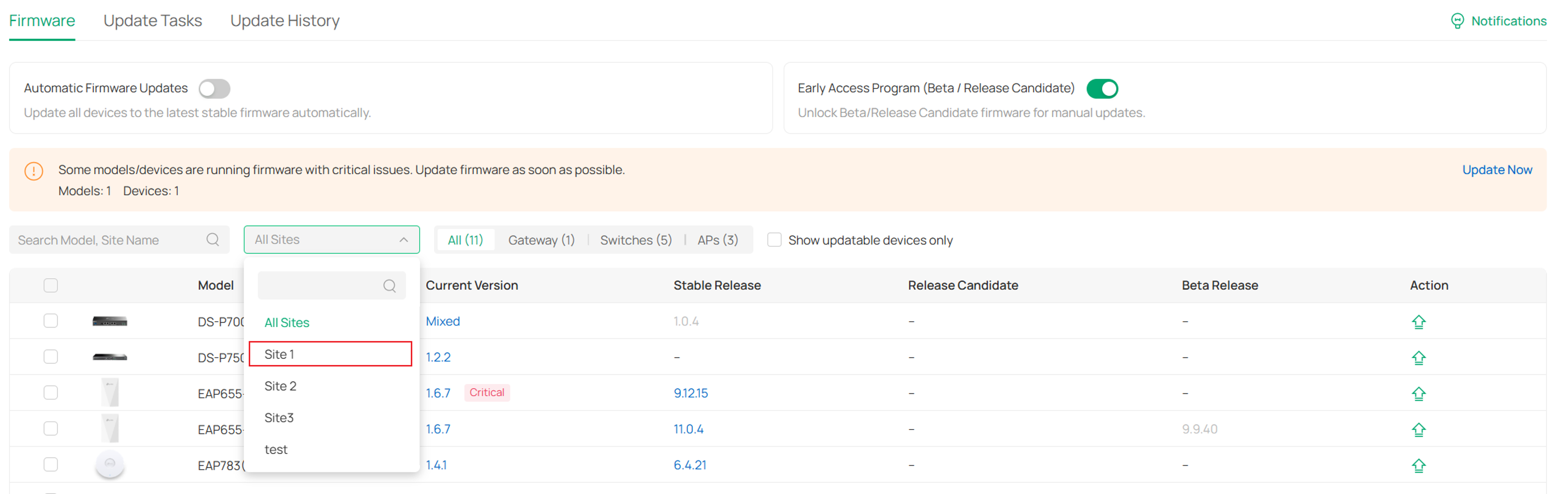
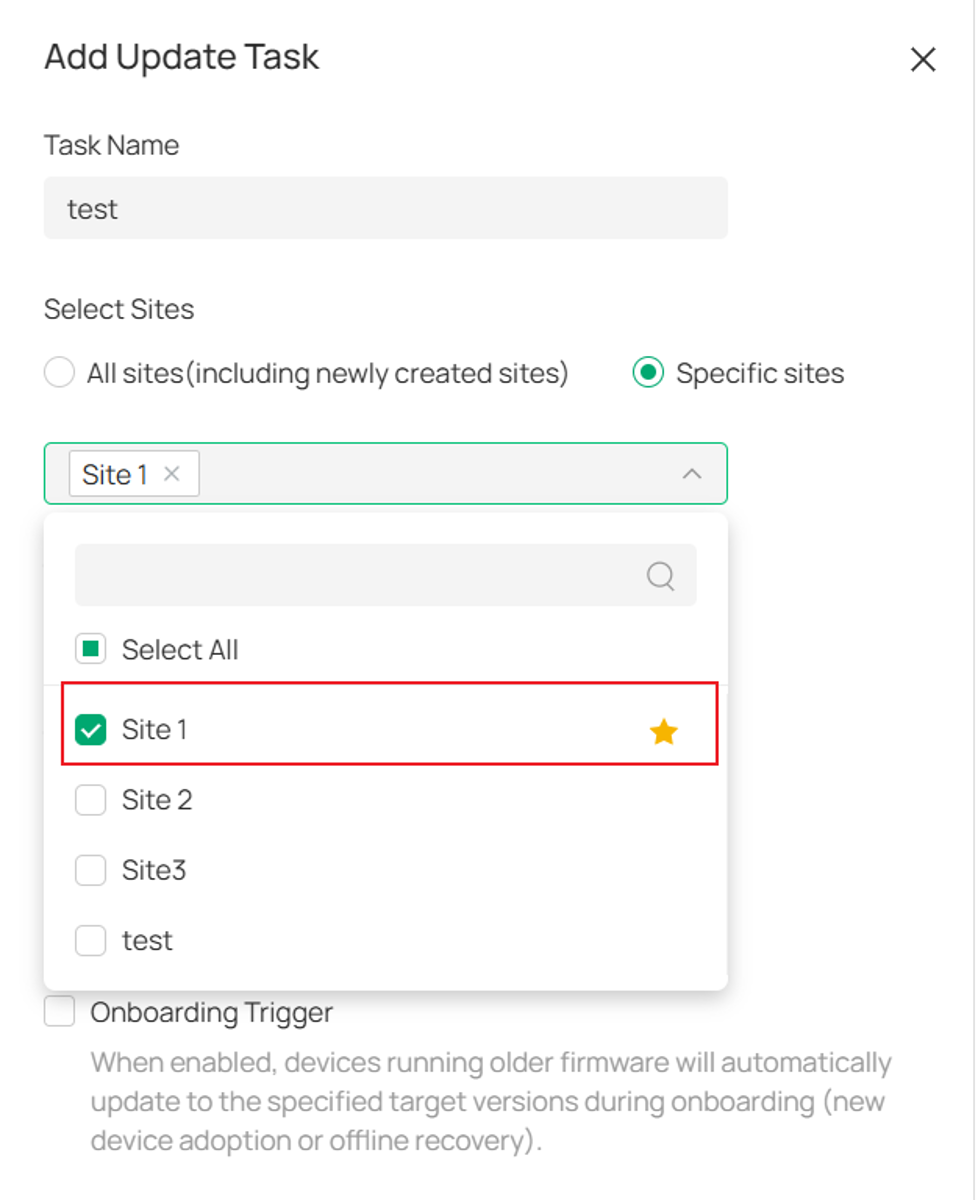
Configure site scope
When creating an update task, select whether the firmware update applies to:
- All Sites
- Specific Sites
Newly created sites are automatically included in the update plan only when All Sites is selected.
Save and Run Once
After completing the configuration, click Save or Save and Run Once.
- Save only saves the configuration and waits for it to be triggered according to the defined schedule or conditions.
- Save and Run Once saves the configuration and immediately executes the task one time. This option triggers an additional immediate execution after the task is saved and does not replace any configured triggers. Once the execution is complete, the task will continue to run according to its configured trigger conditions. If neither trigger type is configured, the task can still be executed manually using this option or the Run Now action in the task list.
Create update tasks for multiple models
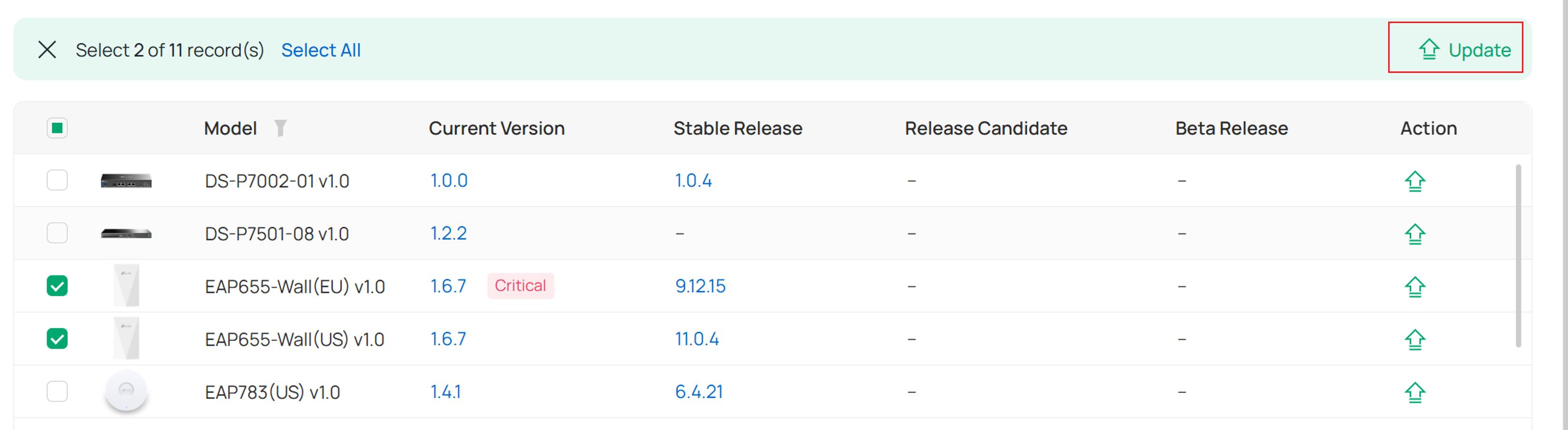
When Automatic Firmware Updates is disabled, multiple device models can be selected in the Firmware Pool and included in a single update task.
This approach improves firmware maintenance efficiency for large-scale deployments.
View and filter update tasks
The Update Tasks page provides centralized management for all firmware update tasks.
One-time update tasks are no longer automatically removed after expiration.
New tasks cannot be created from this page. All tasks must be created from the Firmware page.
Administrators can:
- View all update tasks
- Filter tasks by Scheduled, Repeat, or Manual
- Sort tasks by Task Name or Timing

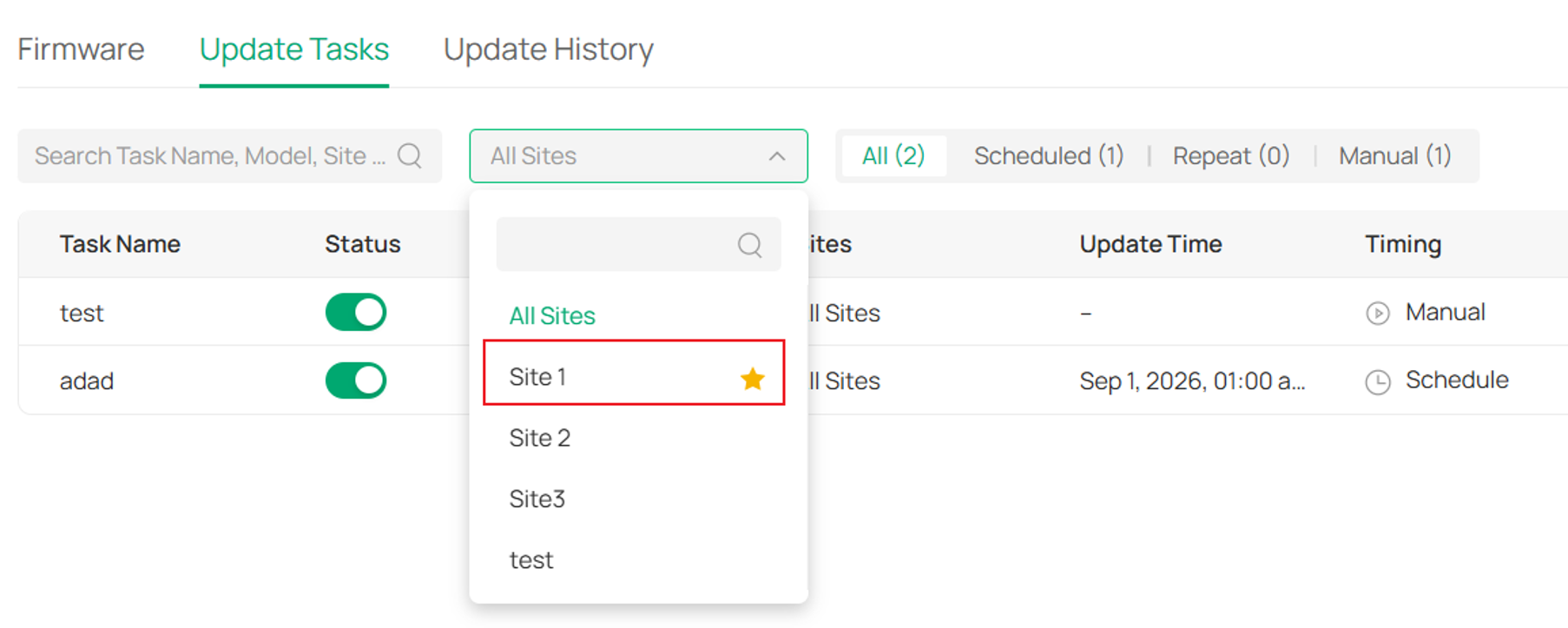
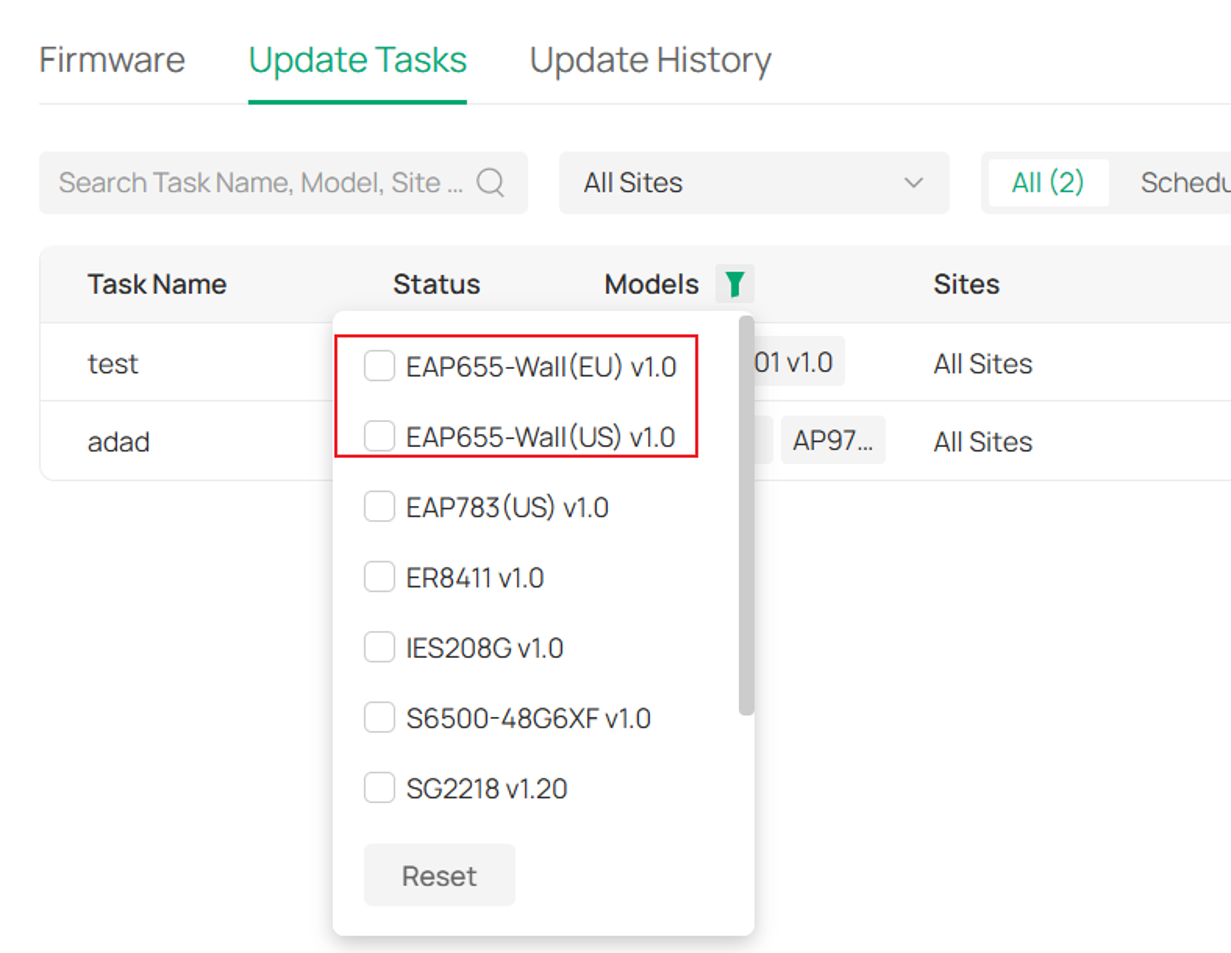
Tasks can also be filtered by:
- Site
- Device model
Perform task operations
The following actions are supported directly from the task list:
Run Now
Immediately executes the selected task once.
Enable or Disable
Temporarily enable or disable a task without deleting it.
Edit
Modify an existing task configuration.
Delete
Remove an update task permanently.

Configure update triggers
Each update task supports two independently configurable trigger types.
Note: If neither trigger is configured, the task will not run automatically and must be executed manually using Run Now.
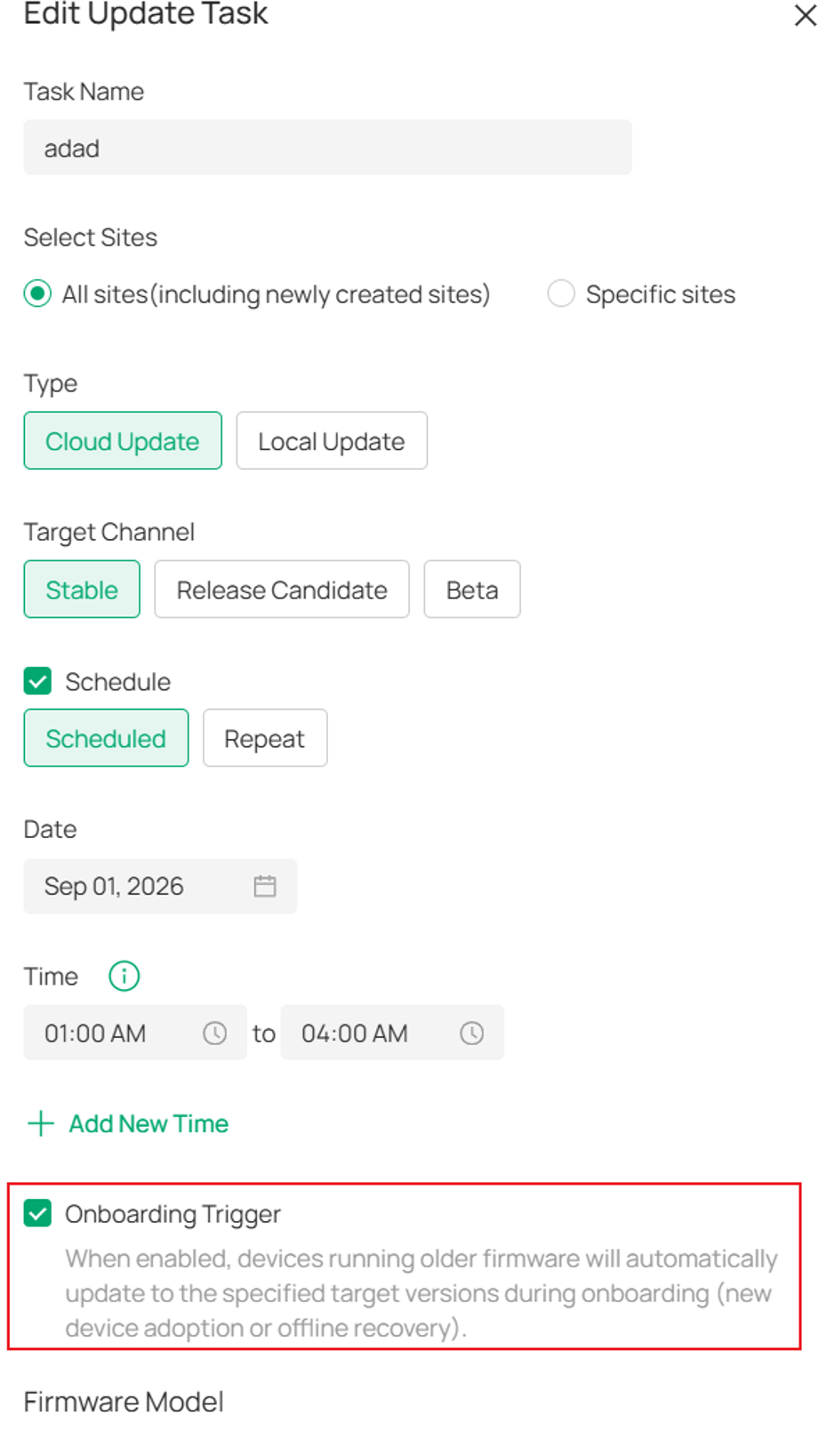
Device Onboarding Trigger
When enabled, devices running older firmware versions automatically upgrade to the specified target version during onboarding. A firmware upgrade is triggered immediately after the device is adopted. In addition, if a scheduled update policy is configured, the device will still execute the upgrade during the scheduled time window when it is online. The two upgrade mechanisms operate independently and neither one suppresses nor overrides the other.
Time Trigger
The Time Trigger schedules firmware upgrades to occur at a specific time or on a recurring basis.
If Schedule mode is selected, a specific date and time within the next two years can be configured.
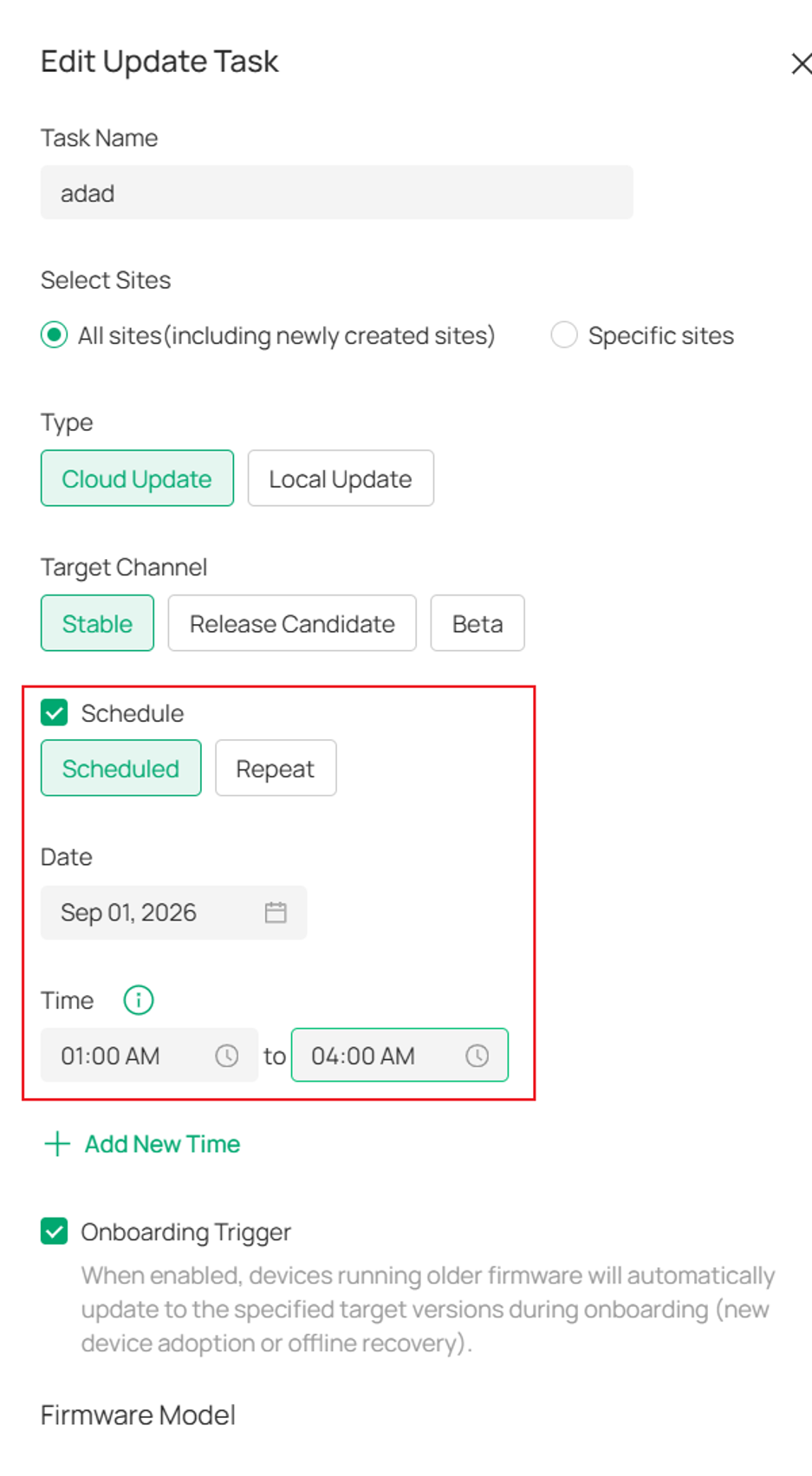
If the Repeat mode is selected, upgrades can recur:
- Daily (every 1 to 31 days)
- Weekly (every 1 to 2 weeks)
- Monthly (every 1 to 12 months)
- Yearly (on a specified date)
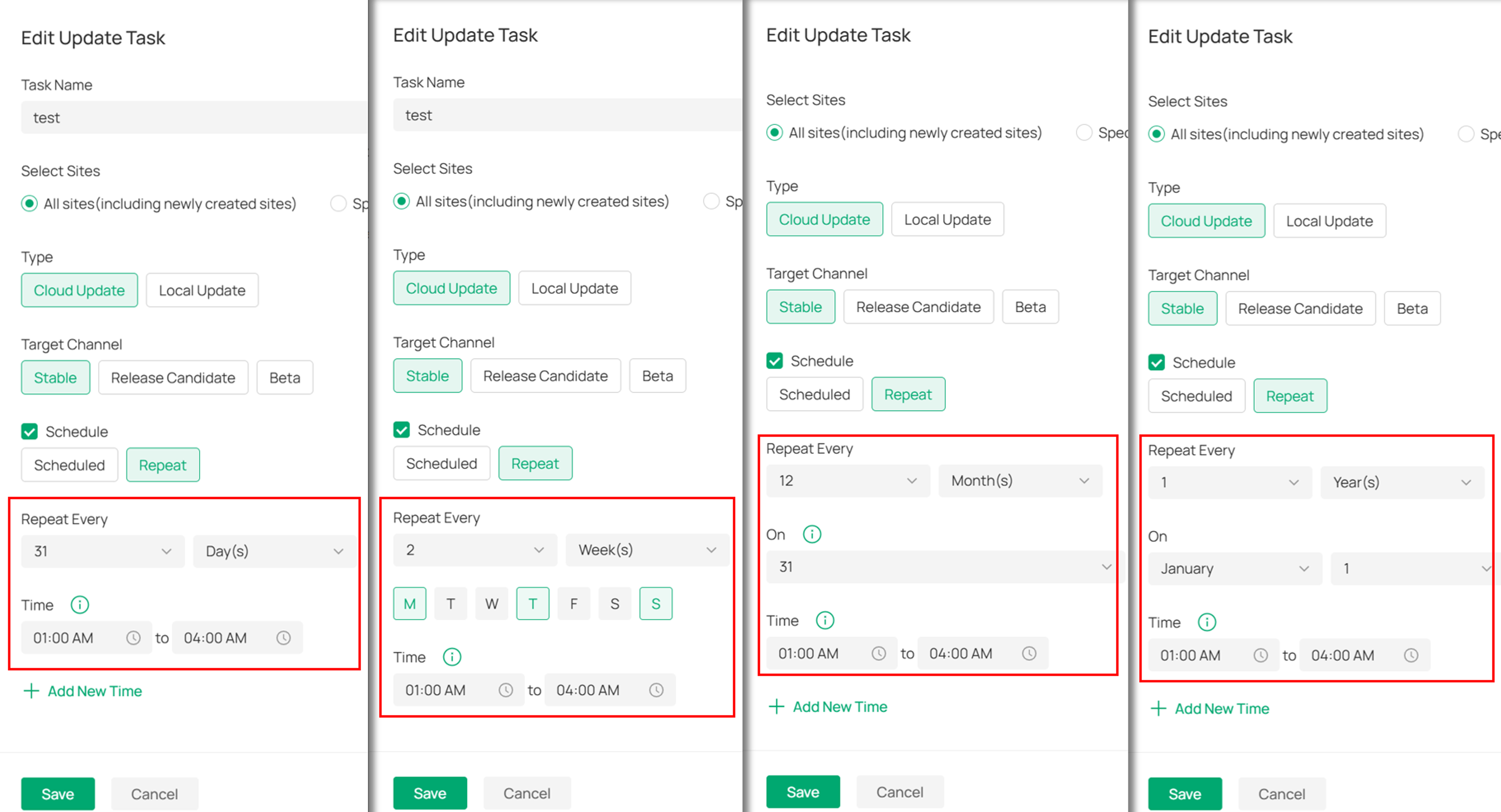
Neither trigger is mandatory. When Time Trigger is enabled, additional Schedule and Repeat settings become available for configuration.
Upgrades are performed in batches during the configured time windows. For recurring tasks, devices that do not start upgrading within the current window are deferred to a later window or the next recurrence. For one-time tasks, devices that have not started upgrading after all windows for the day have closed are marked as Pending and can be retried immediately.
Update History
View task execution records
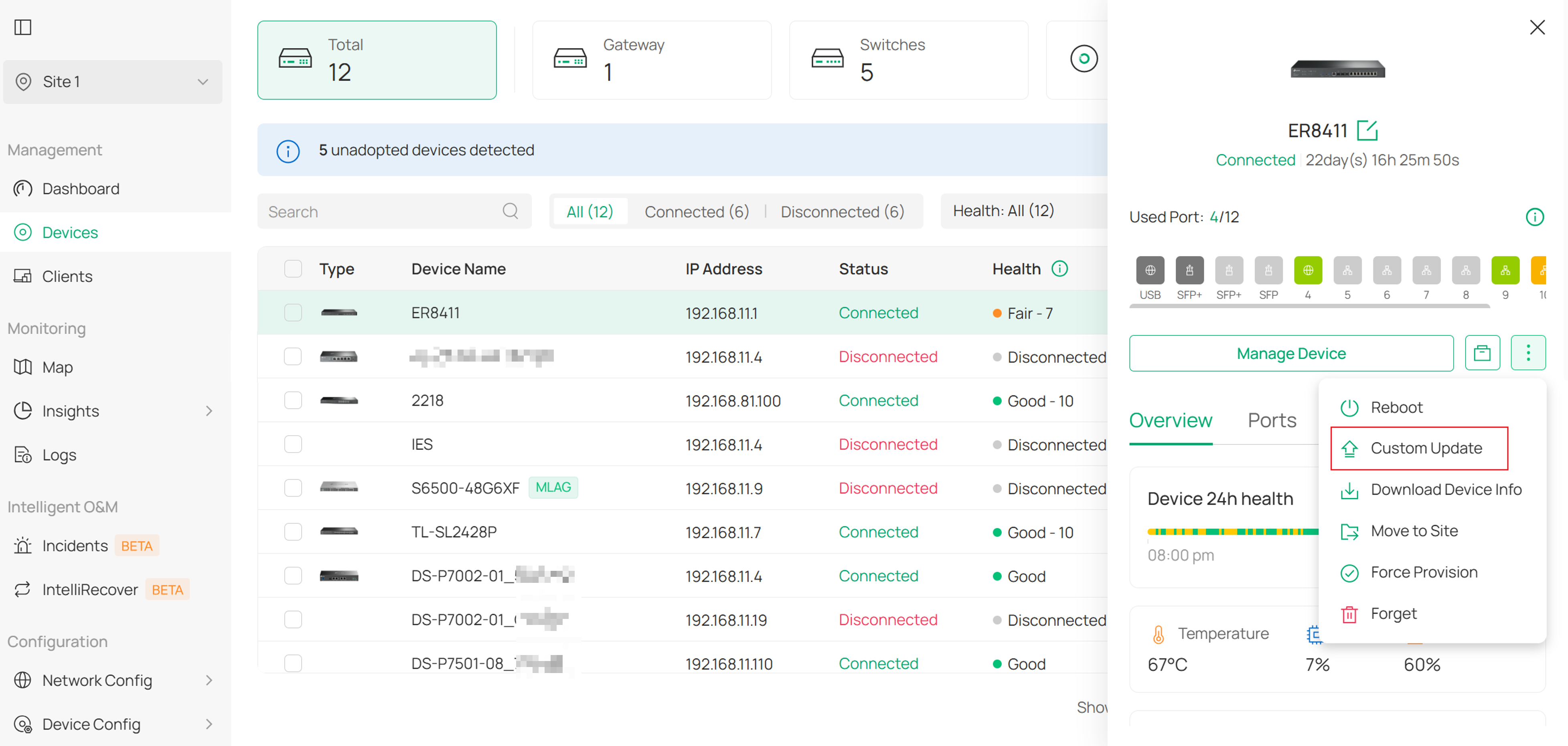
Note: Update History does not contain every firmware upgrade operation performed in the Controller.
For example, upgrades manually initiated from the Devices page within a site are recorded in Logs but do not appear in Firmware > Update History.
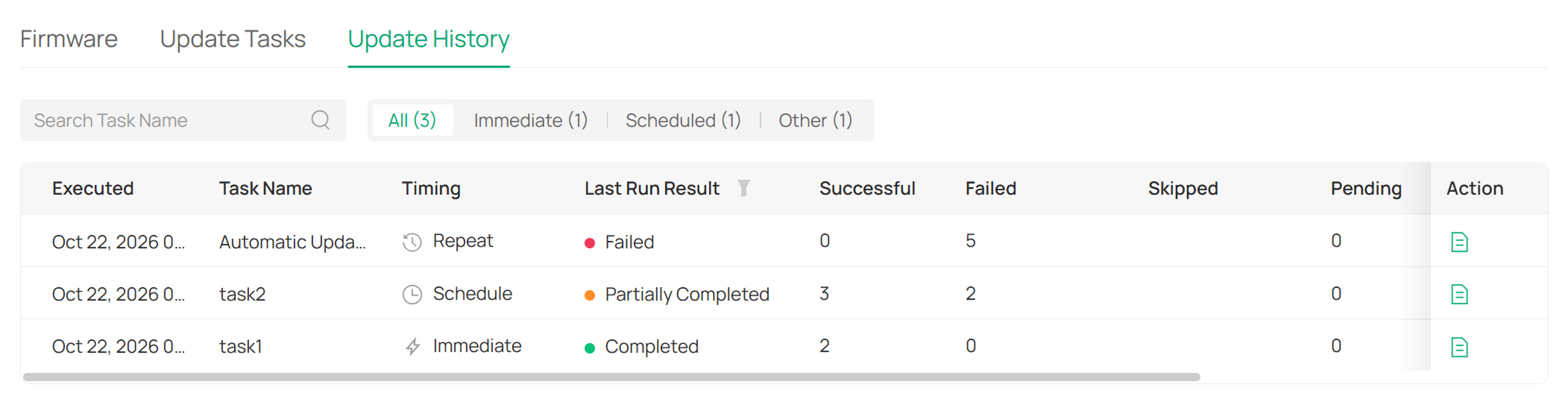
Each execution of an update task generates a corresponding execution record.
Administrators can:
- View execution records
- Filter records by Immediate, Scheduled, or Other
- Sort records by Execution Time, Task Name, or Timing
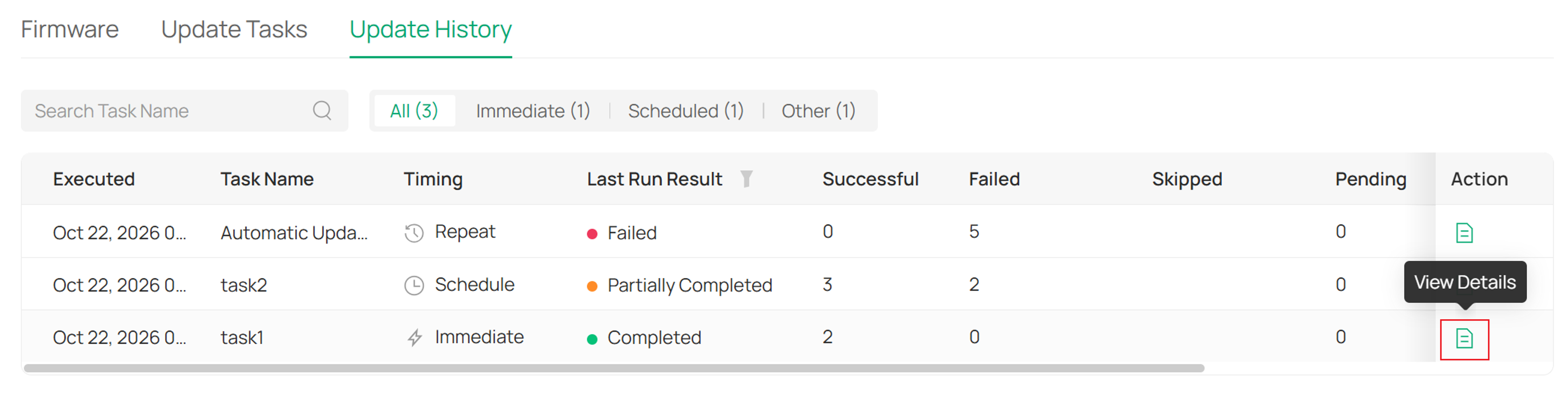
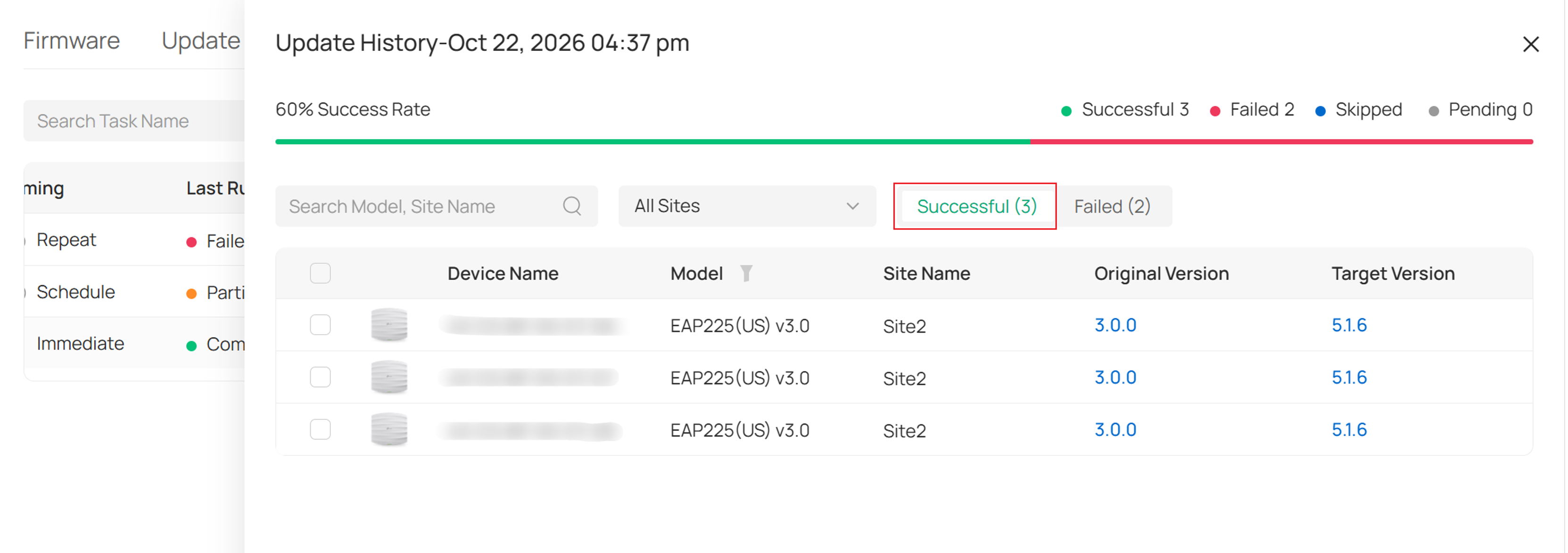
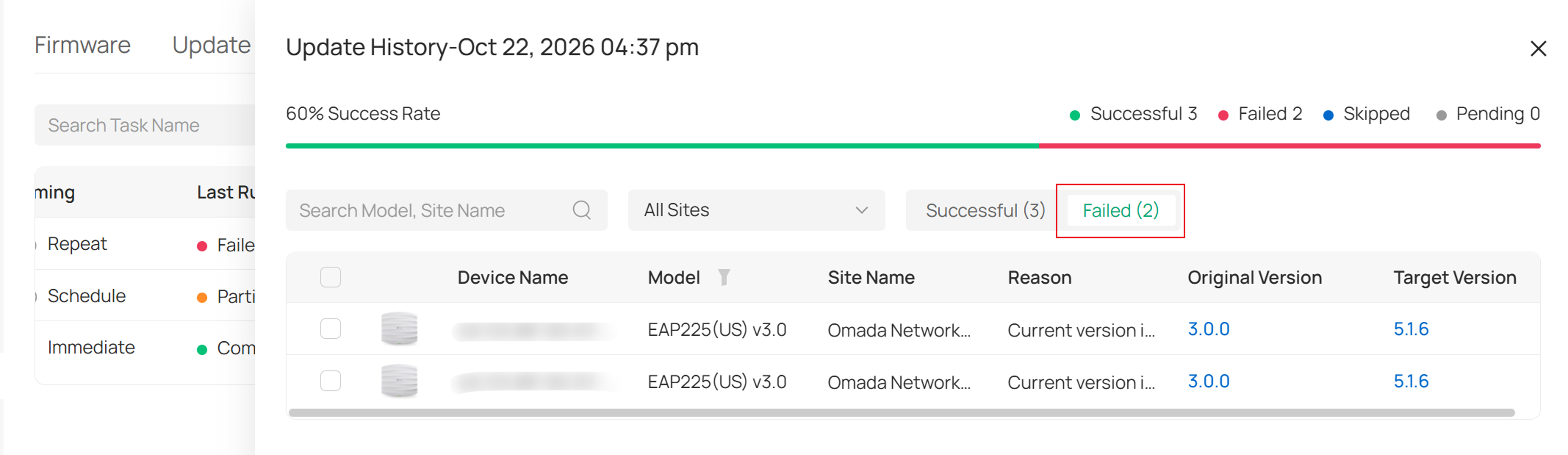
Click View Details to review the upgrade status of devices included in the task.
View upgrade results
To view device-level upgrade details, click View Details in the Actions column.
Successful: Displays devices that completed the firmware upgrade successfully.
Failed: Displays devices whose firmware upgrade failed.
Roll Back and Retry firmware upgrades
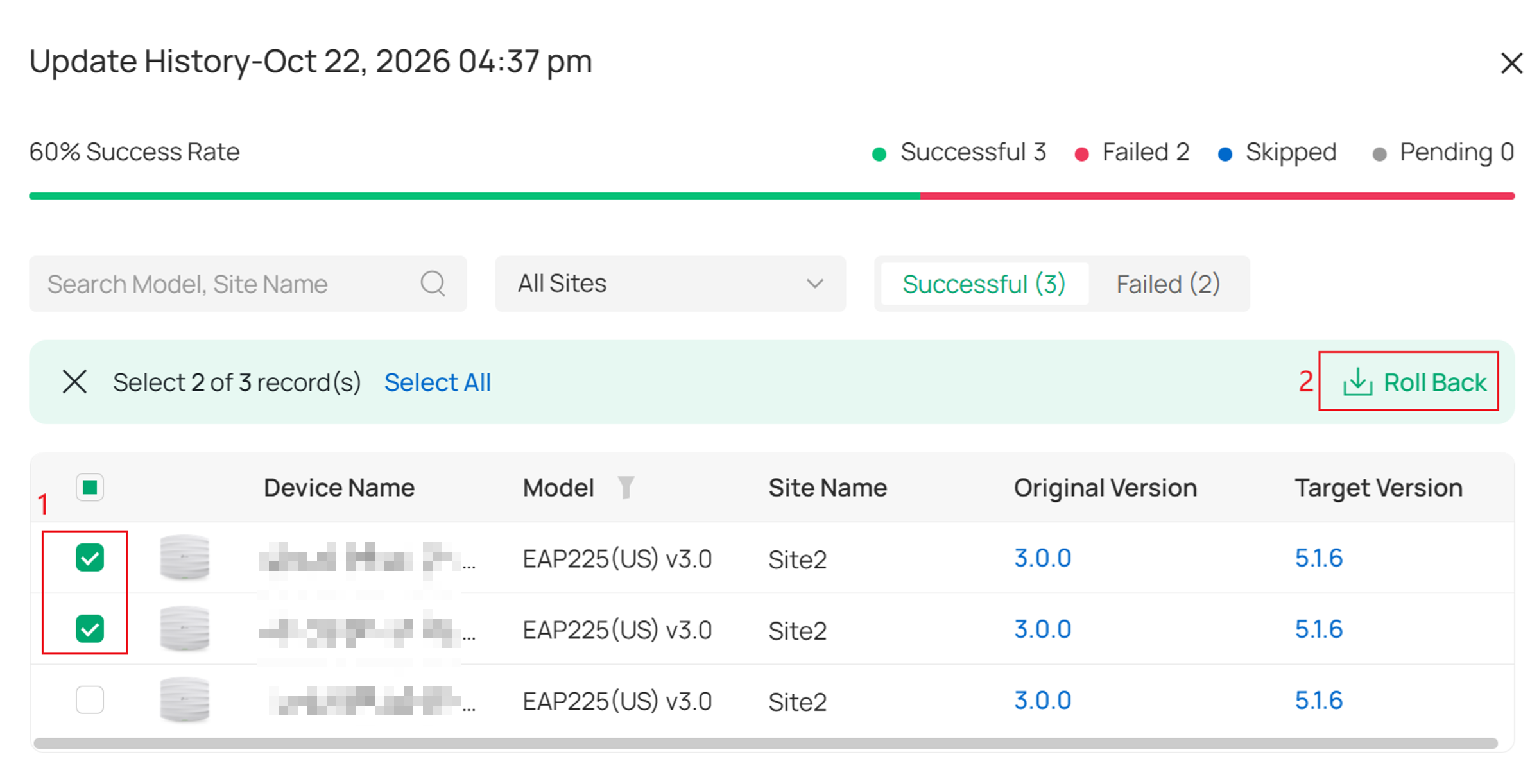
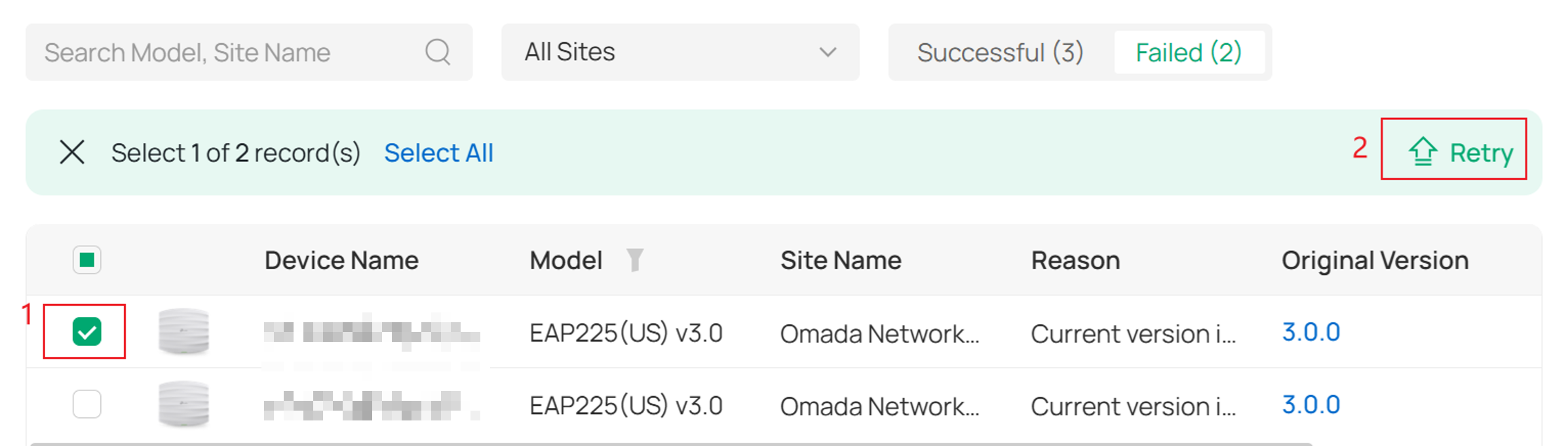
Roll Back and Retry operations support immediate execution only.
- Devices successfully upgraded within the last 14 days may support Roll Back.
- Devices with a Failed or Pending status support Retry.
- Roll Back and Retry do not create new update tasks.
- Roll Back and Retry generate new execution logs.
- Execution logs generated by a rollback operation cannot be rolled back again.
Additional rollback limitations include:
- Rollback is available only within 14 days of a successful upgrade.
- The rollback target is the device's Original Version.
- For multi-step upgrades, the device is rolled back to the version that was running before the upgrade task started.
- If the original firmware version is no longer available, the Roll Back option is disabled.
Conclusion
The Firmware Management module in Omada Controller v6.4 provides a centralized approach to firmware maintenance across multiple sites and device models. By using the Firmware, Update Tasks, and Update History tabs, administrators can efficiently manage firmware versions, create and schedule update tasks, monitor upgrade results, and perform rollback or retry operations when necessary.
These enhancements help maintain firmware consistency, improve operational efficiency, and simplify large-scale device maintenance across the network.
To learn more about each function and configuration, please visit Support Home to download or check the manual for your product.
