


Comprendre le comportement de diffusion du SSID de gestion sur les Omada Flex Bridge 5 et Sector Bridge 5


Contenu
Quand le SSID de gestion cesse-t-il d'être diffusé ?
Où puis-je configurer le SSID de gestion ?
Configurer via l'interface utilisateur Web du contrôleur
Configurer via l'application Omada (mode contrôleur)
Où puis-je consulter le rappel d'arrêt de diffusion du SSID de gestion ?
Sur l'interface utilisateur Web du contrôleur
Sur l'application Omada (mode manette)
À quoi sert le bouton « Réappliquer » ?
Comment maintenir la diffusion du SSID de gestion
Configurer via l'interface utilisateur Web du contrôleur
Configurer via l'application Omada (mode contrôleur)
Introduction
Le SSID de gestion des appareils Omada Flex Bridge 5 et Sector Bridge 5 est un réseau sans fil dédié à la configuration, à l'adoption et à la gestion locales des appareils. Il permet aux utilisateurs de se connecter sans fil à l'appareil lors de la configuration initiale ou de la gestion continue lorsqu'une connexion filaire est indisponible ou impraticable.
Pour renforcer la sécurité, la diffusion du SSID de gestion peut s'interrompre automatiquement après environ deux heures dans certaines conditions. Dans Omada Controller 6.3 et l'application Omada v5.3, ce comportement a été optimisé grâce à des alertes de risque plus visibles et des options de récupération simplifiées, permettant ainsi aux utilisateurs de rétablir rapidement la diffusion du SSID de gestion en cas de besoin.
Cet article explique quand le SSID de gestion cesse d'être diffusé, les améliorations introduites dans Omada Controller v6.3 et Omada App v5.3, et comment rétablir ou maintenir la diffusion du SSID de gestion.
Exigences
- Pont flexible 5
- Pont du secteur 5
- Contrôleur Omada (Logiciel/Matériel/Basé sur le cloud, v6.3 ou supérieur)
- Application Omada v5.3 ou supérieure
Quel est le SSID de gestion ?
Le SSID de gestion est utilisé par les appareils Flex/Sector Bridge monoblocs pour la gestion et la configuration initiale. Dans certains cas, l'appareil peut diffuser temporairement ce SSID afin que les utilisateurs puissent y accéder ou le gérer.
Toutefois, si le SSID de gestion utilise une configuration ouverte par défaut, telle que OMADA_2.4G_XXXX, il n'est pas chiffré et est accessible aux appareils sans fil à proximité. Afin de limiter les risques d'accès non autorisé à l'interface de gestion de l'appareil, ce dernier peut cesser automatiquement de diffuser ce SSID de gestion temporaire après environ deux heures.
Quand le SSID de gestion cesse-t-il d'être diffusé ?
Les scénarios suivants s'appliquent uniquement lorsque l'appareil est géré par le contrôleur Omada et que les paramètres WLAN de gestion n'ont pas été modifiés ou réappliqués dans le contrôleur.
|
Scénario |
Gestion du comportement du SSID après adoption |
La diffusion s'arrêtera-t-elle automatiquement ? |
|
Appareil par défaut d'usine sans configuration autonome |
Si le périphérique Flex/Sector Bridge est toujours dans son état d'usine par défaut et n'a jamais été configuré en mode autonome avant son adoption, il peut utiliser un SSID de gestion ouvert et non chiffré par défaut , tel que OMADA_2.4G_XXXX. |
Oui. Pour des raisons de sécurité, ce SSID de gestion temporaire peut cesser d'être diffusé automatiquement après environ 2 heures. |
|
Appareil configuré avec la sécurité d'entreprise en mode autonome |
If the device was previously configured with Enterprise security in Standalone mode, the RADIUS profile cannot be inherited after adoption by the controller. The device may fall back to a default open and unencrypted Management SSID while keeping certain SSID information, such as the SSID name, broadcast setting, or VLAN configuration. |
Yes. Since the Management SSID may fall back to an open and unencrypted mode, it may stop broadcasting automatically after about 2 hours to reduce the risk of unauthorized access. |
|
Device configured with non-Enterprise security in Standalone mode |
If the device was previously configured with non-Enterprise security, such as WPA/WPA2-Personal or a manually configured open SSID, the Management SSID configuration can be inherited normally. |
No. The SSID will continue broadcasting and will not be automatically stopped by the 2-hour temporary broadcast mechanism. |
Note: Once users modify the Management WLAN settings or click Re-apply, the settings will be resent to the device. The Management SSID will then continue broadcasting and will no longer be automatically stopped by the 2-hour temporary broadcast mechanism. And the current risk reminders, including the Device List icon and the reminder on the Management WLAN configuration page, will disappear. Existing Event Log and Device Log entries are historical records and will not be removed.
Where can I configure the Management SSID?
After the device is adopted by an Omada Controller, you can configure the Management SSID from the device detail configuration page.
Configure via Controller Web UI
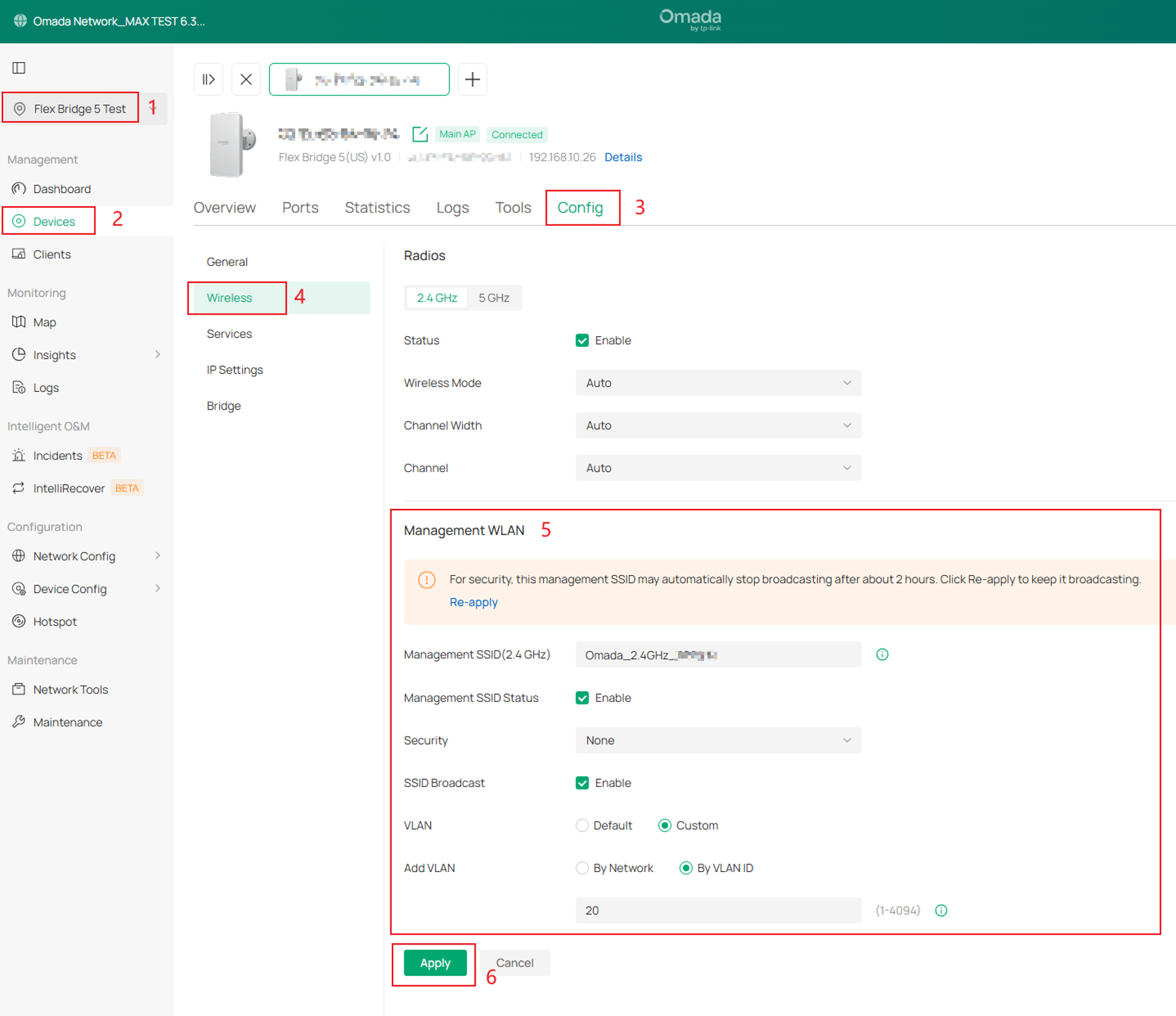
Go to Site View > Device List > Select the Flex Bridge 5 (or Sector Bridge 5)> Manage Device > Config > Wireless > Management WLAN. On this page, you can view and modify the Management SSID settings, including the Management SSID (2.4 GHz) name, Management SSID Status, Security settings, SSID Broadcast Settings, and VLAN settings.
Note: The SSID Broadcast option shows the configured broadcast setting, not the real-time SSID broadcasting status. The Management SSID may stop broadcasting automatically for security reasons even when this setting shows Enable. To keep it broadcasting, re-apply the Management WLAN settings.
Configure via Omada App (Controller Mode)
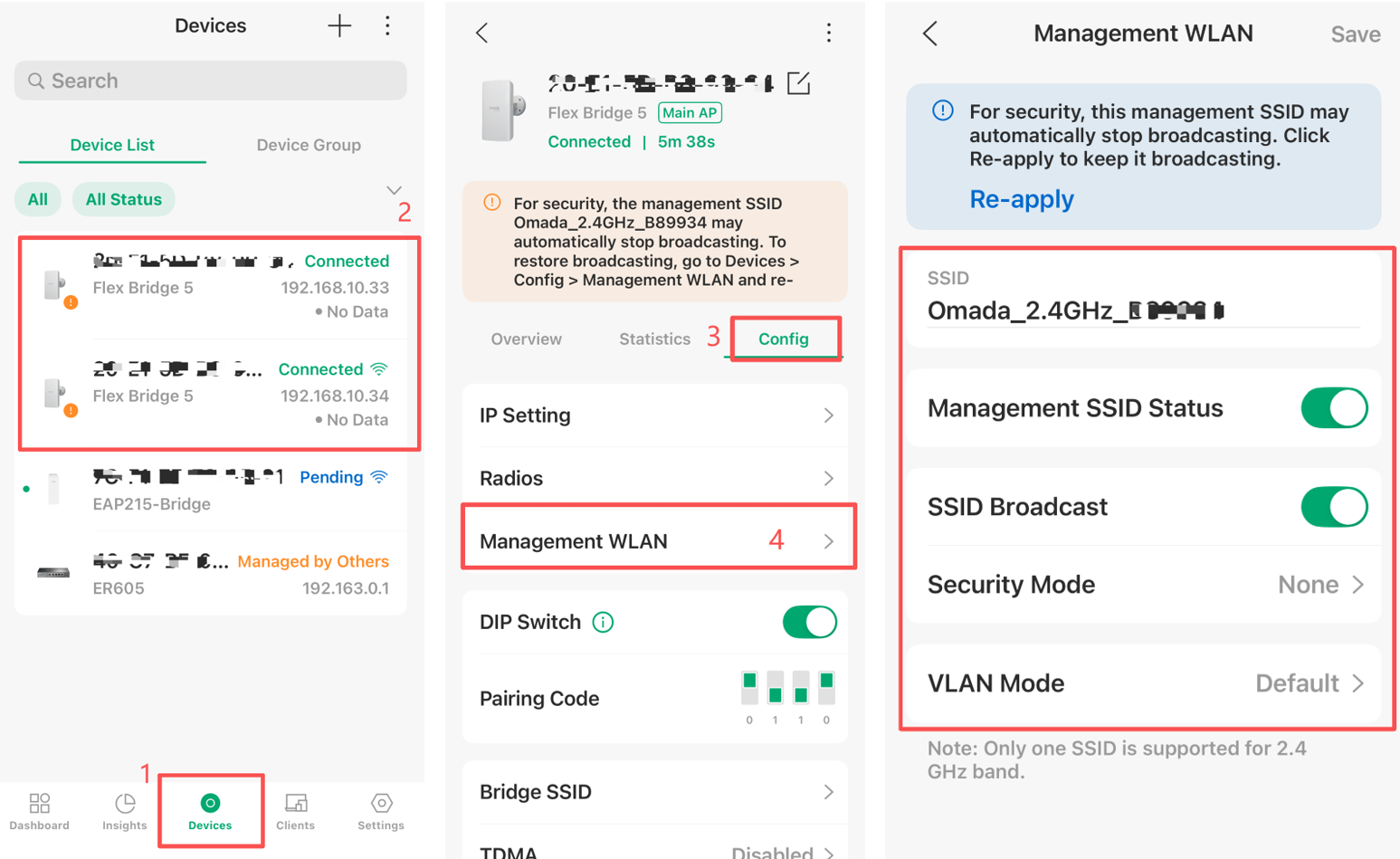
When using the Omada App, switch to Controller Mode, and open the site managed by the controller and go to the detailed page corresponding Flex/Sector Bridge 5 device. Devices > Select the Flex/Sector Bridge 5 Device > Config > Management WLAN.
On this page, you can view or modify the Management SSID settings in the same way as in the Controller Web UI. If users modify the settings or tap Re-apply, the Management WLAN settings will be resent to the device.
Where can I view the Management SSID Stop-Broadcasting Reminder?
In Omada Controller v6.3 and Omada App v5.3, reminders are displayed in several places to help users identify when the Management SSID may automatically stop broadcasting and quickly restore it when needed.
On Controller Web UI
Users can see the reminder in the following places:
- Device List
- Management WLAN configuration page
- Event Log and Device Log
1. Device List
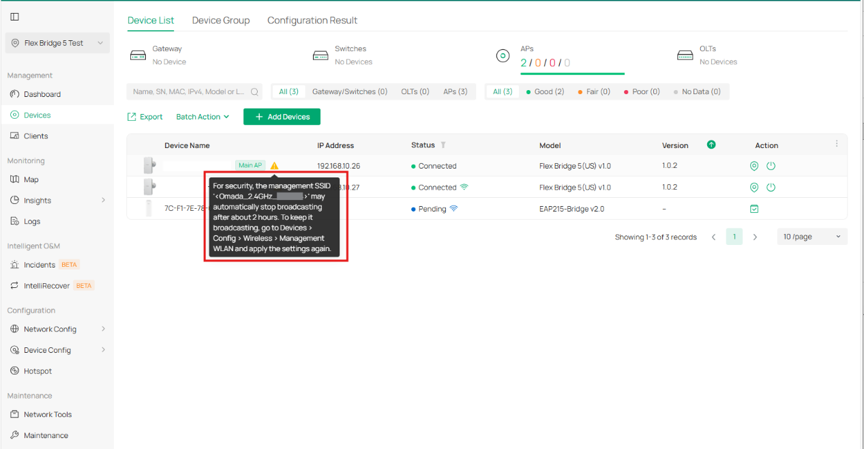
When a single-unit Flex/Sector Bridge device is adopted on the Controller v6.3 and its Management SSID may automatically stop broadcasting for security reasons, a reminder icon will be displayed in the Device List.
Users can hover over or click the icon to view more details, including the affected device, the Management SSID name, and how to keep the SSID broadcasting.
Example message:
For security, the management SSID “OMADA_2.4G_XXXX” may automatically stop broadcasting after about 2 hours. To keep it broadcasting, go to Devices > Config > Wireless > Management WLAN and apply the settings again.
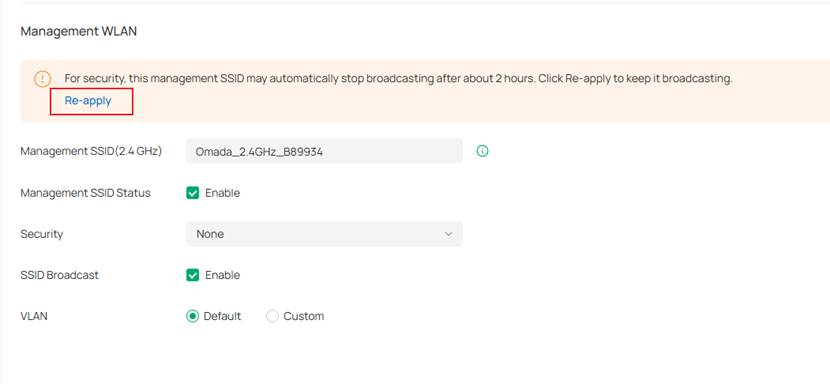
2. Management WLAN Configuration Page
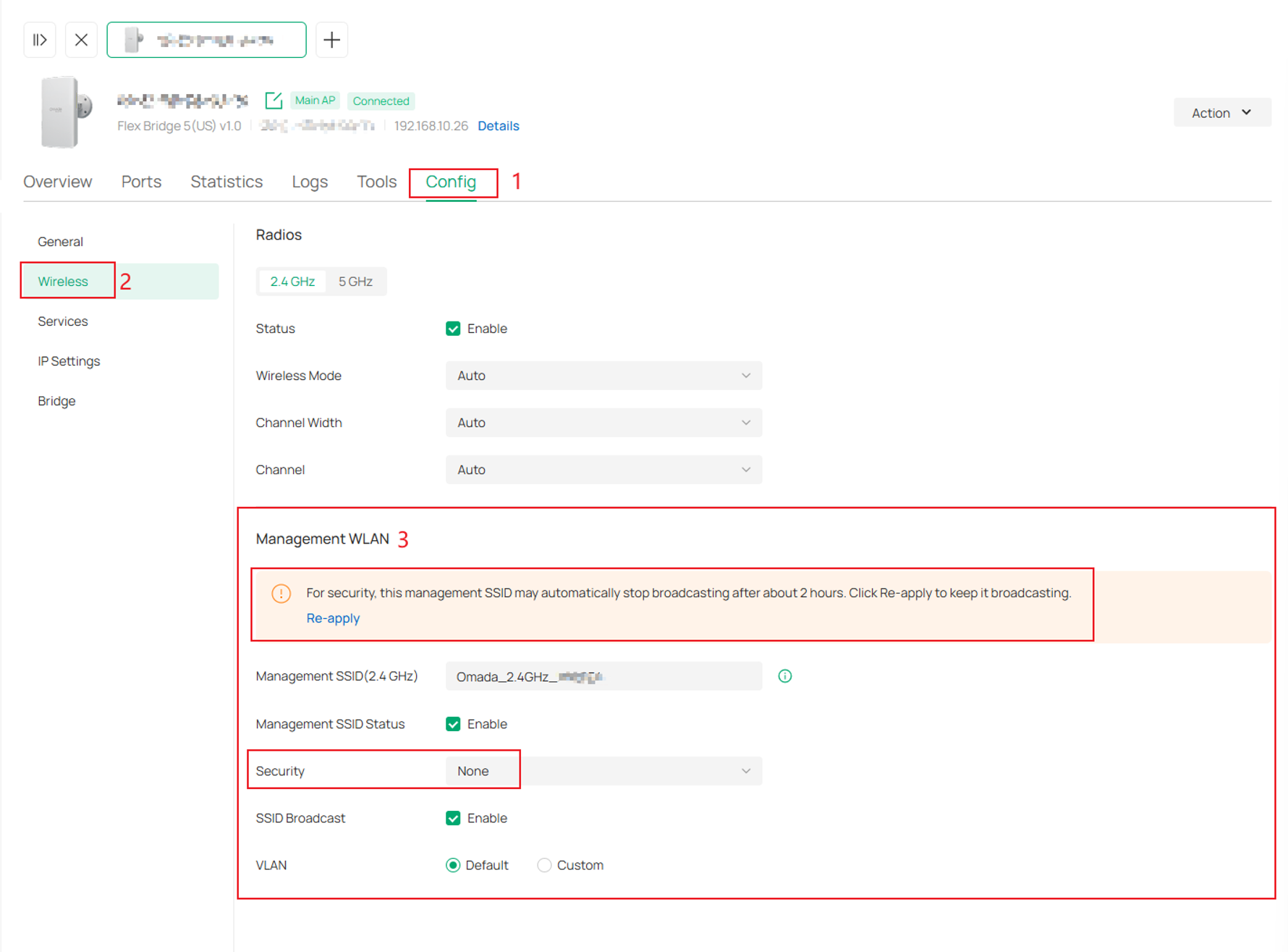
A reminder will also be displayed on the device’s Management WLAN configuration page:
Devices > Config > Wireless > Management WLAN. This reminder explains that the Management SSID may automatically stop broadcasting after about 2 hours. Users can click Re-apply to resend the Management WLAN settings and keep the SSID broadcasting.
Example message:
For security, this management SSID may automatically stop broadcasting after about 2 hours. Click Re-apply to keep it broadcasting.
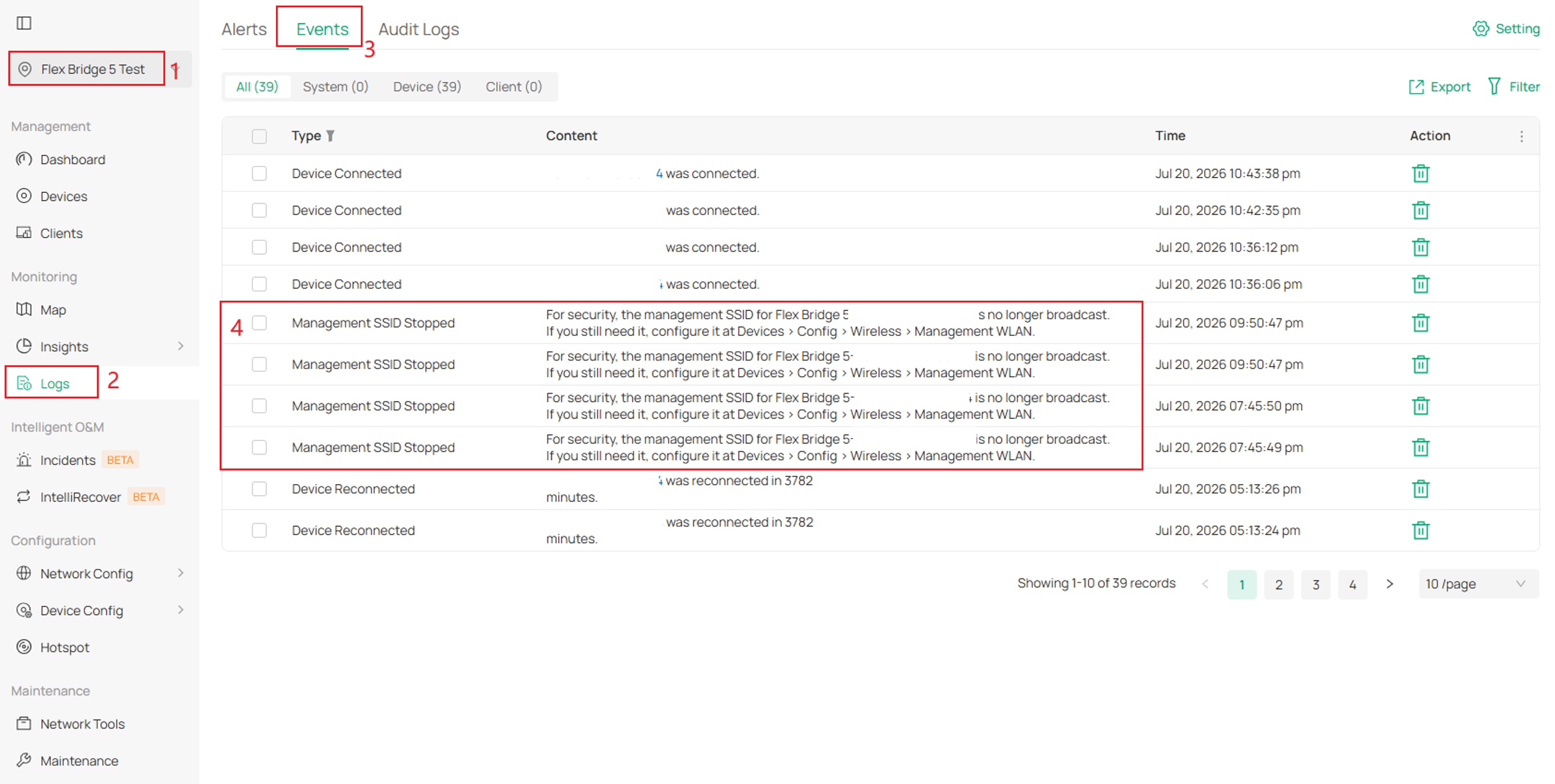
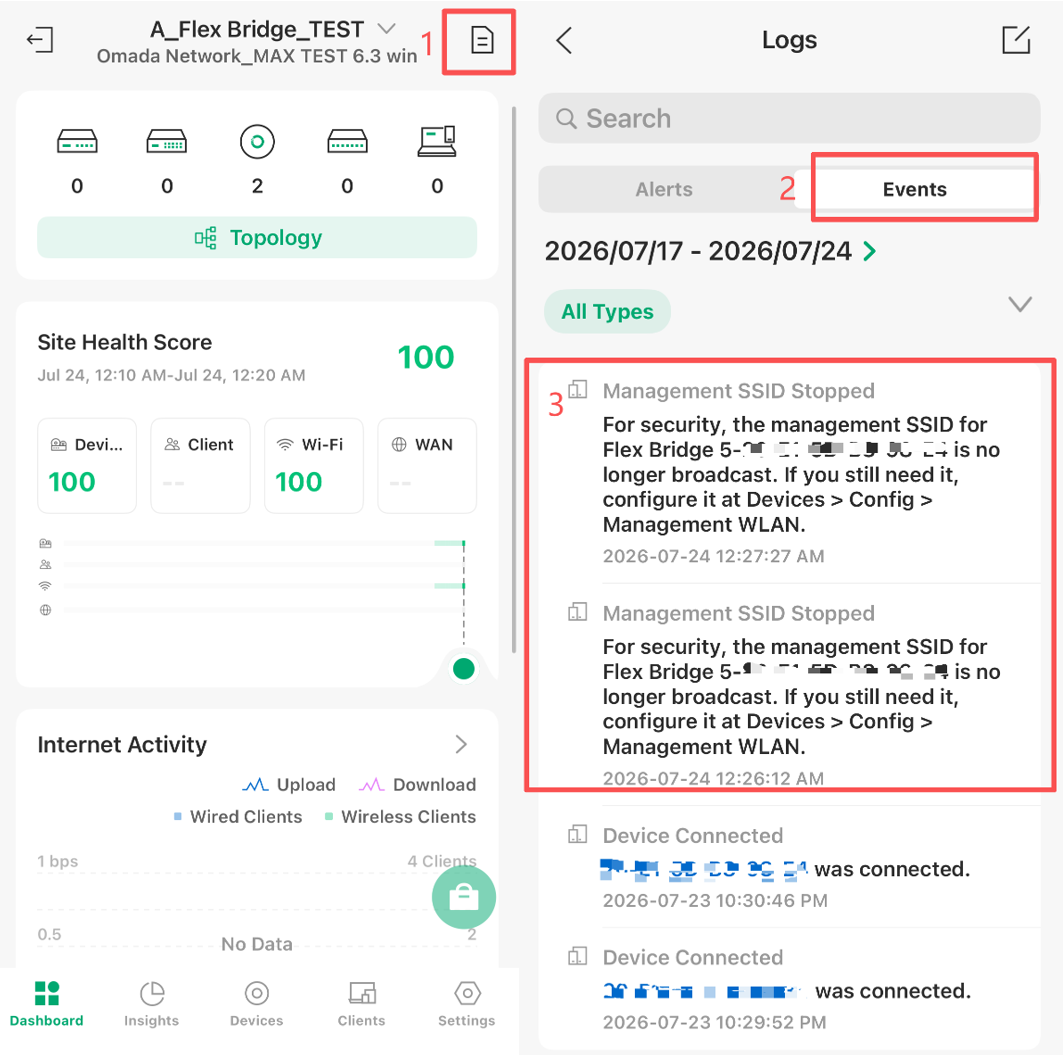
3. Event Log and Device Log
When the Management SSID stops broadcasting, related Event Log and Device Log entries will display the configuration path for recovery: Devices > Config > Wireless > Management WLAN.
Users can follow this path to manually locate the corresponding device and reapply the Management WLAN settings to restore or keep the Management SSID broadcasting.
On Omada App (Controller Mode)
When using the Omada App, users can also see related stop-broadcasting reminders in the following places:
- Device List Icon and Device Details page
- Management WLAN configuration page
- Event Log and Device Log
These reminders help users identify when the Management SSID may automatically stop broadcasting for security reasons and guide them to reapply the Management WLAN configuration.
- Device List Icon and Device Details page
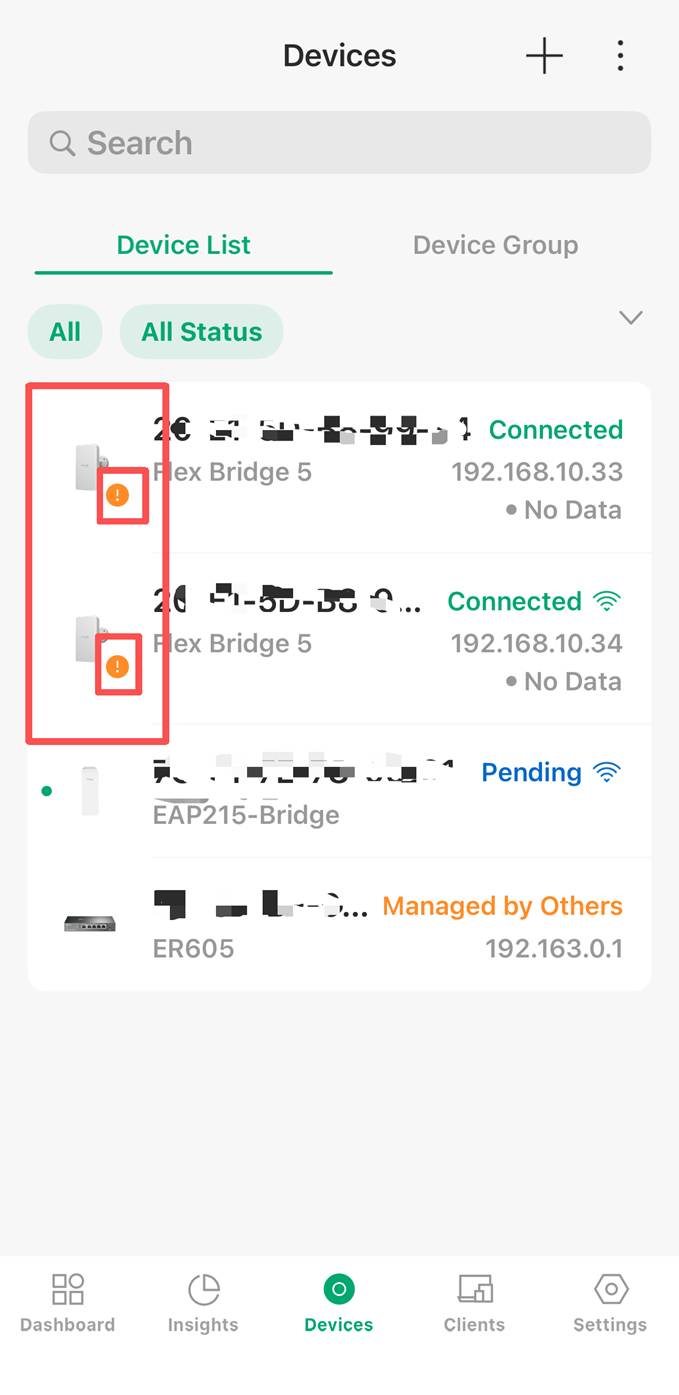
When a single-unit Flex/Sector Bridge device is adopted by the controller and matches a scenario where the Management SSID may automatically stop broadcasting, a reminder icon will be displayed next to the device name in the Device List.
This reminder is shown before the Management SSID actually stops broadcasting, so users can take action in advance instead of discovering the issue only after checking the logs.
Users can tap the device entry to open the device details page and view more information.
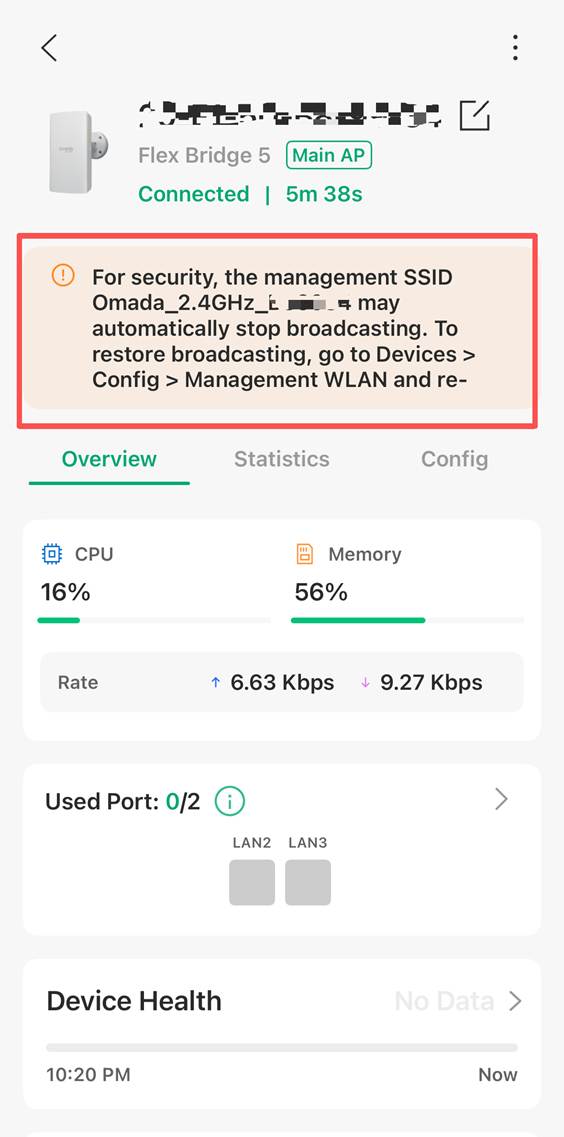
On the device details page, an information banner will be displayed when the Management SSID may automatically stop broadcasting. The banner indicates which Management SSID may be affected and provides the recovery path.
Example message:
For security, the management SSID “OMADA_2.4G_XXXX” may automatically stop broadcasting. To restore broadcasting, go to Devices > Config > Management WLAN and re-apply the configuration.
3. Management WLAN Configuration Page
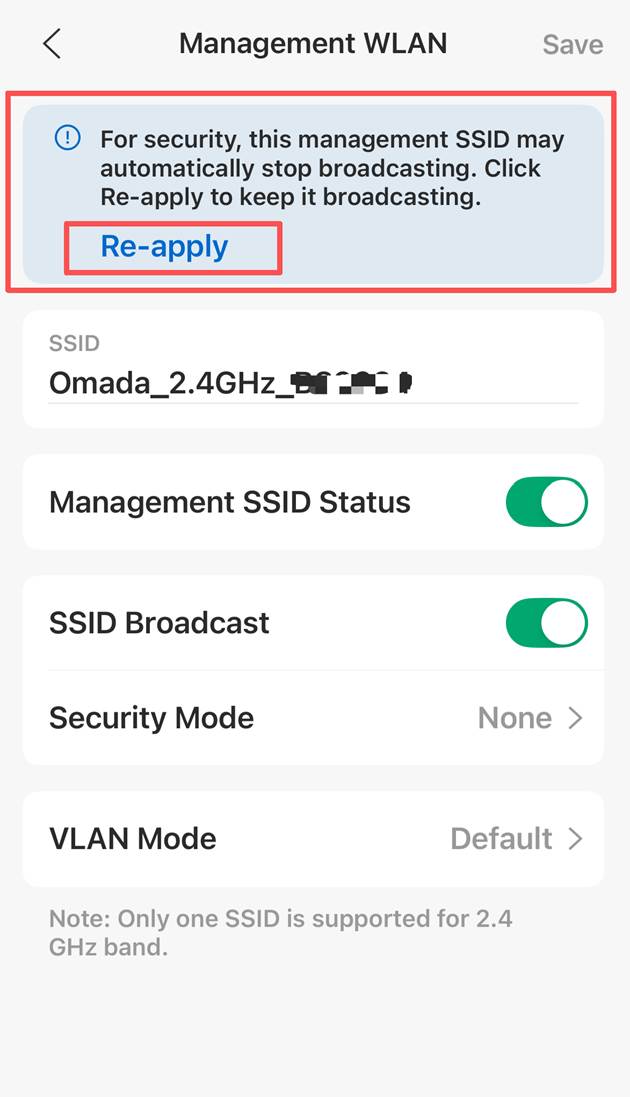
Users can go to the Management WLAN configuration page in the Omada App to restore or keep the Management SSID broadcasting.
Path: Devices > Select the Flex/Sector Bridge Device > Config > Management WLAN.
On this page, a reminder will be displayed when the Management SSID may automatically stop broadcasting for security reasons. Users can tap Re-apply to resend the current Management WLAN settings to the device without changing the existing configuration.
Example message:
For security, this management SSID may automatically stop broadcasting. Click Re-apply to keep it broadcasting.
After users tap Re-apply, or modify and save the Management WLAN settings, the Management SSID will continue broadcasting and the related stop-broadcasting reminders will disappear.
4. Event Log and Device Log
When the Management SSID stops broadcasting, related Event Log and Device Log entries will display the recovery path: Devices > Config > Management WLAN. Users can follow this path to manually locate the corresponding device and reapply the Management WLAN settings to restore or keep the Management SSID broadcasting.
What Is the Re-apply button?
The Re-apply button allows users to resend the current Management WLAN settings to the device without modifying the existing configuration.
In both the Controller Web UI and the Omada App (Controller Mode), the regular apply action is available only after users change the Management WLAN configuration.
- In the Controller v6.3, the Apply button appears only when Management WLAN configuration is changed.
- In the Omada App v5.3, the Save button in the upper-right corner is grayed out and unavailable when no configuration has been changed. It becomes available only after users modify the corresponding settings.
Therefore, if users want to keep the Management SSID broadcasting without changing any settings, they can use the Re-apply button to resend the same Management WLAN configuration to the device.
Après avoir cliqué sur « Réappliquer » , le SSID de gestion continuera d'être diffusé et ne sera plus automatiquement interrompu par le mécanisme de diffusion temporaire de 2 heures. Les alertes de risque actuelles, notamment l' icône de la liste des appareils et le rappel sur la page de configuration du réseau sans fil de gestion , disparaîtront. Les entrées existantes dans le journal des événements et le journal des appareils sont des enregistrements historiques et ne seront pas supprimées.
Comment se comporte le SSID de gestion après un redémarrage, une mise à jour du firmware ou une déconnexion du contrôleur ?
Le mécanisme de diffusion SSID de gestion temporaire peut également être affecté par le redémarrage de l'appareil, la mise à jour du firmware ou la déconnexion du contrôleur.
- Redémarrage de l'appareil
Après le redémarrage de l'appareil, le minuteur de diffusion temporaire peut être réinitialisé, le SSID de gestion n'a pas été modifié ou réappliqué, il peut diffuser à nouveau temporairement et s'arrêter après environ 2 heures.
- Mise à jour du firmware
Lors d'une mise à jour du micrologiciel, l'appareil redémarre. Par conséquent, le même comportement qu'un redémarrage normal peut se produire : le SSID de gestion peut être diffusé à nouveau temporairement, puis s'interrompre au bout de deux heures environ s'il n'a pas été réappliqué.
- Déconnexion du contrôleur
Si l'appareil détecte qu'il n'est plus géré par le contrôleur :
- Si le SSID de gestion a déjà cessé d'être diffusé, l'appareil peut le réactiver temporairement pendant environ 2 heures.
- Si le SSID de gestion est toujours diffusé, le minuteur actuel restera inchangé et ne sera pas réinitialisé.
- Après avoir réappliqué ou reconfiguré les paramètres WLAN de gestion
Une fois que l'utilisateur réapplique ou reconfigure les paramètres WLAN de gestion, le SSID de gestion ne sera pas automatiquement arrêté par le mécanisme de diffusion temporaire de 2 heures.
Comment maintenir la diffusion du SSID de gestion
Configurer via l'interface utilisateur Web du contrôleur
Pour maintenir la diffusion du SSID de gestion :
Étape 1. Accédez à Appareils > Configuration > Sans fil > Gestion WLAN .
Étape 2. Vérifiez les paramètres SSID de gestion.
Étape 3. Cliquez sur Réappliquer ou modifiez et appliquez la configuration WLAN de gestion .
Configurer via l'application Omada (mode contrôleur)
Étape 1. Accédez à Appareils > Configuration > Gestion WLAN .
Étape 2. Vérifiez les paramètres SSID de gestion.
Étape 3. Cliquez sur Réappliquer ou modifiez et appliquez la configuration WLAN de gestion .
Une fois les paramètres réappliqués, le SSID de gestion continuera d'être diffusé.
Conclusion
Omada Controller v6.3 et Omada App v5.3 ont amélioré l'expérience de gestion SSID pour les appareils Flex/Sector Bridge 5 à unité unique en fournissant des avertissements plus clairs et une récupération plus facile.
Ces améliorations aident les utilisateurs à comprendre pourquoi un SSID de gestion peut cesser d'être diffusé et comment le rétablir rapidement, tout en maintenant un comportement par défaut sécurisé pour les réseaux de gestion temporaires.
Pour en savoir plus sur chaque fonction et configuration, veuillez consulter la page d'assistance pour télécharger ou consulter le manuel de votre produit.
