


서론
웹 서버와 같이 Omada 라우터 뒤에 내부 서버를 호스팅할 때, 해당 서버를 인터넷에 노출하면 보안 위험이 발생할 수 있습니다. 이 가이드는 다른 모든 공인 IP 트래픽을 차단하면서 특정 공인 IP 주소만 내부 서버에 액세스할 수 있도록 허용하는 방법을 설명합니다.
요구 사항
- Omada 라우터
네트워크 토폴로지
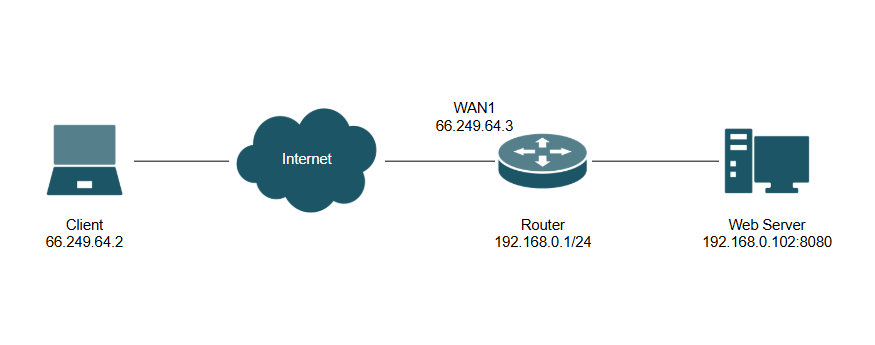
참고: 이 가이드에서는 ER605, OC200 하드웨어 컨트롤러, 그리고 포트 8080에서 실행되는 리눅스 기반 내부 웹 서버를 사용했습니다. 소프트웨어 및 클라우드 컨트롤러의 경우에도 동일한 과정을 따르십시오.
설정
독립 실행형 모드 설정
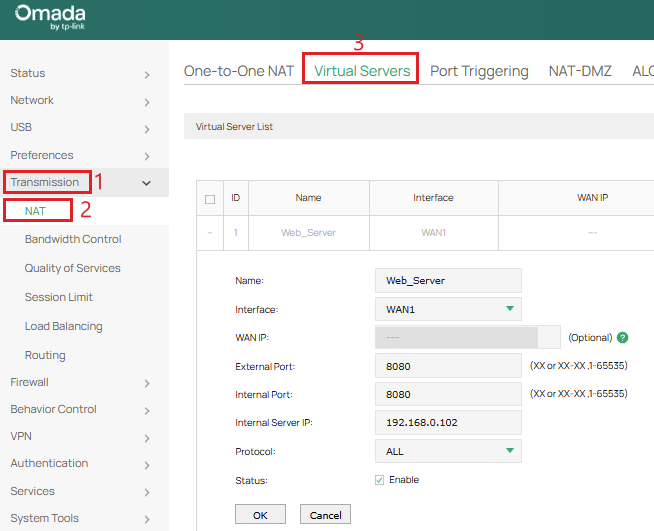
1단계. Transmission > NAT > Virtual Servers로 이동하여 내부 서버 포트를 WAN 인터페이스에 매핑합니다. 이 예시에서는 192.168.0.102:8080에 내부 웹 서버가 있습니다.
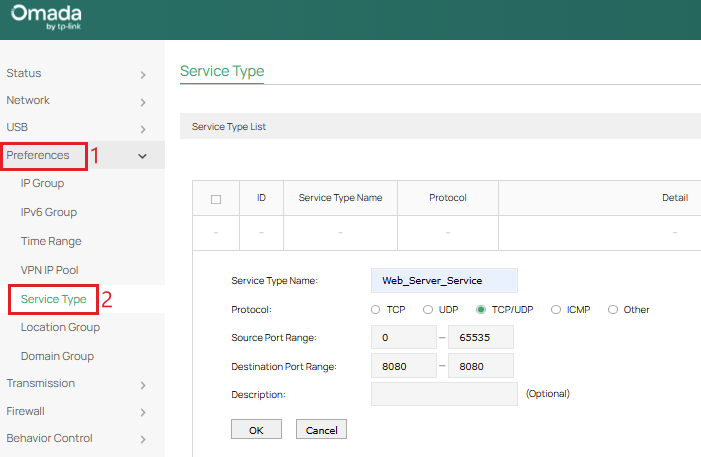
2단계. Preferences > Service Type으로 이동하여 내부 서버에서 사용하는 특정 프로토콜과 포트를 정의하는 사용자 지정 서비스 유형을 생성합니다. Source Port Range를 0-65535로 선택하고, Destination Port Range를 내부 서버에서 사용하는 포트(이 예시에서는 8080)로 설정합니다.
3단계. Preferences > IP Group > IP Address로 이동하여 대상 IP 주소를 정의합니다. 허용된 클라이언트의 외부 IP(Allowed_Client)용과 내부 서버의 로컬 IP(Internal_Server)용, 총 2개의 IP 주소를 생성합니다.
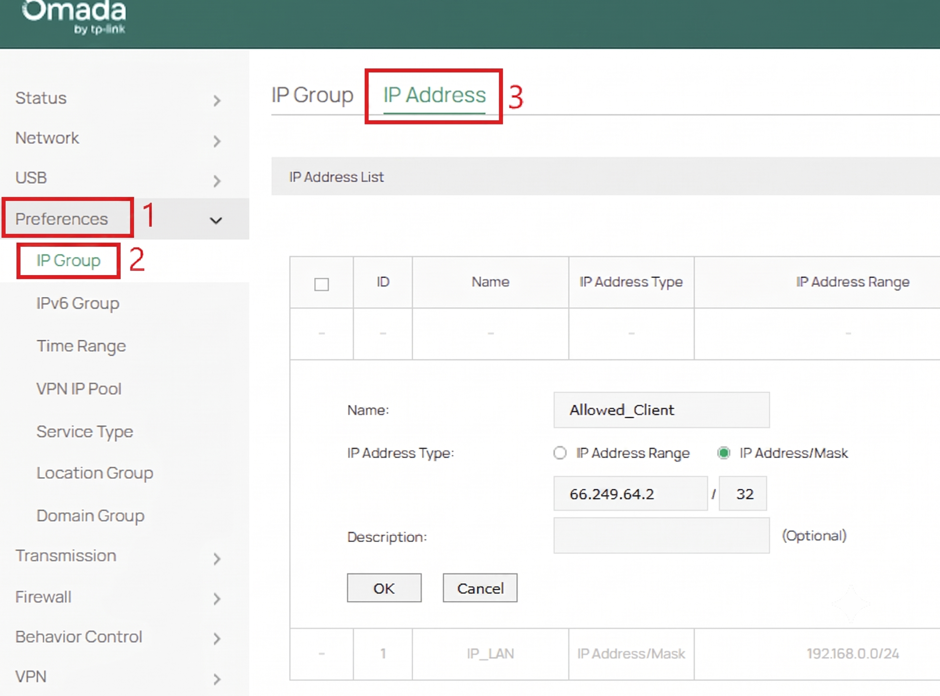
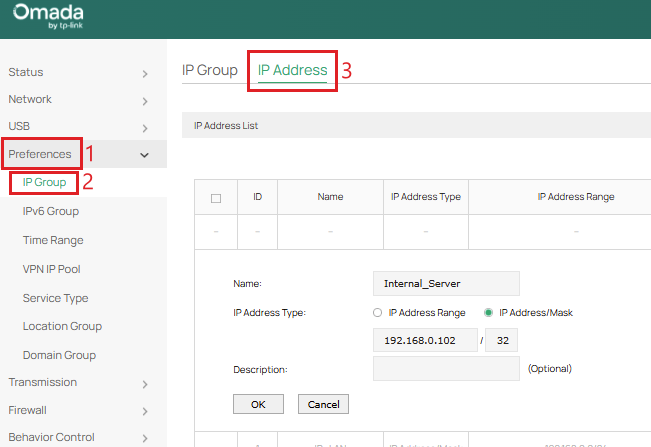
참고: 외부 클라이언트와 내부 서버의 IP 주소가 변경되지 않도록 정적 IP로 설정하거나 DHCP 예약을 설정해야 합니다.
4단계. Preferences > IP Group > IP Group으로 이동하여 앞서 생성한 각 IP 주소에 해당하는 2개의 IP 그룹을 생성합니다.
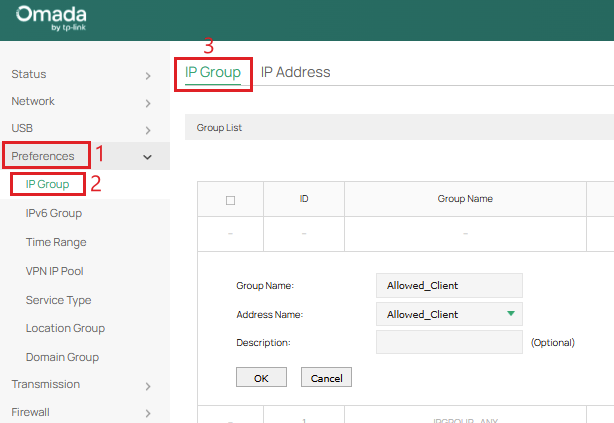
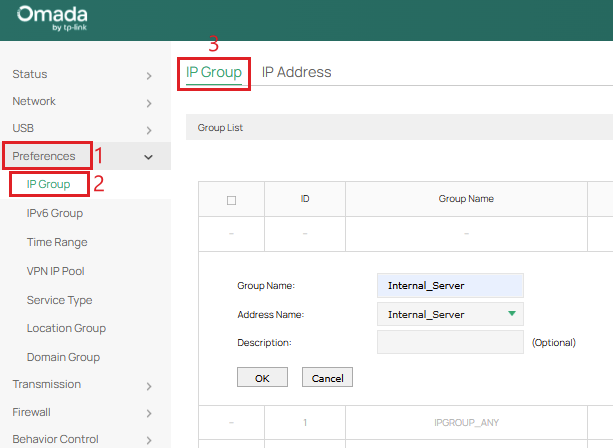
5단계. Firewall > Access Control로 이동하여 2개의 방화벽 정책을 생성합니다. 먼저, ID가 1인 각 “WAN IN” 인터페이스에서 생성된 서비스 유형을 사용하여, 출발지 “Allowed_Client” IP 그룹을 목적지 “Internal_Server” IP 그룹에 매핑하는 허용 규칙을 생성합니다.
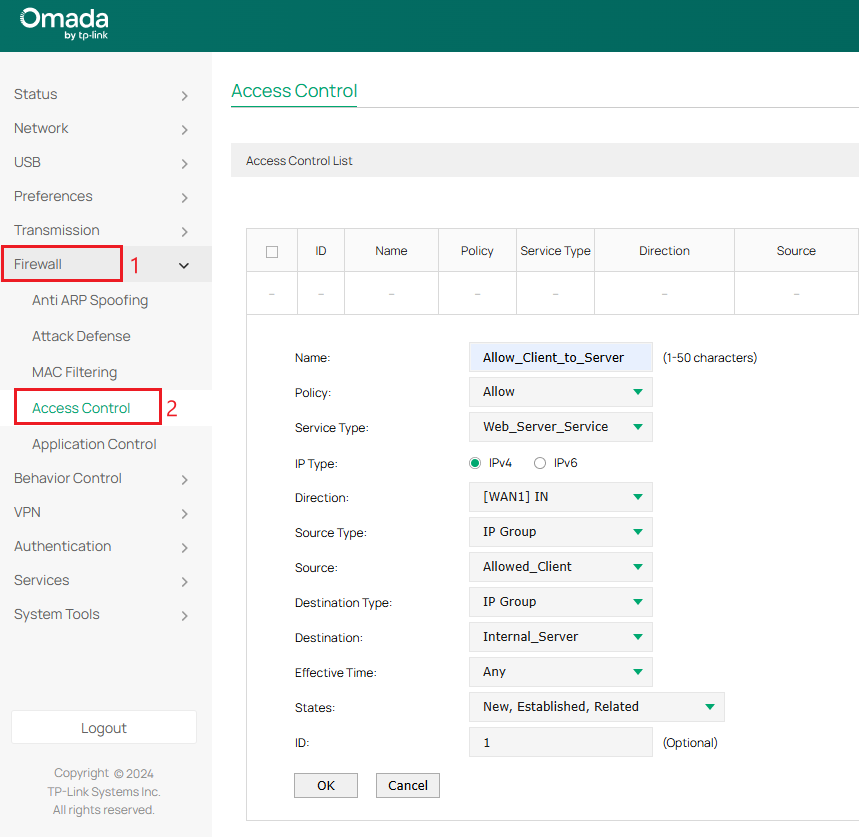
다음으로, ID가 2인 각 “WAN IN” 인터페이스에서 생성된 서비스 유형을 사용하여, 출발지 “IPGROUP_ANY” IP 그룹을 목적지 “Internal_Server” IP 그룹에 매핑하는 차단 규칙을 생성합니다.
참고: 컨트롤러 모드에서는 “서비스 유형(Service Type)”이 “프로토콜(Protocols)”로 대체되었습니다.
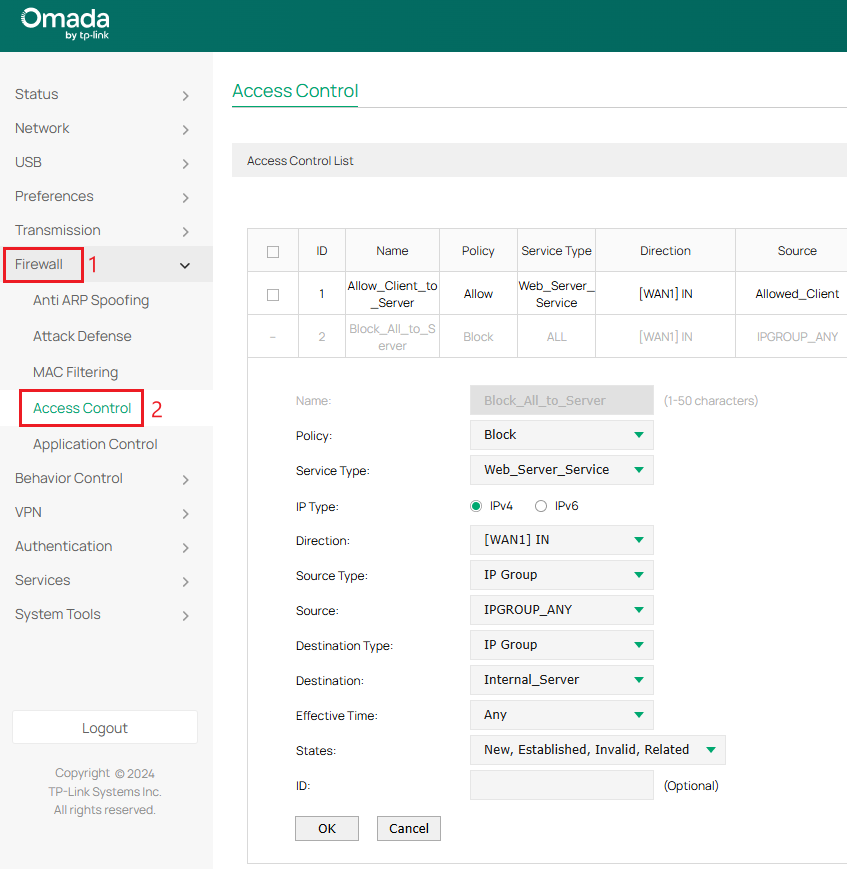
참고: ACL 규칙은 ID 번호가 가장 낮은 것부터 가장 높은 순서로 순차적으로 처리됩니다. 따라서 허용 규칙이 차단 규칙보다 앞에 와야 합니다.
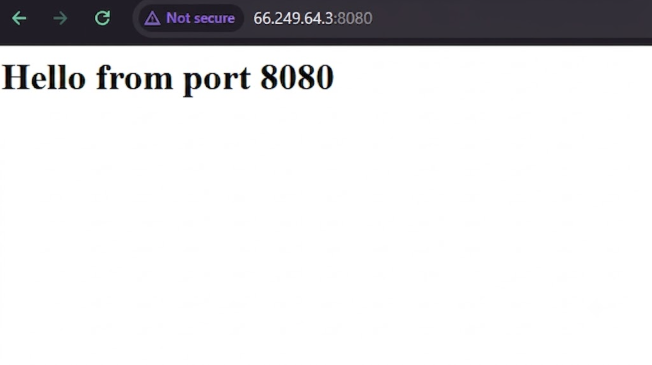
6단계. 외부 클라이언트(66.249.64.2)만 내부 서버(192.168.0.102:8080)에 접근할 수 있는지 확인합니다. 이를 위해 WAN 포트 IP 주소에 내부 서버의 올바른 포트(66.249.64.3:8080)를 지정하여 접속해 보십시오.
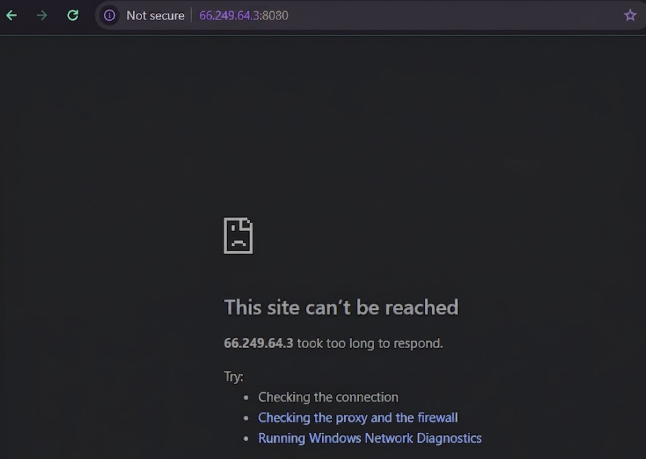
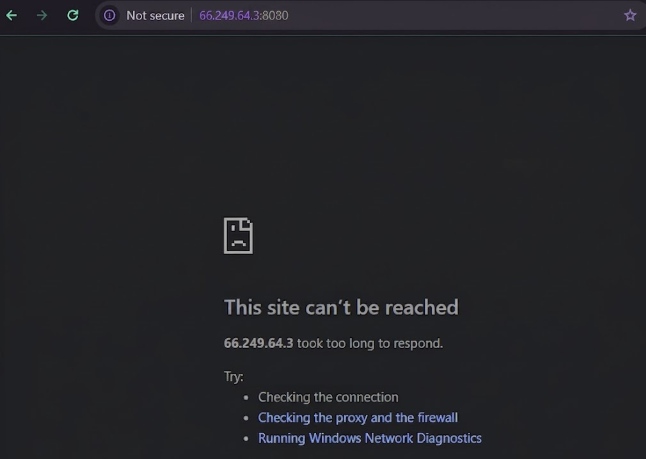
외부 클라이언트의 IP 주소가 다른 주소(66.249.64.4)로 변경되면, ACL 규칙이 66.249.64.2만 허용하므로 더 이상 내부 서버에 접속할 수 없습니다:
컨트롤러 모드 설정
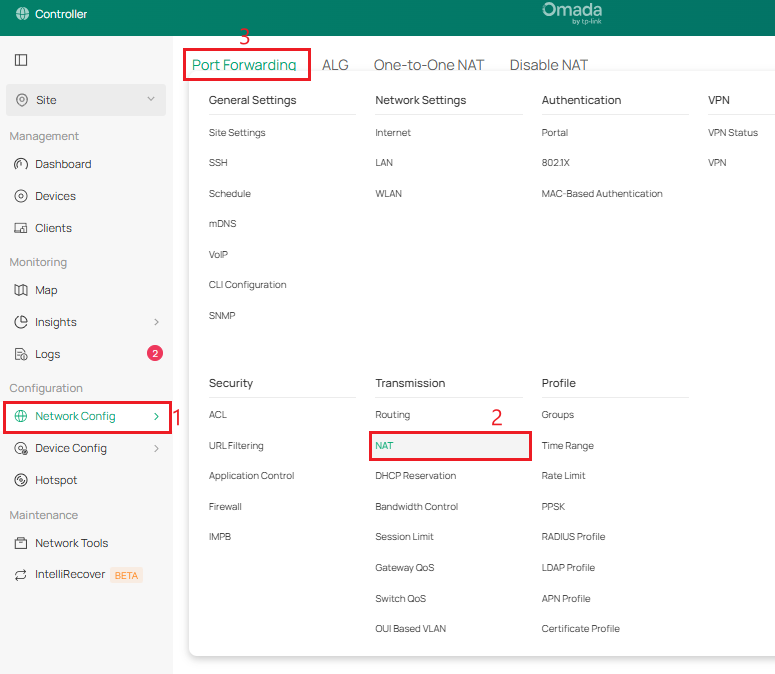
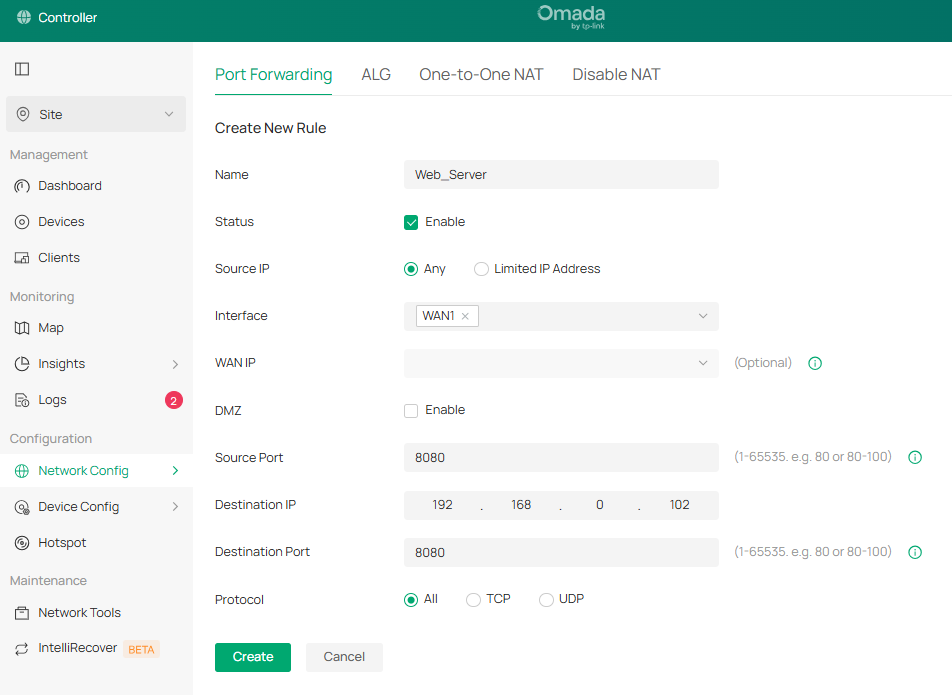
1단계. 네트워크 설정 > 전송 > NAT > 포트 포워딩으로 이동하여 내부 서버 포트를 WAN 인터페이스에 매핑합니다. 이 예시에서는 192.168.0.102:8080에 내부 웹 서버가 있습니다.
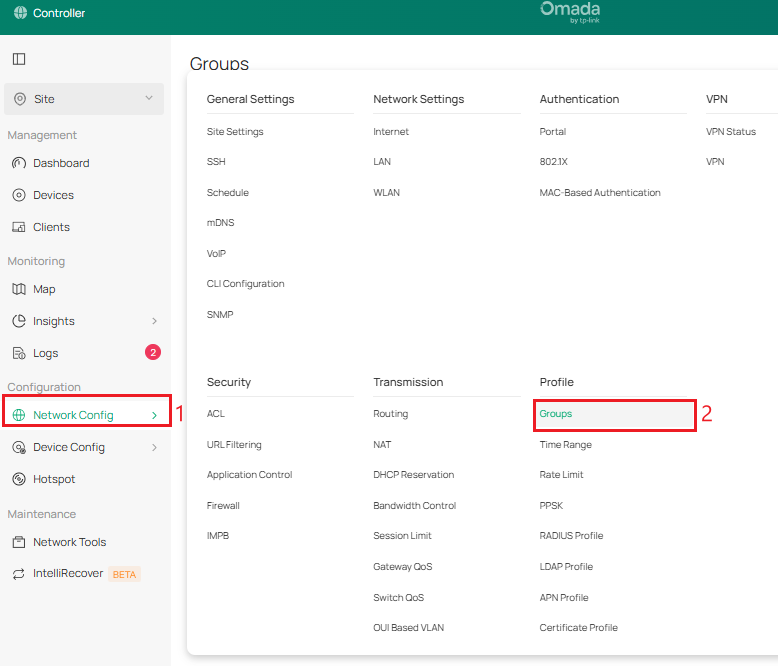
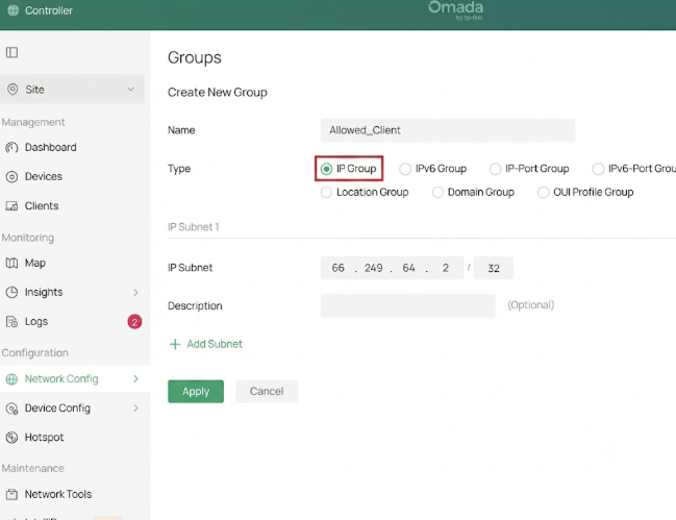
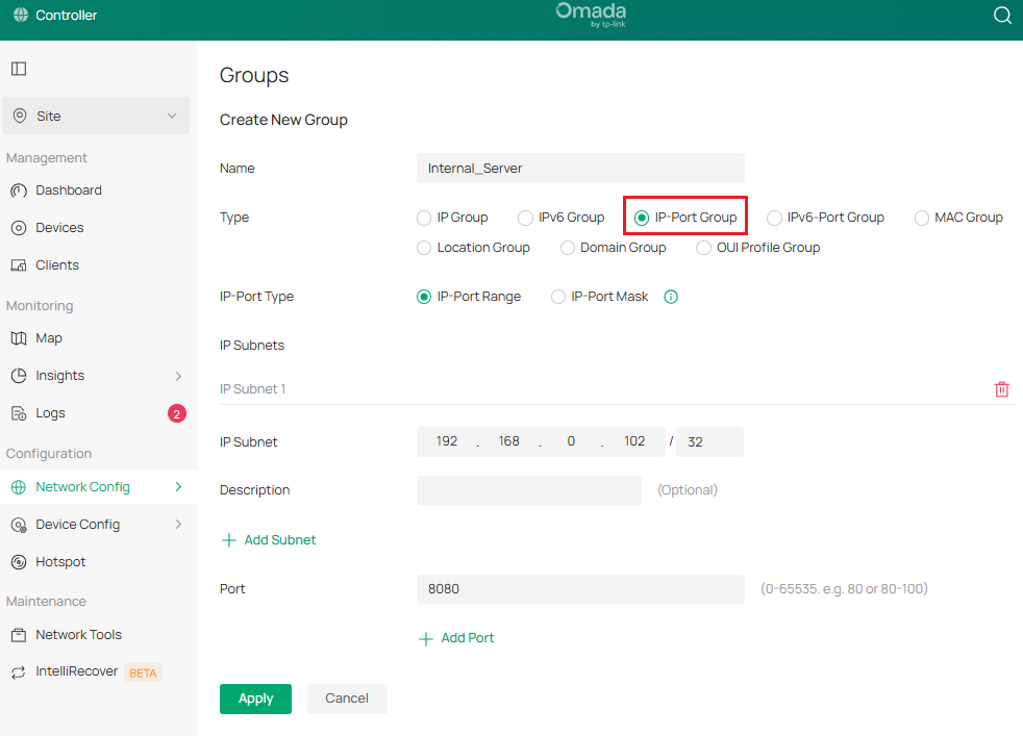
2단계. 네트워크 설정 > 그룹으로 이동하여 외부 클라이언트(66.249.64.2)용 IP 그룹과 내부 웹 서버(192.168.0.102:8080)용 IP-포트 그룹을 생성합니다.
참고: 외부 클라이언트와 내부 서버의 IP 주소가 변경되지 않도록 고정 IP로 설정하거나 DHCP 예약을 설정해야 합니다.
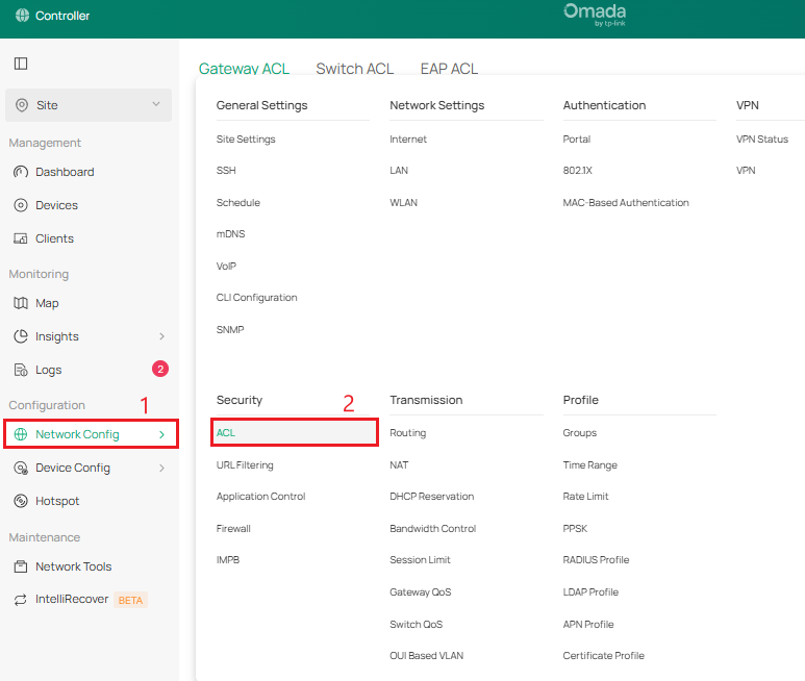
3단계. 네트워크 설정 > ACL > 게이트웨이 ACL로 이동하여 2개의 방화벽 정책을 생성합니다.
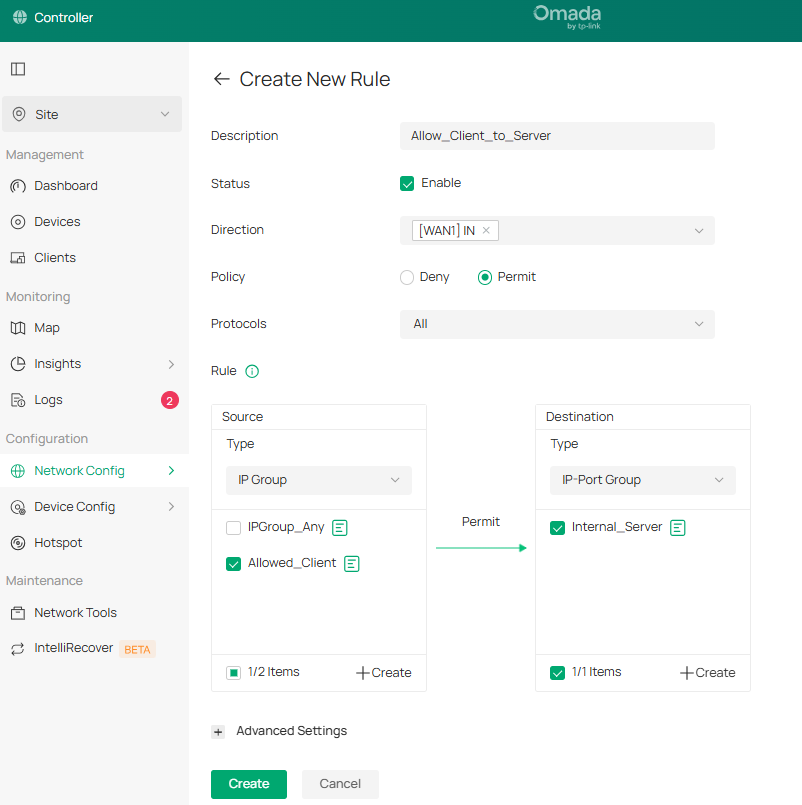
먼저, “모든” 프로토콜에 대해 해당 “WAN IN” 인터페이스에서 출발지 “Allowed_Client” IP 그룹을 목적지 “Internal_Server” IP-포트 그룹에 매핑하는 허용(Permit) 규칙을 생성합니다.
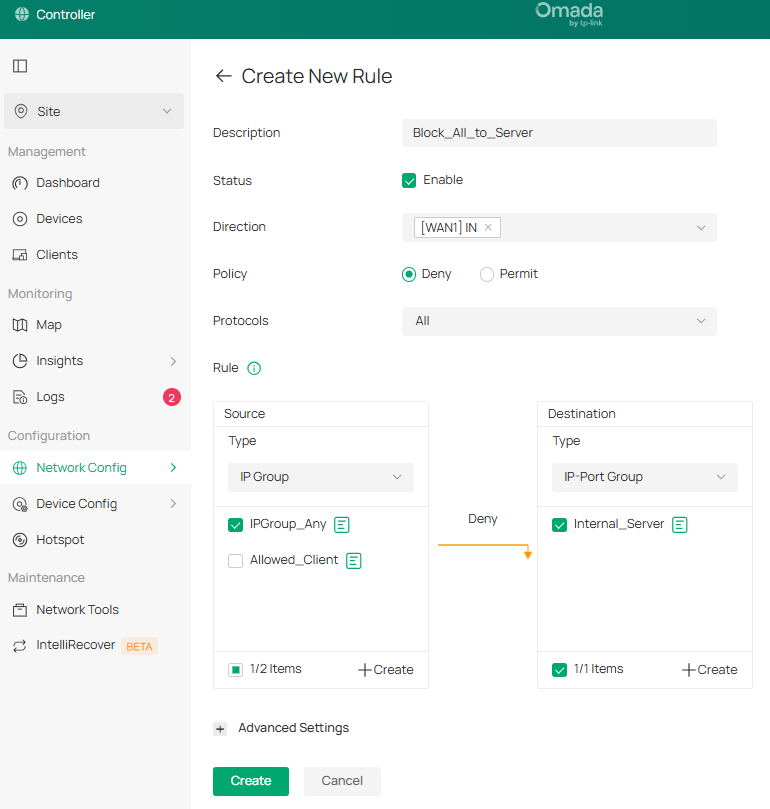
다음으로, 각 “WAN IN” 인터페이스에서 출발지 “IPGROUP_ANY” IP 그룹을 목적지 “Internal_Server” IP-포트 그룹에 매핑하는 차단(Deny) 규칙을 생성합니다. 완전한 격리를 위해 “모든” IP 프로토콜을 선택합니다.
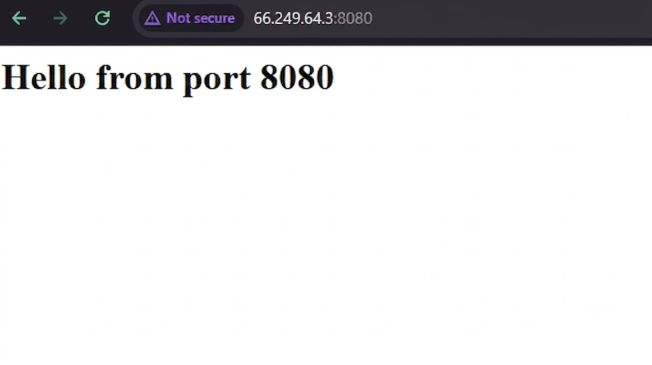
4단계. 외부 클라이언트(66.249.64.2)만이 내부 서버(192.168.0.102:8080)에만 접근할 수 있는지 확인합니다. 이를 위해 내부 서버의 올바른 포트(66.249.64.3:8080)를 사용하여 WAN 포트 IP 주소에 접속해 봅니다.
외부 클라이언트의 IP 주소가 다른 주소(66.249.64.4)로 변경되면, ACL 규칙이 외부 클라이언트 66.249.64.2만 허용하므로 더 이상 내부 서버에 접속할 수 없습니다:
결론
특정 공인 IP 주소가 내부 서버에 접속할 수 있도록 성공적으로 허용했습니다.
질문과 답변
Q1: 컨트롤러 모드에서 IP-포트 그룹 대신 IP 그룹을 사용하면 어떻게 됩니까?
A1: 일반 IP 그룹을 사용하는 경우, ACL 규칙은 내부 서버에 사용되는 포트를 분리하는 대신 해당 호스트의 모든 포트를 대상으로 합니다.
Q2: 외부 클라이언트가 갑자기 내부 서버에 접속할 수 없게 되면 어떻게 해야 합니까?
A2: 외부 클라이언트의 공인 IP 주소가 변경되었는지, 아니면 동적으로 설정되어 있는지 확인하십시오. IP 주소는 IP 프로필로 설정된 주소와 일치해야 합니다.
각 기능 및 설정에 대한 자세한 내용을 확인하시려면 지원 홈페이지로 이동하여 해당 제품의 설명서를 다운로드하시기 바랍니다.
이 문서에는 기계 번역이 적용되었으며, 정확한 내용을 확인하려면 원본 영문 문서를 참고하시기 바랍니다.
