


Contents
Introduction
LLDP (Link Layer Discovery Protocol) is a standardized Layer 2 protocol that enables network devices to automatically discover and share information about their directly connected neighbors. By exchanging details such as device identity, port information, system capabilities, and management addresses, LLDP helps network administrators map network topologies, troubleshoot connectivity issues, and facilitate automated configurations. It operates in a vendor-neutral manner, making it compatible across devices from different manufacturers, and is particularly useful for maintaining visibility and managing local area networks (LANs) efficiently.
This post provides a guide on where to configure LLDP for Omada Gateway via Omada Controller.
Requirements
- Omada Gateway
- Omada Software/Hardware/Cloud-Based Controller V6.2 and above
- PC with Wireshark
Note: Topology detection may not work correctly when the Gateway is running legacy firmware that does not support LLDP (including ER7206 V1.0, which has reached End of Life and no longer receives firmware support). For supported models, updating the Gateway to the latest firmware is recommended to ensure proper topology recognition.
Configuration
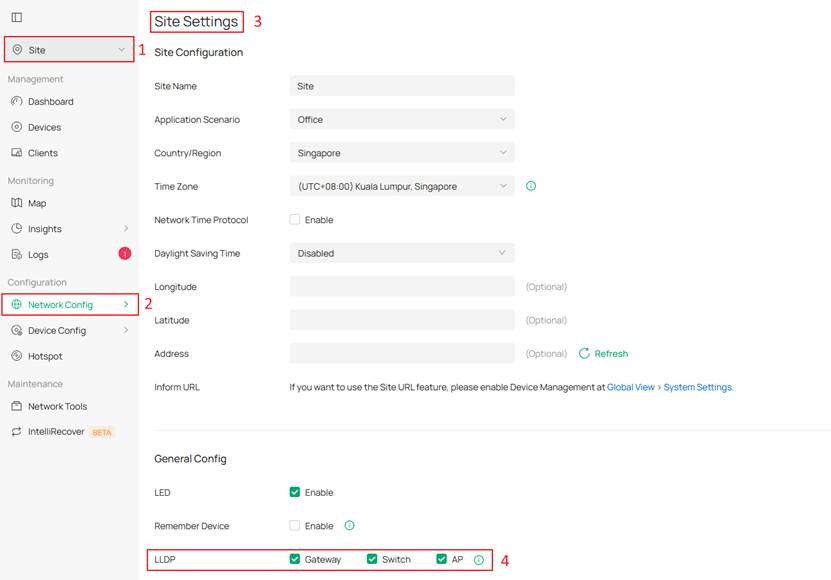
Step 1. Go to Site View > Network Config > Site Settings > General Config. By default, the gateway uses the Site Configuration defined here.
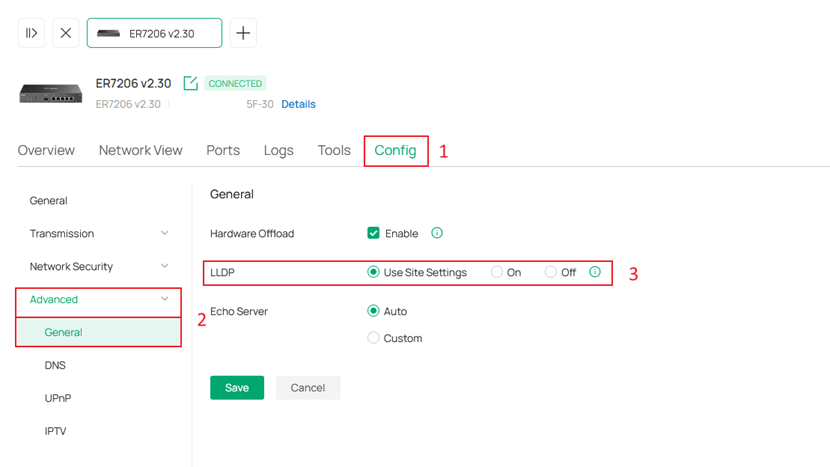
Step 2. Go to Site View > Device > click the Gateway name to open the side tab > Manage Device > Config > Advanced > General. You can check here whether the Gateway is using the Site Configuration.
Verification
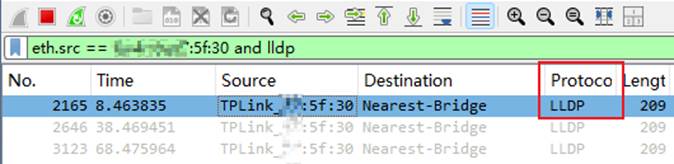
You can use Wireshark to verify the Gateway’s LLDP status.
Step 1. Connect your PC directly to a LAN port on the Gateway.
Direct connection is required to ensure LLDP frames from the Gateway can be captured.
Step 2. Open Wireshark and start capturing traffic to check for LLDP frame.
Conclusion
You have successfully configure LLDP on Omada Gateway.
Get to know more details of each function and configuration please go to Download Center to download the manual of your product.
