


How to Configure Link Backup on Omada Gateway via Omada Controller


Content
Introduction
Many business networks use two or more Internet Service Providers (ISPs) to improve Internet availability. By enabling Link Backup on an Omada Gateway, the gateway can automatically redirect new traffic sessions from the primary WAN to a designated backup WAN when the primary Internet connection becomes unavailable. This helps minimize network interruptions and maintain Internet connectivity for connected users.
This article explains how to configure the Link Backup feature on an Omada Gateway through the Omada Controller, using the ER706W as an example.
Requirements
- Omada Gateway (ER706W used as an example)
- Omada Controller v6 or later (Software, Hardware, or Cloud-Based Controller)
Configuration
The following example demonstrates how to configure Link Backup on an Omada Gateway with two WAN connections.
In this example:
- ISP1 is connected to the WAN2 port and uses a fixed monthly Internet plan.
- ISP2 is connected to the WAN/LAN3 port and is billed based on usage.
To minimize Internet costs while maintaining network availability, WAN2 is configured as the primary WAN and WAN/LAN3 as the backup WAN. When the primary WAN connection becomes unavailable, the gateway automatically redirects new traffic sessions to the backup WAN.
Configure Link Backup by following these steps:
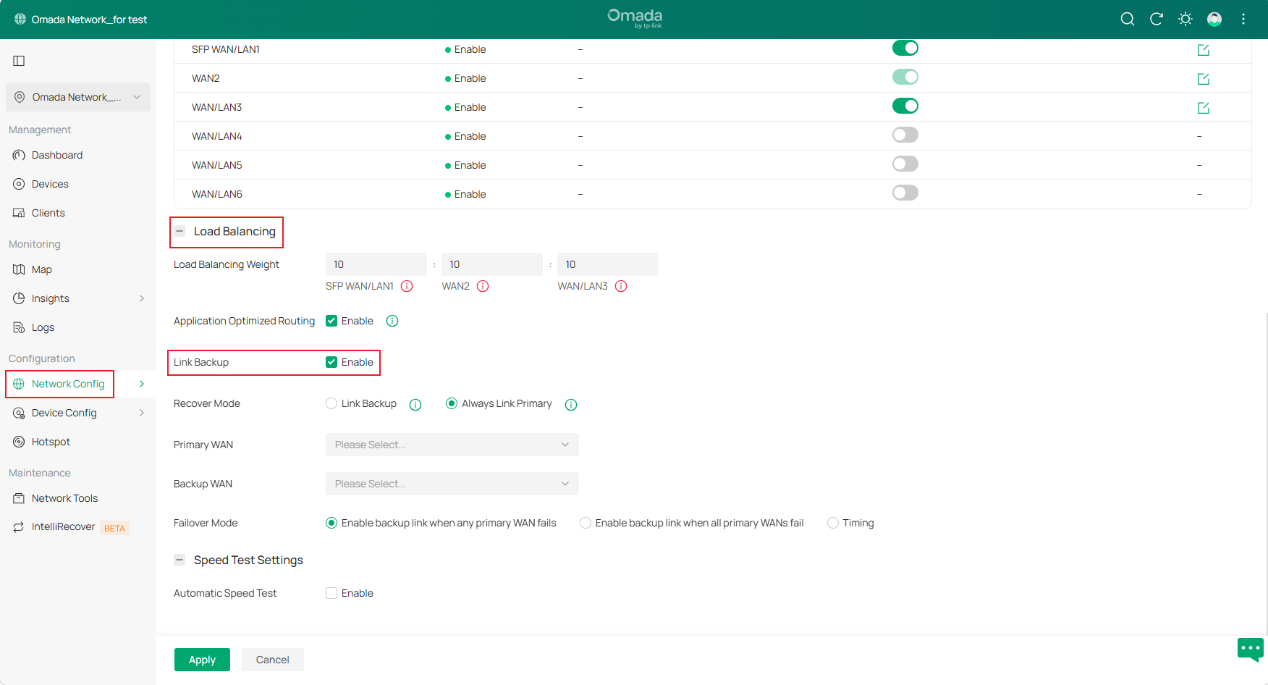
Step 1. Log in to the Controller via web browser, in the site view, go to Network Config > Network Settings > Internet > Load Balancing, and Enable the Link Backup.
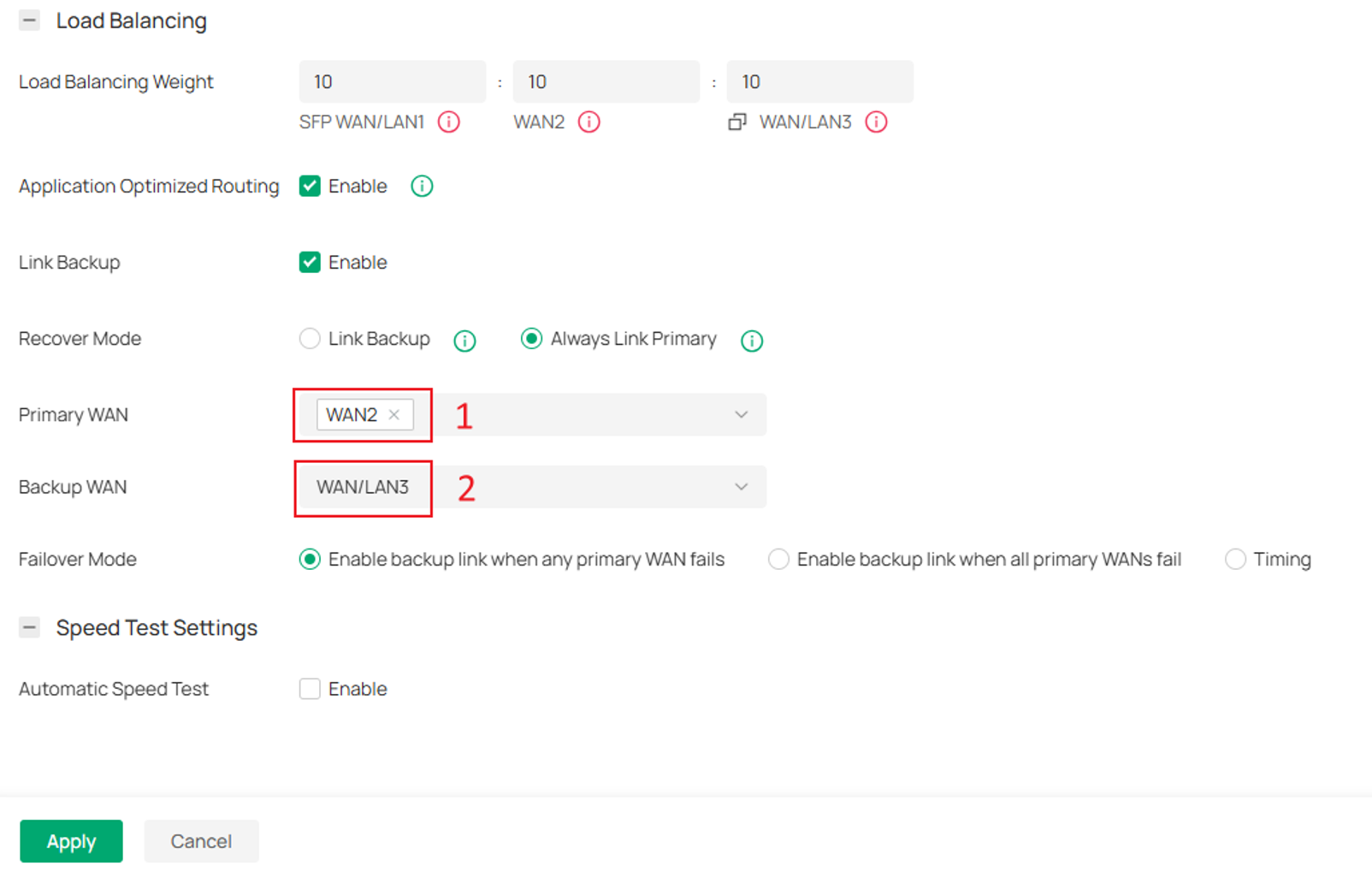
Step 2. Select the Primary WAN and Backup WAN. In this example, select WAN2 as the Primary WAN and WAN/LAN3 as the Backup WAN
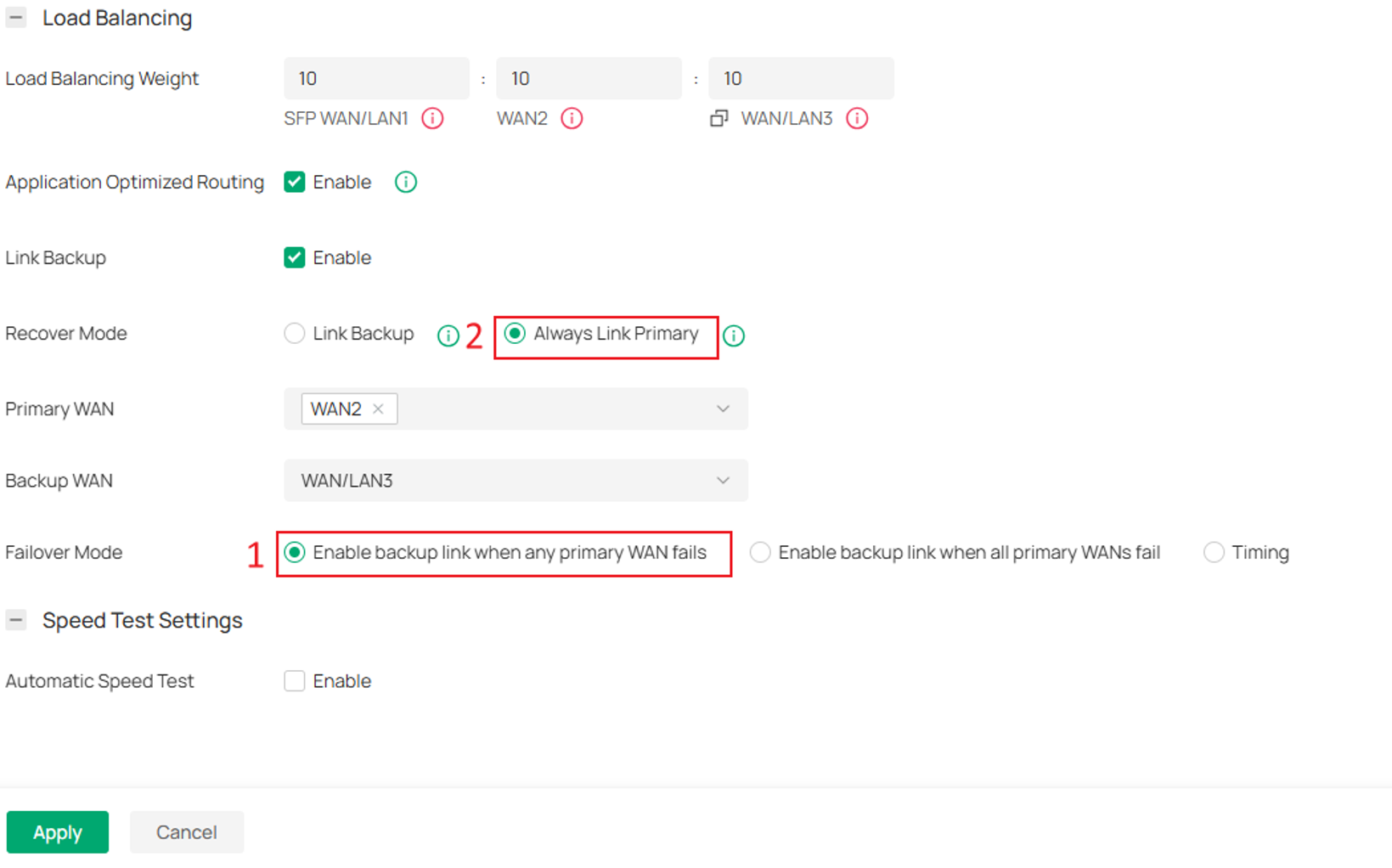
Step 3. Configure the Recover Mode and Failover Mode based on your network requirements. In this example, set Recover Mode to Always Link Primary and Failover Mode to Enable backup link when any primary WAN fails.
Recover Mode
The following Recover Mode options are available:
- Always Link Primary (Default): Traffic is forwarded through the primary WAN whenever it is available. If the primary WAN fails, traffic is redirected to the backup WAN. When the primary WAN recovers, traffic automatically switches back to the primary WAN.
- Link Backup: When the primary WAN fails, traffic is redirected to the backup WAN. Even after the primary WAN recovers, traffic continues to use the backup WAN until the backup WAN becomes unavailable.
Recommendation: For most deployments, Always Link Primary (default) is recommended.
Failover Mode
The following Failover Mode options are available:
- Enable backup link when any primary WAN fails (Default): Link Backup is activated when any configured primary WAN becomes unavailable.
- Enable backup link when all primary WANs fail: Link Backup is activated only after all configured primary WANs become unavailable.
- Timing: Link Backup is activated during the specified time period. When the configured time begins, traffic is redirected to the backup WAN. When the time period ends, traffic switches back to the primary WAN.
Step 4. Configure Echo Server (optional)
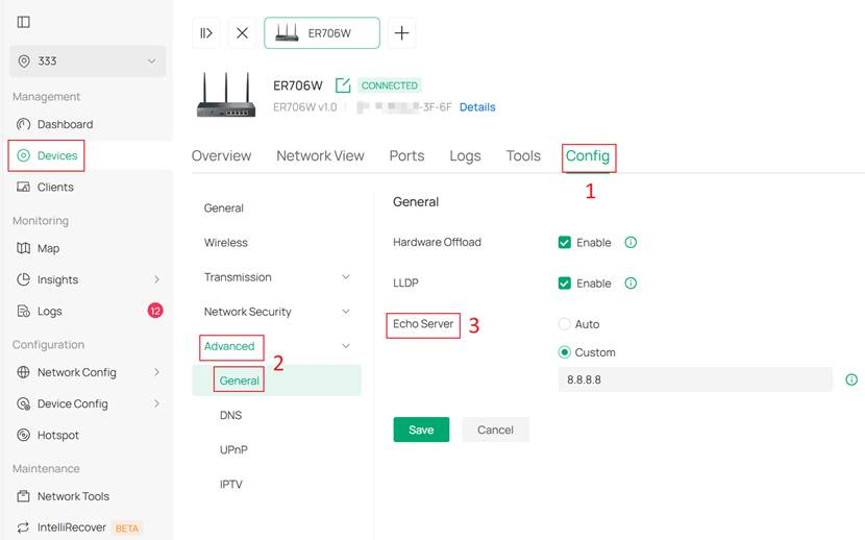
The Link Backup function relies on online detection results to determine the availability of WAN connections. The Echo Server helps verify WAN connectivity by continuously sending ping requests to the specified IP address or hostname. The system uses these results to determine whether the WAN port is online.
To configure the Echo Server, access the gateway's local management interface, go to Config > Advanced > General, and locate Echo Server. By default, Auto is selected, and the gateway uses multiple built-in public domain names for WAN connectivity detection. Alternatively, select Custom and enter 8.8.8.8 or another preferred IP address or hostname.
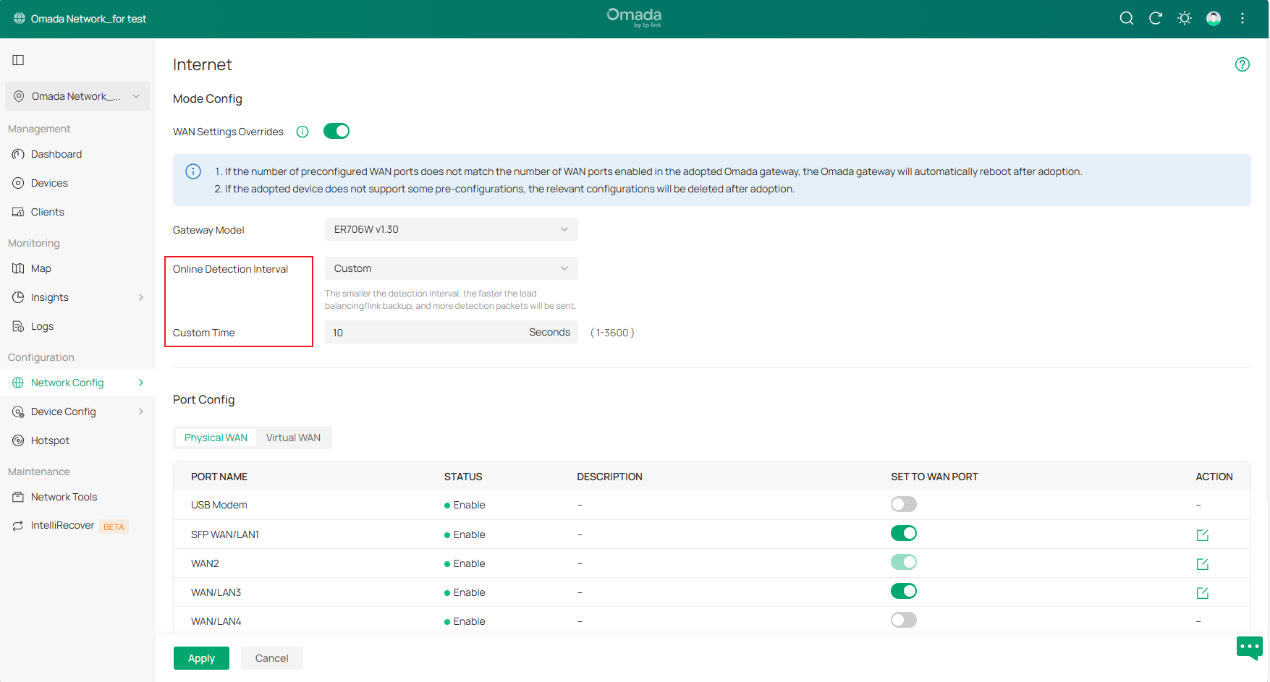
Step 5. Configure Online Detection Interval (optional)
Go to Network Config > Network Settings > Internet > WAN Mode to configure the Online Detection Interval.
This setting determines how frequently the gateway performs ping tests to verify WAN connectivity.
Verification
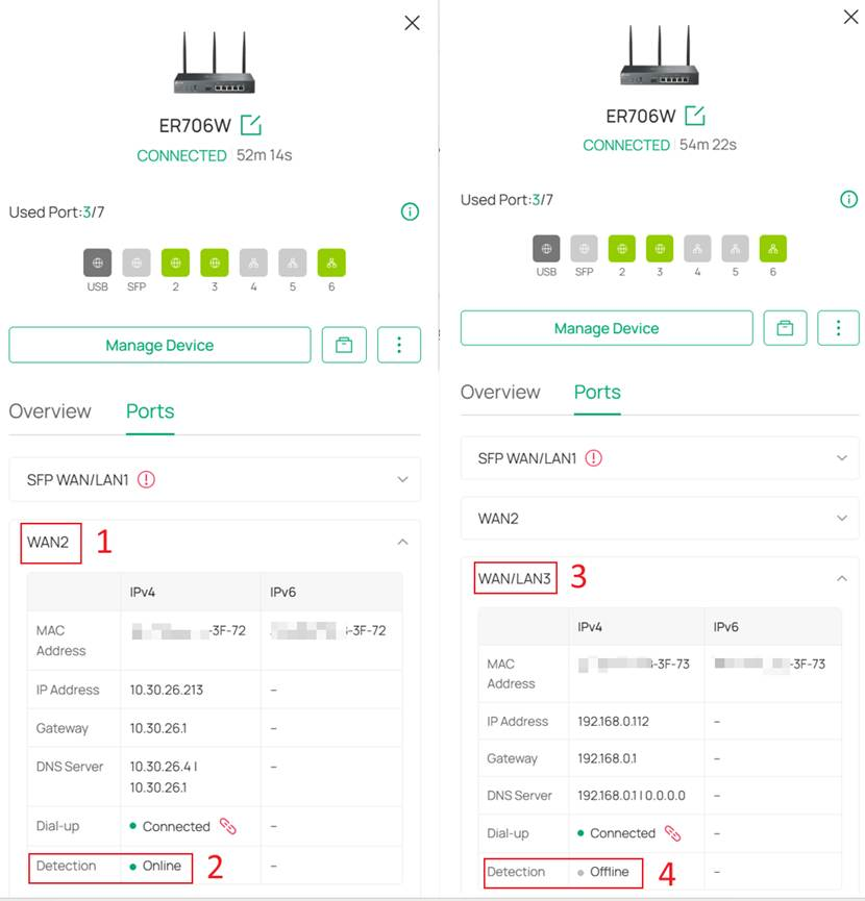
Step 1. Access the gateway's local management interface and go to the Ports tab to view the online status of each WAN port.
Before configuring Link Backup, both WAN ports are online. After Link Backup is enabled, only the Primary WAN remains active, while the Backup WAN is reserved and will become active only when the Primary WAN connection fails.
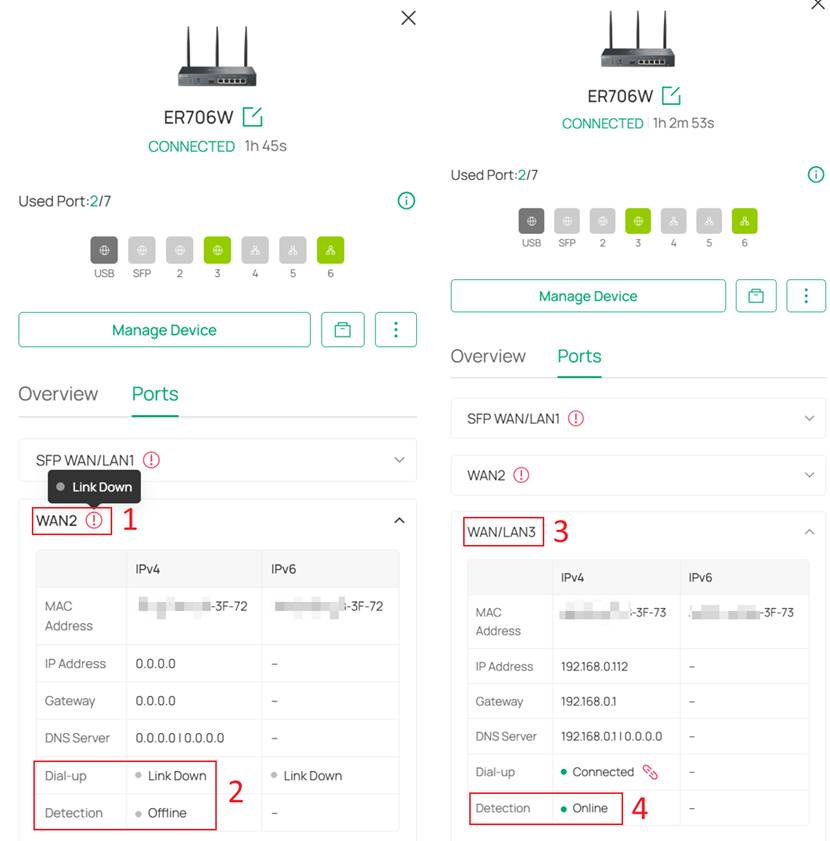
Step 2. To verify that the settings have taken effect, simulate a Primary WAN failure while keeping the Backup WAN operational. Disconnect the cable from the WAN2 port, leaving only the WAN/LAN3 port connected to the router. Then, go to the Ports tab on the device's local management page and check the status of both WAN ports. The WAN/LAN3 port should now be displayed as Online.
Conclusion
You have successfully configured Link Backup on your Omada Gateway through the Omada Controller. When the primary WAN connection becomes unavailable, the gateway automatically redirects new traffic sessions to the designated backup WAN, helping maintain Internet connectivity and minimize service interruptions.
Link Backup is ideal for networks that require high WAN availability, including small offices, retail stores, hotels, restaurants, schools, and branch locations. It also provides a reliable failover solution for organizations using a secondary ISP connection to ensure business continuity during Internet outages or scheduled maintenance.
By leveraging multiple ISP connections with Link Backup, administrators can enhance network resilience and deliver a more reliable Internet experience for users.
To learn more about each function and configuration, please visit Support Home to download or check the manual for your product.
