


Troubleshooting Wireless Clients not Roaming to the Nearest AP


Content
Factor 1: Interference or Network Congestion
Factor 3: Wireless Clients' Limitations
Factor 4: Coverage and Placement
Factor 5: Configuration on the Controller
Introduction
This article covers factors to help you resolve roaming issues in your Wi-Fi network, such as interface and network congestion, signal strength, coverage range and placement etc.
After your APs have established the mesh network, your wireless clients will automatically connect to the nearest AP. However, a few of the wireless clients will connect to the further APs, which may be determined by the roaming mechanism of themselves. This article will introduce some of the factors that cause the wireless client not to roam or connect to the nearest AP.
Requirements
- Omada Controller (Software Controller / Hardware Controller / CBC, v5.9 and above)
- Omada AP
Troubleshooting
Factor 1: Interference or Network Congestion
Fast roaming requires a strong and stable Wi-Fi signal. High levels of interference or network congestion may hinder fast roaming. Other Wi-Fi networks, electronic devices, or physical obstacles can interfere with the Wi-Fi signal, which weakens AP's roaming performance to a great extent. Therefore, please avoid crowded Wi-Fi environments and minimize interference sources as much as possible.
Factor 2: Signal Strength Threshold
Roaming is primarily determined by signal strength. If the current AP's signal strength remains relatively strong, wireless clients may choose not to initiate a roaming process to connect to a closer AP. To trigger roaming, ensure that the current AP's signal strength is below a certain threshold.
Factor 3: Wireless Clients’ Limitations
Some wireless clients have roaming aggressiveness settings that determine how quickly they move between APs. If the roaming aggressiveness is set to a low value, clients may be less likely to roam to another AP. On the other hand, some clients may have limitations or compatibility issues with specific roaming protocols or AP configurations. For this case, please check your clients' settings and adjust the roaming aggressiveness as needed.
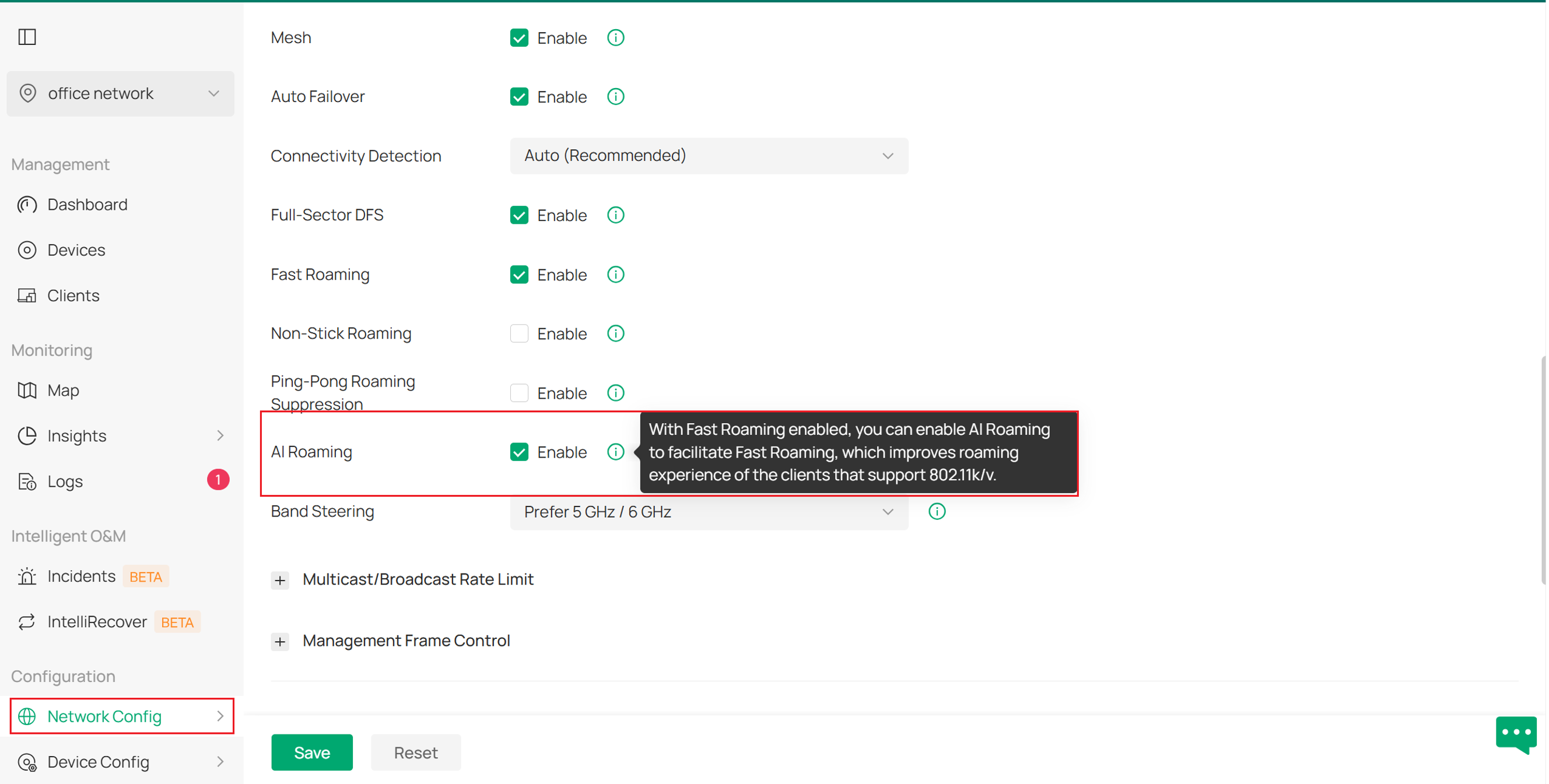
AI roaming, which improves roaming experience of the clients that support 802.11k/v, can be then enabled to help. It can be activated in Network Config > Site settings > Wireless features.
Factor 4: Coverage and Placement
Roaming performance can be affected by inadequate coverage or incorrect placement of APs. It is important to ensure that the APs are strategically positioned in areas where clients are expected to roam for providing sufficient coverage and overlapping signals. Conducting a site survey can help identify weak signal areas or coverage gaps. Ensure that your Wi-Fi network has appropriate range and signal strength, allowing seamless roaming without any disruptions.
Factor 5: Configuration on the Controller
Checking the following configurations on the controller can also be part of troubleshooting.
- When the Lock to Wireless Device function is enabled on the Controller, the wireless clients can only connect to the selected APs. If the nearest AP is not selected, the client will not be able to connect to it.

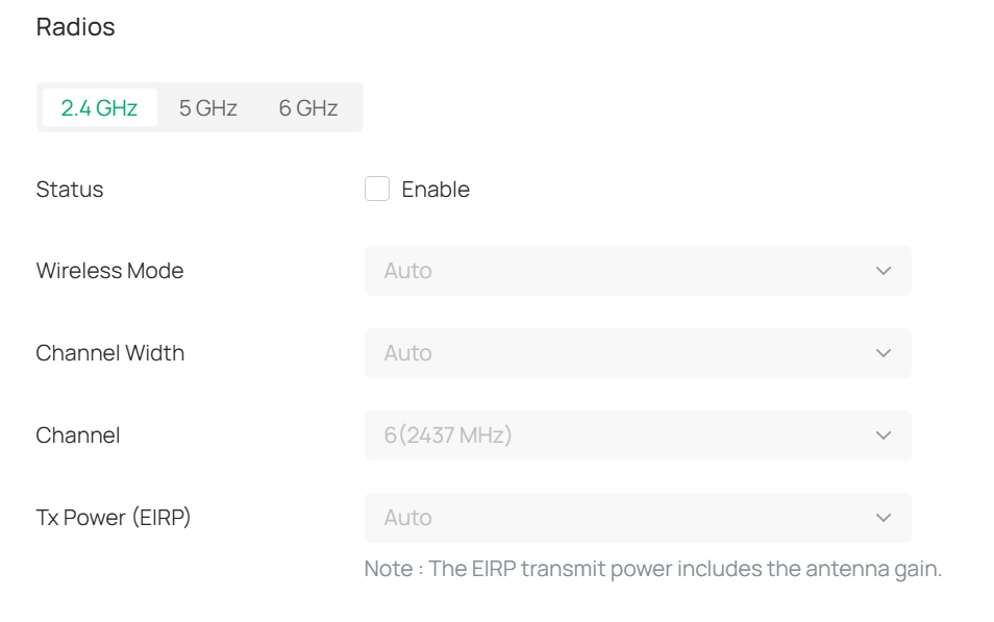
- When a specific frequency radio is disabled for certain APs on the Controller, while the client happens to be connected to the disabled radio, the client will not be able to connect to it which is exactly the nearest AP.
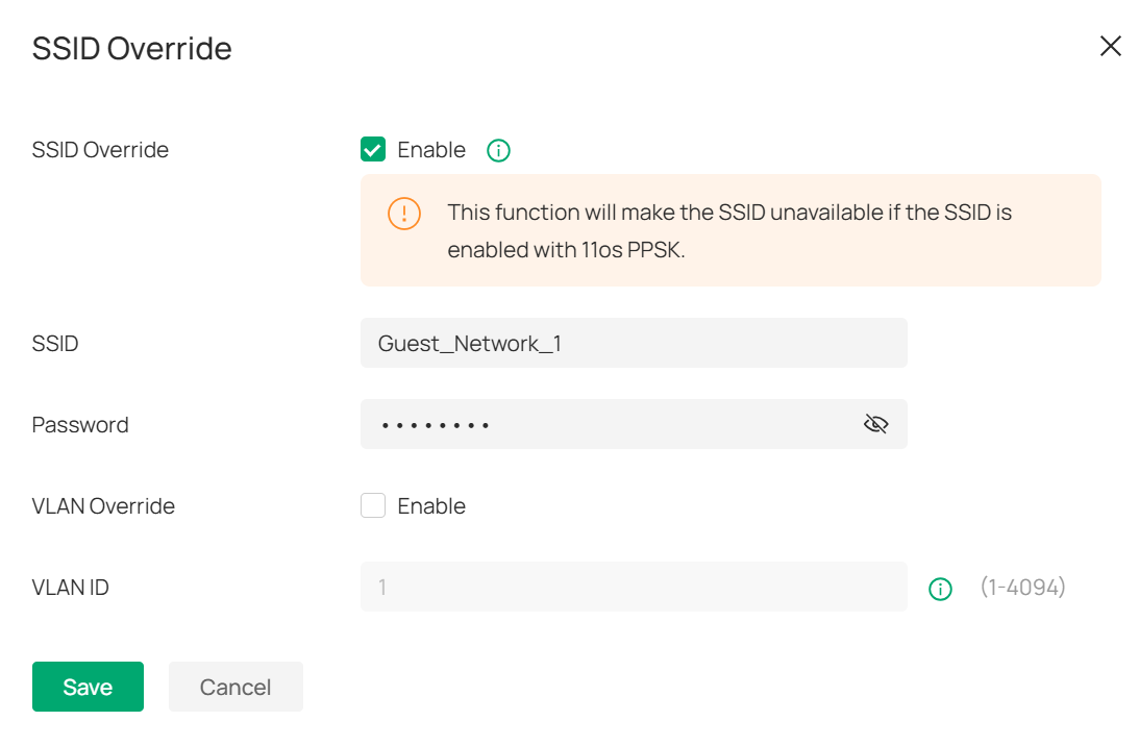
- When the SSID Override function is enabled for certain APs on the Controller, the APs in the network may not all have the same SSID, which may result in the client unable to connect to the nearest AP.
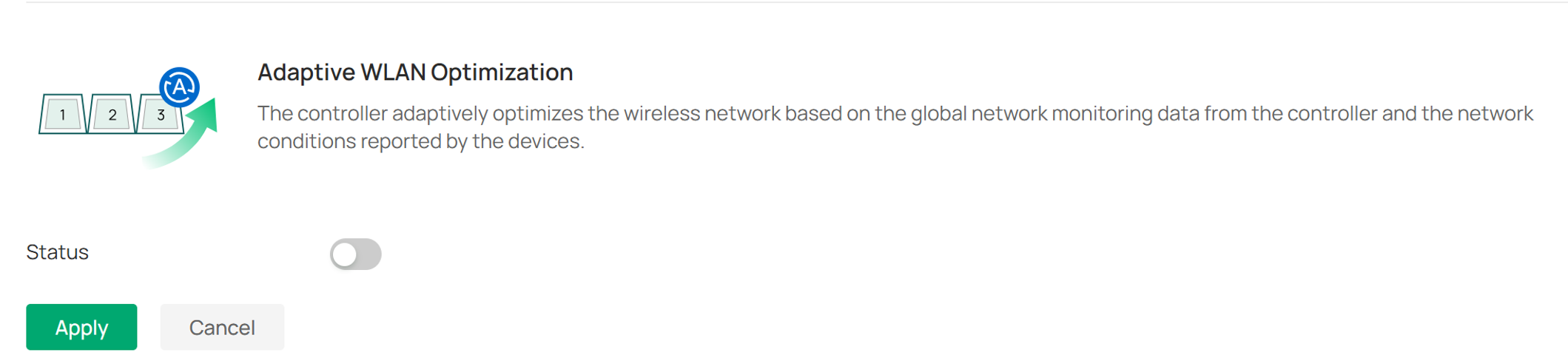
- With WLAN Optimization enabled, the network will try to use more non-overlapping channels. Some outdated clients may not support all the channels currently deployed in the network, which may result in the client unable to connect to the nearest AP as well.
Conclusion
Now we have covered the basic troubleshooting steps to follow when the clients have roaming Issues. If the problem still exists after trying the above operations, please contact TP-Link technical support for further help.
To learn more about each function and configuration, please visit Support Home to download or check the manual for your product.
