


How to Troubleshoot Omada Controller Offline Status in Omada Cloud or Omada App


Content
Accessing the Controller When Cloud Access Is Unavailable
Troubleshooting on Software Controller
Troubleshooting on Hardware Controller, Integrated Gateways, and Fusion Gateways
Introduction
Omada Cloud and the Omada App provide remote management access for Omada Controllers, allowing administrators to monitor and manage their network remotely. The Controller uses the Cloud Access function to establish a connection with Omada Cloud. The Omada Cloud and Omada App then display the Controller status and provide remote management capabilities based on this connection.
If the Controller loses its Cloud Access connection due to network connectivity issues, incorrect network settings, or other environmental factors, the Controller may appear as Offline in Omada Cloud or the Omada App, and remote management functions may become unavailable.
This article provides troubleshooting steps to help identify and resolve issues related to an Omada Controller appearing Offline in Omada Cloud or the Omada App.
Requirements
- Omada Controller (Software Controller and Hardware Controller)
- Integrated Gateways and Fusion Gateways
Accessing the Controller When Cloud Access Is Unavailable
If the Controller is displayed as Offline in Omada Cloud or the Omada App, remote cloud management may be unavailable. However, you may still be able to access the Controller locally and perform the troubleshooting steps described in this article.
If you know how to temporarily access the Controller through other means, skip this section and go directly to Troubleshooting.
Access Through a Web Browser
You can also access the Controller directly through its local IP address using a web browser.
For the Software Controller
For the Hardware Controller, simply enter the IP address directly into your browser.
Access Through the Omada App
If your mobile device is connected to the same local network as the Controller, you may be able to discover and access the Controller through local access in the Omada App, even when Cloud Access is unavailable.
On the homepage, click the plus icon in the upper-right corner to either scan automatically or manually enter the IP address to access the Controller.
You can refer to the “Direct access to the Software/Hardware Controller” section in the What to do if you cannot find the page of Omada Controller | Omada Network Support. This section will help you find the Controller's IP address and access the Controller in various ways.
Troubleshooting
If your Controller is displayed as Offline in Omada Cloud or the Omada App, follow the steps below to identify and resolve the issue.
Note: Omada Cloud and the Omada App do not communicate directly with managed devices. Instead, they obtain management information through the Controller’s Cloud Access function. If the Controller loses Cloud Access connectivity, it will be displayed as Offline, and remote management functions may be unavailable.
After completing each step, allow a few minutes for the Controller to reconnect to Omada Cloud before proceeding to the next troubleshooting step.
Troubleshooting on Software Controller
Step 1. Ensure the computer or laptop hosting the Omada Software Controller is powered on and running continuously. Do not close the Software Controller application. Also, ensure that the operating system time is accurate.
Step 2. Verify that you can access the Controller locally. Log in to the Controller and navigate to Global View > Settings > Cloud Access, then disable and re-enable Cloud Access.
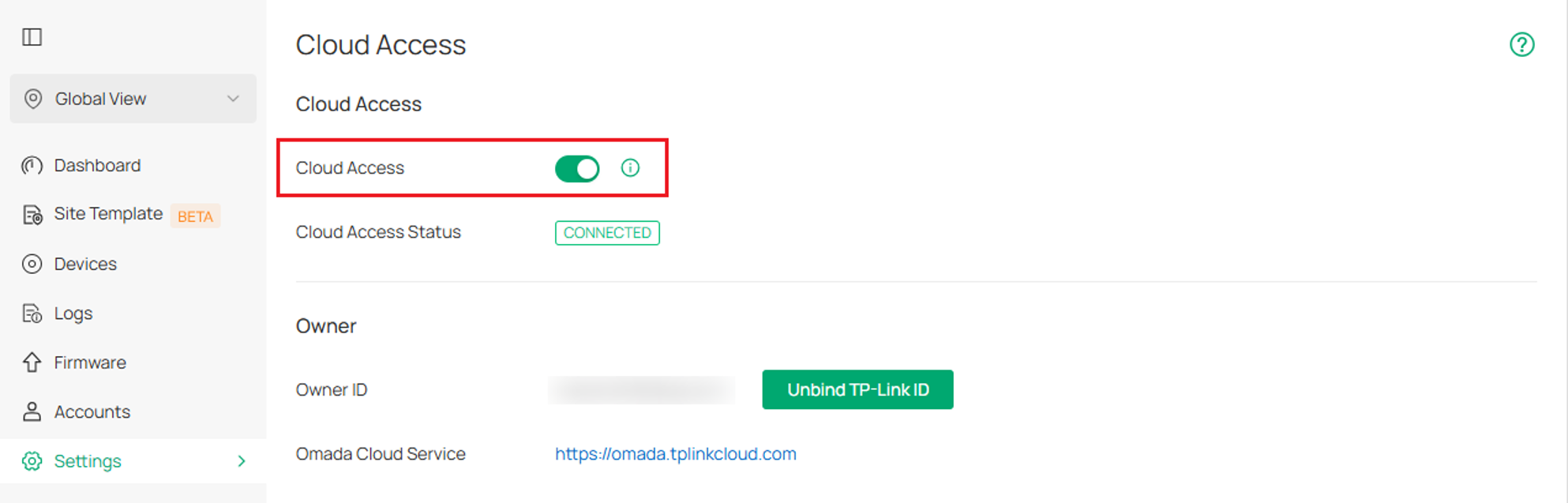
Step 3. Verify that the gateway is operating properly and that the computer or laptop hosting the Controller has Internet access. If necessary, reboot the gateway and reconnect the computer or laptop to the network, then check whether the Controller comes back online.
Step 4. Force-stop the Software Controller service/application and then restart it. After the Controller is fully started, check whether it reconnects to the cloud.
Step 5. Restart the computer or laptop on which the Software Controller is installed, then verify whether the Controller status in Omada Cloud changes to Online.
Troubleshooting on Hardware Controller, Integrated Gateways, and Fusion Gateways
Step 1. Check the Device Cloud Status.
For Hardware Controllers and Integrated Gateways that provide a Cloud LED, check whether the LED indicates that the device is connected to the cloud. Also, verify that the controller's date and time are accurate.
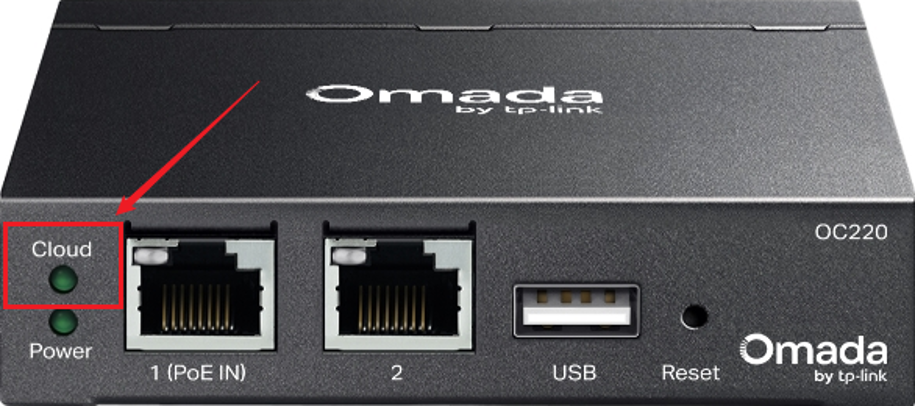
- On: Connected to the cloud and bound to a TP-Link ID.
- Slow Flashing: Connected to the cloud but not bound to a TP-Link ID.
- Quick Flashing: Factory reset in progress.
- Off: Disconnected from the cloud.
Note: Fusion Gateways may not provide a Cloud LED indicator. In this case, continue with the following troubleshooting steps.
Step 2. Verify Network Connectivity
Ensure the gateway and upstream network are functioning properly.
Connect a computer to the port of the Controller device and continuously ping a public IP address (for example, 8.8.8.8) to verify Internet connectivity and network stability.
For example:
Windows: ping 8.8.8.8 -t
Linux and macOS: ping 8.8.8.8
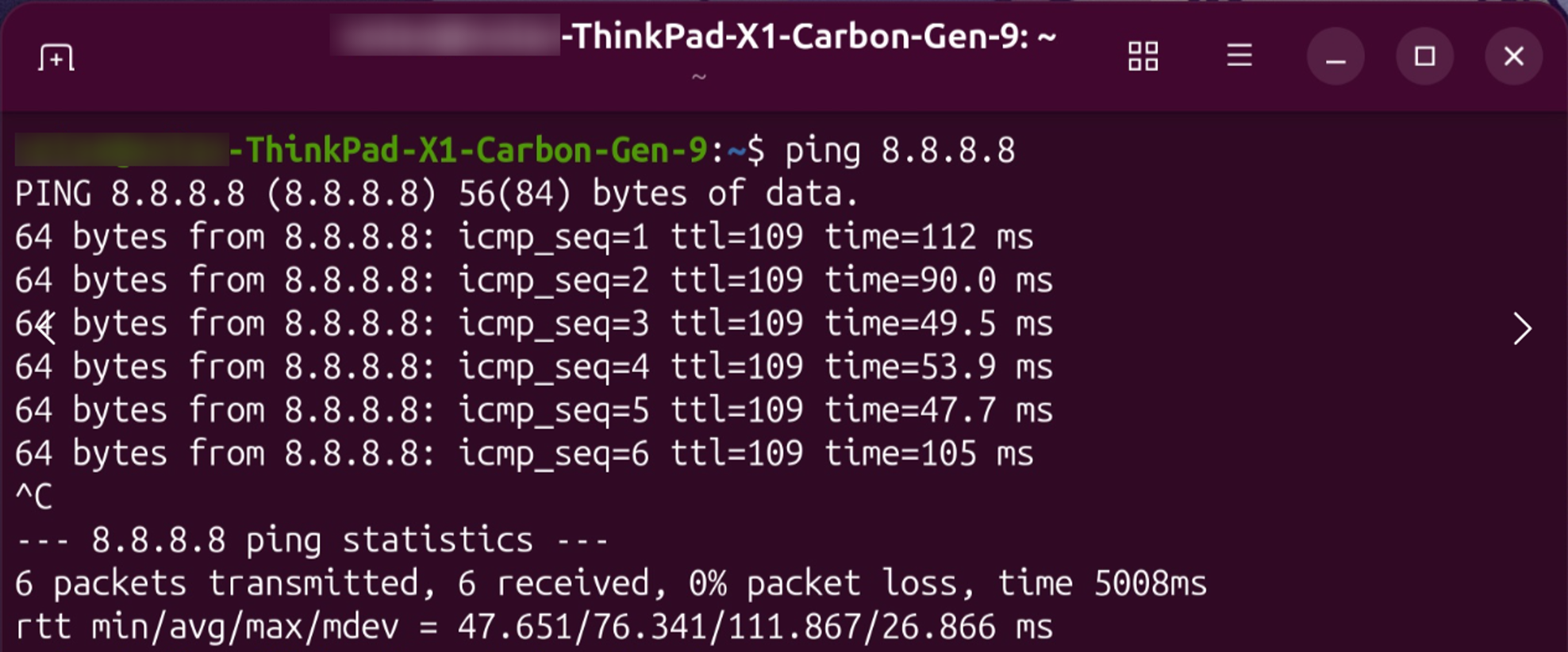
Confirm that there is no significant packet loss or abnormal latency.
Step 3. Re-enable Cloud Access
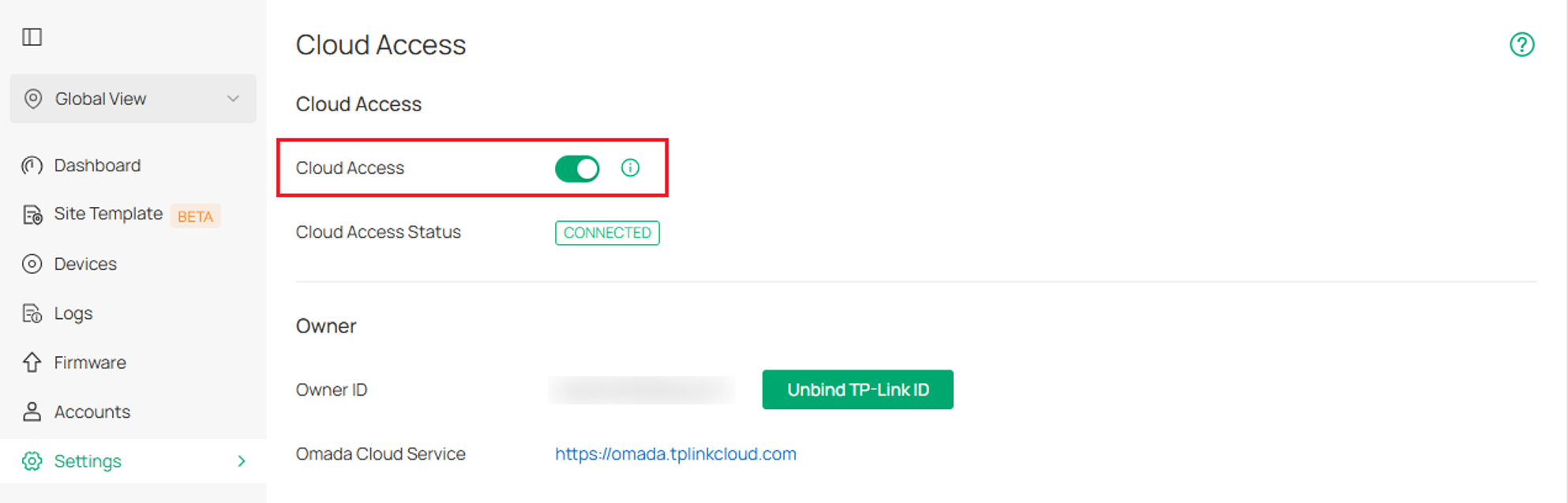
Verify that the Controller can be accessed locally through its IP address. Then navigate to:
Global View > Settings > Cloud Access (The path may vary depending on your device)
Disable and then re-enable Cloud Access, and check whether the Controller reconnects to Omada Cloud.
Step 4. Reboot the Device
Restart the Hardware Controller, Integrated Gateway, or Fusion Gateway.
After the device has fully restarted, wait several minutes and verify whether its cloud status changes to Online.
Step 5. Verify Physical Connections and Network Settings
Check the Ethernet connection between the Controller device and the upstream network. Replace the Ethernet cable or try a different switch/router port if necessary.
Also verify that the Controller's network settings are configured correctly, including the IP address, subnet mask, default gateway, DNS server, and VLAN settings (if used). Incorrect network parameters, firewall rules, ACL policies, or DNS resolution failures may prevent the Controller from connecting to Omada Cloud even when local access remains available.
After correcting any network configuration issues, check whether the Controller returns to the Online status in Omada Cloud.
Conclusion
By following the troubleshooting steps in this article, you can verify the Controller status, Cloud Access connection, network connectivity, and related network configurations to identify the cause of an Omada Controller appearing Offline in Omada Cloud or the Omada App.
To learn more about each function and configuration, please visit Support Home to download or check the manual for your product.
