


How to Continue Recording When the SSD Is Full on Omada Fusion Pro Gateway


Contents
Preserve important recordings using Case Center
Introduction
Continuous video recording can quickly consume available SSD storage. Once storage reaches capacity, new recordings may no longer be saved, potentially resulting in gaps in surveillance footage.
Loop Recording helps maintain uninterrupted recording by automatically managing storage space. When enabled, the system can overwrite older recordings to make room for new footage while preserving recordings that have been reserved in Case Center.
This article explains how Loop Recording works on Omada Fusion Pro 2.5G and Fusion Pro 2.5G PoE gateways, how to enable it, and how to protect important recordings from being overwritten.
Requirements
- Omada Fusion Pro 2.5G or Fusion Pro 2.5G PoE
- An installed SSD
Understanding Loop Recording
Loop Recording allows the gateway to continue recording when the SSD reaches full capacity.
When sufficient storage is available, recording operates normally regardless of whether Loop Recording is enabled or disabled. Once the SSD becomes full, recording behavior depends on the Loop Recording setting.
Loop Recording enabled
The gateway automatically overwrites older recordings to free up storage space for new recordings. Recordings that have been reserved in Case Center are not overwritten.
Loop Recording disabled
The gateway cannot save new recordings after the SSD reaches full capacity.
As a result, continuous recording is interrupted until storage space becomes available.
Recommendation: Enable Loop Recording when continuous recording is required. This ensures that new recordings can continue to be saved even when the SSD is full.
Configuration
Enable Loop Recording
Step 1. Navigate to Omada Guard > Guard Config > Storage Management > Fusion storage.
Note: Fusion storage column will only show up when Omada NVR is managed under Fusion Pro 2.5G.
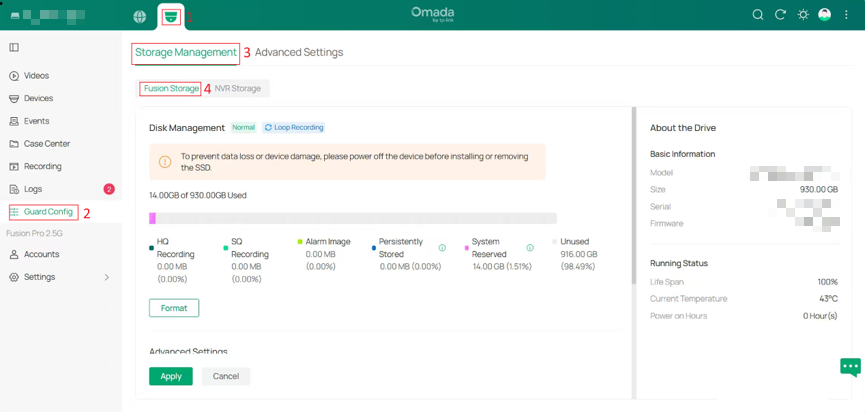
Step 2. Scroll down to Advanced Settings and enable Loop Recording.
When enabled, older recordings are automatically overwritten when additional storage space is required.
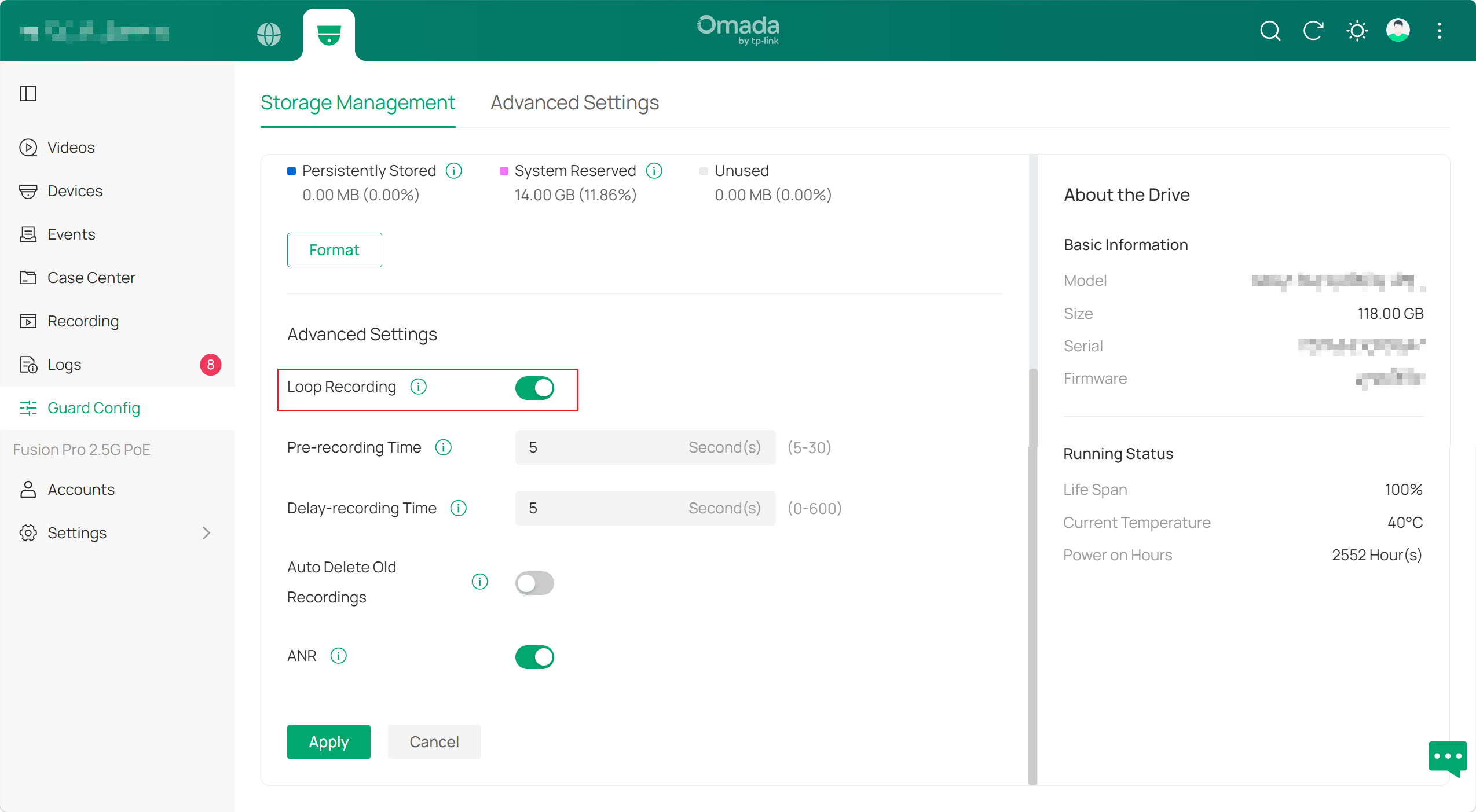
Note: Other recording-related settings can also be configured under Advanced Settings. Refer to the relevant Omada Guard documentation for additional details.
Preserve important recordings using Case Center
In some situations, specific recordings may need to be retained and protected from automatic overwriting. This can be accomplished using Case Center.
Recordings associated with a case are preserved even when Loop Recording is enabled.
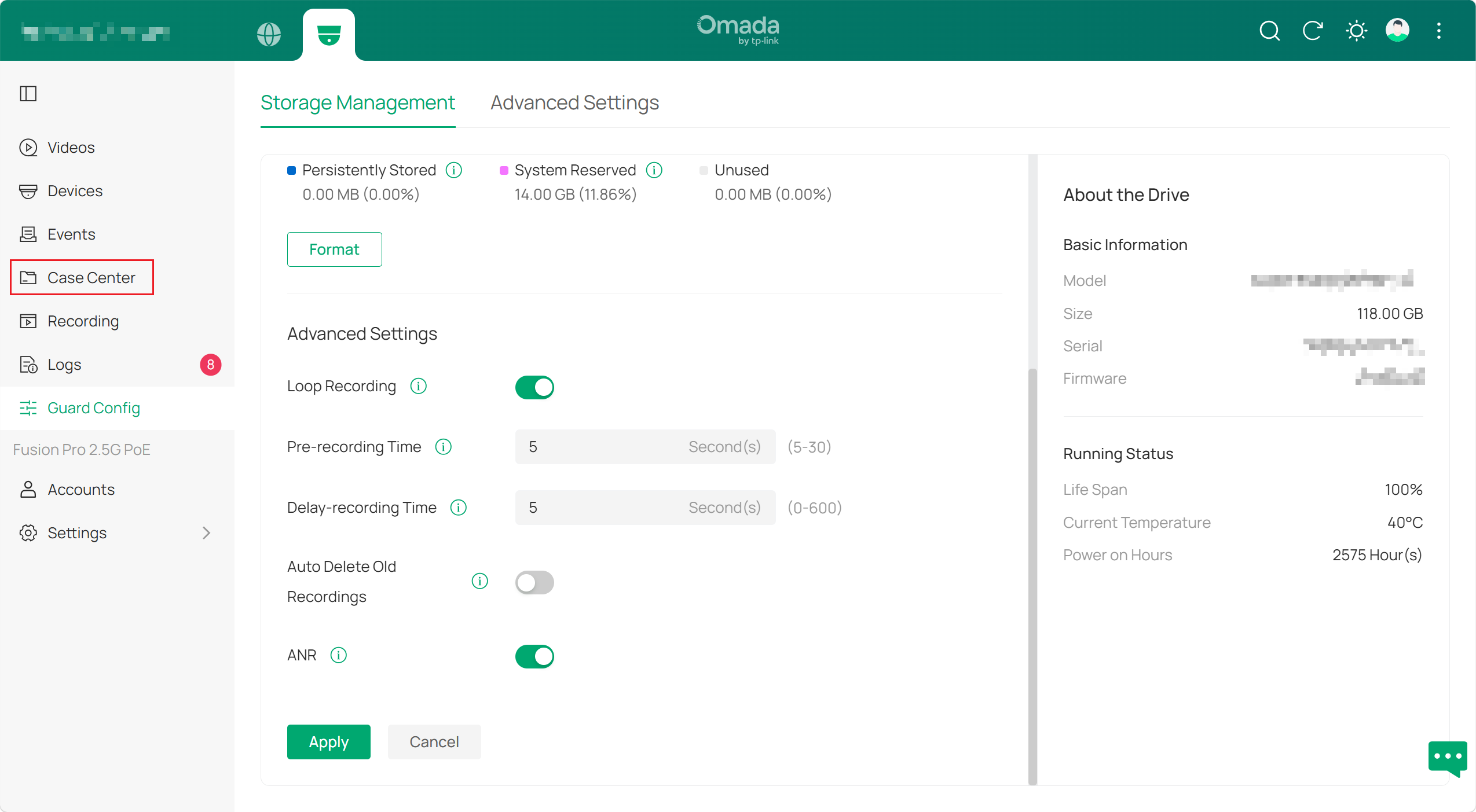
Step 1. Click Case Center from the navigation menu to open the Case Center page.
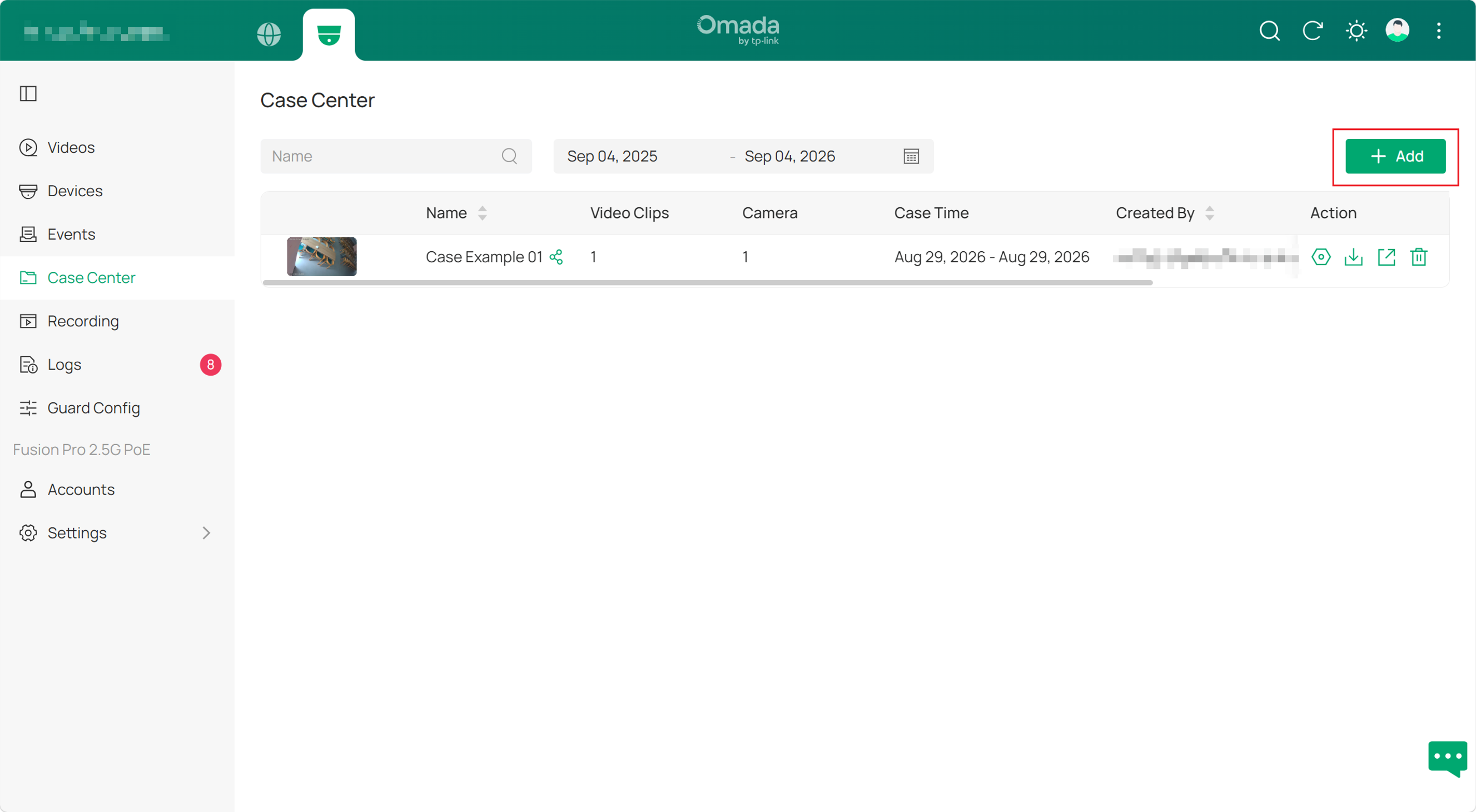
Step 2. Click + Add to create a new case. Enter a case name and description, then save the case.
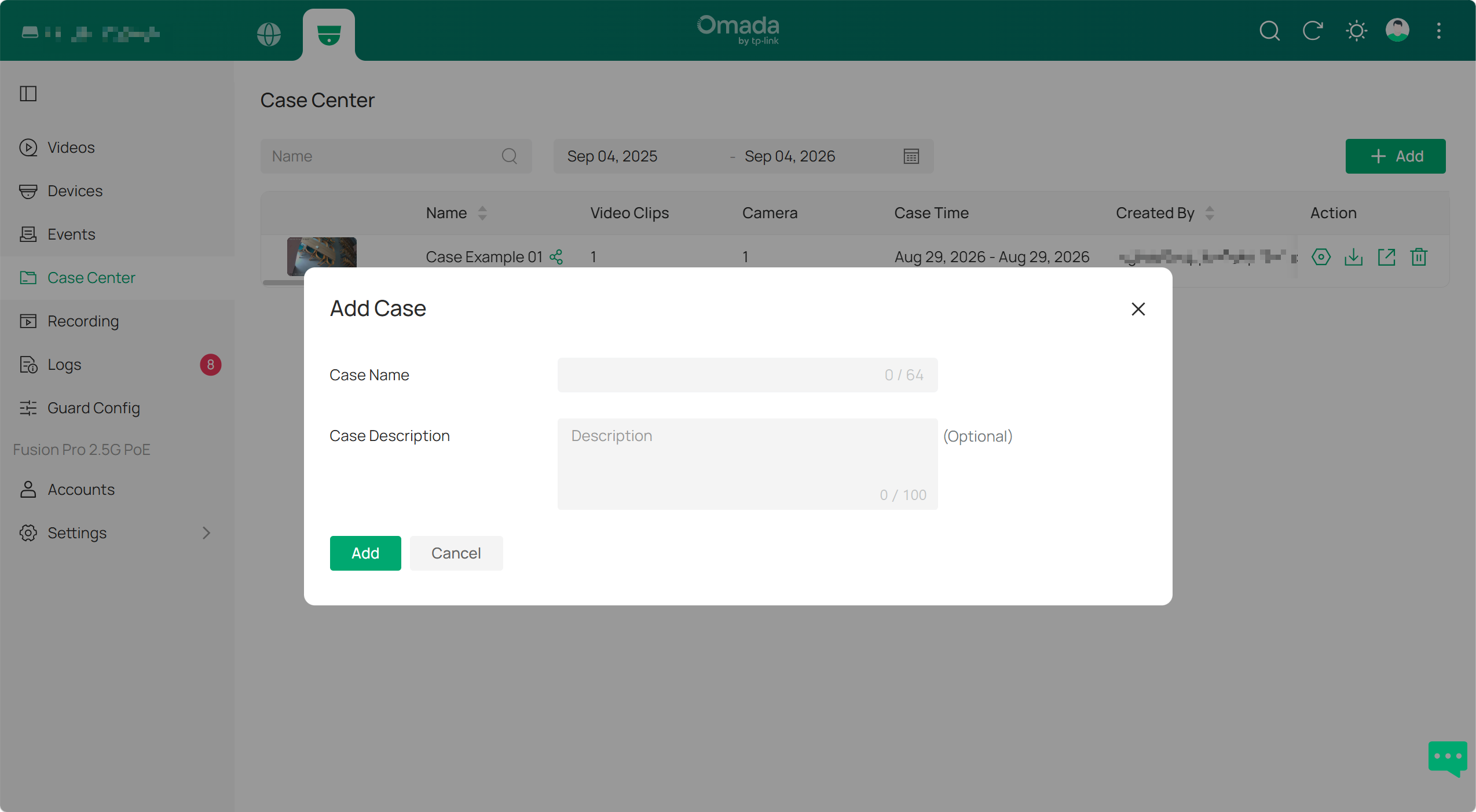
Step 3. Open the newly created case and add the video clips that need to be preserved.
Recordings associated with the case are protected from being overwritten by Loop Recording.
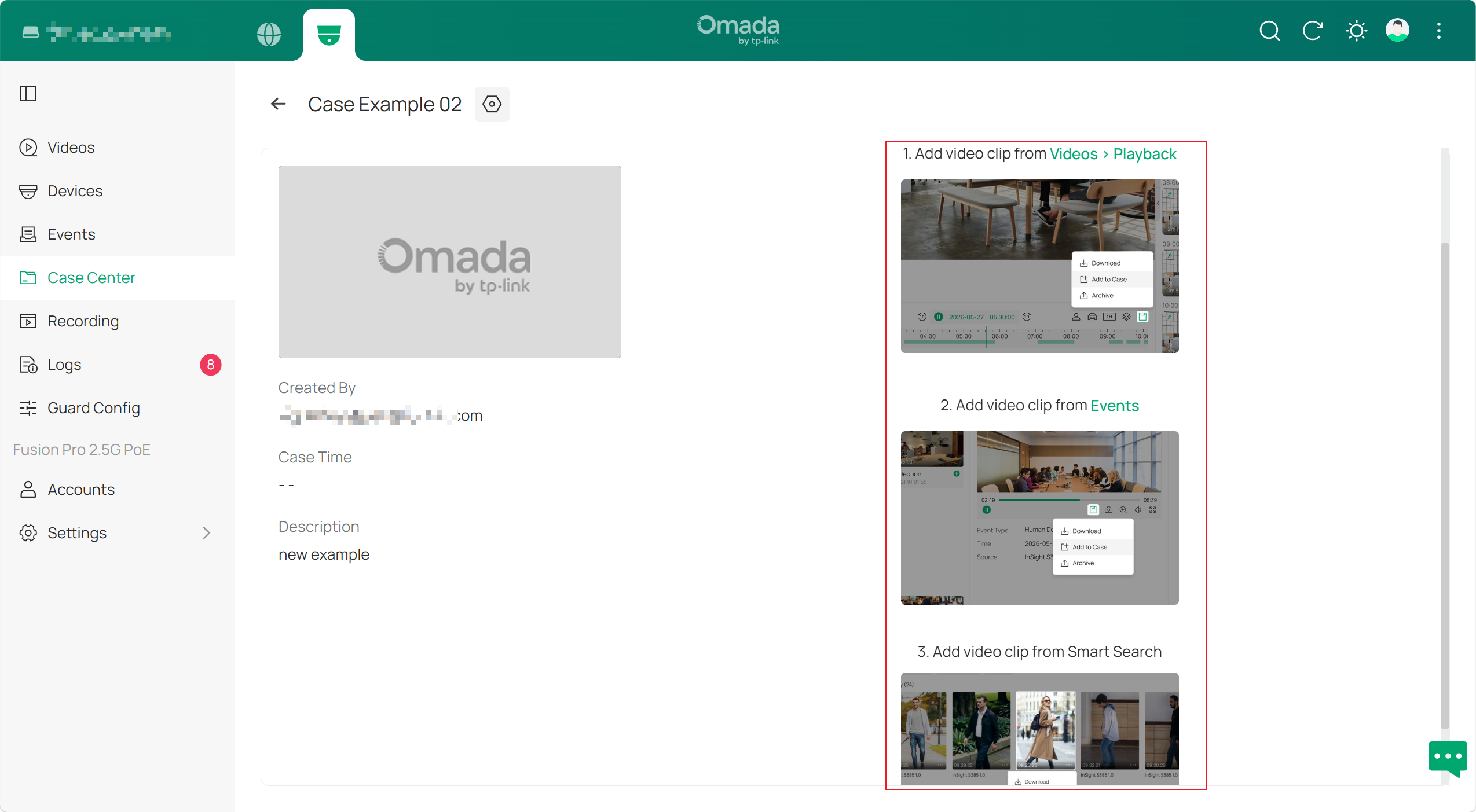
Note: For detailed instructions on managing video clips in Case Center, refer to How to Preserve and Manage Video Evidence Using Case Center on Omada Fusion Pro Gateway.
Conclusion
Loop Recording helps ensure continuous recording on Omada Fusion Pro 2.5G and Fusion Pro 2.5G PoE gateways by automatically reusing storage space when the SSD becomes full. Important video clips can be protected through Case Center to prevent accidental overwriting while Loop Recording remains enabled.
To learn more about each function and configuration, please visit Support Home to download or check the manual for your product.
QA
Q1: What happens when the SSD is full and Loop Recording is enabled?
A1: The gateway automatically overwrites older recordings to make room for new recordings. Locked recordings are not overwritten.
Q2: What happens when the SSD is full and Loop Recording is disabled?
A2: The gateway cannot save new recordings because there is no available storage space.
Q3: Will Loop Recording overwrite all existing recordings?
A3: No. Loop Recording overwrites the oldest recordings first, but recordings reserved in Case Center are protected from being overwritten.
Q4: Does Loop Recording affect recordings reserved in Case Center?
A4: No. Recordings associated with a case remain protected and are not automatically overwritten by Loop Recording.
