


Troubleshooting Guide for Common Issues with 5G ODU


Contents
Troubleshooting Connectivity Loss from Misconfiguration
Introduction
The 5G ODU differs significantly from the common 4G ODU in terms of usage and typical topology. The 4G ODU typically operates in Router mode, where users complete dial-up, routing, and management directly on the ODU. In contrast, the 5G ODU defaults to operating in IP Passthrough (IPPT) mode, where the routing and management of the entire site rely on the correct configuration of the gateway connected downstream from the ODU. Due to this design change, issues such as adoption failure, network disconnection caused by incorrect configuration, and SIM/PIN management-related problems are more likely to occur. This article will provide a detailed introduction to the potential issues that may arise when using a 5G ODU and offer targeted solutions for each problem.
Requirements
- 5G ODU (taking ER701-5G-Outdoor v1.0 as an example)
Configuration
The following section provides a point-by-point explanation of various issues that may be encountered when using a 5G ODU, along with troubleshooting steps.
Typical Usage Topology
When using a 5G ODU, there are two modes: IPPT mode and Router mode.
In Router mode, the ODU can function as a regular gateway. In this mode, the 5G ODU serves as a full-featured routing gateway, providing a complete set of functions such as NAT, DHCP, and attack defense. Therefore, the typical network topology in this mode is: Internet — 5G ODU — Switch — EAP.
In IPPT mode, the ODU transparently transmits the IP address obtained from the ISP by the SIM card to the downstream gateway. The IPPT mode is designed for integrating a 5G network into an existing LAN. In this mode, the ODU solely handles 5G access and modulation, transparently passing the carrier-assigned IP to the downstream gateway. This allows all network functions—including routing, NAT, and security policies—to be managed centrally by the downstream gateway. This approach avoids double NAT and preserves the existing network architecture and management control. It is particularly suited for advanced requirements such as public IP access, VPN establishment, and port forwarding. In the IPPT mode of ODU, it can be categorized into four common usage scenarios based on typical application methods.
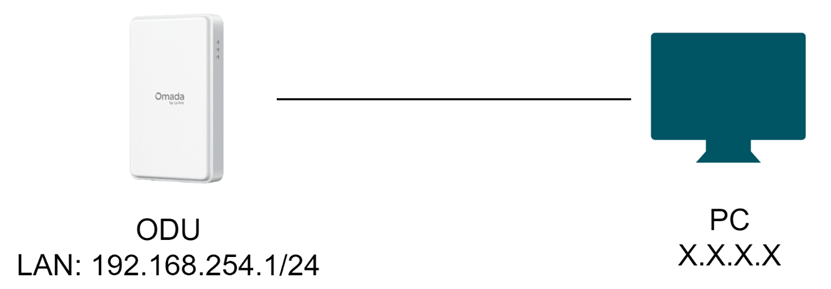
Scenario 1. PC Directly Connected to ODU's LAN Port
The ODU assigns the IP address obtained from the SIM card as the LAN-side DHCP IP pool and transparently transmits it to the PC. In this case, the PC (using the SIM card's IP) and the ODU LAN IP (192.168.254.1) are on different subnets. The ODU LAN serves as an ARP proxy, responding to ARP requests from the PC. This allows the PC to manage the ODU and access the internet.
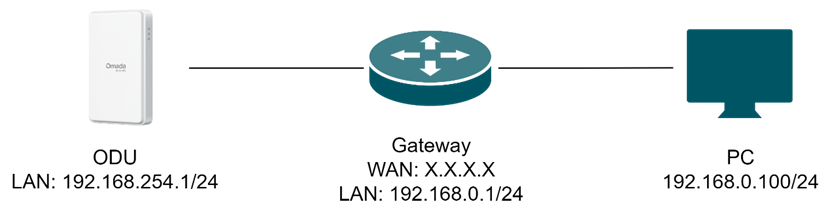
Scenario 2. ODU Connected to an IDU Gateway with the IDU Having Only This Single WAN Link
The ODU assigns the IP address obtained from the SIM card as the LAN-side DHCP IP pool and transparently transmits it to the IDU's WAN port. The principle by which the IDU's WAN accesses the ODU is the same as when the PC is directly connected to the ODU in Scenario 1.
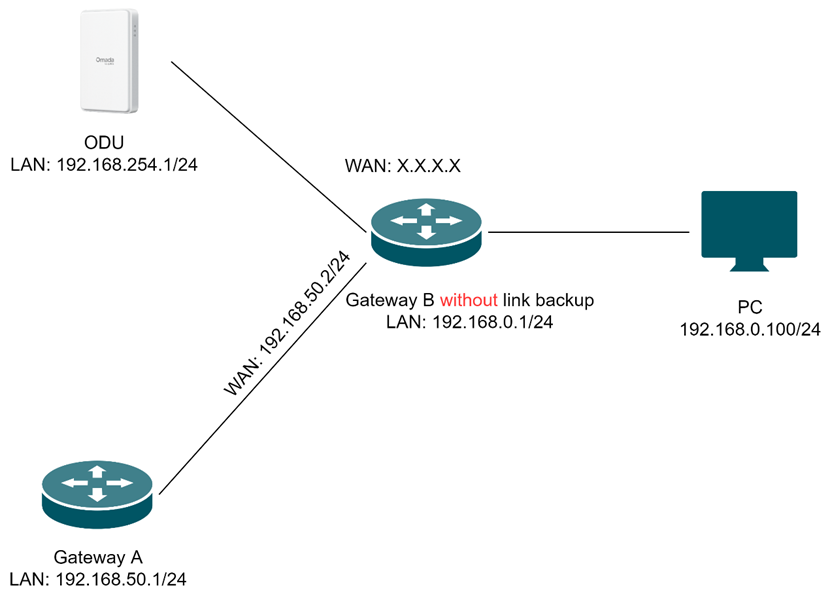
Scenario 3. ODU Connected Downstream to an IDU Gateway, with the IDU Having Multiple WAN Connections but No Link Backup Configured
The ODU may serve as either the default WAN or a non-default WAN. In this scenario, the ODU's LAN IP is pushed to the IDU's WAN as the DNS server. The IDU will have a route to the ODU. Under these conditions, the PC can normally access and manage the ODU, and the ODU can access the internet normally.
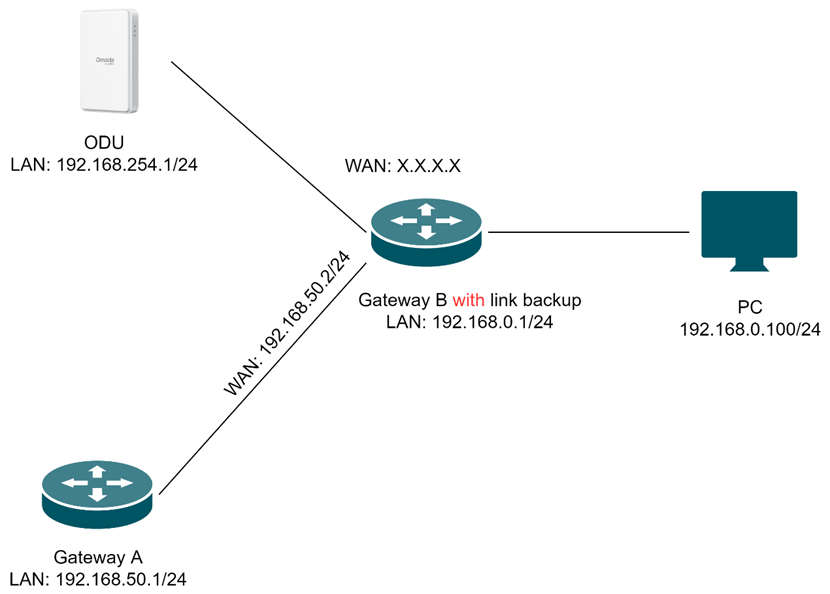
Scenario 4. ODU Connected Downstream to an IDU Gateway, with the IDU Having Multiple WAN Connections and Link Backup Configured
In this case, the ODU may serve as either the primary WAN or the backup WAN. When the ODU functions as the primary WAN, it can be managed normally. If the ODU acts as the backup WAN and the primary WAN is online, traffic will not be routed through the backup WAN. In this situation, the PC cannot access the ODU, and the ODU itself is unable to connect to the internet.
Thus, when used in a fixed topology, it is generally unnecessary (and not recommended) to switch from one mode to the other. If you want to switch modes, it is essential to understand how the ODU operates and connects in both modes. For detailed steps on adoption in each mode, please refer to the adoption-related content in the next section.
Adoption-related
You can choose to manage all devices in the site, including the 5G ODU, via a local controller or Omada Cloud-based Controller. For detailed steps and key points on managing the two different modes of the 5G ODU using these two types of controllers, please refer to the following two FAQs:
- How to discover and manage 5G ODU device via Omada Central
- How to discover and manage 5G ODU device via on-premise controller
Note: In IPPT mode, the ODU (on the WAN) and a local controller (on the LAN) are in different Layer 3 networks, requiring a different adoption process than a standard gateway. Adoption to the Cloud-based Controller remains the same.
Troubleshooting Connectivity Loss from Misconfiguration
A stable network connection is required to use the Cloud-based Controller. This section helps troubleshoot internet outages and loss of connectivity to the Cloud-based Controller, which are often caused by incorrect device configurations. Follow the steps below to resolve the issue.
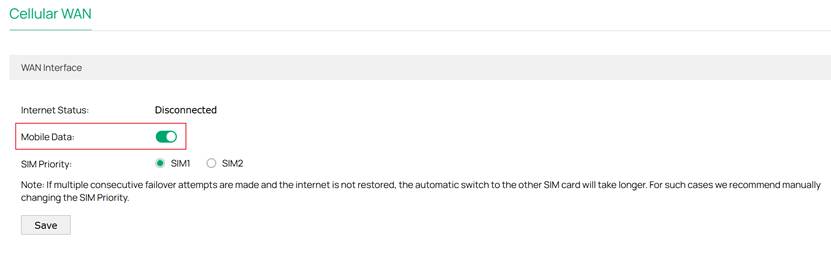
Step 1. Keep the Mobile Data option enabled
This feature is enabled by default. It is recommended to keep the default setting. If
you disable it, you may not be able to access the internet.
Step 2. Confirm the requirements of the front-end ISP
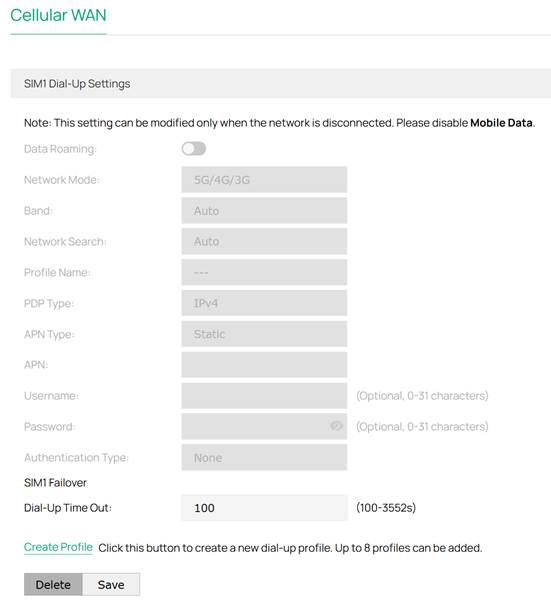
You need to communicate with your ISP in advance to determine whether there are any special restrictions associated with the use of this SIM card. Additionally, the APN (Access Point Name) is also provided by your ISP. In most cases, the default settings can be retained. However, if your ISP has specific requirements, you will need to manually configure the APN. To make changes, you must first set the APN type to Static.
Step 3. Check the priority settings of the SIM card.
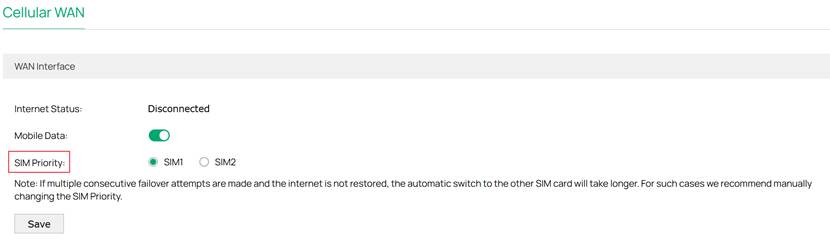
Set which SIM card is used first. SIM Priority takes effect only when the device is powered on and the priority is changed. If only one SIM card is inserted, this card is used by default.
If multiple consecutive failover attempts are made and the internet is not restored, the automatic switch to the other SIM card will take longer. For such cases we recommend manually changing the SIM Priority.
SIM/PIN Management Related
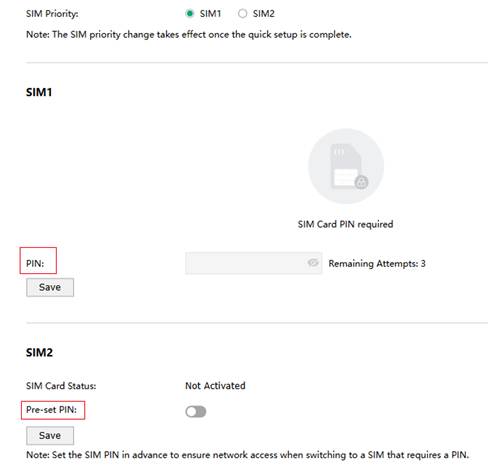
Step 1. Enter the PIN code on the Quick Setup page
Since 5G ODU is typically deployed in outdoor environments, configuring a PIN for the SIM card is recommended for security purposes. This prevents unauthorized individuals from inserting your SIM card into another device and misusing your number for calls, text messages, or data consumption. Every time the SIM card is inserted into a device, the PIN code must be entered to unlock it. If the PIN is entered incorrectly three times, the PUK code will be required to unlock the device. Extra caution must be taken when entering the PUK code, as entering it incorrectly ten times will permanently lock the SIM card, rendering it irrecoverable.
When the device is powered on for the first time, it will enter the Quick Setup process. If a SIM card with a PIN lock is inserted into SIM slot 1 while SIM slot 2 remains empty, you will be prompted to enter the PIN for SIM1 to unlock the card. Additionally, to ensure seamless network switching when using two SIM cards with PIN codes in the future, you can pre-set the PIN for the SIM card intended for slot 2 in the SIM2 Pre-set PIN field.
Step 2. Edit SIM card PIN settings in the standalone webUI
After successful unlocking, you can subsequently manage the PIN code of the unlocked SIM card in Network > Cellular > PIN Management. Here, you can modify the SIM card's PIN code or disable the PIN lock.
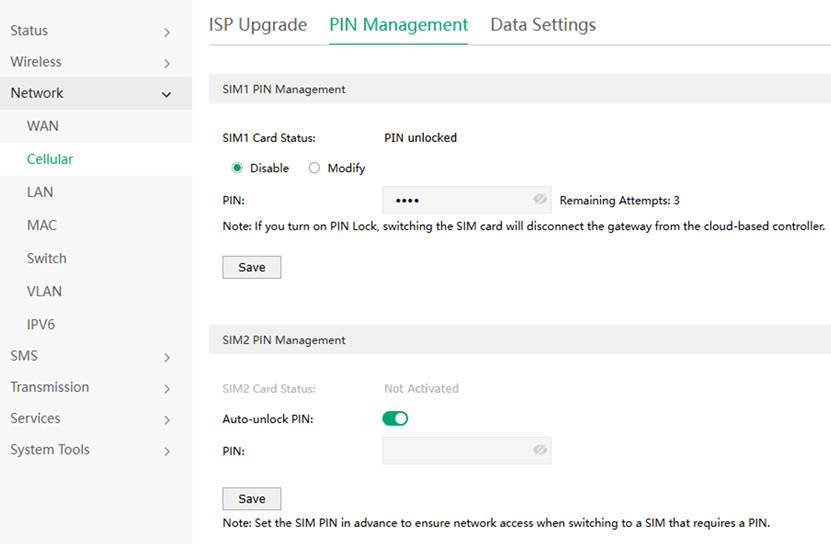
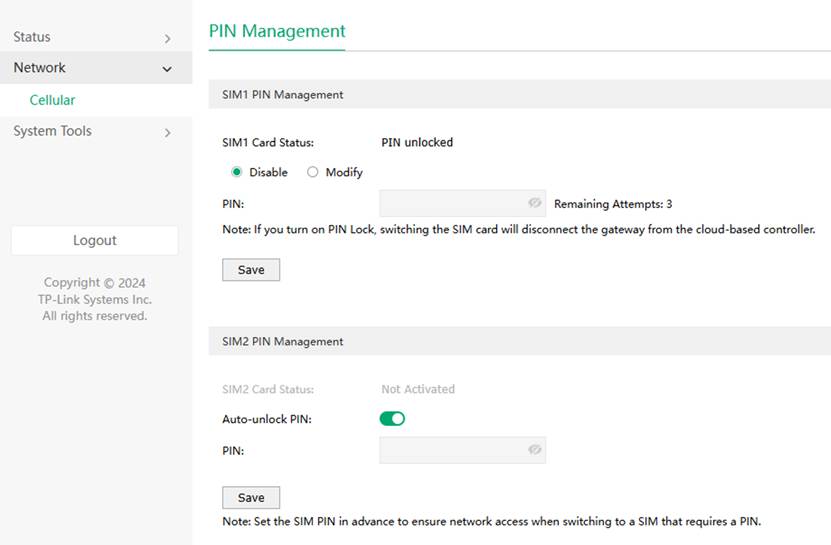
The SIM card PIN settings can still be modified by logging into the ODU's webUI after the controller has adopted it.
Other Issues
Q1: Why is the SSID on the 5G ODU not detectable?
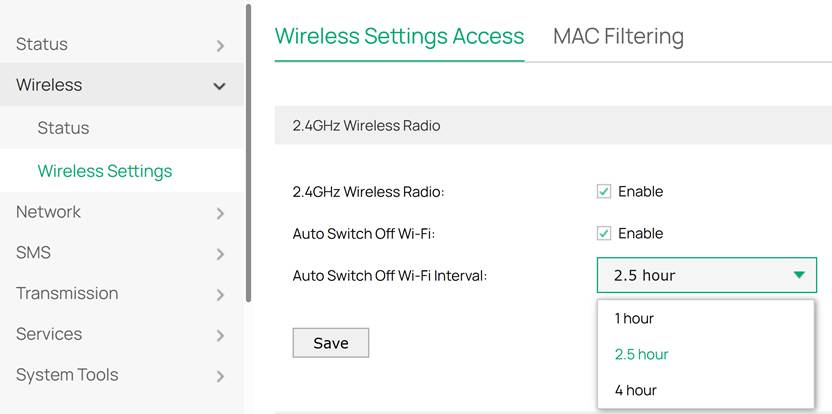
A1: The device has the Auto Switch Off Wi-Fi feature enabled by default, with a default setting of 2.5 hours. This means the Wi-Fi will be automatically turned off by the device after 2.5 hours. If you require the use of the wireless network, you can disable the Auto Switch Off Wi-Fi option.
Q2: How to improve the signal of the ODU after adoption?
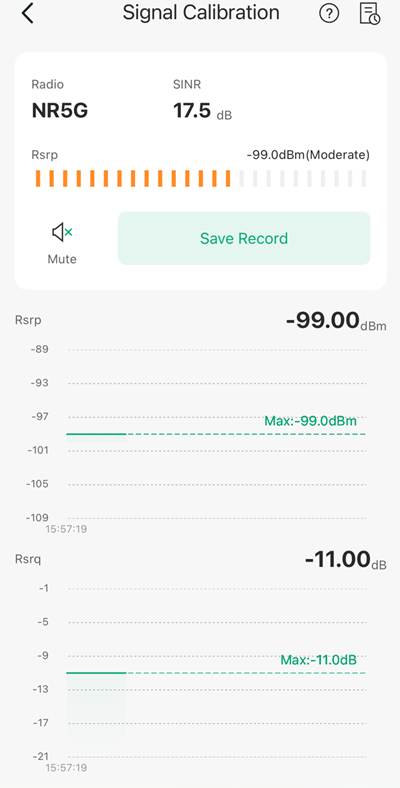
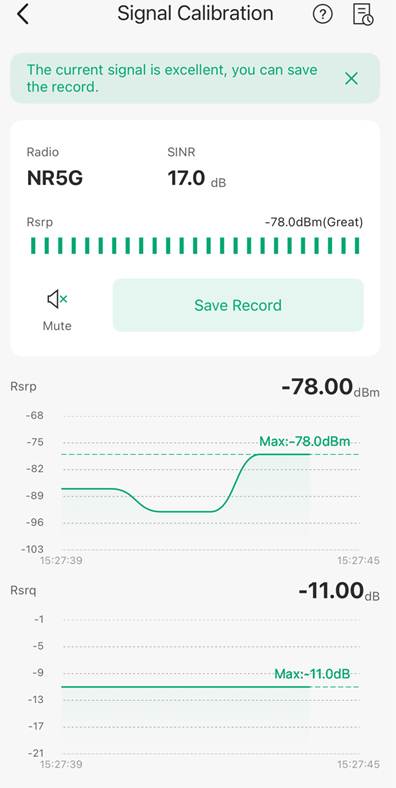
A2: First, you need to enable the wireless network of the ODU according to the steps in Q1. Then, you need to use a phone running the Omada APP to connect to this SSID. At this point, you can go to the Omada APP's personal center interface > Tool kit > Signal Calibration, which displays the real-time signal strength of the ODU.
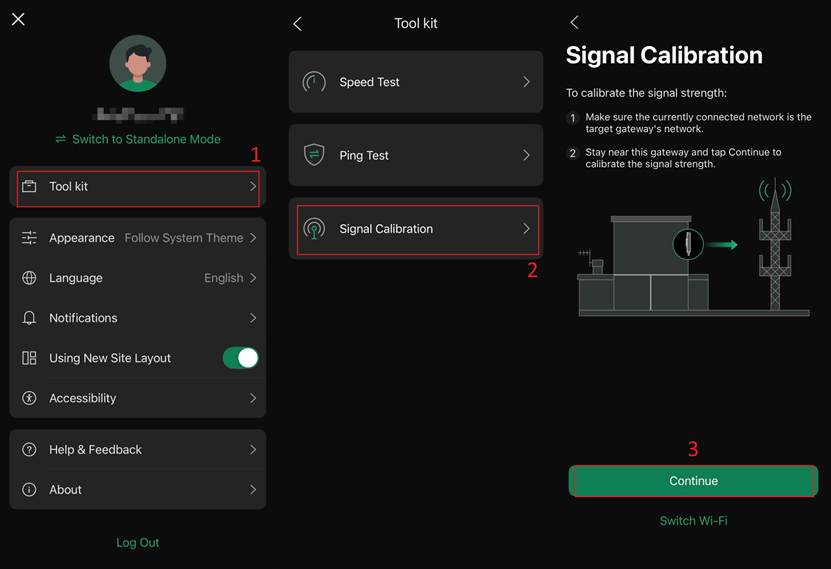
This function makes it easy to align the 5G outdoor gateway with the nearest tower for optimal performance.
Conclusion
This article introduces common usage scenarios and typical topologies of the 5G ODU, and explains frequently encountered issues along with troubleshooting steps categorized by type.
Get to know more details of each function and configuration please go to Download Center to download the manual of your product.
