


Contents
Restrictions on Omada Fusion 2.5G PoE and Omada Fusion Pro 2.5G PoE
Restrictions on Omada Managed Switches
Introduction
The Cable Test function helps network administrators diagnose Ethernet cable issues by checking cable status, cable length, and the location of potential faults on supported ports.
Requirements
Scenario 1
- Controller: Fusion 2.5G PoE / Fusion Pro 2.5G PoE
- Supported devices:
- Fusion 2.5G PoE (Firmware 1.0.10 Build 20260814 or later) / Fusion Pro 2.5G PoE (Any official firmware version)
- Omada Managed Switches (Firmware compatible with Omada Controller v5.15.24 or later)
Scenario 2
- Controller: Fusion G+ / Fusion 2.5G / Fusion Pro 2.5G / any other controller running Omada Network v5.15.24 or later
- Supported devices:
- Omada Managed Switches (Firmware compatible with Omada Controller v5.15.24 or later)
Restrictions on Omada Fusion 2.5G PoE and Omada Fusion Pro 2.5G PoE
- Supported only on electrical ports operating in electrical mode.
- Fixed WAN-only ports are not supported. WAN/LAN ports are supported.
- Supported at port speeds of 100Mbps / 1Gbps / 2.5 Gbps. 10Mbps is not supported.
- Executing the cable test may temporarily impact the regular operation of the port. It is recommended to run the cable test only when troubleshooting cable faults.
- The maximum supported detection length is 100 m. Accuracy beyond 100 m is not guaranteed.
- If the peer port is disabled (admin down), test accuracy may be affected.
- The test results may not be accurate for network cables manufactured by all vendors and are for reference only.
- At 100 Mbps, unused wire pairs may be incorrectly reported as Normal. A Normal result does not confirm that all four wire pairs are properly connected.
- When the cable status is abnormal, the displayed length indicates the estimated distance from the local port to the location of the fault.
Restrictions on Omada Managed Switches
- Only electrical ports or combo ports operating in electrical mode support the cable detection function.
- Executing the cable test may temporarily impact the regular operation of the port. It is recommended to run the cable test only when troubleshooting cable faults.
- The cable test is supported when the port is operating at 1000 Mbps in auto-negotiation mode. Some switches support Cable Test at 100 Mbps in auto-negotiation mode, but only for wire pairs 1 and 2.
- For certain switches, the cable length cannot be measured if the peer device is powered off.
- When the cable status is abnormal, the displayed length indicates the estimated distance from the local port to the location of the fault.
- The test results may not be accurate for network cables manufactured by all vendors and are for reference only.
Configuration
Follow the steps below to run a Cable Test.
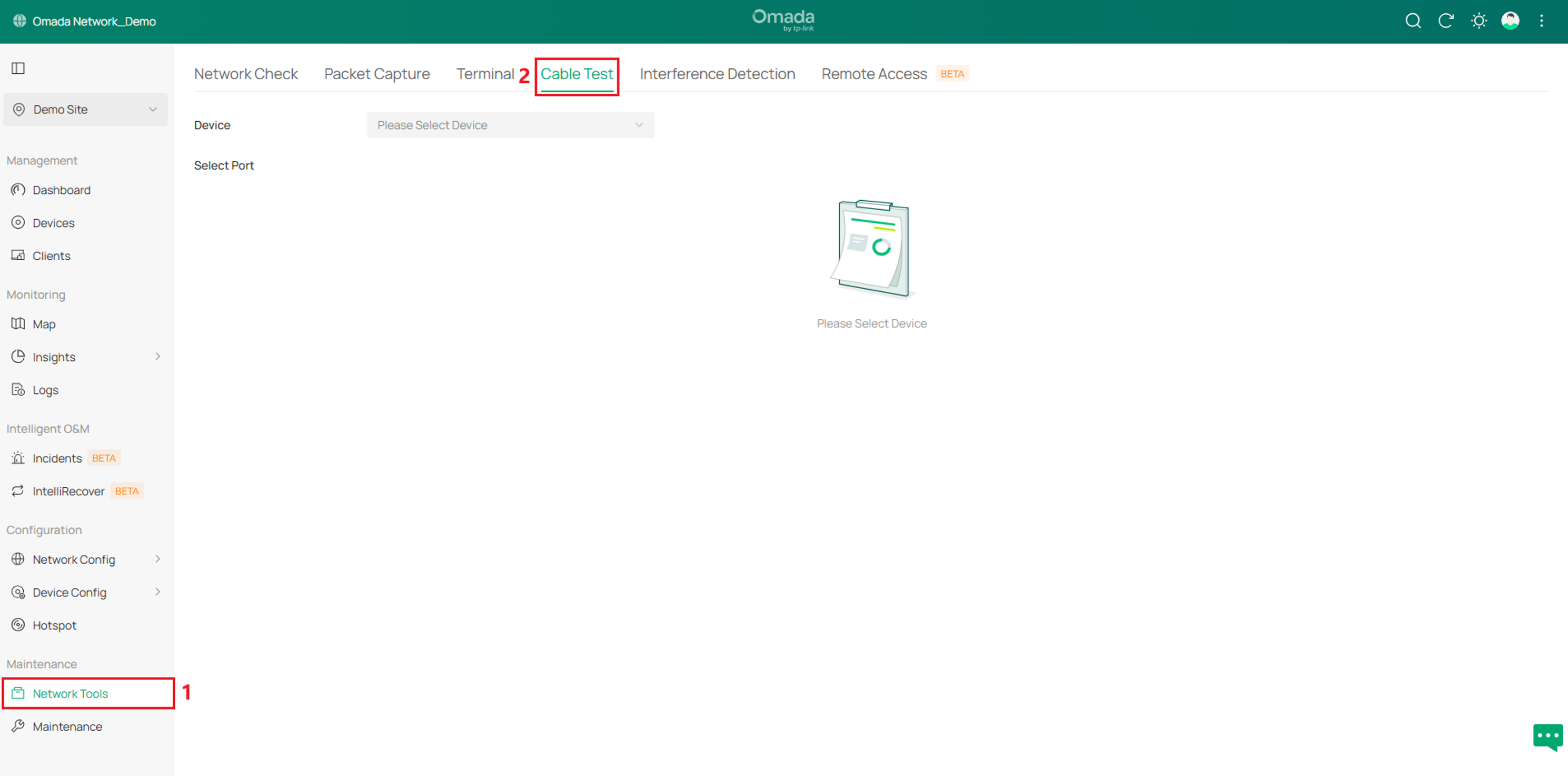
Step 1. Go to Maintenance > Network Tools > Cable Test.
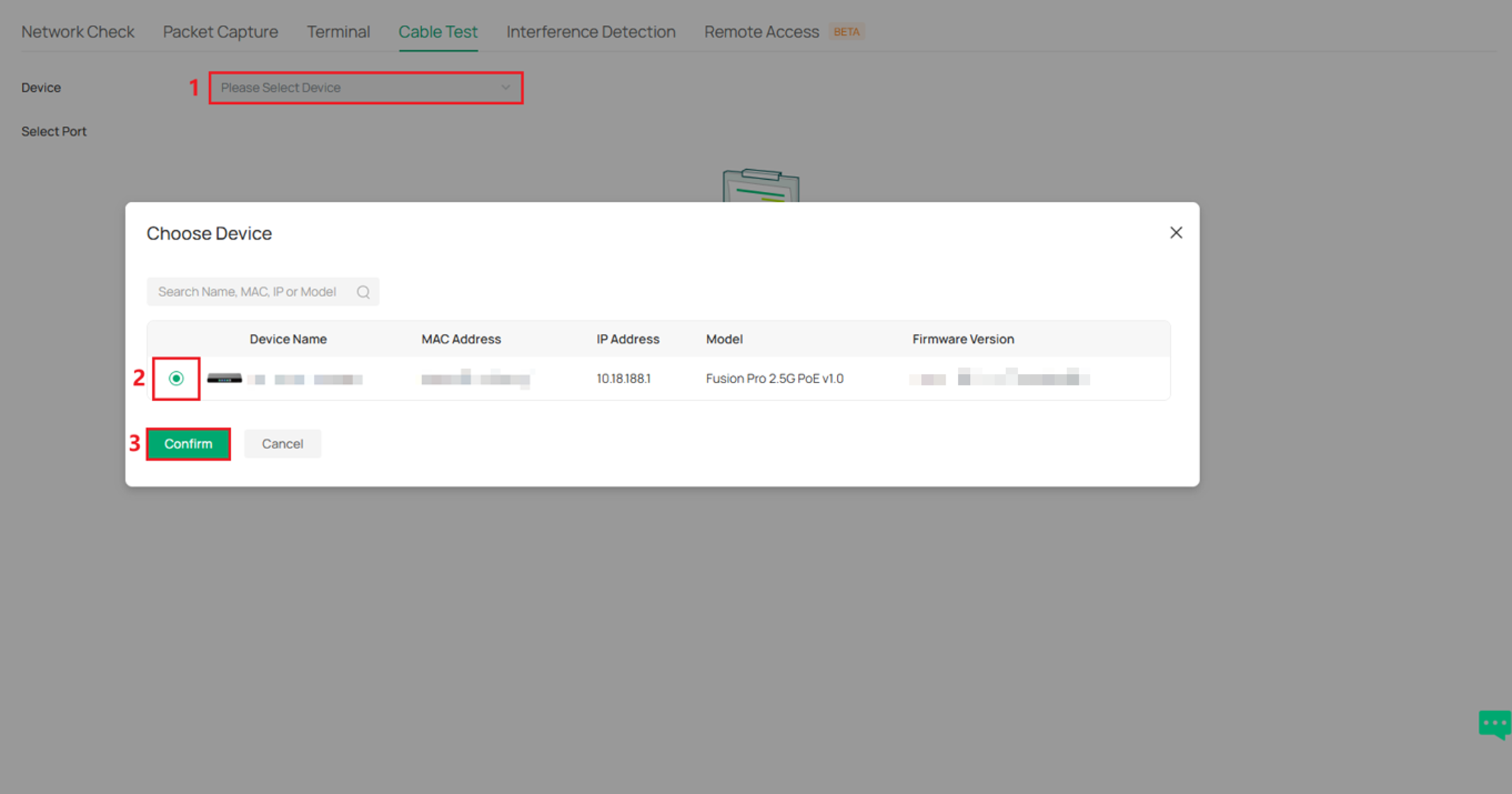
Step 2. Click Please Select Device, choose the device to undergo the Cable Test, then click Confirm. Only Omada Fusion 2.5G PoE, Omada Fusion Pro 2.5G PoE, and Omada Managed Switches in the Connected state can be selected here.
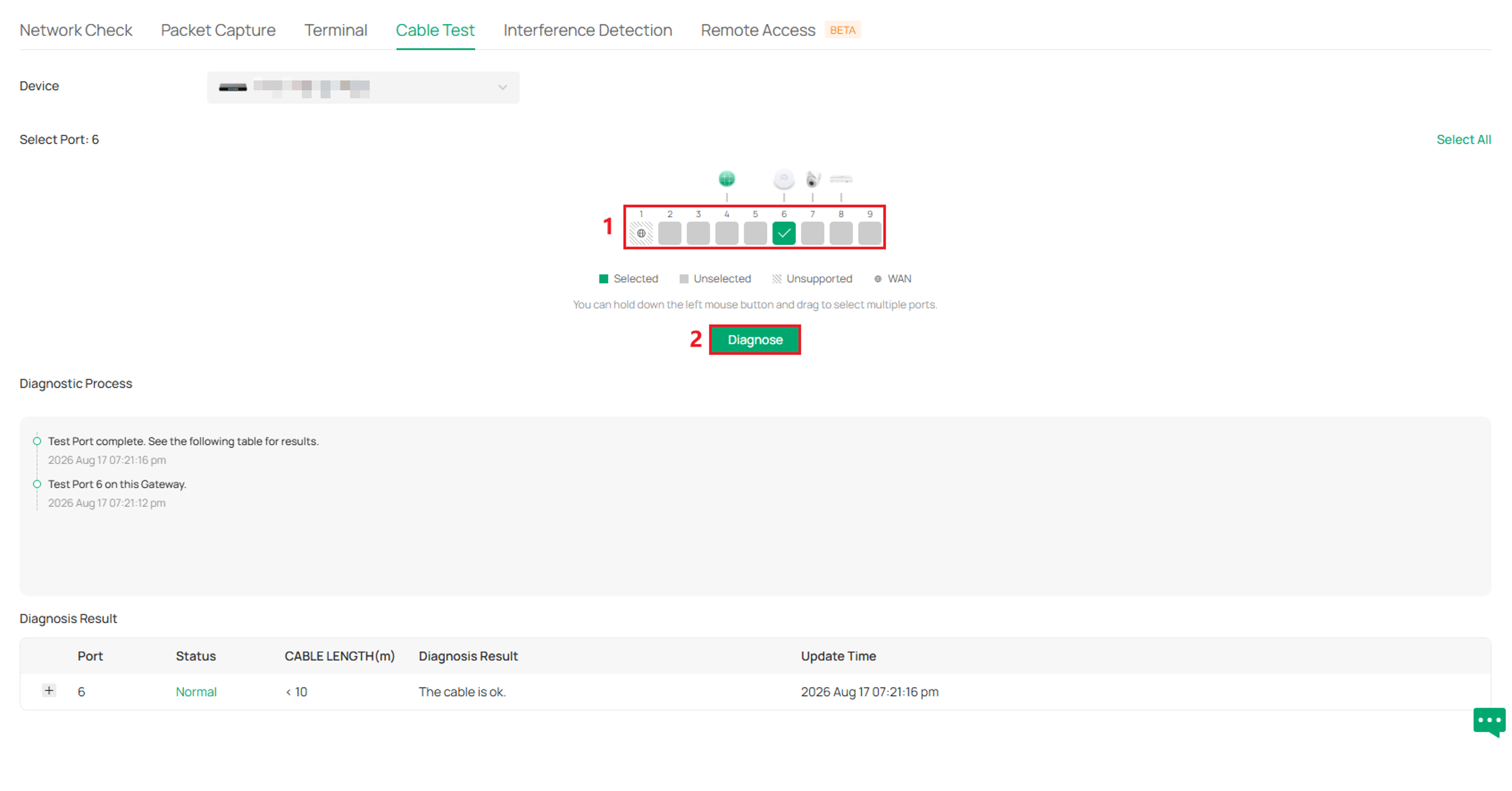
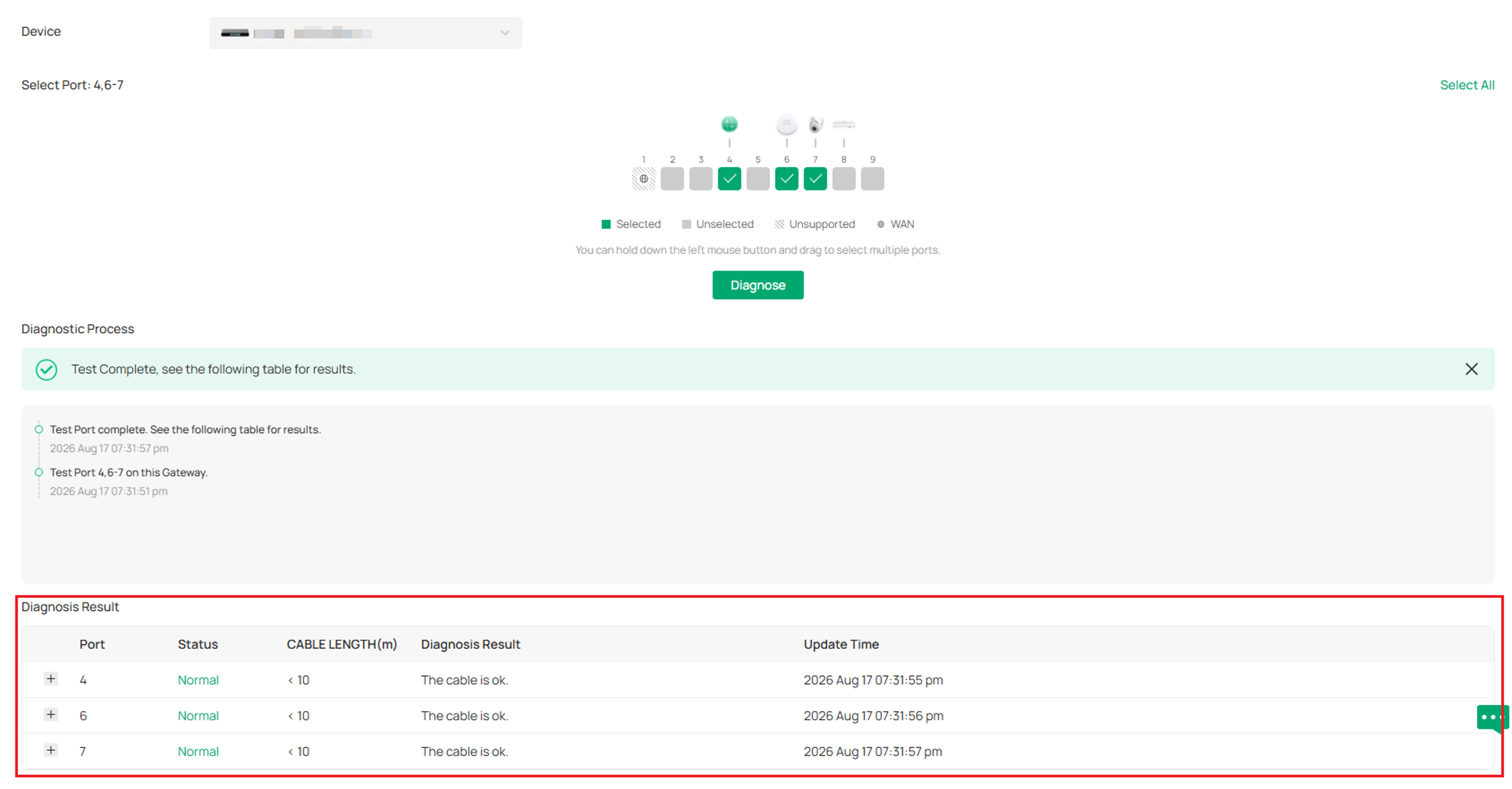
Step 3. Select the port(s) to be tested and click Diagnose to initiate the test.
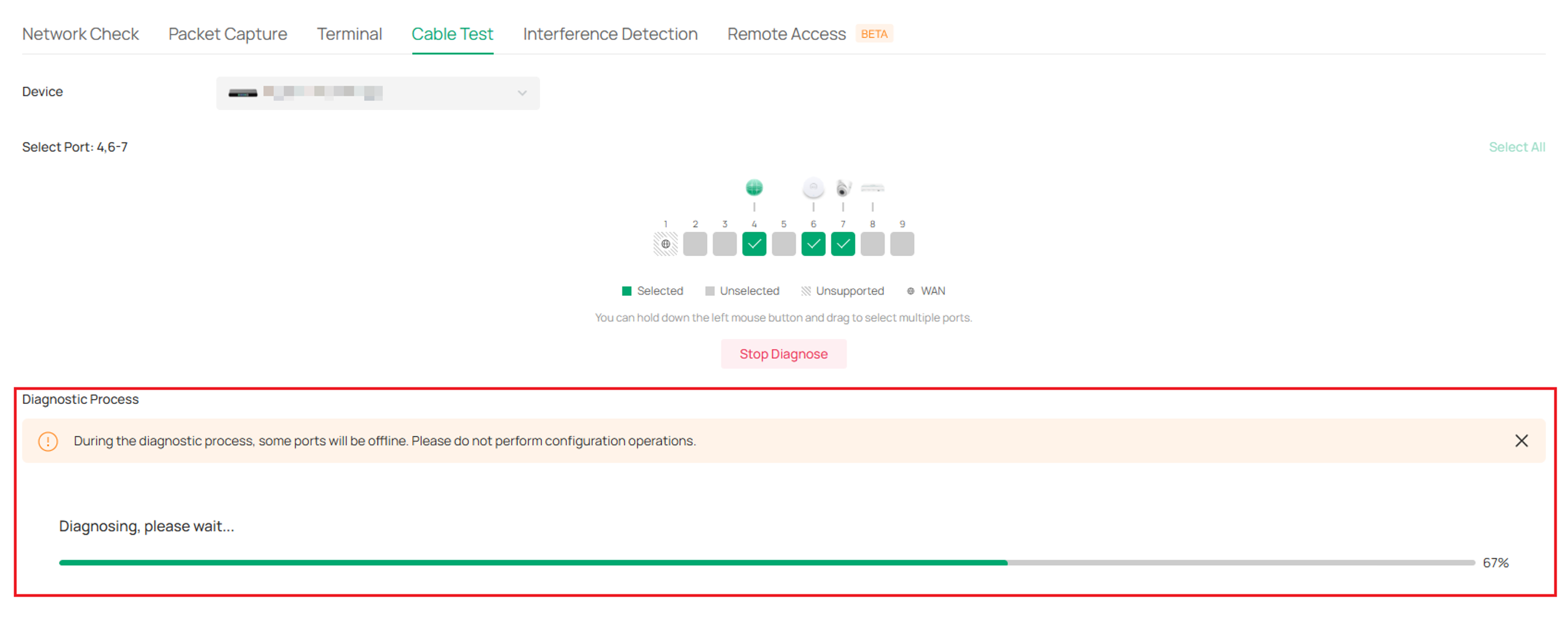
During the test, the progress is displayed in the Diagnostic Process section, and you can stop the test by clicking "Stop Diagnose" if needed.
After the test is complete, view the results in the Diagnosis Result section. The tested port number and the test results will be displayed in order. You can also click the expand icon on the left side of the port number to see more detailed results.
Detailed Results Explanation
|
Item |
Explanation |
|
Pair 1/2/3/4 |
Represents the four pairs of wires in the cable. |
|
CABLE LENGTH(m) |
When a fault is detected, this value indicates the estimated distance from the local port to the fault location. |
|
When no fault is detected, it indicates the estimated cable length. |
|
Status |
Detailed Status |
|
Normal |
Normal: Indicates that the wire pair (PAIR) is properly terminated. |
|
Abnormal |
Open: Indicates that the wire pair may have an open circuit. This can also occur if the far-end device is not connected, not powered on, or the port is administratively down (disabled). |
|
Short: Indicates that the wire pair is short-circuited. |
|
|
Crosstalk: Indicates crosstalk (interference) between wire pairs. |
|
|
Not Supported |
Indicates that the port does not support cable test, which does not indicate a cable malfunction. |
|
Unknown Error |
Indicates an unknown fault, which does not indicate a cable malfunction. |
Conclusion
The Cable Test function helps diagnose Ethernet cable issues by identifying cable status, estimating cable length, and locating potential faults on supported ports. Please note that test availability and accuracy may vary depending on the device, port type, link speed, peer status, and cable conditions.
To learn more about each function and configuration, please visit Support Home to download or check the manual for your product.

