


Contents
Introduction
In weak or unstable network conditions, pages may load slowly or experience noticeable delays during access.
Omada Controller supports PWA capabilities to improve performance and stability:
- Faster loading speed on repeat visits.
- Improved performance in high-latency or unstable networks.
- Pages can render quickly using cached content.
Requirements
- Omada Controller 6.2.10 and above.
- valid SSL Certificate.
Configuration
PWA is enabled by default in cloud environments, no additional configuration is required. To enable PWA in Local Software Controller, you need to configure an HTTPS certificate and access the site via a domain name. Please refer to the following steps.
Configure HTTPS Access
Step 1. Navigate to HTTPS settings. Go to: Global View > Settings > System Settings > HTTPS Certificate.
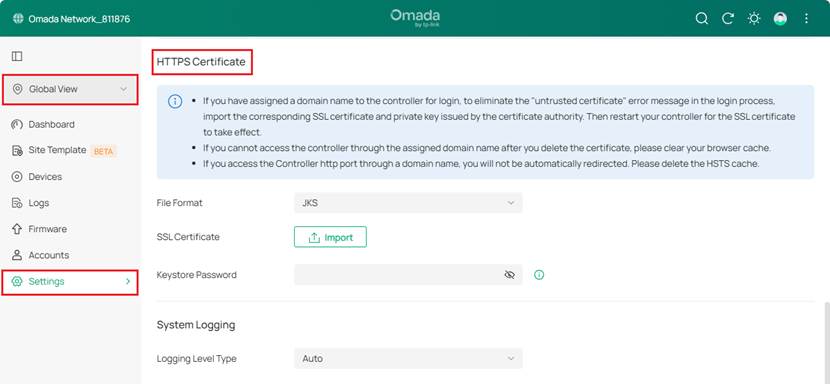
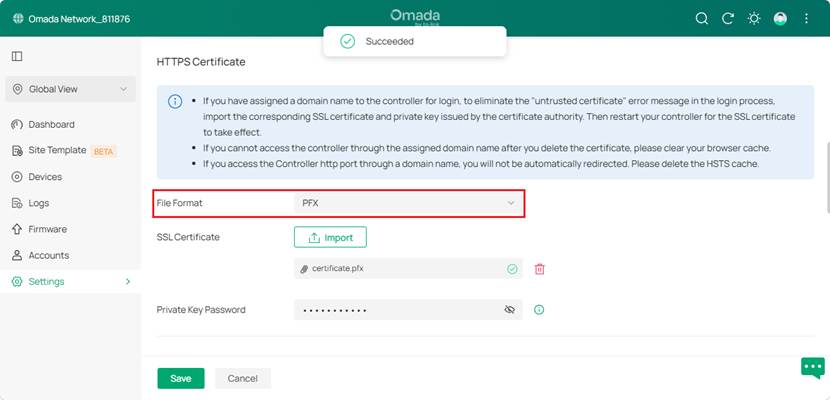
Step 2. Upload your digital certificate here. The Controller supports uploading JKS, PFX, and PEM certificates. After uploading the certificate, you need to restart the Controller for it to take effect.
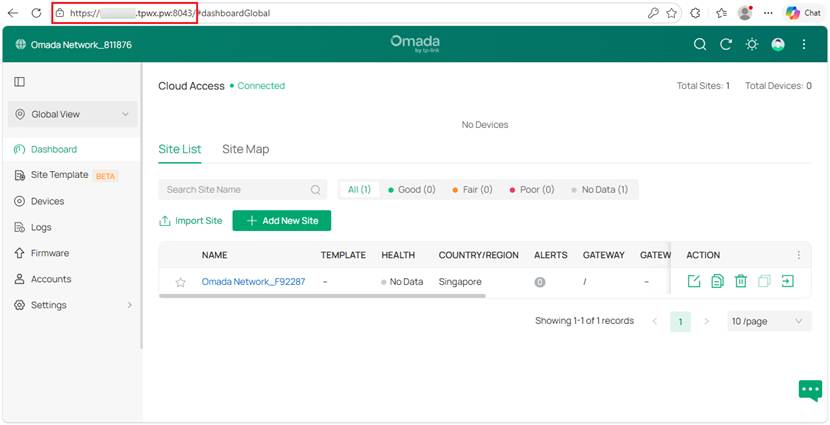
Step 3. Access the Controller via the domain name that matches the certificate.
Note:
- Access via IP address is not supported.
- The domain must match the certificate (CN or SAN).
Verification
To verify that PWA is working correctly, check the following with Edge or Google Chrome:
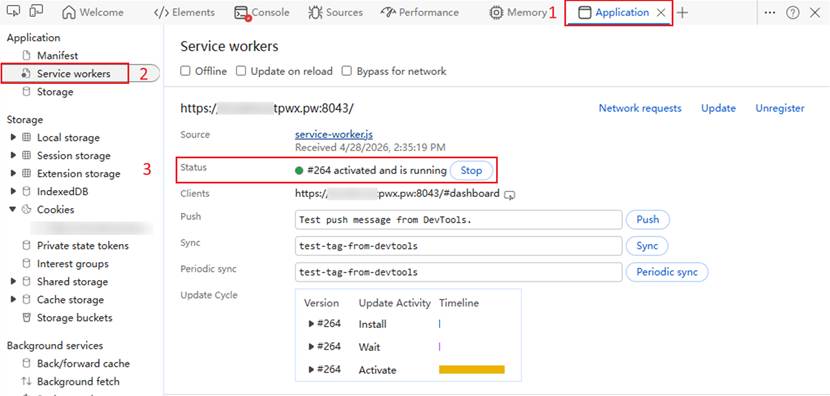
Step 1. Open the browser Developer Tools (F12).
Step 2. Go to the Application tab and select Service workers. Verify that:
- A Service Worker is registered.
- The status is “activated” or “running”.
Conclusion
This will enable the PWA functionality of the Local Software Controller.
To learn more about each function and configuration, please visit Support Home to download or check the manual for your product.
QA
Q1: Why does the page content refresh automatically?
A1: This happens because cached data is loaded first, followed by an update from the network. This is expected behavior.
Q2: Why is PWA not working in my local deployment?
A2: Please check the following:
- HTTPS is properly configured.
- Accessed via a domain name.
- The Controller has been restarted after certificate import.
