


Contents
Understand the available Internet connection types
Supported connection types by WAN interface type
Configure IPv4 internet access
Configure IPv6 Internet acccess (Optional)
Introduction
The Internet Settings feature in the Omada App allows administrators to configure WAN Internet access on Omada gateways. Omada gateways support multiple Internet connection types to accommodate different ISP and network requirements.
This article explains the supported connection types, their use cases, and how to configure them using the Omada App.
Requirements
Before you begin
Omada Controller supports eleven connection types for WAN Internet access: Dynamic IP, Static IP, PPPoE, L2TP, PPTP, DS-lite, MAP-E, PPPoA, IPoA, LTE, USB Modem. Before configuring the WAN connection, make sure you have obtained the required network information from your Internet Service Provider (ISP) or VPN administrator. The available connection types may vary depending on the gateway model and WAN port type. Only the connection types supported by the adopted gateway will be available for configuration.
Understand the available Internet connection types
The following table describes the typical use cases and required parameters for each connection type.
|
Connection Type |
Typical Scenario |
Required Parameters |
Information Source |
|
Dynamic IP |
The ISP automatically assigns network settings through DHCP. |
None |
ISP |
|
Static IP |
The ISP provides a fixed IP address for Internet access. |
IP Address, Subnet Mask, Default Gateway, DNS Server (Optional) |
ISP |
|
PPPoE |
Broadband access that requires authentication with a username and password. |
Username, Password |
ISP |
|
L2TP |
Internet access through an L2TP server. |
Username, Password, VPN Server Address |
ISP or VPN Administrator |
|
PPTP |
Internet access through a PPTP server. |
Username, Password, VPN Server Address |
ISP or VPN Administrator |
|
DS-Lite |
The ISP provides IPv4 connectivity over an IPv6 network using DS-Lite technology. |
AFTR information (if required)
|
ISP
|
|
MAP-E
|
The ISP provides IPv4-over-IPv6 Internet access using MAP-E technology. |
MAP-E parameters assigned by ISP |
ISP |
|
PPPoA |
The ISP requires authentication over an ATM-based ADSL network using a username and password. Unique to ADSL |
Username, Password |
ISP |
|
IPoA |
The ISP provides IP connectivity over an ATM-based ADSL network without PPP authentication. Unique to ADSL |
IP Address, Subnet Mask, Default Gateway |
ISP |
|
LTE |
Internet access through a cellular network using an LTE-capable SIM card. Common in mobile broadband, backup WAN, and remote deployment scenarios. |
SIM Card, Mobile ISP, Dial-up Settings, SIM/UIM PIN (Optional) |
Mobile Network Operator |
|
USB Modem |
Internet access through a supported USB modem connected to the gateway. Typically requires a USB dongle and SIM card provided by a mobile network operator. Commonly used for backup WAN or temporary Internet access. |
USB Dongle, SIM Card, Location, Mobile ISP (Auto Mode) or Dial Number (Manual Mode), SIM/UIM PIN (Optional) |
Mobile Network Operator |
Supported connection types by WAN interface type
The available Internet connection types depend on the WAN port type and gateway firmware version.
|
Connection Type |
Standard WAN |
DSL (VDSL) |
DSL (ADSL) |
Virtual WAN |
|
Dynamic IP |
✓ |
✓ |
✓ |
✓ |
|
Static IP |
✓ |
✓ |
✓ |
✓ |
|
PPPoE |
✓ |
✓ |
✓ |
✓ |
|
L2TP |
✓ |
✓ |
✓ |
✗ |
|
PPTP |
✓ |
✓ |
✓ |
✗ |
|
DS-Lite |
✓ |
✗ |
✗ |
✗ |
|
MAP-E |
✓ |
✗ |
✗ |
✗ |
|
PPPoA |
✗ |
✗ |
✓ |
✗ |
|
IPoA |
✗ |
✗ |
✓ |
✗ |
Note: DS-Lite and MAP-E are available on gateways that support these connection types and are running firmware compatible with Omada Controller v6.2 or later.
Configure IPv4 internet access
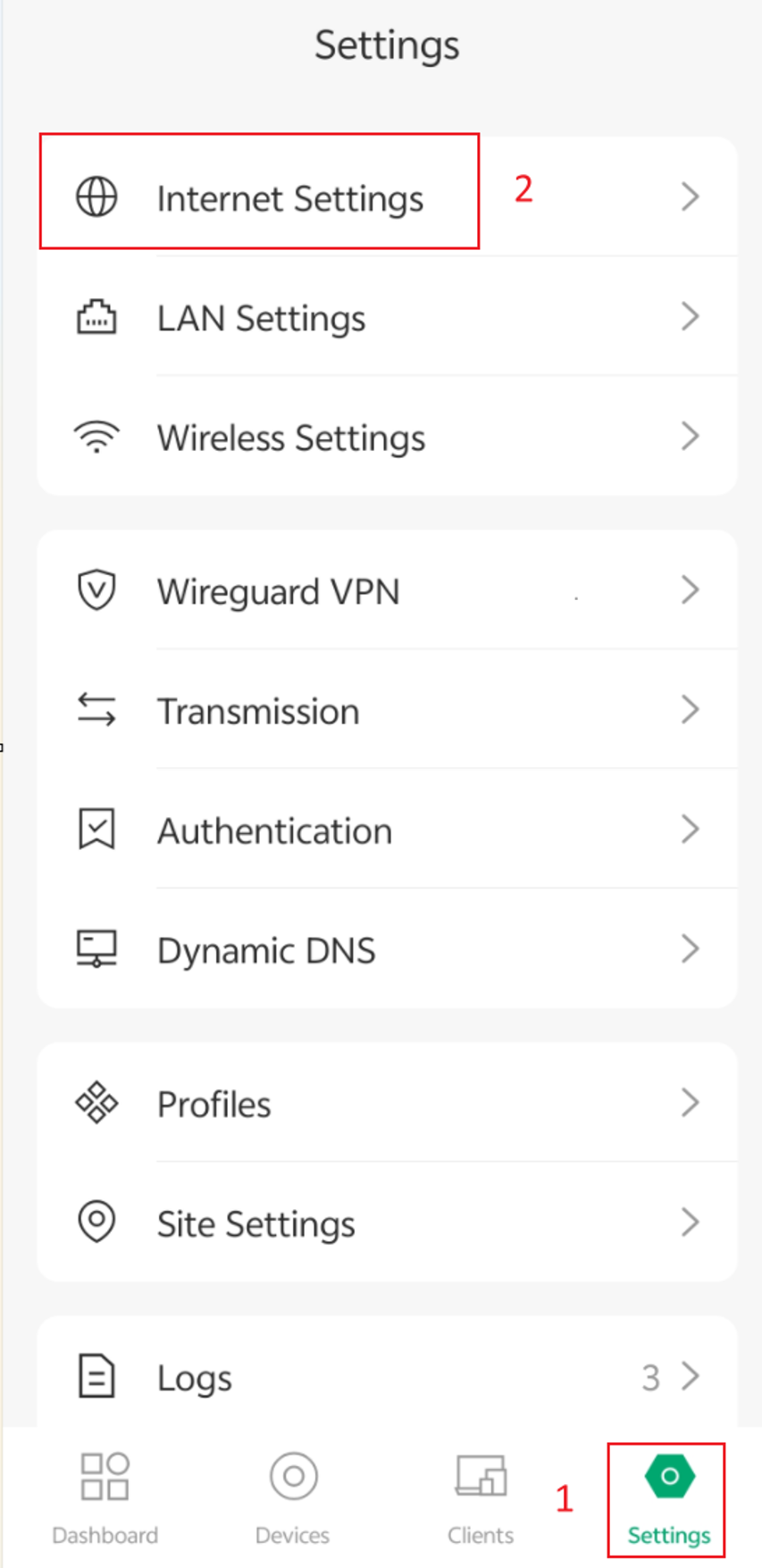
First, navigate to the Internet Settings page. Go to Settings > Internet Settings.
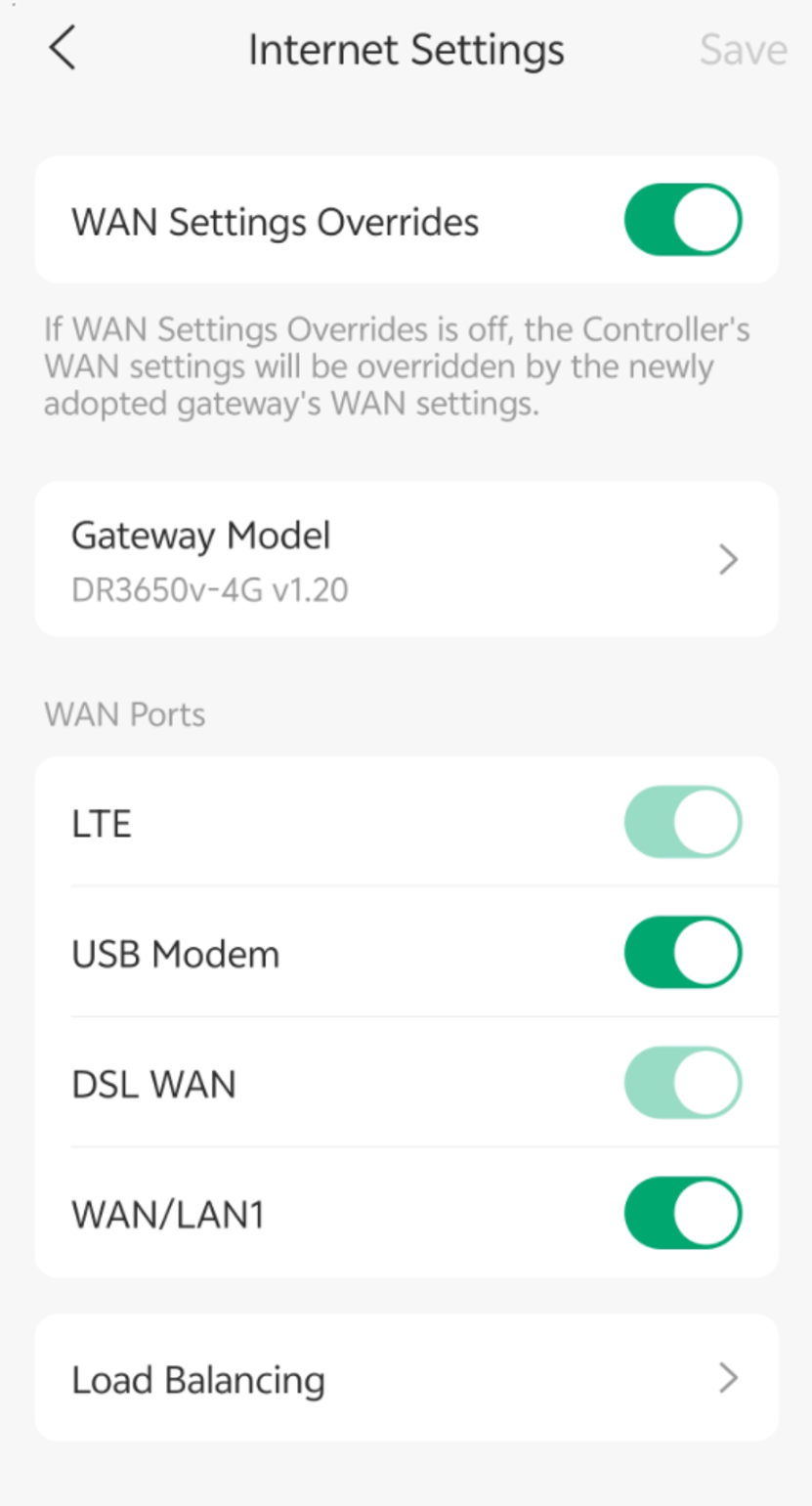
Select the WAN port you want to configure.
Note:
- Only enabled WAN interfaces can be configured.
- For dedicated WAN ports, the switch enables or disables the WAN interface.
- For configurable WAN/LAN ports, the switch determines whether the port operates as a WAN or LAN interface.
- Ensure the selected port is operating as a WAN interface before continuing.
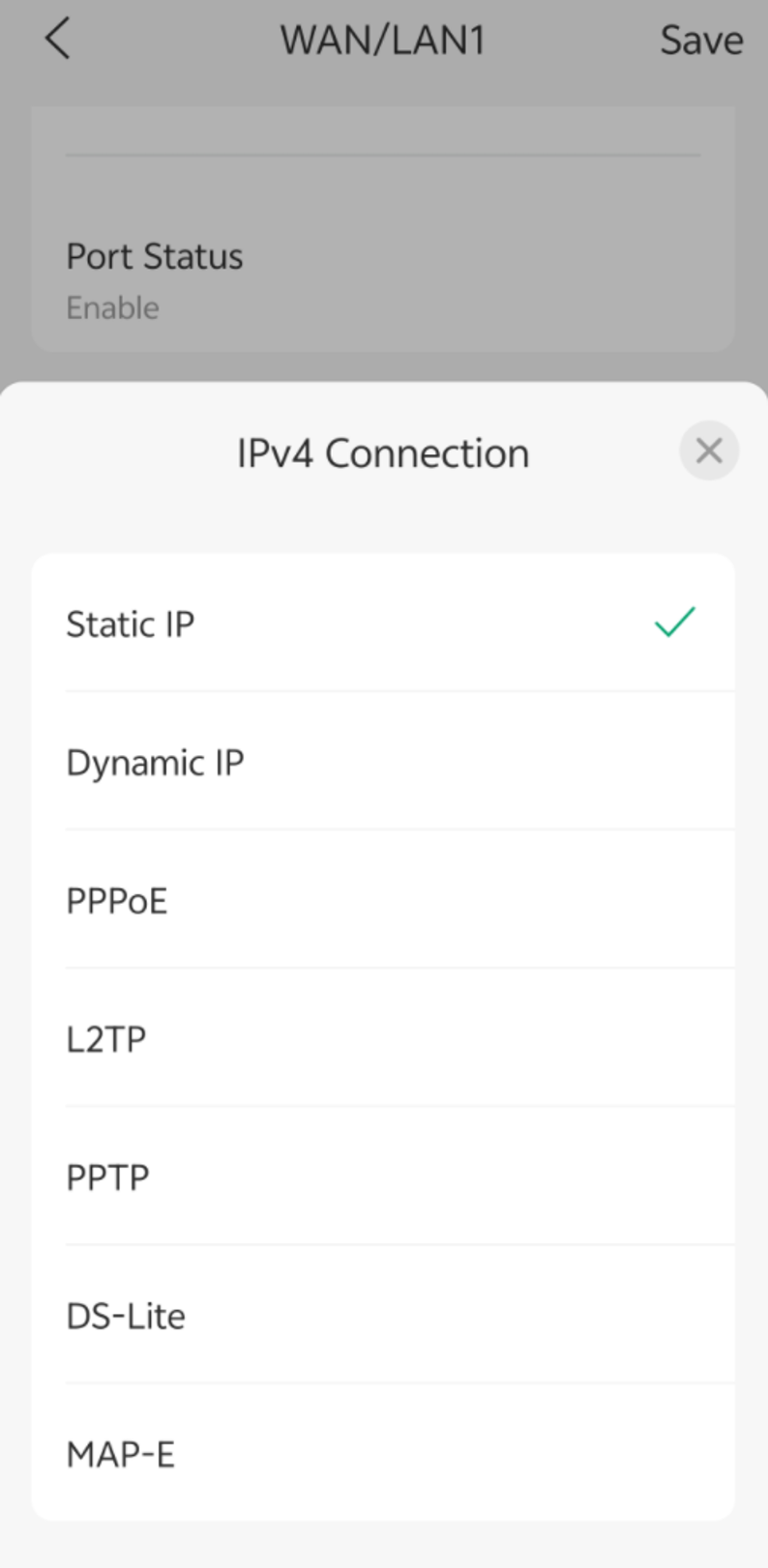
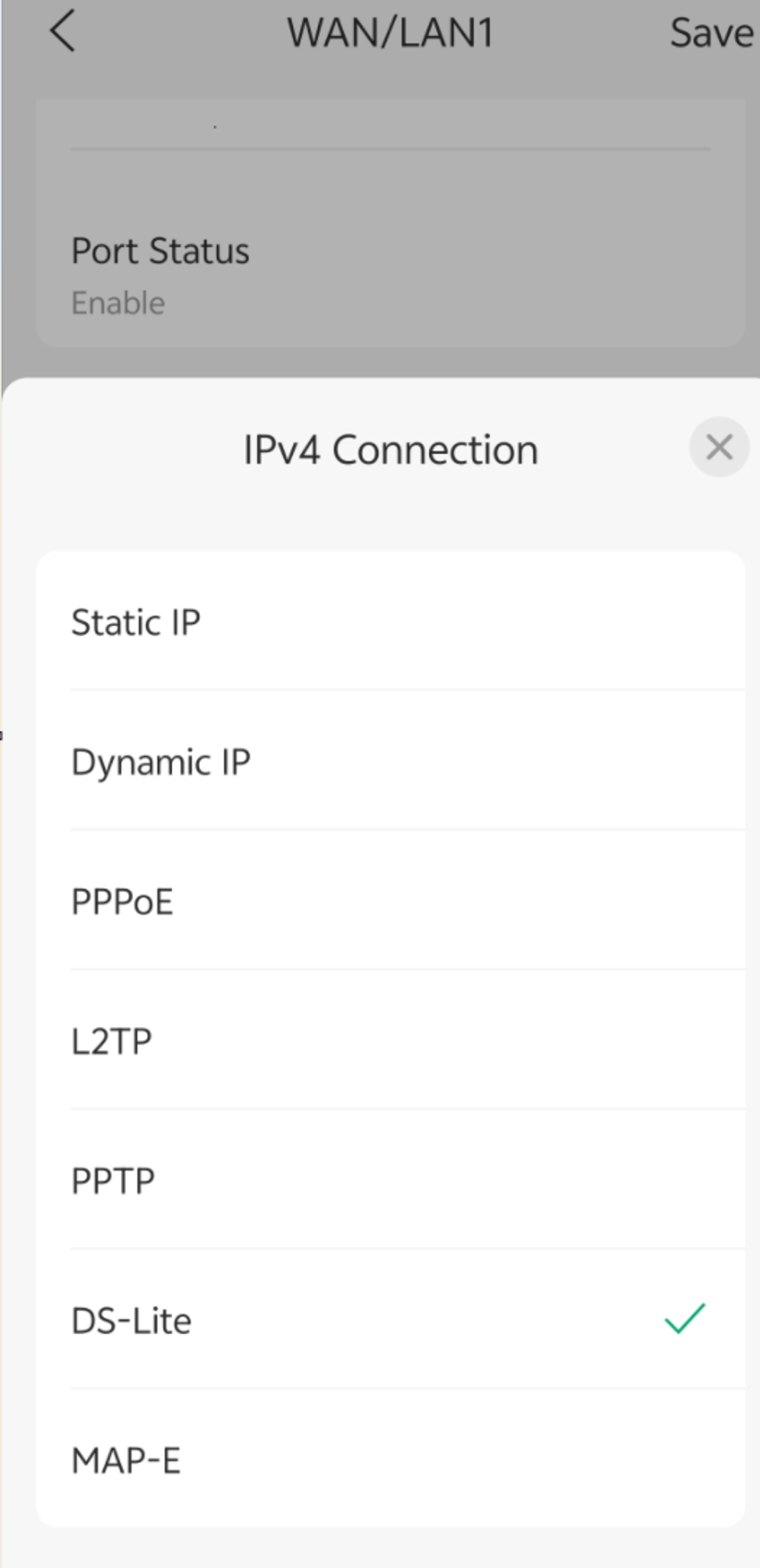
Click IPv4 Connection and select the corresponding dialing type.
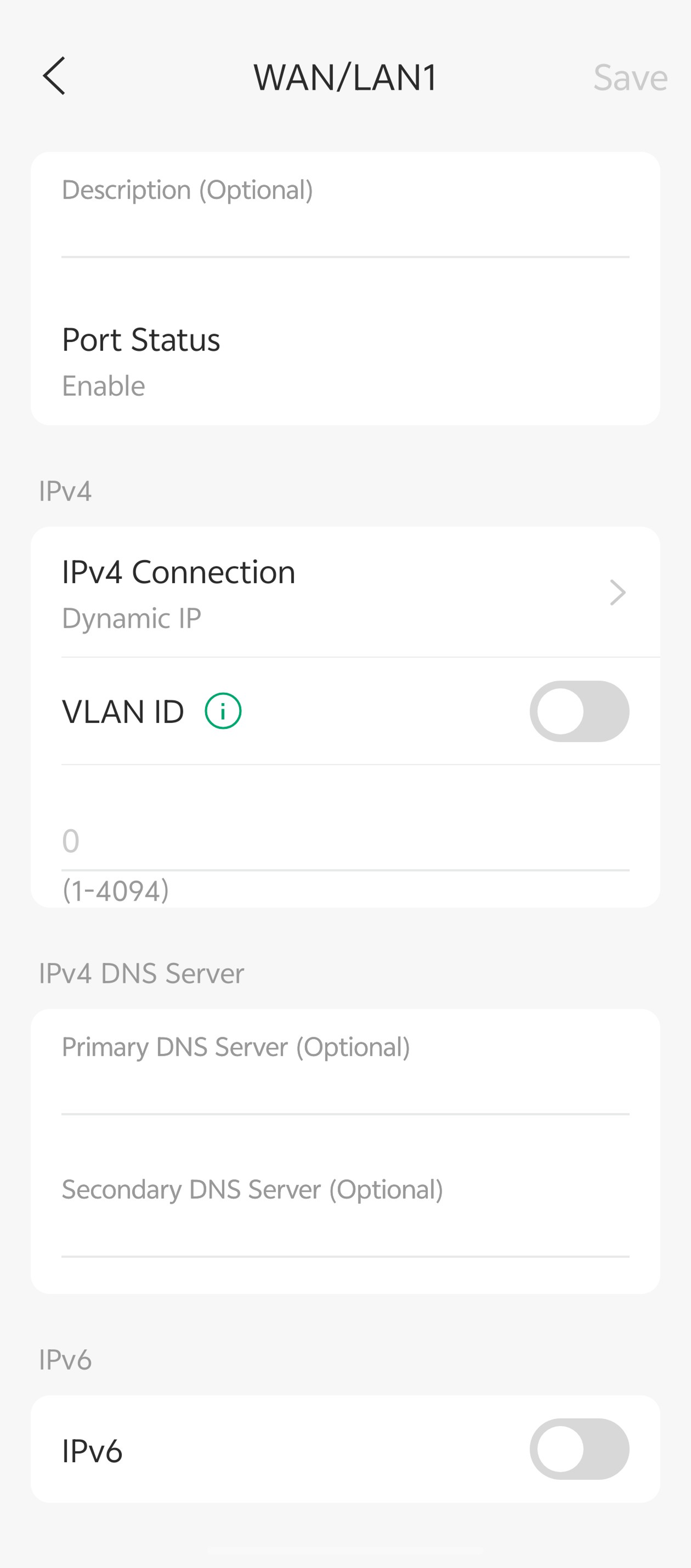
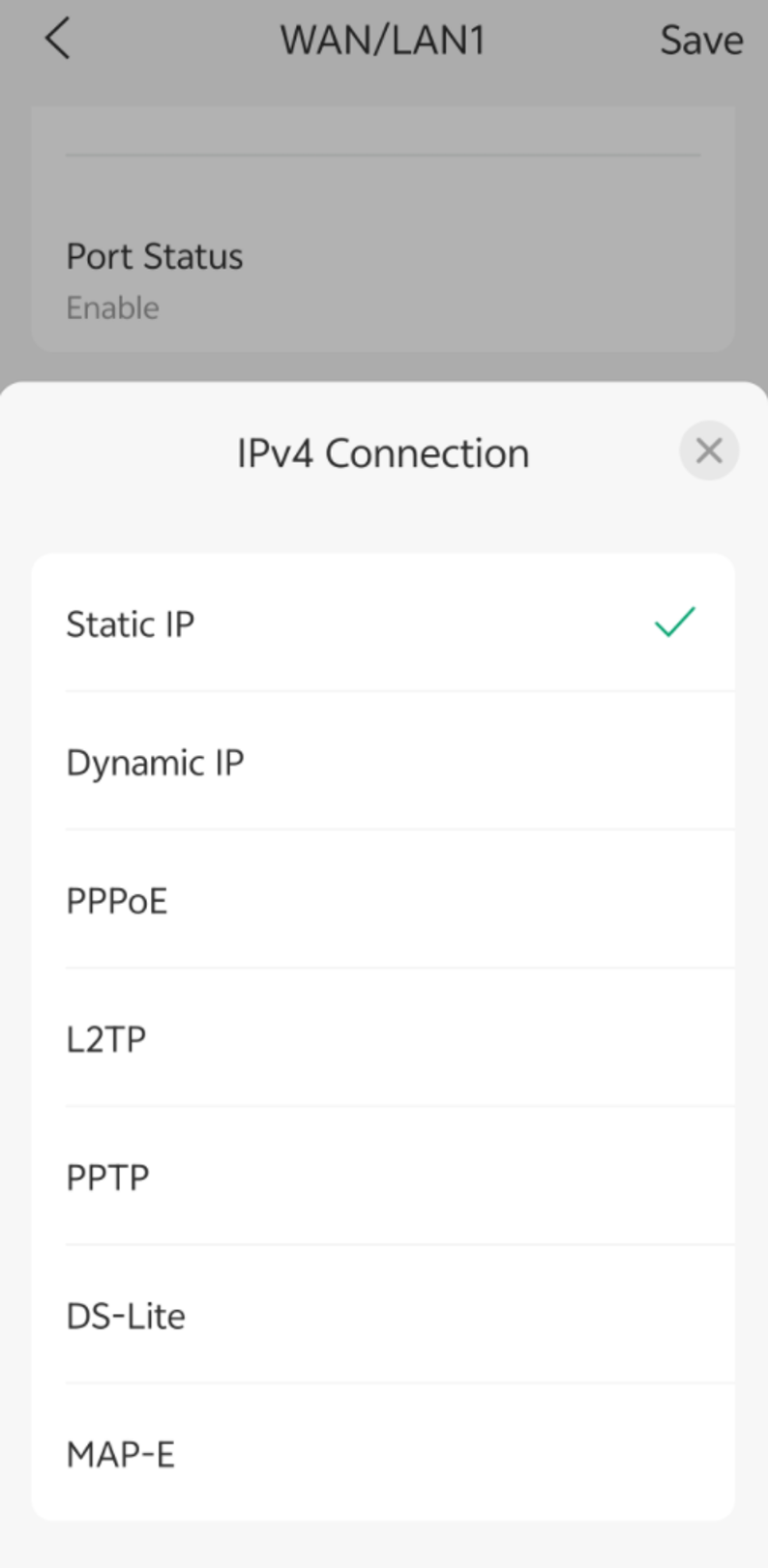
Step 4. Configure the selected connection type.
Dynamic IP
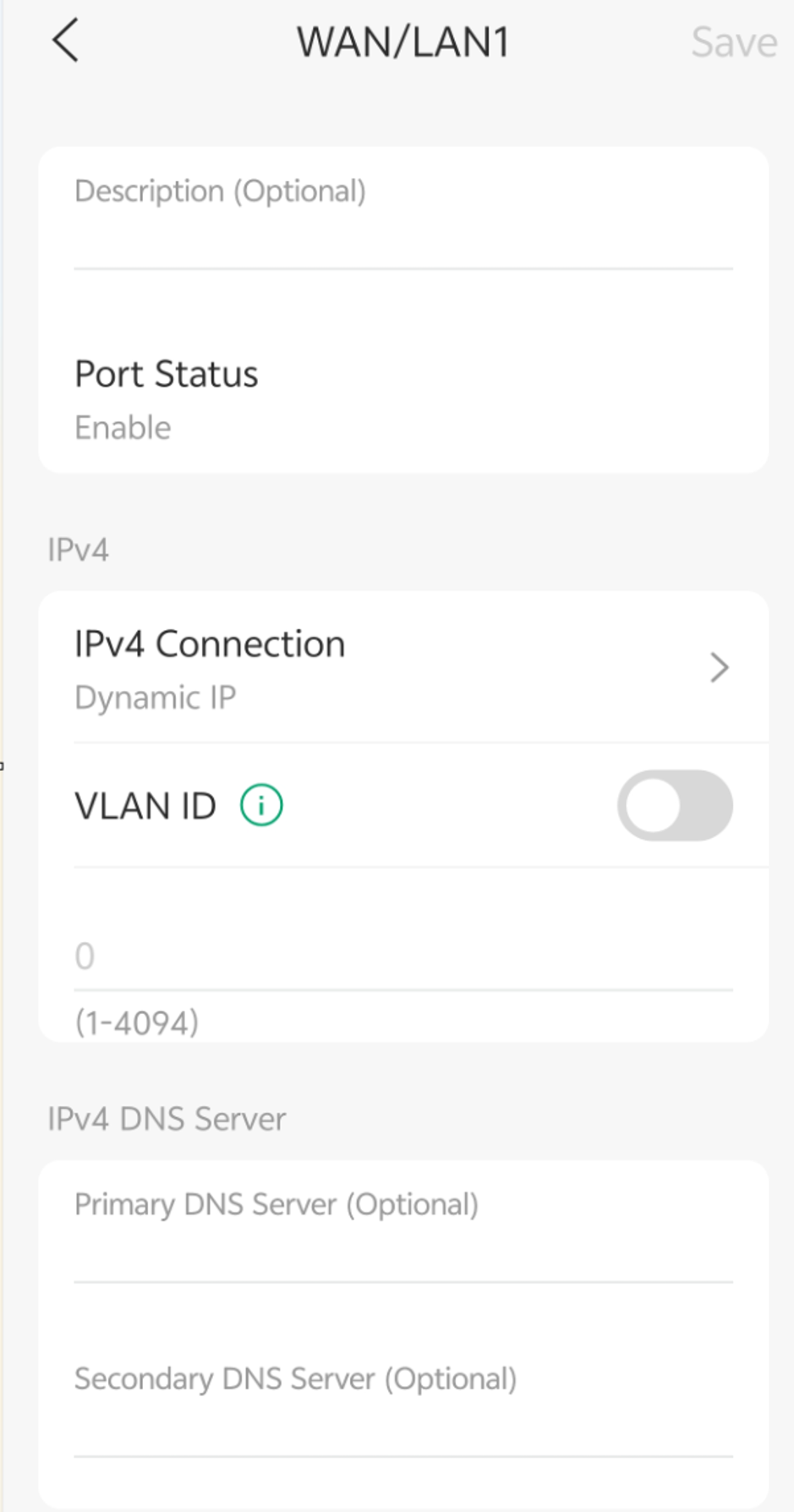
Dynamic IP is typically used when the ISP automatically assigns network parameters through DHCP. The device automatically obtains an IP address and related settings without manual configuration.
Step 1. Select Dynamic IP under IPv4 Connection.
Step 2. Configure optional settings if required:
- VLAN ID
- Primary DNS Server
- Secondary DNS Server
Step 3. Tap Save.
Static IP
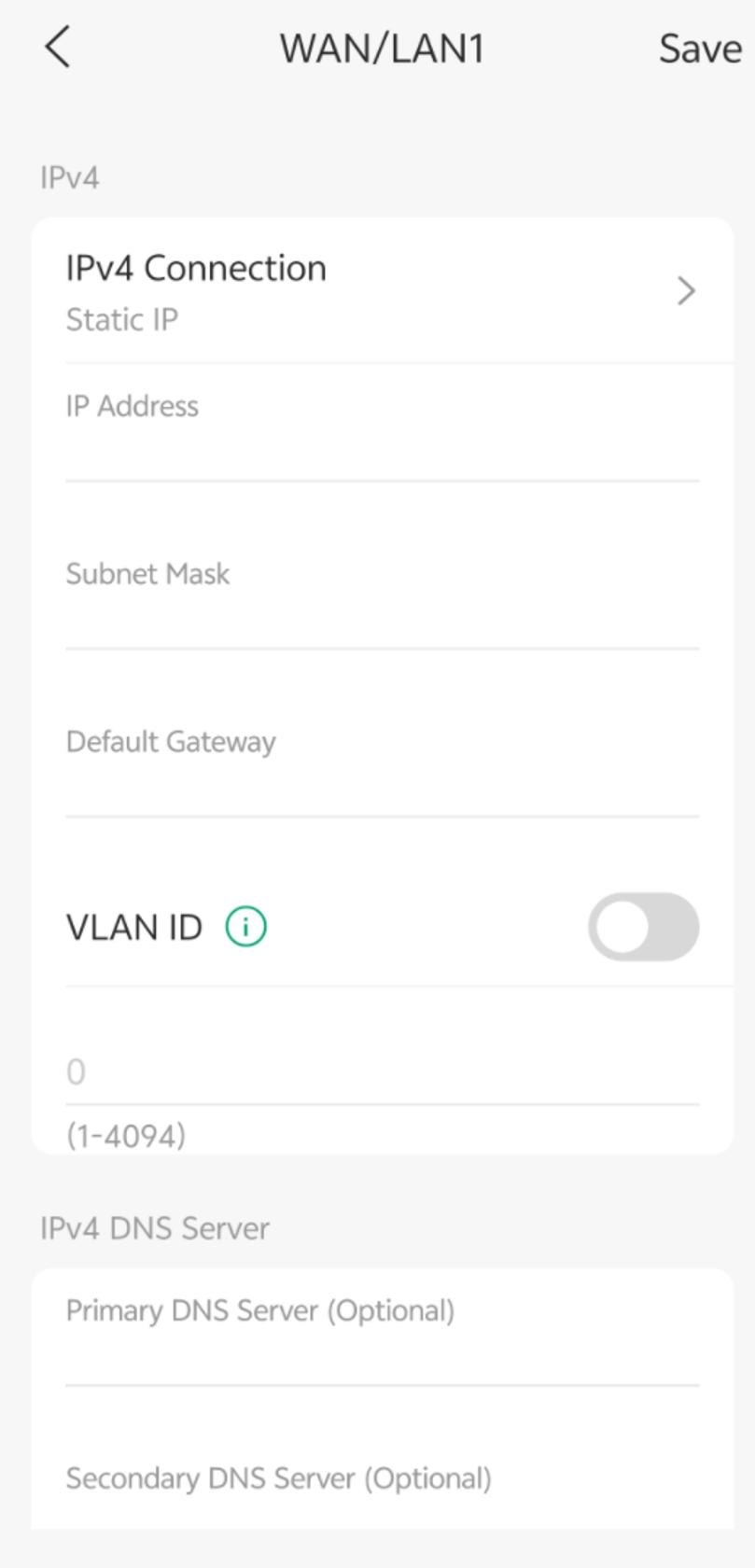
Static IP is typically used when the ISP provides fixed network parameters, including an IP address, subnet mask, and default gateway.
Step 1. Select Static IP under IPv4 Connection.
Step 2. Enter the following information provided by the ISP:
- IP Address
- Subnet Mask
- Default Gateway
Step 3. Configure optional settings and tap Save.
PPPoE
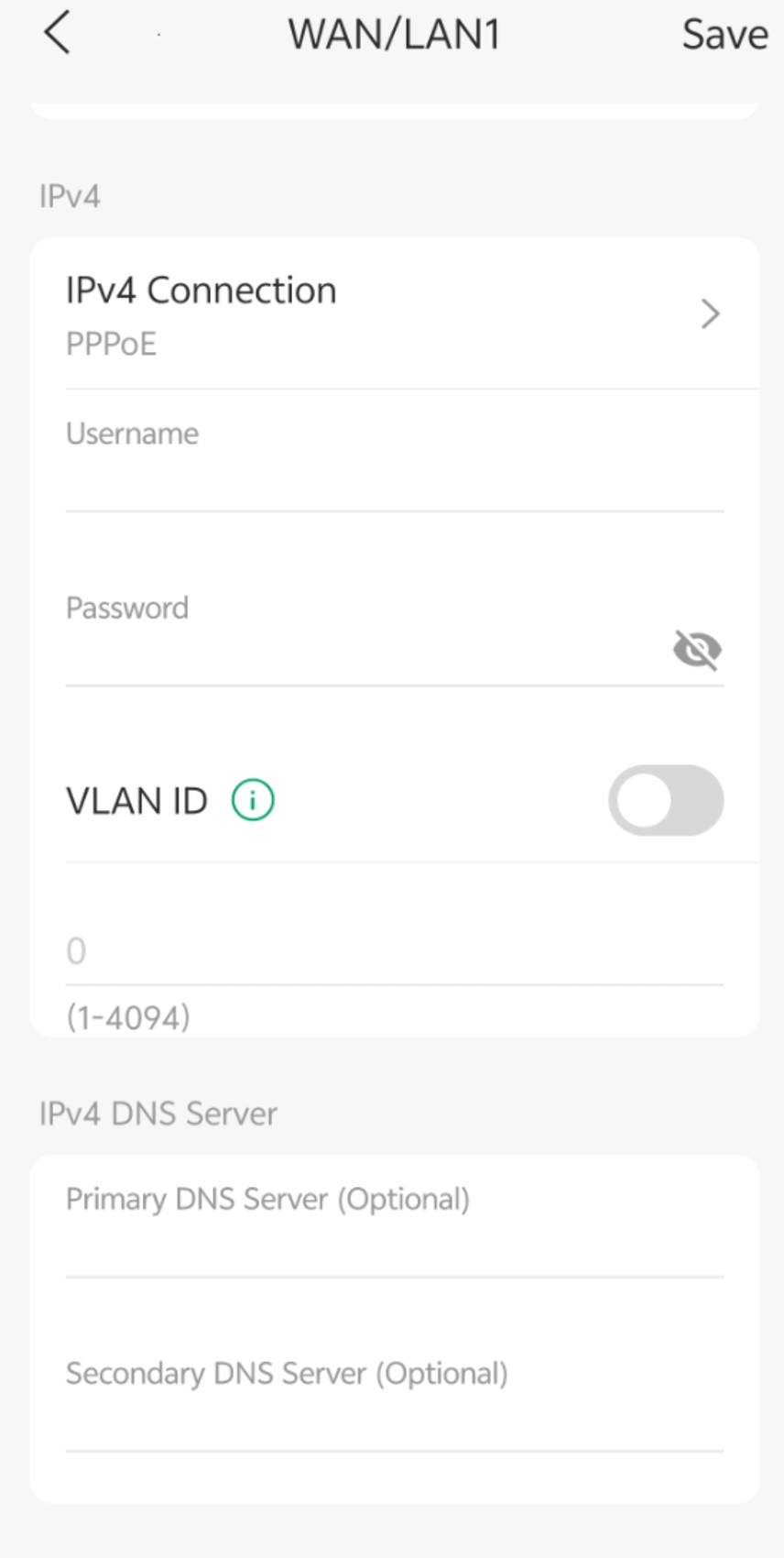
PPPoE is typically used when the ISP requires user authentication through a username and password before granting Internet access.
Step 1. Select PPPoE under IPv4 Connection.
Step 2. Enter the following information provided by the ISP:
- Username
- Password
Step 3. Configure optional settings if required and tap Save.
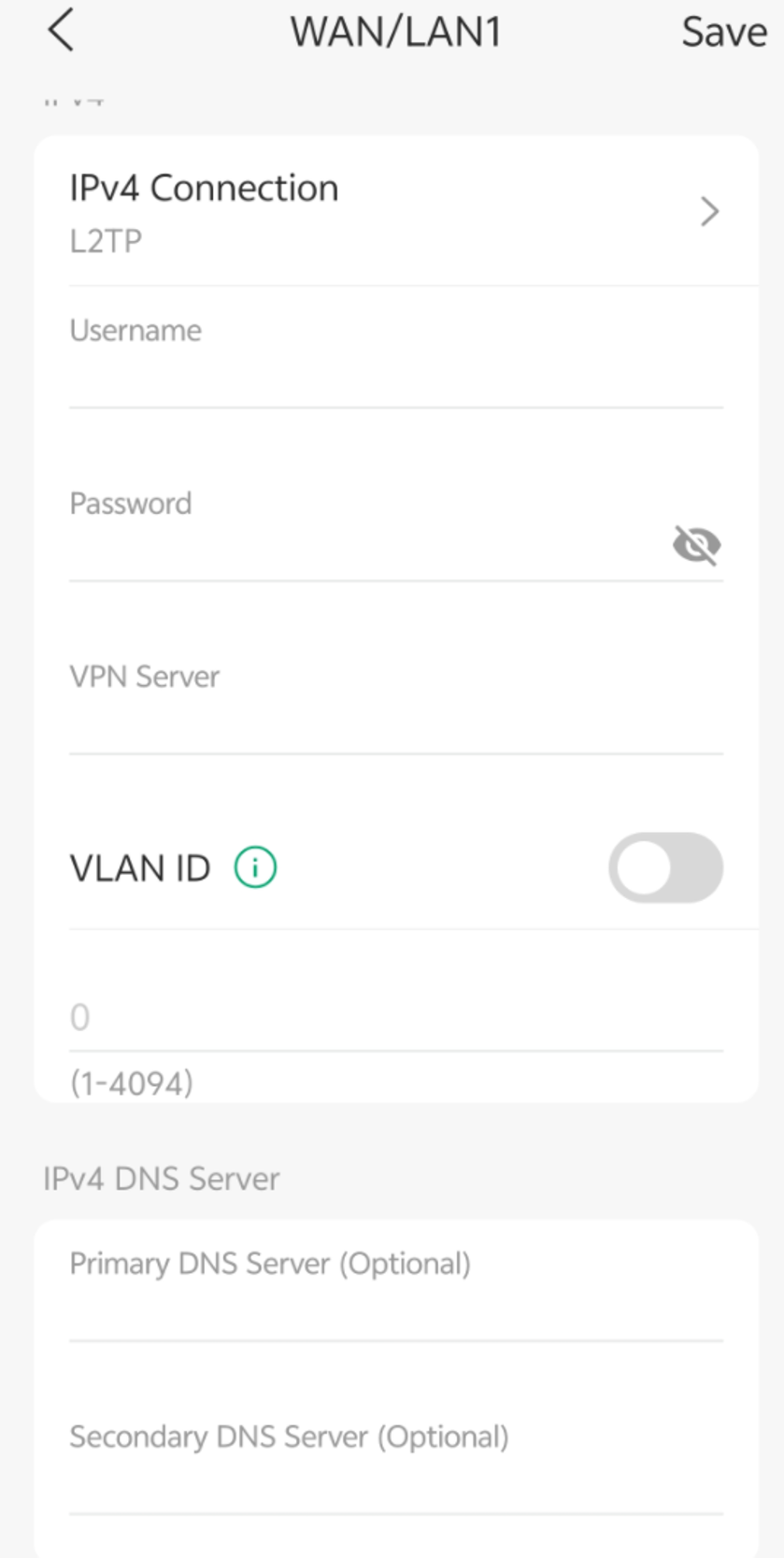
L2TP
L2TP is typically used when Internet access is established through an L2TP server and requires authentication credentials provided by the ISP or VPN administrator
Step 1. Select L2TP under IPv4 Connection.
Step 2. Enter the following information provided by the ISP or VPN administrator:
- Username
- Password
- VPN Server Address
Step 3. Configure additional parameters if required and tap Save.
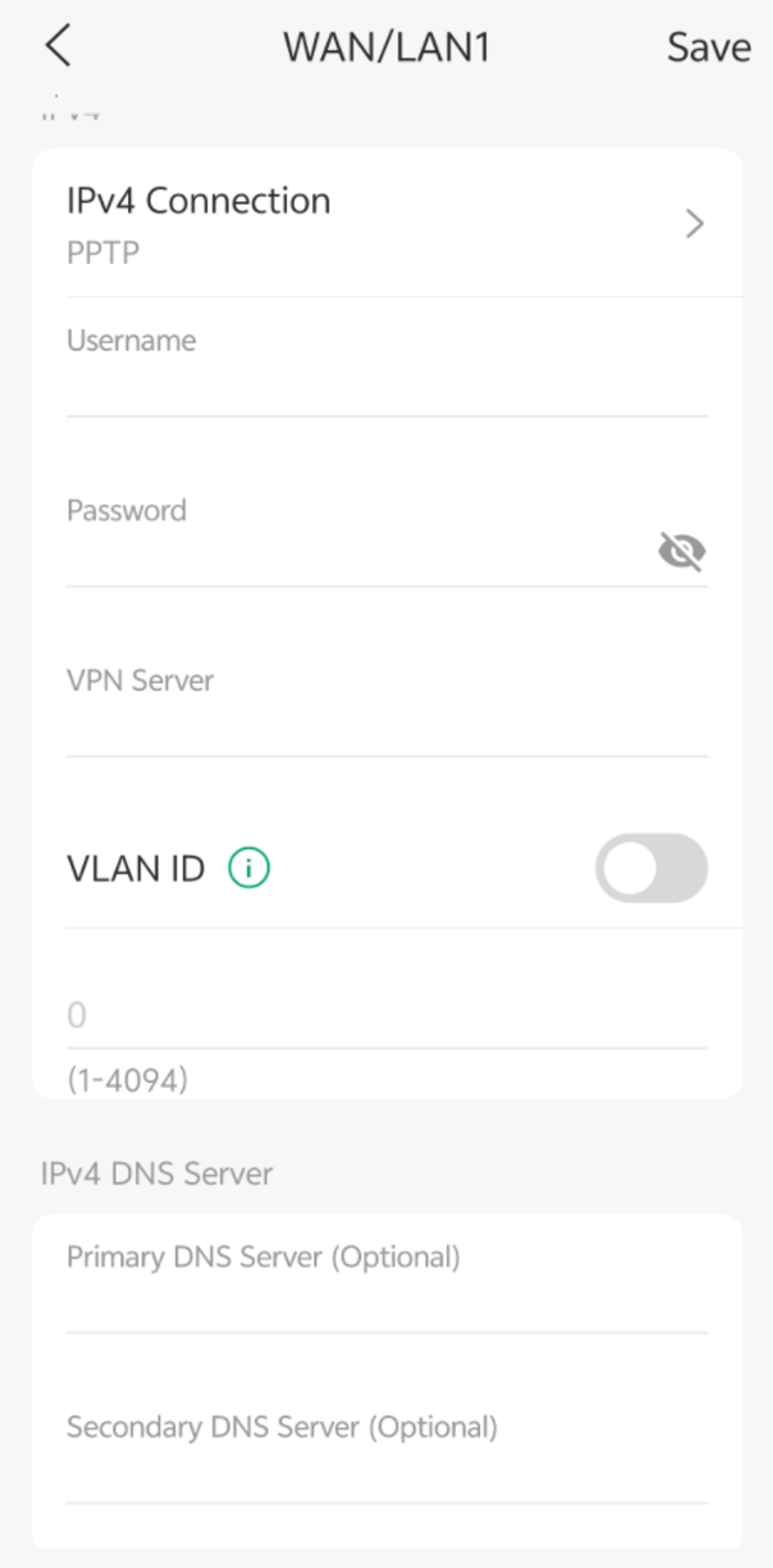
PPTP
PPTP is typically used when Internet access is established through a PPTP server and requires authentication credentials provided by the ISP or VPN administrator.
Step 1. Select PPTP under IPv4 Connection.
Step 2. Enter the following information provided by your ISP or VPN administrator:
- Username
- Password
- VPN Server Address
Step 3. Configure additional parameters if required and tap Save.
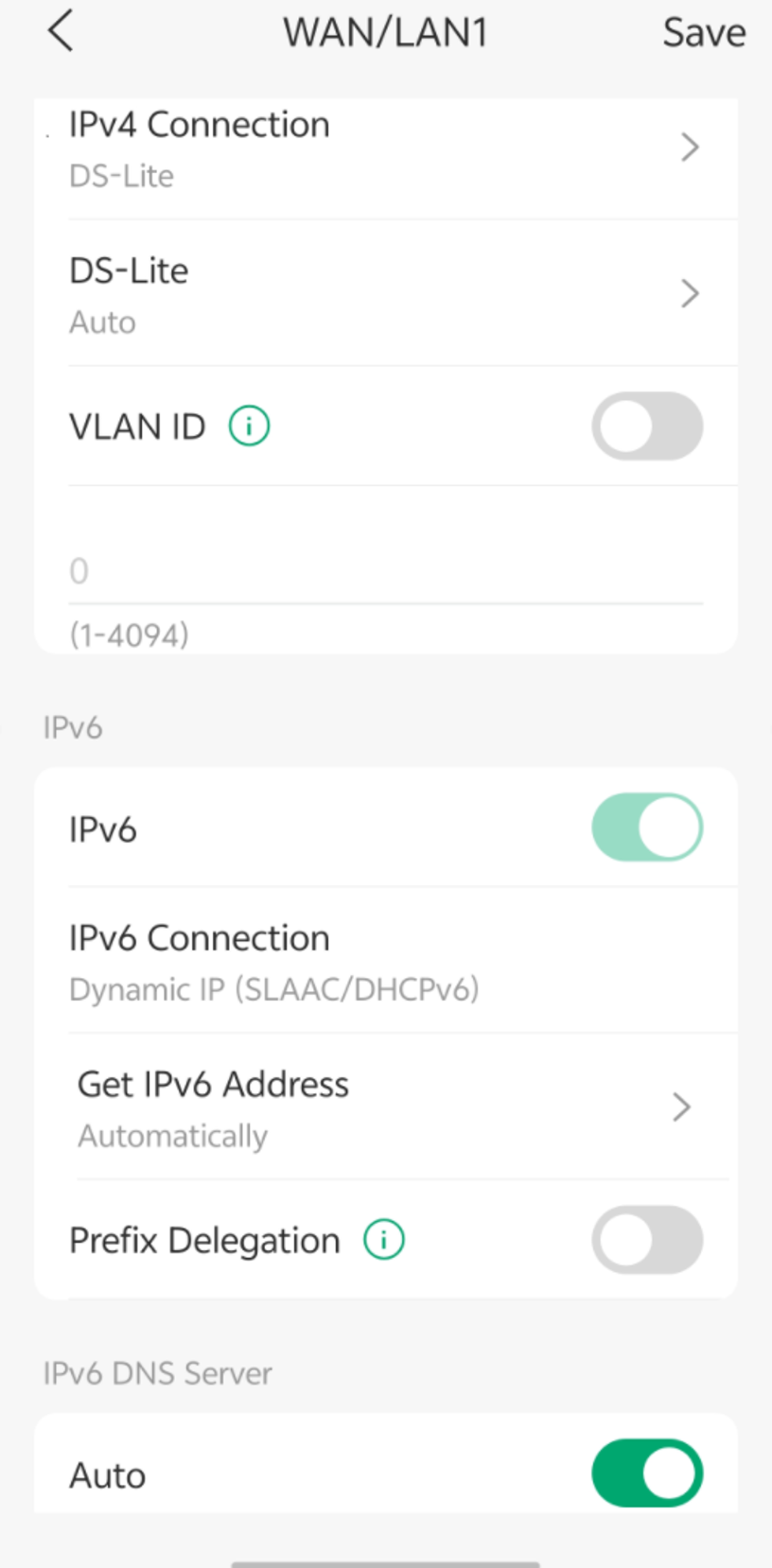
DS-Lite
DS-Lite is typically used by IPv6-based ISPs that provide IPv4 Internet access through an IPv6 tunnel and Carrier-Grade NAT (CGNAT).
Step 1. Select DS-Lite under IPv4 Connection.
Note: When DS-Lite is selected, some WAN features, such as NAT, VPN, DDNS, and UPnP, are unavailable.
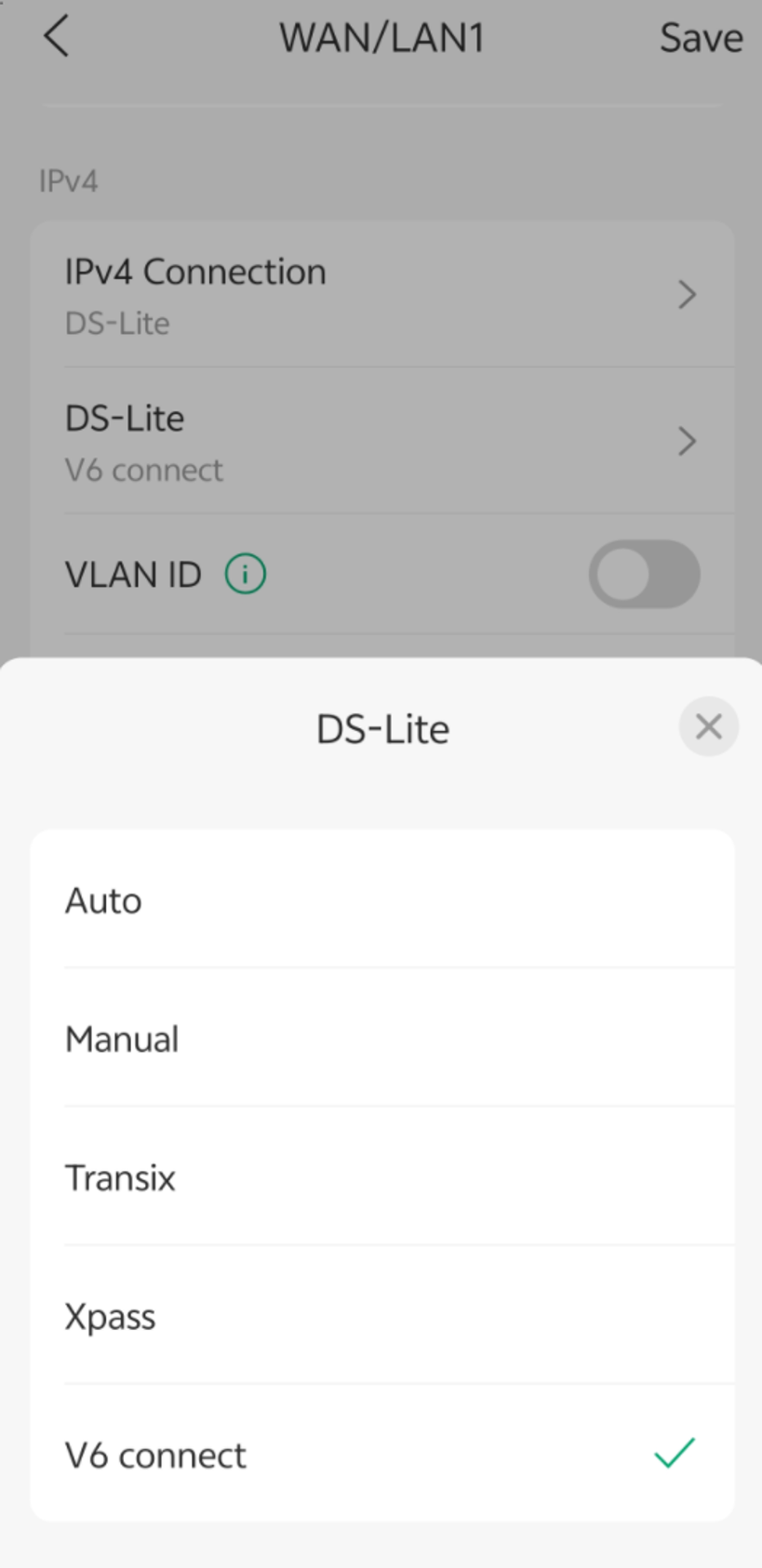
Step 2. Select the ISP service profile:
- Auto
- Manual
- Transix
- Xpass
- V6 Connect
These are ISP-specific DS-Lite service profiles. Select the profile provided by the ISP. If the assigned profile is unknown, contact the ISP for assistance.
Step 3. Configure ISP-required settings, then tap Save.
The IPv6 connection is automatically enabled when DS-Lite is selected. IPv6 addresses can only be obtained through:
- SLAAC
- DHCPv6
MAP-E
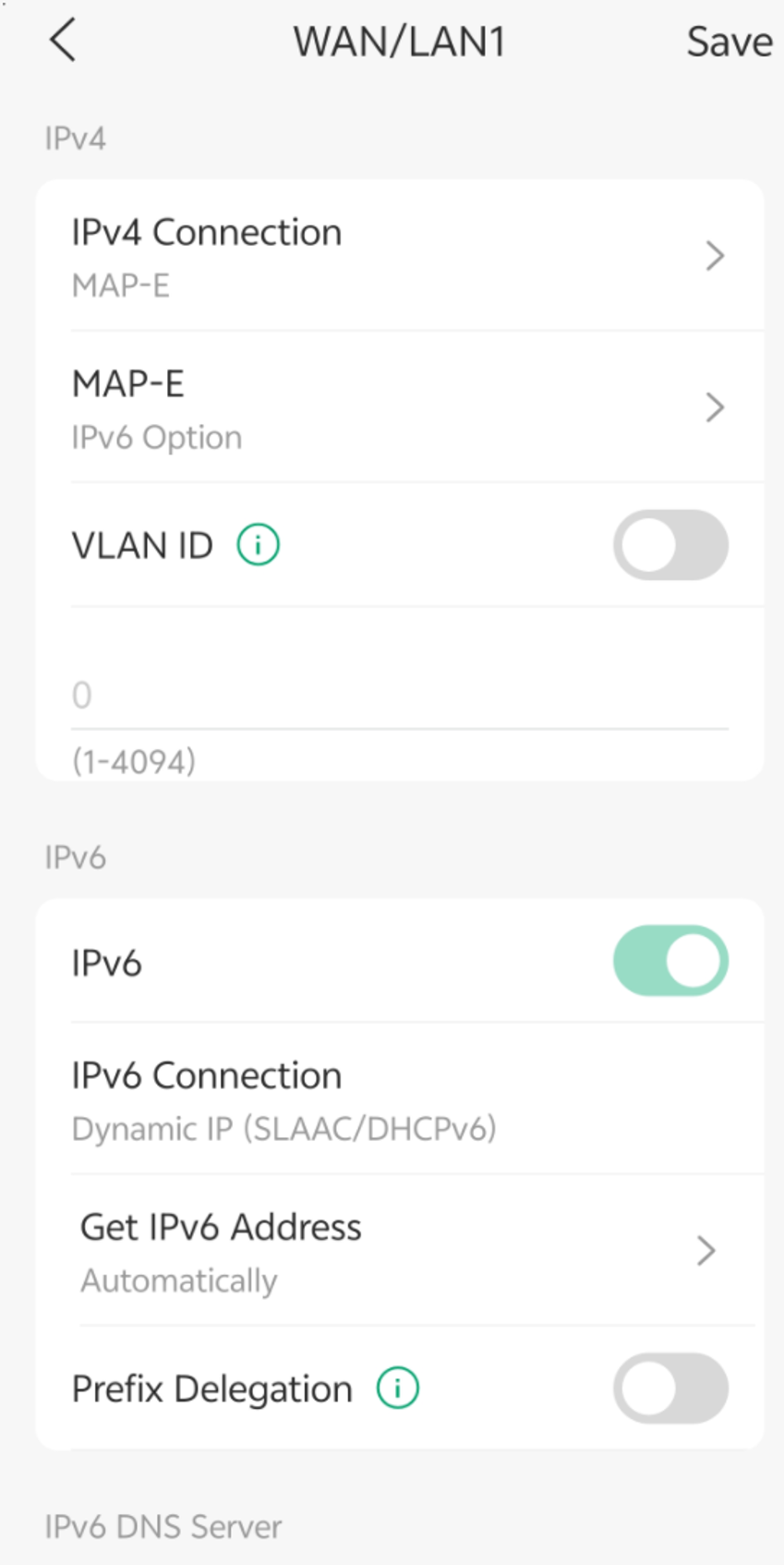
MAP-E is typically used by IPv6-based ISPs that provide IPv4 connectivity through IPv4-over-IPv6 encapsulation using mapping rules assigned by the ISP.
Step 1. Select MAP-E under IPv4 Connection.
Step 2. Select the ISP service profile:
- V6 Plus
- IPv6 Option
- OCN Virtual Connect
These profiles correspond to different ISP MAP-E deployments. Select the profile specified by the ISP. If the correct profile is unknown, contact the ISP for assistance.
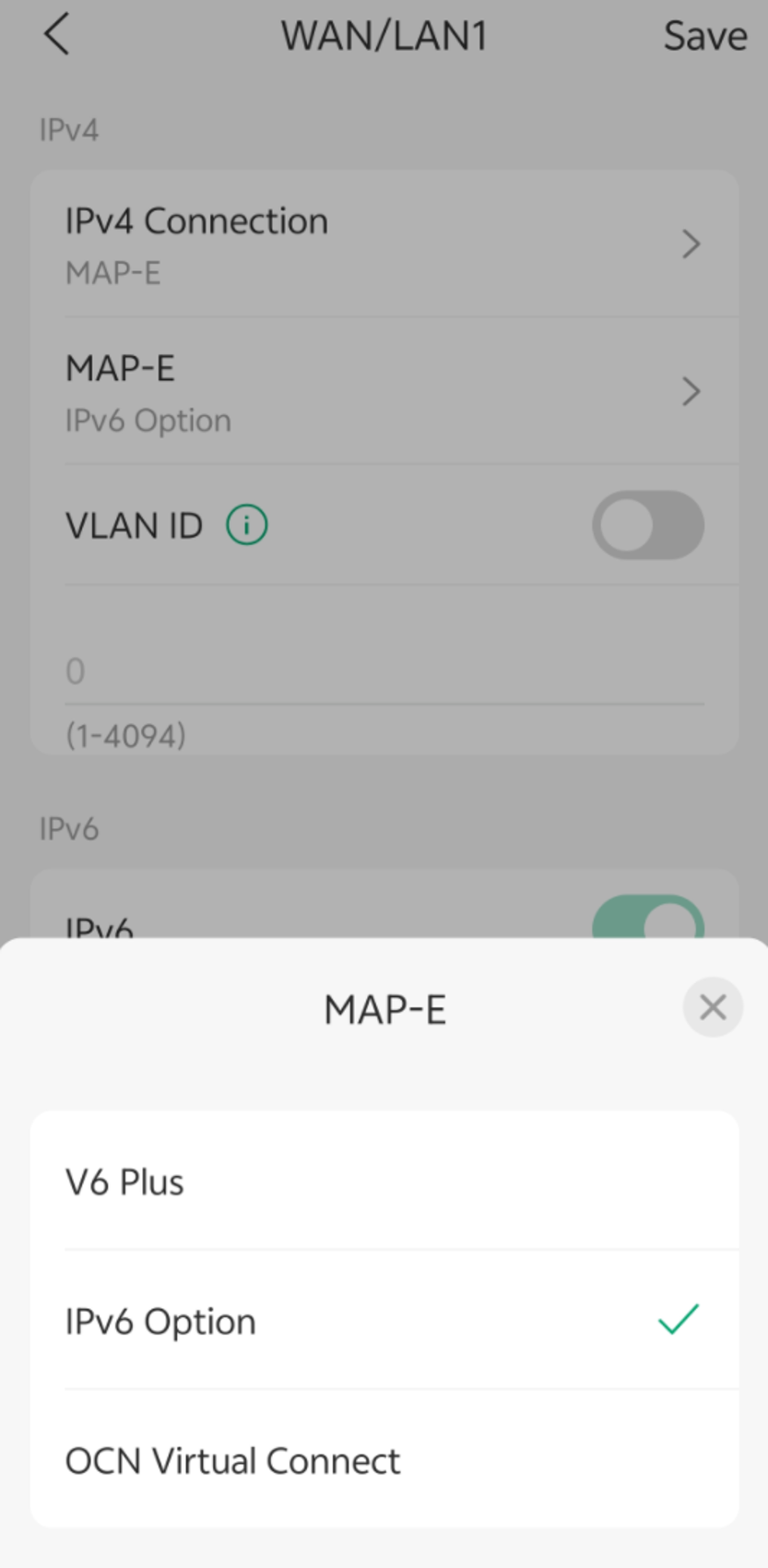
Step 3. Configure ISP-required settings and tap Save.
The IPv6 connection is automatically enabled when MAP-E is selected. IPv6 addresses can only be obtained through:
- SLAAC
- DHCPv6
PPPoA
PPPoA is typically used in legacy ADSL deployments where authentication is performed over an ATM-based network using credentials provided by the ISP.
Note: PPPoA and IPoA are only available on ADSL WAN interfaces. These connection types are not supported on VDSL WAN interfaces. If the gateway is configured to use a VDSL WAN interface, PPPoA and IPoA will not appear in the IPv4 Connection list.
Step 1. Set DSL Modulation Type to ADSL.
Step 2. Select PPPoA under IPv4 Connection.
Step 3. Configure the DSL parameters provided by the ISP. The DSL WAN configuration page may require:
- Location
- ISP
- DSL Modulation Type (ADSL here)
- VPI/VCI values, if required by the ISP
Step 4. Enter the credentials provided by the ISP. The PPPoA configuration page requires:
- Username
- Password
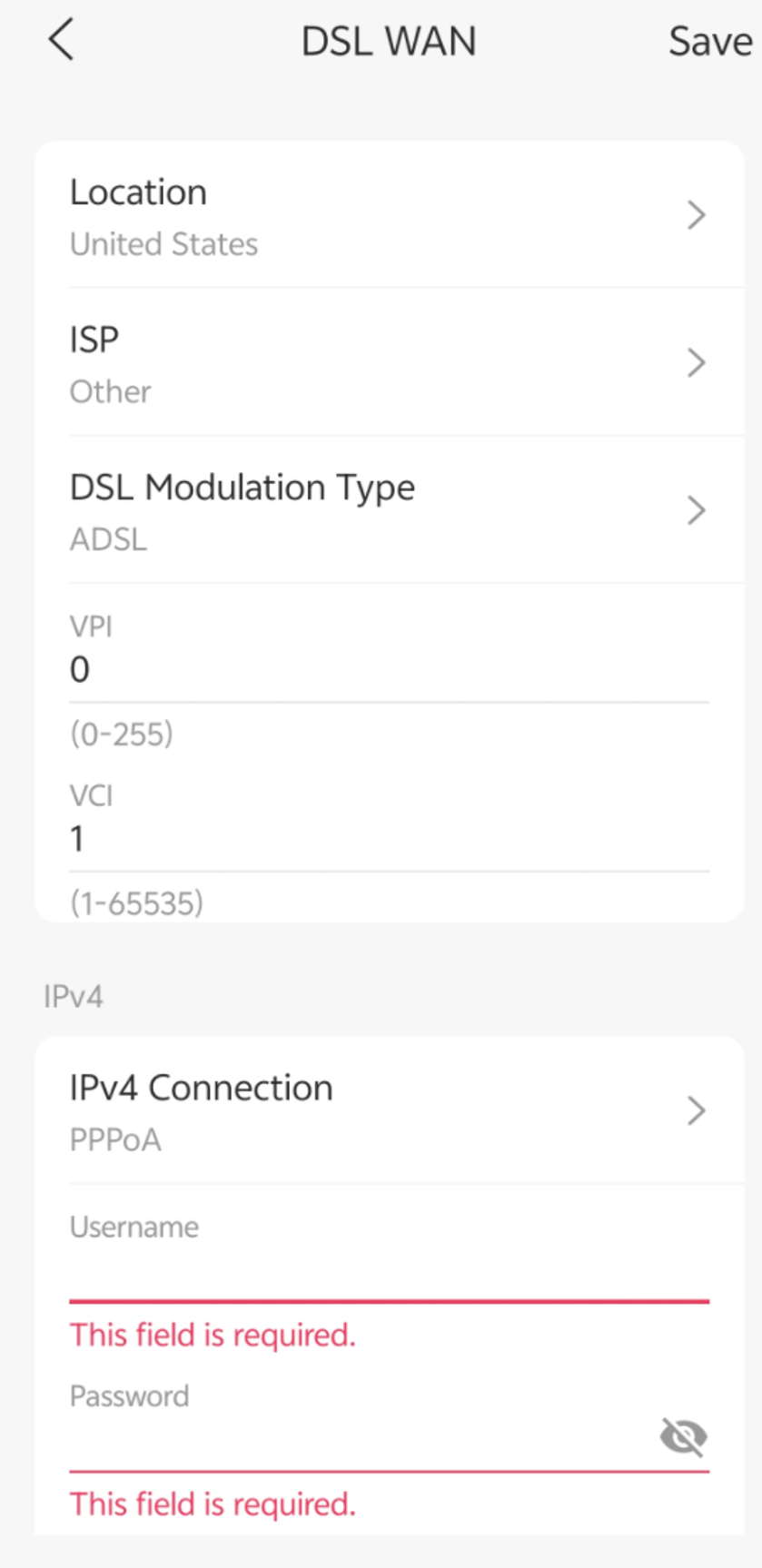
Step 5. Tap Save to apply the settings.
IPoA
IPoA is typically used in legacy ADSL deployments where the ISP provides IP connectivity over an ATM-based network without PPP authentication.
Step 1. Set DSL Modulation Type to ADSL.
Step 2. Under IPv4 Connection, select IPoA.
Step 3. Configure the DSL parameters provided by the ISP. The DSL WAN configuration page may require:
- Location
- ISP
- DSL Modulation Type (ADSL here)
- VPI/VCI values, if required by the ISP
Step 4. Enter the IP parameters provided by the ISP. The IPoA configuration page requires:
- IP Address
- Subnet Mask
- Default Gateway
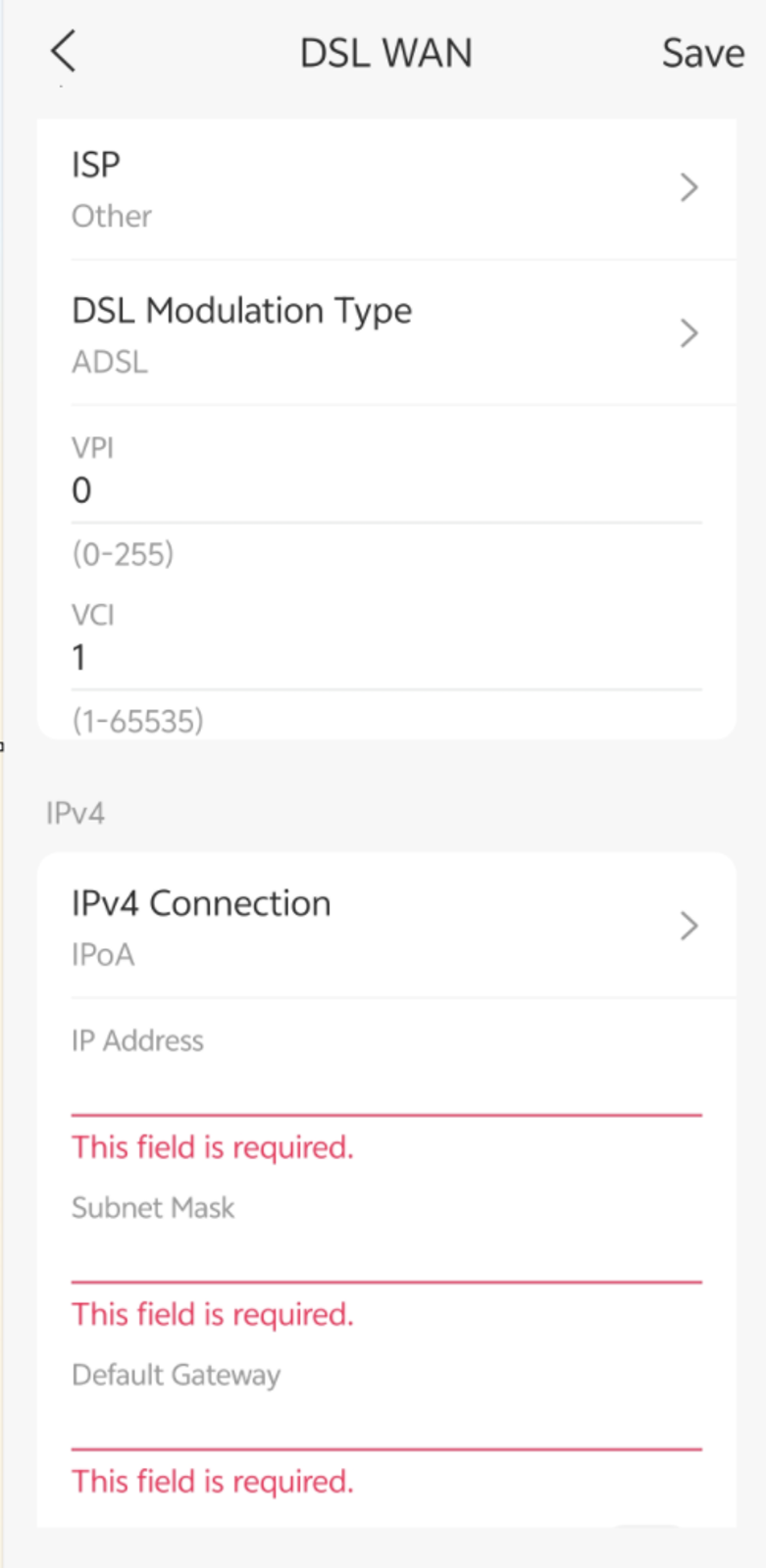
Step 5. Tap Save to apply the settings.
LTE
LTE is typically used when Internet access is provided through a cellular network using one or more SIM cards installed in an LTE-capable gateway. It is commonly used for mobile broadband, remote deployments, temporary sites, and WAN backup scenarios.
Step 1. Go to Settings > Internet Settings and select the LTE WAN interface.
Step 2. Enable Mobile Data.
Note: The displayed interface varies by gateway model.
- Dual-SIM models display the interface shown in Figure 1.
- Single-SIM models display the interface shown in Figure 2.
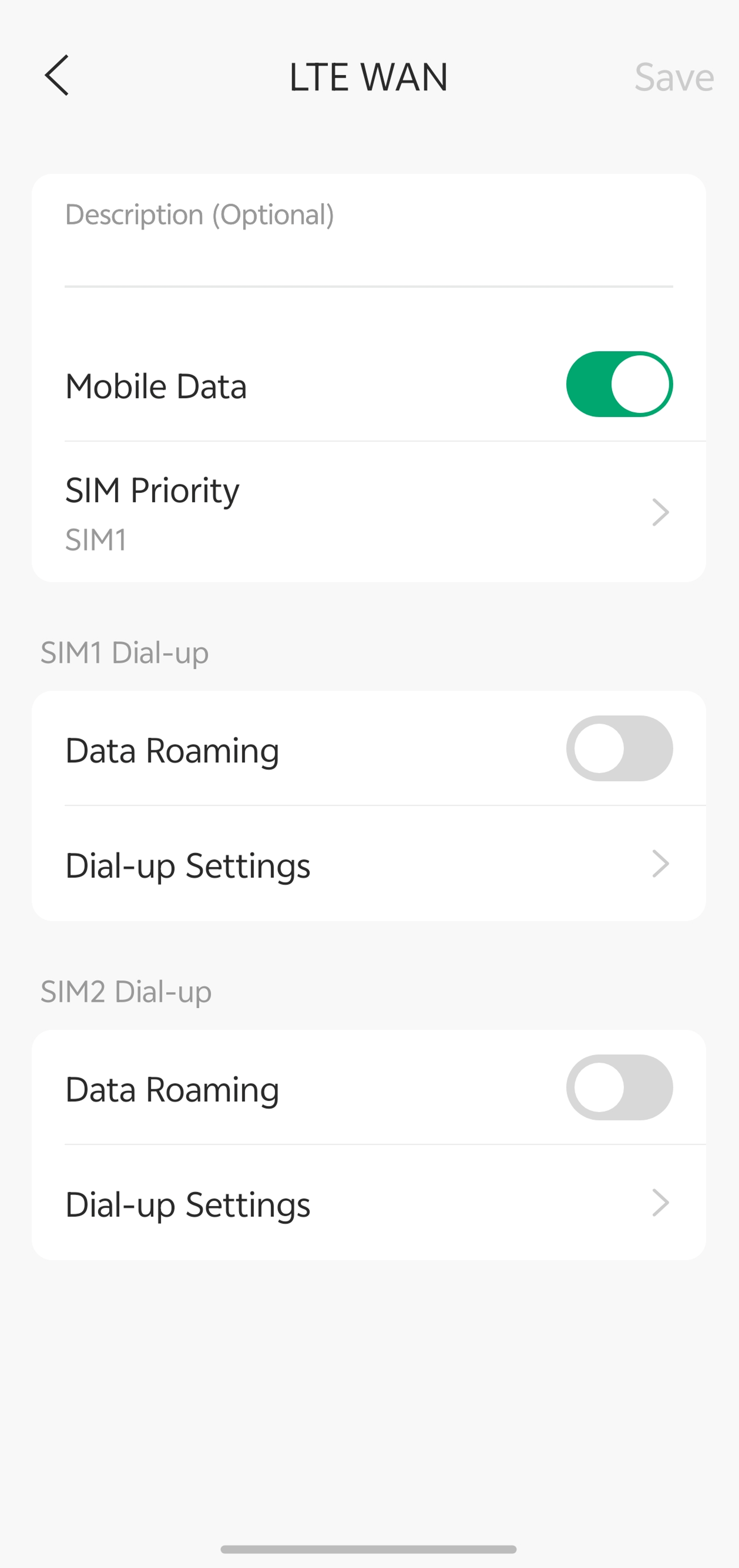
Figure 1.
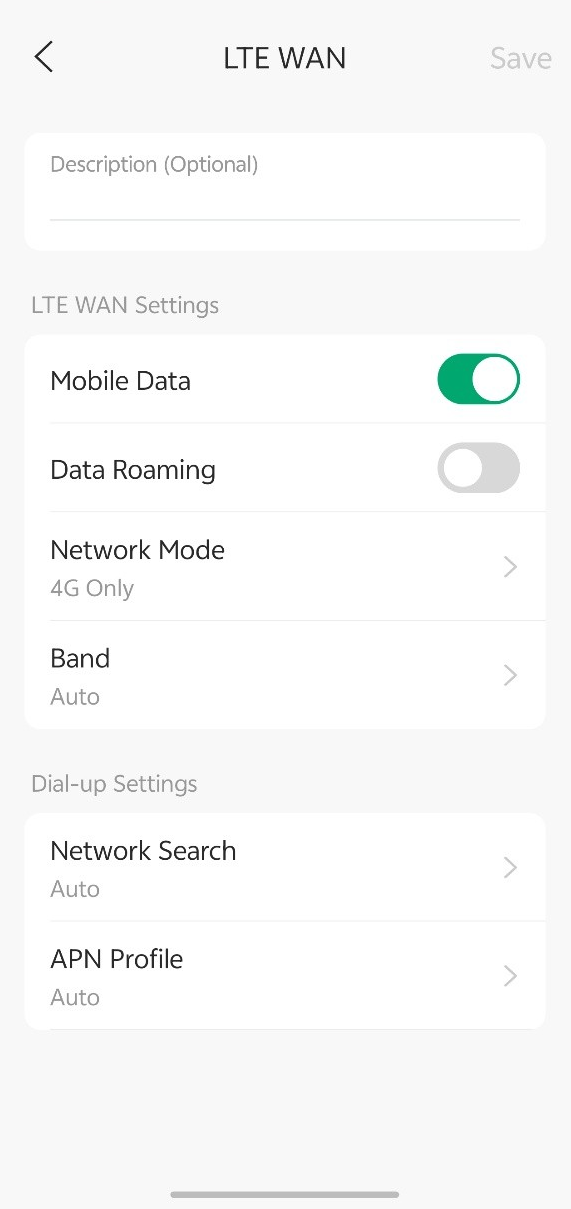
Figure 2.
Step 3 (Optional). Configure SIM Priority for dual-SIM models.
If the gateway supports multiple SIM cards, tap SIM Priority and select the preferred SIM card. The selected SIM card will be used first for Internet access, while the secondary SIM card can serve as a backup.
Note: This option is available only on models that support dual SIM cards. Single-SIM models do not display the SIM Priority setting.
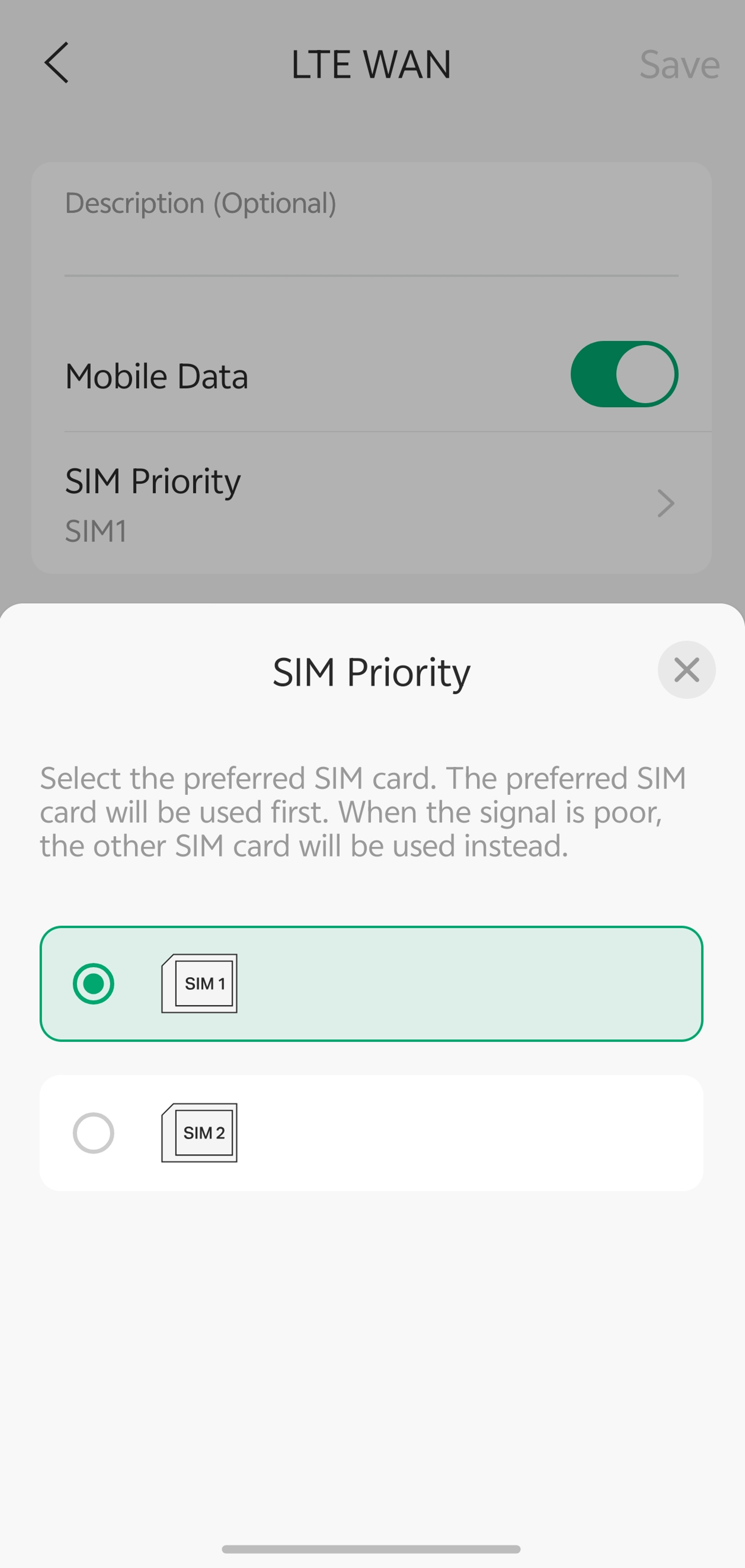
Step 4 (Optional). Configure Dial-up Settings, including:
- Network Search
- APN Profile
- Network Mode
- Band
- Failover Dial-Up Time Out
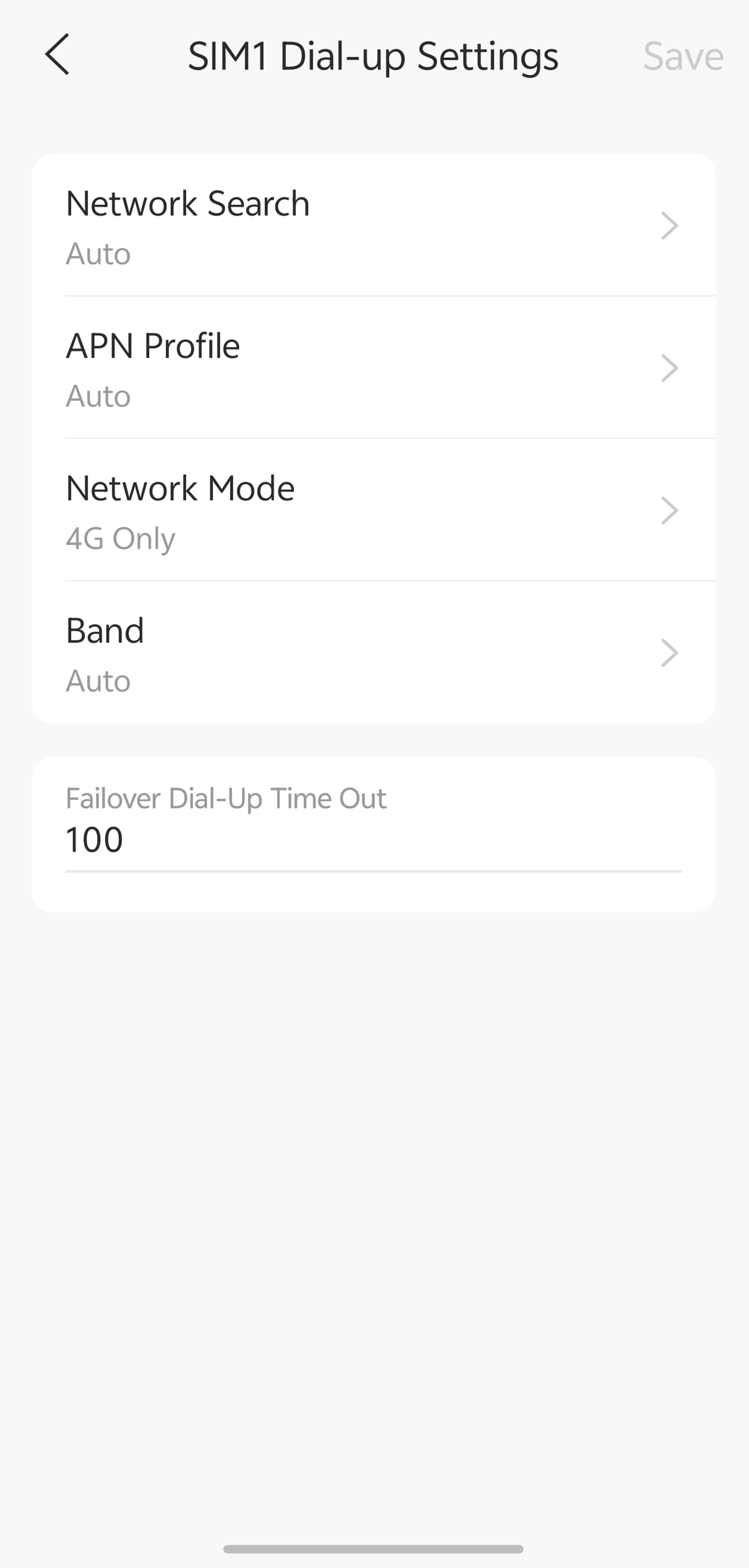
Default values can be retained, or the settings can be customized based on the mobile network operator's recommendations.
Step 5. Tap Save to apply the configuration.
USB Modem
USB Modem is typically used when Internet access is provided through a supported USB dongle with an active SIM card connected to the gateway. It is commonly used for mobile broadband, temporary deployments, and WAN backup scenarios.
Step 1. Go to Settings > Internet Settings and select the USB Modem interface.
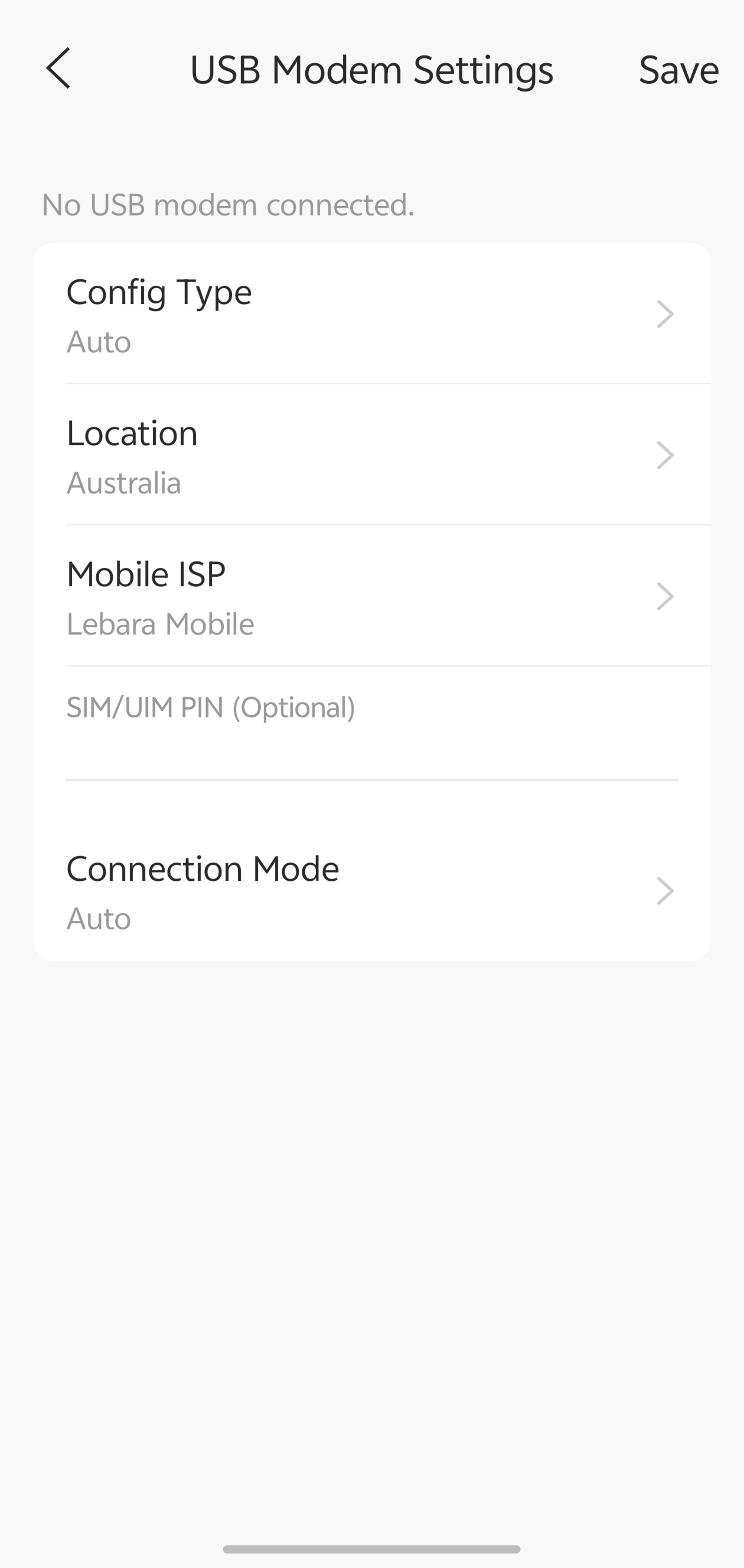
Step 2. Connect a supported USB modem with an active SIM card to the gateway.
Step 3. Tap Config Type and select either Auto or Manually.
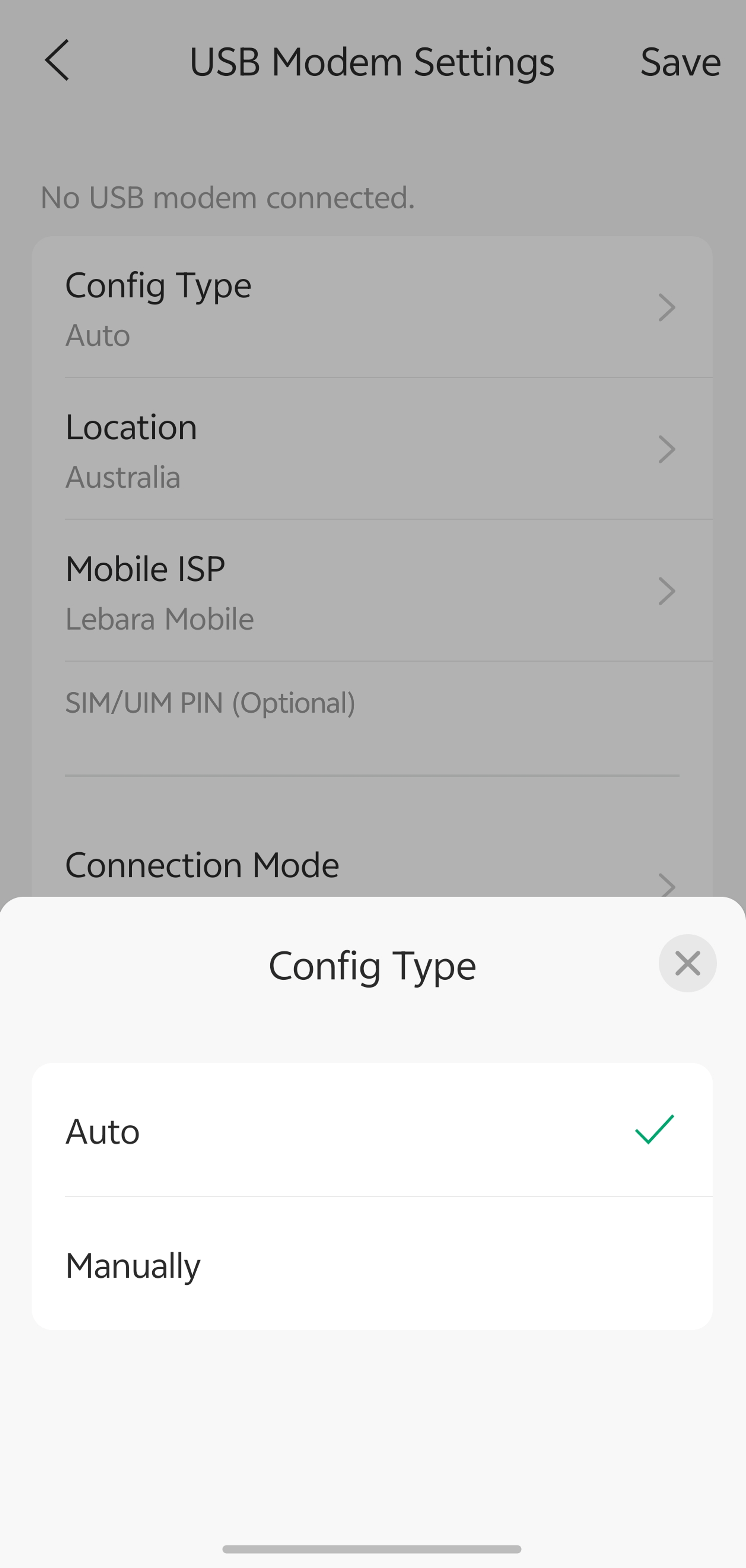
Auto Mode
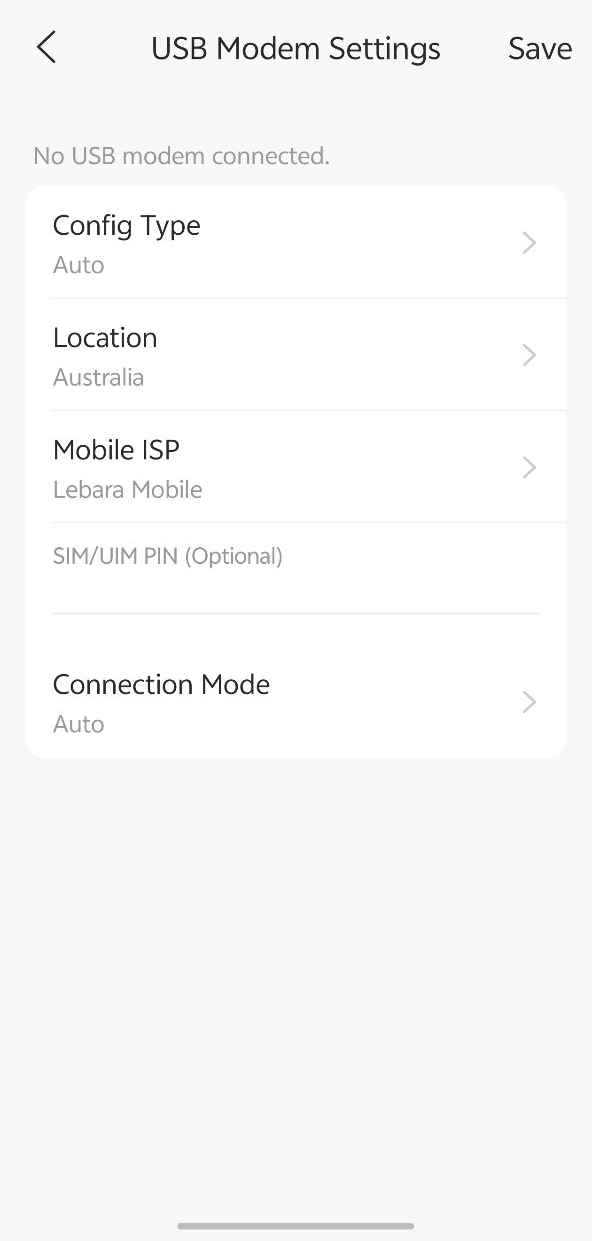
Select Auto under Config Type.
Configure the following settings:
- Location
- Mobile ISP
- SIM/UIM PIN (Optional)
- Connection Mode
The gateway automatically applies the corresponding carrier settings based on the selected Location and Mobile ISP.
Manual Mode
Select Manually under Config Type.
Configure the following settings:
- Dial Number
- SIM/UIM PIN (Optional)
- Connection Mode
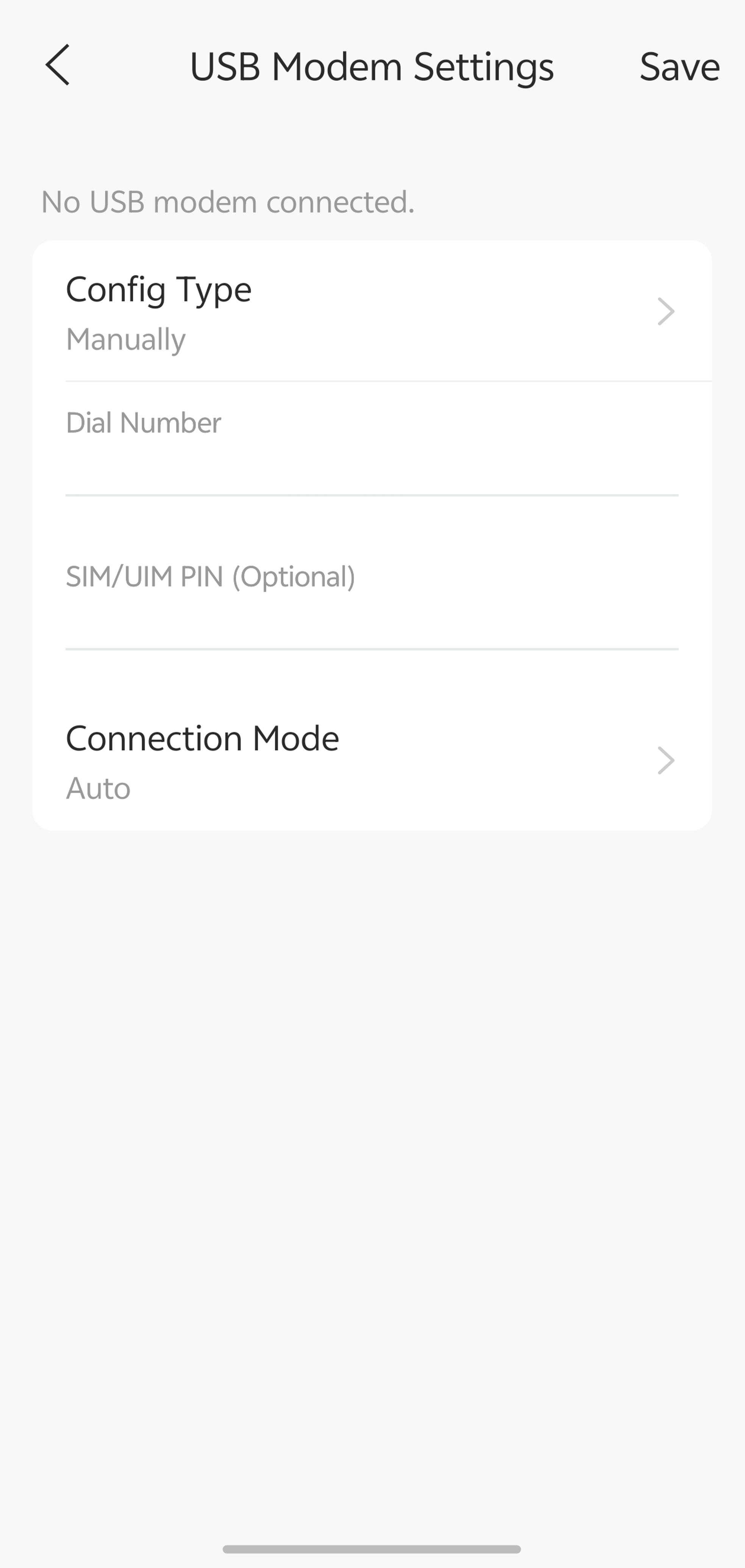
Manual mode is typically used when the carrier profile is unavailable, or the mobile network operator requires custom dial-up parameters.
Step 4. Tap Save to apply the configuration.
Configure IPv6 Internet acccess (Optional)
In addition to IPv4 Internet access, Omada gateways support IPv6 connectivity. If IPv6 service is provided by the ISP, IPv6 can be enabled on the WAN interface and configured using the appropriate connection type.
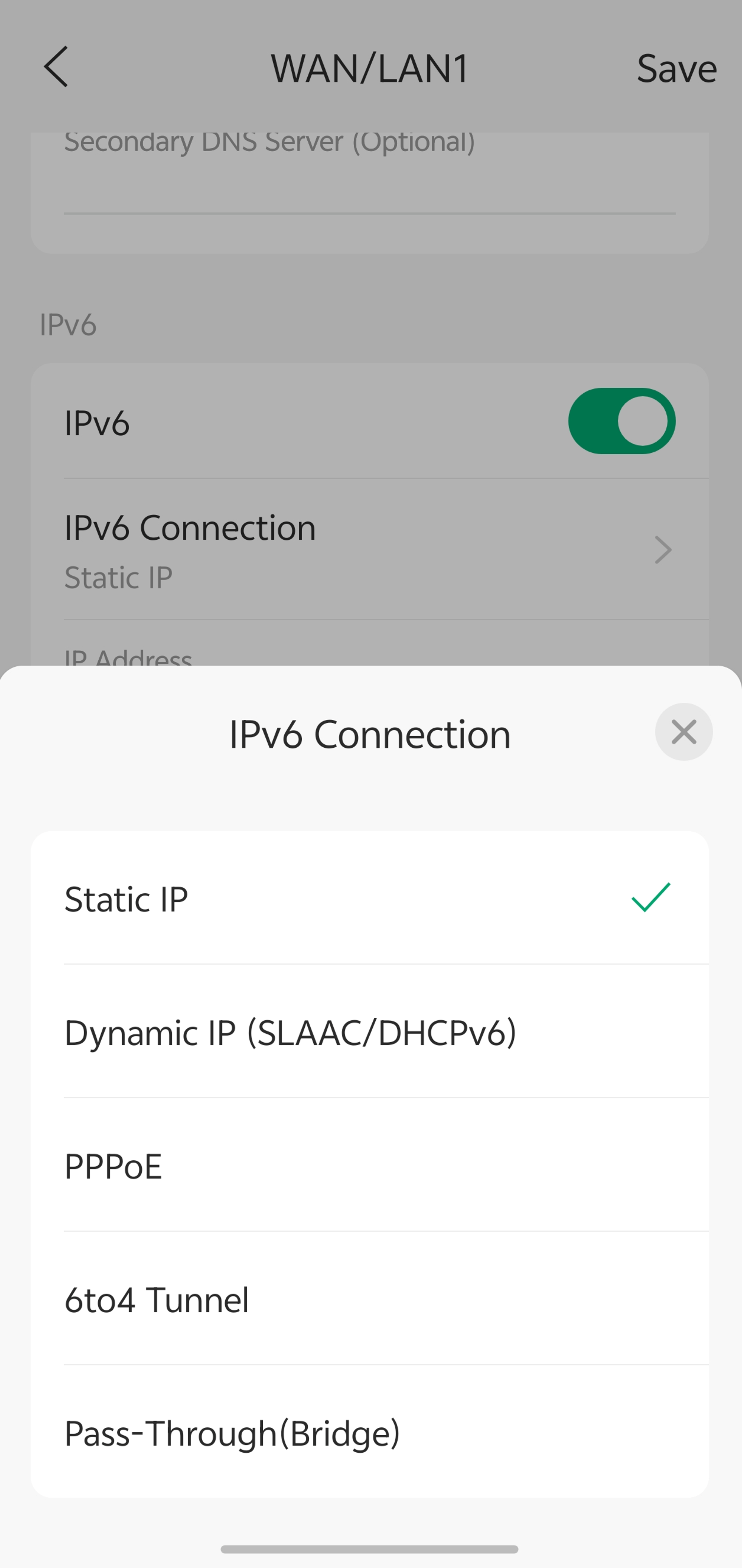
Step 1. Enable IPv6 on the WAN interface.
Step 2. Select an IPv6 connection type:
- Dynamic IP (SLAAC/DHCPv6): Automatically obtains IPv6 addressing information from the ISP through SLAAC, DHCPv6, or both.
- Static IP: Requires manually configuring the IPv6 address, prefix length, default gateway, and DNS server information provided by the ISP.
- PPPoE: Uses the IPv6 PPPoE credentials provided by the ISP.
- 6to4 Tunnel: Enables IPv6 connectivity over an IPv4 network using 6to4 tunneling.
- Pass-Through (Bridge): Transparently forwards the IPv6 connection to downstream devices without performing IPv6 routing on the gateway.
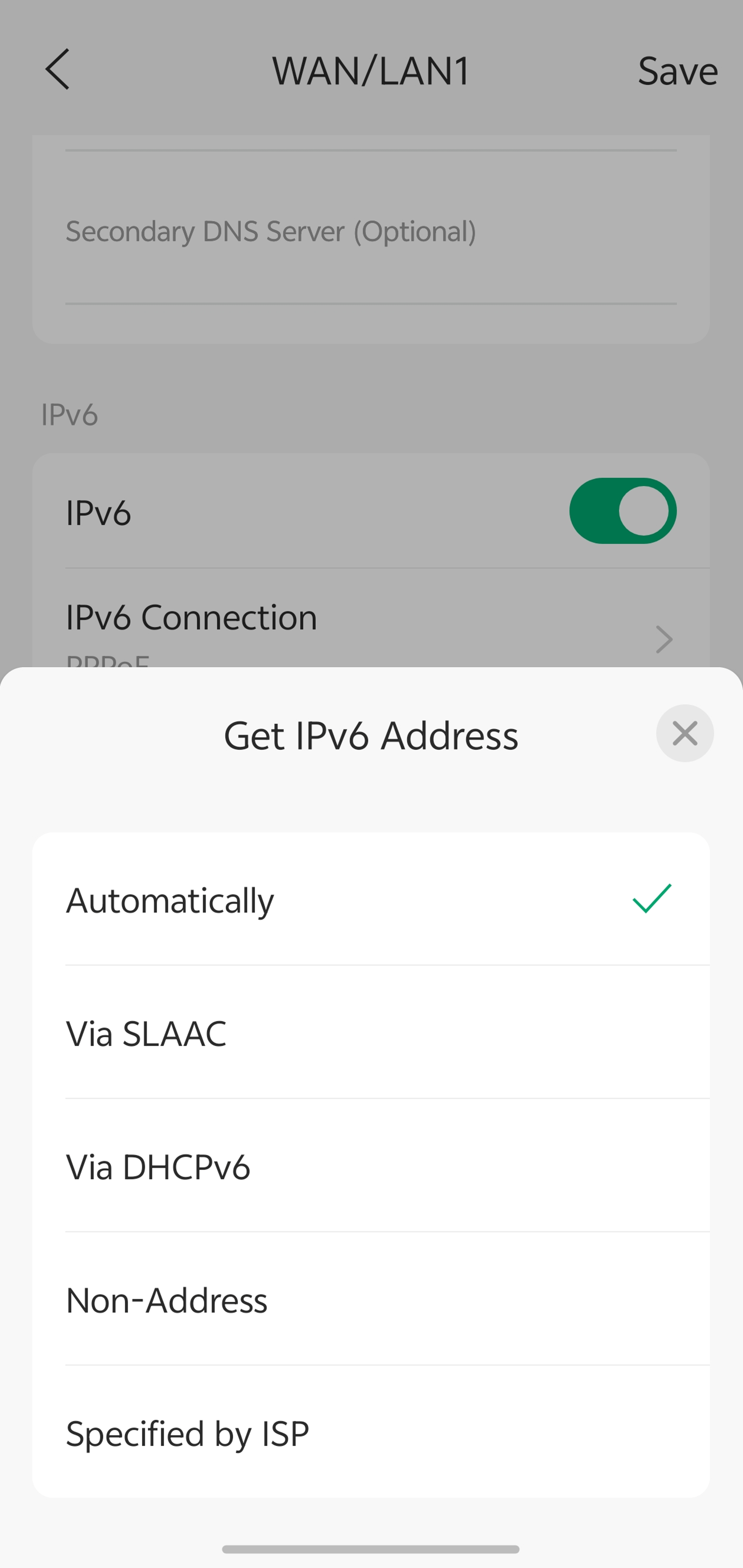
Step 3. For Dynamic IP and PPPoE connections, configure the IPv6 address acquisition method.
Available options include:
- Automatically: Automatically selects the IPv6 address acquisition method.
- Via SLAAC: Obtains an IPv6 address through Stateless Address Autoconfiguration (SLAAC).
- Via DHCPv6: Obtains IPv6 addressing information from a DHCPv6 server.
- Non-Address: Does not obtain a WAN IPv6 address and is typically used in ISP-specific deployment scenarios.
- Specified by ISP: Applies the IPv6 address acquisition method required by the ISP.
Step 4. Configure additional IPv6 settings, such as Prefix Delegation and IPv6 DNS Server options, if required by the ISP, then tap Save.
Conclusion
You have now successfully configured Internet Settings on your gateway using the Omada App. Omada supports multiple Internet connection types, including Dynamic IP, Static IP, PPPoE, L2TP, PPTP, DS-Lite, MAP-E, PPPoA, and IPoA, allowing you to meet the requirements of different ISP and network environments.
The available connection types depend on the WAN port type and gateway capabilities. By selecting the appropriate connection type and entering the information provided by your ISP or VPN administrator, you can establish a stable Internet connection for your network.
If the controller version meets the requirements and the WAN port type supports the desired connection type, but the expected options are not displayed, ensure that the gateway is running the latest firmware version.
To learn more about each function and configuration, please visit Support Home to download or check the manual for your product.
